
Windows Speech Recognition skill: detect custom phrases via PC mic, trigger configurable scripts/actions with adjustable confidence.
 Windows
How to add the Speech Recognition robot skill
- Load the most recent release of ARC (Get ARC).
- Press the Project tab from the top menu bar in ARC.
- Press Add Robot Skill from the button ribbon bar in ARC.
- Choose the Audio category tab.
- Press the Speech Recognition icon to add the robot skill to your project.
Don't have a robot yet?
Follow the Getting Started Guide to build a robot and use the Speech Recognition robot skill.
How to use the Speech Recognition robot skill
The Speech Recognition robot skill uses the built-in Microsoft Windows Speech Recognition Engine to listen for known phrases using your computer’s default audio input device (microphone). Phrases are configured manually in the Settings, and each phrase can trigger a custom action using scripts and commands.
This skill is not free-form dictation. Only the phrases you configure (plus the optional Enable/Disable phrases) are loaded into the recognizer’s dictionary. Anything else you say is either ignored or reported in the log as heard but not matched.
Most robots generate significant noise from motors, servos, fans, and room echo. Because of this, placing the microphone on the robot is often impractical. For best results, place the microphone on the controlling PC/laptop, on yourself, or elsewhere in the room closer to your mouth and farther from the robot. Increasing microphone gain can help detect speech across larger rooms, but it also increases false positives, so keeping the microphone closer to your mouth is ideal. A headset or Bluetooth microphone will generally provide far better results than a built-in laptop microphone.
Main Window
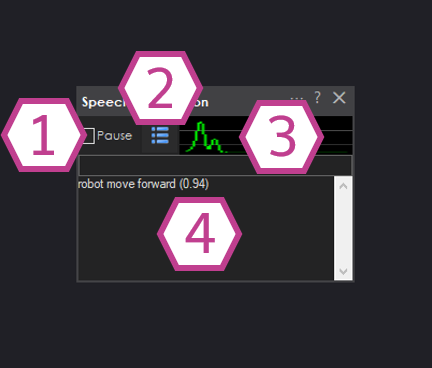
1. Pause Checkbox
Pauses phrase actions. While paused, the microphone keeps listening and the waveform keeps updating, but recognized phrases
will not execute their scripts. The Enable and Disable phrases are the exception — they are
always processed, which is what allows you to unpause the skill with your voice.
The pause state is saved with your project and restored when the project is loaded.
2. Phrase List Button
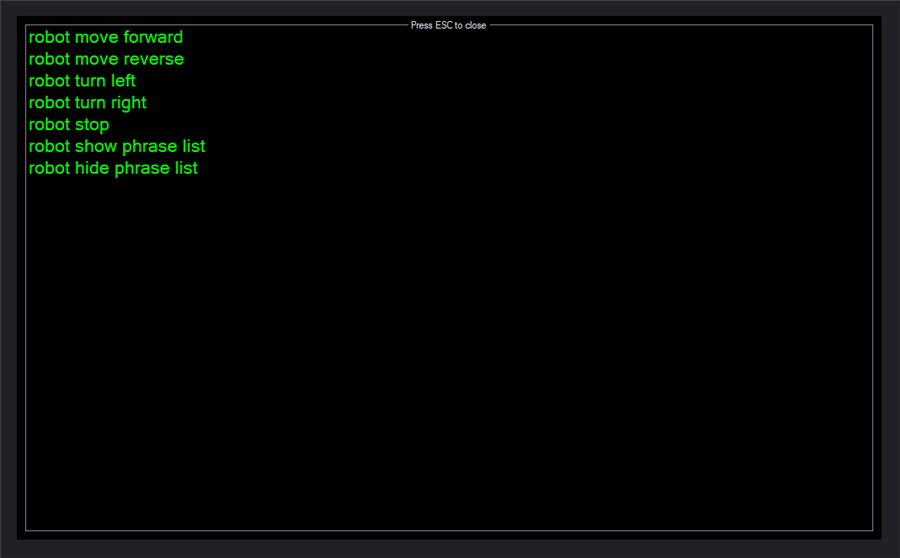
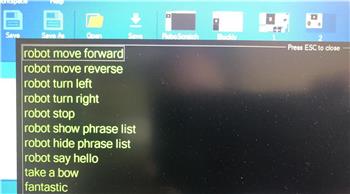
Toggles a window listing the phrases configured in the Settings, so you can quickly review what the skill is listening for.
Clicking a phrase in that window triggers it exactly as if it had been spoken with 100% confidence, which is
handy for testing your scripts without a microphone. Press Esc to close the window.
3. Audio Waveform
Displays live audio waveform feedback to confirm your microphone is configured correctly and actively receiving sound.
The waveform is drawn in green when the skill is active and in red when it is paused.
4. Response Display
Shows detection and execution feedback. When a phrase is recognized, the log displays the matched phrase and its confidence in
brackets, for example robot move forward (0.89). Other messages you may see:
Low confidence: <phrase> (0.62)— heard, but below your confidence threshold.Enabled/Disabled— the Enable or Disable phrase was recognized.Weird, heard but not detected: <phrase>— the engine returned a phrase that is not in the current list (usually after the list was changed while listening).
5. Audio Quality Messages
When the recognition engine reports an audio signal problem, a short hint is displayed: No audio signal,
Speak slower, Speak faster, Speak quieter, Speak louder, or
Background audio too noisy. The message is cleared the next time a phrase is successfully matched.
Automatic Pause While The Robot Speaks
The skill automatically pauses itself while ARC is speaking, so the robot does not recognize its own speaker output as a command. When speech begins, Pause is checked. When all speech has finished, the Pause checkbox is restored to the value you had set before the robot started talking — so if you had manually paused the skill, it stays paused afterward.
Overlapping or back-to-back speech is counted, so the skill only resumes after the last utterance completes. If a completion event never arrives (for example, speech that is rendered to a file or a stream that fails), a watchdog force-resumes after 60 seconds and notes the recovery in the Response Display.
Settings
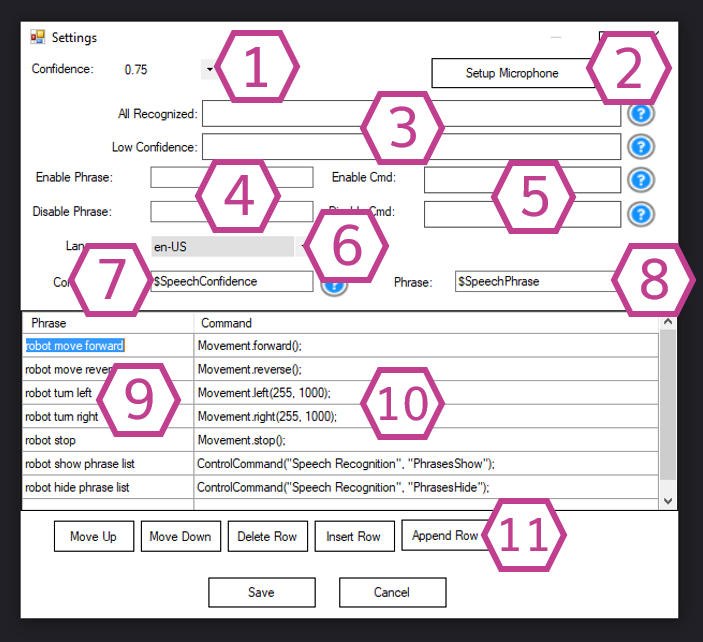
Listening is paused while the Settings dialog is open, and resumes when the dialog is closed.
1. Confidence Drop-down
Sets the minimum confidence required for a phrase to be accepted, selectable from 0.50 to 0.95
(default 0.75). Phrases detected below this threshold do not execute their action; they are logged as
Low confidence and run the Low Confidence script instead. If your phrases are not being detected reliably, reduce the
confidence setting.
Note: Lower confidence thresholds increase the chance of false positives.
2. Setup Microphone Button
Opens the Windows Recording devices dialog (Sound control panel). Use this to verify the correct input device is selected
and to confirm the audio meter responds when you speak.
3. Recognition Scripts
All Recognized runs whenever a phrase from the list is matched at or above the confidence threshold. It runs
before that phrase’s own script and completes first, so it is a good place for logging, diagnostics, or common
setup shared by every phrase.
Low Confidence runs when a phrase was heard below the confidence threshold. It does not run while the skill is paused.
4. Enable / Disable Phrase Fields
Optional phrases that unpause and pause the skill by voice. They are added to the recognizer dictionary automatically and are
matched even while the skill is paused, which is how the Enable phrase can wake it back up. Leave them blank if
you do not want voice-controlled pausing. Matching is case-insensitive.
5. Enable / Disable Command Scripts
The scripts executed when the Enable/Disable phrases are recognized. This is commonly used to control robot behavior
such as entering a “listening mode” or disabling speech during loud activities.
6. Language Drop-down
ARC uses the speech recognition capabilities built into Windows, so the list contains only the recognizer languages installed on
your computer. ARC defaults to EN-US if installed, otherwise it uses the first installed language that supports
speech recognition. If multiple supported languages are installed, select the desired language here.
For more information on installing additional speech recognition languages, view:
https://www.tenforums.com/tutorials/120631-change-speech-recognition-language-windows-10-a.html
Here is how to add a new language pack:
- Go to Start and open Settings.
- Select Time & language > Language.
- Select the language you want to add speech to, then select the Next button.
- Select the speech options you want included with the language.
- Sign out and sign back in for the new speech pack to be added to speech options.
- Go back to Settings > Time & language > Language, select your new language, and move it to the top to make it default.
- Go to Speech and ensure the Speech language setting matches your new default language.
- Sign out and sign back in for the new settings to take effect.
- Select the desired language from the ARC Speech Recognition configuration menu.
7. Confidence Variable
The global variable that stores the confidence value (decimal, 0 to 1) of the last recognized phrase. Defaults to
$SpeechConfidence. The name must begin with a $.
8. Phrase Variable
The global variable that stores the text of the last recognized phrase. Defaults to $SpeechPhrase.
The name must begin with a $.
Both variables are updated for every recognition — including low confidence results and while the skill is
paused — so a script can inspect what was heard even when no action was executed.
9. Phrase List
The list of phrases to recognize. You can customize the defaults and add additional phrases. Rows with an empty phrase or an
empty command are discarded when you press OK, and leading/trailing spaces are trimmed from phrases.
10. Command List
The command/action corresponding to each phrase in the same row. Each row can be an EZ-Script, Blockly, JavaScript, or Python
script. You can customize commands and add additional rows.
11. List Management Buttons
Buttons for managing phrase rows: move up/down, insert, append, and delete.
More than 10 phrases requires an ARC subscription assigned to this computer. If no subscription is assigned, only the first 10 phrases in the list are loaded into the recognizer; the remaining phrases will never be recognized. The Enable and Disable phrases are always loaded and do not count toward the limit.
Recognition Order
When Windows reports a recognized phrase, the skill processes it in this order:
- The phrase and confidence variables are updated.
- If the confidence is below the threshold, the result is logged as Low confidence, the Low Confidence script runs (unless paused), and processing stops.
- If the phrase matches the Enable phrase, Pause is turned off and the Enable script runs. This happens even while paused.
- If the phrase matches the Disable phrase, Pause is turned on and the Disable script runs.
- If the skill is paused, processing stops here — no phrase script runs.
- The phrase list is searched (case-insensitive). On a match, the All Recognized script runs to completion, then the phrase’s own script is started.
- If nothing matched, the log shows Weird, heard but not detected.
Control Commands
Other robot skills and scripts can control this skill with ControlCommand(). Replace Speech Recognition with
the title of this skill if you have renamed it.
| Command | Description |
|---|---|
ControlCommand("Speech Recognition", "PauseOn") |
Pauses phrase actions. |
ControlCommand("Speech Recognition", "PauseOff") |
Resumes phrase actions. |
ControlCommand("Speech Recognition", "PauseToggle") |
Toggles the paused state. |
ControlCommand("Speech Recognition", "PauseMS", milliseconds) |
Pauses for the specified number of milliseconds, then resumes automatically. Calling it again restarts the timer. |
ControlCommand("Speech Recognition", "PhrasesShow") |
Populates and displays the phrase list window. |
ControlCommand("Speech Recognition", "PhrasesHide") |
Hides the phrase list window. |
getVar(ControlCommand("Speech Recognition", "PauseGet")) |
Returns the current paused state as a boolean. Available to scripting languages that support return values. |
How to Use Speech Recognition
- Install, configure, and test your audio input device (see Resources below).
-
Add the Speech Recognition skill to your ARC project:
Project → Add Skill → Audio → Speech Recognition.
Note: This is different from Advanced Speech Recognition. - In Settings, configure your phrases and the corresponding commands/scripts.
- Save your settings, then speak your configured phrases into the microphone to trigger the actions.
- Use the Phrase List button to test a phrase by clicking it, which runs the action without needing to speak.
Requirements
Headset or External Mic
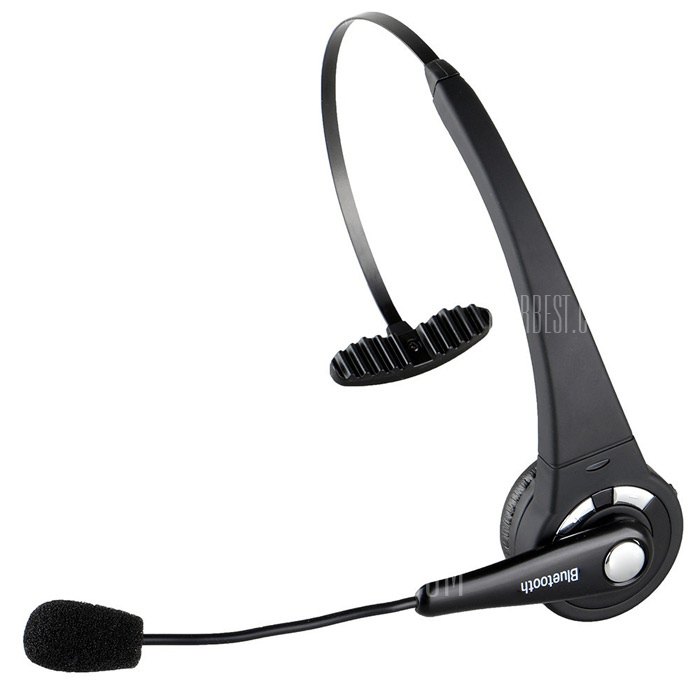
A headset or external microphone produces better results than a built-in PC/laptop microphone. It helps the recognition engine capture your voice clearly with less background noise. Laptop fans, motors, radio interference, and room echo can cause false positives (the skill recognizes an incorrect phrase). An external mic also helps prevent the speech engine from hearing the robot’s own speaker output.
Resources
Configure Audio Input Device
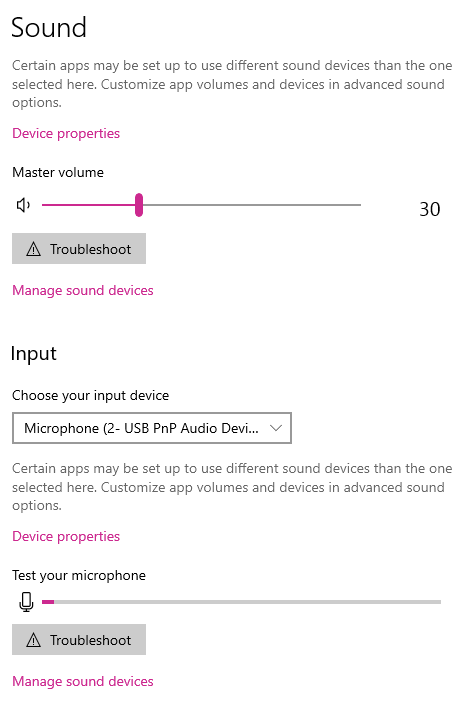
You may need to adjust your microphone input volume/gain. Use the Windows Volume Mixer and ensure you have selected the correct input device. Some systems have multiple microphones (for example: webcam microphone, headset microphone, Bluetooth microphone). Follow these steps:
- Right-click the speaker icon in the system tray.
- Select Open Sound Settings.
- In the Input section, confirm the correct microphone is selected and that the VU meter moves when you speak.
- Click Device Properties and adjust the volume slider. We often use a value around 78, but your setup may differ.
- Adjust volume so normal speech peaks near the middle of the VU meter. If the gain is too high, audio distorts and recognition quality drops.
Voice Training
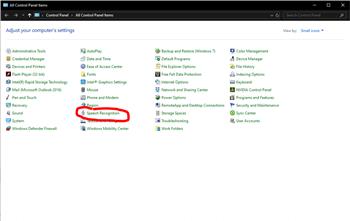
You can train Windows Speech Recognition using the built-in training wizard. Open the Windows Control Panel, search for Speech Recognition, and run the training wizard to improve accuracy for your voice.
Troubleshooting
- If you receive an error that the input device could not be opened, Windows privacy/security settings may be blocking microphone access for Synthiam ARC. Follow this guide to enable microphone access: https://synthiam.com/Support/troubleshooting/camera-audio-microphone-issues .
-
If you receive an error stating Voice Recognition was unable to start (invalid OS or missing device), verify:
- A microphone is set as the default recording device in Windows sound settings.
- A Windows language pack is installed that supports Windows Speech Recognition.
-
If the waveform is red and nothing responds, the skill is paused. Uncheck Pause, speak the Enable phrase, or check whether a script
is issuing a
PauseOn/PauseMScontrol command. - If a phrase near the bottom of your list never triggers, confirm the list contains 10 or fewer phrases, or assign an ARC subscription to this computer.
- If the log repeatedly shows Low confidence, lower the confidence threshold in Settings or improve microphone placement and input level.
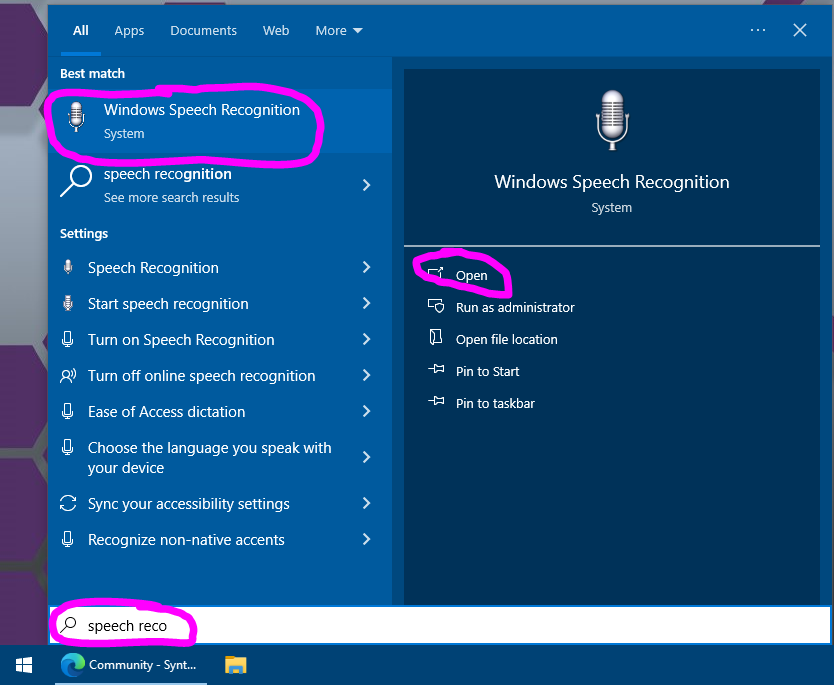
To confirm Windows Speech Recognition is working, open the built-in Windows Speech Recognition application: click the Start button and type Speech Recognition. Launch Windows Speech Recognition to verify your microphone, operating system, and language support. This Microsoft tool includes diagnostic dialogs that ARC does not provide.
Video

Related Tutorials
Randomizing Answers In Speech Recognition

Speech Recognition Say It Didn't Understand You
Speech Recognition Tutorial

Synbot Plugin Tutorial - Interface To Syn Bot Software
Vision Training: Object Recognition
Related Hack Events
Related Questions
Brazilian Speech Recognition
Speech Recognition Screen Popping Up.

Upgrade to ARC Pro
Your robot can be more than a simple automated machine with the power of ARC Pro!
All is good now, always did work, just windows going it's thing, oh well
Speech recognition uses the built-in microsoft speech recognition engine. There is nothing synthiam can do to enhance or change the engine, as it's not opensource and owned by Microsoft. Follow the instructions above
All is good now
just did the old windows reboot, now works
Hi there,
Sometimes when I open ARC, my speech recognition box doesn't detect the soundwaves. It shows the soundwave box as grey and not the red and green lines, even when I have connected the program with my microphone.
The person I am working with came to the conclusion that it might be because I didn't start with the JD Bare file when I opened the project. He has been starting with the JD Bare project every time we open the program and merging it with the previously saved program, rather than opening the saved program directly because of this issue with the speech recognition. But I thought it was inconvenient to do that and that surely I should be able to open previously saved projects and have them work.
I have run out of ideas. Any suggestions on how to fix this are much appreciated.
Can you verify the speech recognition skill that you’re using is the bing speech recognition? Or just speech recognition?
General speech recognition, not bing.
Okay - I’ll see if I can reproduce it. Stay tuned
Thanks, DJ
This is what the Speech Recognition window looks like for me sometimes when I open my previously saved programs. Notice how the soundwaves cannot be seen up the top right? I'm baffled!