
Properties
Project Properties holds the details saved inside the project file: what the project is, how it behaves when it loads, which robot skill listens for scripts, the names given to ports, and a notepad. Use it to describe a project before you share it, to add a script that sets the robot up every time the project opens, or to lock down the robot's own control panel.
These settings belong to the project, not to this computer. They are kept only when you save the project. The note Kept when you save the project at the top right of the screen links to File → Save. Settings for ARCx itself, which apply to every project, are in Options → Preferences.
Where to find it: Side menu → Project → Properties. The More project properties link on the File → Save screen also opens it.
Contents
The screen
The top of the screen shows the project's image and its file name, or "Untitled project" for a project that has never been saved. The sections are listed down the left side; click one to show it. The Port descriptions entry shows how many ports have a description.
Every change takes effect as you make it. There is no Apply button, but nothing is written to the project file until you save it.
General
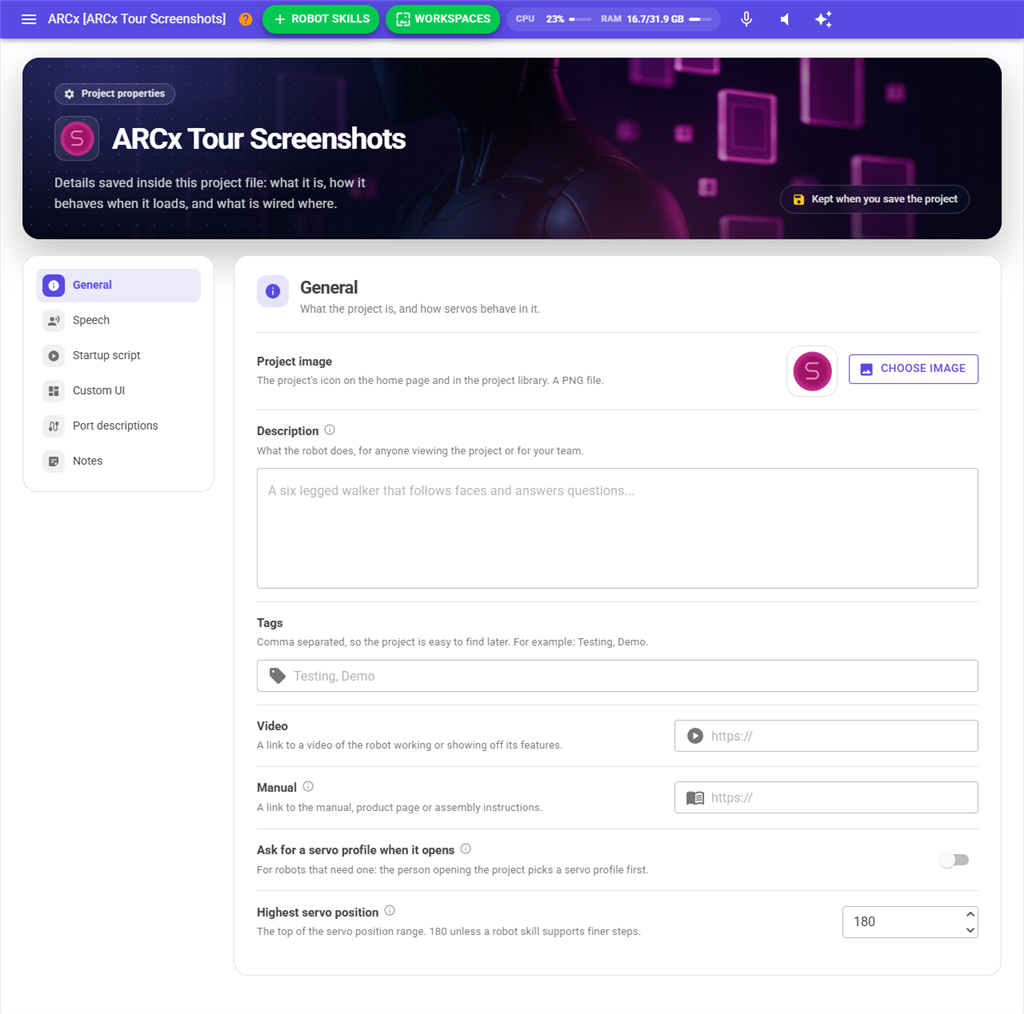
| Setting | What it does |
|---|---|
| Project image | The project's icon on the home page and in the project library. Press Choose image (or Change image when one is set) and pick a PNG file, up to 16 MB. A progress window, Receiving the image, shows while it arrives. The image is stored as it is, not resized, so a small square PNG works best. |
| Description | What the robot does, for anyone viewing the project or for your team. |
| Tags | Words separated by commas, such as Testing, Demo, so the project is easy to find later. Each tag is shown as a chip under the box. |
| Video | A link to a video of the robot working or showing off its features. |
| Manual | A link to the manual, product page or assembly instructions. It is offered as a button in the project's details when the project is opened from File → Open. |
| Ask for a servo profile when it opens | For robots that need a servo profile. Servo profiles are not available in ARCx yet, so this switch currently has no effect. See Project → Servo Profile. |
| Highest servo position | The top of the servo position range for this project. 180 by default. Raise it only when a robot skill supports finer steps. PWM servos still spread this range over their full 180 degrees. It also sets the range of the hard limit sliders in Project → Robot Configuration. |
Speech
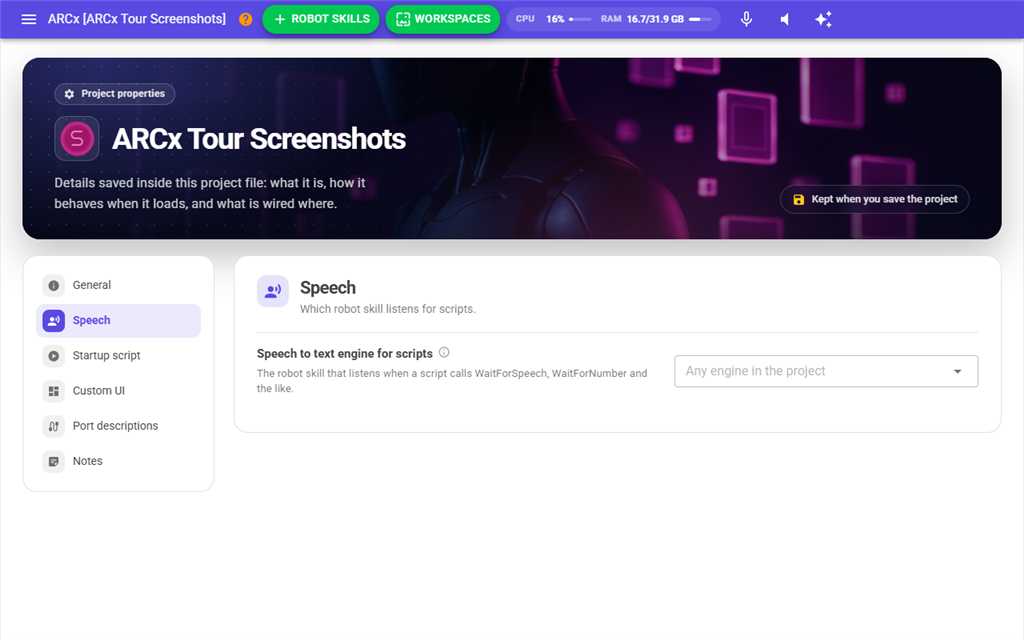
| Setting | What it does |
|---|---|
| Speech to text engine for scripts | The speech to text robot skill that listens when a script waits for speech, for example with WaitForSpeech or WaitForNumber. Leave it on Any engine in the project to use whichever engine the project has. |
The list holds the speech to text robot skills in the open project, by their window titles. If the project has none, the screen says "This project has no speech to text robot skill yet. Add one from the robot skill library and it can be chosen here." If the chosen robot skill is later removed from the project, ARCx picks another one, or goes back to any engine, the next time a script waits for speech.
Startup script
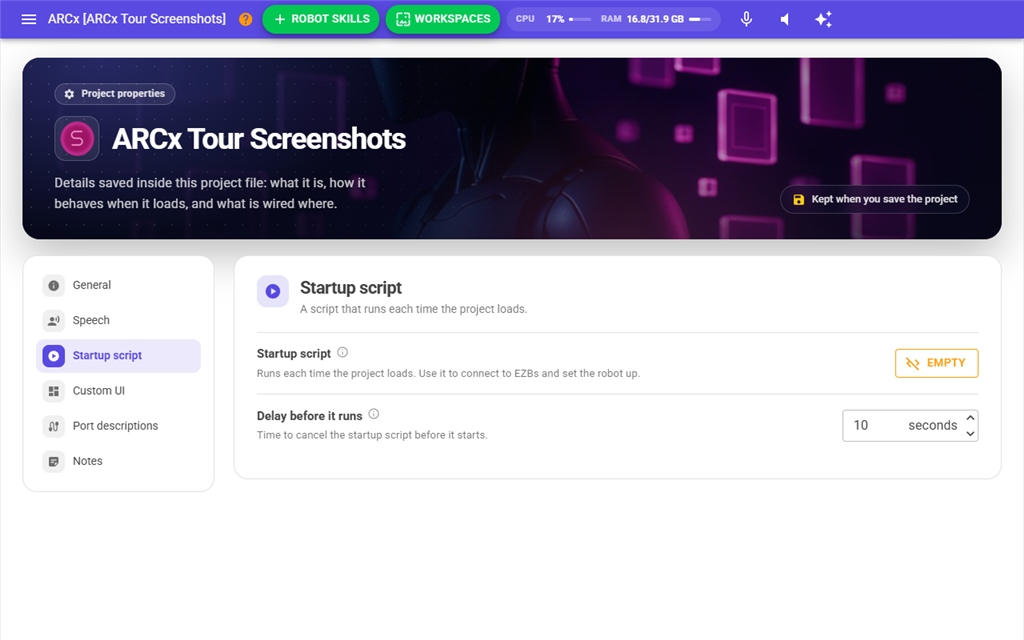
| Setting | What it does |
|---|---|
| Startup script | A script that runs each time the project loads. Use it to connect to EZBs and set the robot up. The button reads Empty when there is no script, or the script's language when there is one. Press it to open the script editor. |
| Delay before it runs | How many seconds ARCx waits after the project loads before it runs the startup script. 10 by default, and at least 2. |
While the delay counts down, a message at the bottom of the page reads "Startup script runs in 9 seconds" and counts down each second. Press Cancel on that message to stop the script from running this time. When the countdown ends, the message reads "Executing startup script". Closing the project stops the countdown, or the script if it has already started.
Custom UI
This section locks down the robot's own control panel, the full screen custom UI viewer that a phone or kiosk tablet on the robot can show.
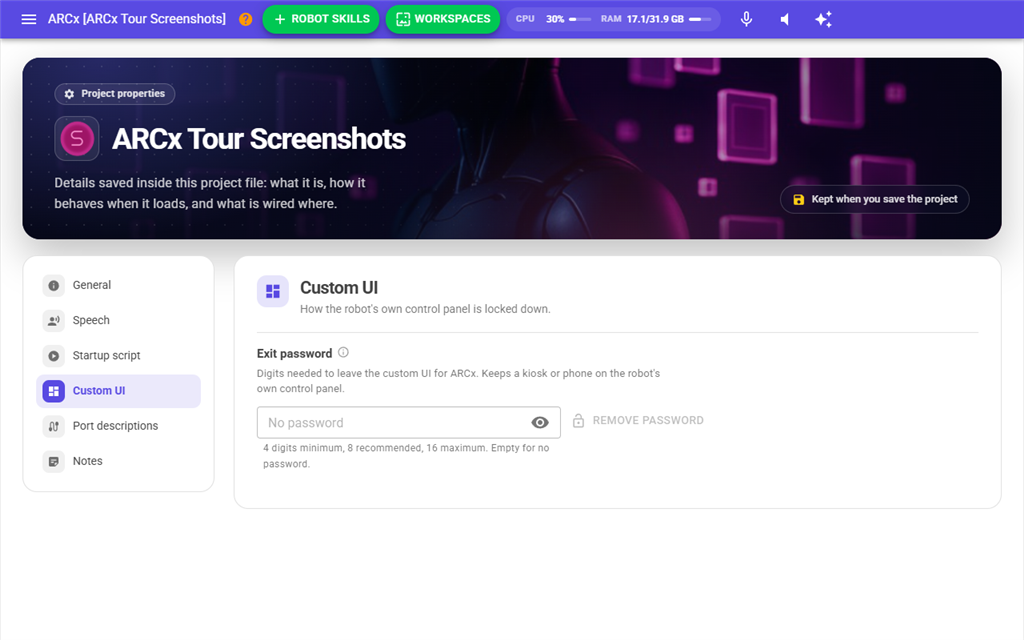
| Setting | What it does |
|---|---|
| Exit password | Digits that must be entered before the custom UI viewer can be left for the ARCx workspace or the screen designer. Leave it empty for no password. Only digits can be typed; anything else is dropped as you type. The eye button shows or hides what you typed. |
| Remove password | Clears the exit password, so the viewer can be left freely again. Disabled when no password is set. |
The password must be at least 4 digits and at most 16; 8 is recommended. A password that is too short is marked with "The exit password must be at least 4 digits (8 is recommended)." It is still saved as typed, and the viewer asks for it all the same.
This stops a passer-by from wandering into ARCx. It is not security: the password is saved as typed in the project file. To protect the whole project file with a password, use File → Save.
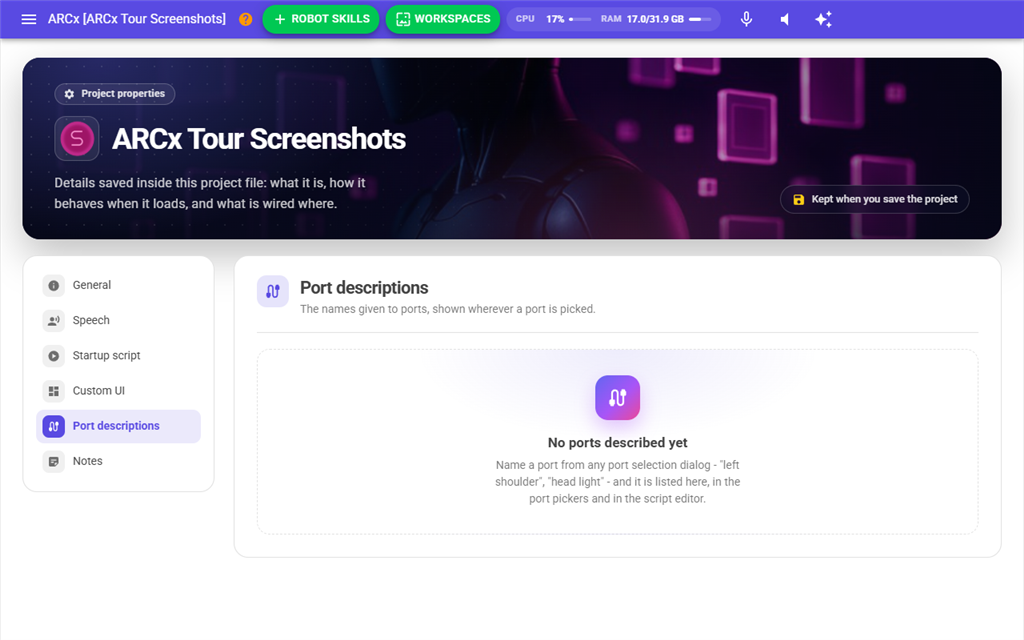
Port descriptions
Port descriptions are the names given to ports, such as "left shoulder" or "head light". They are shown wherever a port is picked, in the port selection dialogs and in the script editor. They are grouped as Digital, ADC, Servo and PWM ports, each listed by EZB number and port, for example 0.V3.
- Type in a box to change that port's description.
- Press the remove button beside a box to delete the description. It is removed straight away, with no confirmation.
New descriptions are added from any port selection dialog, which knows the EZB and port, or by naming ports in Project → Robot Configuration. Until a port has a description, this section reads "No ports described yet".
Descriptions that come from Project → Robot Configuration are written again from the robot picture each time that configuration changes or the project opens. To change or remove one of those for good, rename or remove the marker there.
Notes
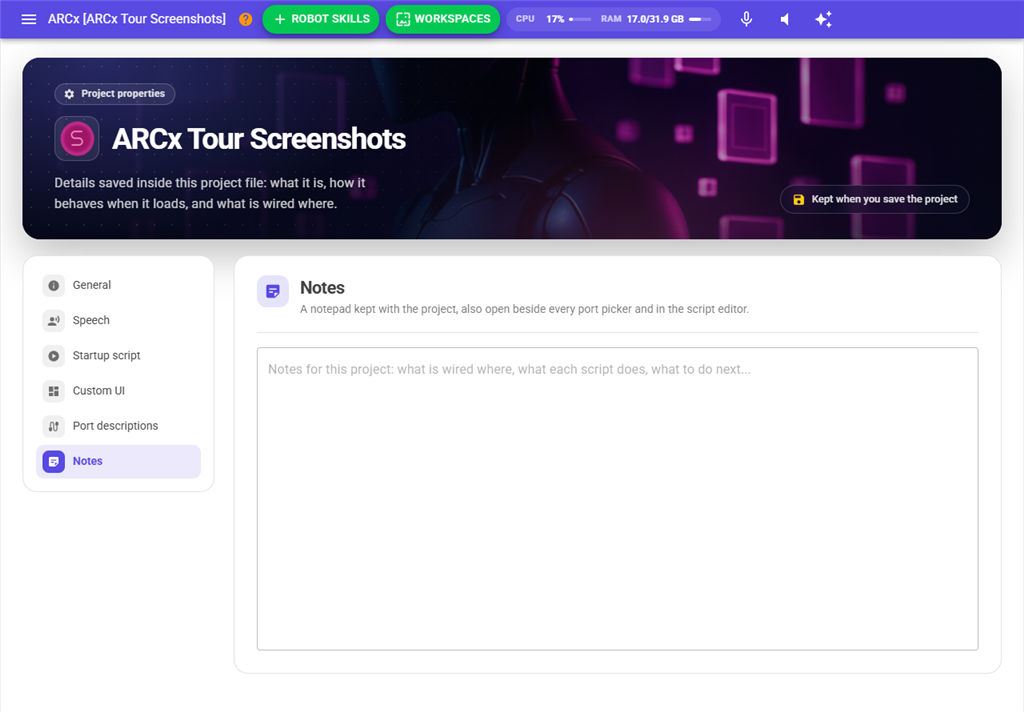
A notepad kept with the project: what is wired where, what each script does, what to do next. It is the same notepad that is open beside every port picker and in the script editor's Notes view, so a note typed in any of them appears in all of them.
Things to know
- If a project image cannot be received, for example because it is larger than 16 MB, the progress window closes and the image stays as it was. The reason is written to the debug log (Views → Debug Log).
- Password protection for the project file itself is not on this screen. It is set when saving, in File → Save.