
Blockly
Blockly is a visual way to program the robot. Instead of typing code, you snap blocks together: a block to move forward, a block to wait two seconds, a block to say something. This page is a scratch pad for trying blocks out. You build a program, press Run, and watch what the robot does.
Use it to learn what the blocks do or to test an idea quickly. Programs built here are not saved with the project. To keep a Blockly program as part of the robot, build it in the Blockly tab of a script editor, for example in a robot skill's configuration, where it is saved with that script.
Where to find it: Top bar → Workspaces → Blockly
Contents
The Blockly tab
The page has two tabs, Blockly and Code. The Blockly tab opens first. It has a narrow column on the left and the block area on the right.
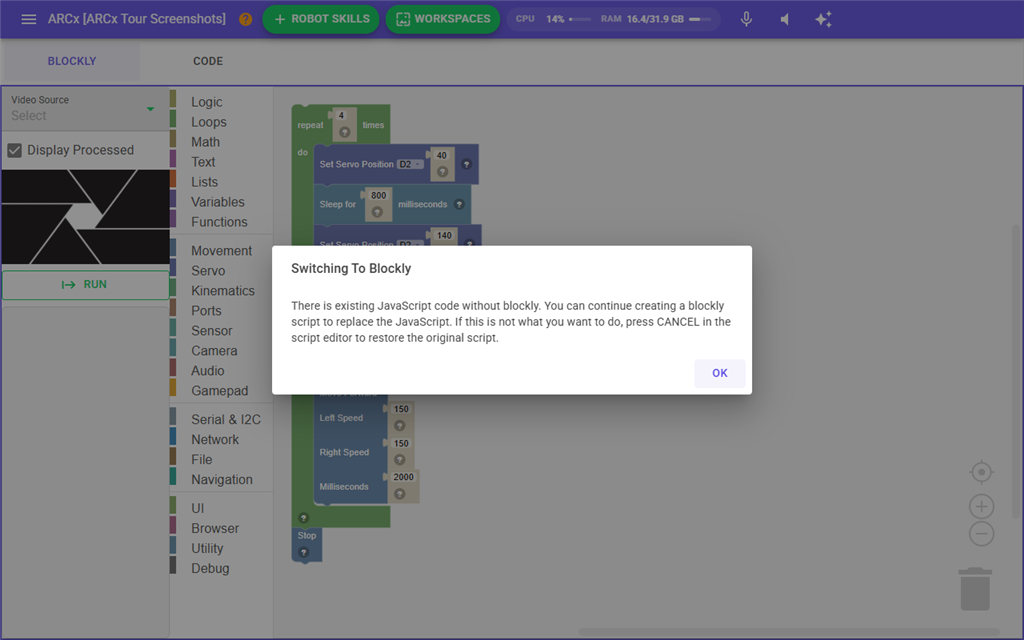
| Part | What it does |
|---|---|
| Video Source | Chooses which camera to show in the small preview below it. |
| Display Processed | When ticked, the preview shows the processed video, with any tracking overlays drawn on it. |
| Video preview | A small live view of the chosen camera, so you can see what the robot sees while the program runs. |
| Run | Runs the program. While it runs, the button changes to Stop. |
| Output log | Shows "Start" when the program starts, anything the program prints, any errors, and "Done" with how long it took. |
| Block area | Where you build the program. Drag blocks in from the toolbox and snap them together. |
The block toolbox
The toolbox down the side of the block area groups the blocks by subject:
| Group | Categories |
|---|---|
| Programming | Logic, Loops, Math, Text, Lists, Variables, Functions |
| The robot | Movement, Servo, Kinematics, Ports, Sensor, Camera, Audio, Gamepad |
| Connections | Serial & I2C, Network, File, Navigation |
| Screen and application | UI, Browser, Utility, Debug |
Some blocks offer choices taken from the robot skills in your project, filled in when the page opens:
- The actions of Auto Position robot skills, split into those that run once and those that loop.
- The sounds offered by robot skills that play audio. When more than one skill offers sounds, each sound is labelled with the skill it comes from.
- The actions of camera and tracking robot skills.
- Every control command in the project, for the control command blocks. A parameter without a default shows as a placeholder, such as
(String)name, for you to replace. - The kinematic chains in the project.
- The project's global variables. In the block area a global variable is shown with a
$in front of its name.
If you add a robot skill while this page is open, leave the page and open it again to see that skill's choices in the blocks.
Running a program
- Build the program in the block area.
- Press Run. The output log is cleared, shows "Start", and the button turns into Stop.
- To end the program early, press Stop. The button shows Stopping until the program has ended.
- When the program ends, the log shows "Done" and how long it ran.
When a program run from this page finishes, ARCx stops the robot's movement and stops all audio. This makes sure a test does not leave the robot driving or talking.
The Code tab
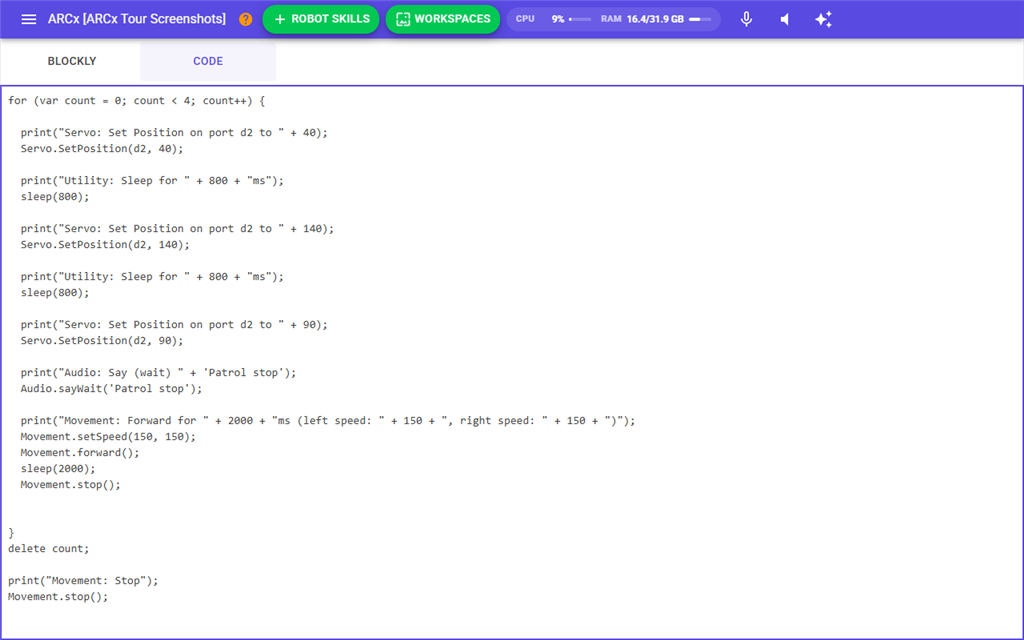
Open the Code tab to see the JavaScript that your blocks make. Every block program is turned into JavaScript before it runs, so this is a good way to learn how the same program looks as typed code. The code is read only here. Copy it into a script editor if you want to keep working on it as JavaScript.
Notes
- The blocks on this page are kept in memory while ARCx runs and are not saved in the project. Closing ARCx loses them. Every browser that opens this page sees the program as it was last left.
- Deleting every block clears the program, so pressing Run on an empty block area runs nothing.
- The global variables and other choices in the blocks reflect the project at the moment the page opened.