
Turn your body into a robot controller with Kinect or any camera, tracking gestures, joints, scripts, and servo mappings in 3D.
 Windows
 ARM
ARM
 Linux
Linux
 MacOS
MacOS
How to add the Kinect Body Control robot skill
- Load the most recent release of ARCx on a compatible operating system (Get ARCx).
- Press the + Skills menu from the top menu bar in ARCx.
- Choose any of these category tabs, the robot skill appears in each of them: Camera, Remote Control, Servo.
- Press the Kinect Body Control icon to add the robot skill to your project.
Don't have a robot yet?
Follow the Getting Started Guide to build a robot and use the Kinect Body Control robot skill.
How to use the Kinect Body Control robot skill
Kinect Body Control turns your body into a robot controller. Stand in front of a Kinect (or any camera) and the robot copies you: raise your arm and its arm goes up, turn your head and its head turns, wave and it runs a script. It is the ARCx version of ARC's Kinect Body Control, rebuilt to run on every ARCx computer (Windows, Linux and macOS) and with far more than four arm servos.
Every source produces the same 20 joint skeleton (the Xbox 360 Kinect's own joints), so the servo mappings, gestures, scripts, recordings and variables work the same whichever sensor you use.
Where the body comes from
| Source | What it needs | What you get |
|---|---|---|
| Kinect (automatic) | A Kinect | The Kinect SDK skeleton on Windows when Microsoft's Kinect runtime 1.8 sees a Kinect, otherwise libfreenect with the pose model |
| Kinect SDK 1.8 skeleton | Windows, the Kinect for Windows runtime 1.8 and Microsoft's Kinect driver | The Kinect's own skeleton, exactly what ARC used. No face, so the head angle measures give nothing |
| Kinect, libfreenect + pose model | A Kinect on Windows, Linux or macOS | The Kinect's colour camera through libfreenect, the MoveNet pose model to find the body, and the Kinect's depth to place every joint in 3D. The colour camera is also published as an ARCx video source |
| Camera + pose model | Any camera robot skill | The pose model on the camera picture. Flat: angles seen from the front work, depth measures give nothing, and sizes are estimated from the person's shoulders |
| Depth camera + pose model | A depth camera robot skill (Intel Realsense, Kinect Xbox 360 Depth Mapping...) | The pose model on its colour camera and its depth for 3D |
The pose model is Google's MoveNet (Apache 2.0). It is downloaded once, the first time a pose model source starts (Lightning 9 MB, Thunder 25 MB), into ARCx Data\Kinect Body Control\Models in your Documents folder (~/ARCx Data on Linux and macOS). It runs on the processor by default; turn on Use Graphics Card to run it on the accelerator chosen in Options > Preferences > Acceleration.
Setting up a Kinect
The Xbox 360 Kinect (model 1414 or 1473) and the Kinect for Windows v1 work. The Kinect needs its own power supply; USB alone is not enough.
Windows with the Kinect SDK. Install the Kinect for Windows runtime 1.8 from Microsoft and plug the Kinect in; Windows installs Microsoft's driver. Choose Kinect (automatic) or Kinect SDK 1.8 skeleton.
Windows with libfreenect. libfreenect talks to the Kinect through libusb, which needs the WinUSB driver instead of Microsoft's. Run Zadig, tick Options > List All Devices, and install WinUSB for Xbox NUI Camera and Xbox NUI Motor. The Kinect SDK source stops working until Microsoft's driver is put back (Device Manager > Uninstall device).
Linux (Ubuntu 24.04). libfreenect ships with the skill and uses the system's libusb. Let ARCx open the Kinect without root by installing the rule that ships in the skill's udev folder, then unplug and replug the Kinect:
sudo cp 51-kinect.rules /etc/udev/rules.d/ && sudo udevadm control --reload-rules && sudo udevadm trigger
macOS. Install libfreenect with Homebrew: brew install libfreenect. The skill loads it from /opt/homebrew/lib or /usr/local/lib.
Press Detect Kinects on the Source tab to see what this computer can use.
Using it with the Kinect Xbox 360 Depth Mapping skill
Only one program, and only one robot skill, can open a Kinect at a time. When the Kinect Xbox 360 Depth Mapping skill is in the project it owns the Kinect and registers it with ARCx as a depth camera, with the Kinect's colour picture lined up with its depth. Set this skill's source to Depth camera + pose model and pick the Depth Mapping skill: both work at once, and you get the full 3D skeleton without either skill fighting over the sensor. Choosing a Kinect source in both skills makes the second one report that the Kinect is in use.
The window
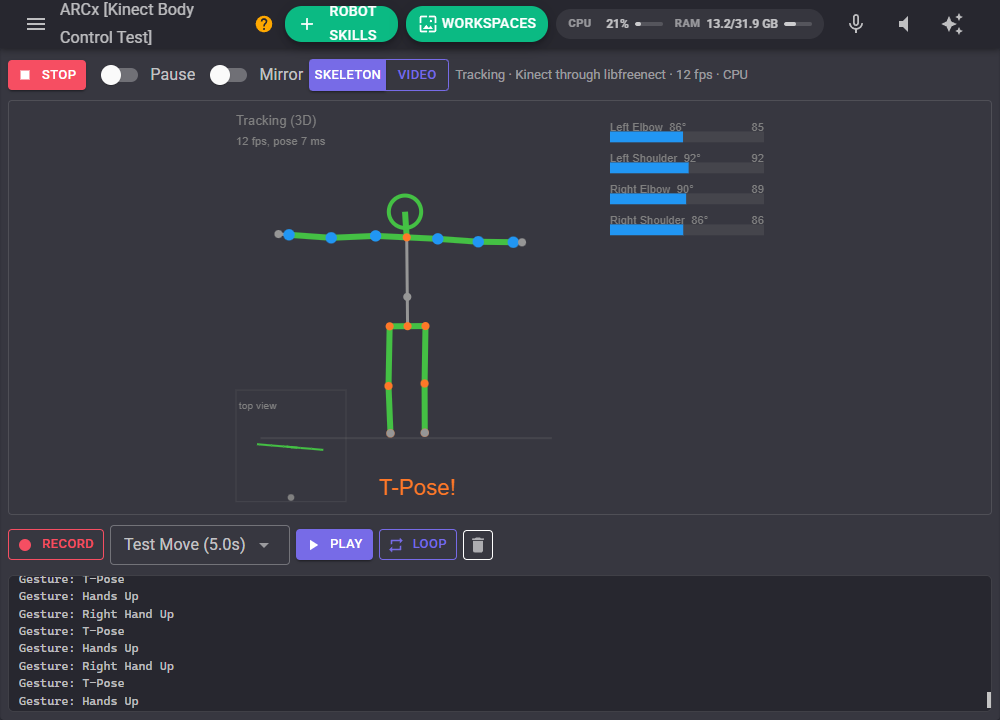
- Start / Stop starts tracking with the configured source or releases the sensor.
- Pause keeps the servos still while tracking, gestures and variables carry on (ARC's Paused).
- Mirror makes the robot move like your reflection: your right arm moves its left arm. Off, the robot's right follows your right, as ARC did.
- Skeleton / Video switches between the skeleton drawing and the camera picture with the skeleton drawn on it (pose model sources).
- The status line says what is running, the frame rate and where the pose model runs.
The skeleton is drawn as a mirror shows you: raise your right hand and the figure's hand on the right of the screen goes up. Blue joints are the ones your mappings use, grey ones are guessed. With depth, a small top view shows how you stand towards the sensor. The bars on the right are the mappings: the measurement, and where the servos go.
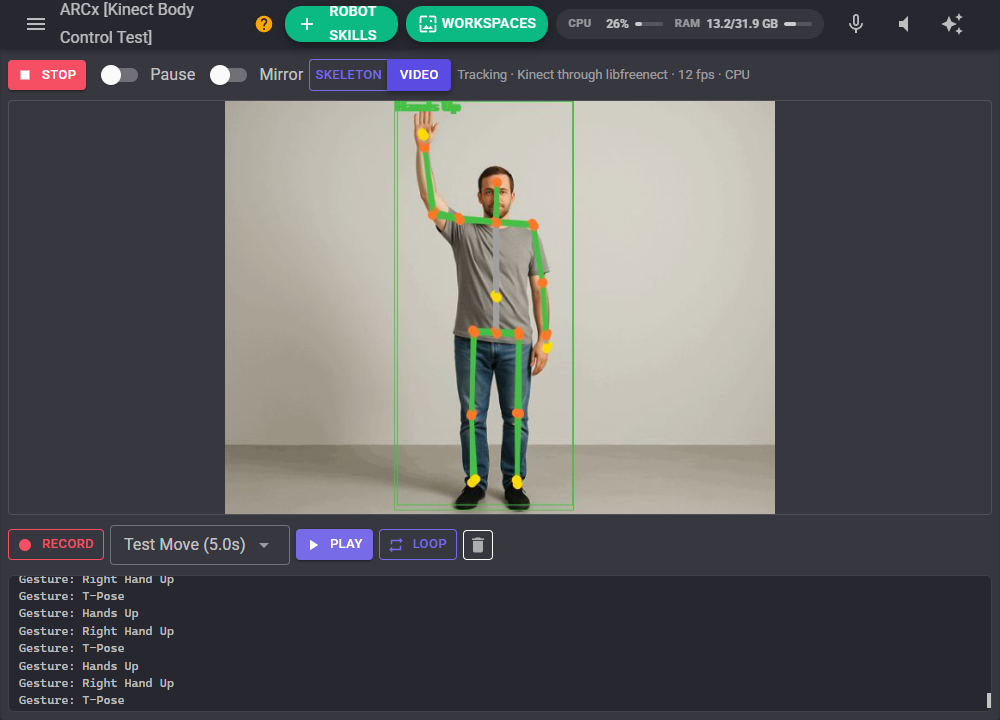
The person is also reported to ARCx as a detection (type person), so the Object Detection Script robot skill and other trackers can follow them.
Recording a performance
Press Record, move, and press Stop. The recording keeps your body's movement, not servo positions, so playing it back goes through the current mappings, smoothing, mirror, gestures and scripts as if you were standing there, and still works after you change the mappings. Play plays it once, Loop over and over; live tracking takes over again when it ends. Recordings are saved in the project; save the project to keep them. The delete button asks before deleting.
Configuration
Source
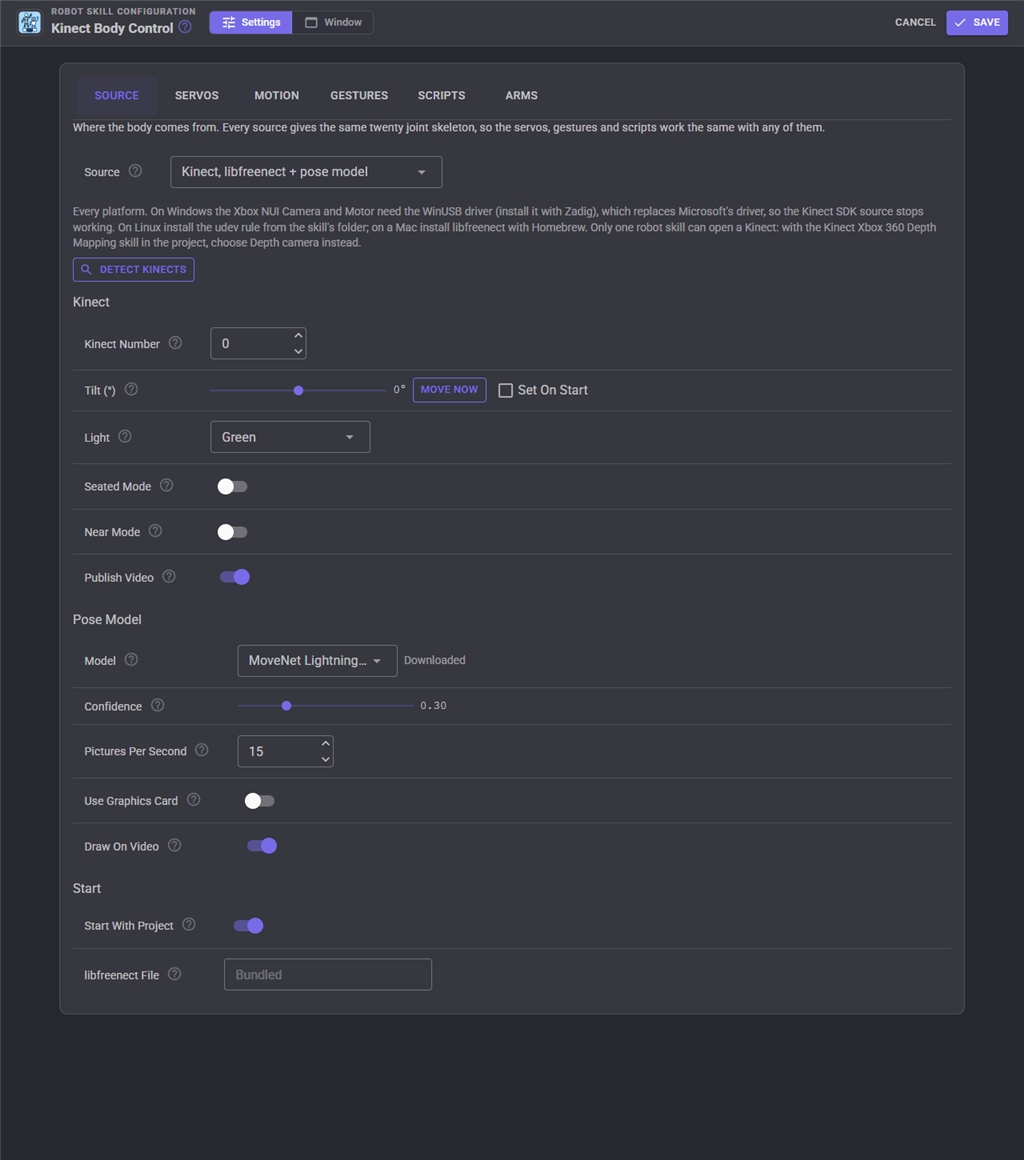
| Setting | What it does |
|---|---|
| Source | Where the body comes from (see above) |
| Kinect Number | Which Kinect when several are plugged in (libfreenect) |
| Tilt | The Kinect's motor angle. Move Now moves it; Set On Start moves it every time tracking starts |
| Light | The Kinect's front light (libfreenect) |
| Seated Mode | Kinect SDK: track the upper body of a person sitting down (ARC's Sitting Position) |
| Near Mode | Kinect SDK: 40 cm to 3 m on a Kinect for Windows |
| Publish Video | libfreenect: the Kinect's colour camera becomes an ARCx video source named after this skill |
| Camera / Picture Is Mirrored | Camera source: the camera, and whether its picture is a mirror image (selfie view) |
| Depth Camera | Depth camera source: the depth camera robot skill to use |
| Model | MoveNet Lightning (fast) or Thunder (more accurate) |
| Confidence | Pose model points less certain than this are ignored |
| Pictures Per Second | The most pictures a second the pose model looks at |
| Use Graphics Card | Run the pose model on the accelerator chosen in Preferences |
| Draw On Video | Draw the skeleton on the video it was found in |
| Start With Project | Start tracking when the project loads |
| libfreenect File | Advanced: load your own libfreenect build. Restart ARCx after changing it |
Servos
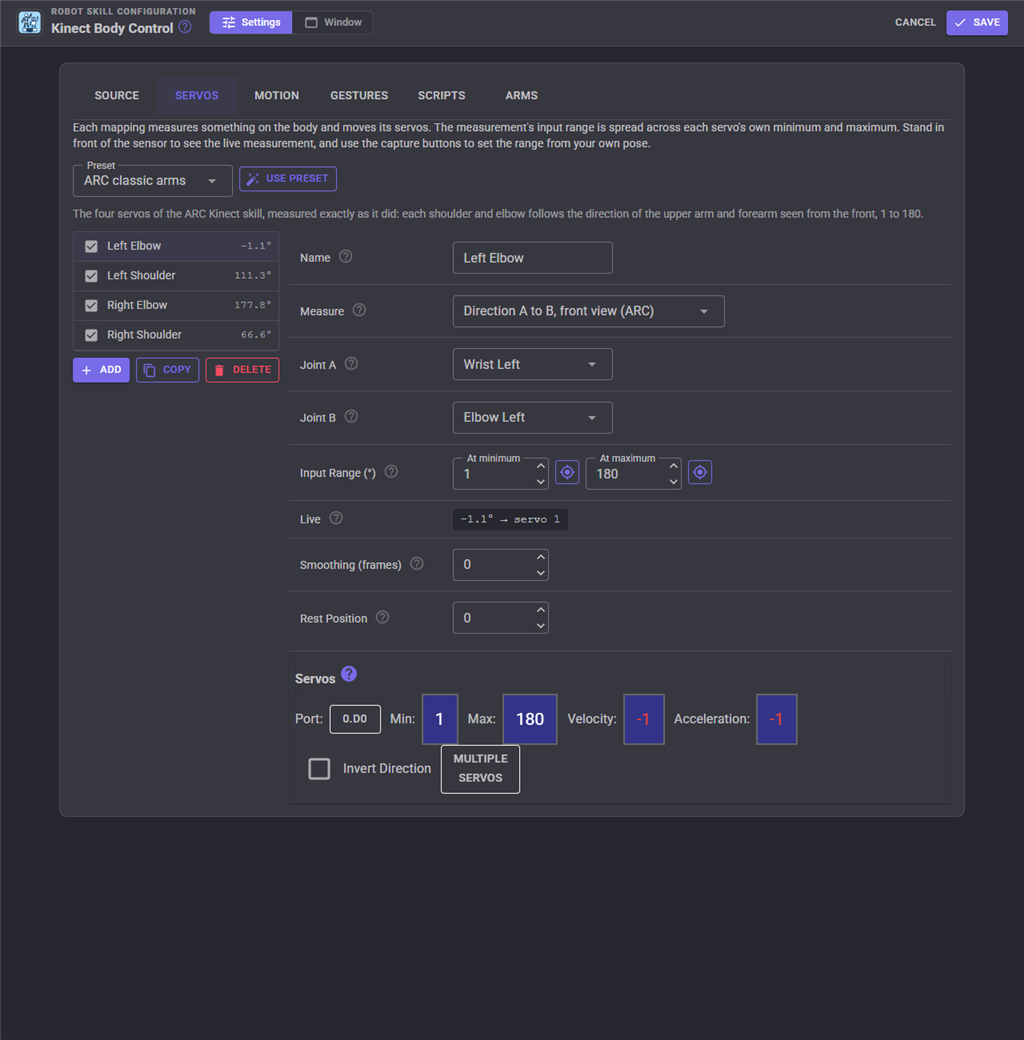
A mapping measures something on your body and moves one or more servos. The measurement's input range is spread across each servo's own minimum and maximum (set in the servo panel, with invert and extra servos that follow the first). The live measurement of the person in front of the sensor is shown beside each mapping; the capture buttons set the input range from where you are standing, which is the quickest way to calibrate: hold your arm down, capture the minimum, raise it, capture the maximum.
| Measure | What it is |
|---|---|
| Direction A to B, front view (ARC) | The direction of the line from joint A to joint B seen from the front, as ARC measured it: right shoulder to right elbow is 0 with the arm down, 90 out to the side, 180 straight up |
| Bend at a joint | How far the body bends at the middle joint: 180 straight, 90 a right angle (shoulder, elbow, wrist for an elbow) |
| Direction A to B, side view | 0 pointing down, 90 pointing at the sensor, 180 up: an arm raised forward. Needs depth |
| Direction A to B, top view | 0 square to the sensor, positive when B is nearer: left to right shoulder is how far the body turns to its left. Needs depth |
| Head turn, nod, tilt | From the face, so the pose model sources only |
| A right of / above / in front of B | Metres between two joints along one direction: a hand's height above the shoulder. In front needs depth |
| Distance A to B | Metres between two joints: the gap between your hands, for a gripper |
Presets fill the list for you. ARC classic arms is the ARC skill's four servos, measured identically. Arms raised gives each arm's lift and elbow bend with natural ranges. Humanoid adds arms swinging forward, head pan, tilt and roll, body turn and a gripper. Head is the head alone. The servos of a preset start unassigned, so nothing moves until you pick the ports.
Mapping names are used by scripts and variables, so each must be unique.
Motion
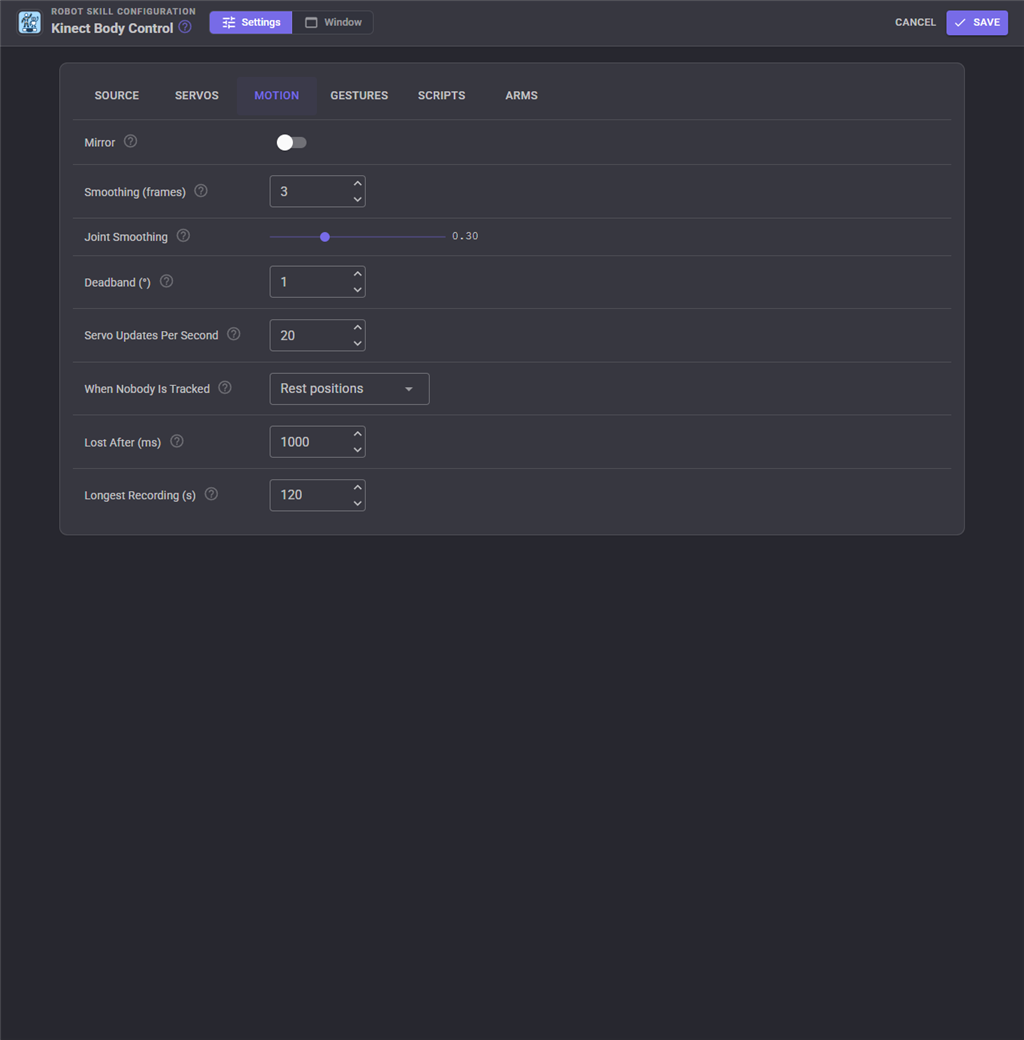
| Setting | What it does |
|---|---|
| Mirror | Robot moves like your reflection |
| Smoothing (frames) | Frames averaged before a servo moves, ARC's smoothing. ARC's 20 at its 10 frames a second lagged two seconds; 3 to 5 feels right |
| Joint Smoothing | Smooths the joints themselves, taking out sensor jitter. Fast moves are never smeared |
| Deadband | A servo only moves when its position changes by this many degrees, so a still person does not make servos buzz |
| Servo Updates Per Second | The most times a second positions are sent |
| When Nobody Is Tracked | Hold, go to each mapping's rest position, or release the servos |
| Lost After | How long a person must be gone before they count as lost |
| Longest Recording | Recordings stop by themselves after this long |
Gestures
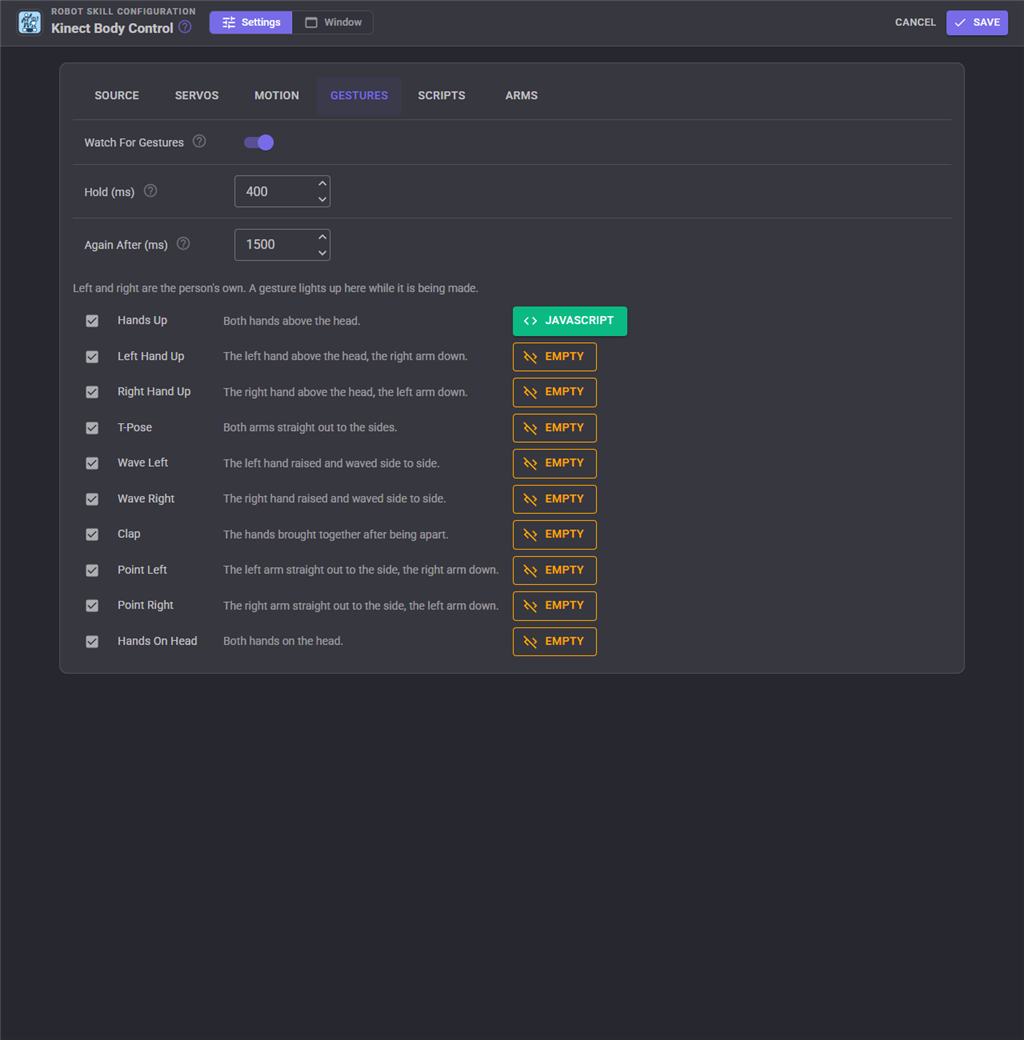
| Gesture | How to make it |
|---|---|
| Hands Up | Both hands above your head |
| Left Hand Up / Right Hand Up | One hand above your head, the other arm down |
| T-Pose | Both arms straight out to the sides |
| Wave Left / Wave Right | Raise a hand above the elbow and wave it side to side |
| Clap | Bring your hands together after holding them apart |
| Point Left / Point Right | One arm straight out to the side, the other down |
| Hands On Head | Both hands on your head |
Left and right are always your own, whatever the mirror setting. Pose gestures fire once they have been held for the hold time; a gesture fires once and must be let go of, and the "again after" time pass, before it fires again. Each gesture has its own script, and a gesture lights up in the list while you make it, which makes them easy to try.
Scripts
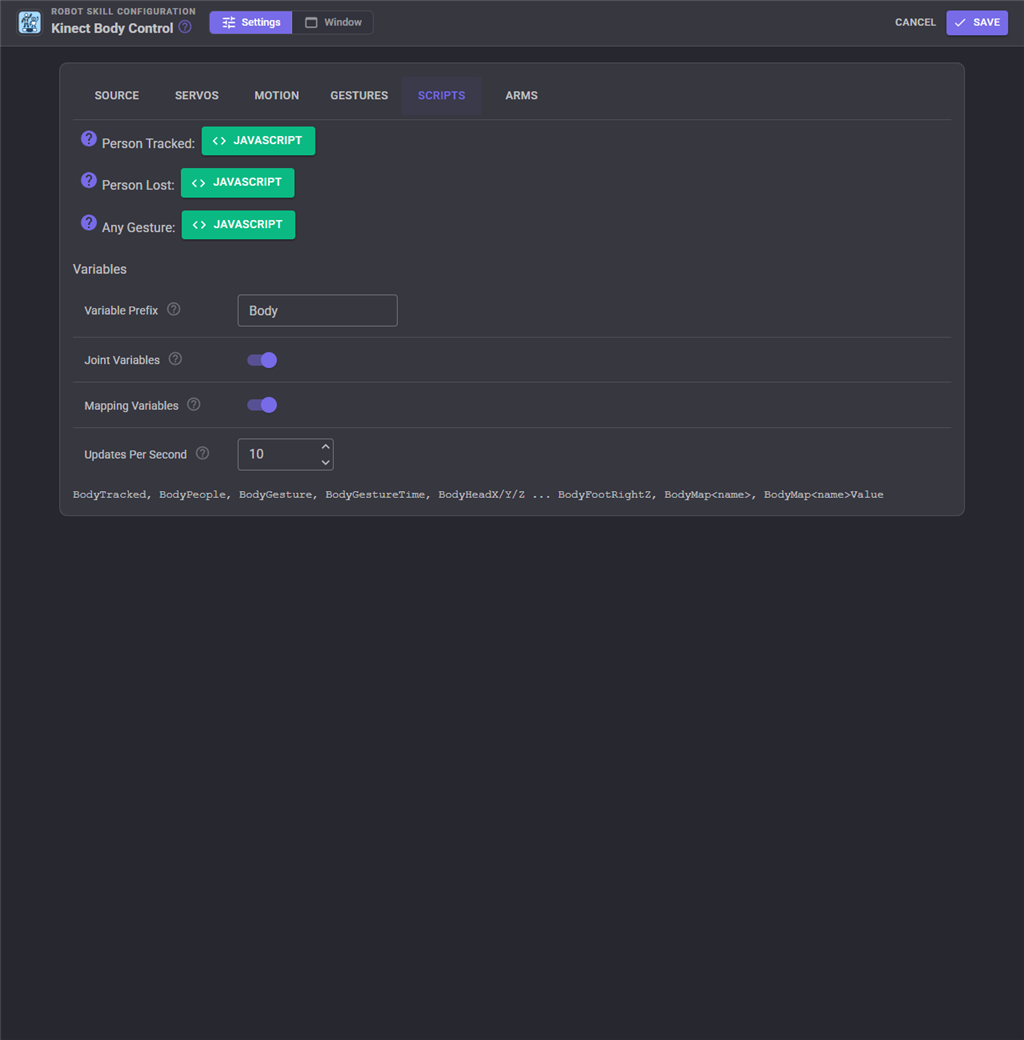
Person Tracked runs when someone steps in, Person Lost when they have been gone for the lost time, and Any Gesture after every gesture's own script, with the gesture's name in the Gesture variable. Scripts do not run while a configuration window is open.
The skill sets these global variables (with the prefix you choose, Body by default):
| Variable | Value |
|---|---|
| BodyTracked | True while a person is tracked |
| BodyPeople | How many people the sensor sees |
| BodyGesture, BodyGestureTime | The last gesture (HandsUp, TPose, WaveRight...) and when |
| BodyHandRightX, BodyHandRightY, BodyHandRightZ ... | Every joint in metres: X to the person's right, Y up, Z away from the sensor |
| BodyMapRightShoulder, BodyMapRightShoulderValue ... | Each mapping's servo position and measurement |
Give a second copy of this skill a different prefix.
Arms
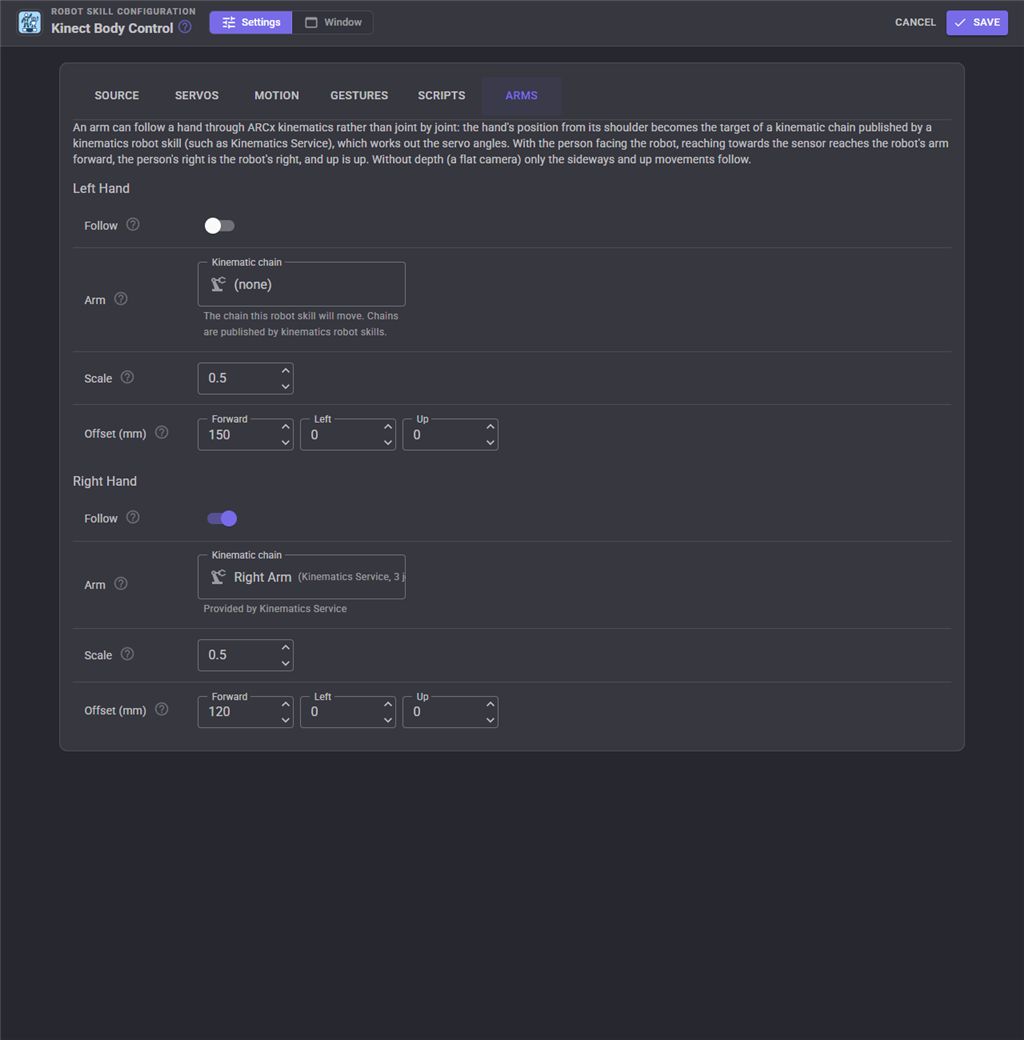
Instead of joint by joint, an arm can follow your hand through ARCx kinematics. Add a kinematics robot skill (such as Kinematics Service) and describe your robot's arm as a chain there; then pick the chain here. Your hand's position from your shoulder becomes the arm's target: reaching towards the sensor reaches the robot's arm forward, your right is the robot's right, and up is up. Scale shrinks or grows your reach to the robot's size, and the offset moves where "hand level with the shoulder" lands. With a flat camera only the sideways and up movements follow.
Custom UI widget
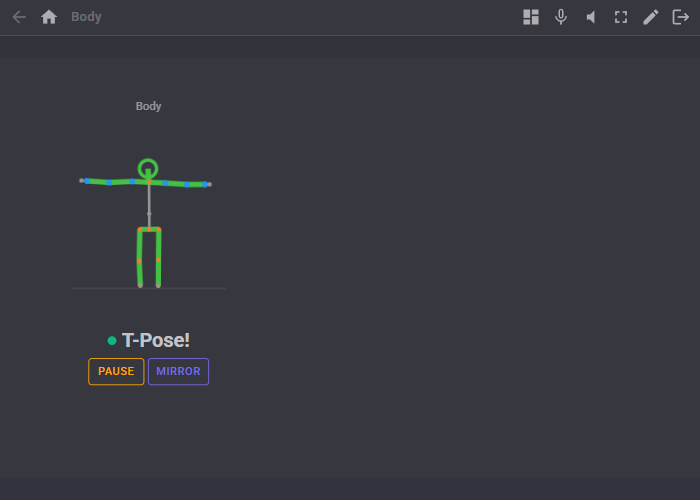
The Body widget shows the live skeleton, whether someone is tracked and the last gesture, with Pause and Mirror buttons, for your own control panel screens. Its settings are Caption and ShowButtons.
For AI assistants
Two tools are offered to AI clients connected to ARCx: get_body returns the tracked person's joints, head angles, gestures and mapping values, and look returns the camera picture with the skeleton drawn on it, so an assistant can see what the robot sees.
Tips
- Stand two to three metres from a Kinect, facing it, with your whole body in view.
- The pose model finds one person: the most visible one. The Kinect SDK follows the first person it tracks until they leave, so a second person walking past does not take over.
- A flat camera cannot measure depth. Use the front view measures with it, and calibrate the ranges with the capture buttons.
- The Kinect's tilt motor is slow and Microsoft asks for no more than one move a second.
- On a Kinect 1473 or a Kinect for Windows, the tilt motor and light may not respond through libfreenect; the cameras still work.
Control Commands for the Kinect Body Control robot skill
There are Control Commands available for this robot skill which allows the skill to be controlled programmatically from scripts or other robot skills. These commands enable you to automate actions, respond to sensor inputs, and integrate the robot skill with other systems or custom interfaces. If you're new to the concept of Control Commands, we have a comprehensive manual available here that explains how to use them, provides examples to get you started and make the most of this powerful feature.
Control Command ManualThis robot skill has 23 control commands, listed below. Send them from a JavaScript or Python script, from Blockly, or from another robot skill.
The first value is always the window title, which is the name in the title bar of the robot skill on your workspace. It starts out as Kinect Body Control, which is what every example below uses. If you rename the robot skill, or add a second copy of it to the project, use the title as it appears on that window instead.
ControlCommand() can be shortened to CC(), and both spellings work in JavaScript and in Python. The examples are JavaScript; Python is the same call, except that true and false are written True and False.
DeleteRecording
Delete a recording by name, without asking. Returns false when there is none of that name.
Syntax
ControlCommand("Kinect Body Control", "DeleteRecording", (String)name)
Parameters
| # | Name | Type | What to pass |
|---|---|---|---|
| 1 | name | Text | Your text, in quotes |
Returns: Boolean [true or false]
Example
var result = ControlCommand("Kinect Body Control", "DeleteRecording", "name");
EnableMapping
Turn one servo mapping on or off by its name. Returns false when no mapping has that name.
Syntax
ControlCommand("Kinect Body Control", "EnableMapping", (String)mappingName, (Bool)enabled)
Parameters
| # | Name | Type | What to pass |
|---|---|---|---|
| 1 | mappingName | Text | Your text, in quotes |
| 2 | enabled | True or false | true or false, without quotes |
Returns: Boolean [true or false]
Example
var result = ControlCommand("Kinect Body Control", "EnableMapping", "mappingName", true);
GetJoint
One coordinate of a joint in metres: joint is HipCenter, Spine, ShoulderCenter, Head, ShoulderLeft, ElbowLeft, WristLeft, HandLeft, ShoulderRight, ElbowRight, WristRight, HandRight, HipLeft, KneeLeft, AnkleLeft, FootLeft, HipRight, KneeRight, AnkleRight or FootRight; axis is X (the person's right), Y (up) or Z (away from the sensor). 0 when the joint is not seen.
Syntax
ControlCommand("Kinect Body Control", "GetJoint", (String)joint, (String)axis)
Parameters
| # | Name | Type | What to pass |
|---|---|---|---|
| 1 | joint | Text | Your text, in quotes |
| 2 | axis | Text | Your text, in quotes |
Returns: Double [5.0e324 to 1.7e308]
Example
var result = ControlCommand("Kinect Body Control", "GetJoint", "joint", "axis");
GetLastGesture
The last gesture seen (HandsUp, TPose, WaveRight...), or an empty string.
Syntax
ControlCommand("Kinect Body Control", "GetLastGesture")
Returns: String
Example
var result = ControlCommand("Kinect Body Control", "GetLastGesture");
GetMappingValue
A mapping's latest measurement (degrees or metres, smoothed), or -1 when it has none.
Syntax
ControlCommand("Kinect Body Control", "GetMappingValue", (String)mappingName)
Parameters
| # | Name | Type | What to pass |
|---|---|---|---|
| 1 | mappingName | Text | Your text, in quotes |
Returns: Double [5.0e324 to 1.7e308]
Example
var result = ControlCommand("Kinect Body Control", "GetMappingValue", "mappingName");
GetRecordings
The names of the recordings.
Syntax
ControlCommand("Kinect Body Control", "GetRecordings")
Returns: Array of String
Example
var result = ControlCommand("Kinect Body Control", "GetRecordings");
GetTilt
The Kinect's tilt angle in degrees, or -100 when it cannot be read.
Syntax
ControlCommand("Kinect Body Control", "GetTilt")
Returns: Double [5.0e324 to 1.7e308]
Example
var result = ControlCommand("Kinect Body Control", "GetTilt");
IsPaused
Whether the servos are paused.
Syntax
ControlCommand("Kinect Body Control", "IsPaused")
Returns: Boolean [true or false]
Example
var result = ControlCommand("Kinect Body Control", "IsPaused");
IsPlaying
Whether a recording is playing.
Syntax
ControlCommand("Kinect Body Control", "IsPlaying")
Returns: Boolean [true or false]
Example
var result = ControlCommand("Kinect Body Control", "IsPlaying");
IsRunning
Whether tracking is started.
Syntax
ControlCommand("Kinect Body Control", "IsRunning")
Returns: Boolean [true or false]
Example
var result = ControlCommand("Kinect Body Control", "IsRunning");
IsTracked
Whether a person is being tracked now.
Syntax
ControlCommand("Kinect Body Control", "IsTracked")
Returns: Boolean [true or false]
Example
var result = ControlCommand("Kinect Body Control", "IsTracked");
PauseOff
Resume: the servos follow the body again. ARC's PauseOff.
Syntax
ControlCommand("Kinect Body Control", "PauseOff")
Returns: nothing
Example
ControlCommand("Kinect Body Control", "PauseOff");
PauseOn
Pause: the servos stop following the body (tracking, gestures and variables carry on). ARC's PauseOn.
Syntax
ControlCommand("Kinect Body Control", "PauseOn")
Returns: nothing
Example
ControlCommand("Kinect Body Control", "PauseOn");
Play
Play a recording once through the robot (the servos, gestures and scripts react as to a live person). Returns false when there is no recording of that name.
Syntax
ControlCommand("Kinect Body Control", "Play", (String)name)
Parameters
| # | Name | Type | What to pass |
|---|---|---|---|
| 1 | name | Text | Your text, in quotes |
Returns: Boolean [true or false]
Example
var result = ControlCommand("Kinect Body Control", "Play", "name");
PlayLoop
Play a recording over and over until StopPlayback. Returns false when there is no recording of that name.
Syntax
ControlCommand("Kinect Body Control", "PlayLoop", (String)name)
Parameters
| # | Name | Type | What to pass |
|---|---|---|---|
| 1 | name | Text | Your text, in quotes |
Returns: Boolean [true or false]
Example
var result = ControlCommand("Kinect Body Control", "PlayLoop", "name");
RecordStart
Start recording the person's movement under a name (an empty name makes one up). A recording of the same name is replaced. Returns the name.
Syntax
ControlCommand("Kinect Body Control", "RecordStart", (String)name)
Parameters
| # | Name | Type | What to pass |
|---|---|---|---|
| 1 | name | Text | Your text, in quotes |
Returns: String
Example
var result = ControlCommand("Kinect Body Control", "RecordStart", "name");
RecordStop
Stop recording and keep it. Returns its name, or an empty string when nothing was recording.
Syntax
ControlCommand("Kinect Body Control", "RecordStop")
Returns: String
Example
var result = ControlCommand("Kinect Body Control", "RecordStop");
SetLed
The Kinect's light (libfreenect only): Off, Green, Red, Yellow, BlinkGreen or BlinkRedYellow. Returns false when it cannot be set.
Syntax
ControlCommand("Kinect Body Control", "SetLed", (String)color)
Parameters
| # | Name | Type | What to pass |
|---|---|---|---|
| 1 | color | Text | Your text, in quotes |
Returns: Boolean [true or false]
Example
var result = ControlCommand("Kinect Body Control", "SetLed", "color");
SetMirror
Mirror mode: true makes the robot move like the person's reflection (their right arm moves the robot's left), false makes the robot's right follow their right.
Syntax
ControlCommand("Kinect Body Control", "SetMirror", (Bool)mirror)
Parameters
| # | Name | Type | What to pass |
|---|---|---|---|
| 1 | mirror | True or false | true or false, without quotes |
Returns: nothing
Example
ControlCommand("Kinect Body Control", "SetMirror", true);
SetTilt
Move the Kinect's tilt motor to an angle from -27 to 27 degrees. Returns false when no Kinect source is running.
Syntax
ControlCommand("Kinect Body Control", "SetTilt", (Number)degrees)
Parameters
| # | Name | Type | What to pass |
|---|---|---|---|
| 1 | degrees | Number | A number, without quotes |
Returns: Boolean [true or false]
Example
var result = ControlCommand("Kinect Body Control", "SetTilt", 0);
Start
Start tracking with the configured source (it may download the pose model first).
Syntax
ControlCommand("Kinect Body Control", "Start")
Returns: nothing
Example
ControlCommand("Kinect Body Control", "Start");
Stop
Stop tracking and release the Kinect or camera.
Syntax
ControlCommand("Kinect Body Control", "Stop")
Returns: nothing
Example
ControlCommand("Kinect Body Control", "Stop");
StopPlayback
Stop playing a recording; the live person takes over.
Syntax
ControlCommand("Kinect Body Control", "StopPlayback")
Returns: nothing
Example
ControlCommand("Kinect Body Control", "StopPlayback");
This list is read out of the robot skill itself each time its package is uploaded, so it matches the published version (v2).


This robot skill has been updated to v1.
What has changed
initial release
This robot skill has been updated to v2.
What has changed
updated to use some new ARCx UI features for improved performance.