
Account
ARCx signs in with a Synthiam account, the same account used for ARC and the Synthiam community. The Account screen shows which account is signed in, links to where that account is managed on synthiam.com, and lets you log out. This page also covers the sign in screen, where you sign in or create a new account, and the Unlock the full ARCx screen that explains the Pro subscription.
Where to find it: Side menu → Options → Account. The sign in screen opens by itself whenever ARCx is used while nobody is signed in.
Contents
Your Account
The top of the screen reads Signed in as with the email address of the account.
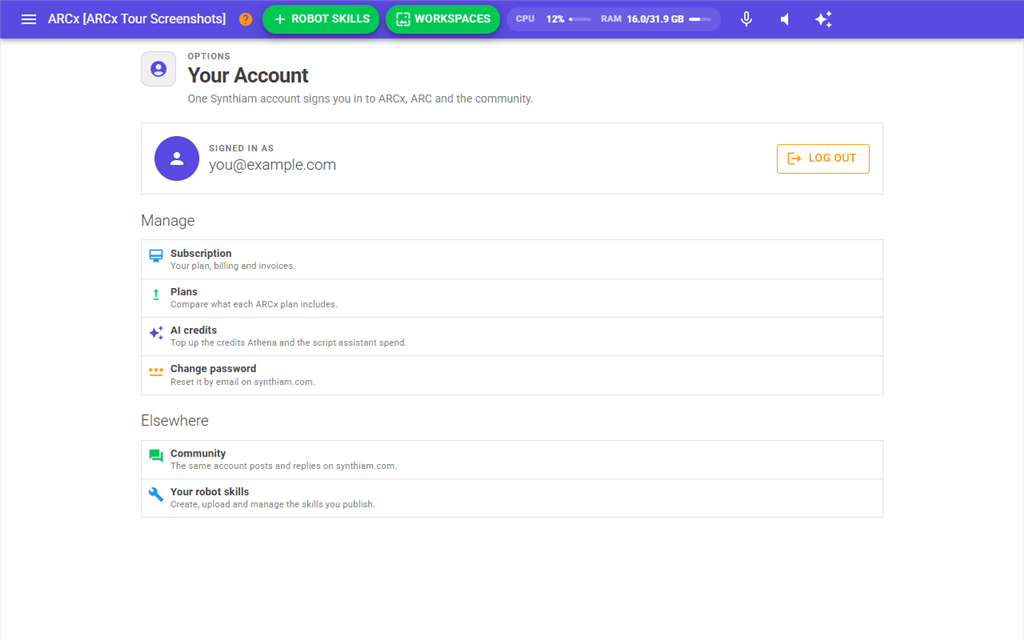
Log Out signs the account out straight away, with no confirmation, and returns to the sign in screen. It also forgets the account if you had chosen Stay signed in.
The rest of the screen is links. Each one opens a page on synthiam.com in a new browser tab, except Your robot skills.
| Link | What it opens |
|---|---|
| Subscription | Your plan, billing and invoices. |
| Plans | A comparison of what each ARCx plan includes. |
| AI credits | Where to top up the credits that Athena and the script assistant spend. |
| Change password | The password reset page. The new password is set by email on synthiam.com. |
| Community | The Synthiam community, where the same account posts and replies. |
| Your robot skills | The ARCx screen for creating, uploading and managing robot skills you publish. See Robot Skills → Create in the top menu. |
Signing in
The sign in screen has a short description of ARCx on the left and the form on the right. A switch at the top of the form changes between Sign in and Create account. If this computer has been signed in before, the screen opens on Sign in; otherwise it opens on Create account.
- Type the Email and Password of your Synthiam account. The eye button in the password box shows what you typed, which helps when a sign in fails.
- Tick Stay signed in if you want ARCx to remember the account. See Stay signed in first.
- Press Sign In, or press Enter in either box.
While ARCx checks the account, the button reads Signing in... and the form is disabled. Once signed in, ARCx starts a new, empty project, which now includes the robot skills that every new project starts with, and opens the home page. Save any work before you sign in.
Forgot password? opens the password reset page on synthiam.com. Create a free account switches to the account form.
Creating an account
| Field | What to enter |
|---|---|
| Full name | Your first and last name, separated by a space. It is kept private and used for billing. |
| Username | How the community will see you. More than 2 characters. |
| Your email address. A Confirm email box appears once you start typing; type it again there. | |
| Password | The password for the account. A Confirm password box appears once you start typing; type it again there. |
| Country | Your country, used to serve you from the nearest region. |
| Stay signed in | Remember the account on this ARCx. See below. |
The confirm boxes turn red with "The two emails do not match." or "The two passwords do not match." as soon as they differ.
Press Create Account, or press Enter in any box. The button reads Creating your account... while the account is made. ARCx then signs you in, starts a new project and shows the Unlock the full ARCx screen.
Sign in instead switches back to the sign in form.
Stay signed in
Without Stay signed in, the account stays signed in until ARCx is closed. The next time ARCx starts, you sign in again.
With it ticked, ARCx remembers the account on this computer and signs in by itself every time it starts.
On the sign in form, ticking it asks first: "Are you sure? Staying signed in keeps your Synthiam account signed in on this ARCx." The reason is that ARCx is controlled from a web browser. If ARCx was started with the -b / --bind option so that other computers can connect, anyone who can reach its address can control the robot while signed in as you. Only press Yes on a secure, trusted network, or when ARCx is not bound to other addresses. No, or closing the question, leaves the box unticked.
The sign in is shared by every browser connected to the same ARCx, because the account belongs to ARCx, not to the browser.
Unlock the full ARCx
This screen explains what a Pro subscription turns on. It appears after you create an account, and when ARCx starts for an account without an active subscription and you choose not to continue without one.
It lists four benefits: Unlimited robot skills, Athena, your AI assistant, High resolution camera and video, and Cloud AI, speech and synthesis.
| Button | What it does |
|---|---|
| View Plans | Opens the plans page on synthiam.com in a new tab. |
| Try Again | Opens ARCx's home page in a new tab, which checks the subscription again. Use it after subscribing. |
| Log out | Signs the account out and returns to the sign in screen. |
If nobody is signed in, this screen sends you to the sign in screen instead.
Troubleshooting
| Message | What to do |
|---|---|
| "Enter the email address for your Synthiam account." | The Email box is empty. |
| "Enter your password." | The Password box is empty. |
| "Enter your first and last name separated by a space. This is a private value and used internally for future purchases." | Full name needs at least 5 characters with a space between first and last name. |
| "Email must not be empty." / "Emails do not match. ..." | Fill in Email and type the same address in Confirm email. |
| "A username must be longer than 2 characters." | Choose a longer Username. |
| "Password must not be empty." / "Passwords do not match. ..." | Fill in Password and type the same in Confirm password. |
| "Select your country to ensure we provide the best geographical performance." | Choose a Country. |
| "Could not reach synthiam.com to load the country list. ..." | The account form cannot be used without the country list, so it stays disabled. Check this computer's internet connection, then open the sign in screen again. |
Any other error from synthiam.com, such as a wrong password or an email that already has an account, is shown in red above the button, and the form can be tried again.