
Home
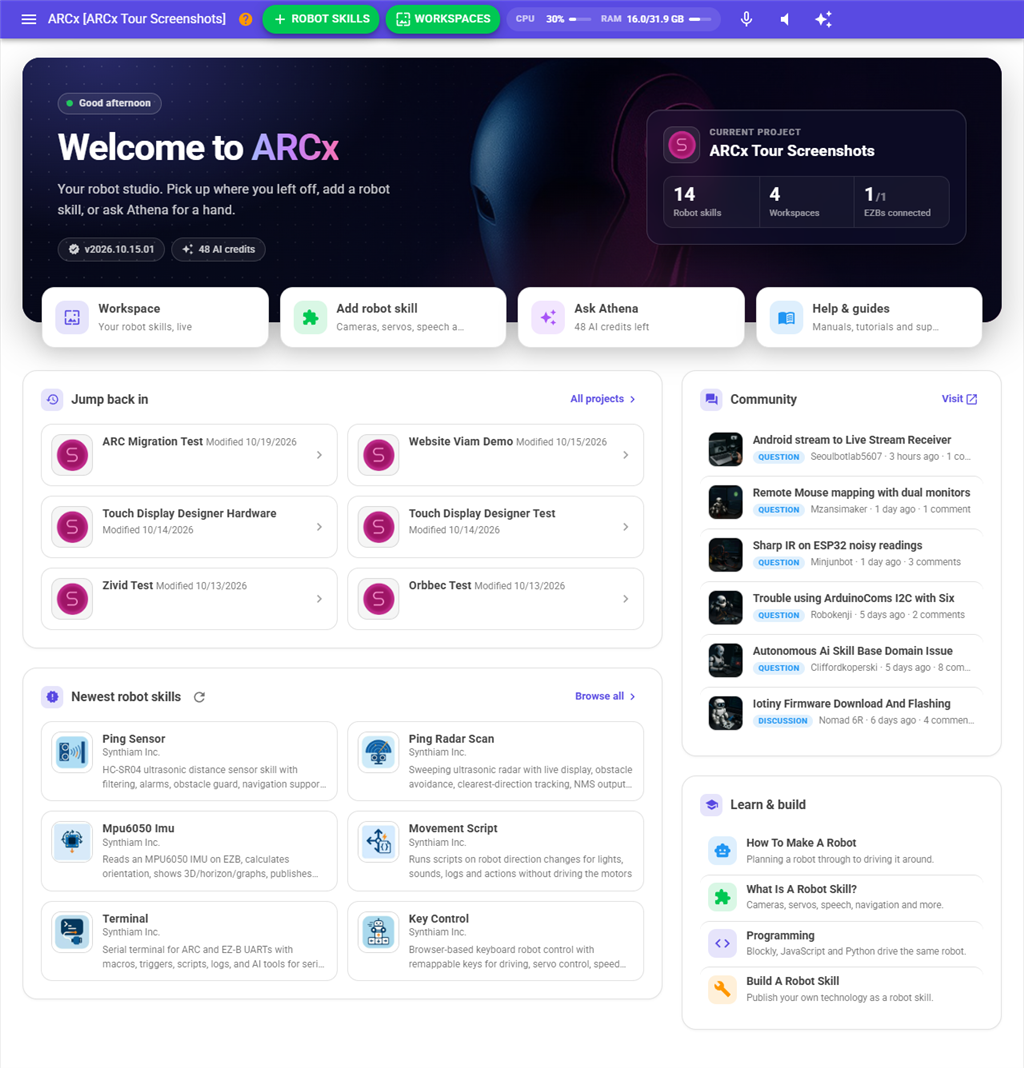
The Home page is the dashboard ARCx shows when it starts. It tells you which project is open, takes you back to the projects you worked on most recently, and links to the places you go most often: the workspace, the robot skill store, Athena and the help pages. It also shows the newest robot skills and community posts from synthiam.com.
Use it as your starting point: open a recent project with one click, start a new one, or check what is new on synthiam.com.
Where to find it: Side menu → Home. It is also the first page you see each time ARCx starts, after any sign-in or welcome screens.
Contents
- Welcome banner
- Current project card
- Shortcut tiles
- Jump back in
- Newest robot skills
- Community
- Learn & build
- Notes
Welcome banner
The top of the page greets you with Good morning, Good afternoon, Good evening or Working late, based on the clock of the computer ARCx runs on.
Under the greeting are two small badges:
| Badge | What it shows |
|---|---|
| Version (for example v1.2.3) | The version of ARCx that is running. |
| AI credits | How many AI credits your account has left. It only appears once ARCx has read your balance. Click it to open the synthiam.com page where you can buy more credits. |
Current project card
The card on the right of the banner shows the project that is open now.
When a project is open (a saved project, or a new one that already has robot skills in it), the card shows:
| Item | What it shows |
|---|---|
| Picture and name | The project's title image and file name. A project that has not been saved yet is called Untitled project. |
| Robot skills | How many robot skills are in the project. |
| Workspaces | How many workspaces the project has. |
| EZBs connected | How many EZBs are connected now, out of the number of EZB slots, for example 1/5. This is a snapshot from when the page was drawn; it does not update live. |
When no project is open, the card says No project open and Start a robot, with two buttons:
- Open project goes to File → Open.
- New project goes to File → New.
Shortcut tiles
A row of four large tiles under the banner:
| Tile | Where it goes |
|---|---|
| Workspace | The workspace of the open project, where its robot skills run. |
| Add robot skill | The robot skill store, to add cameras, servos, speech and more. |
| Ask Athena | Athena, the AI helper. Once your balance is known the tile shows how many AI credits are left. |
| Help & guides | The Help page with manuals, tutorials and support. |
Jump back in
This section lists up to 6 of your most recently modified projects from the project folder on this computer (My Projects inside the ARCx Data folder). Projects saved only to the cloud are not listed here.
Each tile shows the project's picture, its name, and either its description or the date it was last modified. A password protected project shows Password protected and its modified date, because nothing else in it can be read without the password.
To open a recent project:
- Click its tile.
- If the project is password protected, enter its password and press Open.
- A busy overlay shows Opening (name)... while the project loads. When it is done, the first workspace of the project appears.
Opening a project replaces the project that is open now. ARCx does not ask you to save first, so save your work before you click.
If some robot skills in the project could not be loaded, a Warnings box lists them. The rest of the project still opens. If the project cannot be opened at all, an Error box says Unable to open project '...' with the reason.
Click All projects at the top right of the section to go to File → Open, which lists every project and has more options, such as merging and project details.
If there are no projects in the folder yet, the section says Your next robot starts here, with New project and Open project buttons.
Newest robot skills
Up to 6 robot skills most recently published on synthiam.com. Each tile shows the skill's picture, its publisher (or its category), and a short description. Click a tile to open that skill's page on synthiam.com in a new browser tab.
| Control | What it does |
|---|---|
| Refresh button (circular arrow) | Checks synthiam.com again right away, instead of using the copy ARCx already fetched. |
| Browse all | Opens the robot skill store inside ARCx, where you can add skills to your project. |
Community
The newest questions, discussions, feature requests and tutorials from the synthiam.com community, up to 6 posts. Each row shows the post's picture, its title, its type, who posted it, how long ago, and how many comments it has. Click a row to open the post on synthiam.com in a new browser tab.
Click Visit at the top of the section to open the community pages on synthiam.com.
Learn & build
Four links that are always available, even when the computer has no internet connection:
| Link | Where it goes |
|---|---|
| How To Make A Robot | The synthiam.com guide from planning a robot through to driving it around. Opens in a new tab. |
| What Is A Robot Skill? | The synthiam.com explanation of robot skills. Opens in a new tab. |
| Programming | The synthiam.com programming overview for Blockly, JavaScript and Python. Opens in a new tab. |
| Build A Robot Skill | The page inside ARCx for creating and publishing your own robot skill. |
Notes
- The robot skill and community sections are loaded after the rest of the page appears, so a slow or missing internet connection never holds up the Home page. While they load, they show Checking synthiam.com....
- ARCx keeps what it fetched from synthiam.com for 15 minutes, so moving between pages does not fetch it again each time. After a failed attempt it waits about 2 minutes before trying again, unless you press the refresh button.
- If synthiam.com cannot be reached, the sections show a message instead, such as Could not reach the Synthiam website. The rest of the Home page works normally.
- If a project file in the project folder cannot be read, it is left out of Jump back in and a warning is written to the log. File → Open offers to delete files like this.