
Offline speech-to-text engine for ARCx using sherpa-onnx models; runs locally on Windows, Linux, Raspberry Pi, and Mac with no internet after download
 Windows
 ARM
ARM
 Linux
Linux
 MacOS
MacOS
How to add the Sherpa-Onnx Speech To Text robot skill
- Load the most recent release of ARCx on a compatible operating system (Get ARCx).
- Press the + Skills menu from the top menu bar in ARCx.
- Choose the Audio category tab.
- Press the Sherpa-Onnx Speech To Text icon to add the robot skill to your project.
Don't have a robot yet?
Follow the Getting Started Guide to build a robot and use the Sherpa-Onnx Speech To Text robot skill.
How to use the Sherpa-Onnx Speech To Text robot skill
Offline speech recognition with the open source sherpa-onnx toolkit from the Next-gen Kaldi team. It runs neural network models on the computer ARCx is running on - Windows, Linux, a Raspberry Pi or a Mac - with no account, no internet connection once the model is downloaded, and no cost per phrase. That makes it a good engine to leave listening all day, and a good wake word listener for a cloud engine.
This skill is a speech to text engine: it does not do anything by itself, it provides recognition to whatever in the project wants to listen - the Speech Phrase Recognition skill, the Listen option in Autonomous AI, wake word detection, and the Audio.WaitForSpeech() script command.
It does not do text to speech. Pair it with Basic or Advanced Speech Synthesis if the robot should also talk.
Requirements
- ARCx on Windows (x64), Linux (x64 or ARM64, such as a Raspberry Pi 4 or 5) or macOS (Apple silicon). The skill runs on the ONNX Runtime included with ARCx, and there is none for macOS on Intel processors.
- An internet connection the first time a model is used, to download it. After that, none.
- Disk space for the model: 30MB to 640MB depending on the one chosen.
- A microphone. This is the audio input ARCx is using, which may be a robot's microphone rather than one attached to this computer.
- Only one instance per project.
Adding it to a project
- Add the skill to the project (Audio category). It starts with a small streaming English model selected.
- Optionally open its configuration and choose another model, then press Download. Otherwise the model downloads by itself (57MB for the default) the first time something asks to listen.
- Add whatever is going to listen - the Speech Phrase Recognition skill, for example - and pick this skill as its engine.
Models are shared by every project on the computer and only ever downloaded once. They are kept in Documents\ARCx Data\Speech Models\Sherpa-Onnx on Windows (or ProgramData\ARCx Data\Speech Models\Sherpa-Onnx when the Windows user name has accented or non-Latin characters, which the model loader cannot open), and in ~/ARCx Data/Speech Models/Sherpa-Onnx on Linux and macOS. The configuration shows the exact folder. Delete a model's folder to remove it.
Choosing a model
There are two kinds, and the difference is the one you will notice:
- Streaming models recognize while you speak. The text appears in the window word by word, and the answer is there the moment you stop. Best for commands and for a robot that should feel responsive.
- The others wait until you stop speaking, then recognize the whole utterance at once. They are usually more accurate, and add punctuation and capitals (which are stripped by default). A small voice activity detector (Silero, 2MB) decides where each utterance starts and ends; it is downloaded with the model.
| Model | Kind | Download | Good for |
|---|---|---|---|
| English - Kroko streaming | Streaming | 57MB | The default. Commands and conversation, on anything from a Raspberry Pi up |
| English - Zipformer streaming | Streaming | 310MB | More accurate streaming English on long sentences |
| German / French / Spanish - Kroko streaming | Streaming | 57-124MB | The same, in those languages |
| Chinese + English - Zipformer streaming | Streaming | 511MB | Mandarin and English, even mixed in one sentence |
| English - Moonshine tiny / base | Whole utterance | 30MB / 111MB | Short commands on small computers |
| English - Parakeet TDT 110M | Whole utterance | 108MB | Very accurate for its size |
| English - Parakeet TDT 0.6B v2 | Whole utterance | 482MB | The most accurate English here. Wants a desktop processor |
| European - Parakeet TDT 0.6B v3 | Whole utterance | 487MB | 25 European languages, detected automatically |
| Whisper tiny.en / base.en / small.en | Whole utterance | 118-636MB | OpenAI Whisper, English |
| Multilingual Whisper tiny / base / small | Whole utterance | 116-639MB | 99 languages. Set Language, or leave it empty to detect it |
| Asian + English - SenseVoice | Whole utterance | 166MB | Mandarin, Cantonese, English, Japanese, Korean |
Any other sherpa-onnx speech recognition model can be used too: download and extract it from https://github.com/k2-fsa/sherpa-onnx/releases/tag/asr-models, choose Custom model folder, enter the folder and pick its kind. The files are found by name (encoder, decoder, joiner, tokens.txt and so on), and int8 copies are preferred when a model has both.
The window
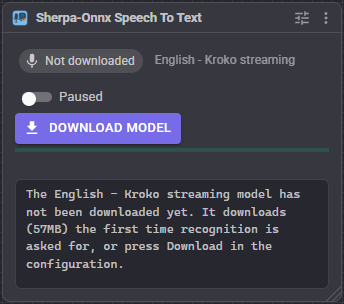
- The status says what the skill is doing: Not downloaded, Downloading or Unpacking with a percentage, Loading model, Ready, Listening, Hearing speech, Robot is talking, Paused or Error.
- Download model appears when the selected model is not on disk yet. Cancel stops a download in progress.
- Paused stops recognition without unloading the model, so a wake word engine can be silenced for a moment and resume instantly. It is not saved with the project.
- The level bar is what is reaching this skill from the ARCx audio input. If it never moves while you speak, the problem is the microphone or the input selected in ARCx, not the model.
- Under it, the words being spoken appear in italics as they are recognized (streaming models only), followed by the last thing heard.
- The log holds the last 25 lines: model loading and how long it took, each recognized phrase with its confidence, and anything that went wrong.
Configuration
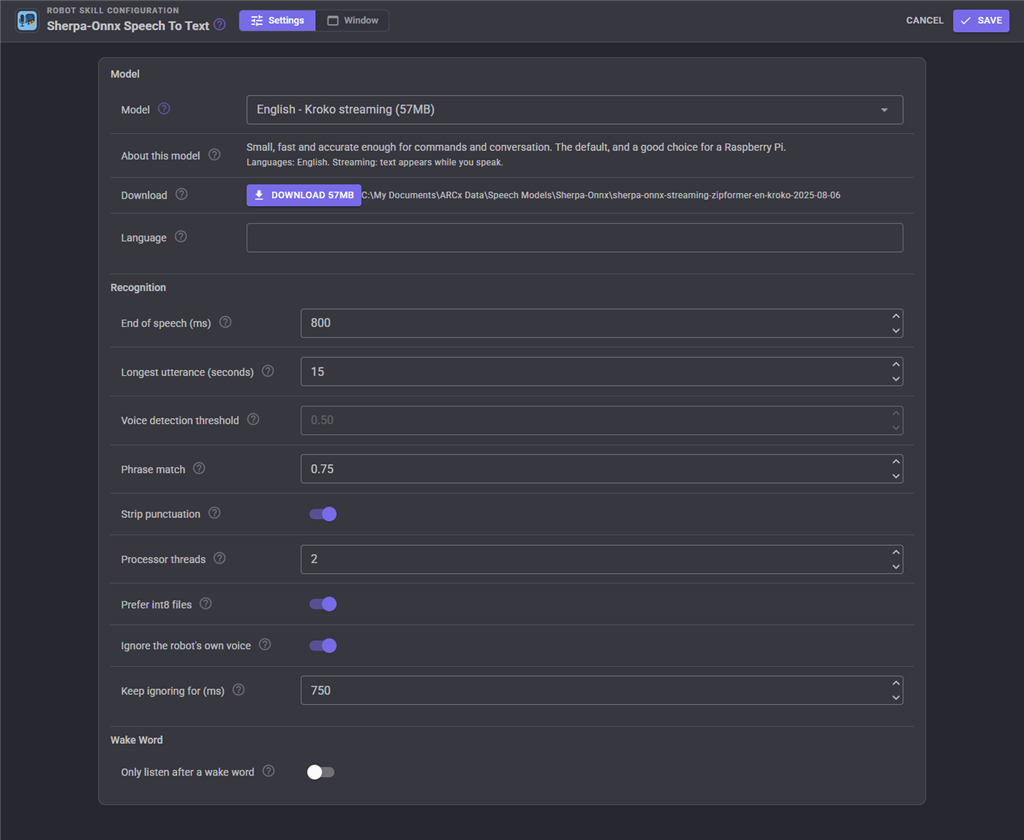
| Setting | Meaning |
|---|---|
| Model | The model, from the list above, or Custom model folder. Default English - Kroko streaming. |
| Model folder / Model kind | Only for a custom model: where its files are, and what kind it is. |
| Language | Only for Whisper and SenseVoice. Whisper takes a code such as en, de or fr, or empty to detect it. SenseVoice takes auto, zh, en, ja, ko or yue. |
| End of speech (ms) | How much silence after speech ends the utterance. Shorter answers faster; too short cuts a sentence off at the pause between words. Default 800. |
| Longest utterance (seconds) | Anything longer is cut into pieces. Whisper cannot take more than 30. Default 15. |
| Voice detection threshold | Only for the models that are not streaming. How sure the voice activity detector has to be that somebody is talking. Raise it in a noisy room, lower it for a quiet voice or a distant microphone. Default 0.5. |
| Phrase match | When a list of phrases is asked for, how close what was heard has to be to one of them. 1.0 means word for word; lower forgives a misheard letter or two. Default 0.75. |
| Strip punctuation | Remove punctuation from the recognized text. Default on. |
| Processor threads | Threads the recognizer may use. Default 2. |
| Prefer int8 files | Use a model's int8 quantized files when it ships both. Faster, nearly as accurate. Default on. |
| Ignore the robot's own voice | Stop listening while the robot is talking, so its own text to speech is not recognized as something said to it. Default on. |
| Keep ignoring for (ms) | The tail after the robot stops talking. The audio queue empties before the sound has actually been heard - a connected EZB has most of a second of its own buffering behind it - so without a tail the end of every sentence is heard by the microphone. Default 750. |
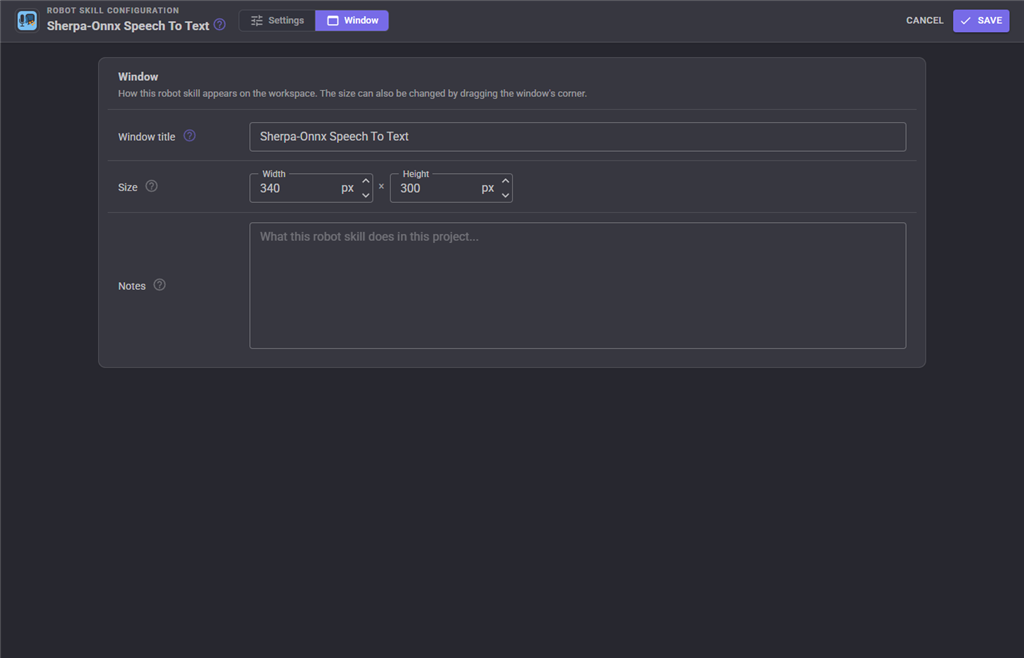
The Window tab sets the robot skill's window title, its size on the workspace and notes about what it does in this project.
Wake word
The Wake Word section at the bottom of the configuration makes this engine wait for a phrase, said to another engine (or to itself), before it listens. Because this engine costs nothing to leave running, it is more often the other way round: choose this skill as the wake word listener in the configuration of a cloud engine such as Azure, so the metered engine only runs after the robot's name is said.
How recognition behaves
- The model is loaded once and kept loaded. The first load takes from under a second to a few seconds depending on the model and the computer; a model that is already downloaded is loaded in the background as soon as the project opens.
- None of these models can be limited to a grammar the way the Windows engine can, so when a list of phrases is asked for, everything is recognized and then compared with the list. The phrase may be at the start of a longer sentence ("turn left please" matches
turn left), and small mistakes are forgiven according to Phrase match. The closeness is reported as the confidence, so a consumer's own minimum confidence applies on top. With no phrase list the confidence is always 1. - Something heard that matches no phrase is logged and ignored. When one answer was asked for (Wait For Speech), it is reported as a failed result instead, the same as the Windows engine rejecting it.
- A failure - no model, a download that failed, a model folder with the wrong files - is reported back to whatever is listening as a failed result rather than being left to time out.
- Opening the configuration dialog stops recognition and restarts it with the same phrase list when the dialog closes, reloading the model if it was changed.
Troubleshooting
| Symptom | Cause |
|---|---|
| Status stays Not downloaded | Nothing has asked to listen yet. Press Download model, or start the skill that listens. |
| Download fails | No internet connection, or github.com is blocked. The model can also be downloaded by hand from the sherpa-onnx releases page and used as a custom model. |
| Error: "sherpa-onnx could not load the model" | A custom model whose kind does not match its files. The ARCx console shows sherpa-onnx's own reason. |
| The level bar never moves | Nothing is reaching the ARCx audio input. Check the input device in Options, Preferences, or the robot's microphone. |
| Level bar moves but nothing is recognized | For a model that is not streaming, lower Voice detection threshold. Check the model's language is the one being spoken. |
| Sentences are cut off in the middle | Raise End of speech (ms). |
| Answers feel slow | Choose a streaming model, lower End of speech (ms), or raise Processor threads. |
| Log says "Robot is talking, ignoring the microphone" too often | Lower Keep ignoring for (ms), or turn Ignore the robot's own voice off. |
| Phrases are heard but ignored | What was said is not close enough to a phrase. Lower Phrase match, or add the wording you actually use to the phrase list. |
See also
- Speech Phrase Recognition - run scripts when phrases are heard
- Voice Activity Detection - wake an engine on any voice
- Windows Speech Engine - offline recognition and synthesis, Windows only
- Azure Speech To Text Engine - cloud recognition
- sherpa-onnx - https://github.com/k2-fsa/sherpa-onnx
Control Commands for the Sherpa-Onnx Speech To Text robot skill
There are Control Commands available for this robot skill which allows the skill to be controlled programmatically from scripts or other robot skills. These commands enable you to automate actions, respond to sensor inputs, and integrate the robot skill with other systems or custom interfaces. If you're new to the concept of Control Commands, we have a comprehensive manual available here that explains how to use them, provides examples to get you started and make the most of this powerful feature.
Control Command ManualThis robot skill has 4 control commands, listed below. Send them from a JavaScript or Python script, from Blockly, or from another robot skill.
The first value is always the window title, which is the name in the title bar of the robot skill on your workspace. It starts out as Sherpa-Onnx Speech To Text, which is what every example below uses. If you rename the robot skill, or add a second copy of it to the project, use the title as it appears on that window instead.
ControlCommand() can be shortened to CC(), and both spellings work in JavaScript and in Python. The examples are JavaScript; Python is the same call, except that true and false are written True and False.
GetLastHeard
The last thing this engine recognized, in lower case, whether or not it matched a phrase. Empty until something has been heard.
Syntax
ControlCommand("Sherpa-Onnx Speech To Text", "GetLastHeard")
Returns: String
Example
var result = ControlCommand("Sherpa-Onnx Speech To Text", "GetLastHeard");
GetPause
Is listening currently paused? Returns true|false
Syntax
ControlCommand("Sherpa-Onnx Speech To Text", "GetPause")
Returns: Boolean [true or false]
Example
var result = ControlCommand("Sherpa-Onnx Speech To Text", "GetPause");
PauseListening
Stop listening without unloading the model, so nothing spoken is recognized. Returns true.
Syntax
ControlCommand("Sherpa-Onnx Speech To Text", "PauseListening")
Returns: Boolean [true or false]
Example
var result = ControlCommand("Sherpa-Onnx Speech To Text", "PauseListening");
UnpauseListening
Resume listening after PauseListening. Returns true.
Syntax
ControlCommand("Sherpa-Onnx Speech To Text", "UnpauseListening")
Returns: Boolean [true or false]
Example
var result = ControlCommand("Sherpa-Onnx Speech To Text", "UnpauseListening");
This list is read out of the robot skill itself each time its package is uploaded, so it matches the published version (v7).



This robot skill has been updated to v2.
This robot skill has been updated to v3.
What has changed
compatible with the latest ARCx v2026.09.27.01
This robot skill has been updated to v4.
What has changed
updated to support latest audio service of ARCx 2026.09.28.02
This robot skill has been updated to v6.
What has changed
The latest ARCx (2026.09.30.03) includes ONNX runtimes. This robot skill uses those runtimes rather than distributing duplicates.
This robot skill has been updated to v7.
What has changed
updated to use some new ARCx UI features for improved performance.