
Monitors EZB digital ports, debounces inputs, publishes globals, logs state, counts presses, and runs scripts on changes
 Windows
 ARM
ARM
 Linux
Linux
 MacOS
MacOS
How to add the Digital Monitor robot skill
- Load the most recent release of ARCx on a compatible operating system (Get ARCx).
- Press the + Skills menu from the top menu bar in ARCx.
- Choose any of these category tabs, the robot skill appears in each of them: Digital, Graphs.
- Press the Digital Monitor icon to add the robot skill to your project.
Don't have a robot yet?
Follow the Getting Started Guide to build a robot and use the Digital Monitor robot skill.
How to use the Digital Monitor robot skill
The Digital Monitor robot skill watches the digital ports of your EZB controllers for you. Pick the ports you care about, from any EZB in the project, and it reads each one on its own schedule, cleans up a bouncing switch, shows the port as a lamp, a timeline or a word such as "Pressed", publishes it as a global variable that every script in the project can read, counts how many times it turned on, and runs a script when it turns on or off.
It is for anything wired to a digital port as an input: a button, a bumper or limit switch, an infrared obstacle sensor, a motion sensor, a door or lid switch, a charger contact, a tilt switch. It can also watch a port that your own scripts turn on and off as an output, such as a light, to show and log what it is doing.
Use the variable, not Digital read commands
Once a port is monitored by this robot skill, read its global variable in your scripts instead of calling the digital read commands (Digital.get(), Digital.wait() and the rest).
Every digital read command is a request sent over the EZB's connection and an answer waited for. That connection is shared with everything else talking to the controller: servos, the camera, audio, ADC ports and every other robot skill. A script that checks a button in a loop asks the controller the same question over and over, often far faster than the button can change, and the extra traffic slows down everything else on the link. With several scripts doing it, the connection can become saturated.
The Digital Monitor has already done the read. Its variable holds the latest state, so reading it costs the controller nothing:
// Instead of reading the port yourself...
if (Digital.get(d7))
  Movement.stop();

// ...read the state the Digital Monitor already published
if (getVar("$Bumper"))
  Movement.stop();
if getVar("$Bumper"):
  Movement.stop()
To wait for a port to change, use the robot skill's WaitForState ControlCommand rather than a loop. It pauses the script until the port is on (or off), or until a timeout passes, and wakes the moment the Digital Monitor sees the change, without a single extra read:
// Wait up to 30 seconds for the start button to be pressed
if (controlCommand("Digital Monitor", "WaitForState", "Start Button", true, 30000))
  Audio.say("Let's go");
If a script needs to notice changes sooner, lower that port's Read every interval in the configuration rather than adding reads of your own. The Digital Monitor's control commands (such as GetState, GetOnCount and GetStateDuration) also answer from what it has already read and never query the controller.
The window
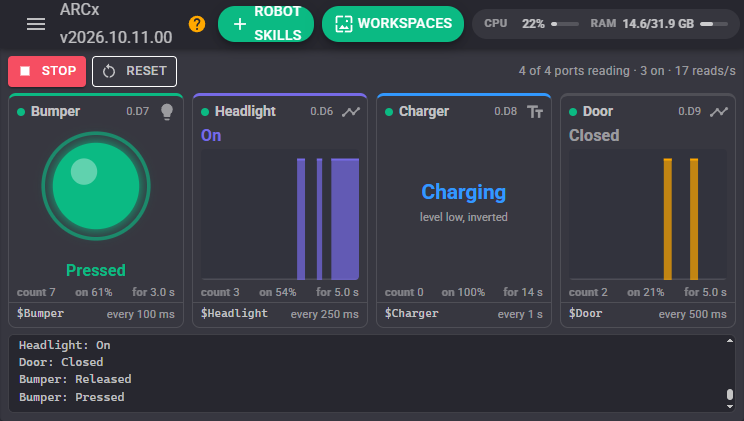
Each monitored port is a tile. The tiles share the window and grow when it is resized. The top edge of a tile lights up in the port's colour while it is on.
- Status dot: green while the port is being read, amber while its EZB is not connected, red when the port cannot be read (the text at the bottom of the tile says why), grey while monitoring is stopped or paused, and hollow when the port is disabled.
- Display button: the icon at the top right of a tile switches it between a lamp, a timeline and text. The choice is saved with the project.
- Lamp: a light that glows while the port is on, with the state text (such as Pressed or Released) under it. Before the first reading it is a dashed outline.
- Timeline: the recent states scrolling from right to left, a filled bar while the port was on and a line along the bottom while it was off. How much history it shows is set by Timeline History in the options.
- Text: the state text, large, with the level actually read from the port under it (high or low, and whether it is inverted).
- Statistics: how many times the port turned on, how much of the time it was on, and how long it has been in its current state, since the statistics were last reset.
- Footer: the global variable the port is published to, and how often it is read.
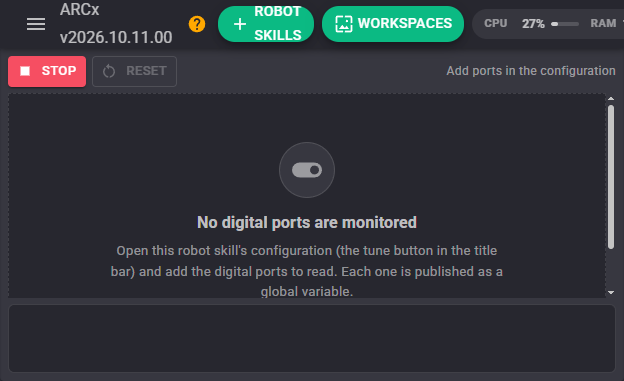
Along the top, Start/Stop starts and stops reading every port, and Reset starts the statistics and timelines over. The text on the right says how many ports are being read, how many are on, and how many reads per second the monitor is making in total. The log at the bottom records every change of state, when monitoring starts and stops, ports whose EZB is not connected, and failed reads.
While any robot skill's configuration window is open, reading pauses, the same as other robot skills do, and resumes when it closes.
Configuration
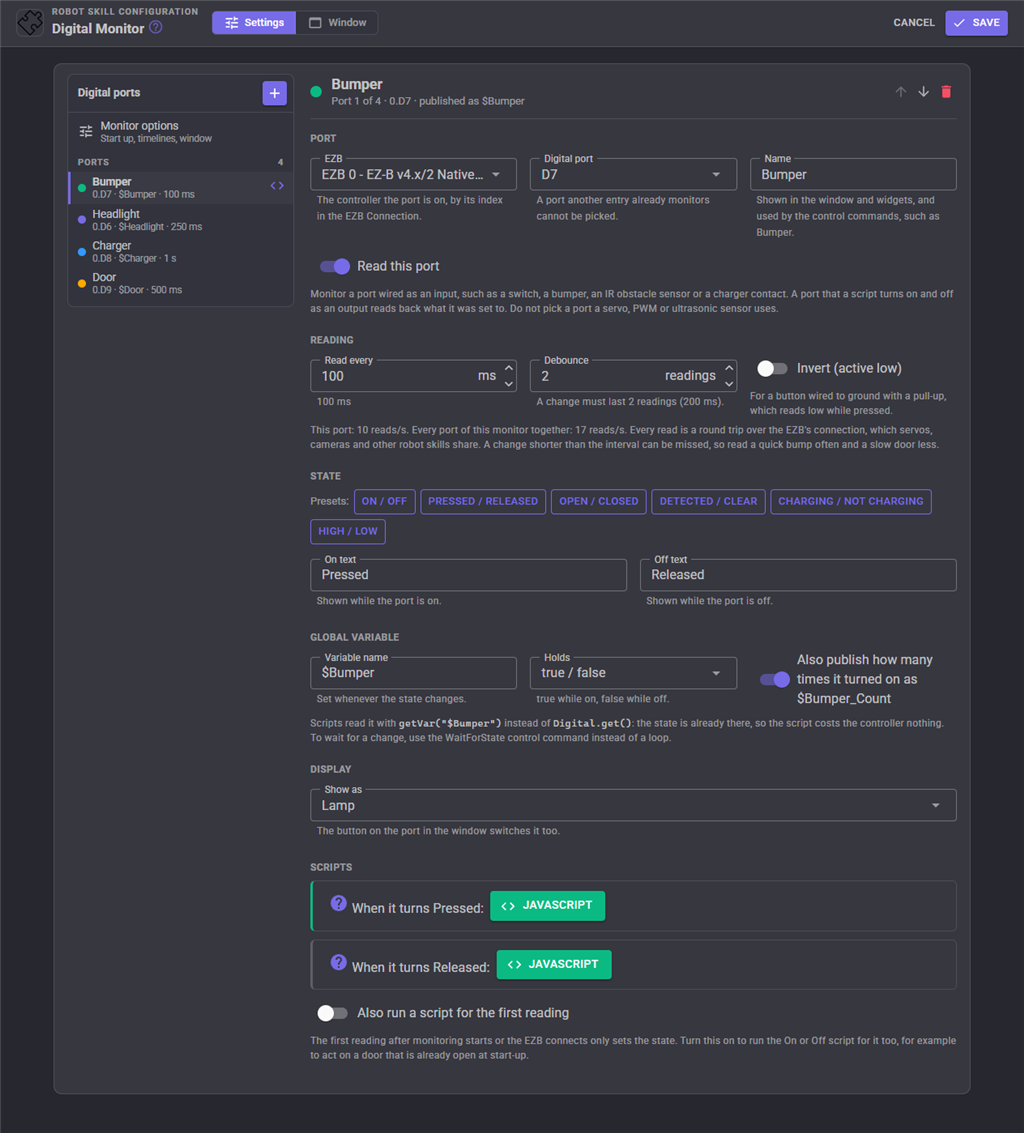
The configuration lists the monitored ports on the left. Press + to add a port: the first port that is not monitored yet is picked, and you change it in the pane on the right. Select a port in the list to edit it, use the arrows to change the order the window shows them in, and the delete button to stop monitoring it.
A port can only be monitored once. In the port list, a port that another entry already monitors is disabled and says which entry has it, so the same port cannot be added twice.
Port
| Setting | Description | Default |
|---|---|---|
| EZB | The controller the port is on, by its index in the EZB Connection robot skill. Any EZB in the project can be used. | EZB 0 |
| Digital port | The digital port on that controller, D0 to D23. Port descriptions from the project's properties are shown beside each port. | The first port not monitored yet |
| Name | The name shown in the window, the Custom UI widgets and the control commands, such as Bumper. | The port's description, or the port |
| Read this port | A disabled port keeps its settings but is not read. | On |
Only monitor a port that is wired as an input, or one your own scripts use as an output. Do not pick a port that a servo, a PWM output or an ultrasonic distance sensor uses.
Reading
| Setting | Description | Default |
|---|---|---|
| Read every | How often this port is read, in milliseconds (20 or more). Each port has its own interval, so a bumper can be read ten times a second while a charger contact is read once a second. The hint under the field shows how many reads per second this port, and the whole monitor, make. | 250 ms |
| Debounce | How many readings in a row must agree before the state changes. A mechanical switch can flicker for a moment as it closes, and a sensor can flicker at the edge of its range; a debounce of 2 or 3 hides that. 1 accepts every change at once. A change is noticed Debounce × Read every later. | 1 |
| Invert (active low) | Swap on and off. A button wired between the port and ground, with a pull-up, reads low while it is pressed; inverting it makes pressed read as on. | Off |
Every read is a round trip over the EZB's connection, so read each port no faster than it needs. A change that is shorter than the interval can be missed entirely: a quick tap of a bumper needs a short interval, a door does not.
State
| Setting | Description | Default |
|---|---|---|
| On text | The word shown while the port is on, such as Pressed, Open, Detected or Charging. The GetStateText ControlCommand returns it. | On |
| Off text | The word shown while the port is off, such as Released, Closed or Clear. | Off |
The preset buttons fill in common pairs.
Global variable
| Setting | Description | Default |
|---|---|---|
| Variable name | The global variable the state is published to. It must be unique among the ports of this robot skill, and use only letters, digits and underscores. | $D0 on EZB 0, $EZB1_D0 on EZB 1 |
| Holds | What the variable holds: true / false, 1 / 0, or the state text (the On or Off text). true / false suits if (getVar("$Bumper")); 1 / 0 suits arithmetic; the text suits speaking or displaying it. |
true / false |
| Also publish how many times it turned on | Also publishes how many times the port has turned on since the statistics were reset, as the variable name followed by _Count (for example $Bumper_Count). Handy for counting button presses or objects passing a sensor. |
Off |
The variable is set whenever the state changes. Removing a port, renaming its variable or removing the robot skill removes its variables.
Display
| Setting | Description | Default |
|---|---|---|
| Show as | Lamp, Timeline or Text. The button on the tile switches it too. | Lamp |
Scripts
Each port can run one script when it turns on and another when it turns off. The change has already passed Invert and Debounce, and the global variable already holds the new state when the script starts. Stopping the robot when a bumper is pressed, speaking when a door opens, or starting a routine from a button are typical uses. The scripts of a monitor share one script runner, so when several ports change together their scripts are queued rather than run on top of each other.
The first reading after monitoring starts, or after the EZB connects, only sets the state: a button already held down at start-up does not count as a press and runs no script. Turn on Also run a script for the first reading to run the On or Off script for that first reading too, for example to act on a door that is already open when the robot starts.
Monitor options
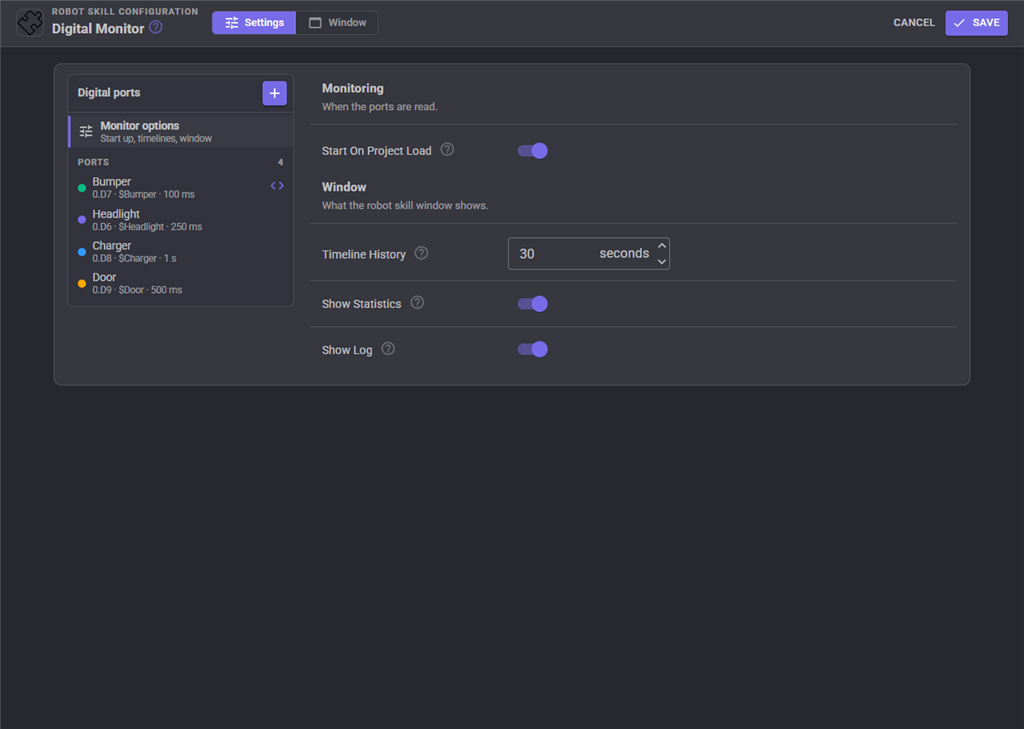
| Setting | Description | Default |
|---|---|---|
| Start On Project Load | Start reading the ports when the project loads. Ports on an EZB that is not connected yet are read the moment it connects. When off, press Start or use the Start control command. | On |
| Timeline History | How many seconds of readings a timeline shows, 5 to 3600. | 30 seconds |
| Show Statistics | Show the count, time on and time in the current state on each tile. | On |
| Show Log | Show the log at the bottom of the window. | On |
Custom UI widgets
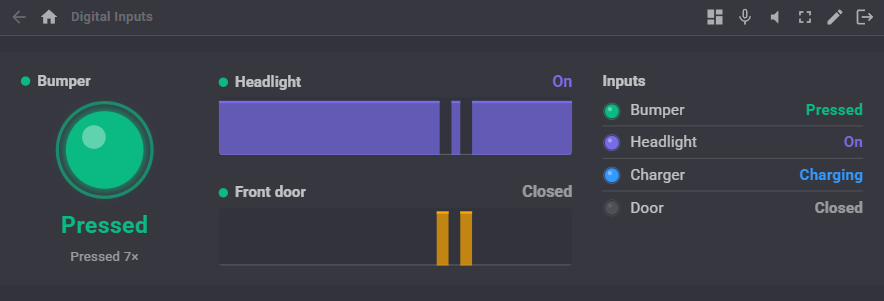
Three widgets can be placed on your own Custom UI screens. A widget that shows one port names it by its name (such as Bumper), its variable name (such as $Bumper) or its port (such as 0.D7).
- Digital lamp: a lamp for one port with its state text, and optionally how many times it turned on.
- Digital timeline: a scrolling timeline of one port with its current state.
- Digital states: every monitored port as a list of small lamps with their state text.
Like the window, the widgets only display what the Digital Monitor has already read, so adding widgets adds no traffic to the controller.
Several monitors
More than one Digital Monitor can be added to a project, for example one per controller or one per part of the robot. Each port should still be monitored by only one of them, and each one publishes its own variables, so give their variables different names.
AI assistants
An AI assistant connected to ARCx through MCP can read every monitored port with its state, counts, time on and status, and the recent history of a port to see a pattern such as how often a bumper is hit. These read what the Digital Monitor already has and never query the controller.
Control Commands for the Digital Monitor robot skill
There are Control Commands available for this robot skill which allows the skill to be controlled programmatically from scripts or other robot skills. These commands enable you to automate actions, respond to sensor inputs, and integrate the robot skill with other systems or custom interfaces. If you're new to the concept of Control Commands, we have a comprehensive manual available here that explains how to use them, provides examples to get you started and make the most of this powerful feature.
Control Command ManualThis robot skill has 16 control commands, listed below. Send them from a JavaScript or Python script, from Blockly, or from another robot skill.
The first value is always the window title, which is the name in the title bar of the robot skill on your workspace. It starts out as Digital Monitor, which is what every example below uses. If you rename the robot skill, or add a second copy of it to the project, use the title as it appears on that window instead.
ControlCommand() can be shortened to CC(), and both spellings work in JavaScript and in Python. The examples are JavaScript; Python is the same call, except that true and false are written True and False.
DisablePort
Stop reading one port. Its variable keeps its last value. Saved with the project.
Syntax
ControlCommand("Digital Monitor", "DisablePort", (String)port)
Parameters
| # | Name | Type | What to pass |
|---|---|---|---|
| 1 | port | Text | Your text, in quotes |
Returns: Boolean [true or false]
Example
var result = ControlCommand("Digital Monitor", "DisablePort", "port");
EnablePort
Start reading a port that was disabled. Saved with the project.
Syntax
ControlCommand("Digital Monitor", "EnablePort", (String)port)
Parameters
| # | Name | Type | What to pass |
|---|---|---|---|
| 1 | port | Text | Your text, in quotes |
Returns: Boolean [true or false]
Example
var result = ControlCommand("Digital Monitor", "EnablePort", "port");
GetLevel
The level a port last read from the controller (true when voltage was detected), before Invert and Debounce.
Syntax
ControlCommand("Digital Monitor", "GetLevel", (String)port)
Parameters
| # | Name | Type | What to pass |
|---|---|---|---|
| 1 | port | Text | Your text, in quotes |
Returns: Boolean [true or false]
Example
var result = ControlCommand("Digital Monitor", "GetLevel", "port");
GetOffCount
How many times a port turned off since the statistics were last reset.
Syntax
ControlCommand("Digital Monitor", "GetOffCount", (String)port)
Parameters
| # | Name | Type | What to pass |
|---|---|---|---|
| 1 | port | Text | Your text, in quotes |
Returns: Long [-9,223,372,036,854,775,808 to 9,223,372,036,854,775,807]
Example
var result = ControlCommand("Digital Monitor", "GetOffCount", "port");
GetOnCount
How many times a port turned on since the statistics were last reset, for counting presses or objects passing a sensor.
Syntax
ControlCommand("Digital Monitor", "GetOnCount", (String)port)
Parameters
| # | Name | Type | What to pass |
|---|---|---|---|
| 1 | port | Text | Your text, in quotes |
Returns: Long [-9,223,372,036,854,775,808 to 9,223,372,036,854,775,807]
Example
var result = ControlCommand("Digital Monitor", "GetOnCount", "port");
GetOnPercent
How much of the time a port was on since the statistics were last reset, 0 to 100.
Syntax
ControlCommand("Digital Monitor", "GetOnPercent", (String)port)
Parameters
| # | Name | Type | What to pass |
|---|---|---|---|
| 1 | port | Text | Your text, in quotes |
Returns: Double [5.0e324 to 1.7e308]
Example
var result = ControlCommand("Digital Monitor", "GetOnPercent", "port");
GetPorts
The names of the monitored ports, in the order they are shown.
Syntax
ControlCommand("Digital Monitor", "GetPorts")
Returns: Array of String
Example
var result = ControlCommand("Digital Monitor", "GetPorts");
GetState
Whether a port is on (after Invert and Debounce). The port is its name, its variable name or its port such as "0.D0".
Syntax
ControlCommand("Digital Monitor", "GetState", (String)port)
Parameters
| # | Name | Type | What to pass |
|---|---|---|---|
| 1 | port | Text | Your text, in quotes |
Returns: Boolean [true or false]
Example
var result = ControlCommand("Digital Monitor", "GetState", "port");
GetStateDuration
How many seconds a port has been in its current state, for example how long a button has been held.
Syntax
ControlCommand("Digital Monitor", "GetStateDuration", (String)port)
Parameters
| # | Name | Type | What to pass |
|---|---|---|---|
| 1 | port | Text | Your text, in quotes |
Returns: Double [5.0e324 to 1.7e308]
Example
var result = ControlCommand("Digital Monitor", "GetStateDuration", "port");
GetStateText
The text of a port's state, such as "Pressed" or "Released", as set in its configuration.
Syntax
ControlCommand("Digital Monitor", "GetStateText", (String)port)
Parameters
| # | Name | Type | What to pass |
|---|---|---|---|
| 1 | port | Text | Your text, in quotes |
Returns: String
Example
var result = ControlCommand("Digital Monitor", "GetStateText", "port");
IsRunning
Whether the digital ports are being read.
Syntax
ControlCommand("Digital Monitor", "IsRunning")
Returns: Boolean [true or false]
Example
var result = ControlCommand("Digital Monitor", "IsRunning");
ResetStatistics
Forget the counts, the time on and the timelines of every port.
Syntax
ControlCommand("Digital Monitor", "ResetStatistics")
Returns: Boolean [true or false]
Example
var result = ControlCommand("Digital Monitor", "ResetStatistics");
SetInterval
Change how often a port is read, in milliseconds (20 or more). Saved with the project. Returns the interval used.
Syntax
ControlCommand("Digital Monitor", "SetInterval", (String)port, (Number)intervalMs)
Parameters
| # | Name | Type | What to pass |
|---|---|---|---|
| 1 | port | Text | Your text, in quotes |
| 2 | intervalMs | Number | A number, without quotes |
Returns: Integer [-2,147,483,648 to 2,147,483,647]
Example
var result = ControlCommand("Digital Monitor", "SetInterval", "port", 0);
Start
Start reading the monitored digital ports.
Syntax
ControlCommand("Digital Monitor", "Start")
Returns: Boolean [true or false]
Example
var result = ControlCommand("Digital Monitor", "Start");
Stop
Stop reading the monitored digital ports. The global variables keep their last values.
Syntax
ControlCommand("Digital Monitor", "Stop")
Returns: Boolean [true or false]
Example
var result = ControlCommand("Digital Monitor", "Stop");
WaitForState
Pause the script until a port is on (true) or off (false), or until timeoutMs passes. Returns true when the state was reached, false on a timeout. Uses the monitor's readings, so waiting costs the controller nothing.
Syntax
ControlCommand("Digital Monitor", "WaitForState", (String)port, (Bool)state, (Number)timeoutMs)
Parameters
| # | Name | Type | What to pass |
|---|---|---|---|
| 1 | port | Text | Your text, in quotes |
| 2 | state | True or false | true or false, without quotes |
| 3 | timeoutMs | Number | A number, without quotes |
Returns: Boolean [true or false]
Example
var result = ControlCommand("Digital Monitor", "WaitForState", "port", true, 0);
This list is read out of the robot skill itself each time its package is uploaded, so it matches the published version (v1).




This robot skill has been updated to v1.
What has changed
initial release