
Video Sources
A video source is anything in the project that produces video: a camera robot skill, or a robot skill that makes its own video stream, such as one that draws overlays onto a camera picture. Other robot skills pick a video source by name to see what the robot sees. Video Sources lists every source registered in the project, with how many frames it has produced and its measured frame rate.
Use it to check that a camera is really delivering pictures, to find the exact name of a source to choose in a robot skill's configuration, or to compare a source's GUID against one in a script or log.
Where to find it: Side menu → Views → Video Sources. The video checks on Views → Diagnostics also link here.
The source list
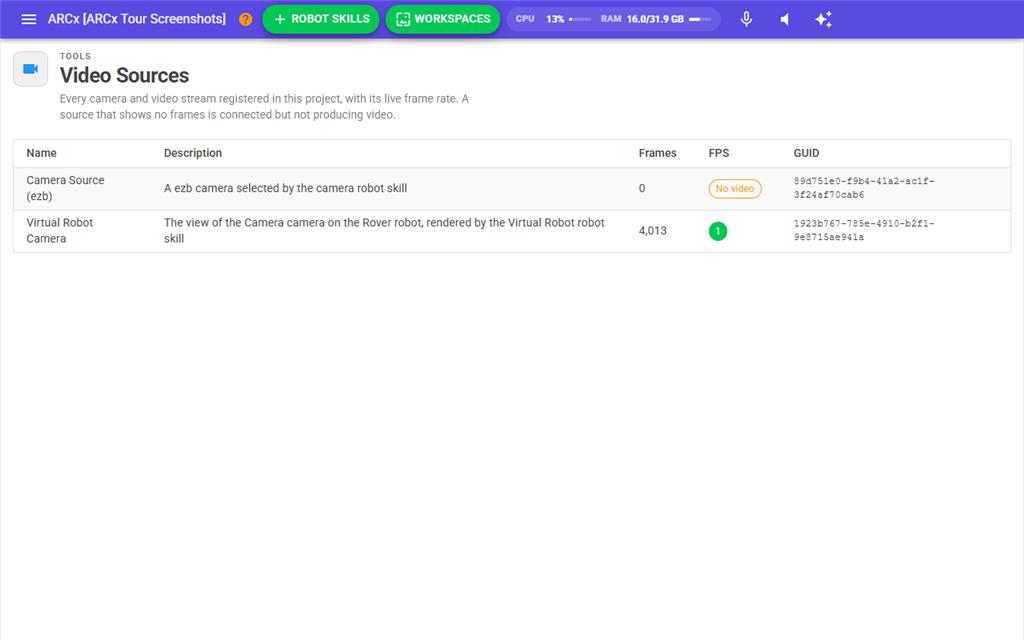
| Column | What it shows |
|---|---|
| Name | The source's name. This is the name you choose in other robot skills. Names are unique in a project, regardless of upper or lower case. The list is sorted by name. |
| Description | A description the robot skill gives its source. |
| Frames | How many frames the source has produced since it was registered. |
| FPS | The frame rate the source is actually delivering, measured by ARCx over the last second. No video means no frame has arrived for two seconds: the source is registered but stopped, stalled or never started. |
| GUID | The source's unique identifier, in a fixed-width font so it is easy to compare character by character. It changes every time the source is registered. |
If the project has no video source, the page says No video sources in this project and offers Add Camera Skill, which opens Robot Skills → Add with a search for "camera".
Checking a camera
- Start the camera in its robot skill.
- Open Views → Video Sources.
- Find the camera by name. A number in the FPS column means frames are arriving. No video means the robot skill is in the project but not producing pictures; check the camera robot skill's window and log.
Notes
- The figures do not update by themselves. Frames and FPS are read when the page opens. Open the page again to see current numbers.
- A source exists only while the robot skill that registered it is in the project. Removing that robot skill removes the source.