Custom UI Manage
Workspaces → Custom UI → Manage Custom UI
A custom UI is your own control panel for the robot: buttons, sliders, joysticks, camera views, gauges and widgets from robot skills, laid out the way you want and scaled to any screen or phone. A project can have many screens. Buttons and scripts move between them, and the breadcrumb takes you back.
This page lists the project's custom UI screens and leads into the designer, where you build each screen by placing widgets on it. To use a screen once it is built, open it in the viewer, described in Workspaces → Custom UI → Screen.
Where to find it: Top bar → Workspaces → Custom UI → Manage Custom UI. The designer is also reached from the pencil button in the viewer.
Contents
- The screen list
- Adding a screen
- The designer
- The designer toolbar
- Adding and arranging widgets
- Screen settings
- The widgets
- Widget properties
- Notes
The screen list
The top of the page has Open viewer, shown once there is at least one screen, and Add screen. A project with no screens shows No custom UI screens yet with its own Add screen button.
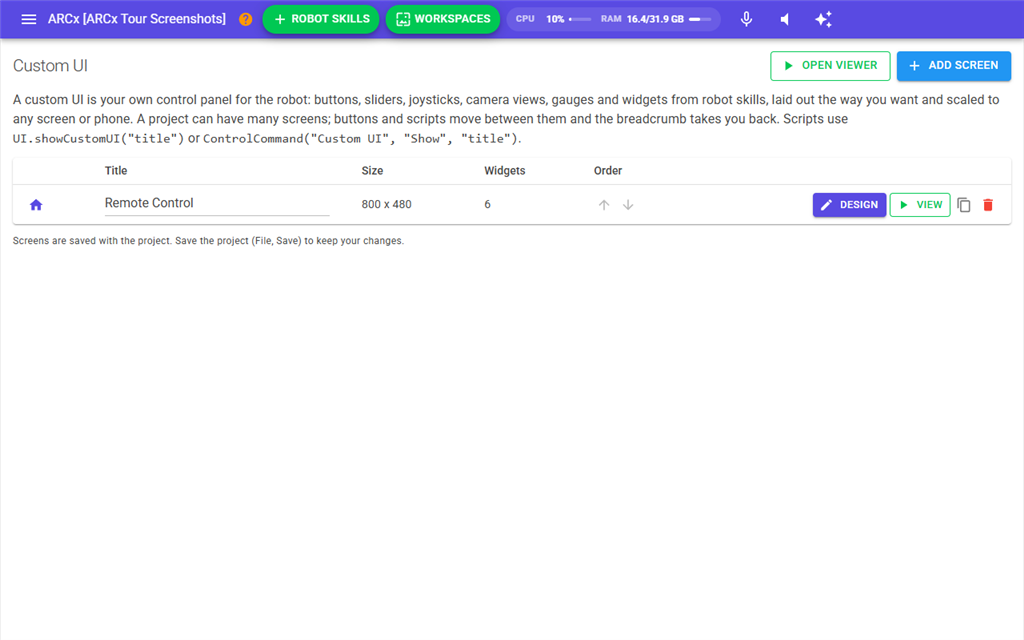
Each screen is a row in the table:
| Column | What it does |
|---|---|
| Home | The house icon. A filled house marks the home screen, where the viewer opens and where Home goes. Click the outline house on another screen to make it the home screen. |
| Title | The screen's title. Click it to rename the screen. Scripts and control commands open the screen by this title. |
| Size | The design size in pixels. |
| Widgets | How many widgets are on the screen. |
| Order | The up and down arrows move the screen in the list. This is the order screens appear in menus. |
| Design | Opens the screen in the designer. |
| View | Opens the screen in the viewer. |
| Duplicate (copy icon) | Makes a copy of the screen and all its widgets, named "title copy", placed just below the original. |
| Remove (bin icon) | Removes the screen. ARCx asks first: "Remove this screen and its n widget(s)? Buttons on other screens that open it will be cleared." Press Remove to remove it or Cancel to keep it. |
Each title must be unique. A blank title shows "A screen title cannot be empty." and a title already in use shows "Another screen is already called 'title'." The change is not kept in either case.
The first screen you add becomes the home screen. If you remove the home screen, the first screen left in the list becomes home.
Adding a screen
- Press Add screen. The New Custom UI Screen dialog opens.
- Type a Title. The first screen is suggested as "Main".
- Pick a Size. This is the shape the screen is designed for. The screen scales to whatever window or phone shows it, so pick the shape it is meant for.
- Press Create. The new screen opens in the designer.
| Size | Meant for |
|---|---|
| Landscape 800 x 480 (ARC classic) | The size used by ARC's custom interfaces. The default. |
| Landscape 1280 x 720 (tablet, laptop) | A tablet held sideways, or a laptop. |
| Landscape 1920 x 1080 (monitor) | A full HD monitor. |
| Portrait 390 x 780 (phone) | A phone held upright. |
| Portrait 768 x 1024 (tablet) | A tablet held upright. |
A blank title shows "A screen needs a title." If the title is already used by another screen, a number is added to the end of it. You can change the size later in the screen settings.
The designer
The designer has four parts: the toolbar across the top, the widget palette on the left, the screen in the middle, and the properties panel on the right. Edits go straight into the project. Any viewer showing the screen updates a moment later.
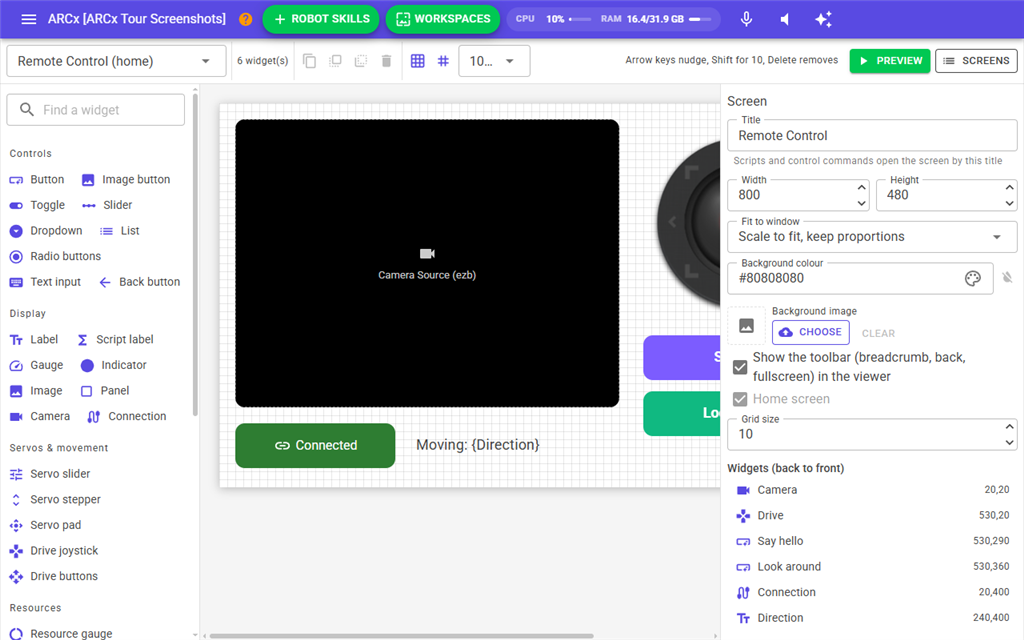
In the designer, widgets do not work. Pressing a button selects it rather than running its script. Use Preview to try the screen.
The designer toolbar
| Control | What it does |
|---|---|
| Screen selector | Switches the designer to another screen. The home screen is marked "(home)". |
| Widget count | How many widgets are on the screen. |
| Duplicate | Copies the selected widget and places the copy a little below and to the right. Ctrl+D does the same. |
| Bring to front | Draws the selected widget on top of all the others. |
| Send to back | Draws the selected widget behind all the others. |
| Remove | Removes the selected widget. The Delete key does the same. |
| Snap | When on, dragging and resizing snap to the screen's grid. |
| Show the grid | Draws the grid lines on the screen. |
| Zoom | Shows the screen at 50%, 75%, 100%, 125% or 150% while you design. It does not change the screen. |
| Preview | Opens this screen in the viewer in a new browser tab. |
| Screens | Returns to the screen list. |
Adding and arranging widgets
- Click a widget in the palette. It is added near the top left corner of the screen and selected. Each widget added in a row is placed a little lower and to the right so they do not stack exactly. Type in Find a widget at the top of the palette to search the palette by name or description.
- Drag the widget to where you want it.
- Drag the handle on the corner of the selected widget to resize it.
- Set its properties in the panel on the right.
Click a widget to select it. Click an empty part of the screen to clear the selection.
| Key | What it does |
|---|---|
| Arrow keys | Nudge the selected widget by 1 pixel. |
| Shift + arrow keys | Nudge the selected widget by 10 pixels. |
| Delete or Backspace | Remove the selected widget. |
| Escape | Clear the selection. |
| Ctrl+D | Duplicate the selected widget. |
These keys are ignored while you are typing in a field, so editing a widget's text never moves or removes it. Removing a widget does not ask first.
Widgets draw in list order: a widget later in the list draws over the ones before it.
Screen settings
With no widget selected, the properties panel shows the settings of the screen itself.
| Setting | What it does |
|---|---|
| Title | The screen's title. Scripts and control commands open the screen by this title. A title already used by another screen is not accepted. |
| Width and Height | The design size in pixels, from 100 to 8000. |
| Fit to window | How the viewer fits the screen to the window: Scale to fit, keep proportions, Stretch to fill, or Actual size, scroll. |
| Background colour | The screen's background. The clear button beside it returns to the theme colour. |
| Background image | A picture drawn behind the widgets, stretched to the screen. Choose picks a file and Clear removes it. |
| Show the toolbar (breadcrumb, back, fullscreen) in the viewer | Shows the viewer's top bar on this screen. When off, the viewer shows a small corner menu instead. |
| Home screen | Makes this the home screen. |
| Grid size | The spacing of this screen's grid, from 1 to 100 pixels. |
| Widgets (back to front) | Every widget on the screen with its position. Click one to select it. |
The widgets
The palette groups the widgets by what they do.
| Widget | What it does |
|---|---|
| Controls | |
| Button | Runs a script, sends a control command or opens another screen when pressed. Shows while its script runs; press again to stop it. |
| Image button | A button drawn as a picture, with a second picture while its script runs. |
| Toggle | An on/off switch bound to a global variable. Runs a script when it changes, and follows the variable when a script changes it. |
| Slider | A slider bound to a global variable, with a script on change. |
| Dropdown | A list of choices in a dropdown. The chosen text is stored in a global variable and a script runs. |
| List | A list of choices shown all at once. The chosen text is stored in a global variable and a script runs. |
| Radio buttons | One choice out of several, as radio buttons. The chosen text is stored in a global variable and a script runs. |
| Text input | A text box. Enter stores the text in a global variable and runs a script. Handy for talking to an AI robot skill. |
| Back button | Returns to the previous screen in the breadcrumb. Hidden on the home screen. |
| Display | |
| Label | Text. Write {variable} anywhere in it to show a global variable's live value, for example Battery {BatteryVolts} V. |
| Script label | Shows the result of a JavaScript expression, worked out again on a timer. For values that need a calculation, such as Math.round(getVar('Temp') * 1.8 + 32). |
| Gauge | A bar that fills as a global variable moves between its min and max. Battery, distance, load. |
| Indicator | A light that is on while a global variable is true and off otherwise. |
| Image | A picture. Logos, diagrams, decoration. |
| Panel | A coloured rectangle with an optional title, to group other widgets. Put it first so the others draw on top. |
| Camera | Live video from a camera robot skill's video source. |
| Connection | Shows whether the EZB is connected. Press to connect or disconnect through the connection robot skill. |
| Servos & movement | |
| Servo slider | A slider that moves one or more servos between their min and max positions. |
| Servo stepper | Plus and minus buttons that nudge one or more servos by a number of positions. |
| Servo pad | A joystick pad that moves one set of servos left and right and another up and down. A camera pan and tilt, a head, a shoulder. |
| Drive joystick | A joystick that drives the robot through the movement panel: forward, reverse, left, right, with speed from how far the thumb is pushed. |
| Drive buttons | Forward, reverse, left, right and stop buttons for the movement panel. |
| Robot skills | |
| Robot skill window | A robot skill's own window, as it appears on the workspace, placed on the screen. |
| Skill title: widget | Widgets offered by the robot skills in your project, named after the skill that provides them. What they do is described by the skill. |
Widget properties
When a widget is selected, the properties panel shows its type, a short description and only the properties that widget uses.
General
| Property | What it does |
|---|---|
| Name | The widget's name, shown in the widget list and the Script Monitor. |
| Caption, Text, Title or Prompt | The words on the widget. A Label can include {variable}. A Back button with no caption shows only its icon. |
| Icon | An icon drawn on a button, chosen from a list, or (none). |
| Javascript expression and Refresh every (ms) | For a Script label: what to work out and how often, from 100 to 60000 milliseconds. |
Variable
| Property | What it does |
|---|---|
| Global variable | The variable the widget reads or writes. Type to search the project's variables, or type a new name. |
| Min, Max and Step | The range of a slider or gauge, and how far a slider moves per step. |
| Starting value | The slider's value until the variable has one. |
| Choices (one per line) | The choices of a dropdown, list or radio buttons. The chosen text is stored in the variable. |
| Vertical | Lays the widget out top to bottom. |
When pressed (buttons)
| Choice | What it does |
|---|---|
| Run a script (press again to stop) | Runs the button's Script. The button shows its running colour while the script runs. |
| Send a control command | Pick the Robot skill and the Command, then fill in its parameters. Write {variable} in a parameter to pass a variable's value. |
| Open another screen | Pick the Screen to open. |
| Go back | Goes back one screen in the breadcrumb. |
| Go home | Goes to the home screen. |
| Nothing | The button does nothing when pressed. |
Widgets that change a value have an On change script. It runs after the value has been stored in the variable, so the script can read it with getVar().
Servos and movement
| Property | What it does |
|---|---|
| Servos | The servos a servo slider or stepper moves. The first servo is the master; its min and max are the range. Any others follow it. |
| Left / right servos and Up / down servos | The servos a servo pad moves with its horizontal and vertical position. |
| Move by (positions) | How far each press of a servo stepper moves, from 1 to 180. |
| Max speed (0 to 255) | The top speed of the drive joystick or drive buttons. |
| Dead zone (0 to 1) | How far the drive joystick must move before the robot moves. |
| Thumb size | The size of a joystick's thumb, from 10 to 200. |
| Spring back to centre when released | Returns the joystick to the centre when you let go. |
Media and robot skills
| Property | What it does |
|---|---|
| Video source | The camera a camera widget shows. (first available) shows the first source in the project. |
| Frame interval (ms) | Time between frames. Longer intervals use less bandwidth on a phone. |
| Show the processed video (tracking overlays) | Shows the video with tracking drawn on it. |
| Pictures | The picture of an image, image button, back button or toggle, and the pad background and thumb pictures of a joystick. Choose picks a file and Clear removes it. |
| Robot skill | The robot skill a robot skill window widget shows. |
| Connection robot skill and EZB index | The robot skill a connection widget sends Connect or Disconnect to, and which EZB it watches. |
| Widget settings | For widgets offered by robot skills: settings described by the skill. |
Appearance
| Property | What it does |
|---|---|
| Text colour and Background | The widget's colours. An indicator has Off colour and On colour instead. The clear button beside a colour returns it to the theme colour. |
| Background while running | A button's background while its script runs. |
| Font size, Align and Bold | How the text is drawn. Font size goes from 6 to 200. |
| Border, Corner radius and Border colour | The outline of the widget. |
Layout
| Property | What it does |
|---|---|
| Left, Top, Width and Height | The exact position and size in pixels. The smallest size is 20. |
| Opacity | How see-through the widget is, from 0.05 to 1. |
| Show only while variable is true | Leave empty to always show the widget. Otherwise the widget is hidden in the viewer until this global variable is true. It is always shown in the designer. |
Notes
- Screens are saved with the project. Save the project with File → Save to keep your changes.
- Pictures are stored inside the project file, so each must be under 2 MB. A larger file shows "That image is n KB. Keep it under 2048 KB; it is stored inside the project file."
- When a screen is removed, buttons on other screens that opened it are set to open nothing.
- A widget from a robot skill that is no longer in the project stays on the screen, and its description says "The robot skill that provides this widget is not in the project."
- If the screen you are designing is removed in another browser, or another project is loaded, the designer shows That screen is not in this project with a button back to Custom UI screens.