

Demo skill showing live graphics in ARCx UCSkillCanvas: lidar map, audio meter, graph, and paint, all simulated with no hardware.
 Windows
 ARM
ARM
 Linux
Linux
 MacOS
MacOS
How to add the Example - Draw On Canvas robot skill
- Load the most recent release of ARCx on a compatible operating system (Get ARCx).
- Press the + Skills menu from the top menu bar in ARCx.
- Choose the Examples category tab.
- Press the Example - Draw On Canvas icon to add the robot skill to your project.
Don't have a robot yet?
Follow the Getting Started Guide to build a robot and use the Example - Draw On Canvas robot skill.
How to use the Example - Draw On Canvas robot skill
A demonstration robot skill, shipped with source, showing how to draw live graphics in a skill window using ARCx's UCSkillCanvas component - a lidar map, an audio meter, a rolling graph, or a surface you can draw on with the mouse.
It controls no hardware. Everything it plots is simulated. It exists to be read and copied when you are building a skill that needs a picture that updates many times a second.
Why it exists
A skill that needs a live picture has two options: render a bitmap on the server and serve it as an image, or send the geometry and let the browser draw it. UCSkillCanvas is the second, and for generated graphics it is much cheaper - nothing is rasterized, no PNG is compressed, there is no second HTTP request per frame, and the drawing rescales when the panel is resized without the server being told anything at all.
The one rule worth remembering
Guard every frame with TryBeginDraw and give up immediately when it returns false. It is false when no browser is connected, when the panel is not on screen, and when the previous frame is still inside RefreshMS. A skill that respects it does no work at all when nobody is looking - which on a single board computer is the difference between a skill you can leave running and one you cannot.
The four demos
| Demo | What it demonstrates |
|---|---|
| Lidar Map | World coordinates in metres with Y pointing up, pan, zoom and click-to-place. How a point cloud is plotted, and how clicks come back already converted to metres. |
| UV Meter | Normalized coordinates, so the layout stretches to fit any panel size. Rectangles with peak hold - all an audio meter ever needs. |
| Scrolling Graph | A polyline over a ring buffer, the standard shape for any rolling history plot. |
| Paint | Pointer input driving the drawing directly, in normalized coordinates, so a scribble keeps its proportions when the panel is resized. |
The window
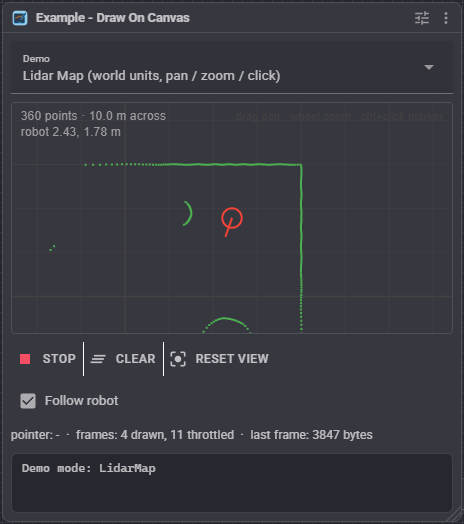
- Demo - switch between the four demos. The choice is not saved unless you set it in the configuration.
- Start / Stop - run or pause the animation.
- Clear - clear the markers, the paint strokes and the graph history.
- Reset View - return the map to its default pan and zoom.
- Follow robot - keep the simulated robot centred in the lidar map.
- The canvas itself: drag to pan, wheel to zoom, click to place a marker (Lidar Map), or drag to draw (Paint).
Configuration
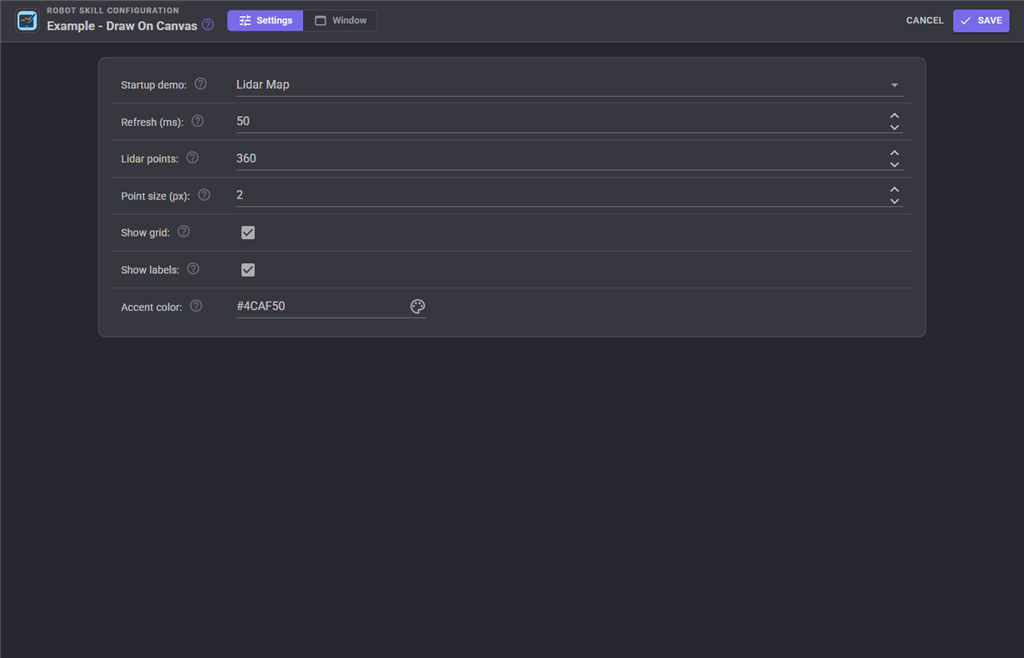
| Setting | Meaning | Default |
|---|---|---|
| Startup demo | Which demo the skill starts on. You can still switch at runtime without saving. | Lidar Map |
| Refresh MS | The shortest gap between drawn frames. This is a real CPU limit, not just a display throttle: the worker's timer ticks faster and TryBeginDraw refuses frames that arrive too soon, so the simulation stays smooth while the drawing stays cheap. |
50 |
| Lidar point count | Rays cast per revolution by the simulated lidar. A real RPLIDAR A1 is around 360. Worth turning up to see what the cost looks like - at 1440 points a frame is still only about 12 KB. | 360 |
| Point size (pixels) | Size of a plotted point in CSS pixels. It stays the same size however far the map is zoomed, which is what keeps the plot readable at any scale. | 2 |
| Show grid | Draw the one metre grid behind the map. | on |
| Show labels | Draw the readouts in the corner of the canvas. | on |
| Accent color | HTML color of the plotted data. Parsed once when the configuration is applied, never per frame. | #4CAF50 |
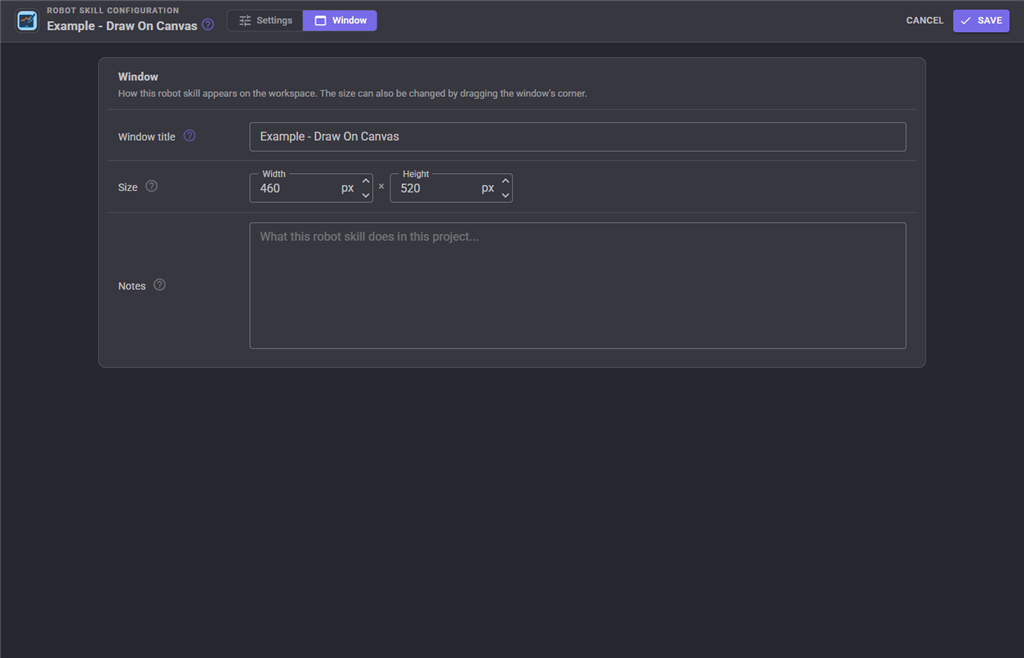
The Window tab sets the robot skill's window title, its size on the workspace and notes about what it does in this project.
Custom UI widget
The skill also publishes a Canvas widget for ARCx's Custom UI screens, so a lidar map can sit beside a drive joystick on a phone. Its settings are:
| Setting | Meaning |
|---|---|
RefreshMS |
Shortest gap between frames for that panel only, 20 to 10000. Raise it for a phone on wifi. |
Interactive |
true to allow drag, wheel and click on the drawing; false for a display-only panel that attaches no pointer listeners. |
ShowToolbar |
true to show the start/stop, next demo, clear and reset view buttons under the drawing. |
The widget shares its canvas with the skill's own window, so the frames already being produced are fanned out rather than drawn again - showing the same map on four panels costs one drawing.
Reading the source
The interesting parts, in order:
RobotSkillWorker.cs- the class comment explains the design, then the timer, theTryBeginDrawguard, and one draw method per demo.RobotSkillUIMain.razor- how the canvas component is hosted and how pointer events arrive.RobotSkillUIWidget.razorandGetCustomUIWidgets()- the Custom UI widget. Delete both or neither.
See also
- ARCx Testing robot skill - the other example skill
Manuals/RobotSkill-UI-Components.mdin the ARCx source - the component reference
Control Commands for the Example - Draw On Canvas robot skill
There are Control Commands available for this robot skill which allows the skill to be controlled programmatically from scripts or other robot skills. These commands enable you to automate actions, respond to sensor inputs, and integrate the robot skill with other systems or custom interfaces. If you're new to the concept of Control Commands, we have a comprehensive manual available here that explains how to use them, provides examples to get you started and make the most of this powerful feature.
Control Command ManualThis robot skill has 5 control commands, listed below. Send them from a JavaScript or Python script, from Blockly, or from another robot skill.
The first value is always the window title, which is the name in the title bar of the robot skill on your workspace. It starts out as Example - Draw On Canvas, which is what every example below uses. If you rename the robot skill, or add a second copy of it to the project, use the title as it appears on that window instead.
ControlCommand() can be shortened to CC(), and both spellings work in JavaScript and in Python. The examples are JavaScript; Python is the same call, except that true and false are written True and False.
Clear
Clear the markers, the paint strokes and the graph history
Syntax
ControlCommand("Example - Draw On Canvas", "Clear")
Returns: Boolean [true or false]
Example
var result = ControlCommand("Example - Draw On Canvas", "Clear");
ResetView
Return the map to its default pan and zoom
Syntax
ControlCommand("Example - Draw On Canvas", "ResetView")
Returns: Boolean [true or false]
Example
var result = ControlCommand("Example - Draw On Canvas", "ResetView");
SetMode
Switch demo. Pass LidarMap, UVMeter, ScrollingGraph or Paint
Syntax
ControlCommand("Example - Draw On Canvas", "SetMode")
Returns: Boolean [true or false]
Example
var result = ControlCommand("Example - Draw On Canvas", "SetMode");
Start
Start the animation
Syntax
ControlCommand("Example - Draw On Canvas", "Start")
Returns: Boolean [true or false]
Example
var result = ControlCommand("Example - Draw On Canvas", "Start");
Stop
Stop the animation
Syntax
ControlCommand("Example - Draw On Canvas", "Stop")
Returns: Boolean [true or false]
Example
var result = ControlCommand("Example - Draw On Canvas", "Stop");
This list is read out of the robot skill itself each time its package is uploaded, so it matches the published version (v3).

This robot skill has been updated to v1.
This robot skill has been updated to v2.
This robot skill has been updated to v3.
What has changed
compatible with the latest ARCx v2026.09.27.01