
Edit
Workspaces are the desktops your robot skills sit on. This page lists every workspace in the project with the robot skills on it. Use it to rename workspaces so they describe what they hold, such as Movement, Vision or Speech, to add new ones, and to remove empty ones.
Where to find it: Top bar → Workspaces → Edit Workspaces
The workspace list
Each workspace is shown as a card, in the order they appear in the Workspaces menu.
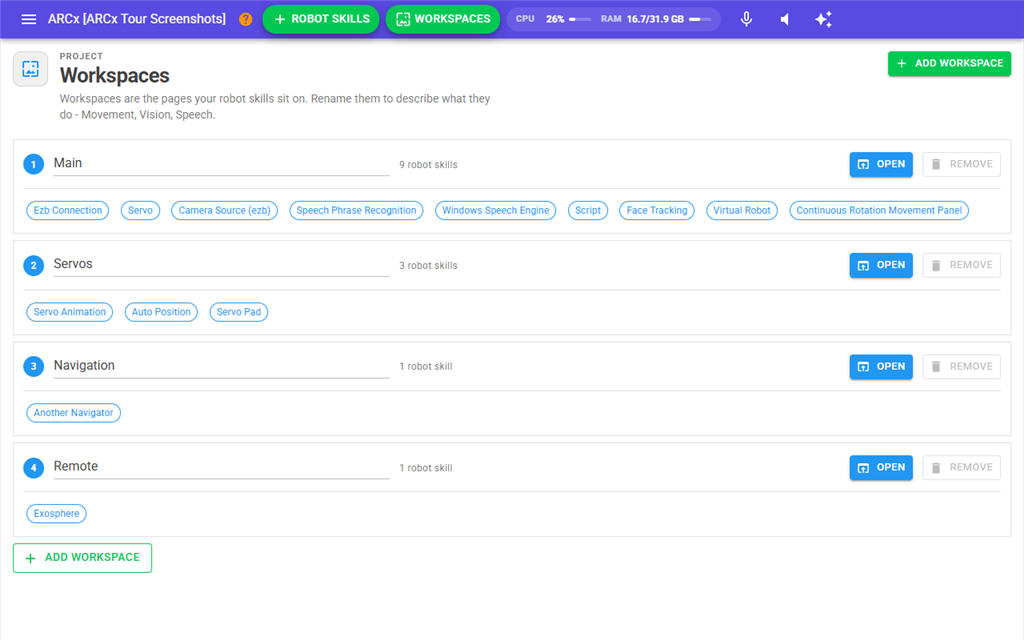
| Part | What it does |
|---|---|
| Number | The workspace's position in the list, starting at 1. |
| Title | The workspace's name. Click it and type to rename the workspace. The new name shows in the Workspaces menu of every browser. |
| Robot skill count | How many robot skills are on the workspace. |
| Open | Opens the workspace. |
| Remove | Removes the workspace. Only available when the workspace is empty and it is not the project's only workspace. Hover over it to see why it is greyed out. |
| Robot skill chips | One chip per robot skill on the workspace, showing its window title. Click a chip to open that skill's configuration. |
A workspace with no robot skills shows "Empty - no robot skills are on this workspace."
Adding a workspace
- Press Add Workspace, either in the page header or at the bottom of the list.
- In the New Workspace dialog, type the Workspace title. It is filled in as "Workspace" followed by a number.
- Press Add. The workspace is added to the end of the list. Press Cancel to close the dialog without adding anything.
Unlike Workspaces → Add Workspace, adding here keeps you on this page.
Removing a workspace
- Move the robot skills off the workspace first, using Desktops → Move to in each robot skill window's menu, or remove them.
- Press Remove on the empty workspace. It is removed straight away, without asking.
Workspaces after the removed one move up one place. Their robot skills stay with them.
Notes
- A workspace title cannot be empty. A blank title shows "A workspace title cannot be empty." and is not kept. Spaces at the start and end are removed.
- A project must always have at least one workspace. The Remove button's tooltip says "A project must always have at least one workspace" on the last one, and "Move or remove the robot skills on this workspace first" on one that still has robot skills.
- Workspaces cannot be put in a different order on this page.
- Workspace titles are saved with the project. Save the project with File → Save to keep your changes.