

Send Pushover push alerts from your robot to phone, smartwatch or desktop with images, priorities, emergencies, and variable alerts.
 Windows
 ARM
ARM
 Linux
Linux
 MacOS
MacOS
How to add the Pushover robot skill
- Load the most recent release of ARCx on a compatible operating system (Get ARCx).
- Press the + Skills menu from the top menu bar in ARCx.
- Choose any of these category tabs, the robot skill appears in each of them: Communication, General.
- Press the Pushover icon to add the robot skill to your project.
Don't have a robot yet?
Follow the Getting Started Guide to build a robot and use the Pushover robot skill.
How to use the Pushover robot skill
The Pushover robot skill sends push notifications from your robot to your phone, tablet, smartwatch or desktop through Pushover. Your robot can tell you that it finished a job, that its battery is low, that someone is at the door (with a picture from its camera), or that it is stuck and needs help, wherever you are.
Pushover is a paid-once app for iOS and Android with a free trial, and also works in desktop browsers. A free Pushover application can send 10,000 messages a month.
Setting up Pushover
- Create an account at pushover.net and install the Pushover app on your phone. Sign in to the app with the same account.
- On the pushover.net dashboard, copy your user key.
- On pushover.net, create an application for your robot (give it a name and, if you like, an icon; the name appears on every notification). Copy its API token.
- In this robot skill's configuration, paste the API token, press Add recipient and paste your user key. Press Send test and your phone should buzz.
The window
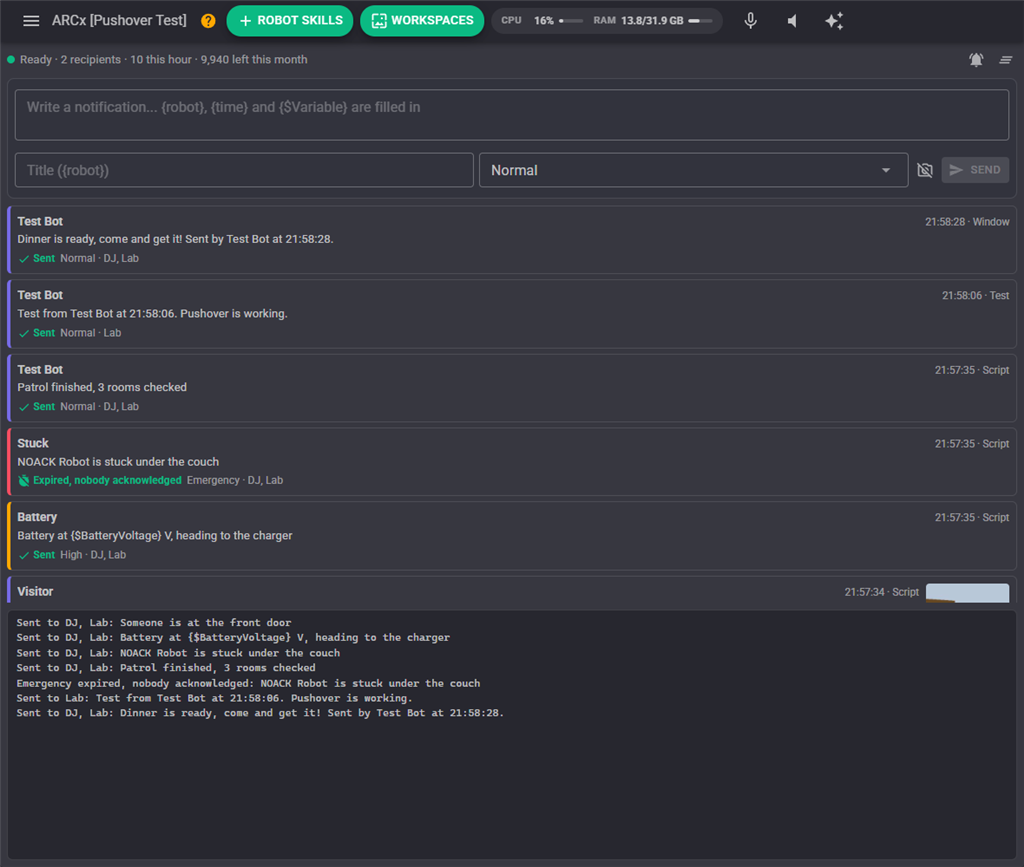
- Status bar: whether the robot skill is ready to send, muted or in quiet hours, how many recipients are enabled, how many notifications went out this hour (and the hourly limit), and how many messages your Pushover application has left this month. Emergencies waiting for acknowledgement are counted here too.
- Mute (bell button): stop sending for 15 minutes, an hour, 4 hours or until unmuted, for example while you are working on the robot. Emergency notifications are never muted.
- Clear clears the history.
- Composer: write a notification, give it a title and priority, optionally attach a picture from the camera (camera button), and press Send.
- History: every notification, whoever sent it (a script, an alert, a widget, the AI, the composer), with its priority, recipients, the attached picture, and what became of it: sent, retrying, failed (and why), not sent (muted, a duplicate or over the hourly limit), or for an emergency, waiting, acknowledged and by which device, expired or cancelled. An emergency still waiting has a Cancel button.
- Log: what the robot skill did, including retries and alerts.
Messages and
A notification has a message (up to 1024 characters), an optional title, a priority, and optionally a sound, a link and a picture. Anything left out uses the defaults from the configuration.
Titles, messages and links fill in:
| Token | Becomes |
|---|---|
{robot} |
The robot's name from the configuration, or this computer's name |
{time}, {date}, {datetime} |
Now, as 14:05:09, 2026-10-11, or both |
{$Name} |
The value of any global variable, such as {$BatteryVoltage} |
{rule}, {variable}, {value} |
In an alert, its name, the variable it watches and the variable's value |
A token that matches nothing is left as written, so a misspelled variable shows up in the notification rather than vanishing.
controlCommand("Pushover", "Push", "Battery at {$BatteryVoltage} V, heading to the charger");
controlCommand("Pushover", "PushSnapshot", "Someone is at the front door", "Visitor");
Priorities
| Priority | What the phone does |
|---|---|
| Lowest (-2) | Nothing. The message is only in the Pushover app. |
| Low (-1) | A silent notification. |
| Normal (0) | A notification with its sound, respecting the quiet hours set in the Pushover app. |
| High (1) | Highlighted in red, and sounds even during the app's quiet hours. |
| Emergency (2) | Repeats until someone taps Acknowledge in the app, or it expires. |
Emergency notifications
An emergency notification keeps alerting the recipients every Repeat every seconds until one of them acknowledges it or Give up after has passed. This robot skill checks every 10 seconds whether it has been acknowledged. When it has, it:
- sets
$PushoverAcknowledgedto true and$PushoverAcknowledgedByto the device that acknowledged it, - cancels the copies still repeating on the other recipients' phones, since someone is on it,
- runs the When acknowledged script, so the robot can react, for example by saying "Help is on the way".
If nobody acknowledges it in time, the When expired script runs instead. A script can also wait for the acknowledgement itself:
var receipt = controlCommand("Pushover", "PushEmergency", "I am stuck under the couch", "Help");

while (!controlCommand("Pushover", "IsAcknowledged", receipt))
  sleep(5000);

Audio.say("Thank you, help is on the way");
Camera pictures
A notification can carry a picture from the robot's camera: the PushSnapshot control command, the camera button in the window, an alert with Camera picture ticked, the Notify button widget, or the AI. The picture is the camera's next frame, scaled down to Largest width and sent as a JPEG. If no frame arrives within Wait for a frame (the camera is not started, for instance), the notification is still sent, without the picture, and the history says why. A picture file from disk can be sent with the PushImageFile control command.
Configuration
Account
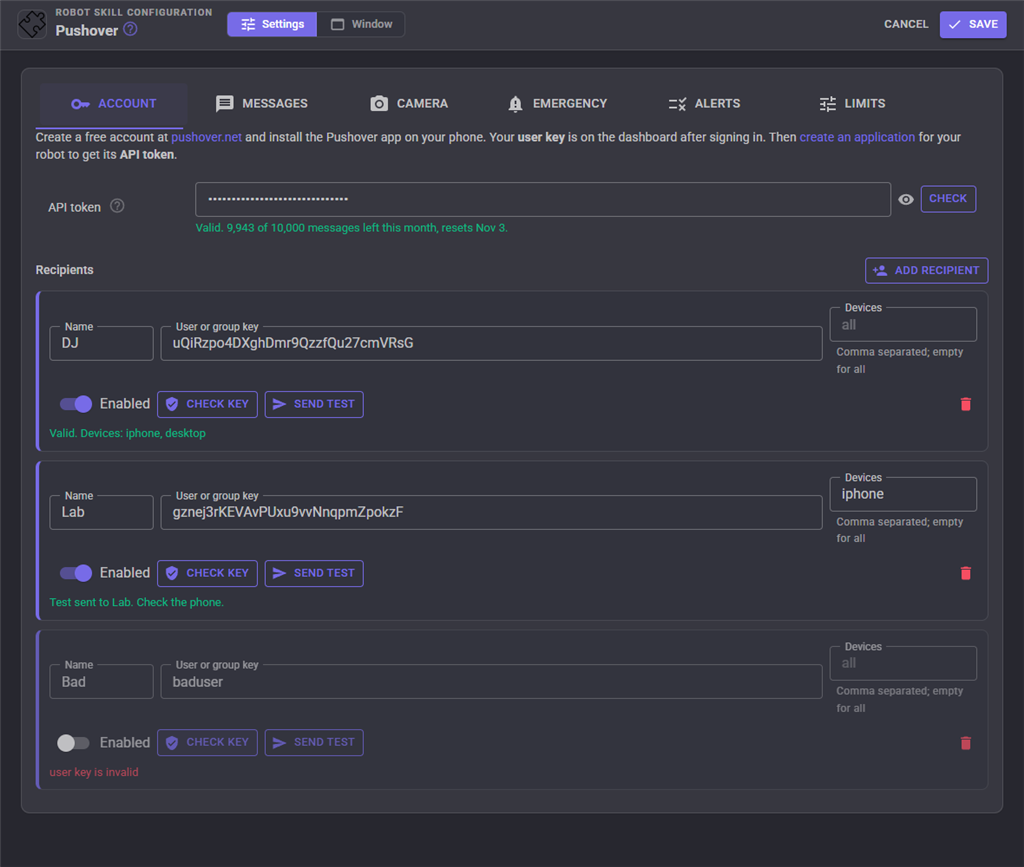
| Setting | Description |
|---|---|
| API token | Your Pushover application's API token. Check confirms it is valid and shows how many messages the application has left this month. |
| Recipients | Who receives notifications. Each has a Name (used by the PushTo control command), a User or group key (a Pushover delivery group key sends to a whole team), and optionally Devices to send only to some of their devices. A disabled recipient keeps their settings but receives nothing, except from PushTo. Check key confirms the key and lists the recipient's devices. Send test sends a test with the settings on the page, before they are saved. |
The API token and user keys are saved in the project file, so anyone you share the project with can send notifications to these recipients. Remove them before sharing a project publicly.
Messages
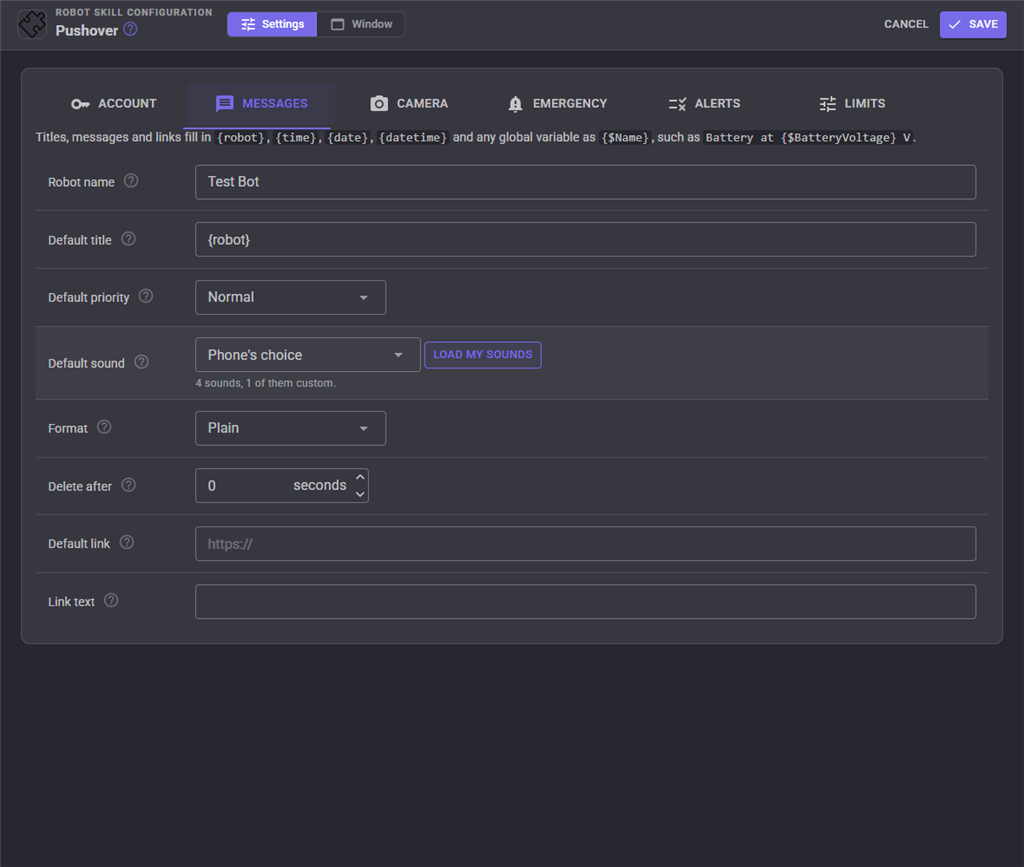
| Setting | Description | Default |
|---|---|---|
| Robot name | What {robot} becomes. |
This computer's name |
| Default title | The title of a notification sent without one. Empty shows your Pushover application's name. | {robot} |
| Default priority | The priority of a notification sent without one. | Normal |
| Default sound | The sound of a notification sent without one. Load my sounds adds the custom sounds uploaded to your Pushover account. | The phone's choice |
| Format | Plain text, HTML (bold, italic, underline, colour and links) or a fixed-width font for tables of numbers. | Plain |
| Delete after | Seconds after which a delivered notification removes itself from the devices, for messages only worth seeing now. 0 keeps them. | 0 |
| Default link, Link text | A link added to notifications sent without one, such as a page about the robot or its camera stream. | None |
Camera
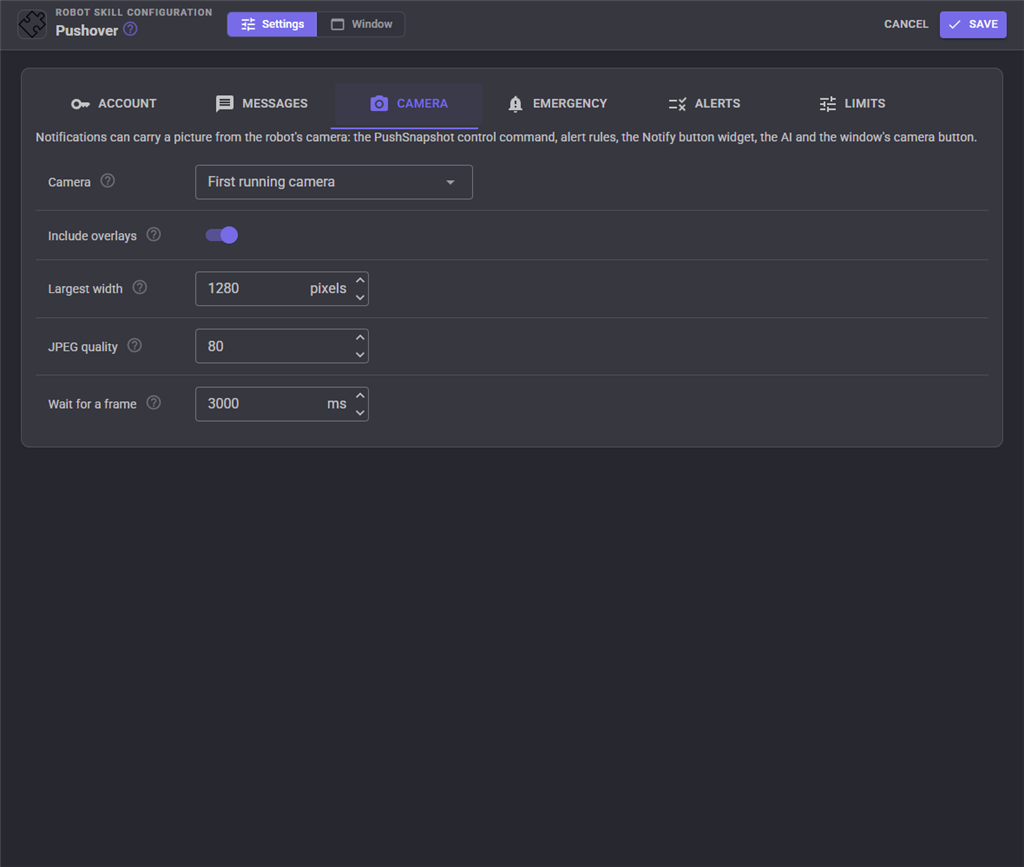
| Setting | Description | Default |
|---|---|---|
| Camera | The video source pictures are taken from. | The first running camera |
| Include overlays | Send the picture with the boxes and text drawn by tracking and detection robot skills. | On |
| Largest width | Wider pictures are scaled down to this. Smaller pictures arrive faster. | 1280 pixels |
| JPEG quality | 30 to 100. | 80 |
| Wait for a frame | How long to wait for the camera before sending without the picture. | 3000 ms |
Emergency
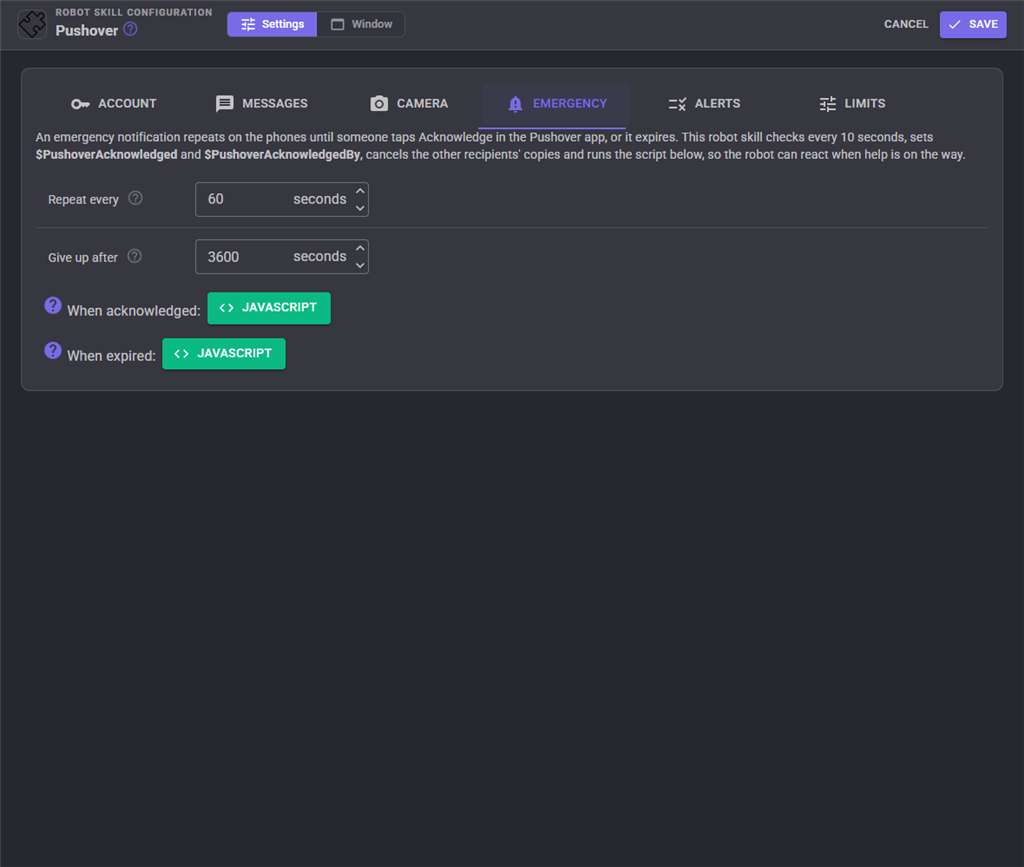
| Setting | Description | Default |
|---|---|---|
| Repeat every | How often an emergency alerts again until acknowledged, 30 seconds or more. | 60 seconds |
| Give up after | How long it keeps repeating, at most 3 hours. | 3600 seconds |
| When acknowledged | A script run when someone acknowledges an emergency. | None |
| When expired | A script run when an emergency expires unacknowledged. | None |
Alerts
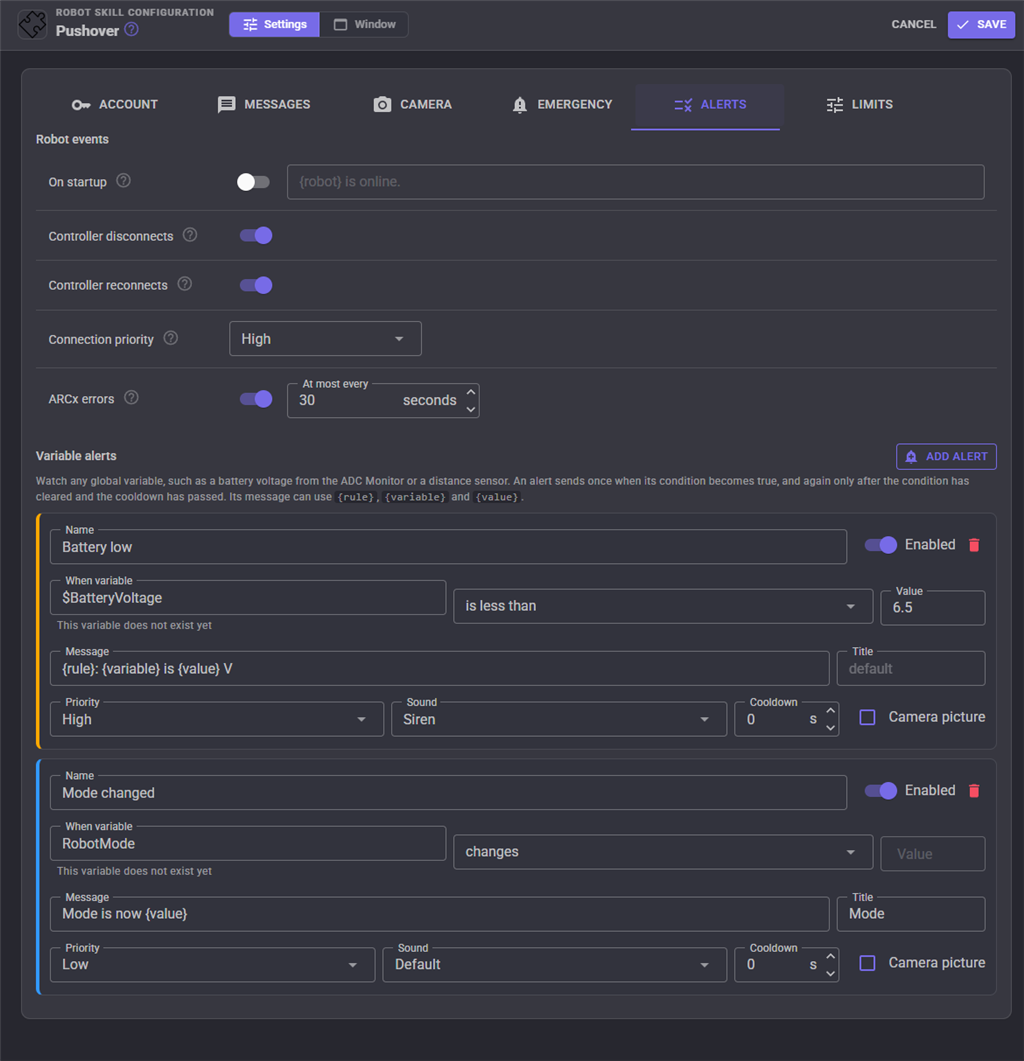
The robot can notify you by itself:
| Setting | Description |
|---|---|
| On startup | When the project has loaded, such as after the robot's computer restarted, with the message you write. |
| Controller disconnects | When a robot controller (EZB) disconnects: a flat battery, lost Wi-Fi, a loose cable. A disconnect you asked for is reported too. |
| Controller reconnects | When a controller that disconnected connects again. |
| Connection priority | The priority of those two. |
| ARCx errors | When robot skills log errors to the ARCx log, at most once per the time you set. Errors in between are counted into the next notification. |
Variable alerts watch any global variable, such as a battery voltage from the ADC Monitor, a distance sensor, or a variable your own scripts set. Each alert has a condition (greater than, at least, less than, at most, equals, does not equal, contains, or changes) and a value to compare with; numbers are compared as numbers. An alert sends once when its condition becomes true, and again only after the condition has been false and the Cooldown has passed, so a battery sitting below the limit does not message you every second. Each alert has its own message, title, priority, sound, and can attach a camera picture. The field under the variable name shows the variable's current value, so you can see you typed the right name.
Limits
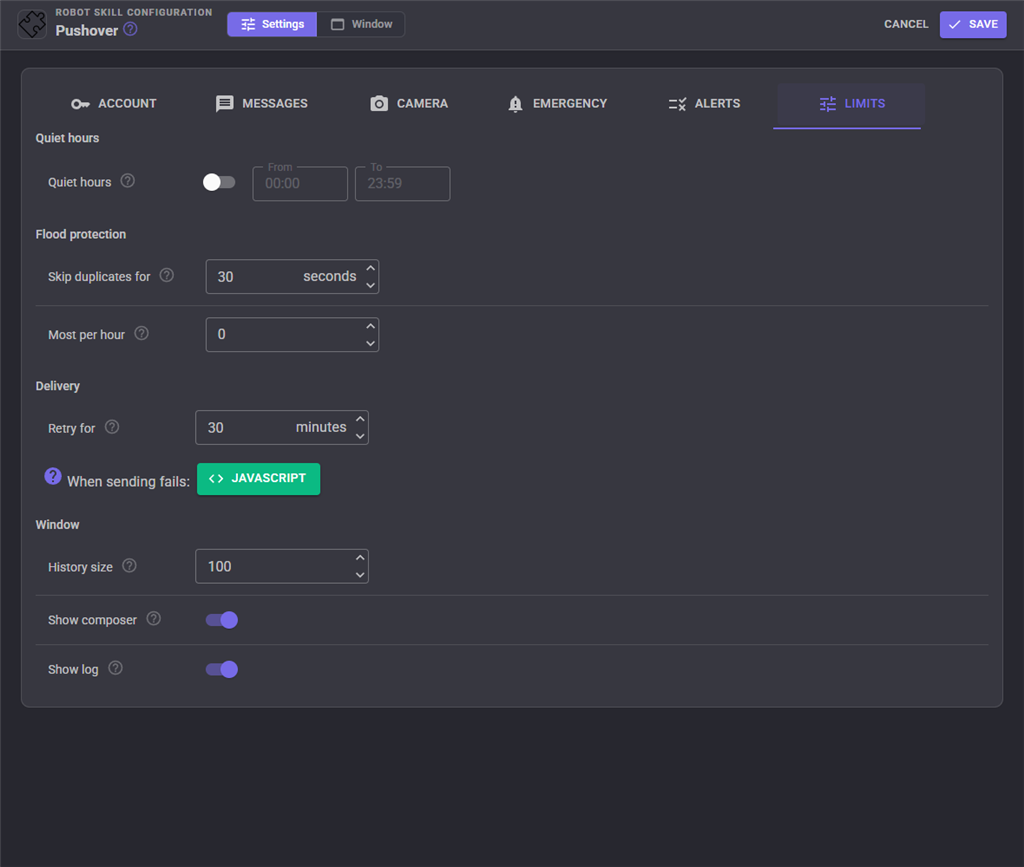
| Setting | Description | Default |
|---|---|---|
| Quiet hours | Between these times (24 hour, this computer's clock), Normal notifications arrive silently as Low. High and Emergency still sound. | Off, 22:00 to 07:00 |
| Skip duplicates for | A notification with the same title and text, to the same recipients, as one sent within this time is not sent again, so a script stuck in a loop cannot flood your phone. 0 turns it off. | 30 seconds |
| Most per hour | More notifications than this in an hour are refused until the hour has passed, protecting your monthly allowance. Each recipient counts. 0 means no limit. | 60 |
| Retry for | When the network or Pushover is down, keep trying for this long: 15 seconds later, then 30, 60, and up to every 5 minutes. A retried notification keeps the time it was first sent. | 30 minutes |
| When sending fails | A script run when Pushover refuses a notification or the retries run out, for example to speak the message instead. | None |
| History size | How many notifications the window keeps. The history is not saved with the project. | 100 |
| Show composer, Show log | Show or hide those parts of the window. | On |
Global variables
| Variable | Holds |
|---|---|
$PushoverLastStatus |
What happened to the last notification: Sent, Retrying, Failed or Suppressed |
$PushoverLastError |
Why it was not sent, or empty |
$PushoverLastRequest |
Pushover's request id of the last notification it accepted |
$PushoverLastReceipt |
The receipt of the last emergency notification |
$PushoverAcknowledged |
True once the last emergency has been acknowledged |
$PushoverAcknowledgedBy |
The device that acknowledged it |
$PushoverRemaining, $PushoverLimit |
Messages left this month and the monthly allowance, as Pushover last reported |
Smartwatch glances
Pushover's Glances widget shows a line of text, a number and a gauge on Apple Watch and Android Wear watches and phone home screens. The UpdateGlance ControlCommand fills it in, for example with the robot's battery level, without sending a notification.
Custom UI widgets
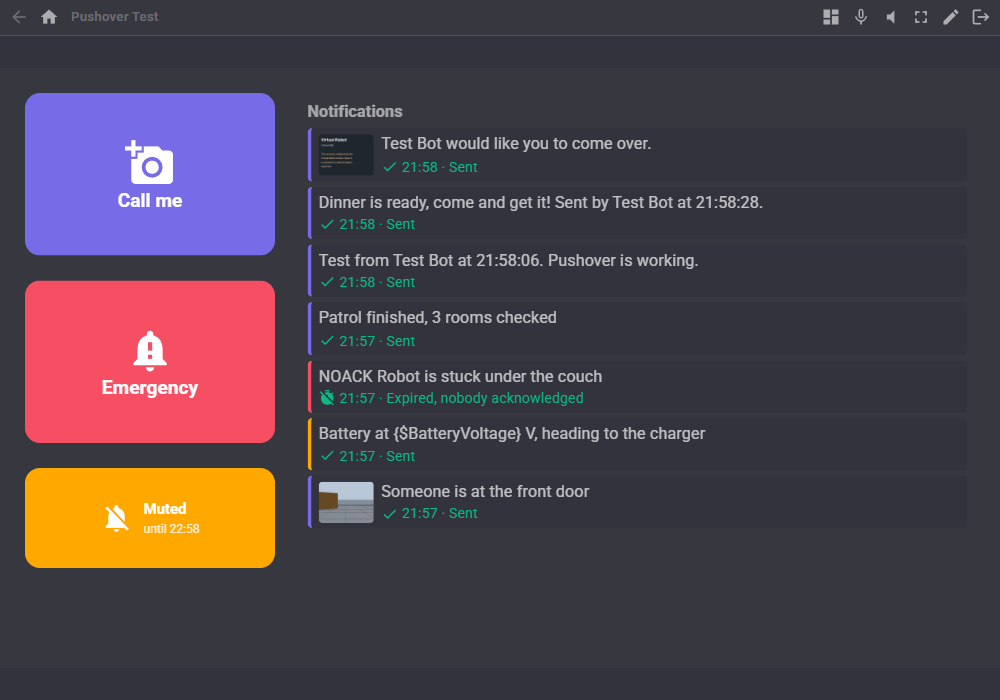
- Notify button: one big button that sends a ready-made notification, with any priority, recipient and optionally a camera picture. It shows a spinner while sending, then a tick, or why it was not sent. An Emergency button is drawn in red. Make a "Call me" button for a robot's touch screen, or a panic button.
- Notification history: the latest notifications with their status and pictures, and a cancel button on a waiting emergency.
- Mute switch: mutes notifications for the minutes you set, and shows until when.
AI assistants
An AI assistant connected to ARCx through MCP can send notifications (with a priority, sound, link, recipient and a camera picture), read the history, check the status and allowance, and cancel waiting emergencies. Ask it to "let me know on my phone when the patrol is done" and it can.
Control Commands for the Pushover robot skill
There are Control Commands available for this robot skill which allows the skill to be controlled programmatically from scripts or other robot skills. These commands enable you to automate actions, respond to sensor inputs, and integrate the robot skill with other systems or custom interfaces. If you're new to the concept of Control Commands, we have a comprehensive manual available here that explains how to use them, provides examples to get you started and make the most of this powerful feature.
Control Command ManualThis robot skill has 19 control commands, listed below. Send them from a JavaScript or Python script, from Blockly, or from another robot skill.
The first value is always the window title, which is the name in the title bar of the robot skill on your workspace. It starts out as Pushover, which is what every example below uses. If you rename the robot skill, or add a second copy of it to the project, use the title as it appears on that window instead.
ControlCommand() can be shortened to CC(), and both spellings work in JavaScript and in Python. The examples are JavaScript; Python is the same call, except that true and false are written True and False.
CancelEmergency
Stop an emergency notification repeating: the one with this receipt, or every waiting one when the receipt is left out or empty. Returns how many were cancelled.
Syntax
ControlCommand("Pushover", "CancelEmergency", (String)receipt)
Parameters
| # | Name | Type | What to pass |
|---|---|---|---|
| 1 | receipt | Text | Your text, in quotes |
Returns: Integer [-2,147,483,648 to 2,147,483,647]
Example
var result = ControlCommand("Pushover", "CancelEmergency", "receipt");
ClearHistory
Empty the history shown in the window. Notifications still retrying or waiting for an acknowledgement stay.
Syntax
ControlCommand("Pushover", "ClearHistory")
Returns: Boolean [true or false]
Example
var result = ControlCommand("Pushover", "ClearHistory");
DisableRecipient
Stop sending to a recipient, by name, such as someone away on holiday. Saved with the project.
Syntax
ControlCommand("Pushover", "DisableRecipient", (String)recipient)
Parameters
| # | Name | Type | What to pass |
|---|---|---|---|
| 1 | recipient | Text | Your text, in quotes |
Returns: Boolean [true or false]
Example
var result = ControlCommand("Pushover", "DisableRecipient", "recipient");
EnableRecipient
Start sending to a recipient again, by name. Saved with the project.
Syntax
ControlCommand("Pushover", "EnableRecipient", (String)recipient)
Parameters
| # | Name | Type | What to pass |
|---|---|---|---|
| 1 | recipient | Text | Your text, in quotes |
Returns: Boolean [true or false]
Example
var result = ControlCommand("Pushover", "EnableRecipient", "recipient");
GetLastStatus
What happened to the last notification: Sent, Retrying, Failed or Suppressed, followed by the reason when it was not sent.
Syntax
ControlCommand("Pushover", "GetLastStatus")
Returns: String
Example
var result = ControlCommand("Pushover", "GetLastStatus");
GetRemaining
Ask Pushover how many messages the application has left this month. Also published as $PushoverRemaining after every send.
Syntax
ControlCommand("Pushover", "GetRemaining")
Returns: Integer [-2,147,483,648 to 2,147,483,647]
Example
var result = ControlCommand("Pushover", "GetRemaining");
IsAcknowledged
Whether the emergency notification with this receipt (or the latest one, when left out) has been acknowledged. Checked every 10 seconds in the background.
Syntax
ControlCommand("Pushover", "IsAcknowledged", (String)receipt)
Parameters
| # | Name | Type | What to pass |
|---|---|---|---|
| 1 | receipt | Text | Your text, in quotes |
Returns: Boolean [true or false]
Example
var result = ControlCommand("Pushover", "IsAcknowledged", "receipt");
IsMuted
Whether notifications are muted.
Syntax
ControlCommand("Pushover", "IsMuted")
Returns: Boolean [true or false]
Example
var result = ControlCommand("Pushover", "IsMuted");
Mute
Send nothing for this many minutes (0 for until Unmute). Emergency notifications still go out. Not saved with the project.
Syntax
ControlCommand("Pushover", "Mute", (Number)minutes)
Parameters
| # | Name | Type | What to pass |
|---|---|---|---|
| 1 | minutes | Number | A number, without quotes |
Returns: Boolean [true or false]
Example
var result = ControlCommand("Pushover", "Mute", 0);
Push
Send a notification to every enabled recipient with the default priority and sound. The title may be left out or empty for the default title. , , and {$Variable} in the text are filled in. Returns true when Pushover accepted it, false when it failed, was not sent (muted, duplicate, hourly limit) or is being retried; $PushoverLastStatus and $PushoverLastError say which.
Syntax
ControlCommand("Pushover", "Push", (String)message, (String)title)
Parameters
| # | Name | Type | What to pass |
|---|---|---|---|
| 1 | message | Text | Your text, in quotes |
| 2 | title | Text | Your text, in quotes |
Returns: Boolean [true or false]
Example
var result = ControlCommand("Pushover", "Push", "message", "title");
PushEmergency
Send an emergency notification that repeats on the phones until someone acknowledges it or it expires (both set in the configuration). Returns its receipt, or an empty string when it was not sent. IsAcknowledged and $PushoverAcknowledged tell when it is acknowledged, and the configuration can run a script then.
Syntax
ControlCommand("Pushover", "PushEmergency", (String)message, (String)title)
Parameters
| # | Name | Type | What to pass |
|---|---|---|---|
| 1 | message | Text | Your text, in quotes |
| 2 | title | Text | Your text, in quotes |
Returns: String
Example
var result = ControlCommand("Pushover", "PushEmergency", "message", "title");
PushImageFile
Send a notification with a picture file attached (JPEG, PNG, GIF or BMP). Pictures over 5 MB are made smaller. Returns true when Pushover accepted it.
Syntax
ControlCommand("Pushover", "PushImageFile", (String)message, (String)title, (String)filePath)
Parameters
| # | Name | Type | What to pass |
|---|---|---|---|
| 1 | message | Text | Your text, in quotes |
| 2 | title | Text | Your text, in quotes |
| 3 | filePath | Text | Your text, in quotes |
Returns: Boolean [true or false]
Example
var result = ControlCommand("Pushover", "PushImageFile", "message", "title", "filePath");
PushPriority
Send a notification with a priority: -2 (Lowest, no alert), -1 (Low, silent), 0 (Normal), 1 (High, bypasses the phone's quiet hours) or 2 (Emergency, repeats until acknowledged). The names work too. Returns true when Pushover accepted it.
Syntax
ControlCommand("Pushover", "PushPriority", (String)message, (String)title, (Number)priority)
Parameters
| # | Name | Type | What to pass |
|---|---|---|---|
| 1 | message | Text | Your text, in quotes |
| 2 | title | Text | Your text, in quotes |
| 3 | priority | Number | A number, without quotes |
Returns: Boolean [true or false]
Example
var result = ControlCommand("Pushover", "PushPriority", "message", "title", 0);
PushSnapshot
Send a notification with a picture from the camera attached. Optionally name the video source; empty uses the configured camera. When no frame arrives the notification is sent without it. Returns true when Pushover accepted it.
Syntax
ControlCommand("Pushover", "PushSnapshot", (String)message, (String)title, (String)camera)
Parameters
| # | Name | Type | What to pass |
|---|---|---|---|
| 1 | message | Text | Your text, in quotes |
| 2 | title | Text | Your text, in quotes |
| 3 | camera | Text | Your text, in quotes |
Returns: Boolean [true or false]
Example
var result = ControlCommand("Pushover", "PushSnapshot", "message", "title", "camera");
PushSound
Send a notification with a particular sound, by Pushover sound name: pushover, bike, bugle, cashregister, classical, cosmic, falling, gamelan, incoming, intermission, magic, mechanical, pianobar, siren, spacealarm, tugboat, alien, climb, persistent, echo, updown, vibrate, none, or a custom sound. Returns true when Pushover accepted it.
Syntax
ControlCommand("Pushover", "PushSound", (String)message, (String)title, (String)sound)
Parameters
| # | Name | Type | What to pass |
|---|---|---|---|
| 1 | message | Text | Your text, in quotes |
| 2 | title | Text | Your text, in quotes |
| 3 | sound | Text | Your text, in quotes |
Returns: Boolean [true or false]
Example
var result = ControlCommand("Pushover", "PushSound", "message", "title", "sound");
PushTo
Send a notification to one recipient, by the name given in the configuration, even when that recipient is disabled. Returns true when Pushover accepted it.
Syntax
ControlCommand("Pushover", "PushTo", (String)recipient, (String)message, (String)title)
Parameters
| # | Name | Type | What to pass |
|---|---|---|---|
| 1 | recipient | Text | Your text, in quotes |
| 2 | message | Text | Your text, in quotes |
| 3 | title | Text | Your text, in quotes |
Returns: Boolean [true or false]
Example
var result = ControlCommand("Pushover", "PushTo", "recipient", "message", "title");
PushUrl
Send a notification with a link the recipient can tap, and the text shown for it (empty shows the address). Returns true when Pushover accepted it.
Syntax
ControlCommand("Pushover", "PushUrl", (String)message, (String)title, (String)url, (String)urlTitle)
Parameters
| # | Name | Type | What to pass |
|---|---|---|---|
| 1 | message | Text | Your text, in quotes |
| 2 | title | Text | Your text, in quotes |
| 3 | url | Text | Your text, in quotes |
| 4 | urlTitle | Text | Your text, in quotes |
Returns: Boolean [true or false]
Example
var result = ControlCommand("Pushover", "PushUrl", "message", "title", "url", "urlTitle");
Unmute
Send notifications again after Mute.
Syntax
ControlCommand("Pushover", "Unmute")
Returns: Boolean [true or false]
Example
var result = ControlCommand("Pushover", "Unmute");
UpdateGlance
Update the Pushover Glances widget on the recipients' watches and phones: a line of text, a smaller line under it, a number (empty to leave it) and a percentage 0 to 100 shown as a gauge (empty to leave it). Handy for the battery level. Returns true when every recipient was updated.
Syntax
ControlCommand("Pushover", "UpdateGlance", (String)text, (String)subtext, (String)count, (String)percent)
Parameters
| # | Name | Type | What to pass |
|---|---|---|---|
| 1 | text | Text | Your text, in quotes |
| 2 | subtext | Text | Your text, in quotes |
| 3 | count | Text | Your text, in quotes |
| 4 | percent | Text | Your text, in quotes |
Returns: Boolean [true or false]
Example
var result = ControlCommand("Pushover", "UpdateGlance", "text", "subtext", "count", "percent");
This list is read out of the robot skill itself each time its package is uploaded, so it matches the published version (v1).




This robot skill has been updated to v1.
What has changed
initial release