
Movement panel for dual H-bridge motor controllers, driving two motors with optional PWM speed control in ARCx.
 Windows
 ARM
ARM
 Linux
Linux
 MacOS
MacOS
How to add the Hbridge Movement Panel robot skill
- Load the most recent release of ARCx on a compatible operating system (Get ARCx).
- Press the + Skills menu from the top menu bar in ARCx.
- Choose the Movement Panels category tab.
- Press the Hbridge Movement Panel icon to add the robot skill to your project.
Don't have a robot yet?
Follow the Getting Started Guide to build a robot and use the Hbridge Movement Panel robot skill.
How to use the Hbridge Movement Panel robot skill
Drives a robot with a dual channel H-Bridge motor controller, such as an L298N, L293D, TB6612FNG, BTS7960 or Sabertooth in analog mode.
This is a movement panel: once it is in the project, everything in ARCx that moves the robot - the Movement Joystick, the Wiimote, Movement.Forward() in a script, the Autonomous AI skill, a ROS /cmd_vel binding - drives these two motors. Only one Movement Panel can be in a project at a time.
Requirements
- A connected EZB.
- A dual channel H-Bridge, one channel per side of the robot.
- Four digital ports, two per motor.
- Two PWM-capable ports as well, if the board has speed (enable) inputs and you want speed control.
How an H-Bridge works
Each motor channel has a pair of inputs, usually labelled IN1/IN2 and IN3/IN4. The pair decides which way that motor turns:
| Trigger A | Trigger B | The motor |
|---|---|---|
| HIGH | LOW | turns forward |
| LOW | HIGH | turns in reverse |
| LOW | LOW | stops |
| HIGH | HIGH | never sent by this skill - on most boards it is a brake, on some it is a short |
Many boards have a third input per channel, labelled ENA/ENB or PWM. That one is not a direction, it is a throttle: the duty cycle on it sets how fast the motor turns. Boards without it, or with those pins jumpered to 5V, always run at full speed.
Adding it to a project
- Connect to the EZB.
- Add the skill (Movement Panels category).
- Open the configuration and choose the four trigger ports - Trigger A and Trigger B for each motor.
- If the board has enable inputs, tick H-Bridge has PWM speed inputs and choose the two PWM ports.
- Save, then push the joystick in the skill's window.
Opening the configuration stops the robot first, so the ports are never left latched HIGH while they are being reassigned.
Wiring
A typical L298N wired to EZB digital ports D1 to D6:
| H-Bridge pin | EZB port | Setting |
|---|---|---|
| IN1 | D1 | Left Motor Trigger A |
| IN2 | D2 | Left Motor Trigger B |
| IN3 | D3 | Right Motor Trigger A |
| IN4 | D4 | Right Motor Trigger B |
| ENA | D5 | Speed Control Left PWM |
| ENB | D6 | Speed Control Right PWM |
Those are the defaults, so a robot wired this way needs no configuration at all beyond ticking the PWM box.
Give the H-Bridge and the EZB a common ground, and power the motors from the H-Bridge's own motor supply - never from the EZB's servo rail.
The four ports do not have to be on the same EZB. Each board is sent its own single packet, so a robot with one channel on each of two boards still drives both sides together.
The window
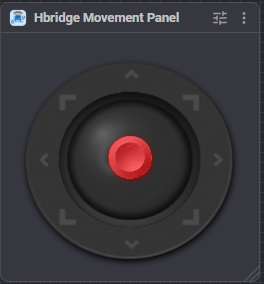
- Joystick - push forward or back to drive, sideways to turn. How far the thumb is pushed sets the speed, and pushing forward at an angle blends the two sides so the robot drives in an ARC instead of a spin turn. The thumb springs back to the centre when released, which stops the robot.
- Left and Right readout - the current speed for each side, 0-255. These are ARCx's global movement speeds, so they also move when another skill or a script commands a movement. They are only shown when PWM speed control is turned on, because without an enable input the speed has nowhere to go.
How direction works
Turning is done by driving one side forward and the other in reverse (a spin turn):
| Direction | Left motor | Right motor |
|---|---|---|
| Forward | forward | forward |
| Reverse | reverse | reverse |
| Left | reverse | forward |
| Right | forward | reverse |
| Stop | all four triggers LOW | all four triggers LOW |
Speed control
With H-Bridge has PWM speed inputs turned on, every movement also writes a duty cycle to the two enable ports. ARCx's movement speed of 0-255 is scaled to a duty cycle of 0-100%, so speed 255 is full throttle and speed 128 is roughly half. Each side uses its own speed, so a script or a joystick can set the two differently to drive in an ARC instead of a spin turn.
Stopping writes 0% as well as dropping the triggers.
Small DC motors often will not turn below about 30% duty cycle. If the robot stalls and buzzes at low speeds, that is the motors, not the skill - raise the speed.
With the option turned off, the enable ports are never written and the motors always run at whatever speed the motor supply gives them. The speed values are then ignored by this skill, although other skills still see them.
Configuration
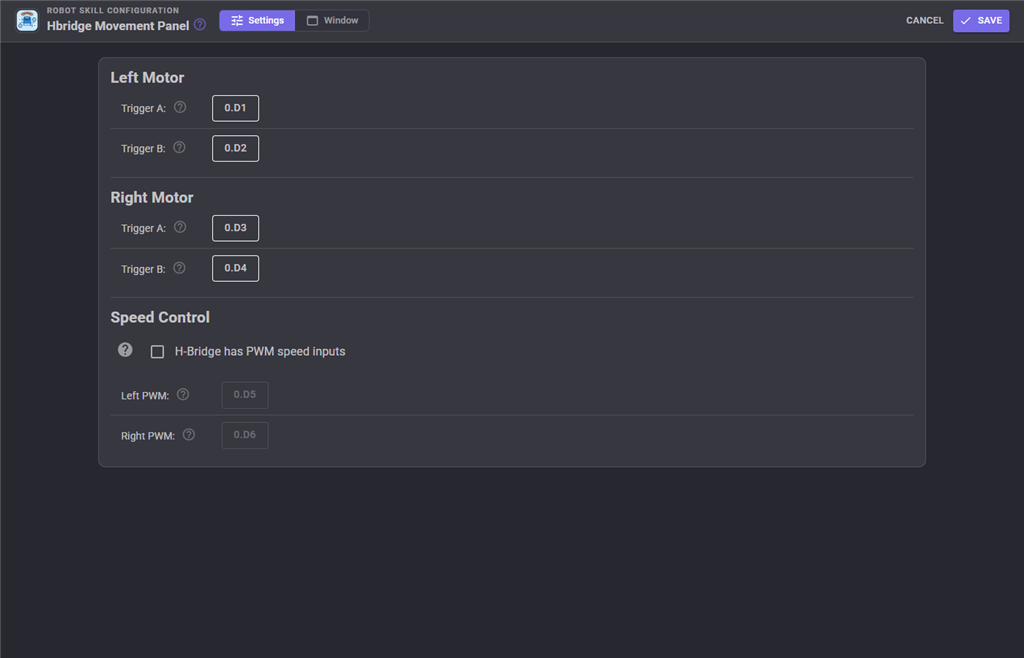
| Setting | Meaning |
|---|---|
| Left Motor Trigger A | The port that is HIGH when the left wheel drives forward (IN1). |
| Left Motor Trigger B | The port that is HIGH when the left wheel drives in reverse (IN2). |
| Right Motor Trigger A | The port that is HIGH when the right wheel drives forward (IN3). |
| Right Motor Trigger B | The port that is HIGH when the right wheel drives in reverse (IN4). |
| H-Bridge has PWM speed inputs | Turn on when the board has ENA/ENB inputs that take a PWM signal. The two PWM ports below are only used when this is on. |
| Speed Control Left PWM | The enable port for the left motor's channel (ENA). |
| Speed Control Right PWM | The enable port for the right motor's channel (ENB). |
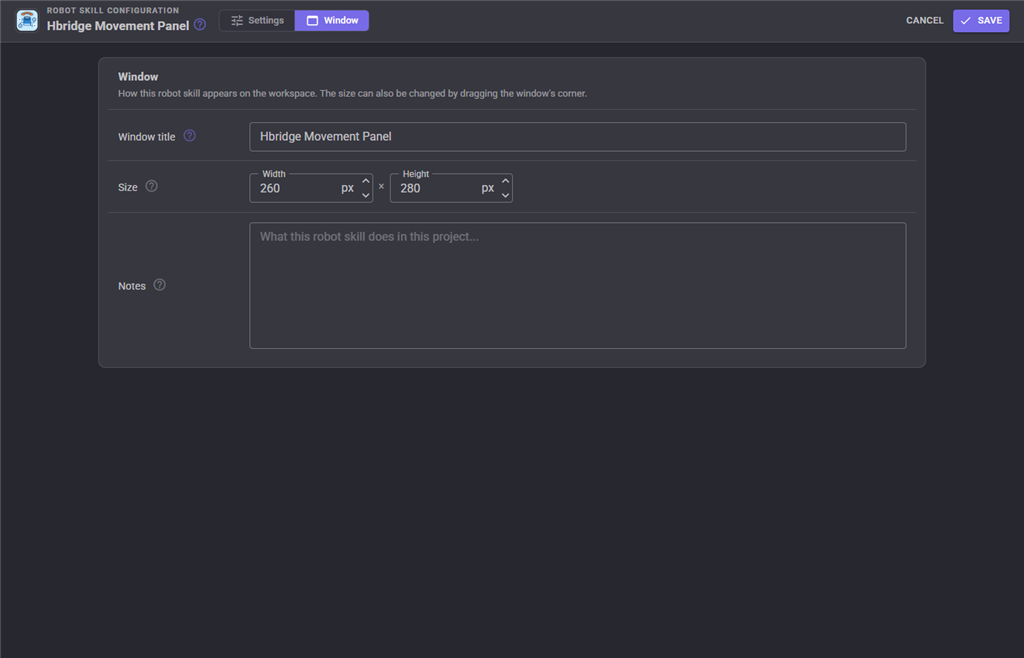
The Window tab sets the robot skill's window title, its size on the workspace and notes about what it does in this project.
Troubleshooting
| Symptom | Cause |
|---|---|
| The robot turns instead of going forward | One motor's wires are reversed. Swap that motor's two leads on the H-Bridge, or swap its Trigger A and Trigger B ports. |
| Forward and reverse are swapped on both sides | Swap Trigger A and Trigger B for both motors. |
| Left and right are swapped | The two channels are the other way round. Swap the Left Motor and Right Motor ports. |
| Nothing moves, no sound from the motors | Not connected, wrong ports, or the wrong board index on a multi-board project. |
| The motors buzz but do not turn | PWM speed too low for these motors, or the motor supply is too weak. |
| Full speed only, speed changes do nothing | H-Bridge has PWM speed inputs is off, or ENA/ENB are jumpered to 5V on the board. |
| Nothing moves but the H-Bridge LEDs light | No motor supply, or the motor supply shares no ground with the EZB. |
| The robot keeps driving after a stop | Something else is commanding movement - check for a joystick, a script, or the Autonomous AI skill still running. |
| Two movement panels in the project | Remove one; only one Movement Panel is supported. |


This robot skill has been updated to v1.
This robot skill has been updated to v2.
This robot skill has been updated to v4.
This robot skill has been updated to v5.
What has changed
compatible with the latest ARCx v2026.09.27.01
This robot skill has been updated to v6.
What has changed
spelling fix correction