Let AI Write Your Robot Skill
A step-by-step guide to making a robot skill for ARCx. No programming experience is needed: you describe your idea, ARCx sets up the project, and an AI coding assistant writes the code. Your job is to explain what you want, answer a few questions, and try the result on your robot.
Plan on about 30 minutes for the one-time setup, and a few minutes to create each robot skill after that.
Contents
- What is a robot skill?
- The big picture
- What you need
- Step 1: Install Visual Studio Code
- Step 2: Install the .NET 10 SDK
- Step 3: Add an AI assistant to Visual Studio Code
- Step 4: Create the robot skill in ARCx
- Step 5: Get the AI prompt ARCx wrote for you
- Step 6: Open the project in Visual Studio Code
- Step 7: Give the prompt to the AI
- Step 8: Review the plan, then let it build
- Step 9: Try your robot skill in ARCx
- Step 10: Improve it
- Step 11: Share it in the Robot Skill Store
- Writing a good description
- Troubleshooting
- Quick checklist
1. What is a robot skill?
A robot skill is an add-on for ARCx that gives a robot something new to do.
When you open ARCx and press Robot Skills → Add, every item in that list is a robot skill: a camera viewer, a joystick, a speech recognizer, a servo driver. Each one appears as a small window on your workspace with its own controls, and each one has its own settings. Robot skills work together - a camera skill can feed a face tracking skill, which can move servos that another skill set up.
Every robot skill has the same four parts:
| Part | What it is |
|---|---|
| The window | What you see on the workspace: buttons, readouts, a camera picture, a log |
| The settings | The configuration page you open with the skill's gear icon. Saved with your project |
| The behavior | The code that does the actual work: reading a sensor, moving a servo, talking to a service |
| Commands | Actions that scripts, other skills and the AI agent can trigger, such as Start or Speak |
A few ideas of what you could build:
- Connect hardware - read a new sensor, or control a device ARCx does not support yet.
- Add intelligence - connect a vision or AI service so the robot can recognize or respond to things.
- Make control easier - turn a behavior you use often into a panel of buttons.
Start small. One useful idea done well is a great first robot skill.
2. The big picture
Here is the whole journey in one glance:
  You describe your idea in ARCx
              |
              v
  ARCx creates a ready-to-build project  +  writes an AI prompt for it
              |
              v
  You open the project in Visual Studio Code and paste the prompt into the AI
              |
              v
  The AI proposes a plan, you approve it, the AI writes and builds the code
              |
              v
  The skill installs itself into ARCx - add it to a project and try it
              |
              v
  Happy with it? Upload it to the Robot Skill Store to share it
Why this works so well: an AI assistant on its own has never heard of ARCx, so it would guess at code that does not exist. ARCx solves that for you. The prompt it writes tells the AI exactly what ARCx is, where your project is, what every file is for, where the developer manuals and the full ARCx reference live on your computer, and the rules a robot skill must follow. The AI reads all of that before it writes a single line.
3. What you need
- ARCx, installed and running.
- A Synthiam account, signed in to ARCx. Creating a robot skill registers it under your account.
- Visual Studio Code - a free code editor. Step 1.
- The .NET 10 SDK - a free download that lets your computer build robot skills. Step 2.
- One AI coding assistant - we suggest either:
- Claude Code by Anthropic (needs a Claude account with a paid plan, or an Anthropic API account), or
- Codex by OpenAI (needs a ChatGPT account with a paid plan, or an OpenAI API key).
You only need one of the two. Both work very well for robot skills. If you already pay for Claude or ChatGPT, pick the one that matches.
Step 1: Install Visual Studio Code
Visual Studio Code (often called "VS Code") is where you will open your robot skill project and talk to the AI.
- Go to https://code.visualstudio.com/.
- Press the big Download button. The site picks the right version for your computer.
- Run the installer.
- On Windows, accept the defaults. On the "Select Additional Tasks" page, it is handy to tick Add "Open with Code" action to Windows Explorer directory context menu - then you can right-click any folder and open it in VS Code.
- Start Visual Studio Code once to make sure it opens.
Optional: In VS Code, open the Extensions panel (the four-squares icon on the left, or
Ctrl+Shift+X), search for C# Dev Kit and install it. It colors the code and explains errors nicely. The AI does not need it, but it makes the code easier for you to read.
Step 2: Install the .NET 10 SDK
Robot skills are written in C#. The .NET SDK is the free Microsoft tool that turns that code into a robot skill ARCx can load. The AI uses it to build your skill and check its own work.
- Go to https://dotnet.microsoft.com/download/dotnet/10.0.
- Under SDK, download the installer for your computer (for most Windows PCs, Windows x64).
- Run the installer and accept the defaults.
-
Check it worked: in VS Code, open a terminal with Terminal → New Terminal, type the line below and press Enter:
dotnet --versionYou should see a number that starts with 10. If the command is not found, close VS Code completely, open it again, and retry - it needs a restart to notice the new install.
Step 3: Add an AI assistant to Visual Studio Code
Pick one of the two options below.
Option A: Claude Code (Anthropic)
- In VS Code, open the Extensions panel (
Ctrl+Shift+X). - Search for Claude Code. Pick the one published by Anthropic and press Install.
- When it finishes, a Claude icon appears in VS Code (in the sidebar, and at the top right of the editor when a file is open). Click it to open the Claude panel.
- Sign in when asked. Choose your Claude account (Pro, Max, Team or Enterprise plan) or an Anthropic Console account if you pay for the API. A browser window opens - approve the sign-in and come back to VS Code.
- You are ready. You will see a chat box where you can type to Claude.
Good to know:
- Claude asks permission before it edits files or runs commands. You can approve each one, or choose to allow edits for the rest of the session so it can work without stopping.
- If the installer mentions Git for Windows, install it from https://git-scm.com/ and restart VS Code. Claude Code uses it on Windows.
Option B: Codex (OpenAI)
- In VS Code, open the Extensions panel (
Ctrl+Shift+X). - Search for Codex. Pick Codex - OpenAI's coding agent, published by OpenAI, and press Install.
- When it finishes, a Codex icon appears in the VS Code sidebar. Click it to open the Codex panel. (If you do not see it, it may be tucked into the sidebar's overflow menu - drag it wherever you like.)
- Press Sign in with ChatGPT and use your ChatGPT account (Plus, Pro, Business, Edu or Enterprise plan). A browser window opens - approve the sign-in and come back to VS Code. You can also use an OpenAI API key instead.
- Under the chat box there is a mode setting. Choose Agent, so Codex can read and edit the project files and run the build. ("Chat" mode can only talk, not edit.)
Good to know:
- In Agent mode, Codex asks before doing anything outside the project folder. Approve the build command when it asks - that is how it checks its work.
Step 4: Create the robot skill in ARCx
Now the fun part. ARCx does all the project setup for you.
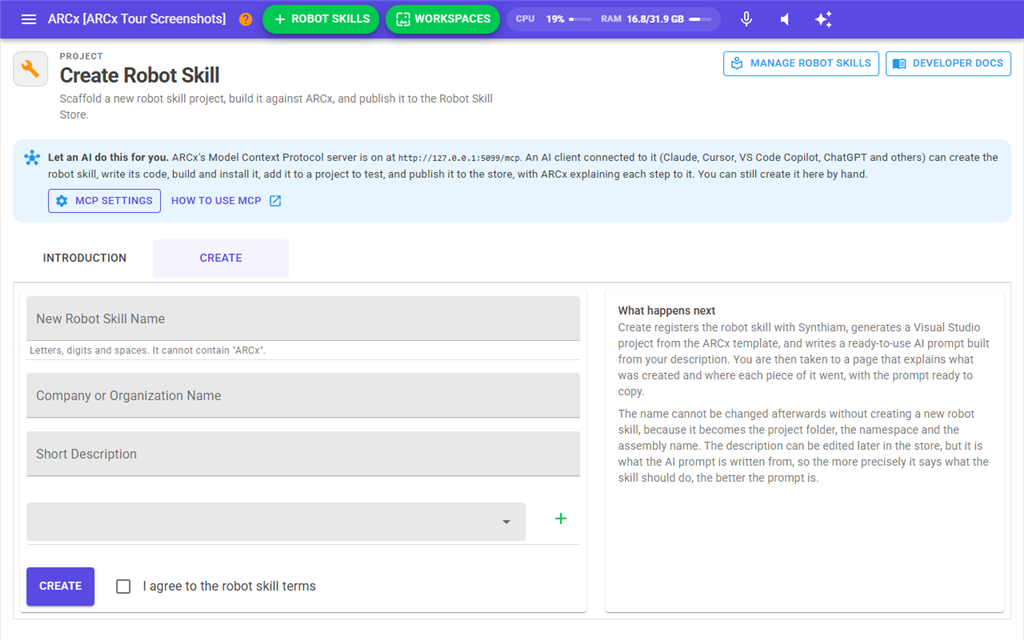
- In ARCx, press the green Robot Skills button at the top, then choose Create.
- The Introduction tab explains robot skills. Press Create your robot skill (or open the Create tab).
-
Fill in the form:
| Field | What to type | |---|---| | New Robot Skill Name | A short, clear name, such as
Distance Alarm. At least 5 characters, using letters, numbers and spaces. Choose carefully - it cannot be changed later without making a new skill | | Company or Organization Name | Your name, club, school or company. At least 5 characters | | Short Description | What the skill should do, in plain words. At least 30 characters, but more is better - the AI builds from this. See Writing a good description | | Categories | Pick a category from the list and press +. Choose 1 to 3 | -
Tick I agree to the robot skill terms.
- Press Create.
If anything is missing, the box on the right lists what to fix. Correct it and press Create again.
That one button press does six jobs for you:
- Registers the skill with Synthiam under your account and gives it a permanent ID. Nobody else can see it until you choose to share it.
- Writes the skill's store details (
plugin.json) from what you typed. - Creates a complete, working project from the ARCx template. It already builds and runs as a small demo (a timer and a counter) - the AI replaces that with your idea.
- Connects the project to your copy of ARCx, so it builds against the right version.
- Sets up install-on-build: every successful build installs the skill into ARCx automatically.
- Writes you an AI prompt, plus a guide file for the AI inside the project (more on that below).
On Windows, ARCx also opens the new project folder in File Explorer. You will find your projects in Documents\ARCx Data\Robot Skill Projects, one folder per skill.
Step 5: Get the AI prompt ARCx wrote for you
After you press Create, ARCx takes you to a page that says "[your skill] is ready to build". It shows what was created and where, and at the bottom, under Let an AI write it for you, is your prompt.
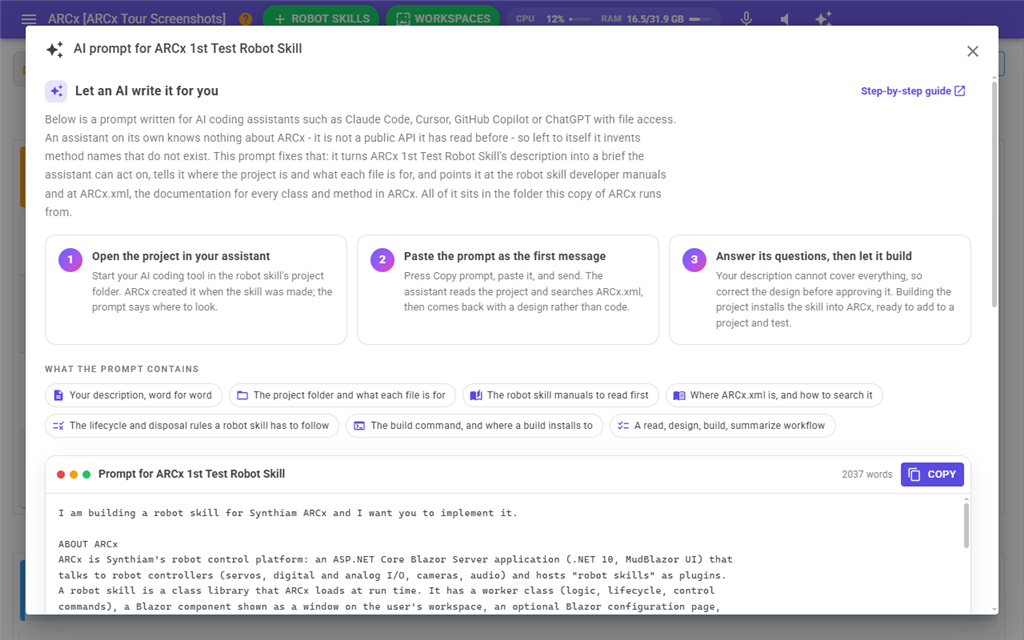
What the prompt is
It is a ready-made message for your AI assistant - a complete briefing, usually a couple of thousand words, that you never have to write yourself. It contains:
- Your description, word for word - what the skill should do.
- The project - what each file is for and which parts to change.
- The robot skill manuals - where they are on your computer, and a request to read them first.
- ARCx.xml - the full reference of every ARCx feature, and how to search it.
- The rules a robot skill must follow so it runs smoothly and shuts down cleanly.
- The build command, and where a build installs to.
- A way of working: read everything, propose a design, ask questions, build, then summarize.
You can scroll through the prompt on the page to see exactly what the AI will be told.
The buttons on that page
| Button | What it does |
|---|---|
| Copy prompt | Copies the whole prompt, ready to paste. This is the one you need |
| Open project folder | Opens your skill's project folder in File Explorer (Windows) |
| Open manuals folder | Opens the folder holding the developer manuals, including this one |
| Write AGENTS.md / Rewrite AGENTS.md | Writes the AI guide file into the project folder (see below) |
| Go to Manage | Takes you to the page listing all your robot skills |
Finding the prompt again later
You do not need to save the prompt anywhere. ARCx can show it again at any time:
- Press Robot Skills → Manage.
- Find your skill in the list.
- Press the sparkle button (✨) in its row - the tooltip says "Show the AI prompt for building this robot skill".
The same prompt, with the same buttons, opens in a window. It is rebuilt each time from the description in your project's plugin.json, so it always matches what the project says.
The AGENTS.md file - your AI's memory of ARCx
When ARCx created your project, it also put a file called AGENTS.md in the project folder. It holds the same background as the prompt: what ARCx is, what each file does, where the manuals and reference are, and the rules to follow.
AI assistants such as Claude Code and Codex read AGENTS.md by themselves whenever you open the project. That means you only paste the prompt once, for the first conversation. Any time you come back later - tomorrow or next year - just open the project and ask for what you want; the AI already knows about ARCx.
If you have an older project without AGENTS.md, open its prompt from Manage and press Write AGENTS.md.
Step 6: Open the project in Visual Studio Code
- In VS Code, choose File → Open Folder...
- Go to Documents\ARCx Data\Robot Skill Projects and select your skill's folder (it has the same name as your skill). Press Select Folder.
- Shortcut: press Open project folder on the prompt page, then right-click the folder and choose Open with Code.
- If VS Code asks "Do you trust the authors of the files in this folder?", choose Yes, I trust the authors. It is your own project, and the AI needs this to work.
You will see the project files on the left. You do not need to open or understand any of them - that is the AI's job - but here is what they are, just so they are not a mystery:
| File | What it holds |
|---|---|
RobotSkillWorker.cs |
The behavior - the "brain" of the skill |
RobotSkillUIMain.razor |
The window on the workspace |
RobotSkillUIConfig.razor |
The settings page |
RobotSkillUIWidget.razor |
An optional small piece of the skill for your Custom UI screens |
Configuration.cs |
The list of settings that get saved with your project |
plugin.json |
The store details: name, description, categories, version |
AGENTS.md |
The AI's guide to ARCx |
Step 7: Give the prompt to the AI
- In ARCx, press Copy prompt (on the created page, or from the ✨ button on the Manage page).
- In VS Code, open your AI panel:
- Claude Code: click the Claude icon.
- Codex: click the Codex icon, and check the mode is Agent.
- Click in the chat box, paste the prompt (
Ctrl+V), and press Enter.
That is it. The AI now reads your project, the manuals and the ARCx reference. This takes a minute or two. You will see it opening files and searching as it goes.
Step 8: Review the plan, then let it build
The prompt asks the AI to show you a plan before writing any code. It will come back with something like:
- what settings the skill will have,
- what the window will show,
- which commands it will offer to scripts,
- which parts of ARCx it will use,
- and questions about anything your description did not cover.
This is your moment to steer. Read the plan and reply in plain words, just like messaging a person:
Looks good. Make the alarm distance a setting, default 30 cm. Use the digital port the user picks, not a fixed one. Add a big red indicator when the alarm is on.
You do not need technical language. "Add a Stop button", "the number should be bigger", "use servo port 3 by default" - all perfectly fine.
When the plan is right, tell it to go ahead:
That's the design. Please build it.
The AI then writes the code and builds it. If the build shows errors, the AI reads them and fixes them on its own - you just approve its actions when it asks. When it is done it gives you a summary of what it built, what each setting and command does, and what to test on your real robot.
About the thumbnail warning: every build says "This robot skill has no thumbnail". That is expected. The thumbnail is the picture shown in the store, and it is yours to add later (see Step 11). The prompt already tells the AI to ignore it.
Step 9: Try your robot skill in ARCx
Every successful build installs the skill into ARCx automatically - nothing to copy, nothing to upload.
- In ARCx, open a project (or start a new one) and connect your robot if the skill uses hardware.
- Press Robot Skills → Add.
- Find your skill in the category you chose, and add it to the workspace.
- Try it: press its buttons, open its settings with the gear icon, and check it does what you asked.
If you rebuild while ARCx is running: once a robot skill has been used, ARCx keeps its files open, so a new build may not be able to replace them. If the AI reports that the build could not copy or overwrite files, close ARCx, ask the AI to build again, then reopen ARCx.
Step 10: Improve it
Found something to change? Just tell the AI in the same VS Code chat:
When I press Start nothing shows in the log. Can you log each reading?
Add a setting for how often it checks, in milliseconds.
The window is too cramped, put the buttons on one row.
The AI changes the code and rebuilds. Close and reopen ARCx if needed (see the note above), and try again. Repeat until you love it.
Coming back another day? Open the project folder in VS Code and start a new chat. No need to paste the prompt again - the AI reads AGENTS.md on its own. Just say what you want next.
A few tips:
- Describe what you see, not what you think the code should be. "The number stays at zero even when I move my hand" is perfect.
- Copy error messages from ARCx's log straight into the chat. The AI loves details.
- Change one thing at a time, and test in between. Small steps are easier to check.
- Test with the real hardware. The AI cannot see or touch your robot, so it relies on you to say what really happened.
Step 11: Share it in the Robot Skill Store
When your skill works well, you can share it with robot builders everywhere.
- Add a thumbnail. Make a square picture, 256 × 256 pixels or larger, save it as a PNG named
title.png, and put it in the project folder. This is what people see in the store. - Raise the version. Every upload needs a version number higher than the one already in the store. Ask the AI: "raise the version in plugin.json for a new release and build". (Or change
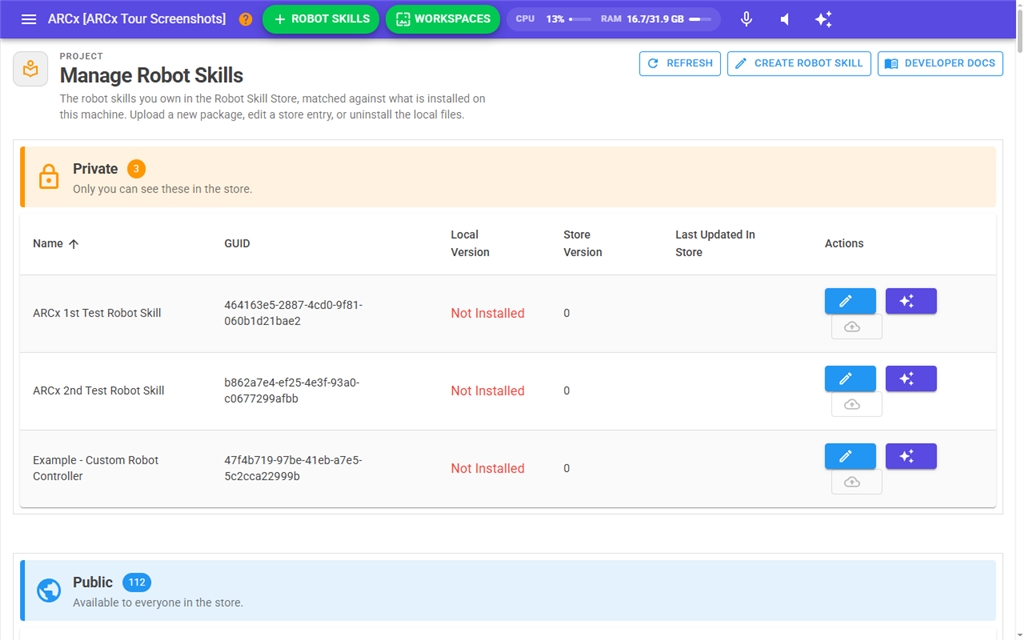
Versioninplugin.jsonyourself and build once more.) - In ARCx, press Robot Skills → Manage, press Refresh so it sees your latest build, and find your skill.
- Press the green upload button in its row. Read the summary of what will be sent and press Upload. (If the upload button is greyed out, hover over it - it tells you exactly what is missing, such as the thumbnail or a higher version number.)
- Press the edit button (the pencil) in the same row to open your skill's store page on synthiam.com. Add setup instructions, and set it to public when you are ready for others to find it.
Writing a good description
The description is the single most important thing you type. The AI prompt is built from it, so a clear description means a better first version and fewer questions.
A good description says:
- What it does - the main job, in one sentence.
- What the user sees - buttons, numbers, pictures in the window.
- What the user can set - the options on the settings page, with sensible defaults.
- What hardware or services it uses - which sensor, port, camera or website.
- What other skills or scripts can do with it - commands such as Start, Stop, Get Value.
Too short:
Reads a distance sensor.
Great:
Watches an ultrasonic distance sensor on a port the user picks and sounds an alarm when something comes closer than a set distance (default 30 cm). The window shows the current distance in large numbers, a red/green status light, and Start and Stop buttons. Settings: the sensor port, the alarm distance, how often to check, and a script to run when the alarm triggers. Scripts can start and stop it and read the latest distance.
Do not worry about getting it perfect. The AI will ask about anything unclear, and you can always add more detail in the chat.
Troubleshooting
| Problem | What to do |
|---|---|
| The Create button shows errors | Read the list on the right. Common ones: name under 5 characters, description under 30 characters, no category, terms box not ticked |
| "The destination folder has a plugin.json" | A project with that name already exists. Pick a different name, or move the old folder out of Documents\ARCx Data\Robot Skill Projects |
dotnet is not recognized |
Install the .NET 10 SDK (Step 2), then close and reopen VS Code |
| The AI says it cannot edit files | Codex: switch the mode to Agent. Claude Code: approve the edit when it asks. Both: make sure you trusted the folder when VS Code asked |
| The AI invents features that do not exist | Remind it: "Check the manuals and ARCx.xml before using anything, and ask me if something is not there." The prompt and AGENTS.md already say this, but a nudge helps |
| The build cannot overwrite files | ARCx is holding the old version. Close ARCx, build again, reopen ARCx |
| The skill is not in Robot Skills → Add | Make sure the last build succeeded (the AI will say so). Look under the category you chose. Restart ARCx if it was running during the build |
| "This robot skill has no thumbnail" | Expected until you add title.png. Only matters when publishing |
| The upload button is greyed out | Hover over it to see why. Usually the thumbnail is missing, the version in plugin.json is not higher than the store's, or the skill has not been built yet. Fix it, build, then press Refresh on the Manage page |
| I lost the prompt | Robot Skills → Manage, then the ✨ button on your skill's row |
| The project was moved and the prompt looks wrong | Open the prompt from Manage and press Rewrite AGENTS.md to refresh the guide file |
Quick checklist
One-time setup
- [ ] Visual Studio Code installed
- [ ] .NET 10 SDK installed (
dotnet --versionshows 10) - [ ] Claude Code or Codex installed in VS Code and signed in
- [ ] Signed in to your Synthiam account in ARCx
For each new robot skill
- [ ] Robot Skills → Create: name, company, a detailed description, categories, agree, Create
- [ ] Copy prompt on the page that follows
- [ ] Open the project folder in VS Code and trust it
- [ ] Paste the prompt into Claude Code or Codex (Agent mode)
- [ ] Read the plan, answer its questions, say "build it"
- [ ] Robot Skills → Add in ARCx and try it
- [ ] Ask the AI for changes until it is just right
- [ ] Add
title.png, then Robot Skills → Manage → Upload to share it
That is all there is to it. Describe your idea, let ARCx and the AI do the heavy lifting, and give your robot a new skill.
Want to go deeper? The other manuals in this folder - RobotSkill-UI-Components.md and RobotSkill-Services-And-Core.md - are the technical reference the AI reads. They are written for developers, but they are a great way to see everything a robot skill can do.