
Servo
Move servos, set their speed and limits, read their positions, and play Auto Position actions. The Auto Position blocks list the actions of the Auto Position robot skills in the project.
Where to find it: the Servo category of the toolbox, in any script editor set to Blockly or on Top bar → Workspaces → Blockly
Blocks
| Block | What it does |
|---|---|
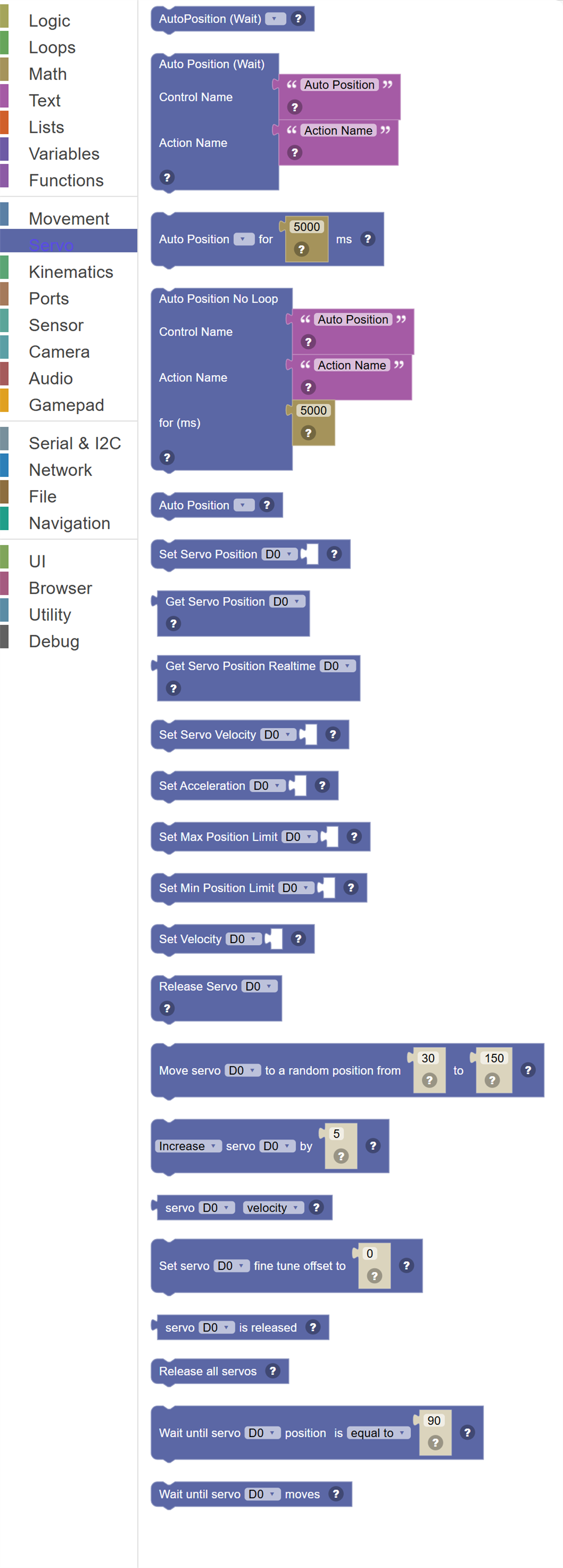
| Auto Position (Wait) | Runs a single Auto Position action from the Auto Position skill and waits for it to fully complete before moving to the next block. |
| Auto Position (Wait, By Name) | Runs an Auto Position action specified by typing the Control Name and Action Name as text. |
| Auto Position Loop (Duration) | Runs an Auto Position looping action (a repeating gait or cycle) for a specified number of milliseconds, then stops. |
| Auto Position Loop (Duration, By Name) | Runs a named Auto Position looping action for a specified duration in milliseconds. |
| Auto Position (Background) | Starts an Auto Position looping action in the background and immediately continues to the next block without waiting. |
| Set Servo Position | Moves a servo motor connected to the specified port to a target position. |
| Get Servo Position | Returns the last position that was commanded to the specified servo port. |
| Get Servo Real-Time Position | Returns the actual physical position of the servo as measured by the servo's internal sensor. |
| Set Servo Speed | Controls how fast a servo moves to its target position. |
| Set Servo Acceleration | Controls how quickly the servo ramps up to its movement speed. |
| Set Max Position Limit | Sets the maximum position the servo is allowed to move to. |
| Set Min Position Limit | Sets the minimum position the servo is allowed to move to. |
| Set Servo Velocity | Sets the movement velocity (speed limit) for the specified servo. |
| Release Servo | Releases (disables) the specified servo so it can move freely under external force. |
| Move servo … to a random position from … to … | Move a servo to a random position between the two limits. |
| … servo … by … | Move a servo up or down from its current position by a number of steps. |
| Servo … … | The velocity, acceleration or fine tune offset last set for a servo. |
| Set servo … fine tune offset to … | Nudge every position sent to this servo by an offset, to line up a horn that is not quite centred. |
| Servo … is released | True when the servo has been released and is not holding its position. |
| Release all servos | Release every servo so none of them hold their position. |
| Wait until servo … position … … | Pause the script until the servo reaches a position, for example while another script or a robot skill moves it. |
| Wait until servo … moves | Pause the script until the servo is moved from where it is now. |
Details
Auto Position (Wait)
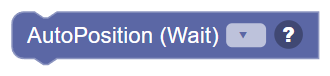
Runs a single Auto Position action from the Auto Position skill and waits for it to fully complete before moving to the next block.
When to use it: Use this to play a robot action/pose (like "stand up" or "wave") and make sure it's done before continuing.
Example: AutoPosition (wait) "Stand Up" → robot fully stands before any other blocks run.
Tips:
- The Auto Position skill must be added to your project.
- Actions are defined in the Auto Position skill interface.
- Use this for precise choreography where timing matters.
Auto Position (Wait, By Name)
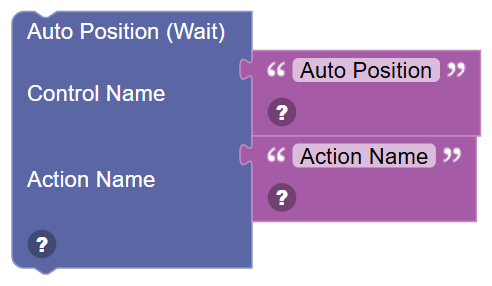
Runs an Auto Position action specified by typing the Control Name and Action Name as text. Waits for the action to complete before continuing.
When to use it: Use this when you want to choose which Auto Position control and action to run dynamically — using variables or text input.
Example: Control Name: "AutoPosition" → Action Name: variable "currentAction" → runs whichever action is stored in the variable.
Tips:
- Both Control Name and Action Name must exactly match what's set up in your project.
- This version is more flexible than the dropdown version — action name can come from a variable.
- Great for dynamic animations where the sequence changes based on sensor input.
In JavaScript: this block runs
controlCommand('Auto Position', "AutoPositionAction", 'Action Name');
sleep(500);
while (getVar("AutoPositionStatus") == 1);
Auto Position Loop (Duration)
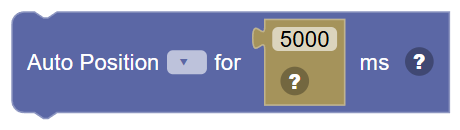
Runs an Auto Position looping action (a repeating gait or cycle) for a specified number of milliseconds, then stops.
When to use it: Use this to run a walking gait, a wave, or any repeating animation for a fixed amount of time.
Example: Auto Position "Walk Forward" for 3000 ms → robot walks for 3 seconds, then stops.
Tips:
- 1000 ms = 1 second.
- Looping actions repeat their cycle continuously for the duration.
- After the time is up, the action stops — add a Stand or Stop action afterward.
Auto Position Loop (Duration, By Name)
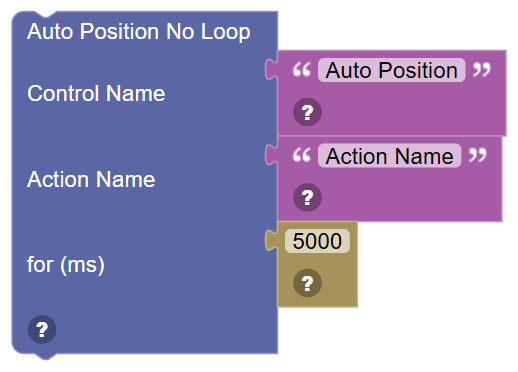
Runs a named Auto Position looping action for a specified duration in milliseconds. Control Name, Action Name, and duration are all specified by connected blocks.
When to use it: Use this for flexible, dynamic animation control where the action name or duration may change based on sensor data or variables.
Example: Run "AutoPosition" → action "WalkForward" → for variable "walkTime" ms → walks for a variable amount of time.
Tips:
- All three inputs (control name, action name, duration) can come from variables.
- Great for building adaptive gaits that change duration based on sensor feedback.
- Action names must match exactly what's configured in the Auto Position skill.
In JavaScript: this block runs
controlCommand('Auto Position', "AutoPositionAction", 'Action Name');
sleep(5000);
Auto Position (Background)
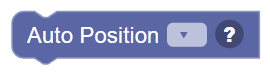
Starts an Auto Position looping action in the background and immediately continues to the next block without waiting. The animation keeps running while other blocks execute.
When to use it: Use this to run a walking gait or idle animation while simultaneously controlling other things — like walking AND talking at the same time.
Example: Auto Position Background "Walk" → Say "I am walking!" → both happen at the same time.
Tips:
- The action continues until you stop it with another Auto Position command or a stop command.
- Be careful — conflicting servo commands from other blocks may interfere.
- Perfect for continuous gaits while the robot also responds to sensors.
Set Servo Position
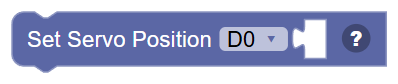
Moves a servo motor connected to the specified port to a target position. Position values are typically between 0 and 180 degrees.
When to use it: Use this to control any servo motor — robot arms, grippers, pan/tilt heads, legs, or any joint that needs to move to a specific angle.
Example: Set Servo Position D0 = 90 → moves the servo on port D0 to the middle (90°) position.
Tips:
- Servos typically accept 0–180 for the position range — check your servo's specs.
- Add a Sleep block after moving a servo to give it time to reach the position before the next command.
- Use Constrain to keep positions within safe limits and protect the mechanism.
In JavaScript: this block runs
Servo.SetPosition(d0, 90);
Get Servo Position
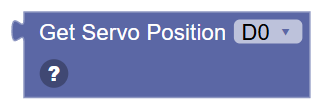
Returns the last position that was commanded to the specified servo port. This is the position the servo was told to go to — not necessarily where it physically is right now.
When to use it: Use this to know where you last sent a servo, so you can calculate relative moves — like "move 10 degrees from current position".
Example: New position = Get Servo D0 + 10 → adds 10 degrees to the current commanded position.
Tips:
- This returns the commanded position, not the real physical position.
- Use Get Servo Realtime if you need the actual measured position (requires smart servos).
- Great for incremental moves: read current, add offset, set new position.
In JavaScript: this block gives back the value of
Servo.GetPosition(d0)
Get Servo Real-Time Position
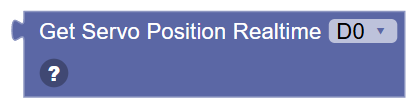
Returns the actual physical position of the servo as measured by the servo's internal sensor. Requires a smart servo (like Dynamixel or similar) with position feedback.
When to use it: Use this when you need to know exactly where the servo actually is — like detecting if it reached its target, or if something is blocking it.
Example: If Get Servo Realtime D0 < 45 → something is blocking the arm from reaching its target.
Tips:
- Only works with servos that have built-in position feedback.
- Standard hobby servos do NOT have feedback — they only accept position commands.
- Great for detecting collisions: command a position and check if the servo actually got there.
In JavaScript: this block gives back the value of
Servo.getPositionRealtime(d0)
Set Servo Speed
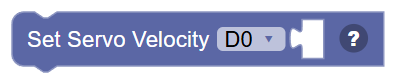
Controls how fast a servo moves to its target position. Lower values make the servo move more slowly and smoothly; higher values make it snap quickly to the target.
When to use it: Use this to create smooth, natural-looking movements — a robot arm that moves slowly looks much more realistic and gentle.
Example: Set Servo Speed D0 = 2 → the servo on D0 now moves slowly to each new position.
Tips:
- Set speed before setting the position, so the speed is active when the move happens.
- Slower speeds are gentler on mechanisms and look more natural.
- Speed units vary by servo type — experiment to find the right range.
In JavaScript: this block runs
Servo.SetVelocity(d0, 0);
Set Servo Acceleration
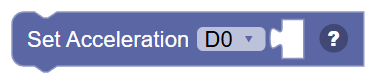
Controls how quickly the servo ramps up to its movement speed. Lower acceleration = slow, smooth start. Higher acceleration = quick, abrupt start.
When to use it: Use this for even smoother movements — the servo starts slowly, speeds up, and (with compatible servos) slows down before reaching the target.
Example: Set Acceleration D1 = 5 → arm starts moving gently, avoiding jerky or sudden motion.
Tips:
- Works best with smart servos that support acceleration profiles.
- Low acceleration is great for delicate grippers or display robots.
- Set acceleration and speed together for the smoothest results.
In JavaScript: this block runs
Servo.setAcceleration(d0, 0);
Set Max Position Limit

Sets the maximum position the servo is allowed to move to. The servo will refuse to go beyond this limit, protecting your robot's mechanics.
When to use it: Use this as a safety measure — prevent the servo from turning too far and damaging gears, joints, or cables.
Example: Set Max Position Limit D2 = 150 → the arm can only move up to 150°, not past it.
Tips:
- Set limits before running any movement code that might send extreme positions.
- Test your mechanism manually first to find the safe maximum position.
- Limits are enforced in software — physical stops are still the ultimate safety net.
In JavaScript: this block runs
Servo.setMaxPositionLimit(d0, 180);
Set Min Position Limit

Sets the minimum position the servo is allowed to move to. The servo will refuse to go below this limit.
When to use it: Use this to prevent the servo from turning too far in the other direction — protecting gears, joints, and cables from damage.
Example: Set Min Position Limit D2 = 10 → the arm cannot go below 10°, even if told to go to 0°.
Tips:
- Set both min and max limits for full protection of your mechanism.
- Test your physical range of motion carefully before setting limits.
- Use Constrain in your math if you need to calculate clamped positions before sending them.
In JavaScript: this block runs
Servo.setMinPositionLimit(d0, 1);
Set Servo Velocity
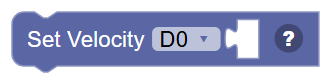
Sets the movement velocity (speed limit) for the specified servo. Used with smart servos (like Dynamixel) that support velocity-based control.
When to use it: Use this to control how fast a smart servo moves, giving you smooth, speed-controlled motion rather than instant position jumps.
Example: Set Velocity D3 = 50 → the servo moves at velocity 50 toward each new position.
Tips:
- Velocity control only works with smart servos that support it.
- Standard hobby servos ignore velocity commands — use Speed for those.
- A velocity of 0 often means "no limit" on Dynamixel servos — check the documentation.
In JavaScript: this block runs
Servo.setVelocity(d0, 0);
Release Servo
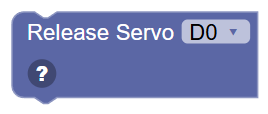
Releases (disables) the specified servo so it can move freely under external force. The servo stops holding its position and goes limp.
When to use it: Use this when you want to let a joint move freely — like allowing a gripper to be pushed open by hand, or relaxing a robot arm when picking up.
Example: Release D0 → the servo on D0 stops resisting and can be moved by hand.
Tips:
- A released servo may fall under gravity if it was holding something up — be careful!
- Send a new position command to re-engage the servo and have it hold position again.
- Great for collaborative robots that need to share control with a human.
In JavaScript: this block runs
Servo.release(d0);
Move servo … to a random position from … to …

Move a servo to a random position between the two limits.
In JavaScript: this block runs
Servo.setPositionRandom(d0, 30, 150);
… servo … by …
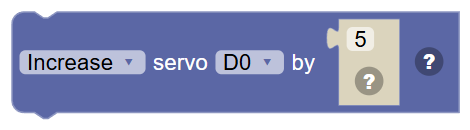
Move a servo up or down from its current position by a number of steps.
In JavaScript: this block runs
Servo.increment(d0, 5);
Servo … …

The velocity, acceleration or fine tune offset last set for a servo.
In JavaScript: this block gives back the value of
Servo.getVelocity(d0)
Set servo … fine tune offset to …
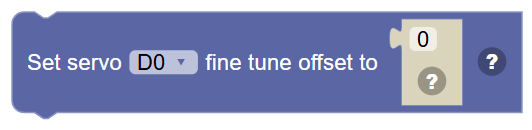
Nudge every position sent to this servo by an offset, to line up a horn that is not quite centred.
In JavaScript: this block runs
Servo.setFineTuneOffset(d0, 0);
Servo … is released

True when the servo has been released and is not holding its position.
In JavaScript: this block gives back the value of
Servo.isReleased(d0)
Release all servos
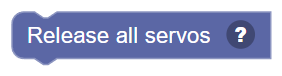
Release every servo so none of them hold their position.
In JavaScript: this block runs
Servo.releaseAll();
Wait until servo … position … …
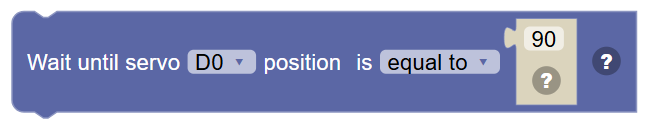
Pause the script until the servo reaches a position, for example while another script or a robot skill moves it.
In JavaScript: this block runs
Servo.waitForPositionEquals(d0, 90);
Wait until servo … moves

Pause the script until the servo is moved from where it is now.
In JavaScript: this block runs
Servo.waitForMove(d0);