
Ports
Read and set the controller's digital ports (on or off), analog ADC ports (a voltage as 0 to 255) and PWM outputs (0 to 100 percent).
Where to find it: the Ports category of the toolbox, in any script editor set to Blockly or on Top bar → Workspaces → Blockly
Blocks
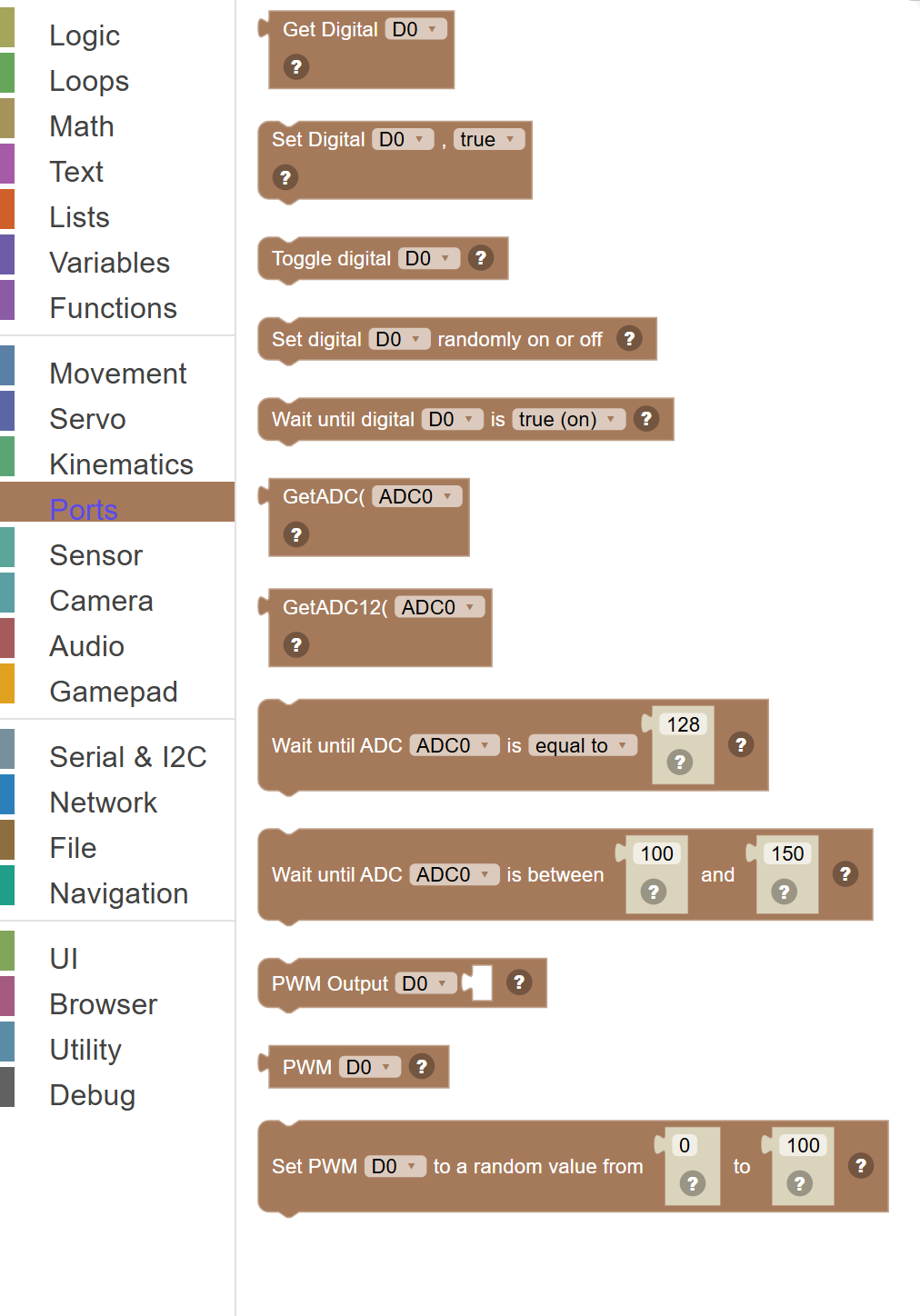
| Block | What it does |
|---|---|
| Get Digital Port | Reads the current state of a digital port on the EZ-B controller and returns true (high/on) or false (low/off). |
| Set Digital Port | Sets a digital port to true (high/on) or false (low/off). |
| Toggle digital … | Flip a digital port: on becomes off and off becomes on. |
| Set digital … randomly on or off | Set a digital port to a random state. |
| Wait until digital … is … | Pause the script until a digital port reads on or off - a button being pressed, for example. |
| Read ADC Port (8-bit) | Reads the analog voltage on an ADC (Analog to Digital Converter) port and returns a value from 0 to 255. |
| Read ADC Port (12-bit) | Reads the analog voltage on an ADC port with high precision, returning a value from 0 to 4095. |
| Wait until ADC … is … … | Pause the script until an ADC port reads a value (0 to 255). |
| Wait until ADC … is between … and … | Pause the script until an ADC port reads between two values (0 to 255). |
| PWM Output | Sets a Pulse Width Modulation (PWM) signal on a digital port. |
| PWM … | The PWM duty cycle last set on a digital port, 0 to 100. |
| Set PWM … to a random value from … to … | Set the PWM duty cycle of a digital port to a random value between the two limits. |
Details
Get Digital Port
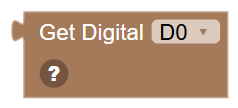
Reads the current state of a digital port on the EZ-B controller and returns true (high/on) or false (low/off).
When to use it: Use this to read a button, switch, or any digital sensor connected to a digital port.
Example: If Get Digital D5 = true → the button on port D5 is being pressed.
Tips:
- Digital ports have only two states: true (on/high) or false (off/low).
- Connect buttons, limit switches, or digital sensors to digital ports.
- Compare the result with true or false in an If block to react to the state.
In JavaScript: this block gives back the value of
Digital.Get(d0)
Set Digital Port
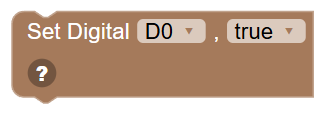
Sets a digital port to true (high/on) or false (low/off). Use this to turn on an LED, activate a relay, or control any digital output device.
When to use it: Use this to turn things on and off — like switching an LED on when a sensor is triggered, or activating a relay.
Example: Set Digital D3 to true → turns on whatever is connected to port D3 (like an LED).
Tips:
- True = power on (high). False = power off (low).
- Great for controlling LEDs, buzzers, relays, and other simple on/off devices.
- Set to false to turn it off again — it stays in whatever state you last set it to.
In JavaScript: this block runs
Digital.set(d0, true);
Toggle digital …

Flip a digital port: on becomes off and off becomes on.
In JavaScript: this block runs
Digital.toggle(d0);
Set digital … randomly on or off

Set a digital port to a random state.
In JavaScript: this block runs
Digital.setRandom(d0);
Wait until digital … is …

Pause the script until a digital port reads on or off - a button being pressed, for example.
In JavaScript: this block runs
Digital.wait(d0, true);
Read ADC Port (8-bit)
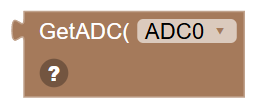
Reads the analog voltage on an ADC (Analog to Digital Converter) port and returns a value from 0 to 255. 0 means 0 volts; 255 means the maximum voltage (usually 3.3V or 5V).
When to use it: Use this to read analog sensors like potentiometers, light sensors, temperature sensors, or any sensor that outputs a varying voltage.
Example: GetADC ADC0 → returns 128 when the sensor is at half its voltage range.
Tips:
- The 8-bit range is 0–255. Divide by 255 to get a 0–1 percentage.
- Light sensors return higher values in bright light and lower in darkness.
- Use ADC 12-bit for more precise readings when accuracy matters.
In JavaScript: this block gives back the value of
ADC.get(adc0)
Read ADC Port (12-bit)
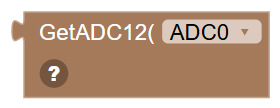
Reads the analog voltage on an ADC port with high precision, returning a value from 0 to 4095. More precise than the 8-bit version — great for sensors needing fine detail.
When to use it: Use this when you need more precise analog readings — like a sensitive distance sensor or a precision potentiometer.
Example: GetADC12 ADC0 → returns 2048 at exactly half voltage, much finer resolution than 8-bit.
Tips:
- Divide by 4095 to get a 0–1 percentage (much finer than dividing 255).
- Use 12-bit when small sensor differences matter — like distinguishing close colour shades.
- Most robot tasks work fine with 8-bit; use 12-bit for science or precision robotics.
In JavaScript: this block gives back the value of
ADC.Get12Bit(adc0)
Wait until ADC … is … …
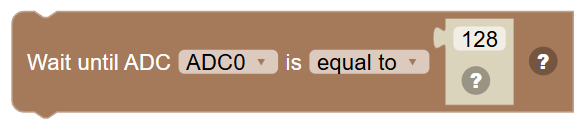
Pause the script until an ADC port reads a value (0 to 255).
In JavaScript: this block runs
ADC.waitForEquals(adc0, 128);
Wait until ADC … is between … and …

Pause the script until an ADC port reads between two values (0 to 255).
In JavaScript: this block runs
ADC.waitForBetween(adc0, 100, 150);
PWM Output
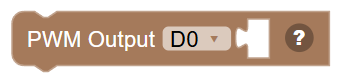
Sets a Pulse Width Modulation (PWM) signal on a digital port. PWM rapidly switches a port on and off to simulate a voltage between full-on and full-off. Connect a value to control the duty cycle.
When to use it: Use PWM to control LED brightness, motor speed, or any device that responds to varying power levels.
Example: PWM Output D2 = 128 → runs the device at roughly half power (50% duty cycle).
Tips:
- PWM value range depends on your setup — often 0–255.
- PWM at 0 = fully off. PWM at max = fully on.
- Great for dimming LEDs gradually or controlling motor speed smoothly.
In JavaScript: this block runs
// Set the PWM output to a value between 0% and 100%
PWM.Set(d0, 90);
PWM …

The PWM duty cycle last set on a digital port, 0 to 100.
In JavaScript: this block gives back the value of
PWM.get(d0)
Set PWM … to a random value from … to …

Set the PWM duty cycle of a digital port to a random value between the two limits.
In JavaScript: this block runs
PWM.setRandom(d0, 0, 100);