
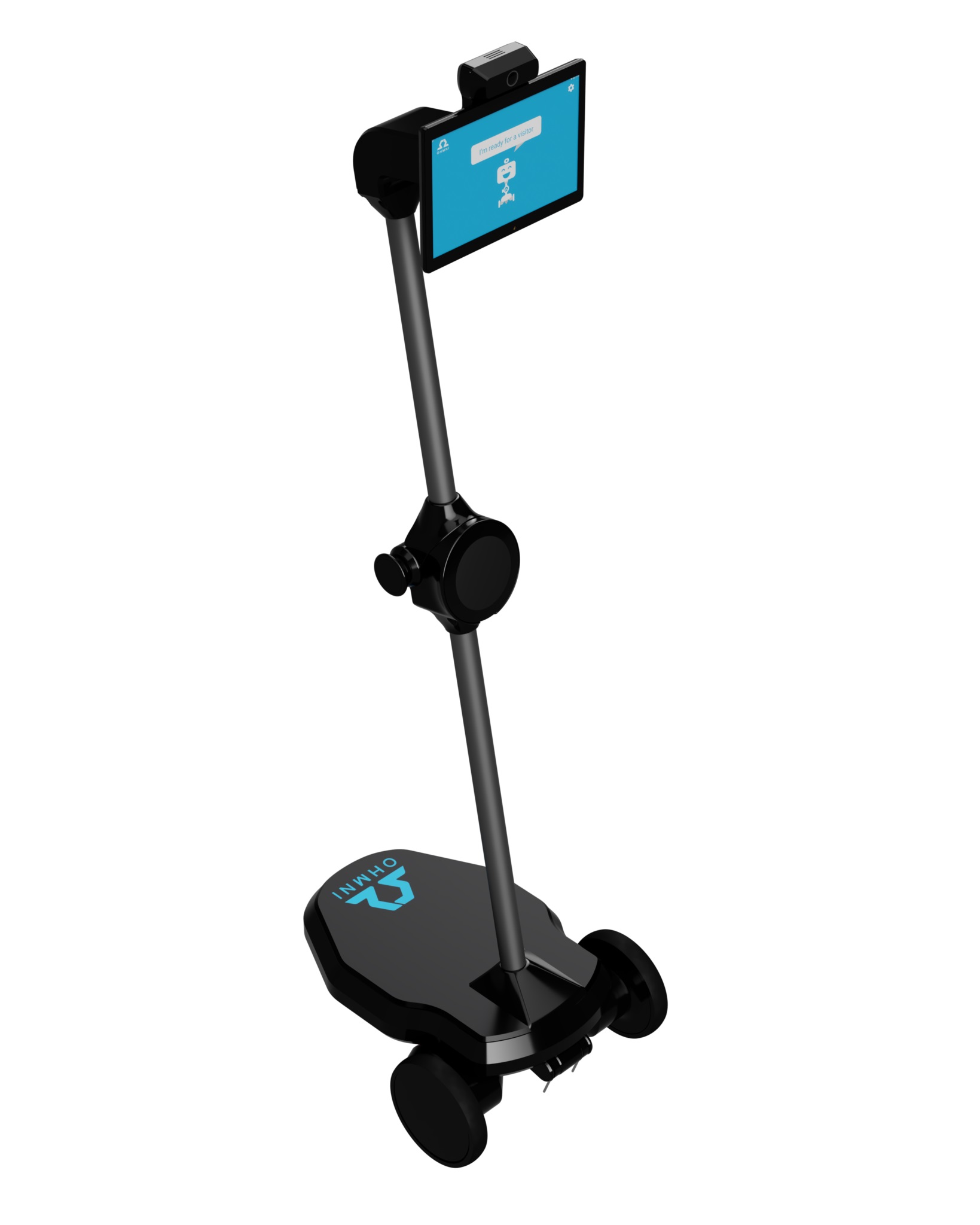
Telepresence Robot by Ohmnilabs
Firmware
Telepresence means you can “be there” in another location by driving a robot remotely and seeing/hearing what it sees and hears. The Ohmni telepresence robot is designed to make that simple—connect, drive, and communicate in just a few steps.
- Run ARC directly on the robot (Windows 10 on the robot’s computer)
- Control the robot from another PC using the Ohmni movement skill
- Use Exosphere for a telepresence-first experience (recommended for typical telepresence use)
The Ohmni Supercam includes a high-resolution camera (13MP). Combined with Ohmni’s low-latency encoding, you get a wide field of view while still keeping good visual detail—helpful for navigating hallways, reading signs, and interacting with people.
Ohmni robots are designed and built with 3D printers in Silicon Valley, CA.
Option 1: Windows 10 (Run ARC on the Robot)
Ohmni includes an onboard computer (often referred to as the robot’s UpBoard). You can install Microsoft Windows 10 on that computer and then run Synthiam ARC directly on the robot. This is useful when you want ARC to be “inside” the robot so it can control hardware locally.
What you’ll do
- Install Windows 10 on the robot’s UpBoard
- Install and launch ARC on Windows 10
- Configure the Ohmni control skill(s) in ARC
Follow the setup instructions on the Ohmnilabs Standalone Skill page.
Option 2: Robot Skill (Movement Panel)
ARC uses “skills” to add features—like driving a robot, reading sensors, or tracking an object with the camera. For Ohmni, the key driving/control skill is the Ohmnilabs Standalone Skill.
This skill connects to the robot using the Ohmnilabs serial bus (a communication link used by the robot’s electronics). Once connected, you can drive the robot and send movement commands directly from ARC.
Option 3: Exosphere Telepresence
Ohmni really shines when configured for telepresence using Exosphere. Exosphere is designed for remote access and “telepresence-style” operation, making it easier to connect and operate a robot from far away.
Use this tutorial to get started: Exosphere Telepresence Tutorial.
Demo Video (What This Can Look Like)
In this demo, the Ohmni robot is running ARC and is connected remotely over WiFi. The camera is enabled, color tracking is turned on, and the robot will automatically follow a colored ball. This is a simple (and fun) way to confirm your camera, tracking, and movement are all working together.
Quick Start Checklist (Beginner-Friendly)
- Decide where ARC will run: on the robot (Windows 10 on UpBoard) or on another PC.
- Install and open ARC on the chosen computer.
- Add the Ohmnilabs Standalone Skill to enable direct robot control.
- Confirm you can drive the robot (basic forward/back/turn).
- Enable camera features (view video, try tracking, etc.).
- If you want telepresence: follow the Exosphere tutorial and test a remote connection.

Nice demonstration, to bad Ohmni Supercam is roughly $2200.00
:-)