
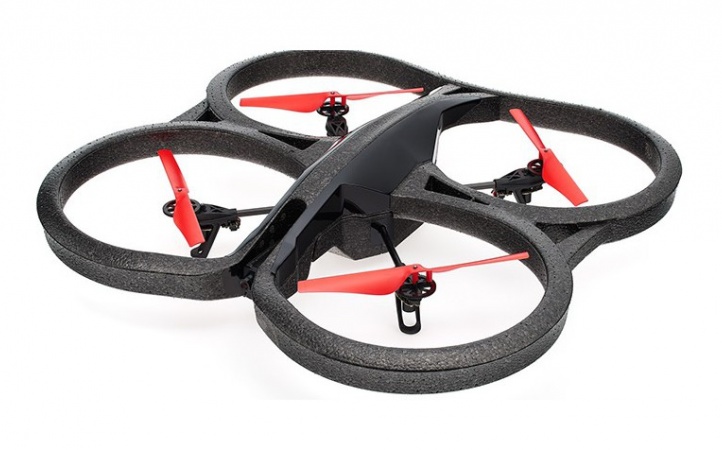
AR Parrot Drone by Parrot
The AR Parrot Drone is a small flying quadcopter that can be controlled by Synthiam ARC. ARC communicates with the drone over WiFi (wireless networking), so your computer connects directly to the drone’s WiFi signal—similar to connecting to a home router.
What you need
- A supported AR Parrot Drone (powered on and with a charged battery)
- A Windows PC running Synthiam ARC
- WiFi on your computer (built-in WiFi or a WiFi adapter)
- Enough open space to safely test (indoors with prop guards or outdoors with minimal wind)
How it works (simple overview)
- Turn on the AR Parrot Drone.
- Your computer connects to the drone’s WiFi network.
- In ARC, you add the AR Drone Movement Panel skill.
- Use the panel to connect, then test takeoff/landing and movement controls.
Step-by-step setup
1) Power on the drone
Install the battery (if required) and power on the drone. Wait a few moments for it to finish starting up. The drone will broadcast its own WiFi network (SSID).
2) Connect your PC to the drone’s WiFi
On your PC, open the WiFi network list and connect to the network created by the drone (the name often includes “ardrone” or “Parrot”, depending on the model/firmware).
3) Open ARC and add the AR Drone Movement Panel
Start Synthiam ARC, open your project (or create a new one), then add the AR Drone Movement Panel skill. This panel provides buttons/sliders for connecting and sending flight commands.
View the AR Parrot Drone movement panel manual here: AR Parrot Drone Movement Panel Manual.
4) Connect and test basic controls
In the Movement Panel, use the Connect option first. Once connected, test in this order:
- Emergency/Stop (know where it is before takeoff)
- Takeoff
- Hover (if available)
- Small movement taps (forward/back/left/right/yaw)
- Land
Safety tips for beginners
- Start with slow/small movements. A little input can move a drone quickly.
- Keep the drone away from faces, hair, pets, and fragile items.
- If the drone becomes unstable, use Land or Emergency immediately.
- Try your first tests in a clear area with minimal airflow (fans/wind can affect stability).
Video walkthrough
Troubleshooting
- Confirm your PC is connected to the drone’s WiFi (not your home WiFi).
- Close other drone/control apps that might be using the connection.
- Power-cycle the drone (turn it off and back on) and reconnect WiFi.
- Move closer to the drone to improve WiFi signal strength.
- Check the battery charge and ensure it is seated properly.
- Place the drone on a flat surface before takeoff.
- Verify propellers/guards are installed correctly and nothing is obstructing them.
- Avoid wind/fans and test again in a calmer area.
