
Utility
Waiting, control commands for any robot skill, a block for typing your own JavaScript, and the computer itself.
Where to find it: the Utility category of the toolbox, in any script editor set to Blockly or on Top bar → Workspaces → Blockly
Blocks
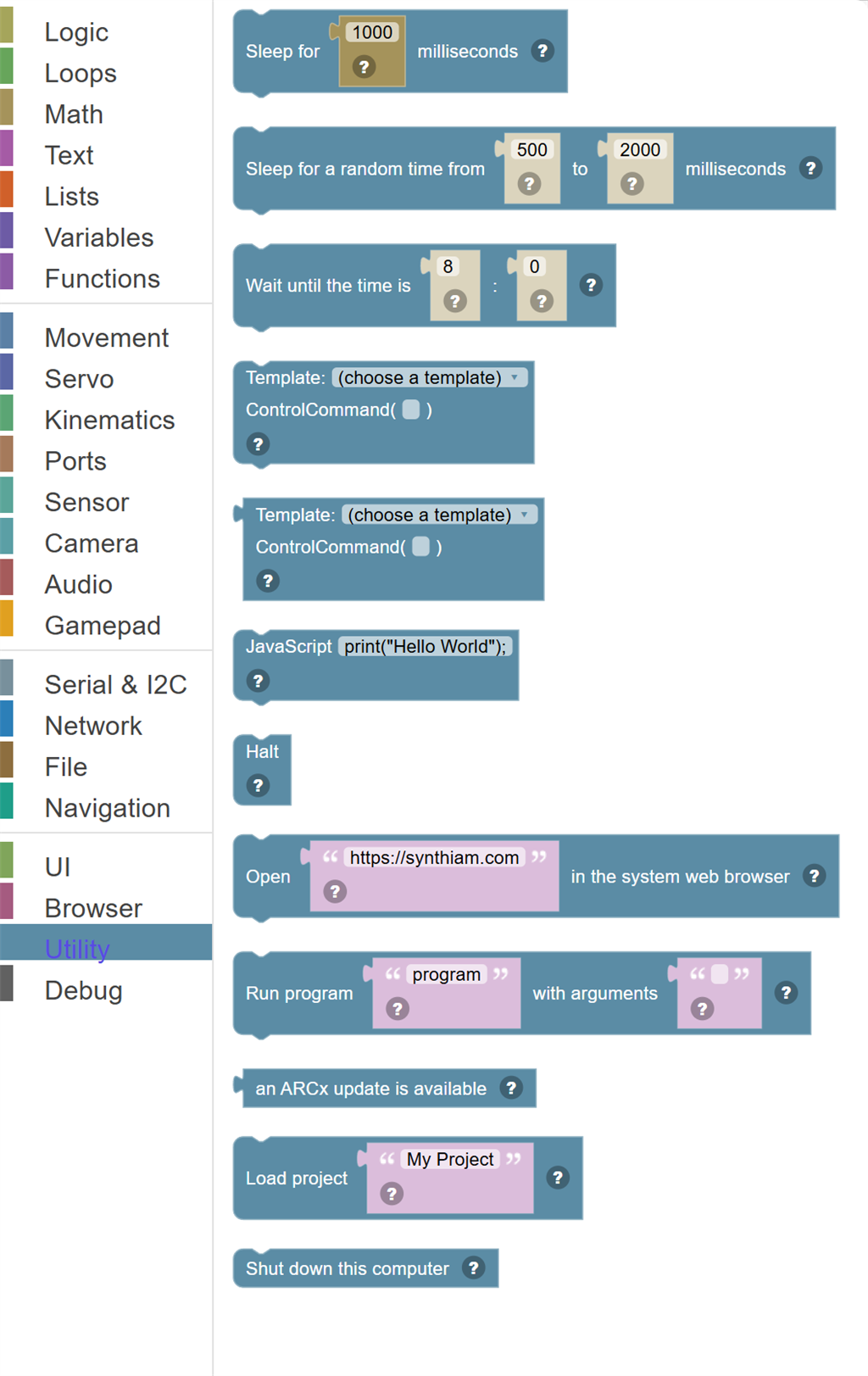
| Block | What it does |
|---|---|
| Sleep (Pause) | Pauses the script for the specified number of milliseconds before continuing to the next block. |
| Sleep for a random time from … to … milliseconds | Pause the script for a random time between the two limits, so a robot does not look like it is on a timer. |
| Wait until the time is … : … | Pause the script until the computer's clock reaches this hour (0 to 23) and minute. |
| Control Command | Sends a ControlCommand to any skill or control in your project. |
| Template: (choose a template) ControlCommand() | Send a ControlCommand() to a robot skill and use what it answers. |
| Raw JavaScript | Lets you type a raw line of JavaScript code directly into the script. |
| Halt Script | Immediately stops the entire script. |
| Open … in the system web browser | Open a web address in the computer's own web browser. |
| Run program … with arguments … | Start a program on the computer ARCx is running on, given its full path, and carry on without waiting for it. |
| An ARCx update is available | True when a newer version of ARCx can be installed. |
| Load project … | Close this project and open another, by file name. |
| Shut down this computer | Turn off the computer ARCx is running on. |
Details
Sleep (Pause)
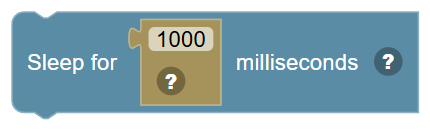
Pauses the script for the specified number of milliseconds before continuing to the next block. Nothing else in the script runs during this time.
When to use it: Use this to control timing — like waiting for a servo to reach its position, adding a delay between moves, or creating a timed pause in your routine.
Example: Set Servo D0 = 90 → Sleep 500 ms → Set Servo D0 = 180 → gives the servo 0.5 seconds to move.
Tips:
- 1000 milliseconds = 1 second.
- Always add a sleep after a servo move to give it time to reach the position.
- Too many long sleeps can make your robot feel sluggish — keep them short when possible.
In JavaScript: this block runs
sleep(1000);
Sleep for a random time from … to … milliseconds

Pause the script for a random time between the two limits, so a robot does not look like it is on a timer.
In JavaScript: this block runs
sleepRandom(500, 2000);
Wait until the time is … : …
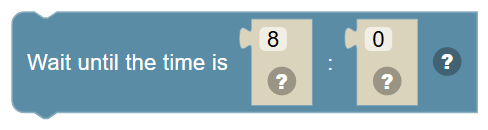
Pause the script until the computer's clock reaches this hour (0 to 23) and minute.
In JavaScript: this block runs
Utility.waitUntilTime(8, 0);
Control Command
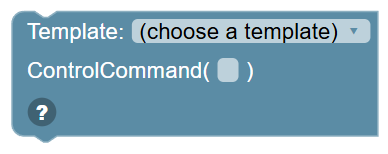
Sends a ControlCommand to any skill or control in your project. Select a template from the dropdown to auto-fill the command, or type a custom command in the text field.
When to use it: Use this to control any ARCx skill from your Blockly script — like telling a skill to start, stop, or change a setting.
Example: ControlCommand("SoundBoard.Play", "laugh.wav") → plays a sound from the SoundBoard skill.
Tips:
- The dropdown provides templates for available controls in your project.
- You can edit the command text directly for custom parameters.
- ControlCommands are a powerful way to interact with any skill in ARCx.
In JavaScript: this block runs
ControlCommand();
Template: (choose a template) ControlCommand()
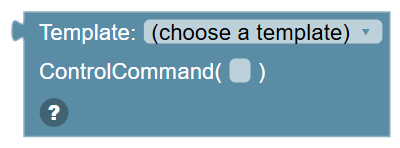
Send a ControlCommand() to a robot skill and use what it answers. Select a template from the dropdown to fill in the command, or type one.
In JavaScript: this block gives back the value of
ControlCommand()
Raw JavaScript
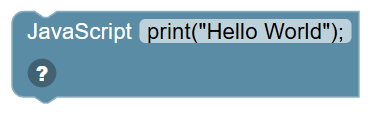
Lets you type a raw line of JavaScript code directly into the script. This code is inserted exactly as-is into the generated program.
When to use it: Use this for advanced features that don't have a Blockly block yet — or to call ARCx JavaScript API functions directly.
Example: print("Hello World"); → outputs text using the raw JavaScript print function.
Tips:
- This is an advanced block — use it only when a dedicated block isn't available.
- The code must be valid JavaScript — syntax errors will break your script.
- Check the ARCx JavaScript API documentation for available functions and methods.
In JavaScript: this block runs
print("Hello World");
Halt Script

Immediately stops the entire script. No blocks after this one will ever run — the script ends right here.
When to use it: Use this at the end of a code path that shouldn't continue, or as an emergency stop inside a condition.
Example: If battery < 5V → Halt → the script stops entirely to protect the battery.
Tips:
- Nothing after a Halt block will run — it's a hard stop.
- Use inside an If block so Halt only triggers under specific conditions.
- Different from Break — Break exits a loop; Halt ends the entire script.
In JavaScript: this block runs
// Stop running this script
halt();
Open … in the system web browser

Open a web address in the computer's own web browser. For a browser window ARCx controls, use the Browser category.
In JavaScript: this block runs
Utility.browser('https://synthiam.com');
Run program … with arguments …

Start a program on the computer ARCx is running on, given its full path, and carry on without waiting for it.
In JavaScript: this block runs
Utility.exec('program', '');
An ARCx update is available

True when a newer version of ARCx can be installed.
In JavaScript: this block gives back the value of
Utility.checkForUpdate()
Load project …
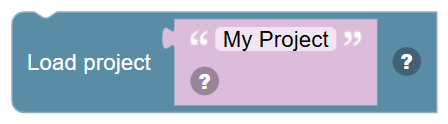
Close this project and open another, by file name. A name without a folder is looked for in the projects folder. This script stops.
In JavaScript: this block runs
Utility.loadProject('My Project');
Shut down this computer

Turn off the computer ARCx is running on.
In JavaScript: this block runs
Utility.shutdownPC();