Turns stepper motors into ARCx servos with homing, position reads, speed control, and support for up to 127 motors across Arduino buses
 Windows
 ARM
ARM
 Linux
Linux
 MacOS
MacOS
How to add the Stepper Servo robot skill
- Load the most recent release of ARCx on a compatible operating system (Get ARCx).
- Press the + Skills menu from the top menu bar in ARCx.
- Choose the Servo category tab.
- Press the Stepper Servo icon to add the robot skill to your project.
Don't have a robot yet?
Follow the Getting Started Guide to build a robot and use the Stepper Servo robot skill.
How to use the Stepper Servo robot skill
The Stepper Servo robot skill turns stepper motors into ARCx servos. Every robot skill that moves servos (Auto Position, joysticks, scripts, servo Animation, kinematics) moves a virtual port such as V1, and this robot skill turns that position into a step number and sends it to the Arduino that drives the motor. Speed, acceleration, release and position reads work the same way, and a motor with a limit switch can home itself so its position is known.
Each Arduino runs the firmware that comes with this robot skill (download it from the Firmware tab of the configuration). One Arduino drives up to four steppers, and several Arduinos can share one serial bus, for up to 127 steppers in all. Step and direction drivers (A4988, DRV8825, TMC2208, TB6600, an Arduino CNC Shield) and 4 wire motors on a ULN2003 or H-bridge (such as the 28BYJ-48) are supported.
This robot skill is the ARCx version of the ARC Stepper servo skill. It uses new firmware with a new protocol: the ARC firmware does not work with this robot skill, so every Arduino needs the new firmware uploaded.
Requirements
- An Arduino (Uno, Nano, Mega, Leonardo, Micro, ESP32 and others) for every one to four stepper motors, running the firmware from the Firmware tab.
- A stepper driver or driver board for each motor, and a power supply for the motors.
- Optionally, a limit switch for each motor, wired between an Arduino pin and GND, so the motor can home itself.
- One way for ARCx to reach the first (master) Arduino:
- USB: its USB cable plugged into the computer running ARCx. No EZB is needed.
- EZB hardware UART: the Arduino's RX0 and TX0 wired to UART 0, 1 or 2 of an EZ-B v4, with a common ground.
- TCP serial bridge: a bridge such as ser2net on a Raspberry Pi or an ESP-Link that passes a TCP connection through to the Arduino's serial port.
Even when the Arduino is on USB, the robot skill listens to the virtual ports of one EZB in the project (EZB #0 unless you change it), because that is where ARCx keeps virtual servo positions. That EZB does not have to be connected.
How positions become steps
A stepper has no position of its own; it only counts the steps it has been told to take. Each motor has a step range in the configuration: the lowest ARCx position (1) moves it to Min step and the highest (normally 180) to Max step, with everything in between spread evenly. With the default 0 to 1500, position 90 is step 746. The range can be anything, negative numbers included, and Invert turns it around.
Because the count starts wherever the motor happens to be when the Arduino powers up, a motor needs to be homed before its positions mean anything: either against a limit switch (Home), or by moving it to its home position and pressing Set home. A motor that stalls or is driven too fast loses steps, and then it needs homing again.
The window
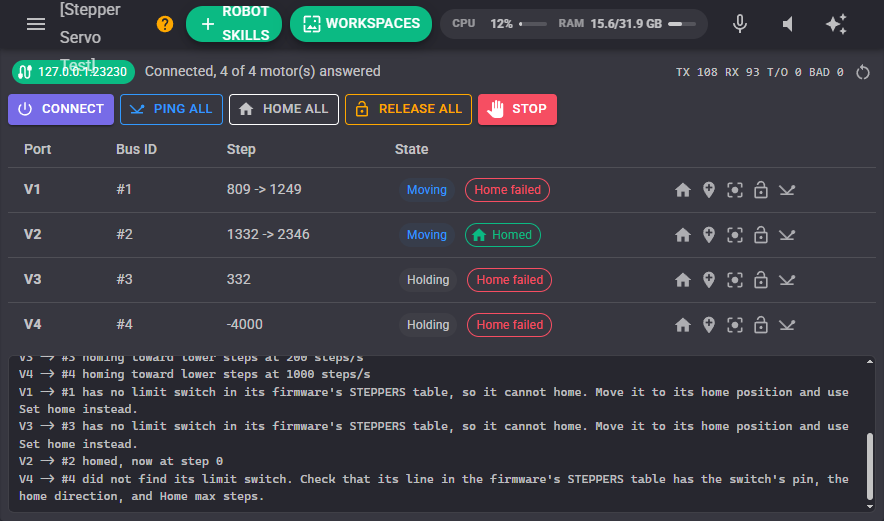
- Link chip - the connection: the COM port and baud rate, the EZB UART, or the bridge's address. Green when every motor answered, amber when something did not, grey when the link is not open.
- Status - what happened when the link last opened, such as "Connected, 4 of 4 motor(s) answered", or why it failed.
- TX / RX / T/O / BAD - packets sent, replies received, questions that timed out, and replies that were rejected (wrong checksum or from the wrong motor) since the counters were reset with the button beside them.
- Connect - opens (or reopens) the link, pings every motor, sends each its speed and acceleration, reads where it is and tells ARCx. This also happens by itself when the project loads (or the EZB connects, for a UART).
- Ping all - asks every motor for its firmware version, protocol and features. The quickest check of the wiring, the bus IDs and the baud rate.
- Home all - homes every motor against its limit switch at the same time.
- Release all - releases every mapped port, so the motors stop and (when Release turns the coils off is set) their shafts turn freely.
- Stop - halts every motor on the bus on the spot with one broadcast, mapped by this robot skill or not, and cancels homing.
- Table - one row per motor: its virtual port and bus ID (hover the bus ID for what the motor answered to its last ping), its step position (and where it is heading while it moves), and its state: Moving, Homing, Holding, Released, Stopped at switch or No answer. Homed, Home failed and Switch (the limit switch is pressed) show beside it. The buttons on each row home the motor, set its home, move the port to the centre position, release the port, and ping the motor.
- Log - what the robot skill did. With Debug logging on, every packet sent and every reply, in hex.
Configuration: Connection
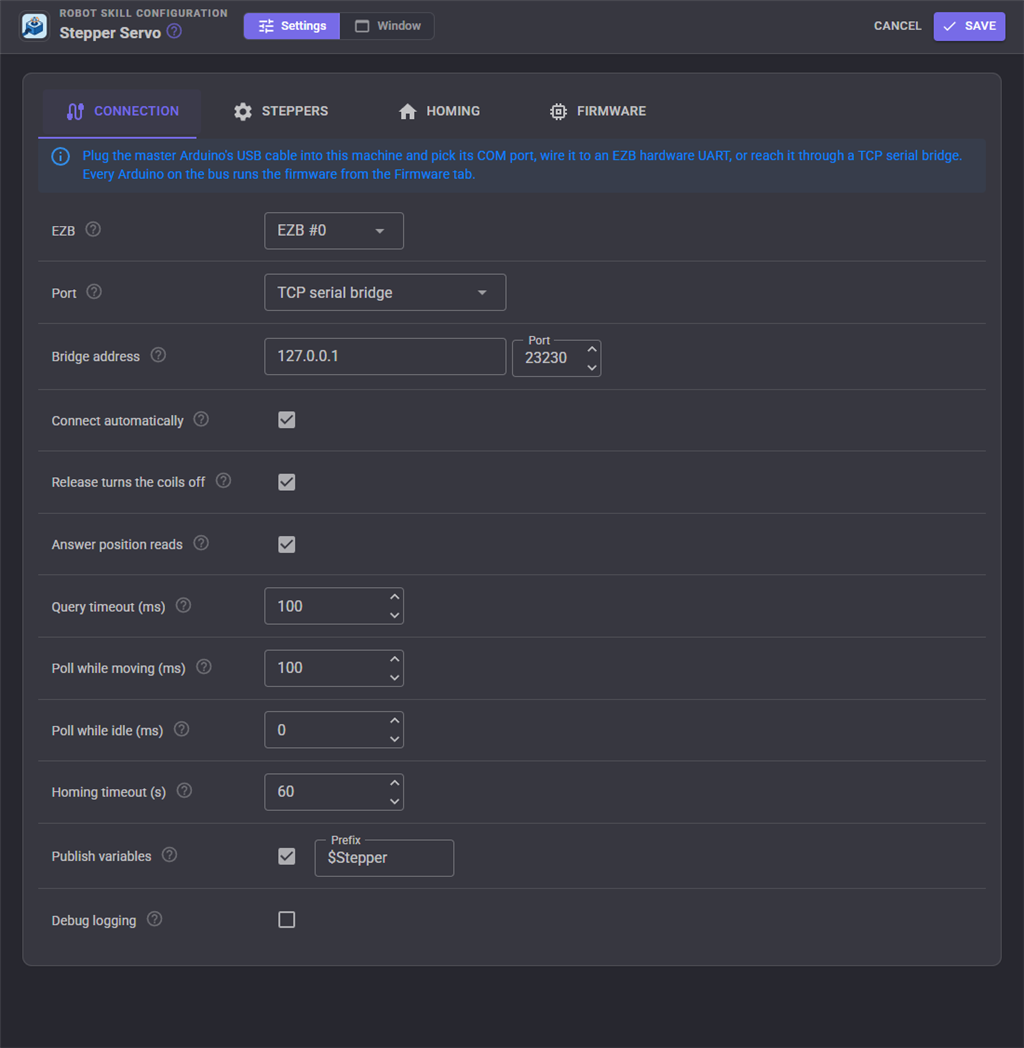
| Setting | Meaning |
|---|---|
| EZB | The EZB whose virtual servo ports (V0 to V255) this robot skill answers to. For a UART connection it is also the EZB the Arduino is wired to. |
| Port | Where the master Arduino is connected: a COM port on this computer (USB), EZB hardware UART 0, 1 or 2, or a TCP serial bridge. |
| COM port | The Arduino's port (COM5, /dev/ttyUSB0, /dev/ttyACM0). Press refresh after plugging it in. Close the Arduino IDE's serial monitor first; only one program can have the port. |
| DTR (resets an Uno) | Raise DTR when the port opens. An Uno, Nano or Mega resets when DTR rises, which forgets its motors' positions, and boards with native USB (Leonardo, Micro, many ESP32s) need it on to send anything. Leave it on unless the Arduino must keep its positions when ARCx reconnects. |
| Start-up delay (ms) | How long to wait after opening the port with DTR on, while the reset Arduino starts. About 2000 for an Uno or Mega. |
| Bridge address | The host name or IP address and TCP port of the serial bridge. The bridge sets the serial speed itself. |
| Baud rate | The speed of the serial bus. It must match BAUD_RATE in the firmware of every Arduino on the bus (115200 unless it was changed). |
| Connect automatically | Open the link and bring every motor up when the project loads (or the EZB connects, for a UART). Off waits for the first move, the Connect button or the Initialize control command. |
| Release turns the coils off | When ARCx releases a port, stop its motor and turn its coils off so the shaft turns freely. A step and direction driver can only let go when its enable pin is in the firmware. Off only slows the motor to a stop and keeps it holding. |
| Answer position reads | When a script or robot skill asks for a mapped port's real position (for example Servo.getPositionRealtime(v1)), ask the motor where it is right now, part way through a move. Off answers with the last position ARCx sent. |
| Query timeout (ms) | How long a ping or status question waits for a motor's answer. 100 suits a USB cable; a WiFi EZB or a network bridge may need 250 or more. |
| Poll while moving (ms) | How often a moving or homing motor is asked where it is, which keeps the window and the variables live. 0 does not poll moving motors (homing is still watched). |
| Poll while idle (ms) | How often a motor that is standing still is asked for its status, so a limit switch pressed by hand shows up. 0 never, which keeps the bus quiet. |
| Homing timeout (s) | How long homing may take before the motor is halted and the homing reported as failed. |
| Publish variables | Set global variables for scripts whenever a motor's status is read. With the default prefix, the motor on V1 publishes $StepperV1Step (its step position), $StepperV1Moving, $StepperV1Homed and $StepperV1Endstop. Give each instance its own prefix when a robot has two of these robot skills. |
| Debug logging | Write every packet sent and every reply to the log. Useful while wiring up the bus, noisy once it works. |
If a USB cable is pulled and plugged back in, or a bridge restarts, the next move opens the link again by itself and resends what the Arduino needs.
Configuration: Steppers
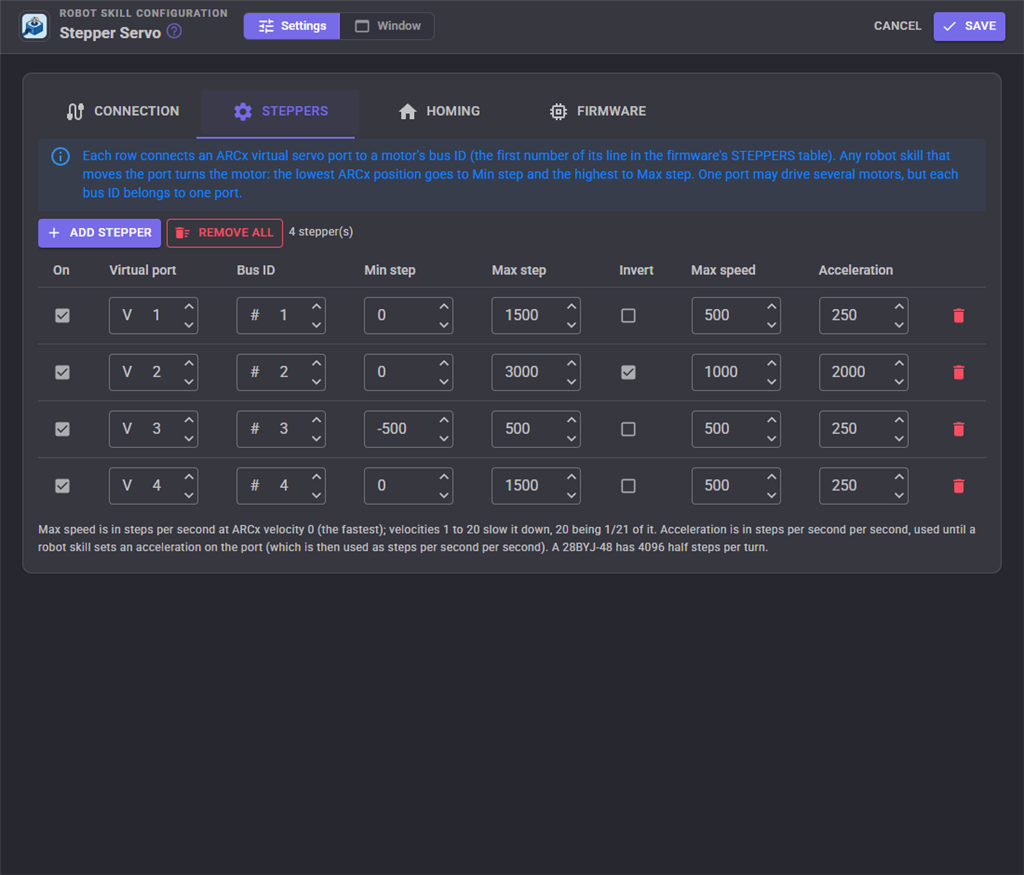
Each row connects one ARCx virtual servo port to one motor on the bus. Add stepper takes the next free bus ID and port and copies the settings of the last row.
| Column | Meaning |
|---|---|
| On | Untick to park a row without losing its settings. |
| Virtual port | The ARCx port, V0 to V255, that moves this motor. One port may drive several motors (two motors moving together, one inverted). |
| Bus ID | The motor's bus ID, 1 to 127: the first number of its line in the firmware's STEPPERS table. Each bus ID belongs to one row. |
| Min step | The step the lowest ARCx position (1) moves the motor to. |
| Max step | The step the highest ARCx position moves the motor to. Set it to the steps the mechanism's full travel takes. A 28BYJ-48 has 4096 half steps per turn; a 200 step motor on a driver set to 1/16 microstepping has 3200. |
| Invert | Reverse the direction, so the lowest position goes to Max step. |
| Max speed | The top speed in steps per second, at ARCx velocity 0 (the fastest). Velocities 1 to 20 slow it down in even steps, 20 being 1/21 of it. Too fast and the motor stalls and loses steps. |
| Acceleration | How hard the motor speeds up and slows down, in steps per second per second. When a script or robot skill sets an acceleration on the port (for example Servo.setAcceleration(v1, 800)), that number is used as steps per second per second instead. |
Configuration: Homing
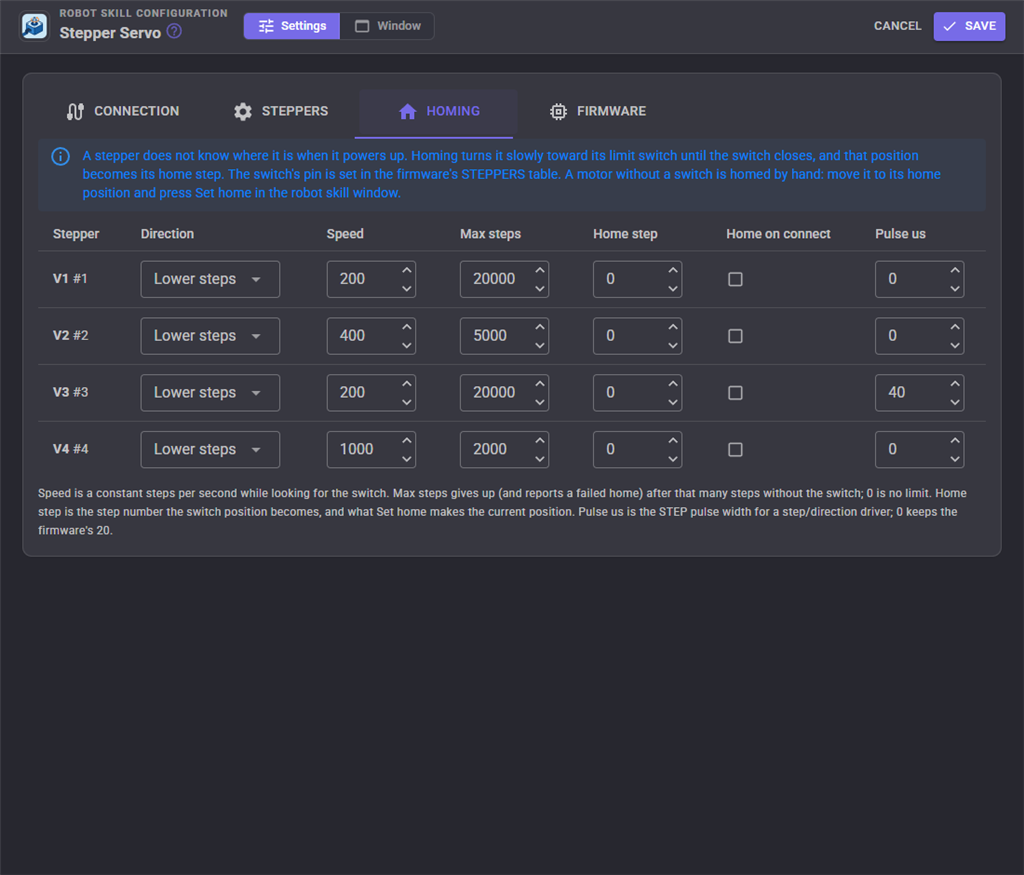
Homing turns a motor slowly toward its limit switch until the switch closes, and that position becomes its home step. ARCx is then told where the port is, without moving it again. The switch's pin is set in the firmware's STEPPERS table; a motor without one cannot home and is set by hand with Set home instead.
| Column | Meaning |
|---|---|
| Direction | The way the motor turns to find the switch: toward lower or higher step numbers. |
| Speed | The constant speed while looking for the switch, in steps per second. Slow enough to stop on the switch without overshooting. |
| Max steps | Give up after this many steps without the switch and report the homing as failed, so a broken switch or wire cannot drive the mechanism into its end forever. 0 is no limit. A little more than the full travel is right. |
| Home step | The step the switch position becomes, and what Set home makes the current position. With the default 0 and a 0 to 1500 range, that is ARCx position 1. |
| Home on connect | Home this motor every time the link opens. |
| Pulse us | The STEP pulse width in microseconds for a step and direction driver that needs a longer pulse than the firmware's 20. 0 keeps the firmware's setting. |
While a motor homes, moves sent to its port are ignored. Stop, a release, or the homing timeout ends homing early.
With the firmware's ENDSTOP_STOPS_MOTION setting on (the default), a motor that runs into its limit switch outside of homing, moving toward the switch, is halted on the spot and shows Stopped at switch, so a motor that lost its position cannot drive the mechanism into the end.
Configuration: Firmware
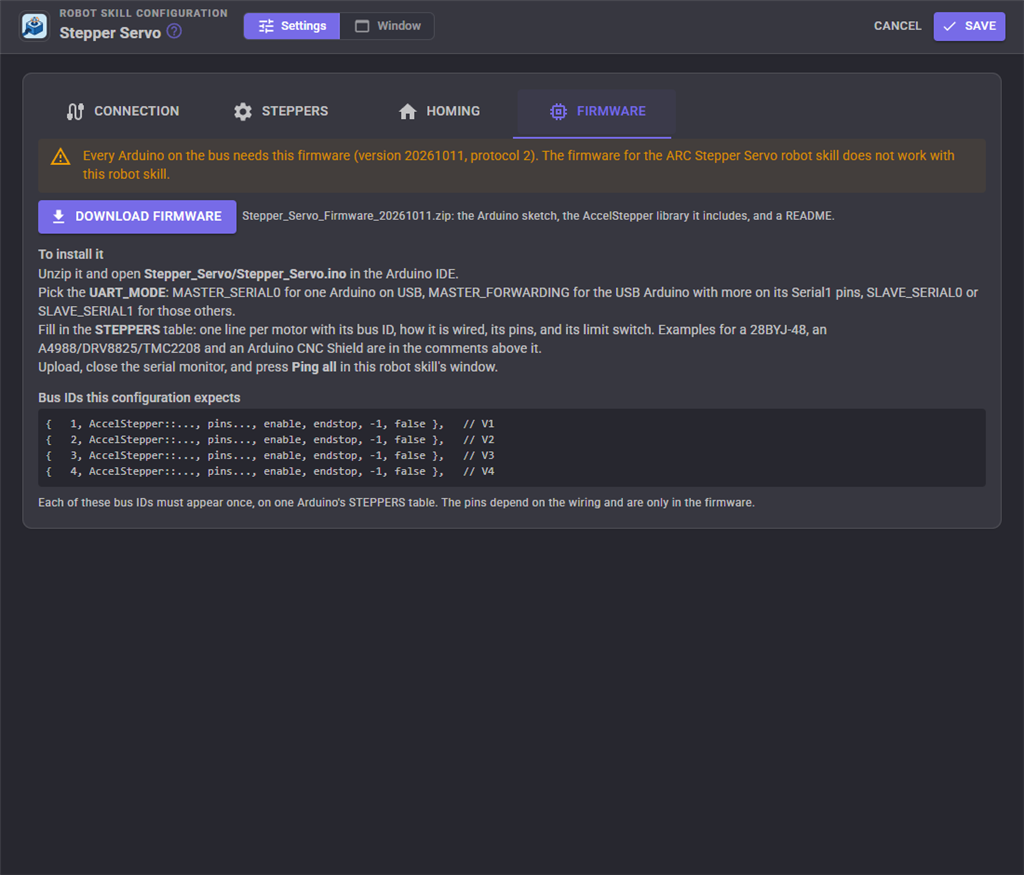
Download firmware saves a zip with the Arduino sketch, the AccelStepper library it includes (nothing to install from the library manager), and a README with the wiring and the protocol. The tab also lists the bus IDs this configuration expects, one line per motor, to match against the STEPPERS tables on the Arduinos.
Setting up the firmware
Unzip the download and open Stepper_Servo/Stepper_Servo.ino in the Arduino IDE. Everything to change is at the top of the file, with a long comment above each setting.
UART_MODE - how this Arduino is wired:
- MASTER_SERIAL0 - the only Arduino, on its USB cable (or wired to an EZB UART on RX0/TX0).
- MASTER_FORWARDING - the Arduino on the USB cable, with more Arduinos on its Serial1 pins. It needs a second hardware serial port (Mega, Leonardo, Micro, Due).
- SLAVE_SERIAL0 or SLAVE_SERIAL1 - another Arduino on the master's bus, on its RX0/TX0 or RX1/TX1 pins.
STEPPERS - one line per motor on this Arduino, up to four: its bus ID, how it is wired (AccelStepper::DRIVER for step and direction, HALF4WIRE or FULL4WIRE for a ULN2003 or H-bridge), its pins, the driver's enable pin, the limit switch pin, the home direction, and whether it homes itself at power up. Use NO_PIN for anything that is not wired. The comments above the table have lines ready to copy for a 28BYJ-48 on a ULN2003 board, an A4988 or DRV8825, and all four axes of an Arduino CNC Shield V3.
Power up defaults - the speed, acceleration and homing settings a motor uses until ARCx connects and sends its own. IDLE_RELEASE_MS turns the coils of a motor off after it has been still that long, which keeps a 28BYJ-48 and its driver cool (nothing holds the shaft while it is off).
Upload the sketch, close the serial monitor, and press Ping all in the robot skill's window. Every motor should answer with firmware 20261011, protocol 2.
Wiring several Arduinos
The master Arduino runs MASTER_FORWARDING and is plugged into the computer. Its TX1 goes to the RX of every other Arduino. The TX of each other Arduino goes through a diode (a 1N4148, with its cathode toward that Arduino's TX) to the master's RX1, with a 10k resistor from the master's RX1 to 5V. Connect all the grounds. The master passes everything ARCx sends on to the others and their answers back, and only the motor a packet is addressed to answers, so the shared wire is never driven by two Arduinos at once.
Using it
Once the motors answer, they move like any other servo. For example, in JavaScript:
// Home the motor on v1 against its limit switch and wait for it
if (!controlCommand("Stepper Servo", "Home", v1))
  print("Homing failed");

// Move it like a servo, slowly
Servo.setVelocity(v1, 10);
Servo.setPosition(v1, 150);

// Wait until it gets there
while (controlCommand("Stepper Servo", "IsMoving", v1))
  sleep(100);

print("At step " + getVar("$StepperV1Step"));
A motor without a limit switch is homed by hand: release it, turn it to its home position, and press the Set home button on its row (or use the SetHome control command). Control commands also move a motor to an exact step number outside the ARCx position range, move it by a number of steps, and read its step position and limit switch.
Control Commands for the Stepper Servo robot skill
There are Control Commands available for this robot skill which allows the skill to be controlled programmatically from scripts or other robot skills. These commands enable you to automate actions, respond to sensor inputs, and integrate the robot skill with other systems or custom interfaces. If you're new to the concept of Control Commands, we have a comprehensive manual available here that explains how to use them, provides examples to get you started and make the most of this powerful feature.
Control Command ManualThis robot skill has 21 control commands, listed below. Send them from a JavaScript or Python script, from Blockly, or from another robot skill.
The first value is always the window title, which is the name in the title bar of the robot skill on your workspace. It starts out as Stepper Servo, which is what every example below uses. If you rename the robot skill, or add a second copy of it to the project, use the title as it appears on that window instead.
ControlCommand() can be shortened to CC(), and both spellings work in JavaScript and in Python. The examples are JavaScript; Python is the same call, except that true and false are written True and False.
EmergencyStop
Halt every stepper on the bus on the spot with one broadcast, whether this robot skill maps it or not. Homing is cancelled. Steppers may lose steps stopping this hard.
Syntax
ControlCommand("Stepper Servo", "EmergencyStop")
Returns: Boolean [true or false]
Example
var result = ControlCommand("Stepper Servo", "EmergencyStop");
Enable
Turn the coils of the stepper on a virtual port back on, so it holds where it is, without moving it.
Syntax
ControlCommand("Stepper Servo", "Enable", (String)port)
Parameters
| # | Name | Type | What to pass |
|---|---|---|---|
| 1 | port | Text | Your text, in quotes |
Returns: Boolean [true or false]
Example
var result = ControlCommand("Stepper Servo", "Enable", "port");
GetStatus
The link and its status, such as "COM5 @ 115,200 bps: Connected, 2 of 2 motor(s) answered".
Syntax
ControlCommand("Stepper Servo", "GetStatus")
Returns: String
Example
var result = ControlCommand("Stepper Servo", "GetStatus");
GetStep
Ask the stepper on a virtual port for its step position right now, part way through a move.
Syntax
ControlCommand("Stepper Servo", "GetStep", (String)port)
Parameters
| # | Name | Type | What to pass |
|---|---|---|---|
| 1 | port | Text | Your text, in quotes |
Returns: Integer [-2,147,483,648 to 2,147,483,647]
Example
var result = ControlCommand("Stepper Servo", "GetStep", "port");
GetStepperMap
The enabled virtual port to bus ID mappings, one "V1 -> #1" entry per stepper.
Syntax
ControlCommand("Stepper Servo", "GetStepperMap")
Returns: Array of String
Example
var result = ControlCommand("Stepper Servo", "GetStepperMap");
Home
Home the stepper on a virtual port (such as v1): turn it toward its limit switch until the switch closes, which becomes its home step. Waits until homing ends. Returns true when the switch was found.
Syntax
ControlCommand("Stepper Servo", "Home", (String)port)
Parameters
| # | Name | Type | What to pass |
|---|---|---|---|
| 1 | port | Text | Your text, in quotes |
Returns: Boolean [true or false]
Example
var result = ControlCommand("Stepper Servo", "Home", "port");
HomeAll
Home every mapped stepper at the same time and wait until they have all finished. Returns true when every one found its limit switch.
Syntax
ControlCommand("Stepper Servo", "HomeAll")
Returns: Boolean [true or false]
Example
var result = ControlCommand("Stepper Servo", "HomeAll");
Initialize
Open (or reopen) the serial link now, then ping every mapped stepper, send it its speed and acceleration, and read its position. Returns true when the link opened.
Syntax
ControlCommand("Stepper Servo", "Initialize")
Returns: Boolean [true or false]
Example
var result = ControlCommand("Stepper Servo", "Initialize");
IsEndstopPressed
True while the limit switch of the stepper on a virtual port is pressed.
Syntax
ControlCommand("Stepper Servo", "IsEndstopPressed", (String)port)
Parameters
| # | Name | Type | What to pass |
|---|---|---|---|
| 1 | port | Text | Your text, in quotes |
Returns: Boolean [true or false]
Example
var result = ControlCommand("Stepper Servo", "IsEndstopPressed", "port");
IsHomed
True when the stepper on a virtual port has homed (or had its position set) since its Arduino powered up, so its step position can be trusted.
Syntax
ControlCommand("Stepper Servo", "IsHomed", (String)port)
Parameters
| # | Name | Type | What to pass |
|---|---|---|---|
| 1 | port | Text | Your text, in quotes |
Returns: Boolean [true or false]
Example
var result = ControlCommand("Stepper Servo", "IsHomed", "port");
IsMoving
True while the stepper on a virtual port is turning or homing, false once it has arrived.
Syntax
ControlCommand("Stepper Servo", "IsMoving", (String)port)
Parameters
| # | Name | Type | What to pass |
|---|---|---|---|
| 1 | port | Text | Your text, in quotes |
Returns: Boolean [true or false]
Example
var result = ControlCommand("Stepper Servo", "IsMoving", "port");
MoveSteps
Move the stepper on a virtual port by a number of steps from where it was last sent, negative for the other way. Returns the step it is moving to.
Syntax
ControlCommand("Stepper Servo", "MoveSteps", (String)port, (Number)steps)
Parameters
| # | Name | Type | What to pass |
|---|---|---|---|
| 1 | port | Text | Your text, in quotes |
| 2 | steps | Number | A number, without quotes |
Returns: Integer [-2,147,483,648 to 2,147,483,647]
Example
var result = ControlCommand("Stepper Servo", "MoveSteps", "port", 0);
MoveToStep
Move the stepper on a virtual port to a step number, which may be outside the step range ARCx positions map to. Returns at once with the step sent; IsMoving says when it arrives.
Syntax
ControlCommand("Stepper Servo", "MoveToStep", (String)port, (Number)step)
Parameters
| # | Name | Type | What to pass |
|---|---|---|---|
| 1 | port | Text | Your text, in quotes |
| 2 | step | Number | A number, without quotes |
Returns: Integer [-2,147,483,648 to 2,147,483,647]
Example
var result = ControlCommand("Stepper Servo", "MoveToStep", "port", 0);
Ping
Ping the stepper on a virtual port. Returns its firmware version, protocol and features, or throws when it does not answer.
Syntax
ControlCommand("Stepper Servo", "Ping", (String)port)
Parameters
| # | Name | Type | What to pass |
|---|---|---|---|
| 1 | port | Text | Your text, in quotes |
Returns: String
Example
var result = ControlCommand("Stepper Servo", "Ping", "port");
PingAll
Ping every mapped stepper. Returns one line per stepper with what it answered, or why it did not.
Syntax
ControlCommand("Stepper Servo", "PingAll")
Returns: Array of String
Example
var result = ControlCommand("Stepper Servo", "PingAll");
Release
Release the virtual port through ARCx, which stops its stepper and (when Release turns the coils off is set) lets its shaft turn freely.
Syntax
ControlCommand("Stepper Servo", "Release", (String)port)
Parameters
| # | Name | Type | What to pass |
|---|---|---|---|
| 1 | port | Text | Your text, in quotes |
Returns: Boolean [true or false]
Example
var result = ControlCommand("Stepper Servo", "Release", "port");
ReleaseAll
Release every mapped virtual port.
Syntax
ControlCommand("Stepper Servo", "ReleaseAll")
Returns: Boolean [true or false]
Example
var result = ControlCommand("Stepper Servo", "ReleaseAll");
SetHome
Make where the stepper on a virtual port is now its home step, without moving it, the way to home a motor that has no limit switch. ARCx's position for the port is updated to match.
Syntax
ControlCommand("Stepper Servo", "SetHome", (String)port)
Parameters
| # | Name | Type | What to pass |
|---|---|---|---|
| 1 | port | Text | Your text, in quotes |
Returns: Boolean [true or false]
Example
var result = ControlCommand("Stepper Servo", "SetHome", "port");
SetStepPosition
Tell the stepper on a virtual port that it is at this step number, without moving it. ARCx's position for the port is updated to match.
Syntax
ControlCommand("Stepper Servo", "SetStepPosition", (String)port, (Number)step)
Parameters
| # | Name | Type | What to pass |
|---|---|---|---|
| 1 | port | Text | Your text, in quotes |
| 2 | step | Number | A number, without quotes |
Returns: Boolean [true or false]
Example
var result = ControlCommand("Stepper Servo", "SetStepPosition", "port", 0);
Stop
Slow the stepper on a virtual port to a stop with its acceleration. It keeps holding.
Syntax
ControlCommand("Stepper Servo", "Stop", (String)port)
Parameters
| # | Name | Type | What to pass |
|---|---|---|---|
| 1 | port | Text | Your text, in quotes |
Returns: Boolean [true or false]
Example
var result = ControlCommand("Stepper Servo", "Stop", "port");
StopAll
Slow every mapped stepper to a stop.
Syntax
ControlCommand("Stepper Servo", "StopAll")
Returns: Boolean [true or false]
Example
var result = ControlCommand("Stepper Servo", "StopAll");
This list is read out of the robot skill itself each time its package is uploaded, so it matches the published version (v1).




This robot skill has been updated to v1.
What has changed
initial release