
Updating
ARCx automatically checks for newer versions of installed robot skills when it starts. After updates finish, the first browser to open the main ARCx interface shows a popup listing the updated skills. Once the popup is dismissed, later connections do not show the same notice again.
When updates happen
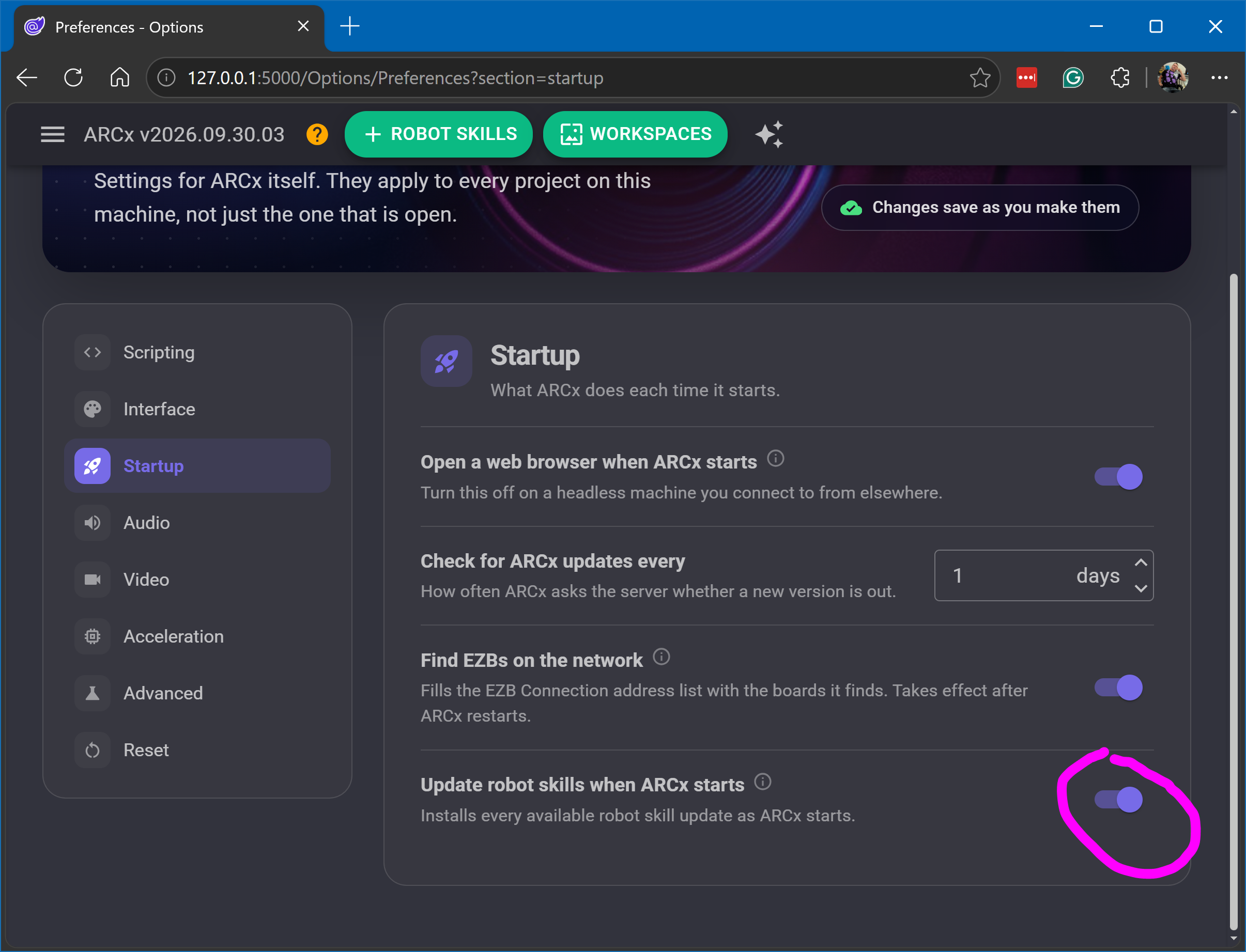
Automatic updates are enabled by default. In Options > Preferences, use Update robot skills when ARCx starts to enable or disable them. The underlying setting is ARCxAutoUpdateRobotSkillsIfAvailable.
Updates run during application startup, before the web server accepts connections and before projects load, including projects opened with the -f command-line option. ARCx waits for the update attempts to finish before continuing. This lets it replace skill files before a project loads their assemblies and potentially locks them.
No browser needs to be connected: updates also work when ARCx starts headlessly. Opening or refreshing a browser page does not trigger another automatic update pass. To check again through this startup process, restart ARCx.
How ARCx finds updates
- Check the Robot Skill Store list. ARCx checks the ARCx store's latest update timestamp and skill count against its cached
AvailablePluginsList.json. It downloads a new list if the cache is missing, the store timestamp is newer, or the number of skills has changed. The count check also detects skills becoming public or being withdrawn without a version change. - Read installed versions. ARCx reads the installed skills'
plugin.jsonfiles from its Plugins folder. - Compare matching skills. A skill is selected when its store GUID matches an installed skill and the store version number is greater than the installed version. This covers installed skills even if the current project does not use them. Equal or older store versions are not installed by this update pass, and it does not install every uninstalled skill in the store.
- Check whether installation can proceed. Automatic installation requires ARCx to be signed in to a Synthiam account. It is also skipped if ARCx detects another running instance, which could be using the same skill files. These reasons are written to the log.
The store list is checked even when automatic skill updates are disabled. Refreshing the list on the Add Robot Skill page refreshes the catalog; it does not run the startup bulk updater.
How an update is installed
ARCx updates the selected skills one at a time:
- Read the existing version and log the skill name and old/new versions.
- Download the skill's package using the signed-in account's authentication GUID. Store access and subscription requirements still apply.
- Buffer the download in memory and check its ZIP signature before removing the installed files. If the store returns an error message instead of a package, ARCx reports that message.
- Remove the existing skill folder, recreate it, and extract the package into
Plugins/<skill GUID>. Archive extraction checks that file paths stay inside that destination. - Record a successful update, including the skill GUID, name, previous version, new version, and UTC update time.
This replaces the installed skill package. All projects using that installed skill subsequently load the updated files.
If an individual update fails, ARCx logs the error and continues with the other skills. Only successful updates are added to the update notice. A failed download leaves the existing installation untouched. Replacement is not transactional: a failure after folder removal can leave an incomplete installation, and an extraction failure removes plugin.json so ARCx does not treat the partial package as installed.
The updated-skills popup
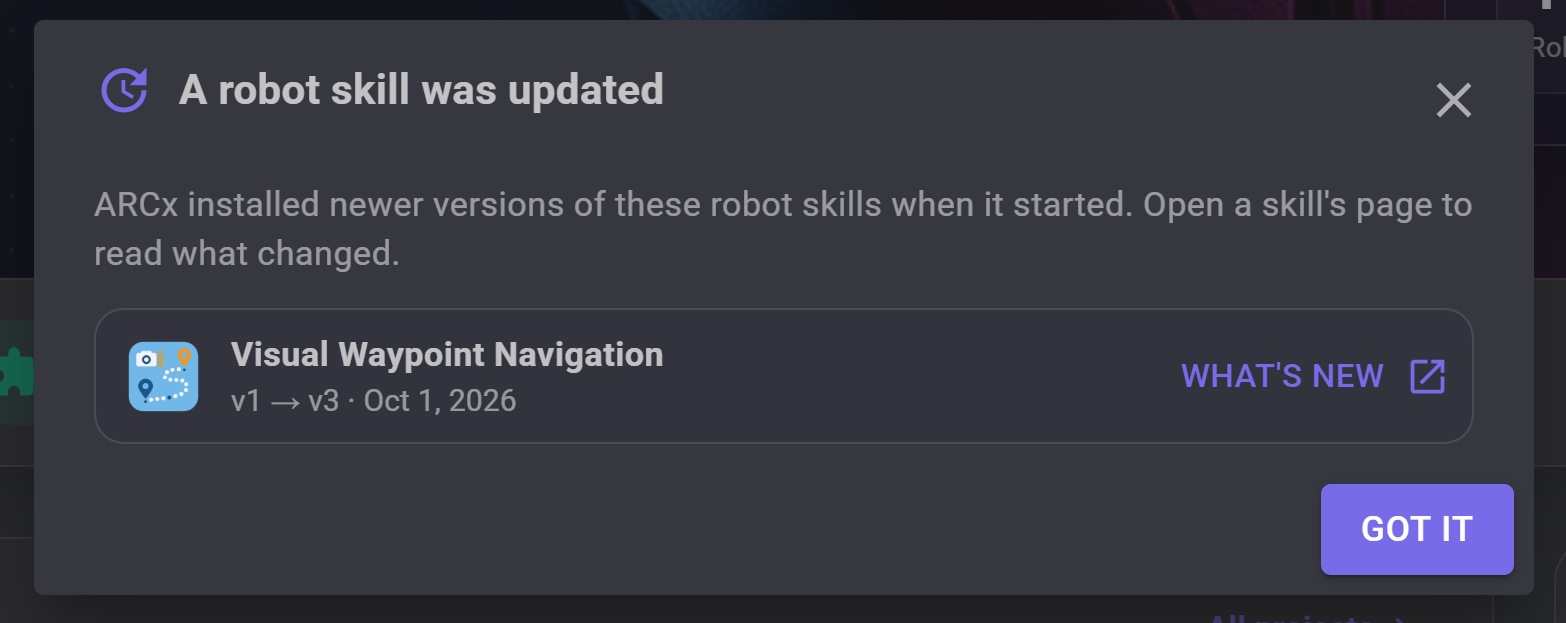
The notice appears on the first render of the main ARCx layout, after sign-in, terms, and subscription checks have passed. It lists:
- The skill's thumbnail and name.
- The previous and new versions, such as
v3 -> v5. - The update date, displayed in local time.
- A What's new button that opens the skill's Synthiam page in a new tab to read its changes.
The most recently updated skills appear first. The custom UI viewer used as a robot control panel does not use this layout, so opening that viewer does not display or acknowledge the notice.
Shown once after dismissal
The notice is shared by browsers connected to that ARCx instance; it is not tracked separately per browser, tab, project, or connecting user. Closing it with Got it, the close button, Escape, or another dialog dismissal marks the saved list as viewed. Subsequent connections and restarts do not show that list again. A later successful startup update creates a new notice.
The acknowledgement happens when the dialog closes, not when a browser first connects. If a browser disconnects while the popup is still open, the list remains unviewed and can appear on the next connection. If multiple browsers open the main interface before anyone dismisses it, each can see the notice. There is no exclusive reservation for the first connection.
Remembering updates across restarts
ARCx stores the notice in UpdatedSkills.json in its user data folder (Documents/ARCx Data on Windows, ~/ARCx Data on Linux and macOS). The file contains a Viewed flag and a Skills list. It is server-side state, so clearing browser storage does not reset the acknowledgement.
Updates accumulate across restarts until someone dismisses the notice. This is useful when a robot runs without a browser. Each skill appears only once: if it updates from v3 to v4, then from v4 to v5 before anyone views the notice, its row shows v3 -> v5 with the latest update time.
After dismissal, ARCx retains the list with Viewed set to true. The next successful startup update replaces the viewed list with a fresh one. If no skills update, ARCx does not create a new notice, although an older unviewed notice can still appear.
If a skill does not update
- Confirm Update robot skills when ARCx starts is enabled, then restart ARCx.
- Confirm ARCx is signed in to Synthiam and the account can download the package. Signing in after startup does not rerun the startup update pass; restart after signing in.
- Close other ARCx instances before restarting so they cannot hold the skill files open.
- Check the internet connection and ARCx logs. If the store-list refresh fails, startup continues with the cache it has, which may not include the newest release. Downloads still require access to the store.
- For file-lock or permission failures, check the logged folder and error. An incomplete installation may need to be downloaded again.
Robot skills are updated when ARCx is loaded and there is an internet connection.