
UI
Talk to the person at the browser: messages, questions, workspaces and Custom UI screens.
Where to find it: the UI category of the toolbox, in any script editor set to Blockly or on Top bar → Workspaces → Blockly
Blocks
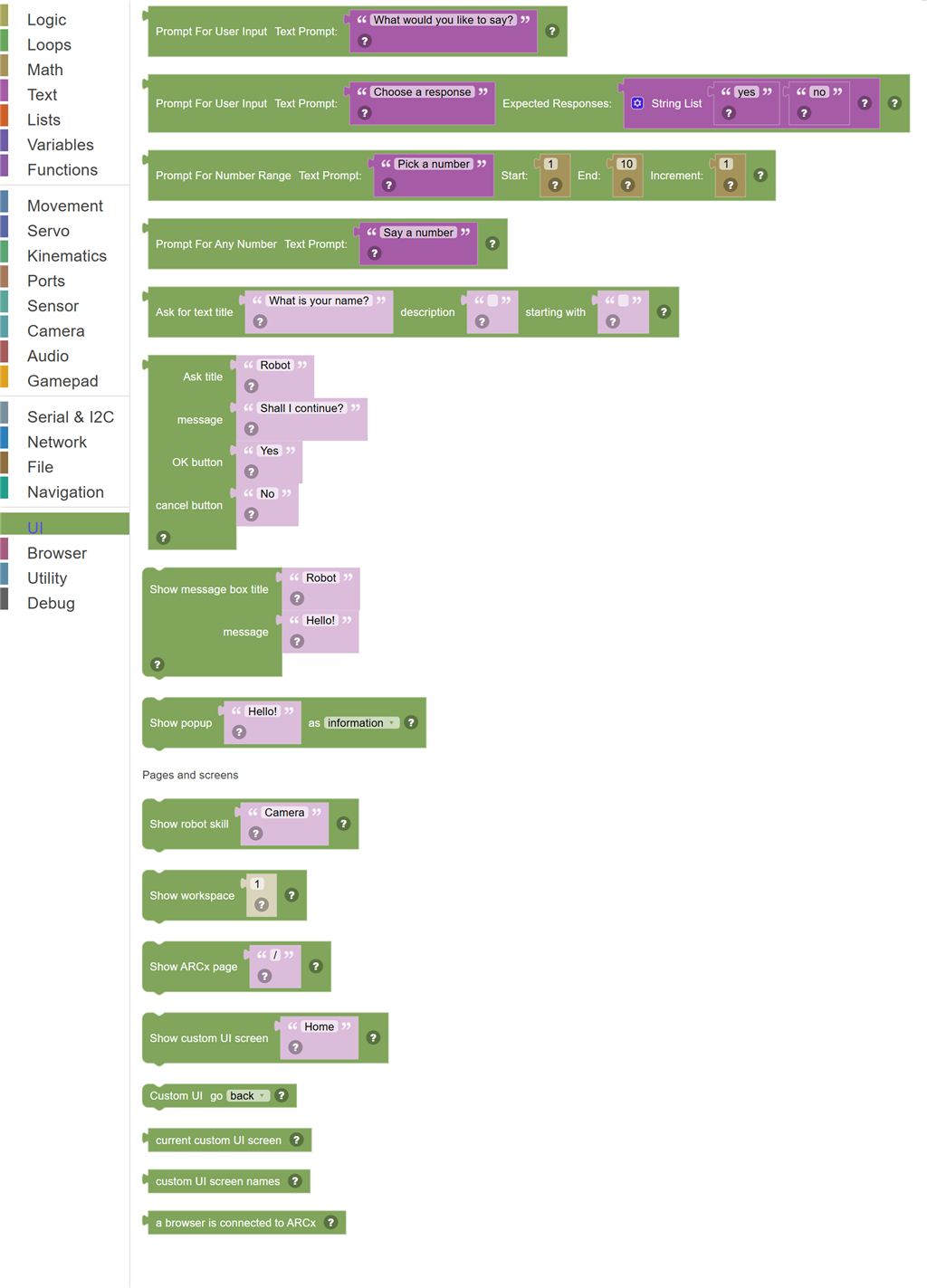
| Block | What it does |
|---|---|
| Prompt for Text Input | Shows a pop-up window asking the user to type something, and returns what they typed as text. |
| Prompt for Choice (Speech) | Shows a prompt and waits for the user to speak one of the expected phrases. |
| Prompt for Number Range | Prompts the user to speak a number within a specified range (start to end, with an increment step). |
| Prompt for Any Number | Prompts the user to say any number, and returns whatever number they speak as text. |
| Ask for text title … description … starting with … | Show a box to type into, with a title, a description and the text it starts with, and wait for the answer. |
| Ask title … message … OK button … cancel button … | Show a message box with two buttons and wait for one to be pressed. |
| Show message box title … message … | Show a message box and wait for it to be closed. |
| Show popup … as … | Show a short message at the edge of the screen that goes away on its own. |
| Show robot skill … | Bring up the window of a robot skill, by its title. |
| Show workspace … | Switch to one of the project's workspaces. |
| Show ARCx page … | Take every connected ARCx browser to a page, by its address within ARCx. |
| Show custom UI screen … | Show a custom UI screen by its title, and bring every browser that is not already showing a custom UI screen to it. |
| Custom UI … | Go back to the previous custom UI screen, or to the home screen. |
| Current custom UI screen | The title of the custom UI screen showing now, or empty text when there is none. |
| Custom UI screen names | The titles of every custom UI screen in the project. |
| A browser is connected to ARCx | True when at least one web browser has ARCx open, so there is somewhere to show popups and prompts. |
Details
Prompt for Text Input

Shows a pop-up window asking the user to type something, and returns what they typed as text. The script waits until the user responds or the prompt times out (returning "timeout").
When to use it: Use this to get text input from the user at runtime — like entering a name, a command, or a choice.
Example: Prompt "What should I call you?" → user types "Alex" → robot says "Hello, Alex!"
Tips:
- Returns "timeout" (lowercase) if the user doesn't respond in time.
- Connect the output to a variable to save the answer.
- Compare to "timeout" with an If block to handle the case where no answer was given.
In JavaScript: this block gives back the value of
UI.promptForUserInput('What would you like to say?')
Prompt for Choice (Speech)

Shows a prompt and waits for the user to speak one of the expected phrases. Returns the detected phrase in lowercase, or "timeout" if nothing was recognized.
When to use it: Use this to create voice-controlled interactions — ask a question and have the robot respond to specific spoken answers.
Example: Prompt "Should I dance?" Expected: "yes, no" → user says "yes" → robot dances.
Tips:
- List expected responses separated by commas in the phrase list.
- Returns the detected phrase in lowercase — compare with lowercase expected values.
- Returns "timeout" if nothing matches — always handle this case in your script.
In JavaScript: this block gives back the value of
UI.promptForChoices('Choose a response', ['yes', 'no'])
Prompt for Number Range

Prompts the user to speak a number within a specified range (start to end, with an increment step). Returns the detected number as text, or "timeout".
When to use it: Use this for voice-controlled numeric input — like asking the user to say a speed level from 1 to 10.
Example: Prompt "Say a speed from 1 to 5" Start: 1, End: 5, Increment: 1 → user says "3" → set speed to 3.
Tips:
- The increment defines what numbers are valid — increment 2 only accepts 1, 3, 5, etc.
- Returns a text value — convert to number with a math block if needed.
- "timeout" is returned if no valid number is heard in time.
In JavaScript: this block gives back the value of
UI.promptForNumberRange('Pick a number', 1, 10, 1)
Prompt for Any Number

Prompts the user to say any number, and returns whatever number they speak as text. Also returns "timeout" if no number is heard.
When to use it: Use this when you want the user to say any number without restricting the range — like entering a custom servo position.
Example: Prompt "Say a servo position" → user says "120" → set servo to 120.
Tips:
- Returns the number as text — convert to a Number type for math operations.
- No range restrictions — the user can say any number.
- Handle "timeout" with an If block for robustness.
In JavaScript: this block gives back the value of
UI.promptForAnyNumber('Say a number')
Ask for text title … description … starting with …

Show a box to type into, with a title, a description and the text it starts with, and wait for the answer.
In JavaScript: this block gives back the value of
UI.showTextInputPrompt('What is your name?', '', '')
Ask title … message … OK button … cancel button …
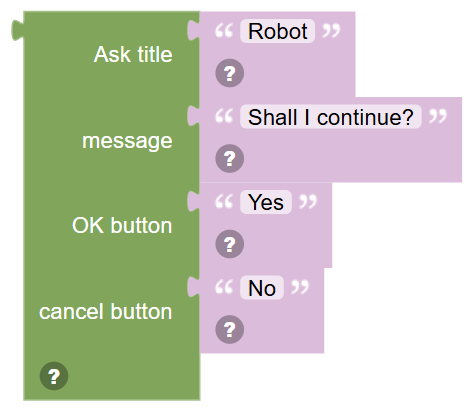
Show a message box with two buttons and wait for one to be pressed. True for the OK button, false for cancel.
In JavaScript: this block gives back the value of
UI.showDialogMessage('Robot', 'Shall I continue?', 'Yes', 'No')
Show message box title … message …
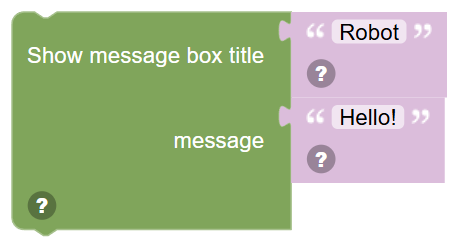
Show a message box and wait for it to be closed.
In JavaScript: this block runs
UI.showDialogMessage('Robot', 'Hello!');
Show popup … as …
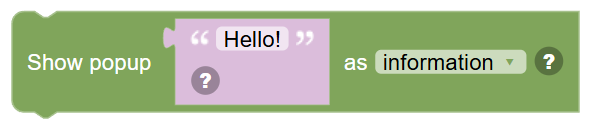
Show a short message at the edge of the screen that goes away on its own. The script does not wait.
In JavaScript: this block runs
UI.showPopupMessage('Hello!', 1);
Show robot skill …
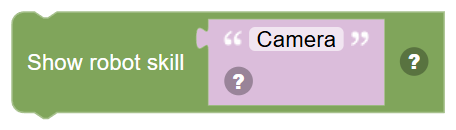
Bring up the window of a robot skill, by its title.
In JavaScript: this block runs
UI.showControl('Camera');
Show workspace …
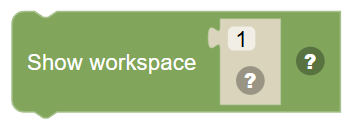
Switch to one of the project's workspaces.
In JavaScript: this block runs
UI.showDesktop(1);
Show ARCx page …
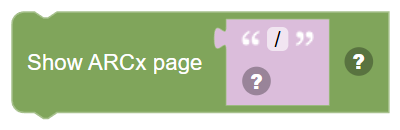
Take every connected ARCx browser to a page, by its address within ARCx.
In JavaScript: this block runs
UI.navigateTo('/');
Show custom UI screen …
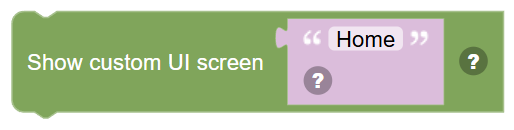
Show a custom UI screen by its title, and bring every browser that is not already showing a custom UI screen to it.
In JavaScript: this block runs
UI.showCustomUI('Home');
Custom UI …
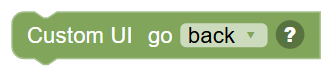
Go back to the previous custom UI screen, or to the home screen.
In JavaScript: this block runs
UI.customUIBack();
Current custom UI screen

The title of the custom UI screen showing now, or empty text when there is none.
In JavaScript: this block gives back the value of
UI.getCustomUIScreen()
Custom UI screen names

The titles of every custom UI screen in the project.
In JavaScript: this block gives back the value of
UI.getCustomUIScreens()
A browser is connected to ARCx

True when at least one web browser has ARCx open, so there is somewhere to show popups and prompts.
In JavaScript: this block gives back the value of
UI.isWebClientConnected()