
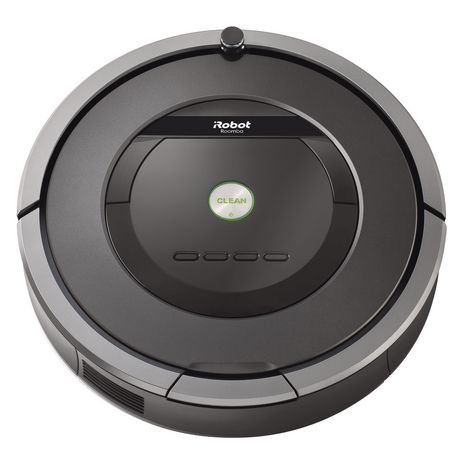
Roomba by iRobot
Convert iRobot Roomba into a smart, fully featured personal robot with the EZ-Robot Complete Kit-movement control and Roomba manual included.
Connection Type
Controller Dependant
Number of Servos
None
Audio Support
No
Camera Support
No
UARTs
None
I2C Support
No
ADC Ports
None
Digital Ports
None
The iRobot Roomba is a popular and affordable robot base (also called a mobile platform) that you can upgrade with Synthiam ARC and an EZB (EZ-Robot) microcontroller. Instead of only vacuuming, your Roomba can become a drivable robot that can run scripts, respond to sensors, and be controlled from your computer.
Beginner note: In this setup, the Roomba acts like the robot “body” (motors + wheels), and the EZB/ARC system acts like the “brain”
(commands, automation, sensors, and behaviors).
What this integration lets you do
- Drive the Roomba from ARC (forward, reverse, turn, stop).
- Add robot behaviors (for example: autonomous roaming, obstacle avoidance, docking routines).
- Combine with EZB sensors (distance sensors, servos, cameras, LEDs, etc.) to make a more advanced robot.
- Use ARC scripts to create custom actions (timers, triggers, voice commands, keyboard/gamepad control).
Before you start (quick checklist)
- Roomba model: Make sure your Roomba supports an external control interface (commonly via a serial port using the Roomba Open Interface).
- Power: Charge the Roomba battery. Low battery can cause disconnects or unexpected behavior.
- Connections: You will need the correct cable/interface to connect the Roomba to your controller/PC (varies by Roomba generation).
- ARC installed: Install and open Synthiam ARC on your computer.
Typical setup steps (high-level)
- Connect the Roomba to your control hardware (EZB or computer interface, depending on your configuration).
- Open ARC and add the appropriate Roomba movement/control panel.
- Select the correct communication settings (such as the COM/serial port and baud rate, if applicable).
- Test movement using simple commands (drive forward a short distance, stop, turn).
- Build your project by adding controls (camera, speech recognition, sensors, scripts) on top of the Roomba base.
Safety tip: When testing for the first time, lift the Roomba wheels off the ground or keep plenty of open space.
Always be ready to press Stop.
For step-by-step instructions on movement control and the Roomba panel in ARC, view the iRobot Roomba manual here:
Open the Roomba Movement Panel Manual
Troubleshooting basics
- Confirm the correct cable/interface is being used for your Roomba model.
- Verify ARC is set to the correct COM/serial port (if applicable).
- Make sure the Roomba is powered on and the battery is charged.
- Close other programs that might be using the same port.
- Check that the Roomba is in the correct control mode (the movement panel manual covers this).
- Start with small movements and confirm Stop works.
- Make sure the wheels are not blocked and the Roomba is not reporting an error.
- Charge the battery—low voltage can cause inconsistent motion.
- Inspect connectors/cables for a loose fit.
- Reduce speed settings (if available) while testing.
