 Retro Robot Chaos
Neato XV LIDAR integration for ARC with live radar, 8-zone obstacle detection, NMS support, calibration, and scan watchdog monitoring
 Windows
How to add the XV Lidar Bridge robot skill
- Load the most recent release of ARC (Get ARC).
- Press the Project tab from the top menu bar in ARC.
- Press Add Robot Skill from the button ribbon bar in ARC.
- Choose the Navigation category tab.
- Press the XV Lidar Bridge icon to add the robot skill to your project.
Don't have a robot yet?
Follow the Getting Started Guide to build a robot and use the XV Lidar Bridge robot skill.
How to use the XV Lidar Bridge robot skill
XV Lidar Bridge
Version 1.3 - Neato XV LIDAR Integration for Synthiam ARC XV Lidar Bridge connects a Neato XV-series laser distance sensor to Synthiam ARC, providing real-time 360-degree distance measurements for obstacle detection, navigation, and autonomous robot applications. The skill receives sensor measurements from a compatible serial LIDAR controller and provides a live radar display, eight directional obstacle detection zones, configurable sensor mounting offsets, Navigation Messaging System (NMS) integration, and ARC global variables for scan monitoring. Version 1.2 adds watchdog monitoring capabilities that allow ARC scripts to detect interrupted or stalled LIDAR scan updates. Version 1.3 improves startup and serial port recovery, keeping the bridge loaded when the configured COM port is unavailable and allowing reconnection through Start LIDAR.
Features
- 360 Live Radar Display - Displays detected obstacles around the robot in real time.
- Eight Directional Detection Zones - Reports the nearest valid obstacle distance in eight regions surrounding the robot.
- ARC Global Variables - Provides distance, scan rate, orientation, and operational information for use in ARC scripts.
- Navigation Messaging System (NMS) - Publishes LIDAR scan information to compatible ARC navigation skills.
- Sensor Mounting Calibration - Supports adjustable sensor orientation and positional offsets for robot installations where the LIDAR is not directly above the robot's turning axis.
- LIDAR Start/Stop Control - Supports scripted commands to start and stop LIDAR operation.
- Scan Watchdog Support (V1.2) - Publishes scan counter and timestamp variables that allow scripts to detect when scan updates stop arriving.
Hardware Requirements
- Neato XV-series LIDAR sensor compatible with the serial controller interface.
- Compatible LIDAR controller providing the supported serial data format.
- USB or serial connection between the controller and the computer running Synthiam ARC.
- Windows computer running Synthiam ARC.
The skill was developed using a Neato XV-series LIDAR with a Teensy-based controller running compatible XV Lidar Controller firmware.
Serial Communication
The skill uses serial communication at 115200 baud.
Distance measurements are received in the following format:
A,angle,distanceMm,strength
Where:
angleis the measurement angle in degrees.distanceMmis the measured distance in millimeters.strengthis the returned signal strength.
The controller must provide the expected serial output format. Compatibility with other LIDAR controllers is not guaranteed.
Getting Started
- Connect the Neato LIDAR to a compatible serial controller.
- Connect the controller to the computer running ARC.
- Add XV Lidar Bridge to your ARC project.
- Select the appropriate serial COM port in the skill.
- Configure the sensor's mounting orientation and offsets as needed.
- Start the LIDAR and verify that distance measurements appear on the radar display.
- Confirm that the ARC global variables update as the sensor scans.
The radar display shows measurements relative to the robot's configured forward direction.
Sensor Position and Orientation
XV Lidar Bridge supports mounting-position adjustments for robots where the sensor is not located directly over the robot's center of rotation. Configuration includes:
- Angle Correction - Adjusts the LIDAR's angular orientation relative to the robot's forward direction.
- Forward Offset - Specifies how far forward or backward the sensor is mounted relative to the robot's turning axis.
- Right Offset - Specifies the sensor's lateral position relative to the robot's centerline.
Position offsets are specified in millimeters. These settings allow LIDAR measurements to be transformed into robot-centered coordinates before publishing the navigation scan and directional distances. Correct calibration is important for accurate obstacle detection and navigation.
ARC Control Commands
XV Lidar Bridge supports commands that can be called from other ARC skills or JavaScript scripts.
Start the LIDAR
controlCommand("XV Lidar Bridge", "StartLidar");
Stop the LIDAR
controlCommand("XV Lidar Bridge", "StopLidar");
The first argument must match the name of the XV Lidar Bridge control in your ARC project. These commands can be used with ARC buttons, Interface Builder controls, Script Collection scripts, and other supported ARC scripting features.
ARC Global Variables
The skill publishes several global variables for accessing sensor measurements and monitoring LIDAR operation.
LIDAR Status and Scan Monitoring
| Variable | Description |
|---|---|
$XVLidarRunning |
Indicates whether LIDAR operation is enabled |
$XVLidarScanRateHz |
Rate of published scans in Hz |
$XVLidarScanCount |
Incrementing count of published LIDAR scans |
$XVLidarLastScanTime |
UTC timestamp of the most recently published scan |
$XVLidarClosestDistanceCm |
Distance to the nearest detected obstacle in centimeters |
$XVLidarClosestAngle |
Direction of the nearest detected obstacle in degrees |
$XVLidarScanCount and $XVLidarLastScanTime are new in Version 1.2.
The timestamp is published in ISO 8601 UTC format.
The scan rate represents the frequency of scans published by the skill, which may differ from the LIDAR motor's physical rotational speed.
Eight Directional Obstacle Detection Zones
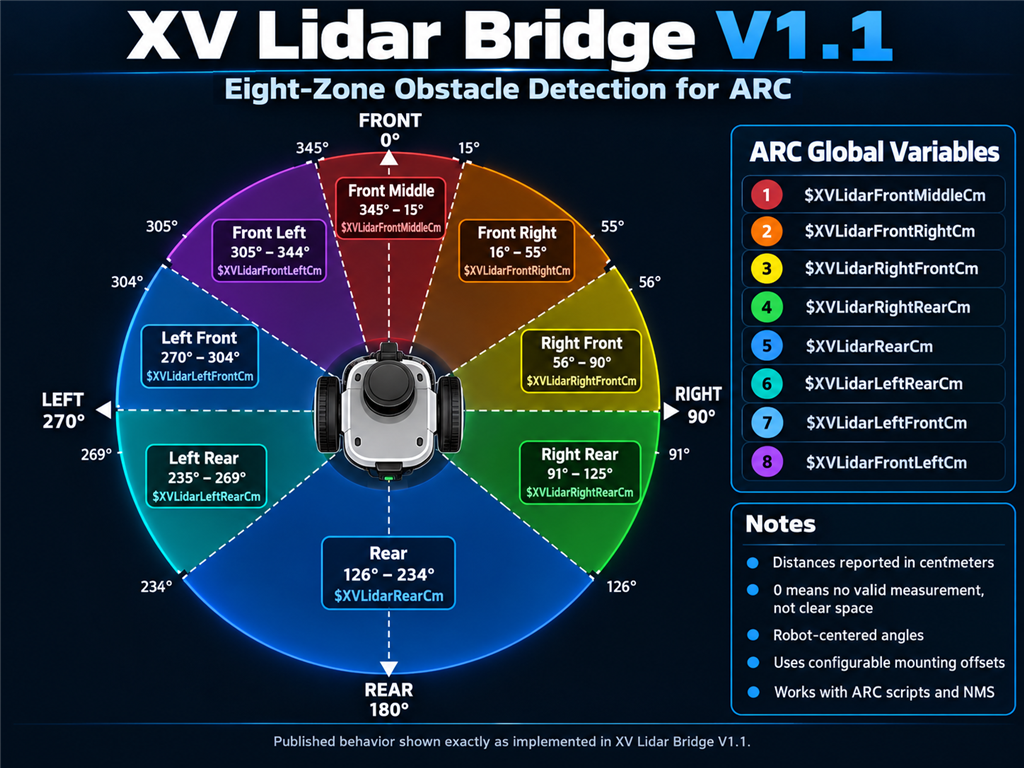
XV Lidar Bridge divides the 360-degree scan into eight directional regions around the robot. Each region reports the nearest valid obstacle measurement in centimeters.
| Detection Zone | ARC Global Variable | Angular Range |
|---|---|---|
| Front Middle | $XVLidarFrontMiddleCm |
345-15 |
| Front Right | $XVLidarFrontRightCm |
16-55 |
| Right Front | $XVLidarRightFrontCm |
56-90 |
| Right Rear | $XVLidarRightRearCm |
91-125 |
| Rear | $XVLidarRearCm |
126-234 |
| Left Rear | $XVLidarLeftRearCm |
235-269 |
| Left Front | $XVLidarLeftFrontCm |
270-304 |
| Front Left | $XVLidarFrontLeftCm |
305-344 |
Angles are relative to the robot's calibrated forward direction.
Important: A value of 0 means no valid measurement was available for that zone during the published scan. It does not mean the zone is clear.
A zero reading may result from missing measurements, unfavorable target surfaces, reflections, or other limitations of the sensor.
These global variables make it possible to implement obstacle avoidance and basic autonomous navigation without individually processing every LIDAR measurement.
JavaScript Examples
The following examples demonstrate how to use XV Lidar Bridge in Synthiam ARC. Examples can be placed in ARC's Script Collection or another supported JavaScript scripting control.
Example 1 - Start and Stop the LIDAR
Start the sensor:
controlCommand("XV Lidar Bridge", "StartLidar");
Stop the sensor:
controlCommand("XV Lidar Bridge", "StopLidar");
Example 2 - Read the Closest Obstacle
var distance = getVar("$XVLidarClosestDistanceCm", 0);
var angle = getVar("$XVLidarClosestAngle", 0);

if (distance > 0) {

    print("Closest obstacle:");
    print("Distance: " + distance.toFixed(1) + " cm");
    print("Angle: " + angle + " degrees");

} else {

    print("No valid obstacle measurement available.");
}
This example is useful for debugging, sensor monitoring, and simple proximity alerts.
Example 3 - Read All Eight Obstacle Zones
var zones = [
    "$XVLidarFrontMiddleCm",
    "$XVLidarFrontRightCm",
    "$XVLidarRightFrontCm",
    "$XVLidarRightRearCm",
    "$XVLidarRearCm",
    "$XVLidarLeftRearCm",
    "$XVLidarLeftFrontCm",
    "$XVLidarFrontLeftCm"
];

for (var i = 0; i < zones.length; i++) {

    var distance = getVar(zones[i], 0);

    if (distance > 0) {
        print(zones[i] + " = " +
              distance.toFixed(1) + " cm");
    } else {
        print(zones[i] + " = No valid return");
    }
}
This provides a snapshot of obstacle distances around the robot.
Example 4 - Determine Whether the Forward Path Is Clear
For forward navigation, the robot can evaluate its three forward-facing regions.
var minimumClearance = 60; // centimeters

var front = getVar("$XVLidarFrontMiddleCm", 0);
var frontLeft = getVar("$XVLidarFrontLeftCm", 0);
var frontRight = getVar("$XVLidarFrontRightCm", 0);

var pathClear =
    front > 0 &&
    frontLeft > 0 &&
    frontRight > 0 &&
    front >= minimumClearance &&
    frontLeft >= minimumClearance &&
    frontRight >= minimumClearance;

if (pathClear) {

    print("Forward path is clear.");

} else {

    print("Forward path blocked or measurement unavailable.");
}
This example only requires measurements in the zones relevant to forward travel. Missing measurements in side or rear zones do not prevent the forward-path evaluation. The 60 cm threshold is illustrative. Choose an appropriate value based on robot size, stopping distance, speed, and environmental conditions.
Example 5 - Compare Left and Right Clearance
When an obstacle blocks the forward path, the robot can compare distances on its left and right sides to identify which direction offers more measured open space.
var frontLeft = getVar("$XVLidarFrontLeftCm", 0);
var leftFront = getVar("$XVLidarLeftFrontCm", 0);
var leftRear = getVar("$XVLidarLeftRearCm", 0);

var frontRight = getVar("$XVLidarFrontRightCm", 0);
var rightFront = getVar("$XVLidarRightFrontCm", 0);
var rightRear = getVar("$XVLidarRightRearCm", 0);

var leftValid =
    frontLeft > 0 &&
    leftFront > 0 &&
    leftRear > 0;

var rightValid =
    frontRight > 0 &&
    rightFront > 0 &&
    rightRear > 0;

if (!leftValid || !rightValid) {

    print("Insufficient side measurements.");

} else {

    var leftClearance = Math.min(
        frontLeft,
        leftFront,
        leftRear
    );

    var rightClearance = Math.min(
        frontRight,
        rightFront,
        rightRear
    );

    if (leftClearance > rightClearance) {

        print("Left side has more clearance.");

    } else if (rightClearance > leftClearance) {

        print("Right side has more clearance.");

    } else {

        print("Both sides have equal measured clearance.");
    }
}
Navigation consideration: Greater measured clearance on one side does not necessarily mean turning toward that side is safe. A robot rotating in place may sweep its front and rear corners through obstacles on the opposite side. Turning logic should evaluate the robot's full rotational envelope before allowing movement.
Example 6 - Basic Forward Obstacle Avoidance
This example demonstrates a simple forward-motion controller. The robot moves forward when the three forward zones report adequate clearance and stops if the path becomes blocked or measurements are unavailable. The script also uses the Version 1.2 scan counter to stop movement if published LIDAR scans cease updating. Test with the robot's wheels raised first.
// ========================================
// BASIC FORWARD OBSTACLE AVOIDANCE
// XV Lidar Bridge V1.2
// ========================================

var minimumClearance = 60; // cm
var watchdogTimeoutMs = 1000;

var forwardLeftSpeed = 40;
var forwardRightSpeed = 40;

var lastScanCount = getVar("$XVLidarScanCount", 0);
var lastScanTime = Date.now();

var freshScanReceived = false;
var moving = false;

// Begin stopped
Movement.stop();

while (true) {

    var now = Date.now();

    var running = getVar("$XVLidarRunning", 0);
    var scanCount = getVar("$XVLidarScanCount", 0);

    // Monitor scan counter
    if (scanCount != lastScanCount) {

        lastScanCount = scanCount;
        lastScanTime = now;

        freshScanReceived = true;
    }

    // LIDAR watchdog
    if (running != 1 ||
        now - lastScanTime > watchdogTimeoutMs) {

        Movement.stop();

        print("LIDAR WATCHDOG: Scans stopped updating.");
        break;
    }

    // Read forward-facing zones
    var front = getVar("$XVLidarFrontMiddleCm", 0);
    var frontLeft = getVar("$XVLidarFrontLeftCm", 0);
    var frontRight = getVar("$XVLidarFrontRightCm", 0);

    // Unknown measurements are not clear
    var pathClear =
        front > 0 &&
        frontLeft > 0 &&
        frontRight > 0 &&
        front >= minimumClearance &&
        frontLeft >= minimumClearance &&
        frontRight >= minimumClearance;

    if (freshScanReceived && pathClear) {

        if (!moving) {

            Movement.setSpeed(
                forwardLeftSpeed,
                forwardRightSpeed
            );

            Movement.forward();
            moving = true;

            print("Moving forward.");
        }

    } else {

        if (moving) {

            Movement.stop();
            moving = false;

            print("Obstacle detected or distance unknown.");
        }
    }

    sleep(100);
}

Movement.stop();
This example demonstrates basic forward obstacle avoidance. It does not perform path planning, turning, or reversing.
The Movement commands require a correctly configured and connected ARC movement controller.
For continuously operating robots, use an independent emergency-stop mechanism and appropriate motor-controller failsafes.
Version 1.2 - LIDAR Scan Watchdog Support
Version 1.2 introduces two additional ARC global variables for monitoring scan activity.
$XVLidarScanCount
This variable increments each time XV Lidar Bridge publishes a completed scan. ARC scripts can monitor the counter to determine whether new scans are being published. If the counter stops changing, the navigation application can take action, such as stopping movement.
$XVLidarLastScanTime
This variable contains the UTC timestamp of the most recently published scan. The timestamp uses ISO 8601 format and can be used for logging, diagnostics, and monitoring scan activity.
Example 7 - Independent LIDAR Watchdog
This example monitors scan activity and stops the robot if fresh scans are not published within one second. It assumes the LIDAR has already been started.
// XV Lidar Bridge Scan Watchdog
// Version 1.2

var timeoutMs = 1000;

var lastScanCount = getVar("$XVLidarScanCount", 0);
var lastScanTime = Date.now();

while (true) {

    var now = Date.now();

    var running = getVar("$XVLidarRunning", 0);
    var currentCount = getVar("$XVLidarScanCount", 0);

    // Detect a new published scan
    if (currentCount != lastScanCount) {

        lastScanCount = currentCount;
        lastScanTime = now;
    }

    // Stop if the LIDAR is no longer running
    // or if scan updates have stalled.
    if (running != 1 ||
        now - lastScanTime > timeoutMs) {

        Movement.stop();

        print("LIDAR WATCHDOG: Scan data lost!");
        break;
    }

    sleep(100);
}
The watchdog timeout can be adjusted according to the expected scan rate and operating requirements. For example, a LIDAR producing approximately three scans per second normally publishes a scan every 300-350 milliseconds. A one-second watchdog provides some allowance for irregular scan timing while still detecting significant interruptions. A watchdog timeout should be validated under actual operating conditions. The scan counter measures published scan activity; it does not guarantee that every angular sector contains valid measurements. Important: XV Lidar Bridge supplies the monitoring variables. The skill itself does not automatically disable motors when scan updates stop. The ARC navigation or control application must implement the appropriate response.
Version History
Version 1.3 - Startup and Serial Port Recovery
- Fixed startup failures when the configured COM port is missing or busy, allowing the bridge to remain loaded in the ARC project.
- Added serial read/write exception handling and improved port cleanup.
- Added reconnection through Start LIDAR or the
StartLidarcommand using the saved COM assignment. - Cleared stale readings and updated the display and ARC variables when stopped or after a serial failure.
- Preserved existing LiDAR processing, radar, obstacle zones, NMS integration, mounting calibration, and watchdog variables.
- Verified normal ARC startup and recovery after loading with the LiDAR unplugged, reconnecting it, and pressing Start LIDAR.
Version 1.2 - Scan Watchdog and Improved Scan Detection
- Added
$XVLidarScanCount. - Added
$XVLidarLastScanTime. - Improved detection of completed revolutions when valid measurements are missing around the scan boundary.
- Enabled ARC scripts to implement configurable scan watchdogs.
- Retained all existing radar, NMS, mounting calibration, control command, and directional detection features.
Version 1.1 - Eight Directional Detection Zones
- Added eight directional obstacle detection zones.
- Published the nearest valid obstacle distance in each zone as an ARC global variable.
- Enabled simplified obstacle avoidance and navigation scripting using directional distances.
- Retained the existing live radar display and navigation scan publishing.
Version 1.0 - Initial Release
- Neato XV LIDAR serial communication.
- Live 360-degree radar display.
- Sensor orientation and mounting offset configuration.
- ARC global variables for scan status and nearest obstacle detection.
- Navigation Messaging System integration.
- Scripted LIDAR start and stop commands.
Important Safety Information
XV Lidar Bridge is intended as a sensor integration and navigation development tool. LIDAR measurements alone should not be considered a complete collision-avoidance or safety system. Users should consider the following:
- The LIDAR detects objects only within its scanning plane.
- Low obstacles, overhanging objects, transparent surfaces, and some reflective materials may not be detected reliably.
- A missing measurement must not be interpreted as clear space.
- Robot stopping distance depends on travel speed, motor response, weight, and mechanical configuration.
- Turning maneuvers must account for the complete body dimensions and turning envelope.
- Watchdog monitoring detects interrupted scan publication but cannot guarantee that all sensor data is complete or accurate.
- Robot systems should include independent motor-stop capabilities and appropriate failsafe protection.
Always test new navigation scripts in a controlled environment before allowing autonomous robot movement.
Control Commands for the XV Lidar Bridge robot skill
There are Control Commands available for this robot skill which allows the skill to be controlled programmatically from scripts or other robot skills. These commands enable you to automate actions, respond to sensor inputs, and integrate the robot skill with other systems or custom interfaces. If you're new to the concept of Control Commands, we have a comprehensive manual available here that explains how to use them, provides examples to get you started and make the most of this powerful feature.
Control Command ManualControl Commands
XV Lidar Bridge supports ARC's ControlCommand() interface, allowing the LIDAR to be started and stopped from JavaScript, robot scripts, and other ARC skills.
StartLidar
Starts the LIDAR motor and enables distance measurements.
ARC JavaScript example:
controlCommand("XV Lidar Bridge", "StartLidar");
When executed:
- The LIDAR motor starts.
- Distance measurements resume.
- The radar display updates with new measurements.
$XVLidarRunningis set totrue.
StopLidar
Disables distance measurements and stops the LIDAR motor.
ARC JavaScript example:
controlCommand("XV Lidar Bridge", "StopLidar");
When executed:
- Distance streaming stops.
- The LIDAR motor stops.
$XVLidarRunningis set tofalse.
Notes
- Command names are not case-sensitive.
- The first argument must match the XV Lidar Bridge skill's name in the ARC project.
- The COM port remains connected when scanning is stopped, allowing scanning to restart without reconnecting the controller.
- Both commands have been verified with the getSurreal Teensy 2.0 controller.