Preferences
Preferences are the settings for ARCx itself: how scripts are edited, how the screen looks, what ARCx does when it starts, where sound comes from and goes to, how camera images are processed, which hardware runs neural networks, which AI assistants may connect to the robot, whether you can use ARCx from anywhere through synthiam.com, and which programs outside ARCx may join the Robot Bus. They are saved on the computer ARCx runs on and apply to every project opened there. Settings that belong to one project are in Project → Properties instead.
Every control saves as you change it. There is no Save button, and nothing needs the project to be saved.
Where to find it: Side menu → Options → Preferences. The update popup's Change how often ARCx checks link opens the Startup section, and the Change link on the File → Save screen opens this page too.
Contents
- The screen
- Scripting
- Interface
- Startup
- Audio
- Video
- Acceleration
- AI connections
- Remote access
- Robot Bus
- Backups
- Advanced
- Reset
- Notes
The screen
The sections are listed down the left side. Click one to show its settings on the right. Each setting has a name and a one line description; some also have a help button with a longer explanation. A setting that depends on another one is dimmed while the other is off.
Scripting
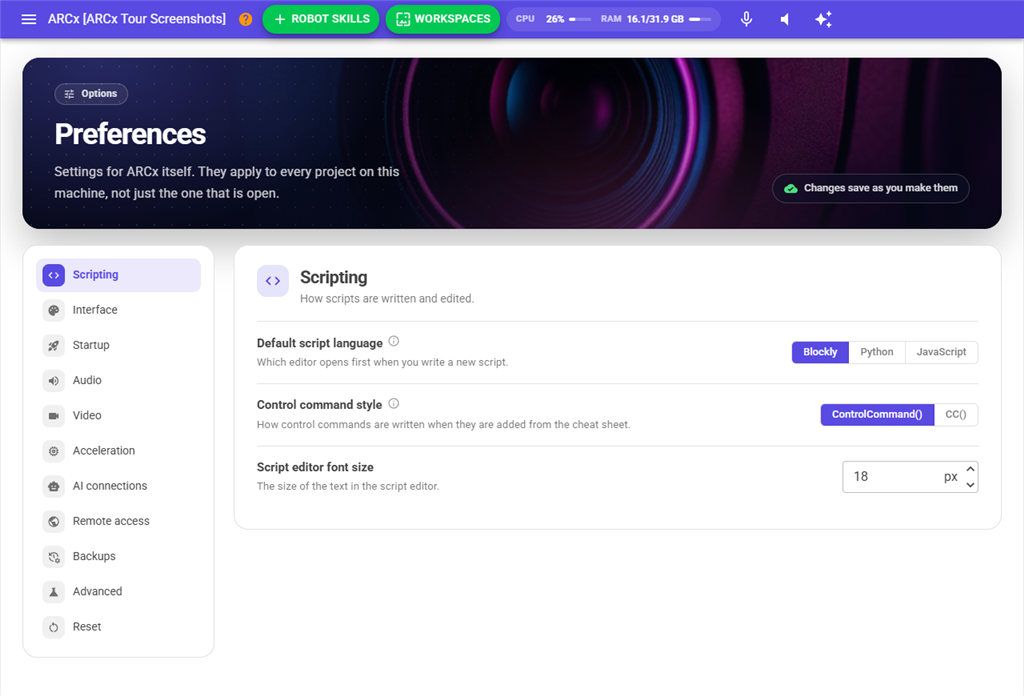
| Setting | What it does |
|---|---|
| Default script language | Which editor opens first when you write a new script: Blockly, Python or JavaScript. Blockly by default. Any script can still be switched to another language. |
| Control command style | How control commands are written when you add them from the cheat sheet: the full ControlCommand(), or the shorter CC(). The same choice is also in the script editor's settings. |
| Script editor font size | The size of the text in the script editor, from 5 to 100 px. 18 by default. |
Interface
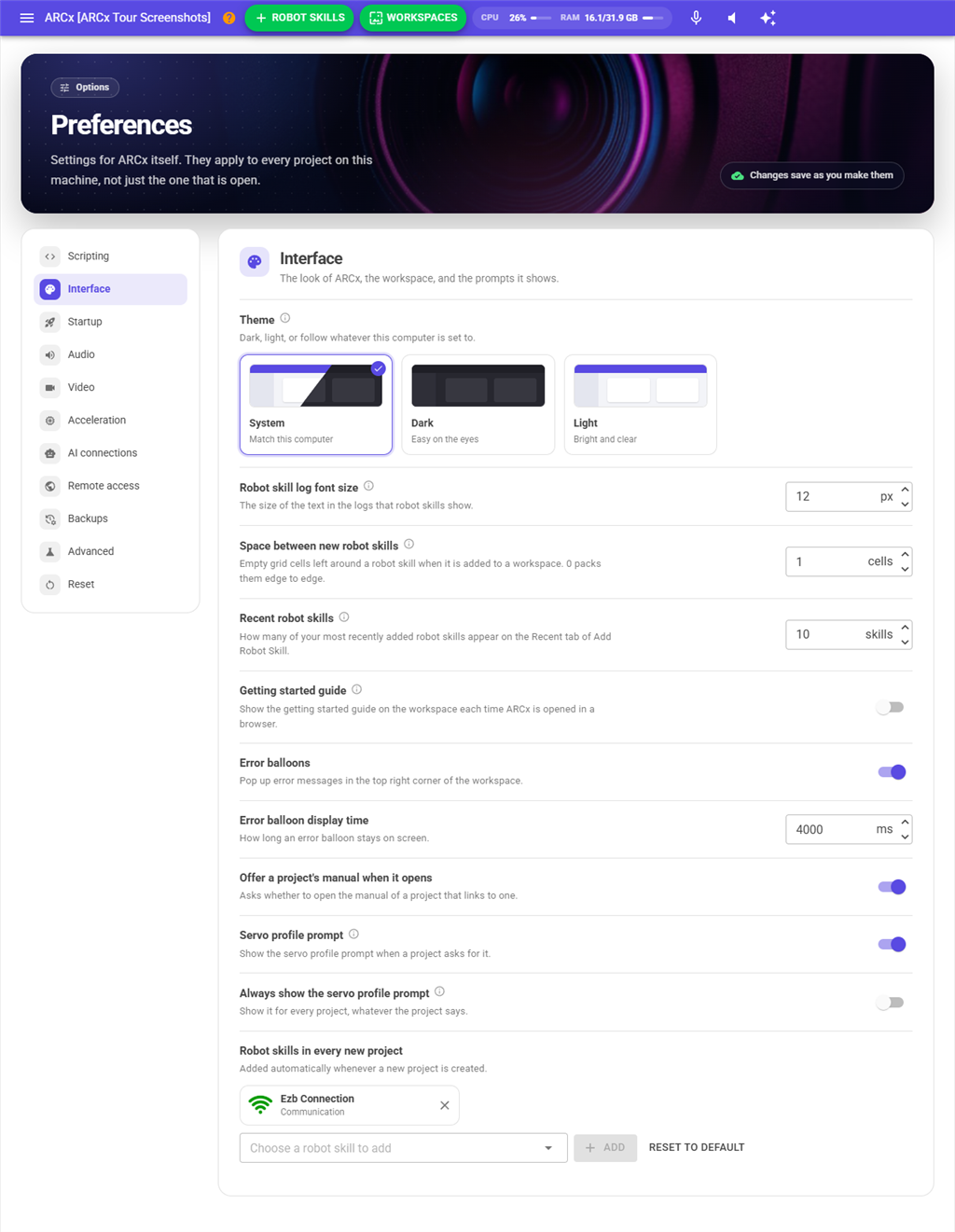
| Setting | What it does |
|---|---|
| Theme | System (match this computer), Dark or Light. System by default. Choosing one reloads the page. |
| Robot skill log font size | The size of the text in the logs that robot skills show, from 1 to 32 px. 12 by default. |
| Space between new robot skills | How many empty grid cells are left around a robot skill when it is added to a workspace, from 0 to 20. 1 by default; 0 packs them edge to edge. Robot skills already placed are not moved. |
| Recent robot skills | How many of your most recently added robot skills appear on the Recent tab of Robot Skills → Add, from 1 to 50. 10 by default. The Recently Added list in the Robot Skills menu shows up to 10 of them. Lowering the number forgets the older ones the next time a robot skill is added. |
| Error balloons | Pops up error messages in the top right corner of the workspace. On by default. |
| Error balloon display time | How long an error balloon stays on screen, in milliseconds. At least 1000; 4000 by default. Dimmed while Error balloons is off. |
| Offer a project's manual when it opens | Asks whether to open the manual of a project that links to one. On by default. |
| Servo profile prompt | Shows the servo profile prompt when a project asks for one. On by default. |
| Always show the servo profile prompt | Shows the servo profile prompt for every project, whatever the project says. Off by default. |
| Robot skills in every new project | The robot skills added automatically whenever a new project is created. See below. |
Robot skills in every new project
Each robot skill in the list has a remove button (X) beside it. When the list is empty it reads "New projects start empty."
- Open the Choose a robot skill to add list. It holds every installed robot skill and every robot skill ARCx knows from the store, by category and name.
- Pick one and press Add. A robot skill already in the list is not added twice.
- Press Reset to default to go back to the standard list, which is the EZB Connection robot skill, so a new project always has a way to connect.
Removing a robot skill here takes effect immediately, with no confirmation. It only changes what new projects start with; it does not uninstall the robot skill or touch open projects.
Startup
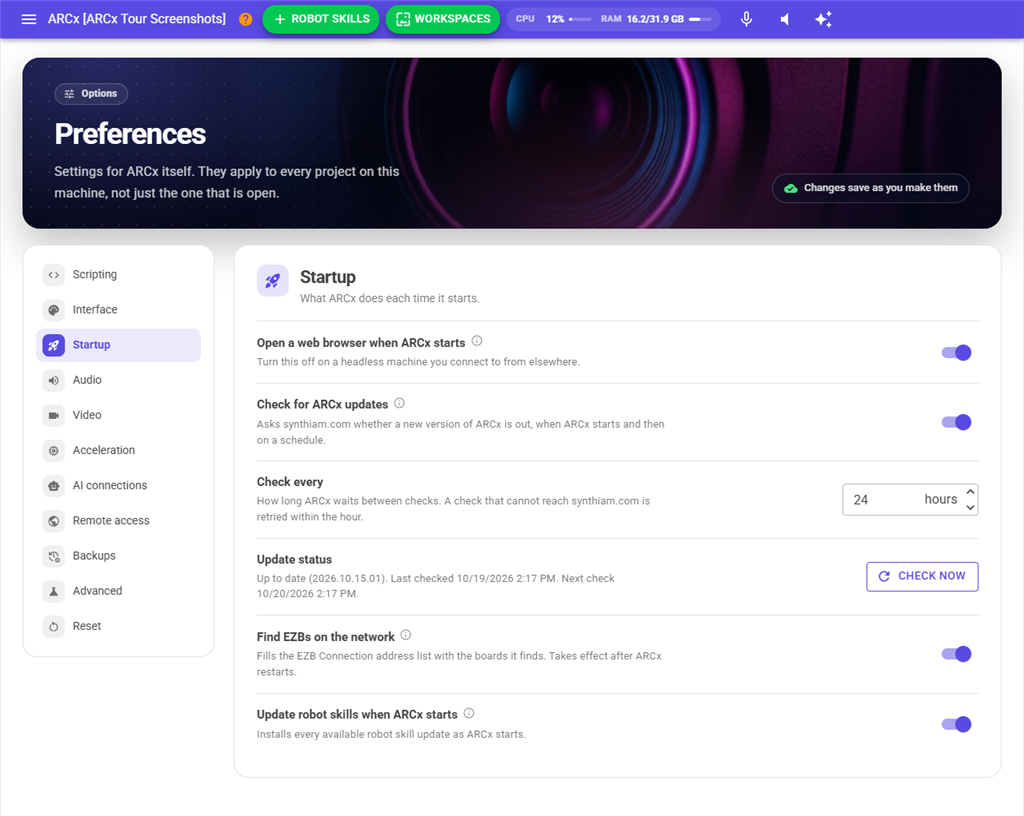
| Setting | What it does |
|---|---|
| Open a web browser when ARCx starts | Opens a browser pointing at ARCx each time it starts. On by default on Windows and macOS, off on Linux. Turn it off on a headless machine that you connect to from another computer. |
| Check for ARCx updates | Asks synthiam.com whether a new version of ARCx is out, when ARCx starts and then on a schedule for as long as it runs. On by default. When a new version is found, every browser that connects is shown a popup about it, and an update icon stays in the top bar until ARCx is updated. Turn it off on a machine that should not reach the internet. |
| Check every | How many hours ARCx waits between checks, from 1 to 720 (30 days). 24 by default. A check that cannot reach synthiam.com is retried within the hour. Dimmed while automatic checks are off. Changes apply straight away. |
| Update status | What the last check found and when the next one is, for example "Up to date (…). Last checked …" or "Version … is available." Press Check now to check immediately; it works even while automatic checks are off, and reads Checking while it runs. |
| Find EZBs on the network | Looks for EZBs on the network in the background and adds the ones it finds to the address list of the EZB Connection robot skill. On by default. Takes effect after ARCx restarts. |
| Update robot skills when ARCx starts | Downloads and installs every available robot skill update as ARCx starts. On by default. It is skipped while another copy of ARCx is running, because the robot skills are in use. |
Audio
ARCx plays everything out of one speaker and records from one microphone. These settings are the defaults for this computer. A project can choose its own speaker on its EZB Connection robot skill, so a robot that talks out of its own head still does on whichever computer the project is opened on.
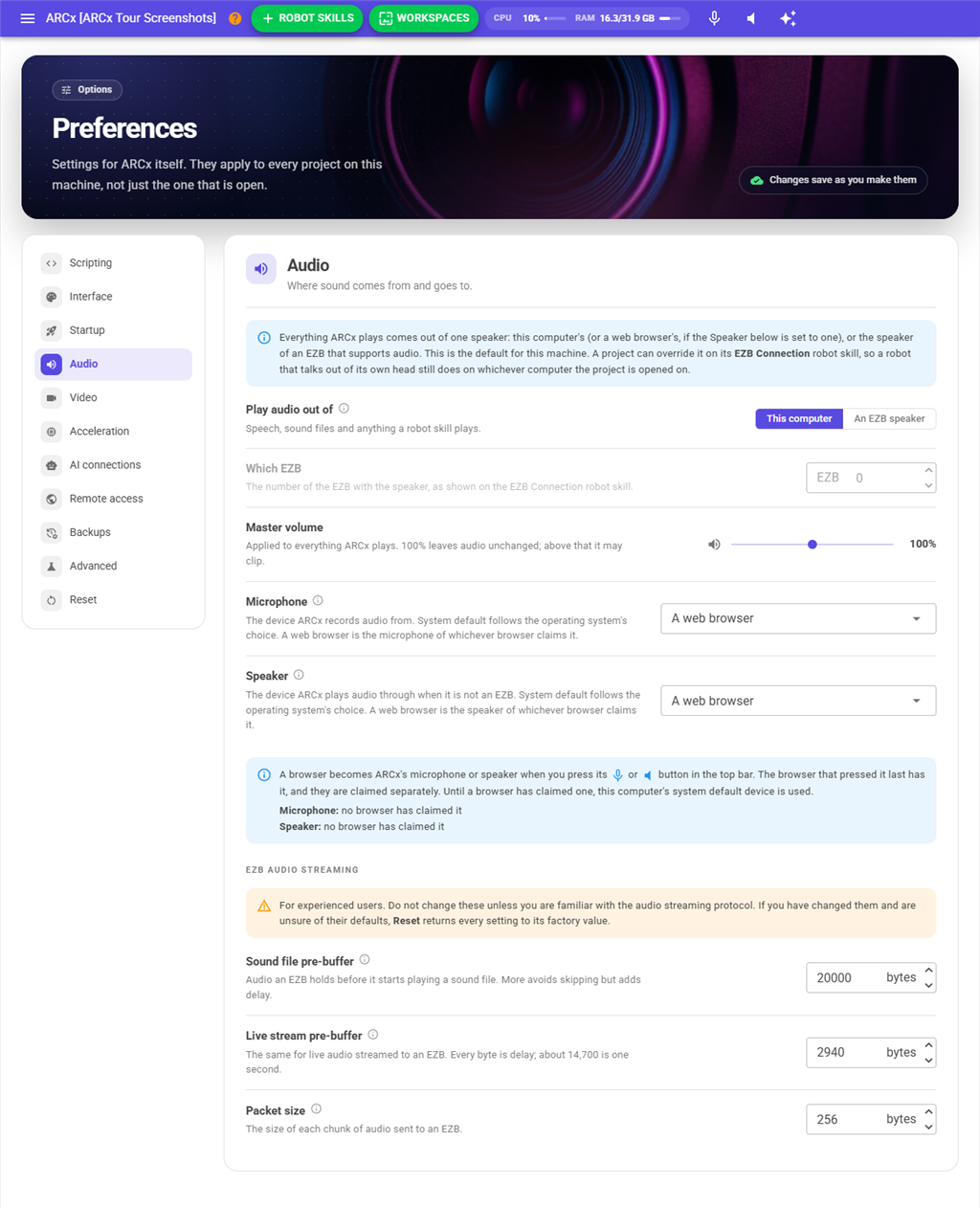
| Setting | What it does |
|---|---|
| Play audio out of | This computer plays through the Speaker chosen below. An EZB speaker sends speech, sound files and anything a robot skill plays to an EZB's speaker. If that EZB is not connected, audio plays out of the computer until it is. |
| Which EZB | The number of the EZB with the speaker, as shown on the EZB Connection robot skill, from 0 to 100. Dimmed unless An EZB speaker is chosen. |
| Master volume | Applied to everything ARCx plays, from 0% to 200% in steps of 5. 100% leaves audio unchanged; above that it may clip. |
| Microphone | The device ARCx records from. System default follows the operating system's choice. A web browser uses the microphone of whichever browser claims it. Or choose a named device. |
| Speaker | The device ARCx plays through when it is not playing to an EZB. System default, A web browser, or a named device. |
A named microphone or speaker is saved by its name, so the choice still works after other devices are plugged in or removed. If the device is not connected, it stays selected and is marked (not available), and ARCx uses the next best device until it comes back.
Using a web browser as the microphone or speaker
When Microphone or Speaker is set to A web browser, a note explains how it works and shows its current state:
- A browser becomes ARCx's microphone or speaker when you press the microphone or speaker button in its top bar. The browser that pressed it last has it, and the microphone and speaker are claimed separately.
- Until a browser has claimed one, the system default device of the computer ARCx runs on is used.
- Microphone: shows "no browser has claimed it", or which browser has it and whether it is listening.
- Speaker: shows "no browser has claimed it", or which browser has it, with "waiting for the page to be clicked" when the browser has not been clicked yet and so is not allowed to play sound.
Browsers only allow the microphone over HTTPS, or when the browser runs on the same computer as ARCx. If this page was opened over plain HTTP from another computer, a warning says so and suggests starting ARCx on an https address with a certificate, for example -b https://0.0.0.0:5001 --cert robot.pfx. The speaker works either way. See How To: Speech Recognition for more on choosing a microphone.
EZB audio streaming
For experienced users. Do not change these unless you know the EZB audio streaming protocol. If you have changed them and are unsure of their defaults, the Reset section returns every setting to its factory value.
| Setting | What it does |
|---|---|
| Sound file pre-buffer | How many bytes of a sound file are sent to the EZB before it starts playing. More avoids skipping, because the EZB is also busy moving servos and reading ports, but adds delay. 20,000 bytes by default. |
| Live stream pre-buffer | The same for live audio streamed to an EZB, such as speech as it is produced. Every byte is delay; about 14,700 bytes is one second. At least 256; 2,940 bytes by default. Raise it if streamed audio stutters over a poor network. |
| Packet size | The size of each chunk of audio sent to the EZB. The best size depends on your network traffic and the speed of the computer. 256 bytes by default. |
Video
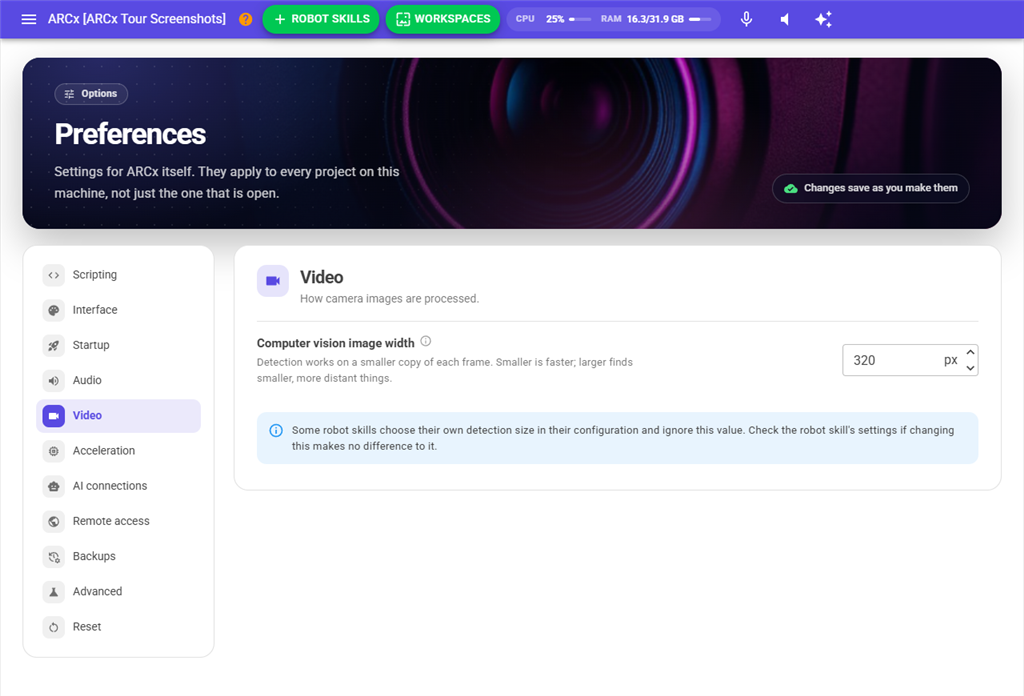
| Setting | What it does |
|---|---|
| Computer vision image width | Robot skills that detect things in the camera image, such as faces, colours and objects, work on a smaller copy of each frame. This is the width of that copy, from 120 to 1920 pixels in steps of 40. 320 by default. Smaller is faster; larger finds smaller, more distant things. Try 640 if detection is missing things and the computer can keep up. |
The height follows the camera's shape, so the image is never stretched. The camera's own resolution and what you see on screen are not affected, and a frame already narrower than this width is used as it is. A change takes effect on the next camera frame. Some robot skills choose their own detection size in their configuration and ignore this value.
Acceleration
Some robot skills run neural networks, for example voice cloning and image recognition. This section chooses the hardware they run on. The first time the section opens, it shows "Looking for graphics cards..." for a moment.
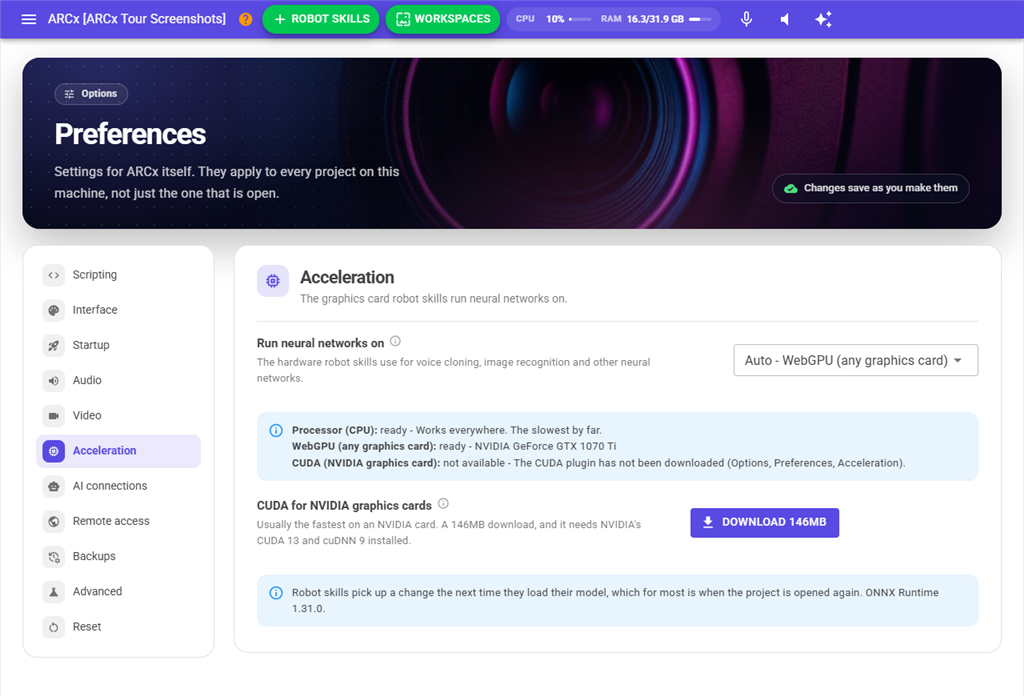
| Setting | What it does |
|---|---|
| Run neural networks on | Auto picks the fastest choice that works on this computer and shows which one that is: CUDA if it is downloaded and NVIDIA's libraries are installed, then WebGPU, then Core ML on a Mac, otherwise the processor. The other entries choose one directly; those marked not available cannot be chosen. If the choice cannot start, the robot skill uses the processor and says why in its log. |
| Graphics card | Which graphics card to use. Only shown when the computer has more than one. The first card listed is the one Windows ranks as the high performance card, which is usually the fastest. |
| CUDA for NVIDIA graphics cards | Usually the fastest choice on an NVIDIA card. Only shown where CUDA is supported. Press Download to fetch it; a progress bar and Cancel show while it downloads. Once downloaded, it reads Downloaded, with Delete to remove it again. |
Below the list, a note shows each choice as ready or not available, with the reason.
CUDA is too big to ship with ARCx, so it is a separate download. It also needs NVIDIA's CUDA Toolkit 13 and cuDNN 9 for CUDA 13 installed from NVIDIA first, and a GeForce GTX 16 series, RTX 20 series or newer card. Older NVIDIA cards can use WebGPU, which needs none of this. If CUDA is downloaded but NVIDIA's libraries are missing, a warning says which. If the download fails, a window titled CUDA download gives the reason.
Robot skills pick up a change the next time they load their model, which for most is when the project is opened again. A robot skill may also have its own setting to force the processor.
AI connections
This section holds Athena's limit and the settings for outside AI assistants.
ARCx is a Model Context Protocol (MCP) server, which is how AI assistants such as Claude, ChatGPT, Cursor and VS Code Copilot connect to outside tools. An AI connected to ARCx can read the project, see through the robot's cameras, drive it, speak, move servos, run scripts, change robot skill settings and call every robot skill's control commands. This section turns that on and off, protects it, and shows how to connect each kind of client. The full guide is Manuals\mcp.md in the ARCx program folder.
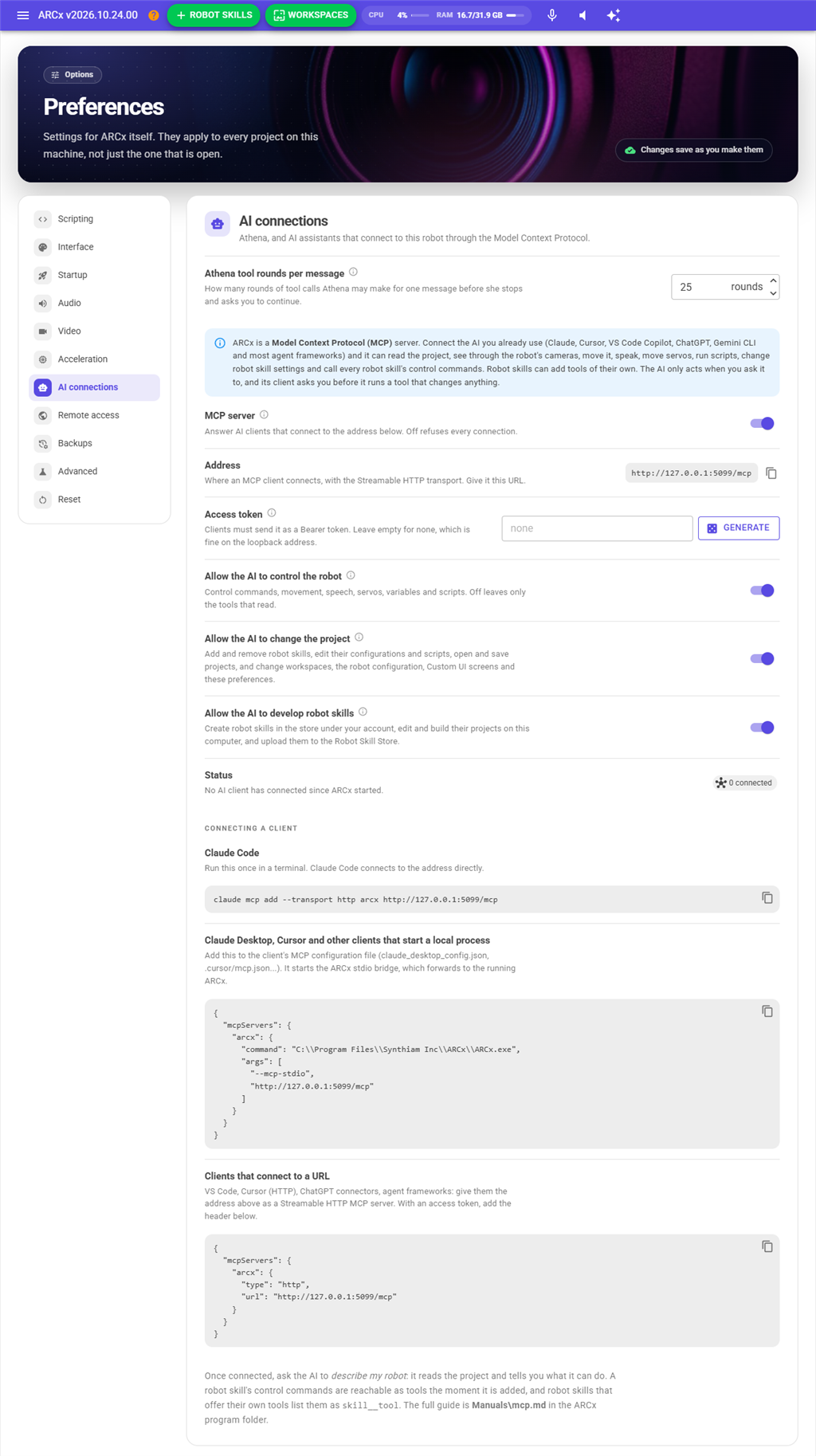
| Setting | What it does |
|---|---|
| Athena tool rounds per message | How many rounds of tool calls Athena may make for one message before she stops and asks you to send another. A job done step by step, such as building a project and configuring each robot skill, takes one round per step. Every round is charged in AI credits, so a higher limit lets long jobs finish in one message and a lower one keeps each message cheaper. 25 by default, from 1 to 100. |
| MCP server | Answer AI clients that connect. On by default. Off refuses every connection with a message saying the server is off. |
| Address | Where a client connects: the address ARCx is bound to plus /mcp, http://127.0.0.1:5000/mcp by default. The copy button beside it copies it. |
| Access token | A secret clients must send with every request. Empty by default, which is fine on the default loopback address because only programs on this computer can reach it. Set one when ARCx is bound to a network address. Generate fills in a random token. |
| Allow the AI to control the robot | Offers the AI the tools that act: control commands, movement, speech, servos, variables, scripts and the robot skills' own tools. On by default. Off leaves only the tools that read. Takes effect at once. |
| Allow the AI to change the project | Offers the AI the tools that add and remove robot skills and edit their configurations and scripts. On by default. Takes effect at once. |
| Status | How many clients are connected, the requests and tool calls since ARCx started, and the last client seen. |
Under Connecting a client, three snippets are filled in with this machine's address and token, each with a copy button:
- Claude Code: one command to run in a terminal.
- Claude Desktop, Cursor and other clients that start a local process: an entry for the client's configuration file. It starts
ARCx --mcp-stdio, a bridge that forwards to the running ARCx, so ARCx must be running when the client starts. - Clients that connect to a URL: an entry for VS Code, ChatGPT connectors and agent frameworks that take a Streamable HTTP address.
Once connected, ask the AI to describe your robot. The AI only acts when asked, and its client asks you before running a tool that changes anything.
Remote access
Remote ARCx lets you use this ARCx from any web browser in the world, exactly as you do on the robot's computer: every robot skill, camera, script, workspace and setting, live. ARCx keeps one secure connection open to synthiam.com, so there is no router port forwarding, VPN or fixed address to set up, and nothing to install on the phone, tablet or PC you connect from.
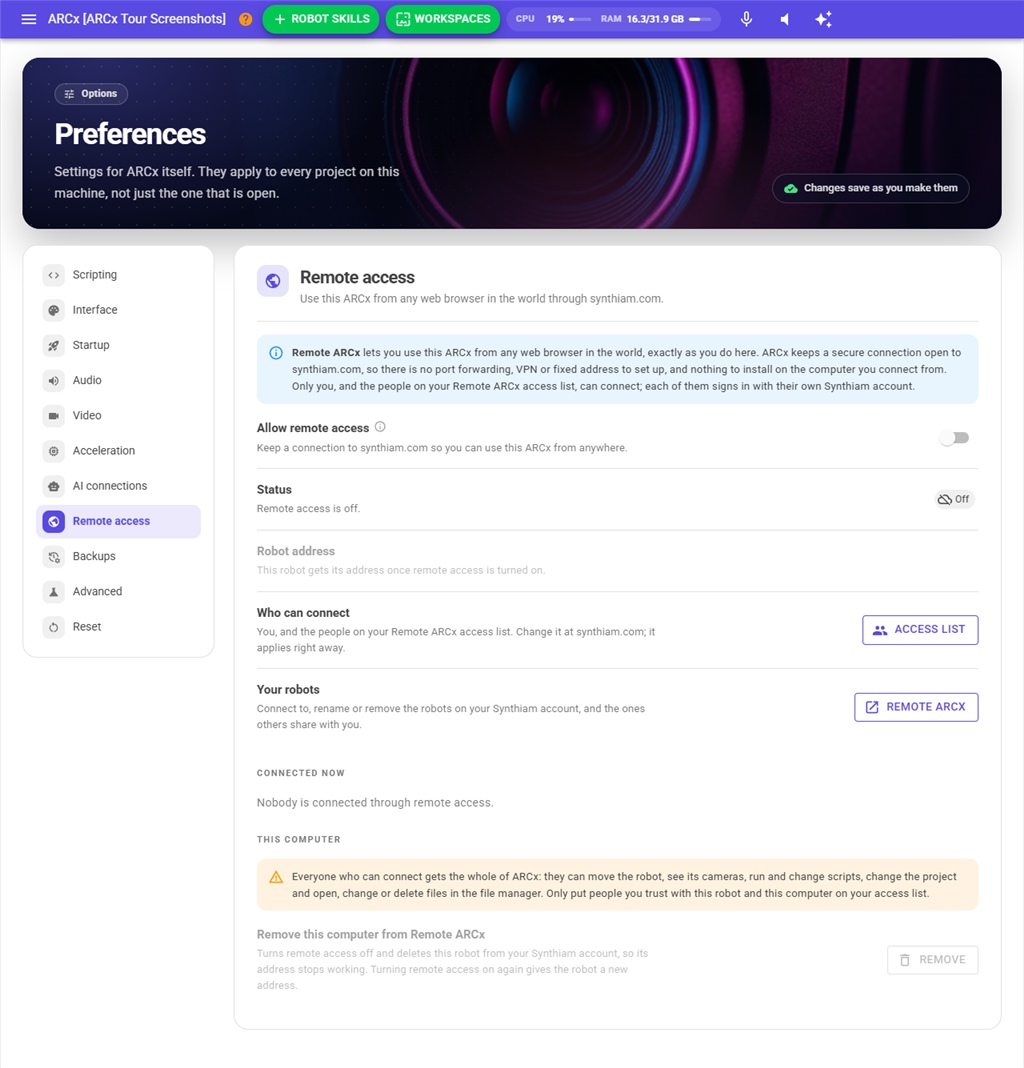
The robot gets its own address, such as https://robot-abc123def456.synthiam.com. Opening it sends you through the synthiam.com sign-in, then straight into the robot's ARCx. Only you and the people on your Remote ARCx access list can get in; each of them signs in with their own Synthiam account.
| Setting | What it does |
|---|---|
| Allow remote access | Keep the connection to synthiam.com open. Off by default. The first time it is turned on, ARCx adds this computer to the Synthiam account it is signed in with. Off closes the connection and disconnects everyone straight away. |
| Status | What remote access is doing: Off, Not signed in, Registering, Connecting, Online (with how many people are connected), Reconnecting after the connection dropped, or Needs attention with the reason. |
| Robot address | This robot's address. The copy button copies it. It also appears on the Remote ARCx page at synthiam.com, under Your Robots. |
| Who can connect | Access list opens your Remote ARCx access list at synthiam.com, where you add and remove the people who may connect to your robots. Changes apply straight away. |
| Your robots | Remote ARCx opens the synthiam.com page that lists your robots and the ones others share with you, where you connect to them, rename them or remove them. |
| Connected now | Everyone connected through remote access, with their browser, address and how long ago they connected. Disconnect ends that person's session. They can connect again while they are on your access list; to keep them out, take them off the list. |
| Remove this computer from Remote ARCx | After you confirm, turns remote access off and removes this robot from your Synthiam account, so its address stops working for everyone. Turning remote access on again adds the robot back with a new address. |
Turning it on
- Sign in to your Synthiam account in Options → Account. The robot belongs to that account.
- Turn on Allow remote access. Within a few seconds the status reads Online and the robot's address is shown.
- On any computer, sign in at synthiam.com and open Remote ARCx from the community page or your account, or open the robot's address directly, and choose Connect.
- To let others in, open Access list and add their Synthiam username or email address.
While remote access is on, a REMOTE chip in the top bar shows it, with the number of people connected. Click it to come back to this section.
Security
- People you allow get the whole of ARCx. They can move the robot, see its cameras, run and change scripts, change the project, and open, change or delete files in File → File Manager. Only add people you trust with the robot and its computer.
- Everyone signs in. The robot's address is useless to anyone who is not signed in to synthiam.com as you or as someone on your access list. Each visit is checked against the list, so removing someone disconnects them at once.
- The MCP server stays local. AI clients cannot reach
/mcpthrough remote access; it only answers on the address ARCx is bound to. - Signing out everywhere ends it. Signing out of Synthiam products on every computer (your account's Security page on synthiam.com) stops remote access until ARCx is signed in again.
When something goes wrong
| Status says | What to do |
|---|---|
| Not signed in | Sign in under Options → Account. Remote access starts by itself once you do. |
| synthiam.com did not accept ARCx's sign-in | Sign out of ARCx and sign in again, then turn remote access off and on. |
| This robot was removed from Remote ARCx on synthiam.com | The robot was removed on the Remote ARCx page, so remote access turned itself off. Turn it on again to add the robot back with a new address. |
| Another copy of ARCx registered this robot | A copy of this computer's ARCx Data folder on another computer took over the robot. Turn remote access on to add this computer as a robot of its own. |
| Reconnecting | The internet connection dropped or synthiam.com restarted. ARCx tries again by itself, waiting a little longer each time, up to a minute. |
A remote visitor whose robot is offline sees a page saying so, which checks again every 10 seconds and turns into ARCx as soon as the robot is back.
Robot Bus
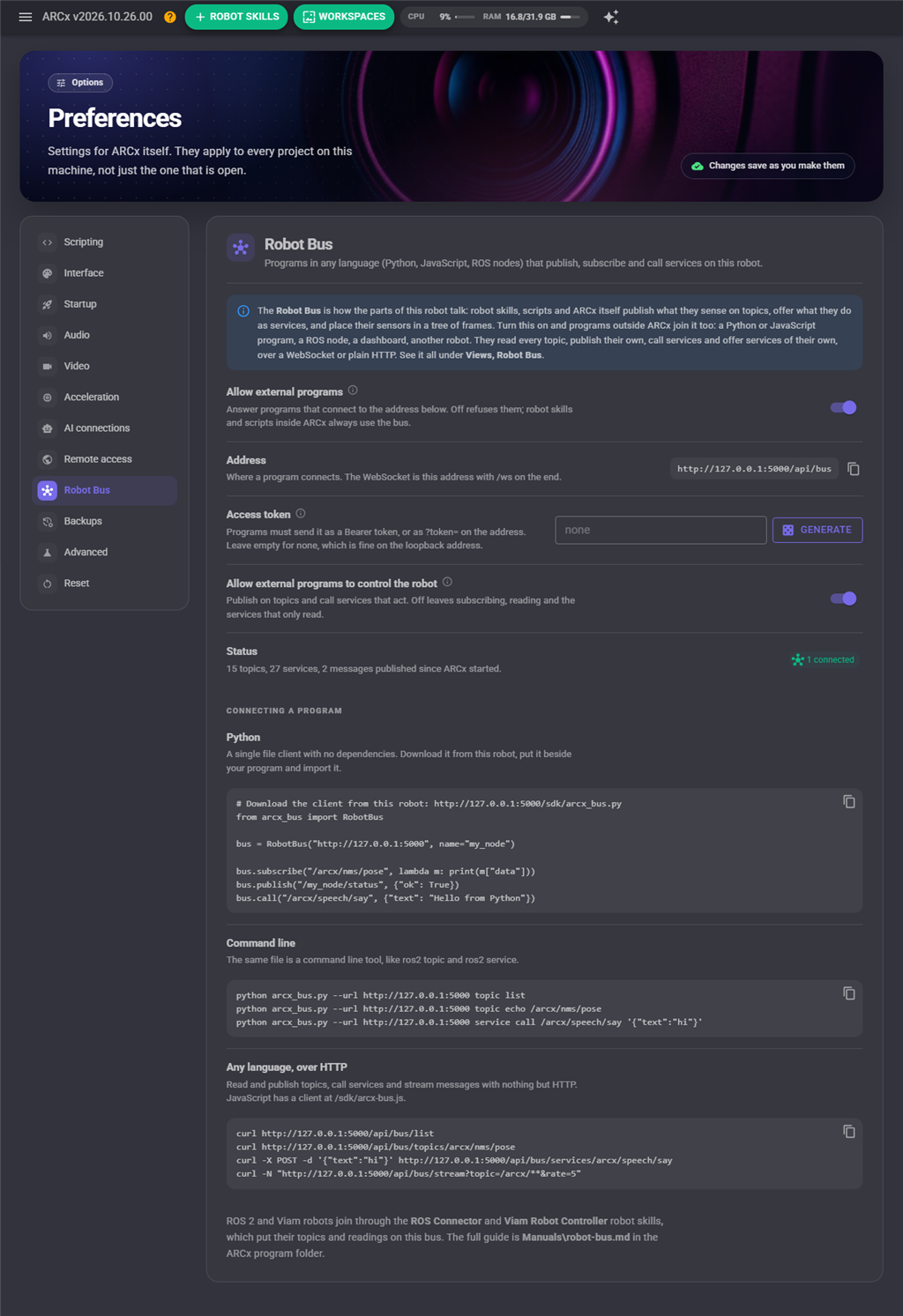
The Robot Bus is how the parts of the robot talk: robot skills, scripts and ARCx itself publish what they sense on topics, offer what they do as services, and place their sensors in a tree of frames. This section decides whether programs outside ARCx may join it: a Python or JavaScript program, a dashboard, a ROS node, another robot. Robot skills and scripts inside ARCx always use the bus, whatever it says. The bus itself is shown in Views → Robot Bus.
| Setting | What it does |
|---|---|
| Allow external programs | Answer programs that connect at /api/bus on the address ARCx is bound to: a WebSocket, plain HTTP requests and a live event stream. Off by default, which refuses them. The ARCX_ROBOT_BUS=1 environment variable turns it on regardless, for a robot run without a screen; the switch is then greyed out and the page says why. |
| Address | Where a program connects. The copy button copies it. The WebSocket is this address with /ws on the end. |
| Access token | When set, programs must send it, as Authorization: Bearer <token> or as ?token=<token> on the address (a web browser cannot send headers on a WebSocket). Generate makes a random one. Leave it empty on the default loopback address, where only programs on this computer can connect; set one whenever ARCx is bound to a network address. The ARCX_ROBOT_BUS_TOKEN environment variable sets it instead. |
| Allow external programs to control the robot | On by default. Off lets programs subscribe to topics, read them and call the services that only read (lists, lookups, status), but not publish, provide services of their own or call a service that acts, such as driving or speaking. |
| Status | How many topics and services the bus has, how many messages have been published since ARCx started, and how many programs are connected now. |
Connecting a program
The section shows ready made examples for this robot's address and token, each with a copy button:
- Python: ARCx serves a client at
/sdk/arcx_bus.py. It is one file with no dependencies; download it from the robot, put it beside your program and import it. - Command line: the same file is a command line tool, like
ros2 topicandros2 service: list topics, echo one, measure its rate, publish, call a service, look up a frame, record and play back. - Any language, over HTTP: read and publish topics, call services and stream messages with nothing but HTTP, for example
curl. A JavaScript client for web pages and Node.js is at/sdk/arcx-bus.js.
ROS 2 and Viam robots join through the ROS Connector and Viam Robot Controller robot skills, which put their topics and readings on the bus.
Security
- A web page cannot reach the bus. A page from another site is refused even when programs are allowed, so visiting a web page cannot control your robot.
- The bus stays local. Programs cannot reach
/api/busthrough Remote ARCx; it only answers on the address ARCx is bound to.
Backups
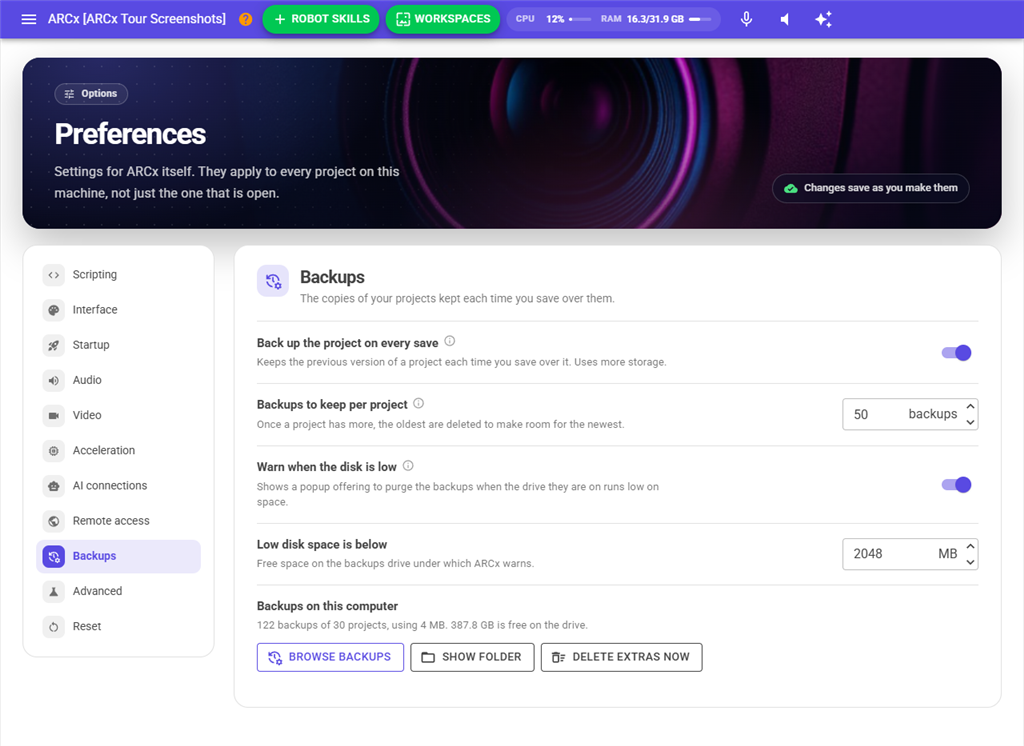
The copies of your projects that ARCx keeps each time you save over them. Each project has its own folder inside Projects Backups in the ARCx Data folder (in My Documents on Windows, or your home folder), and each backup is named by the date and time it was saved, for example Projects Backups\My Project\2026-08-01-12-23-59.arcx. Backups are listed, opened and restored from File → Open.
| Setting | What it does |
|---|---|
| Back up the project on every save | Each time a project is saved, the previous version is kept as a backup. Uses more storage. On by default. |
| Backups to keep per project | How many backups each project keeps. When a save makes one more than this, the oldest is deleted. 50 by default. Lowering it does not delete anything until each project is next saved, or until you press Delete extras now. |
| Warn when the disk is low | Shows a popup offering to purge the backups when the drive they are on runs low on space. It is checked when a web browser connects and after each backup is made, and only shown when there are backups to purge. On by default. |
| Low disk space is below | The free space, in MB, under which the drive counts as low. 2048 by default. |
| Backups on this computer | How many backups there are, of how many projects, how much space they use, and how much is free on the drive. Browse backups opens the list of every project's backups, as on File → Open. Show folder opens the backups folder in File → File Manager. Delete extras now deletes, after you confirm, the oldest backups of every project that has more than the number kept. |
Advanced
| Setting | What it does |
|---|---|
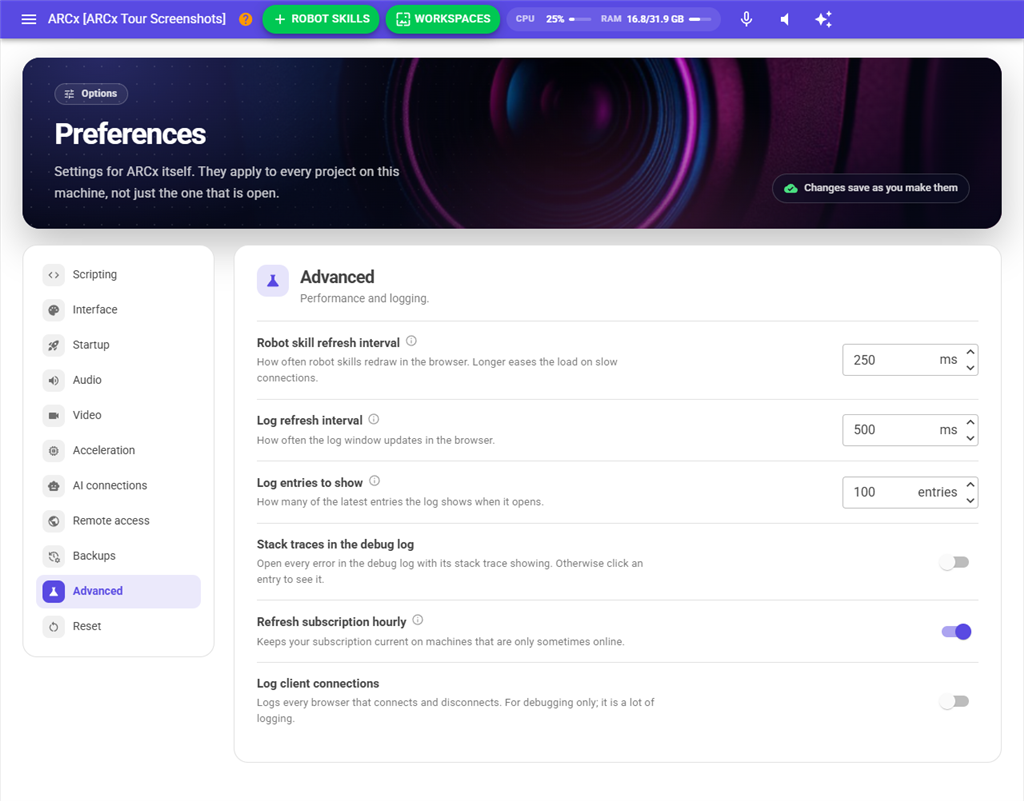
| Robot skill refresh interval | How often robot skills redraw in the browser, in milliseconds. 250 by default. A longer interval eases the load on slow connections. |
| Log refresh interval | How often the log window updates in the browser, in milliseconds. 500 by default. |
| Log entries to show | How many of the latest entries the log shows when it opens. 100 by default. The full log is in the log file. |
| Stack traces in the debug log | Opens every error in the debug log with its technical details showing. Otherwise, click an entry to see them. Off by default. |
| Refresh subscription hourly | Meant to keep your subscription current on machines that are only sometimes online. On by default. |
| Log client connections | Logs every browser that connects and disconnects. For troubleshooting only; it produces a lot of log entries. Off by default. |
Reset
Use this when ARCx is behaving oddly and a setting may be to blame, when support asks you to start from factory settings, or when passing this computer on to someone else.
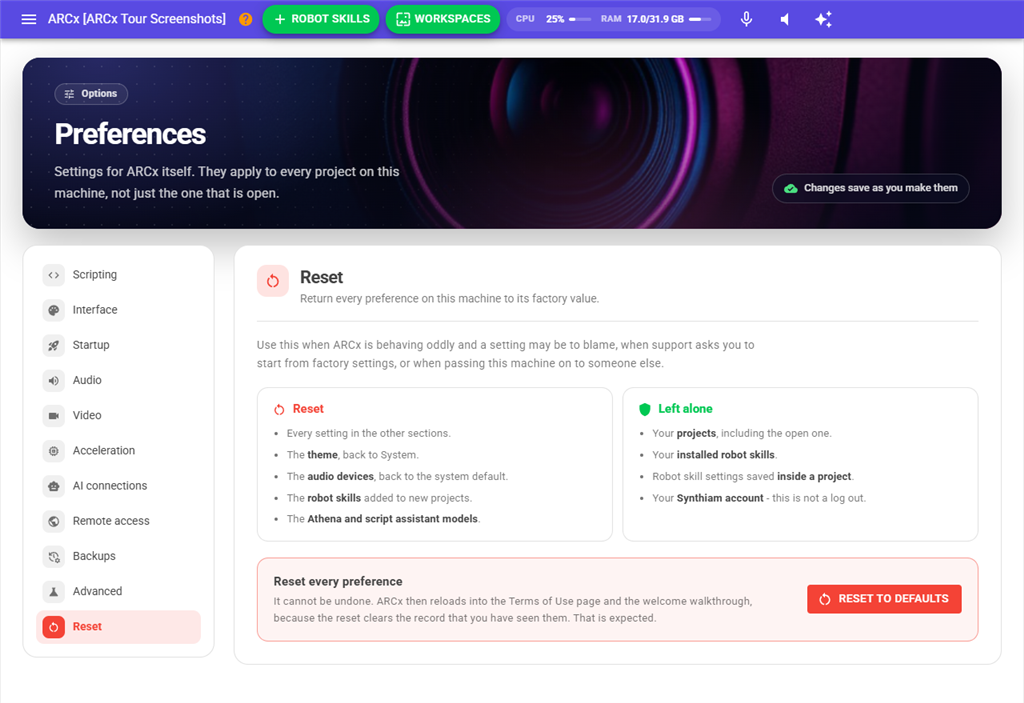
| Reset | Left alone |
|---|---|
| Every setting in the other sections. | Your projects, including the open one. |
| The theme, back to System. | Your installed robot skills. |
| The audio devices, back to the system default. | Robot skill settings saved inside a project. |
| The robot skills added to new projects. | Your Synthiam account. A reset is not a log out. |
| The Athena and script assistant models. |
- Press Reset to defaults.
- Answer Yes to "Are you sure?". No leaves everything as it was.
- A message confirms "All ARC preferences are set to default values".
- ARCx reloads into the Terms of Use page and the welcome walkthrough, because the reset also clears the record that you have seen them. That is expected.
The reset cannot be undone. It also turns gamepad and HID support back on if it had been turned off. If part of the reset fails, a window reads "Not all preferences have been reset." with the reason, and the page still reloads.
Notes
- Servo profiles are not available in ARCx yet (see Project → Servo Profile), so Servo profile prompt and Always show the servo profile prompt currently have no effect.
- Offer a project's manual when it opens and Refresh subscription hourly are saved, but in this version of ARCx nothing acts on them yet.
- A robot skill in Robot skills in every new project that is neither installed nor known from the store is not shown in the list, although it stays saved.