
Audio
Speak, play sounds and notes, set the volume, and wait for the robot to hear a phrase. The sound blocks list the sounds of the audio robot skills in the project.
Where to find it: the Audio category of the toolbox, in any script editor set to Blockly or on Top bar → Workspaces → Blockly
Blocks
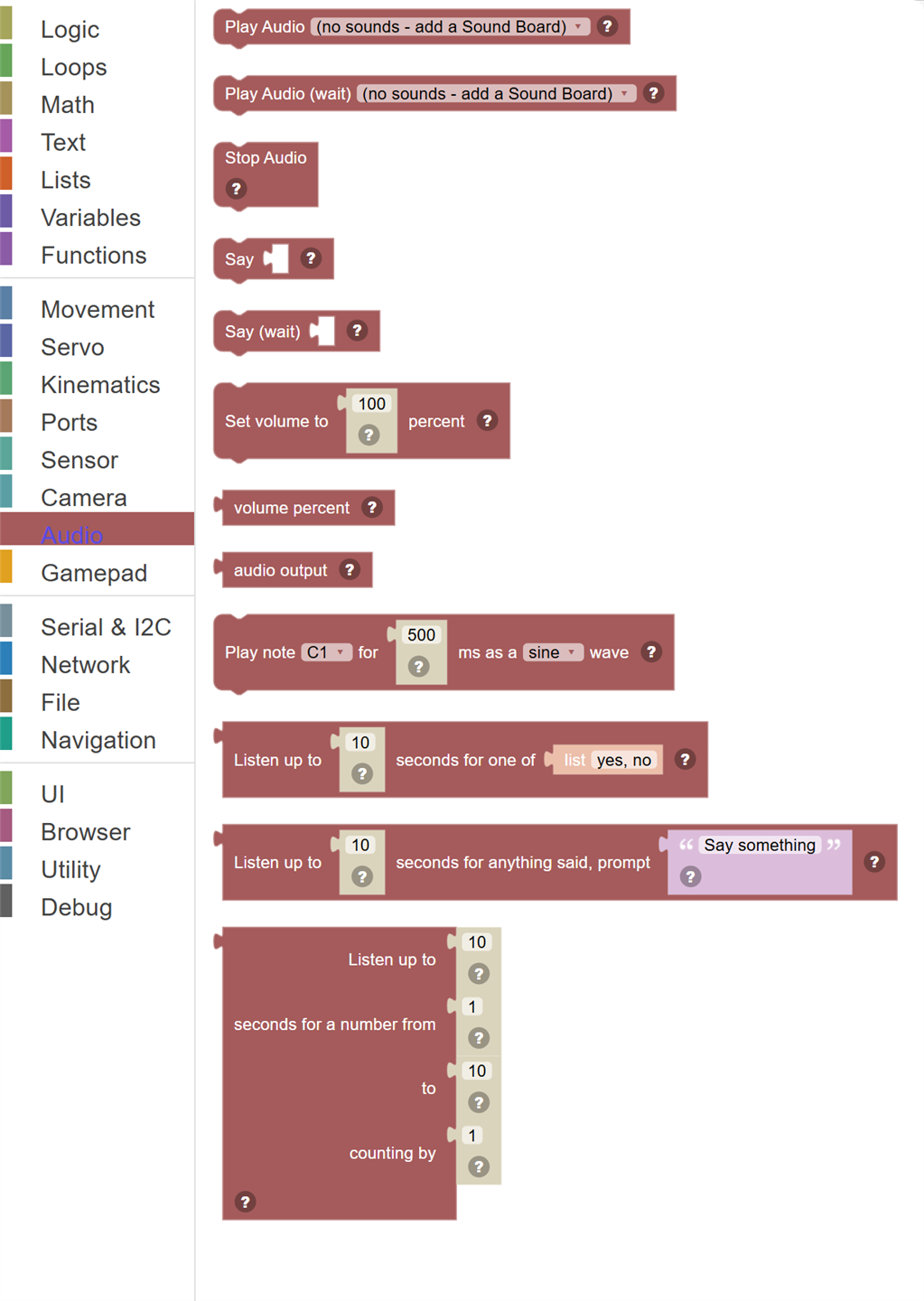
| Block | What it does |
|---|---|
| Play Audio | Plays a sound from any Soundboard skill added to your project. |
| Play Audio (Wait) | Plays a sound from a Soundboard skill and waits for it to finish completely before continuing to the next block. |
| Stop Audio | Immediately stops anything ARCx is playing, wherever it is playing. |
| Say | Speaks the given text out loud with the project's text to speech engine. |
| Say (Wait) | Speaks the text and pauses the script until the speech has finished being heard before moving on. |
| Set volume to … percent | Set the volume of everything ARCx plays, 0 to 200. |
| Volume percent | The volume ARCx plays at, where 100 plays sounds as they are. |
| Audio output | Where speech and sound are heard - the computer or an EZB - as a description. |
| Play note … for … ms as a … wave | Play a musical note out of the EZB speaker. |
| Listen up to … seconds for one of … | Show the phrases on screen and wait for one to be said (with a speech recognition robot skill) or clicked. |
| Listen up to … seconds for anything said, prompt … | Wait for anything to be said and return what was heard, in lower case, or "timeout". |
| Listen up to … seconds for a number from … to … counting by … | Wait for a number in the range to be said or clicked. |
Details
Play Audio

Plays a sound from any Soundboard skill added to your project. The sound starts playing and the script continues immediately without waiting for it to finish.
When to use it: Use this to add sound effects to your robot in the background while it does other things at the same time.
Example: Play Audio "laser.wav" → the laser sound plays while the robot keeps moving.
Tips:
- You need a Soundboard skill added to your project for sounds to appear in the list.
- Use Play Audio (wait) if you need to wait for the sound to finish before continuing.
- Great for background music or non-blocking sound effects.
Play Audio (Wait)

Plays a sound from a Soundboard skill and waits for it to finish completely before continuing to the next block.
When to use it: Use this when the timing of the sound matters — like playing a greeting before the robot starts moving.
Example: Play Audio (wait) "greeting.wav" → waits for the full greeting to play, then moves forward.
Tips:
- The script is paused until the sound ends — other actions won't happen during playback.
- Great for intro sounds, announcements, or audio that must complete before an action.
- For background music, use Play Audio (without wait) instead.
Stop Audio
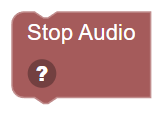
Immediately stops anything ARCx is playing, wherever it is playing.
When to use it: Use this to cut off a sound that is playing — like stopping music before starting speech, or ending a sound effect.
Example: Stop Audio → immediately silences any sound or speech.
Tips:
- Good to call at the start of a script to ensure no leftover sounds from before.
- Use before a Say block if you want to be sure nothing overlaps with speech.
In JavaScript: this block runs
Audio.stop();
Say
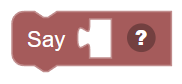
Speaks the given text out loud with the project's text to speech engine. The speech starts and the script continues immediately in the background.
When to use it: Use this to give your robot a voice! It can say status messages, greetings, or reactions while continuing to do other things.
Example: Say "I detected an obstacle!" → the robot speaks while it might still be navigating.
Tips:
- Which speaker it comes out of — your computer or the robot's own — is set once for the whole project, on the EZ-B Connection skill's configuration.
- Use Say (wait) if you need to pause until the robot finishes speaking.
- Keep phrases short for clearer speech synthesis.
In JavaScript: this block runs
Audio.say("Hello World");
Say (Wait)
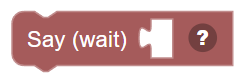
Speaks the text and pauses the script until the speech has finished being heard before moving on.
When to use it: Use this when the robot must finish speaking before doing the next action — like announcing something important before moving.
Example: Say (wait) "Preparing to launch!" → waits for the full announcement before any movement begins.
Tips:
- The script is fully paused during speech — nothing else runs at the same time.
- It waits for the sound to actually be heard, including the delay of streaming it to a robot.
- For background chatter while moving, use the non-wait Say block.
In JavaScript: this block runs
Audio.sayWait("Hello World");
Set volume to … percent
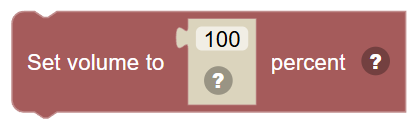
Set the volume of everything ARCx plays, 0 to 200. 100 plays sounds as they are.
In JavaScript: this block runs
Audio.setVolume(100);
Volume percent
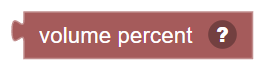
The volume ARCx plays at, where 100 plays sounds as they are.
In JavaScript: this block gives back the value of
Audio.getVolume()
Audio output
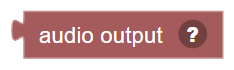
Where speech and sound are heard - the computer or an EZB - as a description.
In JavaScript: this block gives back the value of
Audio.getOutput()
Play note … for … ms as a … wave
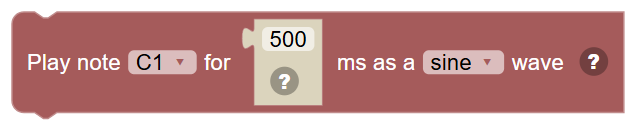
Play a musical note out of the EZB speaker. The script carries on while the note plays.
In JavaScript: this block runs
Audio.soundNote("C1", 500, 0);
Listen up to … seconds for one of …

Show the phrases on screen and wait for one to be said (with a speech recognition robot skill) or clicked. Returns the phrase in lower case, or "timeout".
In JavaScript: this block gives back the value of
Audio.waitForSpeech(10, ...["yes", "no"])
Listen up to … seconds for anything said, prompt …

Wait for anything to be said and return what was heard, in lower case, or "timeout".
In JavaScript: this block gives back the value of
Audio.waitForAnySpeech(10, 'Say something')
Listen up to … seconds for a number from … to … counting by …
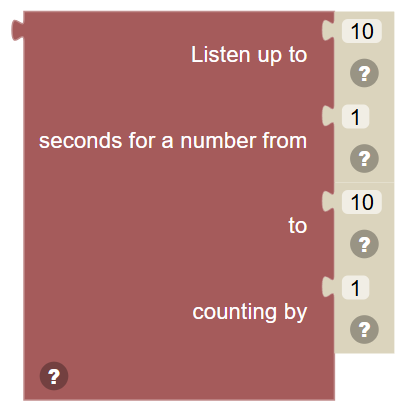
Wait for a number in the range to be said or clicked. Returns the number as text, or "timeout".
In JavaScript: this block gives back the value of
Audio.waitForSpeechRange(10, 1, 10, 1)