
Model Context Protocol (MCP)
ARCx is a Model Context Protocol (MCP) server. MCP is the open standard AI applications use to reach outside tools and data, and nearly every AI you might already use is an MCP client: Claude (Desktop, Code, the website and the API), ChatGPT, Cursor, VS Code Copilot, Windsurf, Gemini CLI, LM Studio and most agent frameworks. Point one of them at ARCx and the AI can read your robot project, see through its cameras, drive it, speak, move servos, read sensors through global variables, run scripts, change robot skill settings and call every robot skill's control commands, in plain conversation.
This page explains what MCP is, what the AI gets, which AI applications work with ARCx and what each one needs (a download, an account, an internet connection), how to connect them, worked examples, the settings, and how a robot skill adds tools of its own.
Contents
- What MCP is
- What the AI can do
- What MCP is good for, and what it is not
- Choosing an AI application
- Internet, downloads and where things run
- Settings
- Connecting a client
- Examples
- The tools
- The guides
- Reaching the user interface
- Developing robot skills with an AI
- Resources and prompts
- Robot skills and MCP
- Security and privacy
- Troubleshooting
What MCP is
A large language model on its own can only read and write text. It cannot see your robot, it does not know what robot skills your project has, and it has no way to press a button. To be useful it needs a way to reach out of the chat and into the world, and before MCP every AI application invented its own way of doing that: a plug-in format for one, a tool format for another, a different one again for each agent framework. Anything that wanted to work with all of them had to be written several times.
The Model Context Protocol fixes that the way USB fixed peripherals. It was introduced by Anthropic in late 2024 as an open standard and has since been adopted across the industry, by OpenAI, Google, Microsoft, the code editors and the open source agent projects. A program that speaks MCP once works with every AI application that speaks it too.
The three parts
| Part | What it is | In ARCx's case |
|---|---|---|
| Host | The application you type into: a chat app, a code editor, a command line assistant, your own program. | Claude Desktop, ChatGPT, Cursor, LM Studio... |
| Client | The piece inside the host that holds the connection to one server. A host can hold many clients at once, one per server. | Built into the host; you only configure it. |
| Server | The program that offers capabilities to the AI. | ARCx. |
The language model itself is separate from all three. It may run in the cloud (Claude, GPT, Gemini) or on your own computer (a model loaded in LM Studio or Ollama). The host sends your message to the model, the model decides it needs a tool, the host passes the request to ARCx through the client, and ARCx's answer goes back to the model.
What a server offers
An MCP server offers three kinds of things:
- Tools are actions the AI can take, each with a name, a description written for the AI, and a list of the arguments it accepts.
move_robotwithdirectionanddurationMs,speakwithtext,get_camera_imagewithsource. The AI reads the descriptions and decides on its own which to use and when. - Resources are data the AI or the user can read by address, like files:
arcx://variables,arcx://camera/Camera. Many hosts let you attach a resource to a conversation by hand. - Prompts are ready-made instructions the user can pick from a menu, such as Tour of the robot.
How a conversation flows
Say you type what do you see? into Claude Desktop while it is connected to ARCx.
- When the conversation started, Claude Desktop asked ARCx for its list of tools, and ARCx sent the names, descriptions and argument lists.
- Claude Desktop sends your message to the model, along with that tool list.
- The model decides it needs to look, and answers with a request to call
get_camera_imageinstead of with text. - Claude Desktop sends that request to ARCx. ARCx grabs a frame from the camera robot skill and returns it as a JPEG.
- Claude Desktop sends the image back to the model, which now writes its answer: A desk with a laptop and a coffee mug; there's a person to the left of the frame.
A single question can take several rounds of this. Drive to the person might be a status check, a camera image, a turn, a short drive forward, another image, and so on. You see each tool call in the host as it happens, and for anything that changes something the host asks your permission first.
Why this matters for a robot
ARCx already has the hard parts of a robot: drivers for controllers, servos, cameras, lidar, speech, movement, vision and hundreds of robot skills. MCP puts all of it in front of any AI without anyone writing glue code. The AI you already pay for, the one in your code editor, or a free local model can become the robot's brain for a conversation, its programmer, its technician or its tour guide. When a better model comes out, you change the model in the host; ARCx and your project stay the same.
What the AI can do
Once connected, ask the AI to describe my robot. It calls the status and project tools, reads what robot skills the project has and what each accepts, and tells you. From there you can ask it to do things: take a picture and tell me what you see, drive forward for two seconds, say hello, move servo D2 to 120, what is the lidar seeing to the left, add a face tracking skill and point it at the camera, write a script that waves when someone is detected.
In more detail, an AI connected to ARCx can:
- Understand the project. List the robot skills, read each one's control commands, configuration and scripts, read every global variable and the log, and see which controllers are connected.
- See. Get a current frame from any camera, raw or with the vision robot skills' detection boxes drawn on it. AI models that accept images (Claude, GPT, Gemini and the vision local models) can describe the scene, read text, find objects and judge distances roughly.
- Act. Drive through the movement panel, speak through the speech synthesis robot skill, move and release servos, set global variables, and send any control command to any robot skill.
- Program. Look up the full JavaScript and Python scripting API from the running script engine, write a script, run it, read what it printed, fix it and run it again, then save it into a robot skill.
- Build. Search the robot skill store, add robot skills to the project, remove them, and change their configuration.
- Run ARCx. Start, open and save projects, manage workspaces, connect and disconnect the controllers, change ARCx's preferences, mark the ports on the robot picture and set servo hard limits, and build Custom UI screens for a phone or a kiosk. Everything the user interface does to the project, the robot or the settings has a tool.
- Reach the interface. Learn how the web interface is laid out, send your browser to a page, and take a screenshot of a page to see what you see.
- Develop robot skills. Create a robot skill in the store under your account, write its code, build and install it, try it in the project, and publish it, with the developer manuals and the ARCx API available to read.
- Diagnose. Read the log, the controller status and the camera frame times, and explain what is wrong.
- Use robot skill tools. Robot skills can offer tools of their own, such as RPLidar's obstacle summary or Camera Snapshot's
look.
So that it does these things the way ARCx works rather than by guessing, the server hands the AI a set of guides (get_guide) on first contact: how a project is put together, how controllers are configured, how robot skills are configured, how to reach the interface, how a robot skill is created and published. See The guides.
The AI only acts when you ask it to, and every MCP client asks you before it runs a tool that changes something. ARCx also lets you decide, per machine, whether a connected AI may control the robot at all, whether it may change the project and settings, and whether it may develop robot skills (see Settings).
The same tools are used by Athena, the AI built into ARCx, so an outside AI and Athena agree about what the project is and how to change it. How Athena works, and when to use her instead of an outside AI, is at https://synthiam.com/Support/ai-integration/Athena.
What MCP is good for, and what it is not
An AI connected through MCP works in turns. Each step is a round trip from the host to the model and back, which takes from under a second to several seconds depending on the model and the connection. That makes it excellent at some things and the wrong tool for others.
Good at:
- Conversations with the robot: asking it questions, having it look and describe, giving it errands in plain language.
- Setting up a project: add a camera, a face tracking skill and an auto position, and make the head follow faces.
- Writing and debugging scripts against the real robot rather than from memory.
- Diagnosing problems: reading the log and the status and explaining them.
- Exploring and teaching: having the AI explain what a robot skill does by reading its commands and configuration.
- Slow, deliberate tasks: inspect a room, check a sensor, pose the arm, take a picture when something happens.
Not suited to:
- Real-time control. Balancing, fast obstacle avoidance, servo tracking and anything that needs a reaction within a fraction of a second belongs in ARCx itself: a robot skill, a script, the tracking skills. A good pattern is to have the AI write that script, then let ARCx run it.
- Running unattended for hours. An MCP host waits for you; it does not keep thinking on its own between messages. For a robot that acts on its own, use the Autonomous AI or Chat GPT robot skills inside ARCx, which can themselves be reached through MCP.
- Safety-critical decisions. A language model can misjudge distances and misread images. Keep
move_robotdurations short, keep a hand near the power switch on large robots, and turn Allow the AI to control the robot off when you only want it to look.
Choosing an AI application
Any MCP client works. These are the common ones and what each needs. Plans, prices and menu names change often, so check the application's own site for the current details.
| Application | What it is | Download? | Account and cost | Internet? | Connects to ARCx through | Sees camera images? |
|---|---|---|---|---|---|---|
| Claude Desktop | Anthropic's chat app for Windows and macOS. | Yes, from claude.ai. | Claude account. | Yes, the model runs at Anthropic. | The stdio bridge (configuration file). | Yes |
| Claude Code | Anthropic's coding assistant: a command line tool, also inside VS Code and JetBrains. Windows, macOS, Linux. | Yes. | A Claude subscription or an Anthropic API key. | Yes. | The address (HTTP), one command. | Yes |
| Claude.ai and the Claude mobile apps | Claude in a web browser or on a phone. | No. | Claude account; custom connectors depend on the plan. | Yes. | A public HTTPS address (tunnel). | Yes |
| ChatGPT | OpenAI's chat app on the web and desktop. | No (web) or optional (desktop). | A plan that offers developer mode and custom connectors. | Yes. | A public HTTPS address (tunnel). | Yes |
| VS Code with GitHub Copilot | Microsoft's code editor; Copilot's agent mode uses MCP tools. | Yes, VS Code; Copilot is built in. | GitHub account with Copilot (a free tier exists). | Yes. | The address (HTTP). | Yes, with a vision model selected |
| Cursor | AI code editor based on VS Code. | Yes. | Cursor account (a free tier exists). | Yes. | The address (HTTP) or the bridge. | Yes |
| Windsurf | AI code editor. | Yes. | Windsurf account. | Yes. | The bridge or the address. | Yes |
| Gemini CLI | Google's command line assistant. | Yes (needs Node.js). | Google account (a free tier exists) or a Gemini API key. | Yes. | The address (HTTP). | Yes |
| OpenAI Codex CLI | OpenAI's command line coding assistant. | Yes. | ChatGPT plan or OpenAI API key. | Yes. | The bridge. | Yes |
| LM Studio | Runs AI models on your own computer, with a chat window. Windows, macOS, Linux. | Yes, plus the model files. | None, free. | Only to download models. Then fully offline. | The address or the bridge. | With a vision model |
| Goose | Open source agent from Block, desktop app and command line. Works with cloud models or local ones through Ollama. | Yes. | Free; the model provider may charge. | Not with a local model. | The address or the bridge. | Depends on the model |
| Continue, Cline | Open source AI assistants for VS Code, cloud or local models. | Yes, VS Code extensions. | Free; the model provider may charge. | Not with a local model. | The bridge or the address. | Depends on the model |
| Your own program | The official MCP SDKs (Python, TypeScript, C#, Java...), the Anthropic SDK, the OpenAI Agents SDK, LangChain. | The SDK. | Whatever model you use. | Depends on the model. | The address or the bridge. | Depends on the model |
Which to pick:
- Just want to talk to the robot: Claude Desktop. Download, sign in, paste the snippet from Preferences, restart.
- Writing scripts or robot skills: Claude Code, Cursor or VS Code with Copilot. They sit next to your code and can test it against the running robot.
- No internet, or nothing may leave the building: LM Studio, or Ollama with Goose, Continue or Cline. See Running fully offline.
- Already use ChatGPT or the Claude website: possible, but these run in the provider's cloud and need ARCx reachable from the internet. Read Hosted services first.
- Building a product: an MCP SDK in your own program.
Internet, downloads and where things run
Three separate programs are involved, and each has its own answer to "does it need the internet?"
| Runs where | Needs the internet? | |
|---|---|---|
| ARCx (the MCP server) | Your computer or the robot's computer. | No. The MCP server works offline. Only add_skill and list_installed_skills reach the Synthiam store, and those need a connection. |
| The AI application (the host) | Your computer (desktop apps, editors, command line tools) or the provider's servers (websites). | Only if it uses a cloud model, or if it is a website. |
| The language model | The provider's data centre (Claude, GPT, Gemini) or your own computer (LM Studio, Ollama). | Cloud models: yes, always. Local models: only to download them. |
So the usual setups are:
ARCx and a desktop AI app on the same computer, cloud model. The most common setup. ARCx stays on http://127.0.0.1:5000, the app connects to it locally, and the app talks to the model over the internet. Nothing about ARCx is exposed to the network. The only thing that leaves your computer is the conversation itself, which includes what the tools return (see Security and privacy).
ARCx on the robot, the AI app on your desktop. ARCx runs on the robot's computer (a Windows mini PC, or Ubuntu on an x64 or ARM64 board), bound to its network address: ARCx -b http://0.0.0.0:5000. Set an access token in Preferences. On your desktop, point the AI app at http://<robot's IP>:5000/mcp with the token. Only the desktop needs internet, for the model. If the AI app only supports the bridge, ARCx must also be installed on the desktop to run ARCx --mcp-stdio http://<robot's IP>:5000/mcp; the desktop copy does nothing but forward.
Everything offline. ARCx and a local model on the same computer, or on the same local network. See below.
A hosted service. The AI runs in the provider's cloud and connects to ARCx from there, so ARCx has to be reachable from the internet over HTTPS. See Hosted services.
Running fully offline
Nothing in ARCx's MCP server needs the internet, so a local model gives you an AI-driven robot with no cloud at all: useful for classrooms with no Wi-Fi, robots at trade shows, privacy-sensitive places, or just not paying per message.
- Install LM Studio (or Ollama together with a client such as Goose, Continue or Cline).
- While you still have internet, download a model that supports tool use (sometimes called function calling). For camera images, choose one that also supports vision. Families that do both well at a modest size include Qwen-VL and Gemma; for text-only tool use, Qwen, Llama and Mistral models are common choices. LM Studio marks models that support tools.
- Connect the app to ARCx as in Connecting a client. In LM Studio, MCP servers go in its
mcp.json(Program tab, Install, Edit mcp.json), which uses the same format as Cursor. - Disconnect the internet. It all keeps working.
Things to know about local models:
- Hardware. A model good enough to use tools reliably usually wants a graphics card with 8 GB of memory or more, or an Apple Silicon Mac with 16 GB or more. Small models run on less, slowly.
- Tool skill. Small models are noticeably worse than the big cloud models at choosing the right tool and filling in arguments, especially with a long tool list. Turning Allow the AI to change the project off shortens the list, which helps. So does asking for one thing at a time.
- Context. ARCx's tool list, a camera image and the script API all use up the model's context window. Give the model at least 16k tokens of context in its settings; 32k is more comfortable.
Hosted services: ChatGPT, Claude.ai and other websites
When you use ChatGPT, or Claude in a web browser or on a phone, the conversation runs on the provider's servers, and it is those servers that connect to the MCP server, not your browser. A server on 127.0.0.1 or on your home network is invisible to them. They need an https:// address on the public internet.
The usual answer is a tunnel, which gives a public HTTPS address to a program on your computer without opening your router:
cloudflared tunnel --url http://127.0.0.1:5000or
ngrok http 5000Each prints an address such as https://random-words.trycloudflare.com. Add /mcp and give that to the service: in ChatGPT, turn on developer mode in the settings and create a connector with the address; on Claude.ai, add a custom connector under Settings, Connectors. Menu names change between versions, so follow the service's own instructions for adding a remote MCP server.
Before you do this, read Security and privacy. A tunnel puts the robot on the internet. Hosted services usually sign in to MCP servers with OAuth, which ARCx does not offer, and cannot send ARCx's access token. That means the tunnel's address is the only thing keeping strangers out. Use a random tunnel address, never post it, turn off the permissions you do not need, and close the tunnel when you are done. If you can, use a desktop AI app instead; it reaches ARCx locally and none of this applies.
Settings
Where to find them: Side menu → Options → Preferences → AI connections.
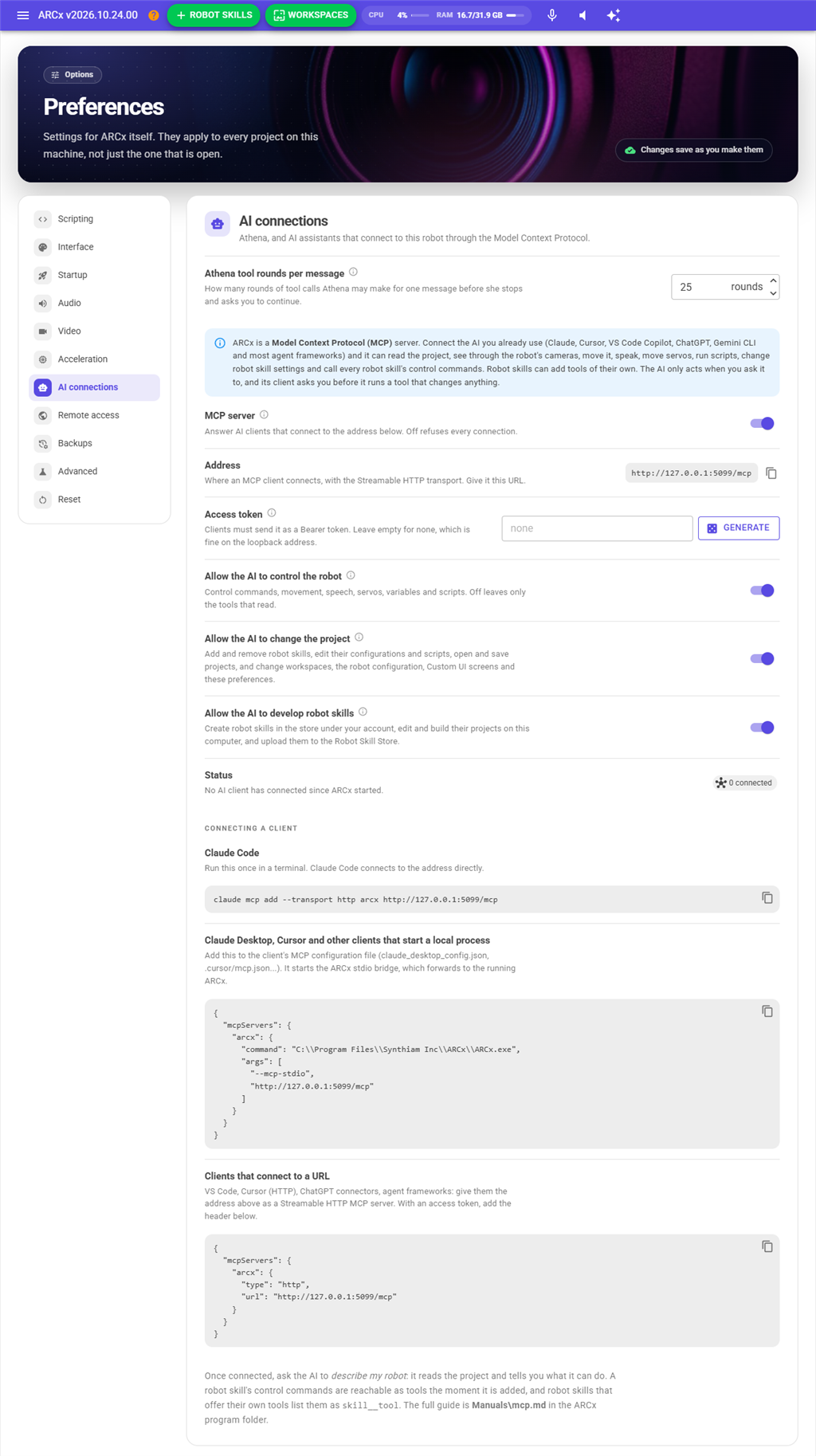
| Setting | What it does |
|---|---|
| MCP server | Answer AI clients that connect. On by default. Off refuses every connection with an explanation. |
| Address | Where a client connects: the address ARCx is bound to, plus /mcp. http://127.0.0.1:5000/mcp by default. A copy button is beside it. |
| Access token | A secret clients must send as a Bearer token. Empty by default, which is fine on the default loopback address. Generate makes a random one. See Security and privacy. |
| Allow the AI to control the robot | Control commands, movement, speech, servos, variables, scripts and every robot skill's own tools. On by default. Off leaves only the tools that read. |
| Allow the AI to change the project | Add and remove robot skills and edit their configurations and scripts; open, save and start projects; workspaces, the robot configuration, Custom UI screens and these preferences. On by default. The MCP settings themselves can never be changed by the AI. |
| Allow the AI to develop robot skills | Create robot skills in the store under your account, read and write their project files, build them with the .NET SDK on this computer, and upload them to the store. On by default; the client asks you before each one. |
| Status | How many clients hold a connection open, the requests and tool calls since ARCx started, and the last client seen. |
Below the settings, the section shows ready to copy snippets for connecting Claude Code, Claude Desktop and clients that connect to a URL, already filled in with this machine's address and token.
Changes apply at once. Clients that are connected are told the tool list changed and ask for it again.
Connecting a client
There are two ways an MCP client reaches a server, and ARCx supports both.
Streamable HTTP. The client connects to a URL. This is the simplest for ARCx, because ARCx is already a web server: give the client the address from Preferences.
stdio. The client starts the server as a local program and talks to it over that program's input and output. ARCx has a bridge for this: ARCx --mcp-stdio is the same ARCx.exe, started by the client, forwarding everything to the ARCx that is already running. It needs ARCx to be running first. The bridge is a small forwarder; it does not open a second copy of your project.
If a client supports both, either works. If you are not sure what a client supports, the bridge works with every desktop client, because they all know how to start a program.
In every example below, http://127.0.0.1:5000/mcp is the default address. Use the address shown in Preferences if yours is different, and leave out the token lines if you have not set a token.
Claude Code
claude mcp add --transport http arcx http://127.0.0.1:5000/mcpWith an access token:
claude mcp add --transport http arcx http://127.0.0.1:5000/mcp --header "Authorization: Bearer <token>"By default this adds ARCx for the folder you are in. Add --scope user to make it available in every folder.
Then, in Claude Code, /mcp shows the connection and its tools. Ask Claude to describe your robot.
Claude Desktop
Claude Desktop starts servers as local programs, so it uses the bridge. Open Settings → Developer → Edit Config, which opens claude_desktop_config.json (on Windows in %APPDATA%\Claude, on macOS in ~/Library/Application Support/Claude), and add:
{
  "mcpServers": {
    "arcx": {
      "command": "C:\\Program Files\\Synthiam Inc\\ARCx\\ARCx.exe",
      "args": ["--mcp-stdio"]
    }
  }
}
If the file already has other servers, add the "arcx" entry inside the existing "mcpServers" rather than adding a second one. Save, then quit Claude Desktop completely (from the tray icon on Windows, not just the window) and start it again. ARCx's tools appear under the tools button in the message box.
The bridge defaults to http://127.0.0.1:5000/mcp. For an ARCx bound elsewhere, add its address after --mcp-stdio in args:
"args": ["--mcp-stdio", "http://192.168.1.50:5000/mcp"]With an access token, add it in the environment rather than the arguments:
"env": { "ARCX_MCP_TOKEN": "<token>" }On Linux and macOS the command is the ARCx executable in the ARCx folder. The AI connections section of Preferences shows this snippet filled in for your machine.
Cursor, Windsurf and other clients with a configuration file
The same bridge entry works in Cursor (.cursor/mcp.json in a project, or ~/.cursor/mcp.json for every project), Windsurf (mcp_config.json, from its MCP settings), LM Studio (mcp.json), Continue, Cline and most other desktop clients:
{
  "mcpServers": {
    "arcx": {
      "command": "C:\\Program Files\\Synthiam Inc\\ARCx\\ARCx.exe",
      "args": ["--mcp-stdio"]
    }
  }
}
Cursor and LM Studio can also take the address directly, without the bridge:
{
  "mcpServers": {
    "arcx": {
      "url": "http://127.0.0.1:5000/mcp"
    }
  }
}
With an access token, add "headers": { "Authorization": "Bearer <token>" } to a url entry, or the "env" line above to a bridge entry. Restart or reload the client after editing.
VS Code with GitHub Copilot
VS Code calls them servers and keeps them in .vscode/mcp.json in a folder, or in your user settings for every folder (Command Palette → MCP: Add Server walks you through it). Note the key is servers, not mcpServers:
{
  "servers": {
    "arcx": {
      "type": "http",
      "url": "http://127.0.0.1:5000/mcp"
    }
  }
}
With an access token, add "headers": { "Authorization": "Bearer <token>" }. Then open Copilot Chat, switch it to Agent mode, and ARCx's tools appear under the tools button.
Gemini CLI
Add ARCx to ~/.gemini/settings.json (or .gemini/settings.json in a project). Gemini CLI calls a Streamable HTTP address httpUrl:
{
  "mcpServers": {
    "arcx": {
      "httpUrl": "http://127.0.0.1:5000/mcp"
    }
  }
}
With an access token, add "headers": { "Authorization": "Bearer <token>" }. In Gemini CLI, /mcp lists the connection and its tools.
OpenAI Codex CLI
Codex keeps servers in ~/.codex/config.toml:
[mcp_servers.arcx]
command = "C:\\Program Files\\Synthiam Inc\\ARCx\\ARCx.exe"
args = ["--mcp-stdio"]
With an access token, add env = { ARCX_MCP_TOKEN = "<token>" }.
ChatGPT, Claude.ai and other hosted services
These need a public HTTPS address; see Hosted services. ARCx can also be bound to a public address with its own certificate (see the HTTPS section of the Command Line manual), but a tunnel in front of the loopback address is usually simpler and safer.
Your own agent
Any MCP client library works: the official MCP SDKs, the Anthropic SDK's MCP connector, the OpenAI Agents SDK, LangChain. Connect to the address with the Streamable HTTP transport, or spawn ARCx --mcp-stdio as a stdio server. ARCx speaks protocol revisions 2024-11-05 through 2025-11-25.
A minimal example in Python with the official mcp package (pip install mcp), which lists the tools, says something and takes a picture:
import asyncio
from mcp import ClientSession
from mcp.client.streamable_http import streamablehttp_client

async def main():
    async with streamablehttp_client("http://127.0.0.1:5000/mcp") as (read, write, _):
        async with ClientSession(read, write) as session:
            await session.initialize()

            tools = await session.list_tools()
            print([tool.name for tool in tools.tools])

            await session.call_tool("speak", {"text": "Hello from Python"})

            picture = await session.call_tool("get_camera_image", {"maxWidth": 320})
            print(picture.content[0].type)  # "image"

asyncio.run(main())
With an access token, pass headers={"Authorization": "Bearer <token>"} to streamablehttp_client. A program like this needs no model at all; it can call the tools directly. Add a model when you want something to decide which tools to call.
Examples
These show the kind of thing you can ask and what the AI does behind the scenes. The tool calls appear in the AI application as they happen. Exact wording and the order of calls vary between models.
Getting to know a project
You: Describe my robot.
The AI calls get_robot_status (one EZ-B v4 connected, a Camera Device, an H-Bridge movement panel, Azure Text To Speech), then get_project_skills, then get_skill_control_commands for the robot skills that look interesting. It answers with a summary: what the robot can drive, see and say, which robot skills are present, and anything that looks wrong, such as a controller that is not connected.
This is a good first question with any new project, and a good way to understand a project someone else made.
Looking around
You: Take a look and tell me if anyone is in the room.
The AI calls get_camera_image and looks at the picture. I can see a desk and a bookshelf. There's a person sitting on the left side of the frame, facing away from the camera.
You: Turn left a little and look again.
It calls move_robot with direction: "left", a moderate speed and durationMs: 500, which stops by itself after half a second, then get_camera_image again.
If the project has face or object detection robot skills, asking for the processed image (show me what the face tracker sees) has the AI call get_camera_image with processed: true, which includes their boxes and labels.
Running an errand
You: Drive to the kitchen doorway, but stop if anything is closer than half a metre.
With an RPLidar in the project, the AI alternates between rplidar__get_scan (obstacle distances by sector), get_camera_image and short move_robot calls, checking after each one. This is slow compared to a robot skill made for navigation, a few seconds per step, but it shows how the AI combines tools on its own. For a robot that does this routinely, ask the AI to set up the navigation robot skills instead.
Speaking and moving together
You: Say "nice to meet you" and wave with the right arm.
The AI calls speak with wait: false, so the speech starts and the call returns at once, then set_servo a few times on the shoulder and elbow ports to make a wave. If the project has an Auto Position robot skill with a Wave action, it is better to use that: the AI finds it with get_skill_control_commands and calls send_control_command to run the action.
Reading sensors
You: What's the battery voltage and the distance sensor reading?
The AI calls get_global_variables and finds the variables the robot skills keep (a battery voltage, a ping sensor's distance and so on), with their descriptions. If a value is not in a variable, it may write a one-line script with run_script to read it from the controller, after checking the script API with get_script_api.
Building part of a project
You: Add face tracking and make the head follow faces with servos D0 (pan) and D1 (tilt).
The AI calls list_installed_skills to find the right robot skill, add_skill to add it, get_skill_config_schema to learn what its configuration fields mean, and set_skill_config to set the servo ports and turn tracking on. Because these change the project, the AI application asks your permission at each step. Save the project afterwards to keep the changes.
Writing and testing a script
You: Write a script that waves when someone says hello, and put it in the speech recognition skill.
The AI calls get_script_api with group: "Servo" and a search for speech, so it uses functions that actually exist in your ARCx rather than guessing. It writes the script, runs a test with run_script (watching what it prints and any error), fixes it, and when it works, saves it with set_script into the right place in the speech recognition robot skill's configuration.
This loop of look up, write, run, read the result and fix is where an AI connected to the real robot is much better than one writing code from memory.
Troubleshooting
You: The camera stopped working. What's wrong?
The AI calls get_robot_status (which shows how long ago each camera produced a frame) and get_log with minimumSeverity: "Warning", then explains: The Camera Device robot skill logged "device not found" at 10:42 and has not produced a frame since. The USB camera was probably unplugged; plug it back in and press Start in the camera window. The Troubleshoot the robot prompt does the same with one click in clients that show prompts.
Developing a robot skill
With Claude Code, Cursor or VS Code open on a robot skill's source code and ARCx running with the skill loaded, the AI can change the code, and after you rebuild and reload, call the skill's control commands and tools through MCP to check the change worked, read the log for exceptions, and look at the camera to see the result. The AI tests against the running robot instead of only reading code.
Talking to the robot's own AI
If the project has the Chat GPT or Autonomous AI robot skill, those offer tools of their own (chat_gpt__chat, autonomous_ai__tell, autonomous_ai__set_goal). An outside AI can hand a task to the robot's own personality: ask the robot's AI to greet whoever comes in next. The robot's AI then carries on inside ARCx after the conversation with the outside AI ends.
The tools
The AI sees the tools the three permission settings allow. Tools marked read are always available while the server is on; control needs "Allow the AI to control the robot", project needs "Allow the AI to change the project", develop needs "Allow the AI to develop robot skills".
Guidance
| Tool | What it does |
|---|---|
get_guide |
The guides for an AI working with ARCx: the index, one guide, or one section of it. The server's instructions tell the AI to read start-here first and the guide for the task before changing anything. read |
The project (shared with Athena)
| Tool | What it does |
|---|---|
get_project_skills |
The robot skills in the project: window title (the name every other tool addresses a skill by), store title, GUID and workspace. read |
list_installed_skills |
Search the robot skills that can be added, installed and from the store. read |
get_skill_control_commands |
A robot skill's control commands with parameters and return types. read |
get_skill_config, get_skill_config_schema |
A robot skill's configuration as JSON, with the JSON Schema that explains every field. read |
get_scripts_in_skill, get_script |
The scripts stored in a robot skill's configuration, and one script's code. read |
get_global_variables |
Every global variable with its value and description. read |
send_control_command |
Send a control command to a robot skill and return its result. control |
add_skill, remove_skill |
Add a robot skill from the store, or remove one. project |
set_skill_config |
Change a robot skill's configuration, as a merge patch or wholesale. project |
set_script |
Write one script inside a robot skill's configuration. project |
The robot
| Tool | What it does |
|---|---|
get_robot_status |
ARCx version, project, controllers and whether they are connected, movement panel and direction, speech engine, cameras, permissions. The AI calls this first. read |
get_log |
The newest log entries, filtered by severity, with the robot skill they came from. read |
get_camera_image |
A current camera frame as a JPEG the AI can look at. Chooses a source, scales it down (640 pixels wide by default), raw or with the vision overlays. read |
move_robot |
Forward, reverse, left, right, stop (and up, down, roll, takeoff, land for flying robots), with speed and an optional duration of at most 10 seconds after which it stops by itself. Needs a movement panel. control |
stop_robot |
Stops movement and speech. control |
speak |
Say text through the project's speech synthesis robot skill, waiting or not. control |
get_servo |
A servo's last position and whether it is released. read |
set_servo |
Move a servo to a position, with optional velocity and acceleration. The controller's limits apply. control |
release_servo |
Release one servo, or every servo with all. control |
get_variable, set_variable |
One global variable, read or written. read / control |
get_script_api |
Every script function the AI can call, with parameters and return types, for JavaScript or Python. Read from the running script engine, so subsystems added by robot skills are included. Narrow it to one group such as Servo, or search by name. read |
run_script |
Run JavaScript or Python with the full ARCx scripting API and return what it printed, within a timeout of at most 60 seconds. control |
Project files and workspaces
| Tool | What it does |
|---|---|
get_project_info |
The open project: name, file, cloud or local, password protection, description, notes, workspaces, robot skills, the projects folder, whether the user is signed in. read |
list_projects |
The .arcx files in the projects folder with description, last modified time and whether each needs a password. read |
new_project |
A fresh project with the default robot skills. Discards the open project without saving. project |
open_project |
Open a project by name or path, with a password when protected. Discards the open project without saving. project |
save_project |
Save to the current file, or as a new name, optionally password protected. Nothing the AI changes is kept until this runs. The copy being replaced is kept as a backup when backups are on. project |
list_project_backups |
Without a name, every project that has backups with its count and size and whether the project still exists. With a name, that project's backups newest first. read |
open_project_backup |
Open a backup (by name, or latest) in place of its project. Nothing on disk changes until save_project, which then replaces the project and keeps the replaced copy as a backup. Discards the open project without saving. project |
set_project_properties |
The project's description and notes. project |
get_workspaces |
The workspaces with the robot skills on each. read |
add_workspace, rename_workspace, remove_workspace, move_skill_to_workspace |
Workspace management. project |
Controllers
| Tool | What it does |
|---|---|
get_controllers |
Each controller slot: connected, the address in use, the address configured in the EZB Connection robot skill. read |
connect_controller |
Connect a controller, optionally storing a new address and baud rate in the EZB Connection configuration first. control |
disconnect_controller |
Disconnect a controller. control |
Preferences
| Tool | What it does |
|---|---|
get_preferences |
Every ARCx preference by section with key, type, current value, default, allowed values and whether a change needs a restart or a reload. read |
set_preference |
Change one preference by key. Service owned settings (audio devices, update checks, the accelerator) take effect at once. The MCP settings are refused. project |
Robot configuration
| Tool | What it does |
|---|---|
get_robot_configuration |
The robot picture's markers (port type, controller, port, name, description, position, hard limits), the valid port names, and the schema. read |
set_robot_port_marker, remove_robot_port_marker |
Add, update or remove one marker. Servo markers carry hard limits the controller enforces. project |
set_robot_configuration |
The whole configuration or a merge patch, including the picture as a data URL. project |
Custom UI
| Tool | What it does |
|---|---|
get_custom_ui |
The screens with their widgets, the current screen and breadcrumb, and with includeCatalog the widget types, their properties and the screen schema. read |
set_custom_ui_screen, remove_custom_ui_screen |
Create or update a screen from JSON (whole or merge patch), or remove one. project |
show_custom_ui |
Show a screen in every connected browser, or go back or home. control |
The Robot Bus
| Tool | What it does |
|---|---|
bus_list |
Everything on the Robot Bus: topics (type, rate, message count, publishers, subscribers), services (description, provider, read only, argument schema), the frames of the transform tree and the connected external programs. A pattern such as /arcx/** narrows it. read |
bus_get_latest |
The latest message on a topic: its data, type, sequence number, publisher and how many seconds ago it was published. read |
bus_wait_for_message |
Wait for the next message on a topic or pattern, up to 30 seconds (5 by default). read |
bus_publish |
Publish a message on a topic, which every robot skill, script and external program subscribed to it receives. control |
bus_call_service |
Call a Robot Bus service with JSON arguments and return its result, including services robot skills and external programs provide. control |
bus_lookup_transform |
Where one frame is seen from another, in metres and radians, in the same order as ROS lookupTransform(target, source). read |
The user interface
| Tool | What it does |
|---|---|
get_ui_map |
The address of the interface, every page with its route, purpose and equivalent tools, the connected browsers and the page each is on, and how to operate the pages with a browser automation tool. read |
show_ui_page |
Send every connected browser to a page (or open the computer's browser when none is connected): a page key, a route, a robot skill's window or configuration page, a Custom UI screen. control |
screenshot_ui_page |
A screenshot of a page rendered in ARCx's own Chromium, signed in as ARCx is, without touching the user's browser. Needs the Browser Windows feature. read |
Robot skill development
| Tool | What it does |
|---|---|
dev_read_manual |
The developer manuals shipped with ARCx, whole or one section. read |
dev_search_api |
Search ARCx's public API by type or member name, with the /// documentation; or list every member of one type. read |
dev_get_project_context |
The AGENTS.md guide a generated project carries, for a robot skill or generic. read |
dev_get_store_categories, dev_list_my_skills, dev_get_skill_status |
The store categories; the user's robot skills in the store with what is on this computer for each; everything about one (project, install, store version, upload blocker, next step). develop |
dev_create_skill |
Register a robot skill in the store under the user's account and generate its project from the template. develop |
dev_set_skill_manifest |
Change plugin.json: version, name, description, company, categories. develop |
dev_list_project_files, dev_read_project_file, dev_write_project_file |
The project's files, sandboxed to its folder. develop |
dev_build_skill |
dotnet build the project; the post build step installs it into ARCx. Returns errors and warnings. develop |
dev_upload_skill |
Publish the installed build to the store with release notes, after the status reports no blocker. develop |
Robot skill tools are listed as skill__tool, where skill is the robot skill's window title in lower case with underscores (camera_snapshot__look, rplidar__get_scan). Which exist depends on the project; see Robot skills and MCP.
The guides
A tool list tells an AI what it can call; it does not tell it how ARCx works. Without that, a model asked to "set up my robot" guesses: it looks for a connect tool where there is a robot skill, invents preference keys, edits a configuration without reading its schema. The guides close that gap.
On connecting, the server's instructions tell the AI to call get_guide with start-here before anything else, and then the guide for the task before changing anything. Each guide is a short Markdown document embedded in ARCx, so it always matches the build:
| Topic | Covers |
|---|---|
start-here |
What ARCx is, the vocabulary (project, robot skill, window title, configuration, control command, variable, controller, workspace), the rules (read before write, use the tool not the UI, save, ask), which guide for which job, permissions, sign in. |
configure-arcx |
Preferences versus configurations, how to change a preference, what every section holds, what cannot be changed. |
project |
New, open, save and list projects; nothing is saved until save_project; workspaces; project properties; password protection. |
robot-skills |
Window titles, adding from the store, configuring through the schema and merge patches, scripts inside robot skills, control commands, removing, the common robot skills. |
controllers |
Controller slots, the EZB Connection robot skill and its EZBConfigs, addresses, connecting, ports and servos. |
scripting |
JavaScript and Python naming, never guessing a function, run_script, scripts inside robot skills, variables, control commands from scripts. |
custom-ui |
The screen and widget model, the catalog, building a screen from JSON, examples, showing it on a device. |
robot-configuration |
Port markers, port descriptions, servo hard limits, working without a picture. |
robot-bus |
The Robot Bus: topics, services and frames shared with robot skills, scripts and external programs; looking before acting, reading, calling services, recording. |
ui-access |
Why there is no control tree, the pages that have no tool, show_ui_page, screenshot_ui_page, operating pages with a browser automation tool. |
create-robot-skill |
The developer process in order: prerequisites, deciding the skill, register and generate, learn the platform, write, build and install, test, towards publishing, platforms. |
publish-robot-skill |
What publishing does, what the store checks, the steps, after publishing. |
troubleshooting |
Where to look and the usual causes. |
The guides are also resources (arcx://guide for the index, arcx://guide/<topic>), so clients that attach resources can hand the AI the right one by hand.
Reaching the user interface
ARC, ARCx's predecessor, was a Windows desktop program, and an AI connected to it could see its windows and controls and click them like a person. ARCx's interface is a web application the user opens in a browser, so there is no control tree to walk through MCP. Three things take its place.
Every action has a tool. Opening and saving projects, workspaces, controllers, preferences, the robot configuration, Custom UI screens and robot skill development are tools now, beside the robot skill configuration and robot control tools that existed before. get_ui_map lists every page with the tools that do the same thing, so the AI uses the tool, which is exact and works without a browser.
The AI can direct the user's browser. show_ui_page sends every browser connected to ARCx to a page: a robot skill's configuration page, the robot configuration, a Custom UI screen, the preferences. When no browser is connected it opens the computer's own. The AI uses it to put you in front of what it is describing, or to hand you the things only you can do (sign in, cloud projects, the file manager, the visual designers).
The AI can see a page. screenshot_ui_page renders a page in ARCx's own Chromium (the Browser Windows feature, on Windows and Linux), signed in as ARCx is, and returns the picture. Your browser is not touched.
And it can operate the pages itself when it has a browser automation tool of its own (Playwright MCP, Claude in Chrome, computer use). Because ARCx is a web page, those tools work on it with no special support, and get_ui_map explains the layout, the sign in behaviour and what to wait for. The AI is told to keep that for what has no tool.
Developing robot skills with an AI
ARC's AI could create a robot skill end to end; ARCx's can too, through the same steps the Create Robot Skill and Manage Robot Skills pages take, with the process explained to it by the create-robot-skill and publish-robot-skill guides.
- Register and generate.
dev_create_skillregisters the skill in the Robot Skill Store under your account (the store assigns its permanent GUID) and generates the Visual Studio project from ARCx's template intoRobot Skill Projects, withAGENTS.mdbeside it. You are asked to agree the name, company, description and categories, and the robot skill terms. - Learn the platform.
dev_get_project_context(the AGENTS.md guide),dev_read_manual(the developer manuals shipped with ARCx) anddev_search_api(ARCx's public types and members with their documentation) give the AI the real API instead of a guess. - Write.
dev_write_project_filewrites the worker, configuration and Blazor files, sandboxed to the project folder. Or you edit in Visual Studio and let the AI build and test. - Build and install.
dev_build_skillruns the .NET SDK; the project's post build step installs the skill into ARCx. Errors come back for the AI to fix. A skill that is in the open project must be removed first because its DLL is locked. - Test.
add_skillputs the build in the project; the configuration schema, control commands, log and screenshots tell the AI whether it works. - Publish.
dev_set_skill_manifestbumps the version,dev_get_skill_statusreports what the store would refuse, anddev_upload_skillpublishes with release notes. The skill stays private until you make it public on synthiam.com.
All of this acts in your name, which is why it has its own permission switch, and why the AI is told to confirm with you before uploading. The .NET 10 SDK must be installed on the ARCx computer for the build step.
Resources and prompts
Resources are data the AI reads by URI rather than actions it performs. Clients let you attach one to a conversation, or the AI reads them itself.
| Resource | Holds |
|---|---|
arcx://project |
The same as get_robot_status. |
arcx://skills |
Every robot skill with its control commands. |
arcx://variables |
Every global variable. |
arcx://log |
The newest 200 log entries. |
arcx://controllers |
Each controller and whether it is connected. |
arcx://guide, arcx://guide/<topic> |
The guide index and each guide (see The guides). |
arcx://camera/<name> |
The current image of a camera, as JPEG. One per video source. |
arcx://script-api/javascript, arcx://script-api/python |
The whole script API of a language, the same as get_script_api with no filter. |
arcx://skill/<name>/config |
A robot skill's configuration as JSON. One per robot skill. |
arcx://skill/<name>/control-commands |
A robot skill's control commands. One per robot skill. |
arcx://skill/<name>/... |
Whatever a robot skill offers (the latest lidar scan, the latest snapshot...). |
Five prompts are offered, for clients that show them: Tour of the robot, which has the AI explain what the robot can do; Troubleshoot the robot, which has it read the status and the log and explain what is wrong; Set up a robot project, which builds a project from your description of the robot; Configure ARCx, which changes settings from a description; and Create a robot skill, which takes a robot skill from an idea to a published build following the developer process. Where they appear depends on the client; Claude Code, for example, lists them as slash commands.
Robot skills and MCP
Every robot skill works with MCP without doing anything: its control commands are reachable through send_control_command, and the descriptions the robot skill author wrote for the script editor are what the AI reads to decide when to use them. Its configuration is readable and editable through the configuration schema, and its global variables are visible.
A robot skill can go further and offer tools of its own, with named arguments and results that are not just text. The Camera Snapshot robot skill offers look, which returns the camera image for the AI to see. RPLidar offers get_scan, the obstacles around the robot summarized as sectors. Chat GPT and Autonomous AI let an outside AI talk to the robot's own personality. A robot skill can also offer resources, such as the latest scan or the latest snapshot.
For robot skill developers, this is two overrides on the worker, GetMcpTools() and GetMcpResources(), described in the Robot Skill Developer Manual (section 11) and the Services and Core manual (section 16). The new robot skill template includes an example of each.
Security and privacy
ARCx has no login of its own. Anyone who can reach its address can use the user interface, and the MCP server has exactly the same reach, no more. On the default bind address (http://127.0.0.1:5000) only programs running on the same computer can connect, which is where the AI client usually is, and the access token adds nothing.
When ARCx is bound to a network address (-b http://0.0.0.0:5000), everyone on that network can reach the MCP server. Set an access token so only clients that know it can connect; a request without the right Authorization: Bearer <token> header is refused with 401. The token is stored on the ARCx computer with the other preferences, and the stdio bridge is given it with --token or the ARCX_MCP_TOKEN environment variable. Use HTTPS (see the Command Line manual) so the token is not sent in the clear.
A tunnel to the internet for a hosted service is the riskiest setup, because the service usually cannot send the token. Anyone who learns the tunnel address can drive the robot and, with the user interface at the same address, do everything you can. Keep the address private, use the permission switches, and close the tunnel when you finish.
Web pages in a browser cannot reach the MCP server: a request whose Origin names another site is refused.
The three permission switches are the other line of defence. An AI given Allow the AI to control the robot off can look but not touch; with Allow the AI to change the project off it can drive the robot without being able to rearrange it or change ARCx's settings; with Allow the AI to develop robot skills off it cannot register, build or publish anything in your name. The MCP settings themselves are never reachable from a tool. Clients also ask you before running a tool that is not marked read only, which is every tool that moves, speaks, saves or changes a setting. Many clients offer to "always allow" a tool; be careful saying yes to that for move_robot, set_servo and run_script.
What leaves your computer. With a cloud model, everything the tools return becomes part of the conversation and is sent to the model's provider: robot skill names and configurations, global variables, log entries, scripts, and every camera image the AI looks at. Treat it like typing the same things into the chat yourself, and follow the provider's data policy. API keys and passwords in robot skill configurations are part of the configuration; avoid asking the AI to read the configuration of a robot skill that holds a secret. With a local model nothing leaves the computer.
Cost. Cloud models charge by the amount of text (tokens), either through a subscription's limits or per use with an API key. Camera images and the full script API are the largest things the tools return; asking for a smaller image (maxWidth) or one script API group keeps conversations cheaper and faster.
Troubleshooting
The client says it cannot connect. ARCx must be running first, bound to the address the client has. Open the address with /mcp in a browser: a running server shows a page of text with its tool count. The stdio bridge prints what went wrong to its standard error, which clients show in their logs (Claude Desktop: Settings → Developer → Open logs folder).
401 Unauthorized. An access token is set and the client is not sending it, or is sending an old one. The token is in Preferences; the client snippets there include it.
403 Forbidden. The request came from a web page on another site. MCP clients do not send that header; a browser-based tool does.
503 Service Unavailable. The MCP server is turned off in Preferences.
The AI says a tool is not allowed. One of the permission switches is off. The tool's error says which.
A tool is missing. Tools the permissions do not allow are not listed. A robot skill's own tools appear once the robot skill is in the project; clients that hold a connection open are told, others see them when they next list the tools (most clients list them at the start of a conversation).
The AI does not use the tools. Some clients only use MCP tools in a particular mode: VS Code Copilot needs Agent mode, and some apps need the tools turned on in the conversation's tools menu. Asking directly (use the ARCx tools to...) also helps. Small local models sometimes ignore tools or fill them in wrongly; try a larger model, or turn Allow the AI to change the project off to shorten the list.
The AI cannot see the camera image. The model has to support images. Most cloud models do; a local model must be a vision model.
get_camera_image times out. The camera robot skill's video is not started, or the project has no camera robot skill. get_robot_status lists the cameras and how long ago each produced a frame.
move_robot says there is no movement panel. The project needs a movement panel robot skill for the drive hardware (H-Bridge, Sabertooth, iRobot Roomba, Virtual Robot and so on). Movement commands go through it.
ChatGPT or Claude.ai cannot reach ARCx. They connect from the internet, not from your computer, so 127.0.0.1 and home network addresses will not work. Use a tunnel and give them the https:// address with /mcp on the end. If an access token is set and the service cannot send it, it will get 401.
Claude Desktop shows the server but no tools. Restart Claude Desktop after editing its configuration (quit it from the tray, not just the window), and check the path to ARCx.exe is right and escaped with double backslashes in JSON.