Camera
Send commands to the camera and tracking robot skills in the project. The drop-down lists what those robot skills can do.
Where to find it: the Camera category of the toolbox, in any script editor set to Blockly or on Top bar → Workspaces → Blockly
Blocks
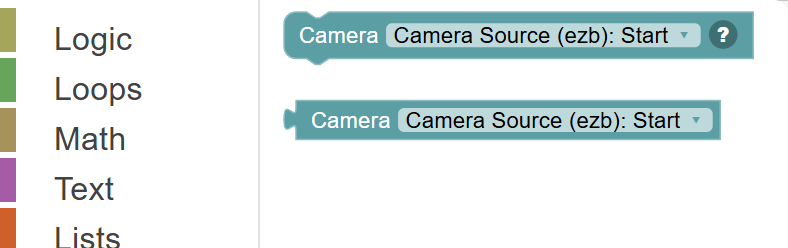
| Block | What it does |
|---|---|
| Camera Control Command | Sends a ControlCommand to the camera device skill. |
| Camera Camera Source (ezb): Start | Ask a camera or tracking robot skill something and use the answer - whether it is tracking, the frame rate, the file a snapshot was saved to. |
Details
Camera Control Command

Sends a ControlCommand to the camera device skill. Choose from the available commands in the dropdown to control camera features directly.
When to use it: Use this to send advanced commands to the camera skill that aren't covered by other blocks — like switching camera resolution or resetting tracking.
Example: Camera Command: "Reset" → resets the camera skill to its default state.
Tips:
- Available commands depend on which camera skill is added to your project.
- Check the camera skill's documentation for the list of valid commands.
- This is an advanced block — try the other camera blocks first.
In JavaScript: this block runs
ControlCommand("Camera Source (ezb)", "Start");
Camera Camera Source (ezb): Start

Ask a camera or tracking robot skill something and use the answer - whether it is tracking, the frame rate, the file a snapshot was saved to.
In JavaScript: this block gives back the value of
ControlCommand("Camera Source (ezb)", "Start")