Logic
Decisions: compare values, combine conditions, and run blocks only when something is true. Most of these blocks give back true or false, and plug into an if block or a loop.
Where to find it: the Logic category of the toolbox, in any script editor set to Blockly or on Top bar → Workspaces → Blockly
Blocks
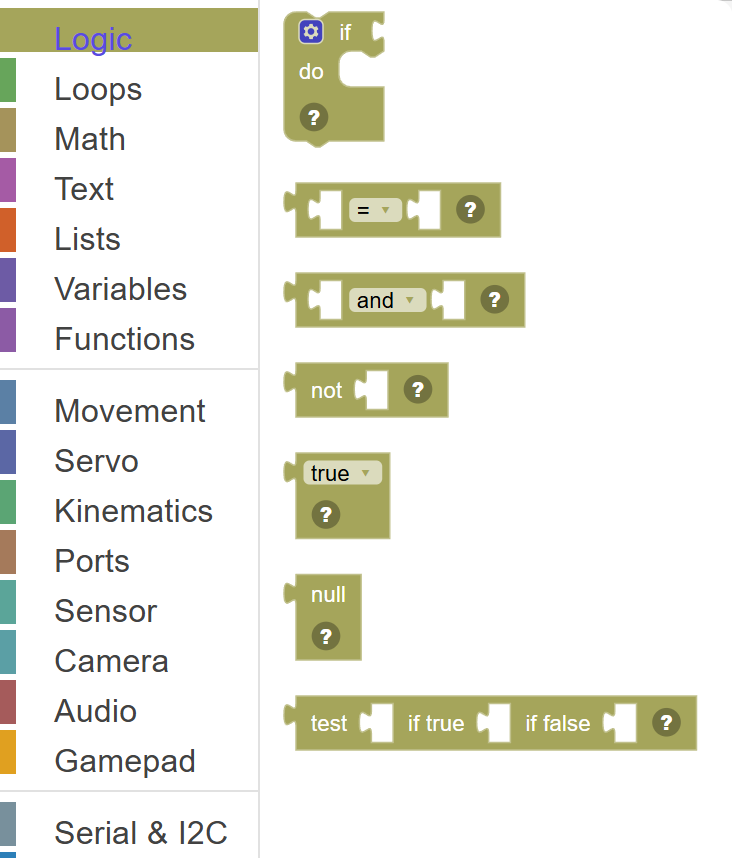
| Block | What it does |
|---|---|
| If / Then | Makes your robot ask a question and do something different depending on the answer. |
| Compare Values | Compares two values and tells you whether the comparison is true or false. |
| AND / OR | Combines two true/false conditions into one. |
| NOT | Flips true to false, and false to true. |
| True / False | A fixed value that is either TRUE or FALSE. |
| Null | Represents "nothing" or "no value". |
| If ? Then : Else | A compact shortcut for a simple if/else that picks one of two values. |
Details
If / Then
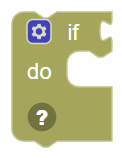
Makes your robot ask a question and do something different depending on the answer. If the condition is TRUE, the blocks inside run. If it's FALSE, they get skipped. You can add "else if" and "else" branches to handle more situations.
When to use it: Use this whenever your robot needs to make a choice — like "if I see a red object, stop; otherwise, keep going." Almost every interesting program uses an If block!
Example: If the ping sensor distance is less than 20 cm → stop the robot and say "Too close!" Otherwise → keep moving forward.
Tips:
- Click the gear ⚙️ icon on the block to add "else if" or "else" sections.
- You can nest If blocks inside each other for more complex decisions.
- The condition must connect to a block that returns true or false (like a Compare block).
In JavaScript: this block runs
if (false) {

}
Compare Values

Compares two values and tells you whether the comparison is true or false. You can check if values are equal (=), not equal (≠), less than (<), less than or equal (≤), greater than (>), or greater than or equal (≥).
When to use it: Use this to make decisions based on numbers or text — like checking if a sensor reading is above a threshold, or if a variable equals a specific value.
Example: Sensor distance < 30 → this returns TRUE when the ping sensor sees something closer than 30 cm.
Tips:
- Connect this to the condition slot of an If block.
- Both sides should have the same type of value (number with number, text with text).
- Use "=" to check if something is exactly equal, like checking if a score is exactly 100.
In JavaScript: this block gives back the value of
0 == 0
AND / OR

Combines two true/false conditions into one. AND returns true only when BOTH conditions are true. OR returns true when AT LEAST ONE condition is true.
When to use it: Use AND when two things must both be true at the same time. Use OR when either of two things being true is enough.
Example: Distance < 20 AND battery > 10 → only runs the code if the obstacle is close AND the battery is not too low.
Tips:
- AND is more strict — both sides must be true.
- OR is more flexible — just one side needs to be true.
- You can chain multiple AND/OR blocks together for complex conditions.
In JavaScript: this block gives back the value of
false && false
NOT

Flips true to false, and false to true. If something is TRUE, NOT makes it FALSE. If something is FALSE, NOT makes it TRUE.
When to use it: Use this when you want the opposite of a condition — like "keep looping UNTIL something is detected" (which is the same as "while NOT detected").
Example: NOT (distance < 20) → this is true when the distance is NOT less than 20, meaning nothing is close.
Tips:
- Think of NOT as "the opposite of".
- NOT (NOT something) = something — two NOTs cancel out!
- Great for reversing conditions you already have.
In JavaScript: this block gives back the value of
!true
True / False
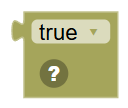
A fixed value that is either TRUE or FALSE. These are the two possible answers to any yes/no question in programming.
When to use it: Use this to set a variable to true or false, or to test your if blocks while building your program.
Example: Set variable "robotRunning" to TRUE → you can later check this variable to know if the robot should be active.
Tips:
- TRUE and FALSE are the only two boolean values — there's no "maybe"!
- Lots of blocks return true or false — like compare blocks and sensor checks.
- Store true/false in a variable to remember a state, like whether a button has been pressed.
In JavaScript: this block gives back the value of
true
Null
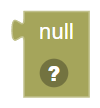
Represents "nothing" or "no value". It's different from zero or an empty string — null means the value simply doesn't exist yet.
When to use it: Use null to reset a variable to "empty" or to check whether something has been set up yet.
Example: If my variable equals null → the variable hasn't been assigned a real value yet, so we need to set it up first.
Tips:
- Null is not the same as 0 or "" — it means "no value at all".
- Comparing something to null is a great way to check if a variable was ever set.
- Be careful — using null where a number or text is expected can cause errors.
In JavaScript: this block gives back the value of
null
If ? Then : Else

A compact shortcut for a simple if/else that picks one of two values. It asks a true/false question and returns the first value if true, or the second value if false — all in one block.
When to use it: Use this when you want to pick between two values based on a condition, without writing a full If/Then/Else structure.
Example: Condition: distance < 20 → Then: "stop" → Else: "go" — this gives you the word "stop" or "go" depending on the sensor.
Tips:
- This is a shorter way to write a simple If/Else that produces a value.
- Both the "then" and "else" slots should return the same type of value.
- For complex decisions with many steps, use a regular If block instead.
In JavaScript: this block gives back the value of
false ? null : null