
What Is A Robot Skill
A robot skill is an add-on for ARCx that gives your robot a particular ability. It might connect a camera, understand spoken words, control a motor, read a sensor, or provide a way for someone to interact with the robot.
You build a robot project by choosing skills and making them work together. Each skill handles a part of the job, so you can concentrate on what you want the robot to do without creating every piece yourself. A simple project might use just a few skills; a more ambitious robot might combine vision, speech, movement, and automation.
This guide explains what skills are for and the parts you will encounter when using or creating one. You do not need programming experience to follow it.
Giving a robot abilities
Physical hardware gives a robot its possibilities: cameras can capture images, microphones can capture sound, and motors can move things. Software turns those possibilities into useful behavior. Robot skills provide pieces of that software inside ARCx.
For example, a camera skill can make a camera's video available to a project. A vision skill could examine those images for an object. A movement skill could then help the robot turn toward it. Connecting those abilities creates a behavior that is more useful than any individual part.
Skills can also work entirely with information or user interaction. A skill might display a dashboard, connect to an online service, organize a sequence of actions, or let someone control the robot with a gamepad. The word "skill" covers both visible actions and the supporting abilities that make them possible.
The exact features depend on the skill. Some need particular hardware, an internet connection, an account with another service, or a compatible operating system. A skill's description and instructions explain what it needs.
Why use robot skills?
Robot skills make capabilities reusable. Once someone has created a skill for a device or behavior, other people can add it to their projects and configure it for their own robots.
This helps in several ways:
- Start with something that already works. An existing skill can provide the controls and device communication you need to begin experimenting.
- Choose the abilities your robot needs. You can combine skills around a particular purpose, such as a talking companion, a mobile robot, or an interactive exhibit.
- Keep complicated work manageable. Camera handling, speech, movement, and other jobs can each have their own settings and controls.
- Improve one part of a project. A skill can gain features or fixes that benefit projects using it.
- Reuse ideas. The same kind of skill can be useful on many different robots, with different settings in each project.
ARCx provides the surrounding workspace and shared facilities. Skills bring the individual capabilities into that environment.
Why do people create them?
People often create a robot skill because they have an idea that existing skills do not quite cover. They might have a new piece of hardware, a particular way of controlling their robot, or a service they want to connect to.
A hobbyist might make a skill for a sensor they just bought. A teacher might create an easy control panel for a classroom activity. A hardware maker might provide a skill so customers can use a product in ARCx. Someone building an exhibit might package a repeated routine into a few clear controls for its operators.
Creating a skill also turns a solution into something easier to use again. A capability that previously required repeated setup can have a name, a settings page, useful controls, and instructions. Its creator can keep developing it for their own projects or share it through the Robot Skill Store.
You do not have to publish a skill to make creating one worthwhile. A skill built for one robot can still make that robot easier to configure, operate, and maintain.
The main parts of a skill
A skill combines the screens people interact with and a worker that carries out its behavior. The screens have different purposes, but they belong to the same capability.
| Part | What it is for | Example for a distance-sensor skill |
|---|---|---|
| Main window | Everyday controls and live information in the ARCx workspace | Show the current distance and whether the sensor is connected |
| Configuration screen | Set up how the skill should work with your robot | Choose the sensor connection, units, and alert distance |
| Custom UI widget | Present a focused view on a custom control panel, when provided | Show a large distance reading and a nearby-object indicator |
| Worker | Perform the skill's work and maintain its current state | Read the sensor, check the distance, and make the result available |
The amount of interface varies. Some skills need a rich display with many controls; others mostly work in the background and have very little to show.
The main window: use and observe
The main window is the skill's everyday presence on the ARCx workspace. It helps you see what the skill is doing and interact with it.
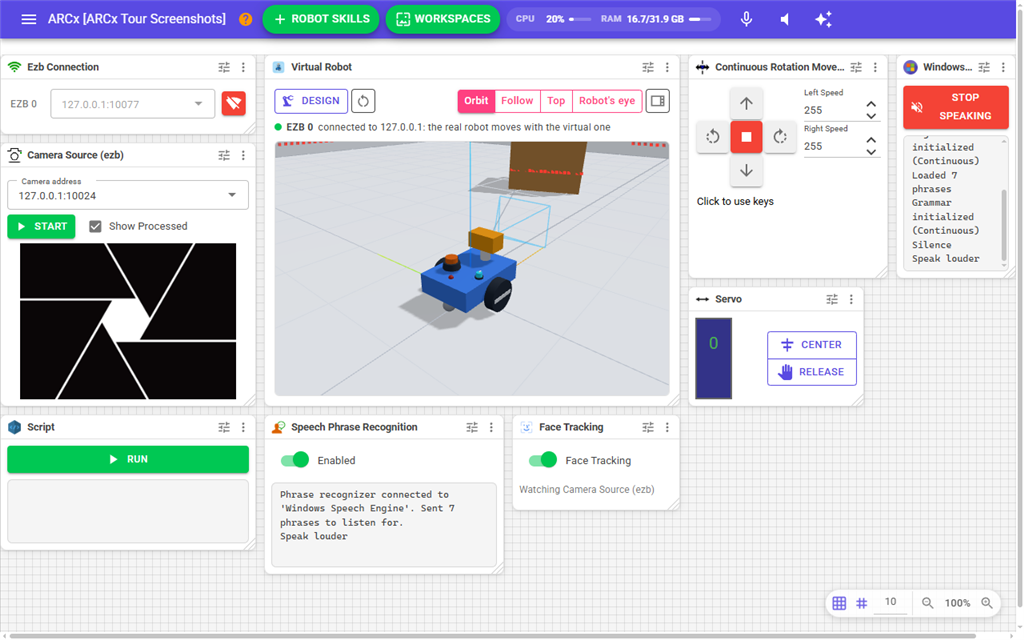
Depending on the skill, you might see a camera image, a connection button, a microphone level, a position control, a map, or a list of recent events. The window can help answer questions such as "Is it connected?", "What is it detecting?", and "What is happening now?"
This is also where a creator can make a complicated capability approachable. A useful display and a few clearly named controls can make the skill much easier to understand and try.
The configuration screen: adapt it to your robot
The configuration screen holds choices that determine how the skill behaves. You normally open it through the skill's settings or gear control.
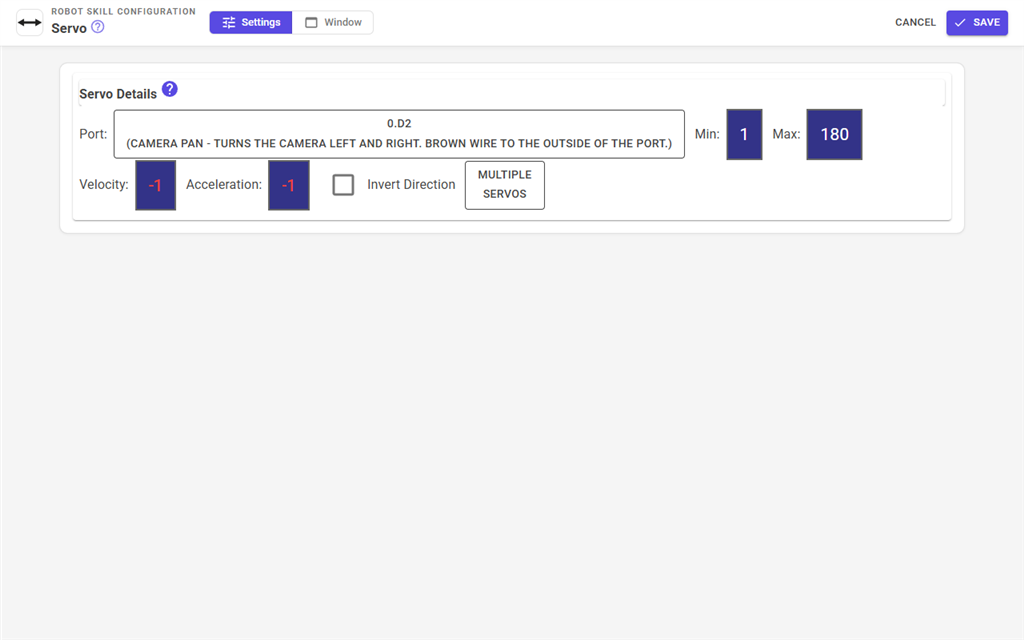
For a hardware skill, you might choose a connection or a port. For a speech skill, you might choose a voice or phrases to recognize. For an automation skill, you might select the conditions that trigger an action.
These settings let the same skill serve different projects. Two people can use the same sensor skill while choosing different connections, units, or thresholds. The skill's project settings are saved with the project so they can be restored when it is opened again.
The Custom UI widget: a view for the operator
A Custom UI is a control panel you arrange for the person using the robot. It can bring the most useful controls and displays together on a screen designed around a task.
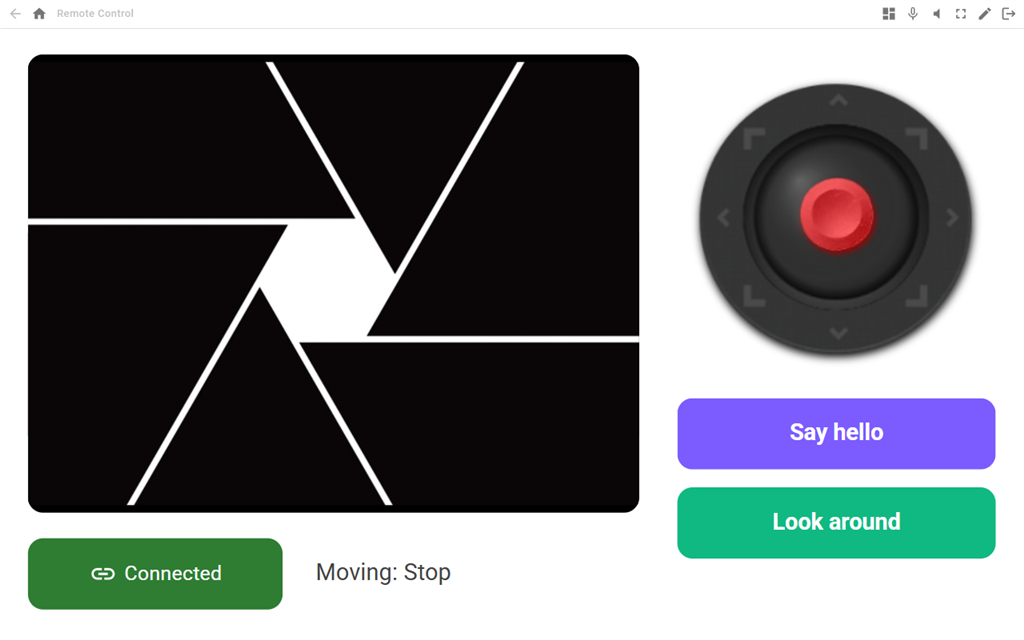
A skill can provide a widget for that screen: a compact presentation of some part of its capability. A speech skill might offer a listening indicator; a sensor skill might offer a gauge; a camera skill might offer a video view. A skill can provide more than one widget for different purposes.
This allows a project builder to work with detailed skill windows while an operator uses a simpler panel. Both views connect to the same underlying skill. If a skill does not provide a dedicated widget, its main view can be used on a Custom UI screen.
The worker: carry out the behavior
The worker is the part of the skill that runs inside ARCx and does the work. It can communicate with hardware, process information, respond to commands, keep track of the current state, and coordinate actions.
For a distance sensor, the worker might read measurements and check whether an object is close. The main window displays those measurements, the configuration screen lets you choose what "close" means, and a widget shows the result on your control panel.
Keeping the worker separate from its screens lets a skill operate without requiring someone to keep its window visible. Depending on how the skill is designed, it can continue its work while you view another page or while no browser is connected, as long as ARCx and the project remain running.
It also means that opening the same project from another browser gives you another view of the running skill. It does not create a second worker for that skill instance. The connected screens interact with the same underlying state. Closing a browser is therefore not a general way to stop the robot's behavior; use the controls provided by the skill or project.
How skills work together
A project becomes more capable when its skills exchange information and respond to one another. Depending on what they support, skills can provide readings, share video, respond to commands, or take part in scripts and automated routines.
Imagine a robot that greets someone who approaches it:
- A sensor skill detects that someone is nearby.
- A project routine checks that it is time to greet a visitor.
- A speech skill says hello.
- A movement skill performs a wave.
- A display shows a welcome message.
Each part has a clear job. The project supplies the coordination that turns those jobs into a complete interaction. The skills need to offer the appropriate connections or commands, and the project builder sets up how they work together.
Some skills allow you to add more than one copy to a project. For example, you might use separate copies for two sensors, each with its own settings and worker. Other skills allow only one copy because of the role they perform.
From finding a skill to using it
You can browse the Robot Skill Store from Robot Skills > Add in ARCx. Read a skill's description to understand its purpose, requirements, and available instructions, then add it to your project.
A typical next step is to configure it for your hardware or intended behavior, try its controls, and check the information it displays. Once the skill works on its own, you can connect it to other parts of the project and include its controls in a Custom UI if useful. Save the project to keep your setup.
Skills can receive improvements after you start using them. ARCx can update installed skills at startup and show a notice of what changed. See Updating Robot Skills for how that works.
If you have an idea for a skill
Start by describing the ability you want to give your robot. Think about what the person using it should be able to see, what they should be able to change, and what the skill should do on its own.
For example: "I want to connect my distance sensor, see its reading, choose an alert distance, and let my project react when something gets too close." That short description already suggests the main window, configuration screen, and worker. A large reading for an operator's panel could become an optional widget.
You can begin with a small, useful capability and expand it as you learn what your robot needs. For a walkthrough of creating a skill with help from an AI coding assistant, see Create Your First Robot Skill.