3D Parts
Before 3D CAD files can be shared with other users, they must be uploaded to the Synthiam cloud server. The options in this section allow you to upload custom CAD files to the cloud or view and synchronize your existing library.
Library
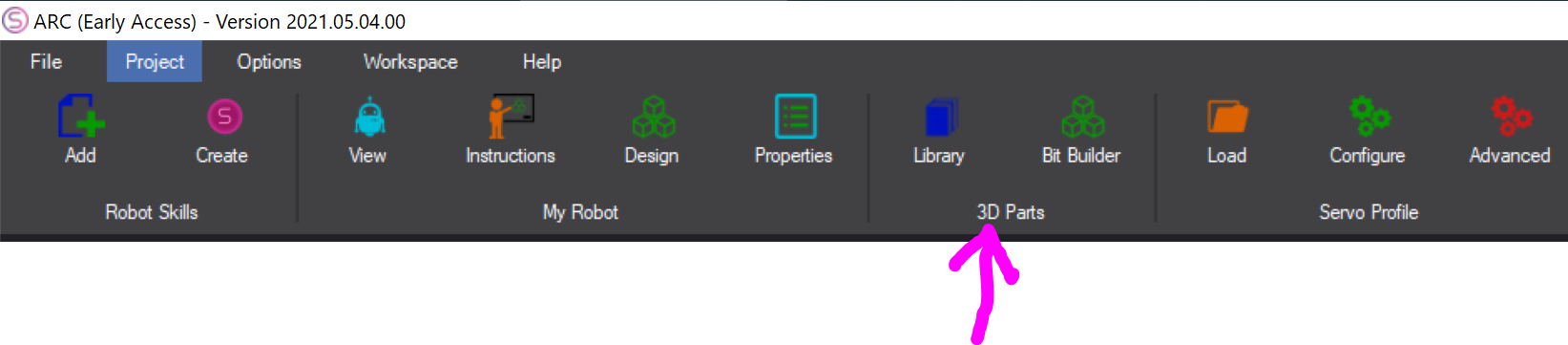
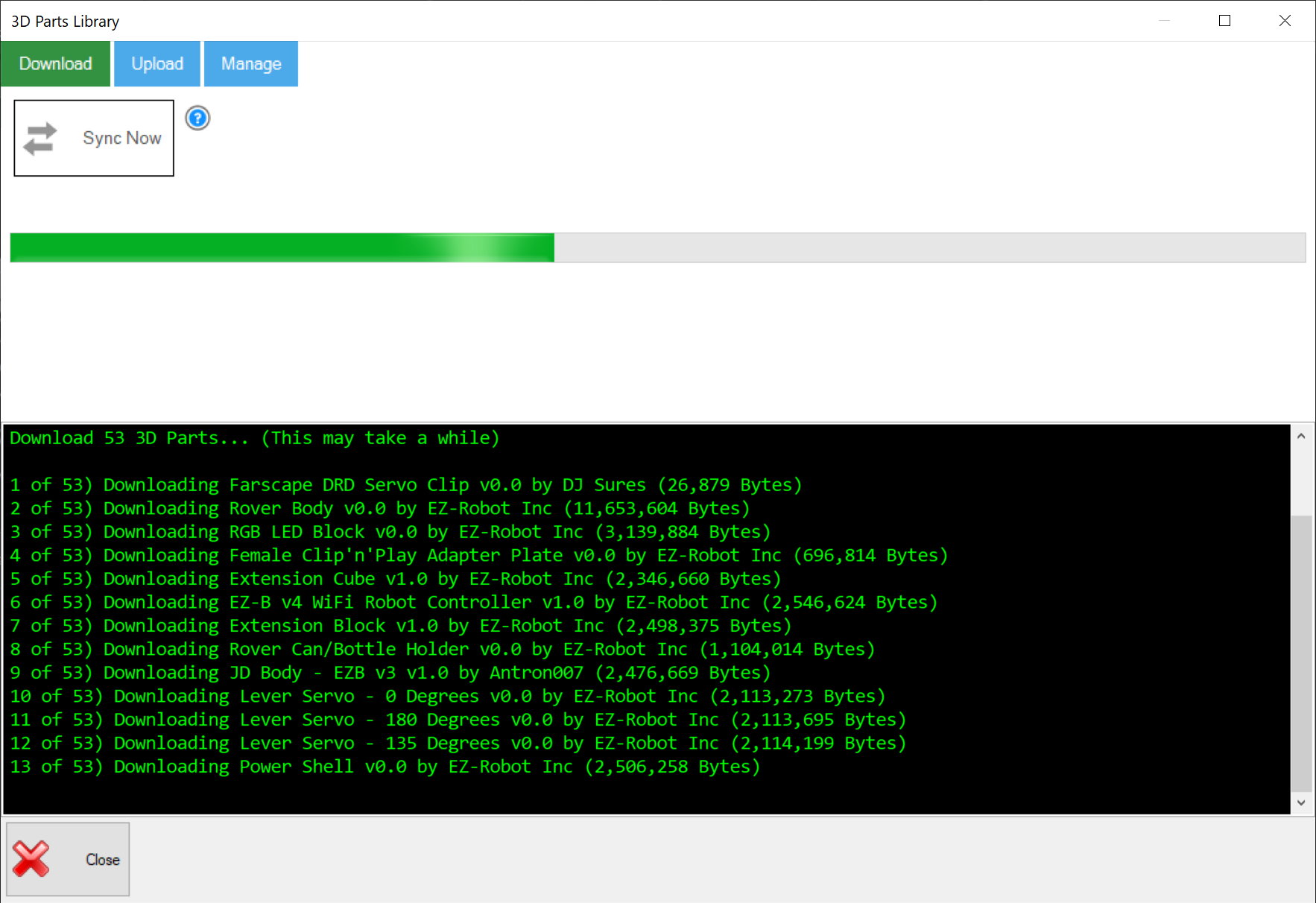
Opens a new window with tools for managing your local CAD design library. From this window, you can synchronize your local CAD cache with the Synthiam cloud server and upload custom CAD files that you have created using the Bit Builder.
Bit Builder
Share your 3D design files with the Synthiam ARC community by publishing them as EZBits. The Bit Builder can be accessed from the Project → 3D Parts → Bit Builder menu. This tool allows you to create custom 3D CAD files for use in the 3D Robot Designer. Once your design is complete, it can be uploaded to the cloud using the Library menu option.
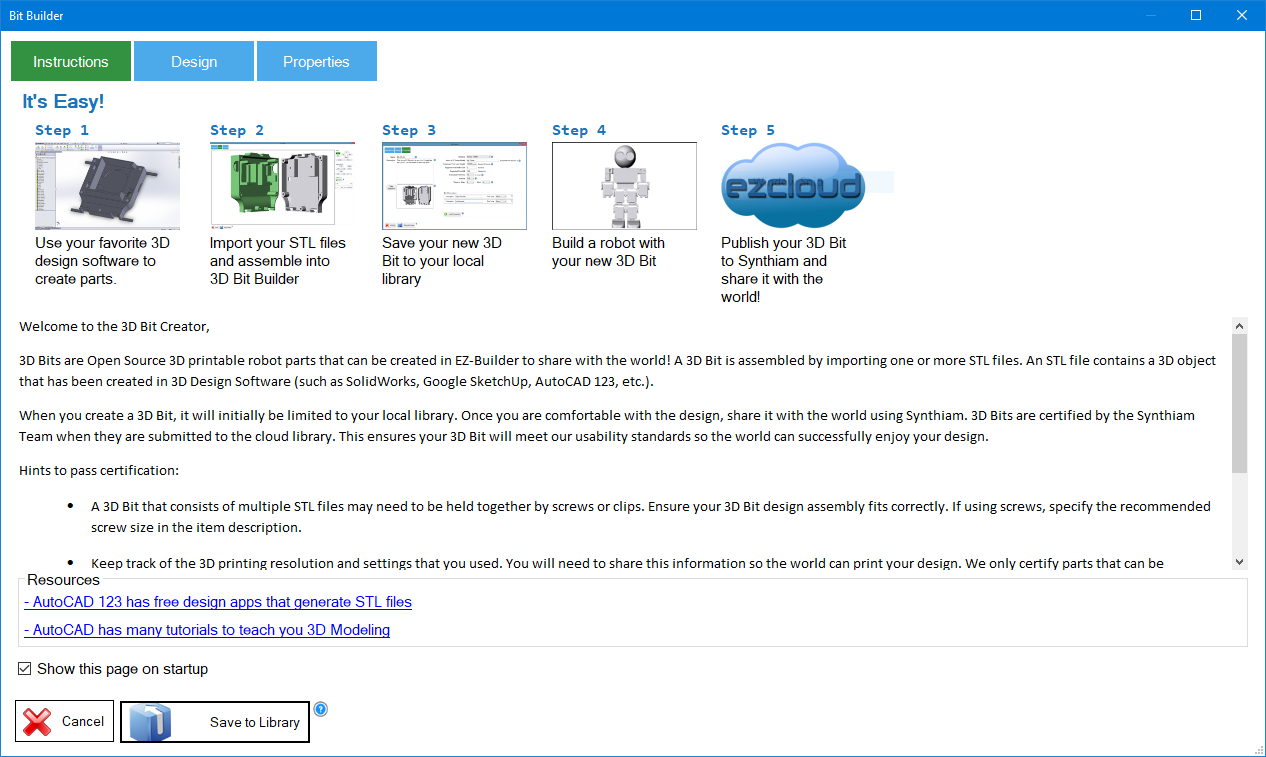
When you first open the Bit Builder, you will be presented with an instructional introduction page that explains the basic workflow.
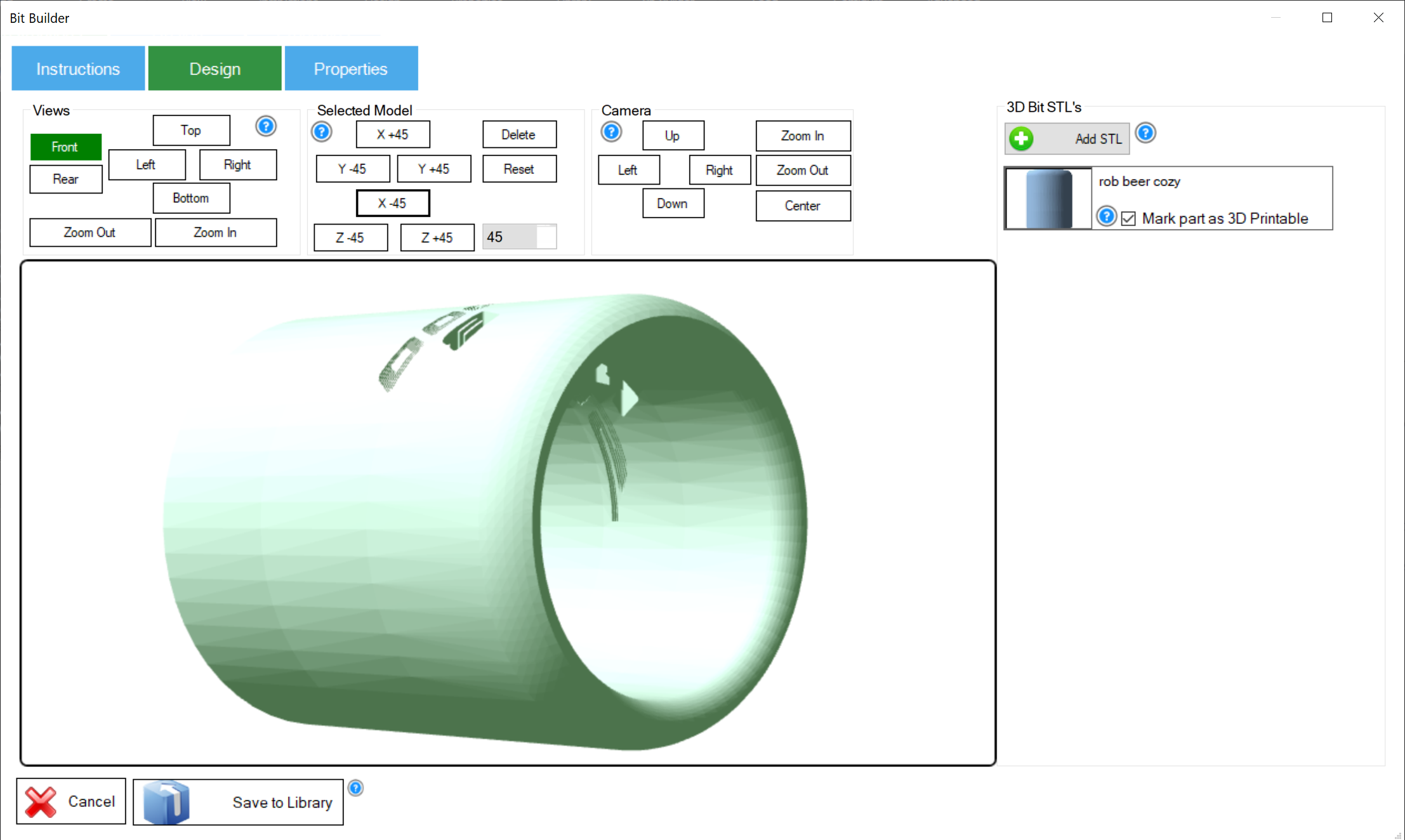
The Design tab allows you to begin designing your EZBit. An EZBit can consist of one or more STL design files. You can add STL files to the 3D designer and position them as needed to create the final assembly. If a part is included only for visual reference (for example, a servo shown as part of a servo mount), you can mark that part as not 3D printable. Non-printable parts are used purely for visualization when others design their robots using your EZBit.
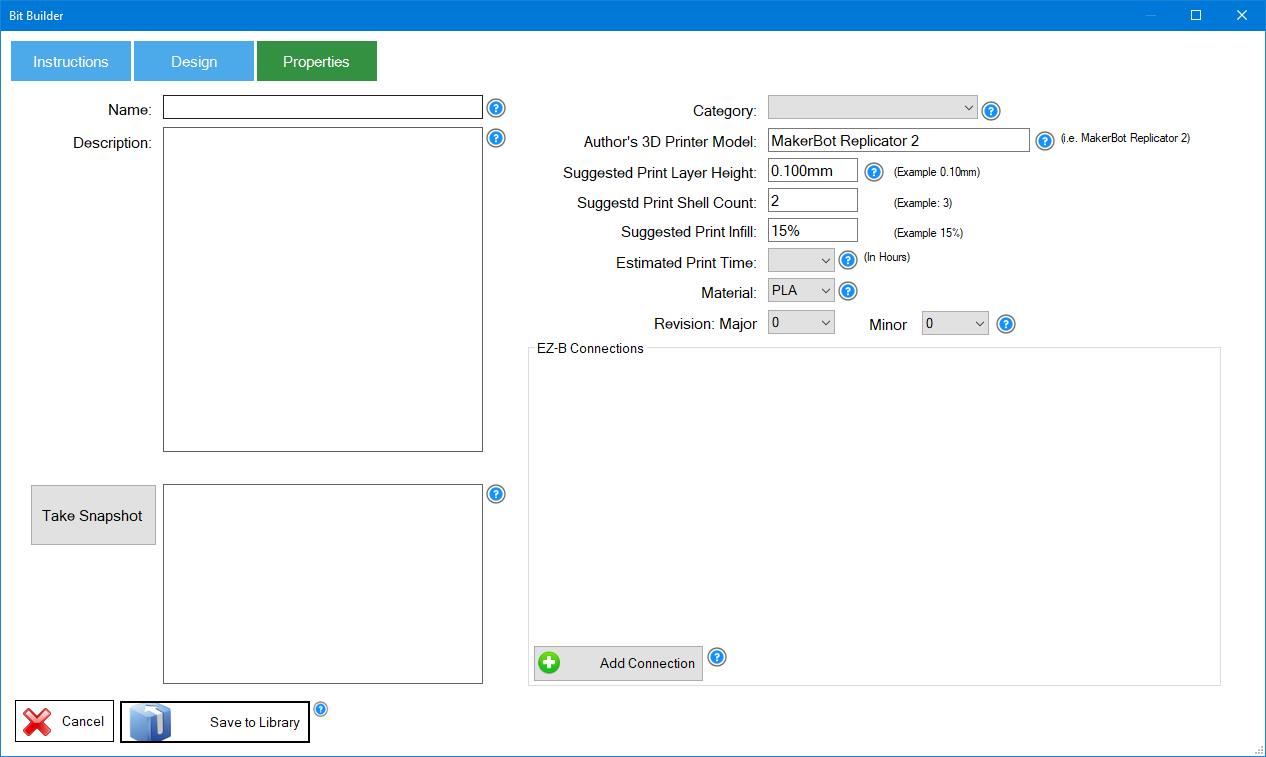
After completing the design, you can define detailed properties for the EZBit so other users understand what it is, how it is used, and how it should be printed. The Properties tab includes the following options:
- EZBit name
- Description of the EZBit and its purpose
- Capture a snapshot from the Design tab to use as a thumbnail
- Category assignment
- 3D printer type
- Suggested print settings, including layer height, shell count, infill, material, and estimated print time based on your configuration
The Properties tab also includes an EZ-B Connections section. This allows you to specify how the EZBit connects to an EZ-B controller. For example, if the EZBit is a servo-based part, you can define a servo connection. This information helps users track port usage when assembling robots in the My Robot Designer.
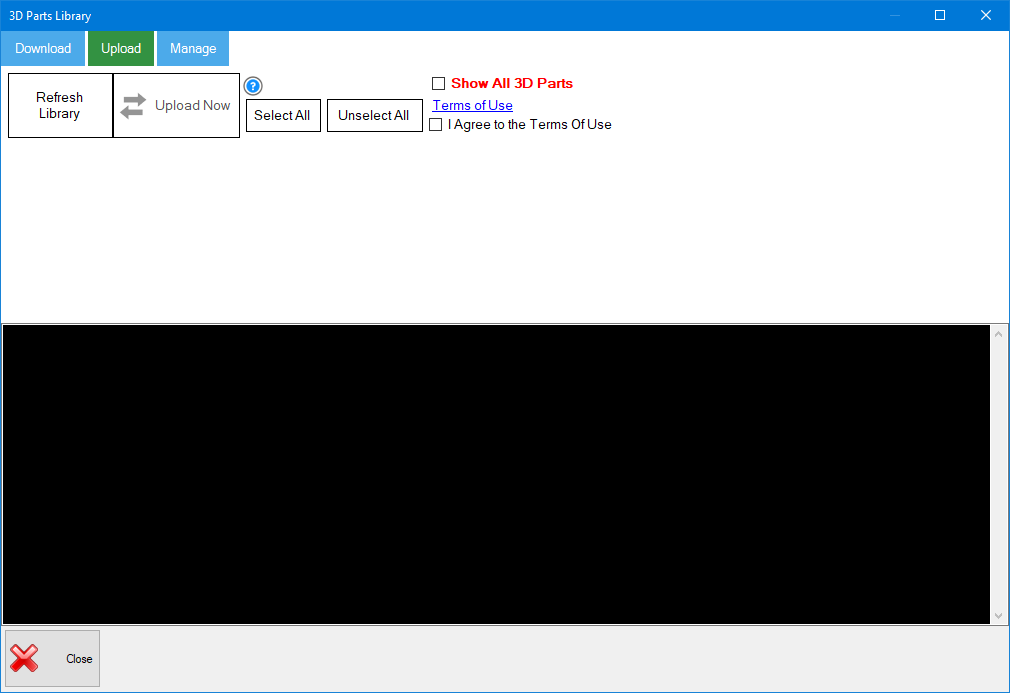
To upload your EZBit, first save it to your local library. Then open the EZBit Library Manager and navigate to the Upload tab. Press Refresh Library to display all EZBits you have created. Select the EZBit you wish to share and click Upload Now. Once uploaded, your EZBit will be available for the entire Synthiam community to use.