Activate PC (Assign Seat)
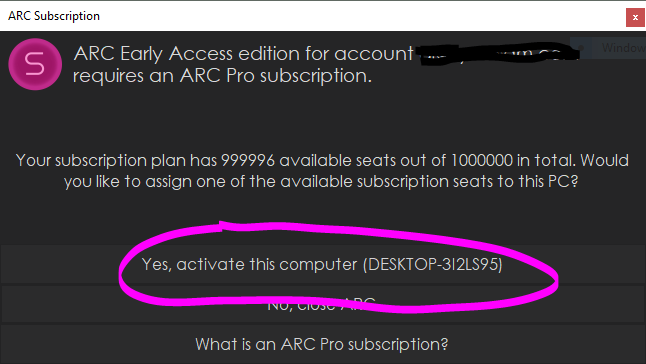
ARC Pro subscriptions are assigned to computers and are called Seat Licensing. When loading ARC Pro on a computer for the first time, you will be prompted to activate a seat for that particular computer. Press the "activate" button and a seat license will be applied to the computer.
Managing Seats
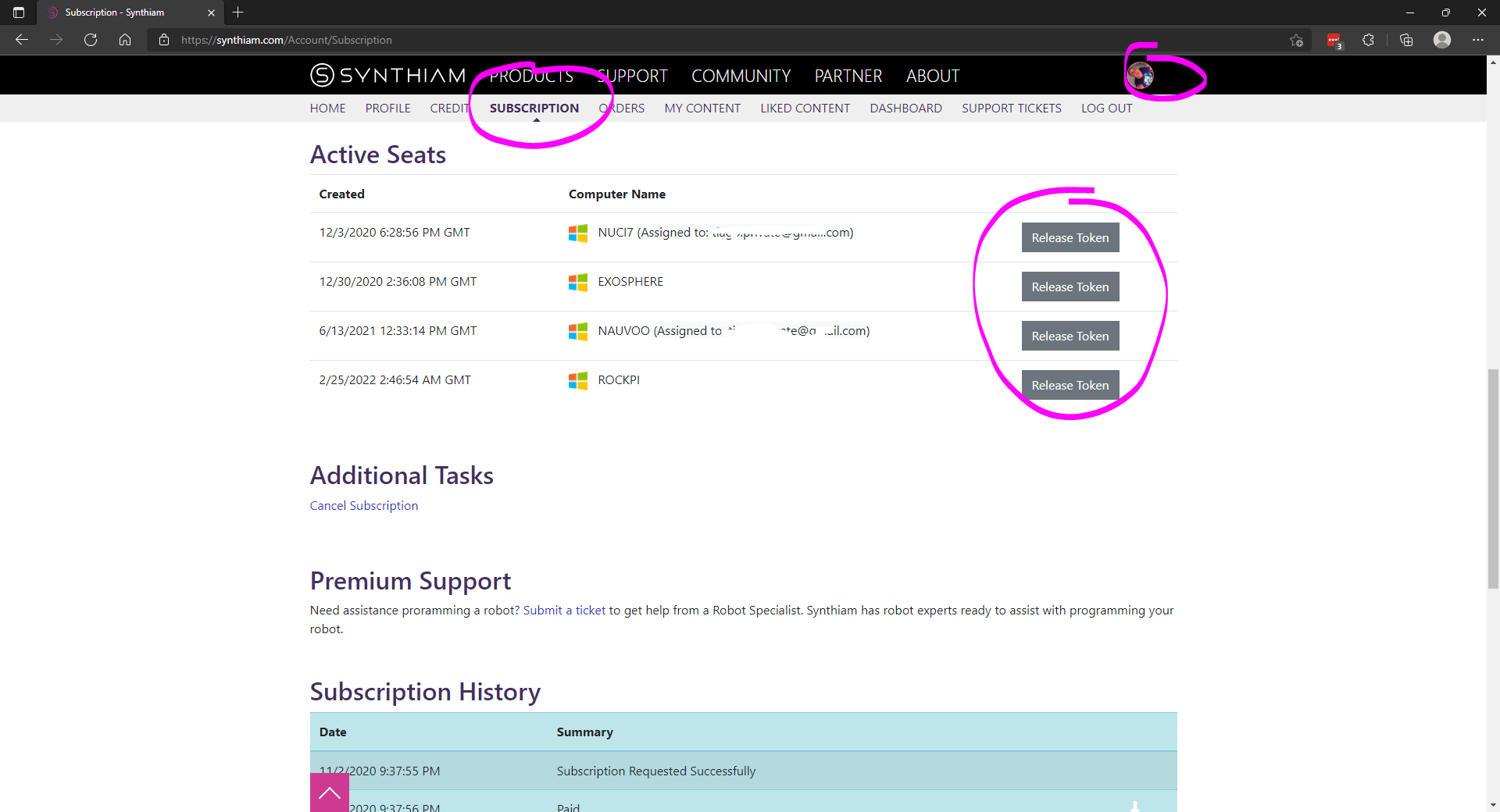
View your subscription portal by pressing the Account option in the top right, and selecting Subscriptions from the menu. Here, you can view your subscription activity and manage seats assigned to the license. The name of each computer is displayed. Pressing the Revoke button will remove the computer from the license.
Steps - manage seats from a web browser
- In ARC on the main PC, open the Help tab click Manage Subscription.
- This opens your subscription portal. (You can also open the portal directly at: https://synthiam.com/Account/Subscription)
- Sign in with the account that owns the subscription.
- In the subscription portal you will see a list of assigned seats (computer names).
- Locate the main PC entry that is currently consuming a seat.
- Click the Revoke / Release Seat Token button for that computer to free its seat.
- The seat is immediately released and becomes available to activate on another machine.