
Robot Configuration
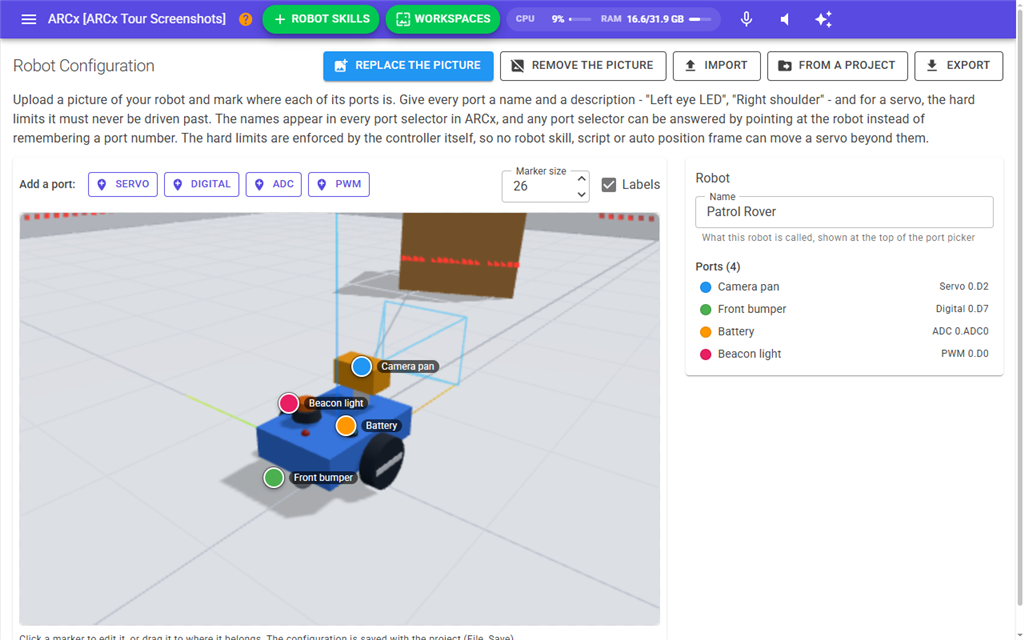
Robot Configuration is a picture of your robot with its ports marked on it. You upload a photo, drop a marker on each place the robot has a servo, LED, sensor or motor, and give each one a name such as "Left elbow" or "Right eye LED". From then on you can choose ports by name, or by pointing at the robot, instead of remembering that the left elbow is V3 on the first EZB.
For servos it also holds hard limits: positions the servo must never be driven past because of how the robot is built. The limits are enforced by ARCx's connection to the EZB itself, so no robot skill, script or auto position frame can move the servo beyond them.
Where to find it: Side menu → Project → Robot Configuration. It can also be opened from any port selection dialog: the pencil button above the robot picture, or the Set up a robot configuration link when the project has none yet.
Everything on this screen is saved inside the project file, including the picture. Changes are kept only when you save the project (File → Save).
Contents
- Quick start
- The picture
- Adding and arranging ports
- The robot panel
- Editing a port
- Servo hard limits
- Choosing ports from the picture
- Importing and exporting
- Notes
Quick start
- Press Upload a picture and choose a photo of your robot.
- Under Add a port:, press the kind of port you want to mark: Servo, Digital, ADC or PWM.
- Click the picture where that port is on the robot. A marker appears and its settings open on the right.
- Type a Name, choose the EZB Index and Port it is wired to, and for a servo set its Hard limits if it needs them.
- Press the close button (X) at the top of the panel to go back to the port list, and repeat for the next port.
- Save the project with File → Save.
The picture
| Button | What it does |
|---|---|
| Upload a picture | Opens a file picker for any image file. The picture is stored inside the project, so it travels with the project file. Once a picture is set, the button reads Replace the picture. |
| Remove the picture | Takes the picture away, after asking you to confirm. The markers stay where they are, because they are still real ports on the robot. Only shown when there is a picture. |
The picture must be under 8 MB (8,192 KB). A larger file is refused with a message such as "That picture is 9,500 KB. Keep it under 8,192 KB; it is stored inside the project file." A smaller picture also keeps the project file small, so a resized photo is a better choice than a full resolution camera image.
Without a picture the area shows "No picture of the robot yet". You can still add ports; they are drawn on the empty area.
Adding and arranging ports
The bar above the picture has these controls:
| Control | What it does |
|---|---|
| Add a port: Servo / Digital / ADC / PWM | Press one, then click the picture where that port is. A blue bar reads "Click the picture where the servo port is on your robot." Press Cancel in that bar, or the same button again, to stop without placing anything. |
| Marker size | How big the marker dots are drawn, from 8 to 80. Smaller suits a busy robot with many ports close together. |
| Labels | Shows each port's name beside its marker. Turn it off when the picture is crowded. |
A new port is set to the first port of that kind on EZB 0 that no other marker uses yet, so two markers do not point at the same port by accident. Change it in the port's settings.
- Click a marker to open its settings.
- Drag a marker to move it to where it belongs.
- Hover over a marker to see its name, port and description.
Each kind of port has its own default colour, so they can be told apart at a glance: servos are blue, digital ports green, ADC ports orange and PWM ports pink.
The robot panel
When no port is selected, the panel on the right shows the robot itself.
| Setting | What it does |
|---|---|
| Name | What the robot is called. It is shown at the top of the port picker. If it is empty, the project's file name is used. |
| Ports | Every marked port, with its colour, name, kind and port (for example Servo 0.V3). Click one to edit it. A port without a name is listed by its port. |
Editing a port
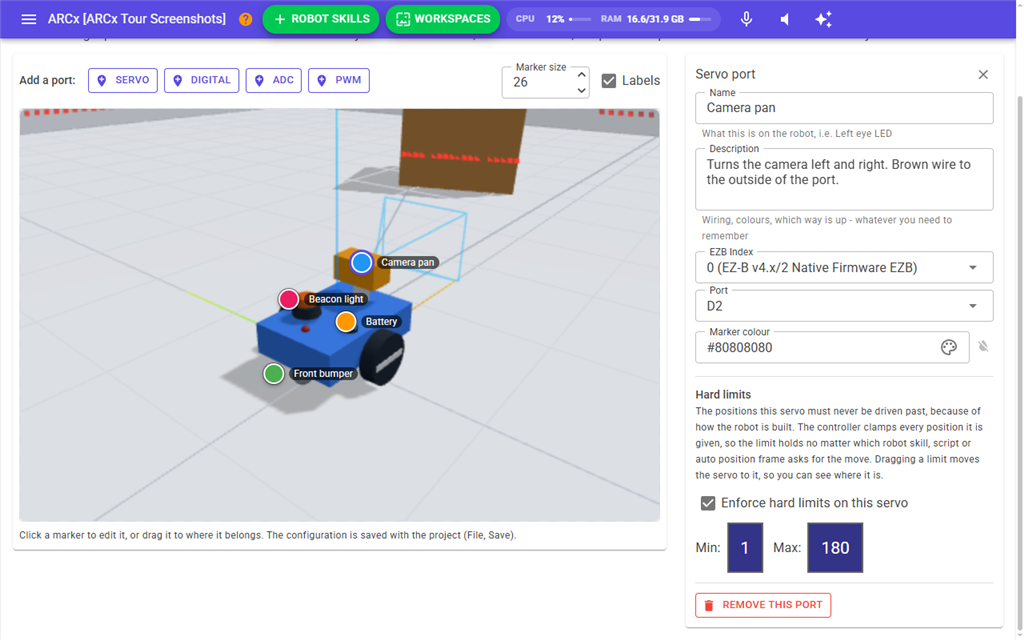
Click a marker on the picture, or a port in the list, and its settings replace the port list. The X button at the top returns to the list.
| Setting | What it does |
|---|---|
| Name | What this is on the robot, for example "Left eye LED". This is what you will choose the port by. |
| Description | Anything you need to remember: wiring, wire colours, which way is up. |
| EZB Index | Which EZB the port is on. Each entry shows the number and the kind of EZB connected in that slot. |
| Port | The port on that EZB, for example V3, D5 or ADC0. For a servo, NA (no port) is first in the list. A marker set to NA has no port, so it is not named in any port selector and has no hard limits. |
| Marker colour | The colour of this marker's dot. Leave it empty to use the default colour for its kind. |
| Remove this port | Removes the marker from the picture. Its name is taken out of the port selectors and any hard limit it set is released. You are asked to confirm first. |
The Name and Description are copied into the project's port descriptions. Every port selector in ARCx then shows them beside the port, as Name - Description, and they are listed under Project → Properties → Port descriptions. Renaming or removing the marker updates or removes that description too. Descriptions you typed by hand in a port selection dialog are left alone.
Servo hard limits
A servo port has a Hard limits section.
| Setting | What it does |
|---|---|
| Enforce hard limits on this servo | Turns the limits on. While it is off, the sliders are disabled and the servo can use its full range. |
| Min: | The lowest position the servo may ever be sent to. It cannot be set above Max:. |
| Max: | The highest position the servo may ever be sent to. It cannot be set below Min:. |
The sliders run from 1 to the project's Highest servo position (180 unless you changed it in Project → Properties).
Dragging a limit moves the servo to it, so you can watch the robot and find the exact position where a joint should stop. This only happens when the EZB is connected and the marker has a port chosen. Keep clear of the robot while you do this.
How the limits are applied:
- Every position sent to that servo is held inside the limits, whichever robot skill, script or animation asks for it. A request past the limit moves the servo only as far as the limit.
- The limits are sent again whenever an EZB connects, so a board that connects after the project opened still gets them.
- Turning Enforce hard limits on this servo off, or removing the port, releases the limit again.
- When you choose this servo in a port selection dialog, its limits are shown below the picture, for example "Selected: Left elbow (hard limits 30 to 150)".
Choosing ports from the picture
Once ports are marked, every port selection dialog in ARCx (servo, digital, ADC and PWM) shows the picture of your robot at the top, in place of the picture of the EZB board.
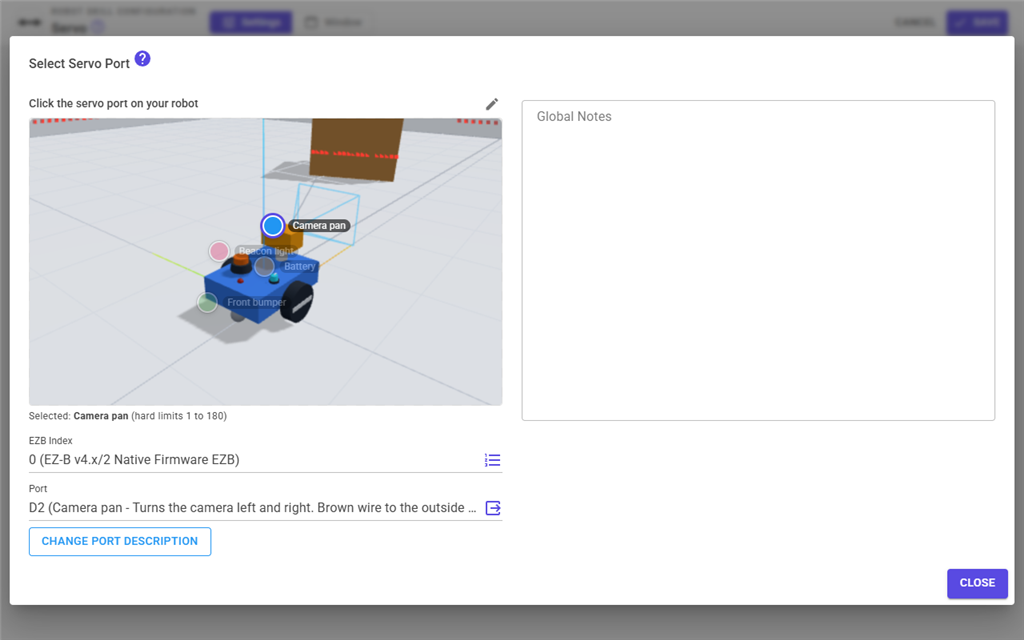
- The ports of the kind being chosen are shown at full strength. Other kinds are dimmed and cannot be clicked.
- Click a marker to choose that port. Markers cannot be dragged here, so you cannot move them by accident.
- If the port the dialog has selected is not marked, the dialog says "This port is not marked on the robot. Pick it below, or mark it on the robot configuration."
- The pencil button opens this screen to add, rename or move ports.
If the project has no ports of that kind marked, the dialog shows the EZB board picture as before, with a Set up a robot configuration link.
Importing and exporting
A robot only needs to be set up once. The buttons at the top of the screen copy a robot configuration between projects, or to someone else with the same robot.
| Button | What it does |
|---|---|
| Import | Opens a file picker. Choose an exported robot configuration (.arcxrobot), or any ARCx project file (.arcx) to copy the robot configuration out of it. A password protected project asks for its password first. Nothing else in the project file is used: its robot skills, scripts and settings are not touched. |
| From a project | Lists the projects in your project folder, the ones with a robot configuration first and newest first within that, with each one's robot name, port count and whether it has a picture. Choose one to copy its robot configuration. Projects without a robot configuration are listed but cannot be chosen. A password protected project shows a lock and asks for its password when you choose it. The project that is open now is not listed. |
| Export | Saves the picture, every port and the display settings to a .arcxrobot file, which your web browser downloads. The file is named after the robot, or after the project when the robot has no name. Disabled while there is nothing to export. |
Importing replaces this project's whole robot configuration: the picture, every port, the robot's name, the marker size and the labels setting. When the project already has a robot configuration, you are asked to confirm first, for example "Replace this project's robot configuration - the picture and its 4 port(s) - with the one from 'My Robot' (6 port(s))?". After the import a green bar says what was imported.
The imported ports take effect at once: their names appear in the port selectors and their servo hard limits are sent to the connected EZBs, while the names and limits of the ports that were replaced are taken away. As with any other change, save the project (File → Save) to keep it.
A file that is not a robot configuration is refused with a message such as "Unable to import 'notes.json'. The file is not a robot configuration." An imported marker colour that is not a plain colour, or a picture that is not stored inside the file, is dropped.
Notes
- The configuration belongs to the project. Opening another project shows that project's robot, and an unsaved configuration is lost if you close the project without saving.
- Hard limits only apply to servos on an EZB that is in the chosen EZB Index slot. A marker set to an empty slot has its limits applied when an EZB connects there.
- If you remove a marker's description in Project → Properties, it comes back the next time the robot configuration changes or the project opens, because the marker still has its name. Rename or remove the marker here instead.