
Gamepads And HID
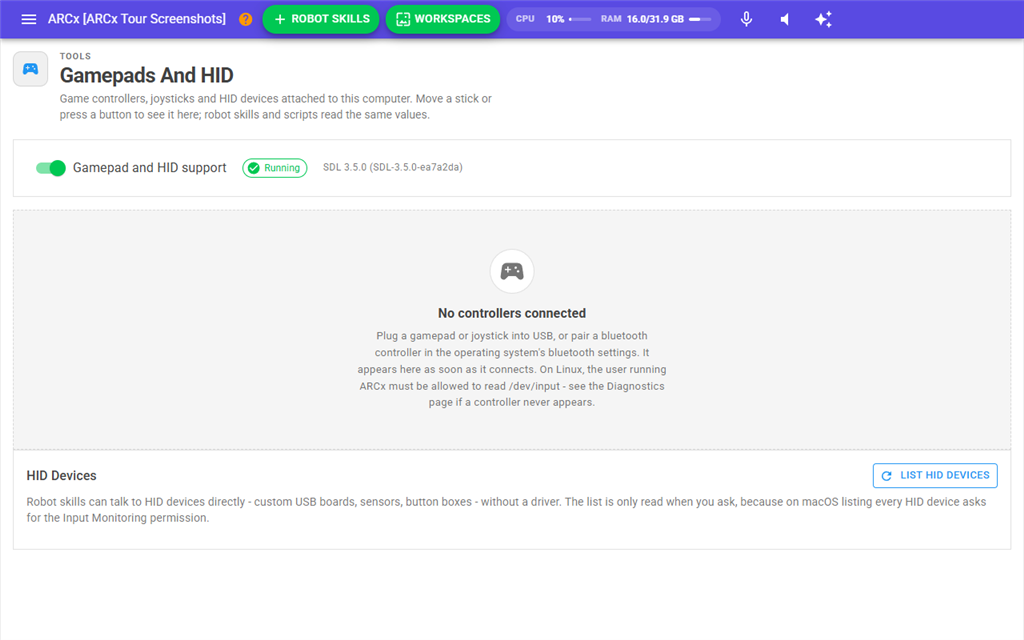
Gamepads And HID shows the game controllers, joysticks and other input devices plugged into the computer that runs ARCx, and what they are doing right now. Move a stick or press a button and you see it here straight away. Robot skills and scripts read exactly the same values, so this is the place to check that a controller works before looking for a problem in the robot skill or script that uses it.
The screen also turns gamepad and HID support on or off for the whole of ARCx, and can list every HID device on the computer for robot skills that talk to custom USB boards, sensors or button boxes.
Where to find it: Side menu → Views → Gamepads And HID. The Gamepad and HID support and HID devices checks on Views → Diagnostics also link here.
Contents
- Turning support on and off
- Controller cards
- Testing rumble, light and motion sensors
- Using a controller from a script
- HID Devices
- Troubleshooting
Turning support on and off
The panel at the top has the Gamepad and HID support switch and a status chip beside it.
| Status | What it means |
|---|---|
| Running | Controllers are being read. The version of the controller library is shown next to it. |
| Not running | Support is switched on but did not start. The reason is shown in red underneath. |
| Off | Support is switched off. Nothing reads controllers or HID devices. |
The switch is remembered, so ARCx starts with it the same way next time. It is on by default. Starting can take a moment; a spinner shows while it does. After you change it, a message confirms the new state. When you switch it off, the message reminds you that robot skills that use a controller will not see one until it is turned back on.
The rest of the page only appears while support is Running.
Controller cards
Every connected controller gets its own card, in the order the controllers were plugged in. A controller appears as soon as it connects and its card disappears when it is unplugged. If nothing is connected, the page says No controllers connected.
The top of each card shows:
| Item | What it shows |
|---|---|
| Name | The name the controller reports, such as "Xbox Series X Controller". |
| Type | The family it was recognised as, for example Xbox One or PS5, or Joystick for a device that is not a recognised gamepad. |
| usb / wireless | How it is connected, when the controller says. |
| Battery | The charge level in percent, when the controller reports one. |
The live area of the card depends on the kind of device.
A recognised gamepad shows:
- Left Stick and Right Stick as a square with a dot that follows the stick. The numbers under each square are the X and Y values, from -1 to +1. Pushing a stick up (away from you) gives a negative Y, pulling it towards you gives a positive Y. The dot turns green while the stick is clicked in.
- Left Trigger and Right Trigger as bars, with their value from 0 (released) to 1 (fully pressed).
- A row of button chips. A chip turns green while its button is held. The chips are labelled as printed on that controller, so the bottom face button reads A on an Xbox pad and Cross on a PlayStation pad.
Any other device, such as a flight stick, wheel or unrecognised controller, shows its raw inputs instead:
- Axis 0, Axis 1 and so on, each with a bar and its value from -1 to +1.
- Hat 0 and so on, with the direction the hat switch is pressed (for example Up, UpRight or Centered).
- Numbered button chips, starting at 0, that turn green while pressed.
The line at the bottom of the card shows the Script index, the VID:PID (the vendor and product numbers of the device) and the key, which is the stable name a robot skill saves to find this controller again after it is reconnected or ARCx restarts.
Testing rumble, light and motion sensors
Buttons appear on a card only when that controller has the feature.
| Button | What it does |
|---|---|
| Rumble | Rumbles the controller briefly at medium strength. |
| Light | Sets the controller's colour light. Each press moves to the next colour: red, green, blue, white, then red again. |
| Sensors On / Sensors Off | Turns the controller's motion sensors on or off. While they are on, the card shows accel (acceleration in m/s², gravity included) and gyro (rotation in rad/s) for X, Y and Z. |
If a controller refuses, a warning appears in the top panel, for example "did not accept the rumble. Some controllers only rumble over USB, or not at all through this operating system's driver."
Using a controller from a script
Scripts address controllers by the Script index shown on each card. 0 is the first controller plugged in, 1 the second, and so on. The numbering follows the order the controllers connected since ARCx started, so if you unplug the first controller, the others move down one place. If a script reads a controller that is not connected, it gets zero or false rather than an error.
HID Devices
The HID Devices panel lists every HID device attached to the computer, not just controllers. Robot skills can talk to HID devices directly, without a driver.
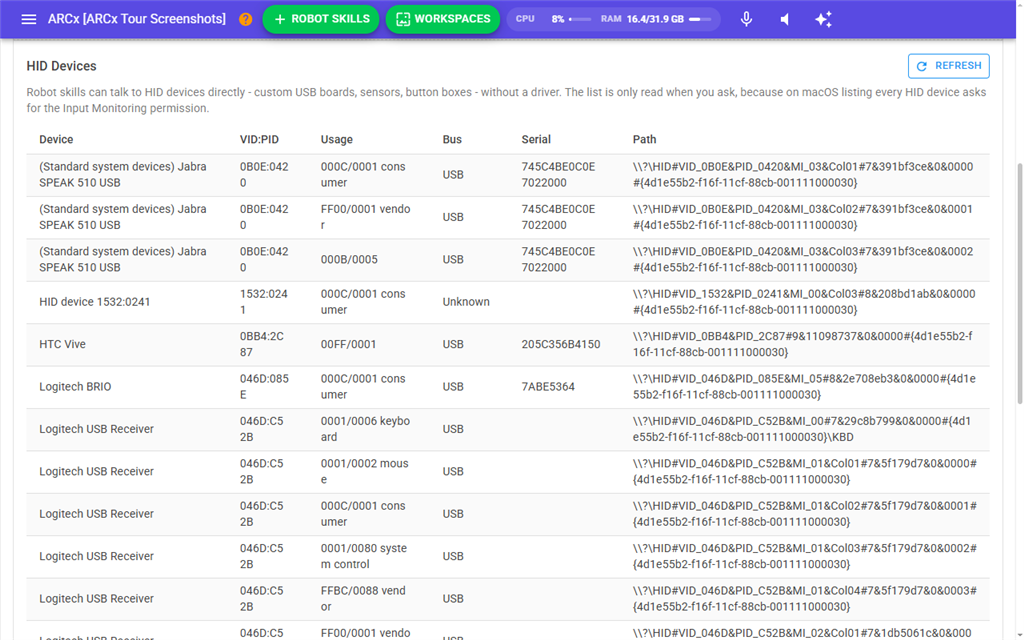
The list is empty until you press List HID Devices. This is on purpose: on macOS, listing every HID device makes the operating system ask for the Input Monitoring permission. Once listed, the button becomes Refresh, and the list also updates by itself when devices are plugged in or removed.
| Column | What it shows |
|---|---|
| Device | The manufacturer and product name, or "HID device" and the VID:PID when the device does not report a name. |
| VID:PID | The vendor and product numbers, in hexadecimal. |
| Usage | The usage page and usage numbers, with a plain name for common ones: mouse, joystick, gamepad, keyboard, multi-axis, system control, consumer, digitizer or vendor. |
| Bus | USB, Bluetooth, I2C, SPI or Unknown. |
| Serial | The serial number, if the device reports one. |
| Path | The operating system's path to the device. |
Keyboards and mice are listed too, but most operating systems will not let a robot skill open them. If nothing is found, the panel says No HID devices found.
Troubleshooting
- A controller never appears. Plug it into USB, or pair it in the operating system's Bluetooth settings first. On Linux, the user running ARCx must be allowed to read /dev/input. Views → Diagnostics checks this and gives the command to fix it.
- The status says Not running. Read the red message under the switch. "SDL did not finish starting in time." means the controller library did not start within five seconds; switch support off and on again, or restart ARCx.
- A HID device is listed but a robot skill cannot open it on Linux. The user running ARCx needs access to the device's /dev/hidraw entry. Views → Diagnostics describes the fix.
- Two identical controllers swap places. Controllers without a serial number share the same key and are told apart only by the order they were plugged in. Plug them in in the same order each time.