Athena AI
Athena is the AI assistant built into ARCx. You chat with her in plain language. She can see the robot skills in your open project, search the Robot Skill Store and the Synthiam support documents, read how your robot skills are configured, and write scripts. She can also add, remove and configure robot skills for you, and you approve each of those changes first.
Use Athena when you don't know which robot skill you need, when you want a script written, or when you want a working setup built for you, such as "make a robot that can detect colors and speak".
Where to find it: Side menu → Athena AI for the full page. The sparkle button on the right of the top bar (Chat with Athena, the AI assistant.) opens the same chat in a panel that slides in from the right, over whatever screen you are on. You can also press Open Athena on the Help page.
Contents
Before you start
You need to be signed in with your Synthiam account. If you are not, the chat shows Sign in to ARCx with your Synthiam account to use Athena. and a Sign in link that opens Options → Account.
Each request uses Synthiam AI credits from your account. See AI credits.
The chat screen
The page and the slide-out panel show the same conversation. If you start a chat in the panel and then open the page, the chat continues there. There is one conversation for this copy of ARCx, so every browser connected to it sees the same chat. The conversation is not saved: it is lost when ARCx closes.
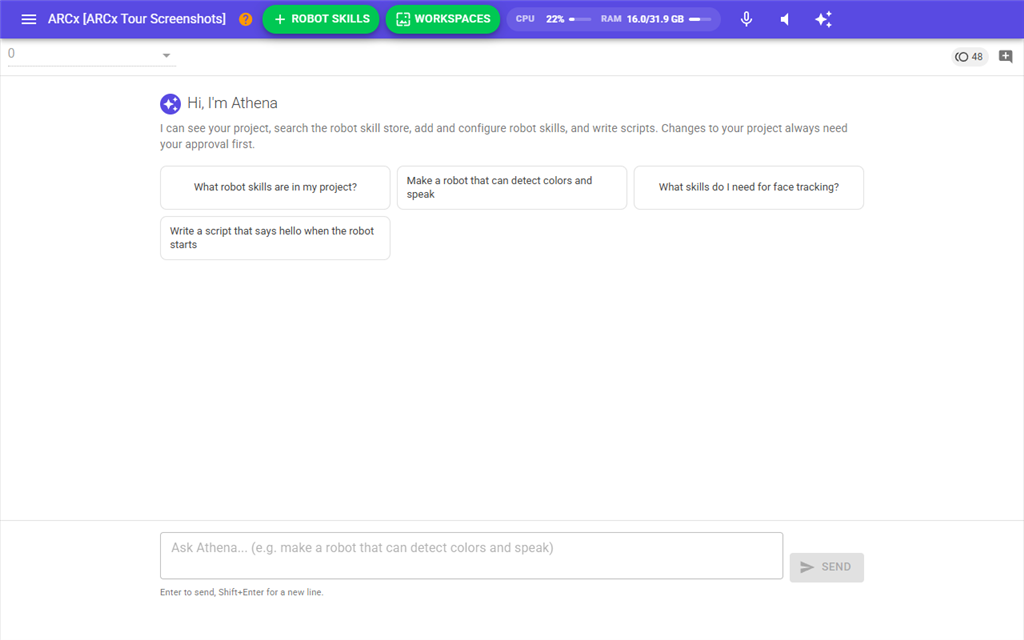
| Control | What it does |
|---|---|
| Model list (top left) | Picks the AI model Athena uses. It shows Loading models... until the list arrives from Synthiam, and No AI models available if Synthiam offers none. ARCx remembers your choice. |
| Credits chip (top right) | Your remaining Synthiam AI credits. Click it to buy more on synthiam.com. It appears once ARCx knows your balance. |
| Start a new conversation (speech bubble with a plus) | Clears the chat and starts a new one. If Athena is working, the request is cancelled first. |
| Suggestions | When the chat is empty, Athena shows a few example questions, such as What robot skills are in my project? Clicking one puts it in the message box. It does not send it. |
| Message box | Type your question or request. Press Enter to send, or Shift+Enter for a new line. |
| Send | Sends the message. It is greyed out until you have typed something and a model is selected. |
| Cancel | Shown in place of Send while Athena is working. It stops the current request and shows Cancelled. |
While Athena works, a line under the conversation says what she is doing, such as Thinking... or Waiting for your approval.... Each finished step stays in the conversation as a small line with a lightning icon, such as Read the project's robot skills or Searched the robot skill store. Replies are formatted text, and each reply ends with how many credits it used.
What Athena can do
Athena does some things straight away and asks before doing others.
Done without asking. These only read information and change nothing:
- List the robot skills in your project.
- Search the robot skills that can be added: those installed on this computer and those in the Robot Skill Store.
- Search the store and read a robot skill's manual.
- Search and read the Synthiam support documents.
- Read the control commands a robot skill in your project accepts.
- Read a robot skill's configuration, and the scripts stored inside it.
- Read the global script variables and their values.
Done only after you approve:
| Action | What happens |
|---|---|
| Add a robot skill to the project | The skill is downloaded first if it is not installed, then added to the workspace as if you had added it yourself. |
| Remove a robot skill | The skill is removed from the project and its configuration is lost. |
| Change a robot skill's configuration | Athena changes the settings she names. |
| Write a script | Athena writes JavaScript or Python into a script inside a robot skill's configuration. |
| Send a control command | Athena sends a command to a robot skill, which can make the robot move or speak. She waits up to 30 seconds for it to finish. |
Athena works on the open project the same way you would by hand. Her changes are not saved for you. Save the project with File → Save to keep them.
Approving changes
When Athena wants to change something, a card appears in the chat that starts with Athena wants to:, followed by a short description such as Remove robot skill 'Camera'. Under that are the details she will send. Long details are cut short.
- Read the card.
- Press Approve to let her go ahead, or Deny to refuse. If several cards are waiting, Approve all approves every one of them.
- If you deny, the chat shows Declined: followed by the action, and Athena is told you refused so she can suggest something else.
Pressing Cancel or Start a new conversation while a card is waiting counts as a denial.
AI credits
Every request to Athena is charged to your Synthiam account in AI credits. The amount depends on the model and on how much work the request needs. The credits chip shows your balance, and each reply says how many credits it used. When you run out, the chat says You don't have enough AI credits to make a request. and shows a Buy AI credits link.
Troubleshooting
| Message | What it means |
|---|---|
| Sign in to ARCx with your Synthiam account to use the AI assistant. | You are not signed in, or your sign-in has expired. Use the Sign in link next to the message. |
| You don't have enough AI credits to make a request. | Buy more credits with the link next to the message. |
| The conversation is too large for the selected model. Start a new conversation. | The chat has grown too long for the model. Press Start a new conversation. |
| The AI provider returned an error. No credits were charged. | The AI service had a problem. Try again in a moment, or pick another model. |
| Could not reach the Synthiam AI service. | The computer running ARCx could not reach synthiam.com. Check its internet connection. |
| The AI requested too many actions in one turn. Ask again to continue. | Athena stops after a set number of steps in one request, so a request can't run up credits forever. Send another message to let her carry on. |
| Something went wrong: followed by a message | An unexpected error. Details are in Views → Debug Log. |
If the model list stays at Loading models... or says No AI models available, ARCx could not get the list of models, and Send stays greyed out. Check the internet connection and your sign-in, then open Athena again. The cause is in Views → Debug Log.