
Create
This screen starts a new robot skill of your own. You give it a name, a description and categories. ARCx then registers the skill with Synthiam under your account, generates a Visual Studio project for it, and writes a prompt you can give to an AI coding assistant so it can write the skill for you.
Use it when you want to add a new capability to ARCx, such as support for a sensor, a connection to an AI service, or a control panel for your own routines, and share it with other robot builders through the Robot Skill Store.
Where to find it: Top bar → Robot Skills → Create. Also Help → Build a robot skill, and the Create Robot Skill button on Robot Skills → Manage.
Contents
- What you need
- Page header
- Introduction tab
- Create tab
- The robot skill created page
- The AI prompt
- After creating: build, test, share
- Troubleshooting
What you need
- A Synthiam account, signed in under Options → Account. The skill is registered to that account, and your account's user name becomes the skill's author.
- To write and build the skill: Visual Studio with the ASP.NET and web development workload, and the .NET 10 SDK. Robot skills are written in C# and Blazor.
- Run ARCx on the same computer as Visual Studio. The project is created on the computer that runs ARCx, and it is set up to build against that copy of ARCx.
Page header
| Button | What it does |
|---|---|
| Manage Robot Skills | Opens Robot Skills → Manage, which lists the robot skills you own. |
| Developer Docs | Opens the robot skill developer documentation on synthiam.com in a new tab. |
Introduction tab
An overview of what a robot skill is, what you could build, and the five steps from idea to published skill. It includes a robot skill overview video and links to the step-by-step guide for writing a skill with AI. Create your robot skill switches to the Create tab.
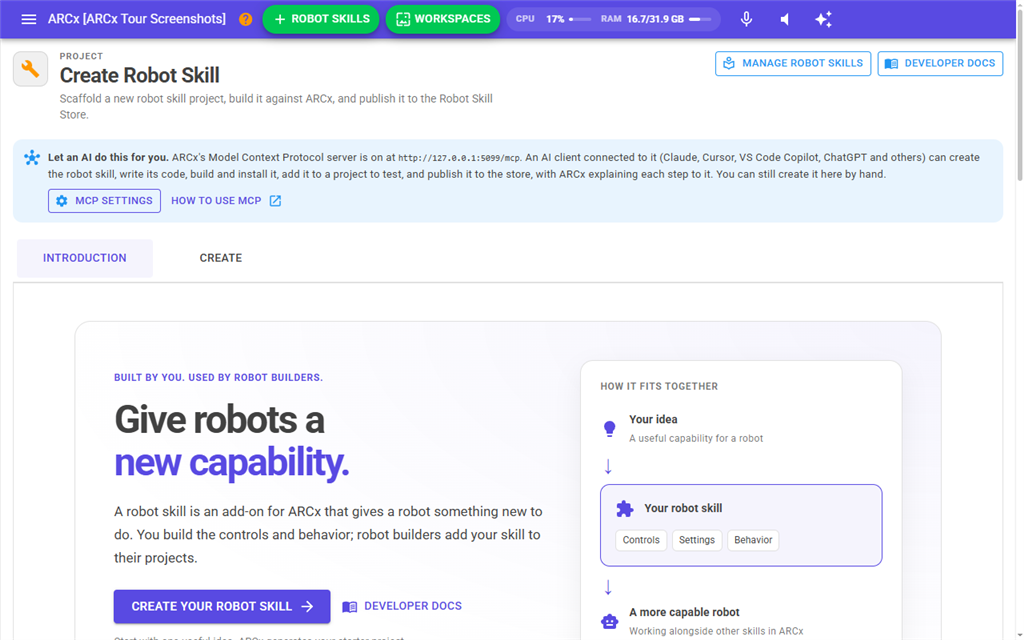
Tick Do not show this overview again to make the page open on the Create tab from now on. The Introduction tab is still there if you want it.
Create tab
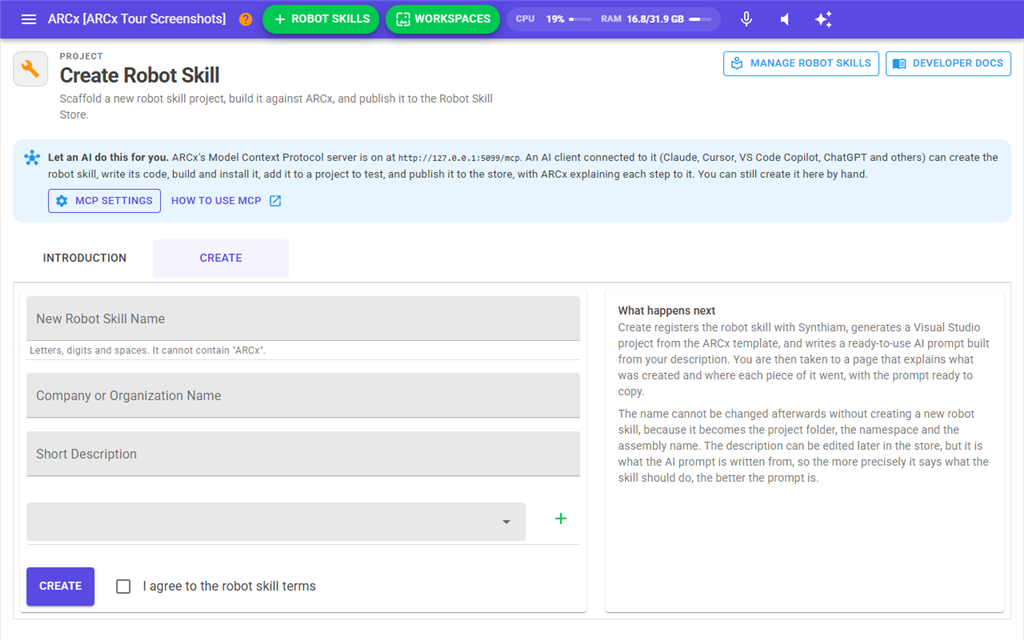
| Field | What to enter |
|---|---|
| New Robot Skill Name | The skill's name. At least 5 characters, using letters, numbers, spaces and ( ) - . only. ARCx capitalises each word. It can't contain "ARCx" in any letter case, because that name belongs to ARCx itself. The name can't be changed later without creating a new robot skill, because it becomes the project folder, the namespace and the assembly name. |
| Company or Organization Name | Shown as the publisher in the store. At least 5 characters. ARCx capitalises each word. |
| Short Description | What the skill does. At least 30 characters. You can edit it later in the store, but the AI prompt is written from it, so the more precisely it says what the skill should do, the better the prompt is. |
| Categories | Pick a store category from the drop-down and press the + button to add it. Add one to three. Click a category chip's × to remove it. |
| I agree to the robot skill terms | Must be ticked. |
Press Create. While ARCx works, the button is greyed out. If something is wrong, the panel on the right lists Errors and the button comes back so you can correct them. Otherwise the panel explains what happens next.
When creation succeeds, ARCx:
- Registers the robot skill with Synthiam under your account and gives it a permanent ID. Nobody else can see it until you upload a build and make it public.
- Creates the project folder
Documents/ARCx Data/Robot Skill Projects/<skill name>on the computer running ARCx. - Writes the store manifest,
plugin.json, with your name, description, categories, the ID and a version number. - Generates a working Visual Studio project from the ARCx template. It already runs as a demo timer and counter, which you replace with your own code.
- Points the project at this copy of ARCx, so it builds against it and debugging starts it.
- Writes
AGENTS.md, a guide file for AI coding assistants. See The AI prompt. - On Windows, opens the project folder in File Explorer on the computer running ARCx.
- Opens the Robot skill created page.
Each press of Create registers a new robot skill in the store. That's why the button stays greyed out once a skill has been created.
The robot skill created page
This page confirms the skill exists and shows where everything went. It is read back from the project on this computer, so you can refresh it or come back to it later.
Next steps sums up what to do: write it, build and try it, then share it. Get the AI prompt jumps to the prompt further down the page, and Guide opens the step-by-step guide on synthiam.com.
What ARCx just did lists each job Create did, with its result:
| Item | What it shows |
|---|---|
| Registered it with Synthiam | The skill's permanent ID. |
| Wrote the store manifest | The categories in plugin.json. Leave that file alone, apart from raising Version each time you publish. |
| Generated a Visual Studio project | The project folder, and the namespace and assembly name. |
| Pointed the project at this ARCx | The folder ARCx runs from. The project uses ARCx.dll from there, and ARCx.xml there documents every ARCx class and method. |
| Set up install-on-build | The folder each successful build copies the skill into. Once it is built, the skill appears in Robot Skills → Add on this computer with no upload needed. |
| Wrote you an AI prompt | The prompt below, rebuilt from plugin.json each time the page opens. |
You supply the thumbnail. Every robot skill needs a square PNG called title.png, 256x256 or larger, in the project folder, before it can go to the store. It is what people see in the store. Until you add one, the project still builds and runs, but every build warns This robot skill has no thumbnail.
If the page shows Robot skill not found, nothing on this computer has that skill ID. The project folder may have been moved or deleted, or the skill was created on another computer. Manage robot skills opens Robot Skills → Manage, which lists every skill on your account and has the AI prompt for each.
The AI prompt
An AI coding assistant knows nothing about ARCx by itself, so it makes up methods that don't exist. The prompt fixes that. It contains:
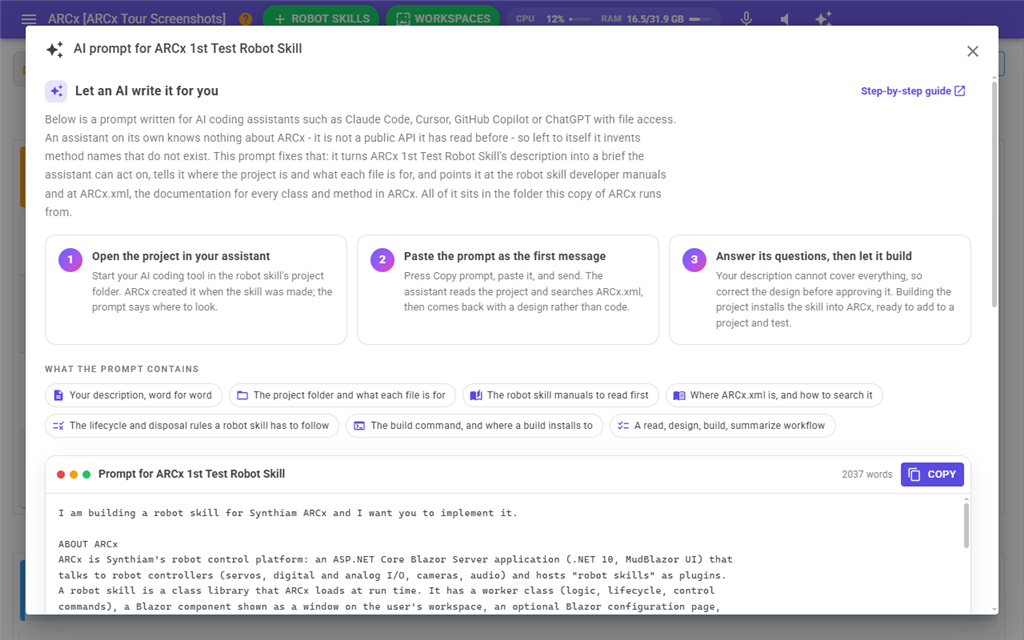
- Your description, word for word.
- The project folder and what each file in it is for.
- The robot skill developer manuals to read first, if they are installed with ARCx.
- Where
ARCx.xmlis, and how to search it. - The lifecycle and disposal rules a robot skill has to follow.
- The build command, and where a build installs to.
- A workflow: read, design, build, summarise.
To use it:
- Start your AI coding tool, such as Claude Code, Cursor, GitHub Copilot or ChatGPT with file access, in the project folder.
- Press Copy prompt (or Copy above the prompt). ARCx shows Copied. Paste it into your assistant.
- Paste it as the first message and send it. The assistant reads the project and comes back with a design before writing code.
- Correct the design, answer its questions, then let it build.
| Button | What it does |
|---|---|
| Copy prompt / Copy | Copies the whole prompt to the clipboard. The header shows how many words it is. |
| Open project folder | Opens the project folder in File Explorer. Only shown when ARCx runs on Windows. The folder opens on the computer running ARCx, not on the device your browser is on. |
| Open manuals folder | Opens the folder with the robot skill developer manuals. Windows only, as above. |
| Write AGENTS.md / Rewrite AGENTS.md | Writes the AI guide file into the project folder again. ARCx writes it when it creates a skill, so this is for an older project, or one whose copy names a folder ARCx has since moved out of. |
| Go to Manage | Opens Robot Skills → Manage. |
The prompt is for the first conversation. After that, AGENTS.md in the project folder gives every new assistant session the same background, so you don't need to paste the prompt again. It leaves out what your skill does, because that changes as you build it.
The page also shows where the developer manuals and ARCx.xml are. A chat-only assistant can't read files, so attach them to the chat yourself. ARCx.xml is about a megabyte, so a chat window may refuse it. If it does, use an assistant with file access.
After creating: build, test, share
- Write the skill in Visual Studio, or with an AI assistant using the prompt.
- Add
title.pngto the project folder. - Build the project. Each build installs the skill into ARCx on this computer.
- Add it to a project with Robot Skills → Add and test it with your hardware.
- When it works, raise Version in
plugin.json, rebuild, and upload it from Robot Skills → Manage. Then edit its store entry to make it public.
Troubleshooting
| Error | What to do |
|---|---|
| Name must be longer than 5 characters | Use a name of at least 5 characters. |
| The name must be limited to alpha numeric characters (0-9, a-z, A-Z) | Remove symbols from the name. Spaces and ( ) - . are allowed. |
| Company or Organization Name must be longer than 5 characters | Use at least 5 characters. |
| The name cannot contain "ARCx" | Remove "ARCx" from the name, in any letter case. The name becomes the namespace and DLL name, and "ARCx" there is mistaken for ARCx itself. |
| Description must be longer than 30 characters (yours is ...) | Write a longer description. It helps the AI prompt too. |
| You must specify at least one category. | Add a category with the + button. |
| You must agree to the terms of use. | Tick I agree to the robot skill terms. |
| The destination folder ... has a plugin.json. Is this a new project folder? | A project with that name already exists in Robot Skill Projects. Pick another name, or move the old folder away. |
If the category drop-down is empty, ARCx has no store list to take categories from. Open Robot Skills → Add and press Refresh list, then come back.
If you are not signed in, Create fails with an error from the Synthiam service. Sign in under Options → Account and try again.