
Debug Log
The Debug Log lists the errors, warnings and messages raised by ARCx and by the robot skills in your project. The newest entry is at the top. Open it when something does not work as expected, when a robot skill seems to do nothing, or when someone helping you asks what the log says.
Where to find it: Side menu → Views → Debug Log. Also from the top bar, Workspaces → Debug Log. If a screen in ARCx hits an unexpected error, the error page also has a Debug Log button, and checks in Views → Diagnostics link here when the log has the answer.
The log table
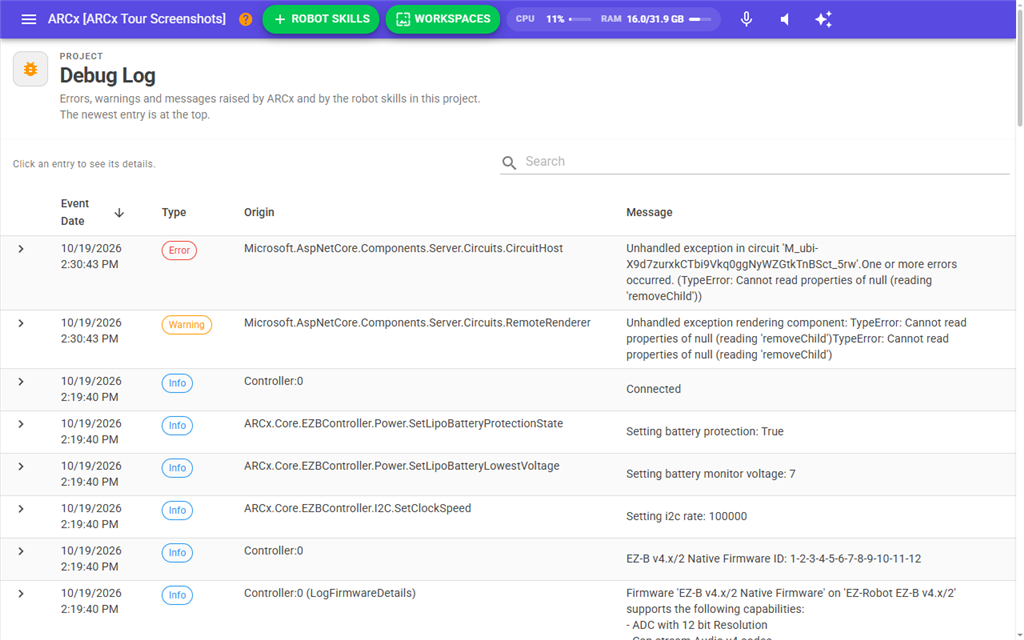
| Column | What it shows |
|---|---|
| (arrow) | Points right when the entry is closed and down when it is open. |
| Event Date | When the entry was logged. Click the heading to sort oldest first or newest first. |
| Type | Info, Warning or Error, as a coloured chip. |
| Origin | What wrote the entry. For a robot skill, the skill's title is shown above it. |
| Message | What happened. If an error was attached, its short message follows. |
The table shows 50 entries per page. Use the pager at the bottom to move through older entries or to change how many show per page.
When nothing has been logged, the page says Nothing has been logged, which is the good outcome.
Seeing an entry's details
Click anywhere on a row to open it. Click it again to close it. The details show:
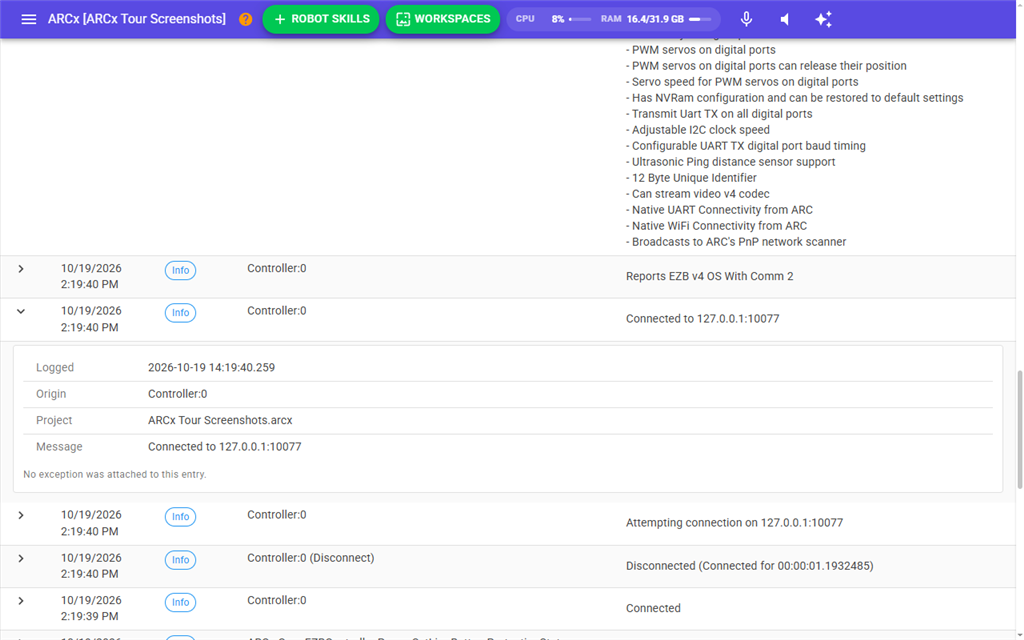
| Field | What it shows |
|---|---|
| Logged | The exact time, to the thousandth of a second. |
| Skill | The robot skill that wrote the entry, if any. |
| Origin | What wrote the entry. |
| Project | The project that was open, if any. |
| Message | The full message. |
| Exception | The kind of error, when one was attached. |
When an error was attached, its full technical trace is shown underneath in a scrollable box. You can select and copy that text. This is what support usually needs. Otherwise the details say No exception was attached to this entry.
To have every entry with an error open already, turn on Stack traces in the debug log in Options → Preferences.
Searching
Type in Search to show only matching entries. The search looks at the type, the origin, the message, the robot skill's title, and the full error trace of entries that have one. For example, type Error to find errors, or type a robot skill's name to see only what it logged. The search updates as you type. Press the clear icon to show everything again.
Notes
- The table does not update by itself while you are reading it. Open the page again, or type in Search, to see new entries.
- The log covers everything since ARCx started, not only the current project. Opening another project does not clear it.
- Only the most recent 10,000 entries are kept in memory. The complete log is also written to a file in the ARCx data folder:
Documents\ARCx Data\Logs\Usage.jsonon Windows, and~/ARCx Data/Logs/Usage.jsonon Linux and macOS. - Views → Skills Log is a different view: it shows the last few lines from the log of each robot skill, side by side.