
Your AI agent just became a robot builder
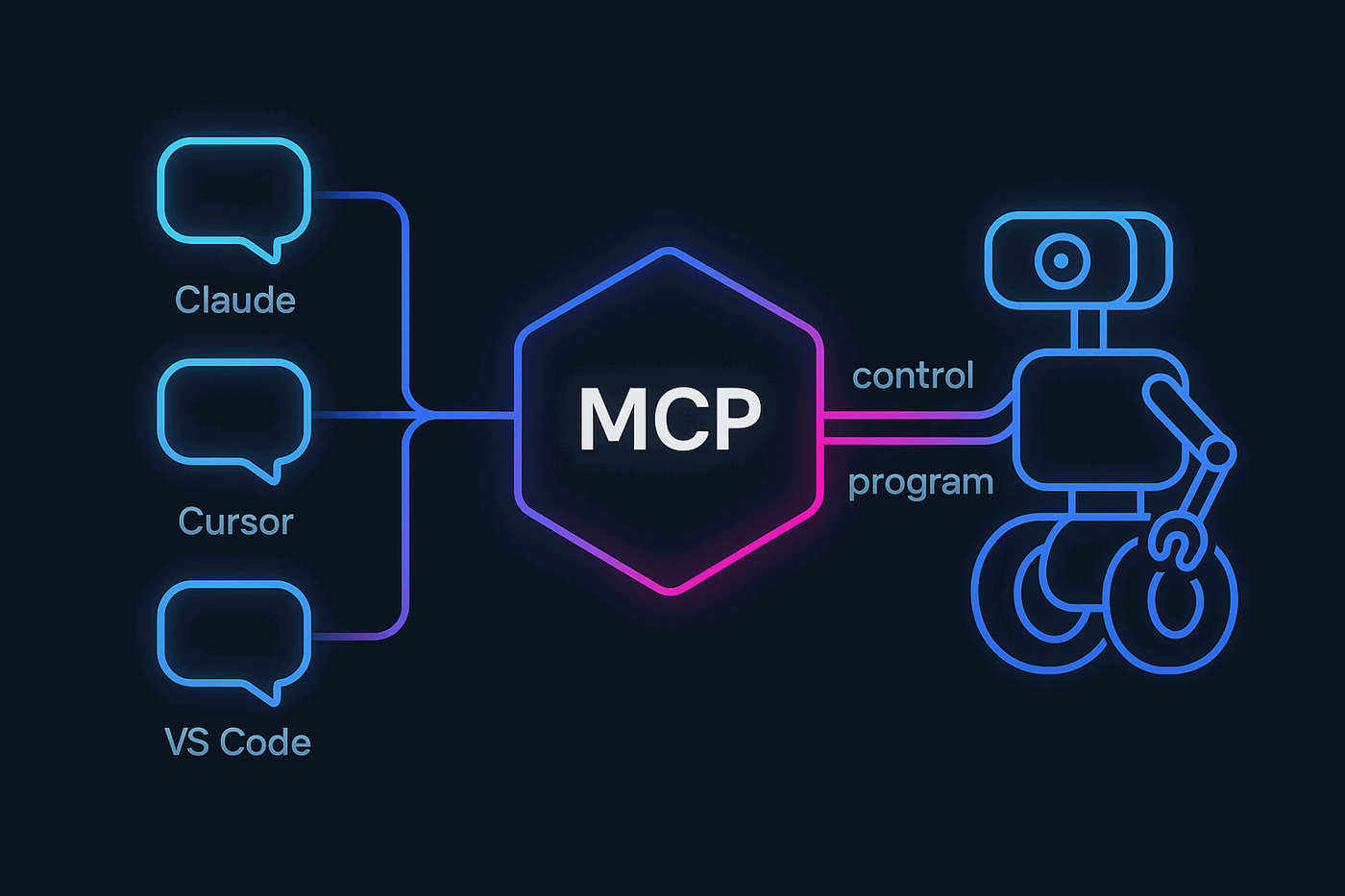
The Model Context Protocol (MCP) is the open standard that lets AI applications reach outside tools and data. Claude, ChatGPT, Cursor, VS Code Copilot, Gemini CLI and most agent frameworks are MCP clients. Synthiam ARC and ARCx are MCP servers. Point your AI at them and the robot becomes something the AI can see, drive, configure and program.
Other MCP servers give an AI a database or a calendar. Ours gives it a robot: cameras, servos, movement, speech, sensors, every Robot Skill's control commands, the script engine, the project itself, and on ARC, the application's own user interface. With MCP, there is really no limit to what the robot can do.
AI agents can control the robot and program it
Most robot integrations stop at remote control. An MCP connection to ARC or ARCx is the whole toolbox: the AI can operate the robot right now, and it can change what the robot is.
Control the robot
Live tools for the robot in front of you. Ask, and the AI does it.
- Drive forward, turn, stop, and set the speed
- Look through the camera and describe what the robot sees
- Move servos by position and read them back
- Speak through the robot's voice
- Read sensors and global variables published by Robot Skills
- Send any control command of any Robot Skill
- Run a script and get back everything it printed
Program the robot
The AI works on the project the way you would, with your approval.
- Create new robot projects from scratch, or open and save existing ones
- Search the Robot Skill Store and add Robot Skills
- Configure every setting of every Robot Skill
- Write, fix and replace JavaScript and Python scripts
- Build brand new Robot Skills with a coding agent
- Write and update controller firmware, then test it on the robot
- Read the manuals and the debug log to work out what went wrong
Build entire robots from a conversation
Every capability below is a real MCP tool or resource that ARC or ARCx offers to a connected AI.
Create entire robot projects
"Build me a project for a two-wheeled rover with a camera, speech recognition and a joystick." The AI starts a new project, adds the Robot Skills, configures them, writes the scripts and saves it.
Add Robot Skills
The AI searches the Robot Skill Store, picks the skill that fits, downloads and installs it if needed, and adds it to the project. Hundreds of skills for vision, speech, navigation, servos and AI.
Configure Robot Skills
Every Robot Skill describes its own settings. The AI reads the description and the manual, changes exactly the setting you asked about, and reads the configuration back to verify it.
Write code
JavaScript and Python scripts written against the real script API, the real control commands and the real global variables in your project. The AI runs the script, reads the output and fixes it until it works.
Write firmware
Pair the robot tools with a coding agent such as Claude Code or Cursor and it can edit the open-source EZB firmware for Arduino, ESP32 and other controllers, then connect and test the result on the real hardware.
Make new Robot Skills
When no skill does what you need, the AI can create one. ARCx generates a complete skill project and a prompt for your coding agent; build it and it installs straight into the robot.
See through the camera
On ARCx, a camera image is a tool result. The AI looks at what the robot sees, finds the object you asked about, and decides what to do next. On ARC, the AI can screenshot any window.
Drive the ARC interface
ARC's MCP server exposes the application itself: snapshot a window as a text tree, click buttons, set values, select tabs and close dialogs. Anything you can do in ARC, the AI can do, and it outlines what it touches so you can follow along.
Debug the robot
The AI reads the debug log, lists the controllers and their connection state, checks variables and runs test scripts. Describe the symptom and let it find the cause.

An AI agent with the whole robot toolbox: skills, code, firmware and the hardware itself.
The AI builds what you describe. Then it drives it.
A code assistant writes code. A chat bot answers questions. An AI agent connected to ARC or ARCx does both, and then tests the result on the physical robot, looks at what happened, and keeps going until it works.
- Every Robot Skill is a tool. Each skill's control commands are reachable from the AI, so adding a skill to the project adds a capability to the agent.
- The AI reads the manuals. Robot Skill manuals from synthiam.com and the script API reference are available as tools, so the AI learns a skill before it configures it.
- Test, see, fix, repeat. Run a script, read its output, grab a camera image, check the log. The feedback loop that makes coding agents good now includes the robot.
- The same AI everywhere. Use the model, subscription and client you already have. Nothing to buy from us to connect.
Connect your AI in three steps
ARC and ARCx speak the MCP Streamable HTTP transport, and ARCx also offers a stdio bridge for clients that start servers as a local process.
Turn on the MCP server
In ARC, open Options, Preferences, MCP Server and tick Enable MCP server for AI agents. In ARCx, open Preferences, AI connections and switch the MCP server on. Both show the URL and an access token to copy.
Paste the config into your AI client
ARC and ARCx write the configuration for you: a one-line command for Claude Code, a JSON block for Claude Desktop, Cursor, Windsurf and VS Code, or the plain URL and header for any client that supports Streamable HTTP.
Ask for a robot
Your AI lists the tools, reads the instructions the server sends, and gets to work. Ask it to drive, look, speak, add a skill, write a script or build the whole project. It asks you before it changes anything that matters.
# Claude Code: one line, from the ARC or ARCx preferences page
claude mcp add --transport http arc http://127.0.0.1:3190/mcp \
  --header "Authorization: Bearer arc_..."

# Claude Desktop, Cursor, Windsurf, VS Code (mcp.json)
{
  "mcpServers": {
    "arcx": {
      "command": "C:\\Program Files\\Synthiam Inc\\ARCx\\ARCx.exe",
      "args": ["--mcp-stdio"]
    }
  }
}
The ARC server listens at port 3190; ARCx answers at /mcp on the address it is bound to.
Works with the AI you already use
MCP is an open standard, so there is no Synthiam plug-in to install on the AI side. If your AI application can connect to an MCP server, it can connect to your robot.
- Claude Code
- Claude Desktop
- Claude API
- ChatGPT
- Cursor
- Windsurf
- VS Code Copilot
- Gemini CLI
- Zed
- LangChain and agent frameworks
- Your own agent
Things people ask their AI to do with a robot
The MCP server in ARC and the MCP server in ARCx
Both let an AI control and program the robot. They differ in the same way the products do: ARC is the Windows desktop application for DIY and education, ARCx runs on the robot and is built for robot builders, enterprise and industry.
| ARC MCP server | ARCx MCP server | |
|---|---|---|
| Transport | Streamable HTTP at http://127.0.0.1:3190/mcp with a bearer token |
Streamable HTTP at /mcp on the ARCx address, plus a stdio bridge (ARCx --mcp-stdio) for clients that launch a process |
| Project tools | New, open, save and list projects; list, add, remove, rename and move Robot Skills; read any skill's configuration; fetch its manual | List project and installed skills; add and remove skills; read and set any skill's configuration from its schema; read and set scripts |
| Robot tools | Send control commands, run scripts, get and set global variables, read the debug log | Robot status, camera image, move and stop, speak, set and read servos, variables, run scripts, script API reference, the log |
| Interface tools | Snapshot, screenshot, click, set value, select item, type, press keys, scroll, menus and dialogs. The AI operates ARC like a person would | Not needed: every setting is available as data through the configuration schema |
| Resources | — | arcx:// resources for the project, skills, variables, log, controllers, each camera, and each skill's configuration and control commands |
| Robot Skill tools | Every skill's control commands through send_control_command |
Control commands, plus skills can publish first-class MCP tools and resources of their own, prefixed with the skill's name. The tool list updates live as skills are added |
| Permissions | Switches for running scripts and control commands, approval prompts for project changes, real mouse and keyboard, action outlines and activity logging | Switches for controlling the robot and changing the project; tools the user has not allowed are never shown to the AI |
| Shares tools with | The AI Script Assistant's knowledge of your project | Athena, the built-in AI assistant. The same tools, so the two AIs agree about the robot |
Built so an AI can be trusted with a robot
A robot can move, so the servers are careful by default. You decide what the AI is allowed to do, and you can watch it do it.
Local by default
Both servers only accept connections from the computer they run on until you open them to the network. A bearer access token guards every request.
Permission switches
Decide whether the AI may move the robot, run scripts, or change the project. Tools you have not allowed are refused, and in ARCx they are not even listed.
Approval prompts
ARC asks before the AI creates or opens a project, and MCP clients ask you before running a tool that changes anything. Nothing is saved over your work without you.
Watch it work
ARC outlines every control the AI touches and logs every action. ARCx shows connected clients and their requests in Preferences. Tool calls time out rather than hang.
Give the AI a tool, not just a command
Every control command a Robot Skill declares is already reachable by an AI through the generic control command tool. In ARCx, a skill can go further and publish first-class MCP tools and resources: named, typed arguments, a description written for the model, and results that can be JSON or an image, so the AI can see what your sensor sees.
- No SDK to depend on. ARCx speaks the protocol itself. A skill returns a list of tools and handles the calls.
- Schemas from your code. Declare arguments as a class with comments and ARCx generates the JSON Schema.
- Prefixed and live. Tools are prefixed with the skill's window title, and connected clients are told when the tool list changes.
- Reach every AI user. A skill in the Robot Skill Store is a tool for every ARCx user's AI agent.
MCP and robots, answered
What is an MCP server for robotics?
Which AI clients can connect to ARC and ARCx?
Can the AI really program the robot, not just drive it?
Is it safe to let an AI control a robot?
Does it cost anything?
How is this different from Athena and the AI Script Assistant?
Do Robot Skills need to be updated to work with MCP?
Why robot builders choose us
Since 2010, we have worked side by side with robot builders around the world. More than 4 million robot connections have shown us what works, what breaks and what builders actually need, and every lesson has gone back into the software. Through the Robot Skill Store, we connect 600+ partners directly with those builders, so every new sensor, service and AI integration one partner adds is ready for everyone.
The secret is simple: the more our software is used, the better it gets.
ARC: proven by the community
The Windows platform for hobbyists, makers, students and teachers, with the full Robot Skill Store, Blockly, JavaScript and Python, and ARC Pro for advanced projects and courses.
ARCx: everything we learned, rewritten
Our next-generation platform, rewritten from the ground up with modern technology. It runs on the robot itself on Windows, Linux or Raspberry Pi, talks to industrial PLCs, and is programmed from a browser on your network or from anywhere.
ARC-Lite: built for learners
Our free robotics education app for Android, Chromebook and Windows. Guided lessons and Blockly activities teach robot programming step by step, then grow into JavaScript and Python. No robotics background required.
Connect your AI to a robot today
Download ARC for Windows or ARCx for Windows, Linux and Raspberry Pi, turn on the MCP server in Preferences, and hand your AI agent a robot.
Get ARC Get ARCx About the MCP standard