

Cloud vision for scene descriptions, OCR, object boxes, tags, adult/racy scores, scripts, auto mode, and MCP tools for ARCx
 Windows
 ARM
ARM
 Linux
Linux
 MacOS
MacOS
How to add the Cognitive Vision robot skill
- Load the most recent release of ARCx on a compatible operating system (Get ARCx).
- Press the + Skills menu from the top menu bar in ARCx.
- Choose any of these category tabs, the robot skill appears in each of them: Artificial Intelligence, Camera.
- Press the Cognitive Vision icon to add the robot skill to your project.
Don't have a robot yet?
Follow the Getting Started Guide to build a robot and use the Cognitive Vision robot skill.
How to use the Cognitive Vision robot skill
Gives the robot eyes that understand what they see. Cognitive Vision sends a camera picture to Synthiam's cloud vision service and gets back a description of the scene - a sentence such as "a person sitting at a table with a laptop and a dog" with how confident it is, tags, the objects in the picture with a box around each, and adult and racy scores - or reads the printed text in front of the camera (OCR). The results go into global variables and arrays for your scripts, run your Describe or Read Text script, and are drawn over the picture so you can see exactly what was found and where.
It is the ARCx version of ARC's Cognitive Vision. ARC's control commands (Detect, ReadText, Detach), its variables and arrays ($VisionDescription, $VisionConfidence, $VisionReadText, $VisionObjectName...) and its two scripts work unchanged, so scripts written for ARC keep working. New are the picture with labelled boxes, a history of recent results, auto mode, Look For triggers, speaking the results, waiting commands that return the answer, describing image files, MCP tools so an AI can ask what the robot sees, and two Custom UI widgets.
Requirements
- A camera robot skill in the project with its video running - Camera Source (usb) or Camera Source (ezb). Without one, Cognitive Vision can still describe image files.
- ARCx signed in to your Synthiam account (the account button at the top right). The pictures are analysed by Synthiam's cloud service on your account.
- An internet connection.
Every Describe or Read Text is one call of your account's daily quota for the cognitive services: 10 calls a day on a free account and 1000 a day with an ARC Pro subscription. The quota is counted per account, on every computer you use it from. When it is used up the service refuses further calls until the next day, and Cognitive Vision says so plainly in its window and in $VisionError.
The window
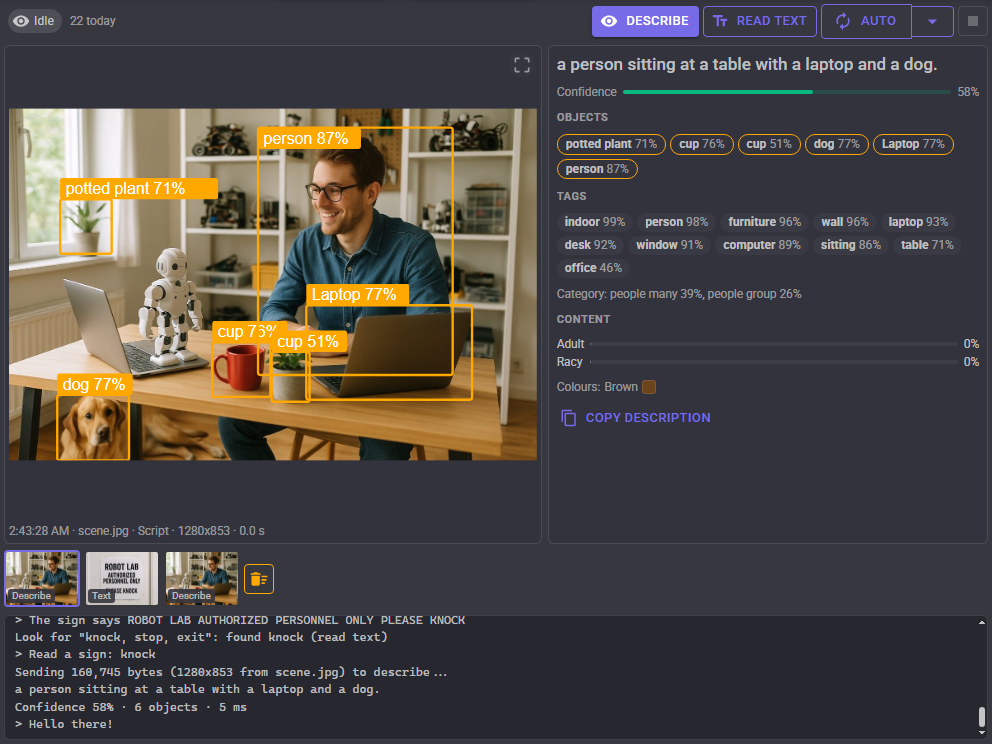
Toolbar
- Status - Idle, Capturing, Describing, Reading, or Auto. In auto mode's scene change mode it shows how much the scene has changed since the last picture analysed. Hover over it to see which camera is used.
- n today - how many calls the Cognitive Vision skills on this computer have made today.
- Describe - takes the next camera picture and describes it (ARC's Detect).
- Read Text - takes the next camera picture and reads the text in it (ARC's ReadText).
- Auto - starts and stops auto mode. The arrow beside it chooses whether auto mode describes or reads text, and whether it runs on an interval or when the scene changes.
- Stop - cancels the request being made.
Picture - the picture that was analysed, with every detected object boxed and labelled in orange with its confidence, faces in blue, and every word that was read in green. The button in its corner hides the boxes for a moment. Under it: when it was taken, the camera or file, what asked for it (Button, Script, Auto, AI or Custom UI), the size that was sent and how long the service took.
Results - for a description: the sentence in large type with its confidence, the objects and the tags as chips with their confidence, the category, the adult and racy scores, the dominant colours, and a Copy description button. For read text: the text line by line, the number of lines and words, the language, and a Copy text button.
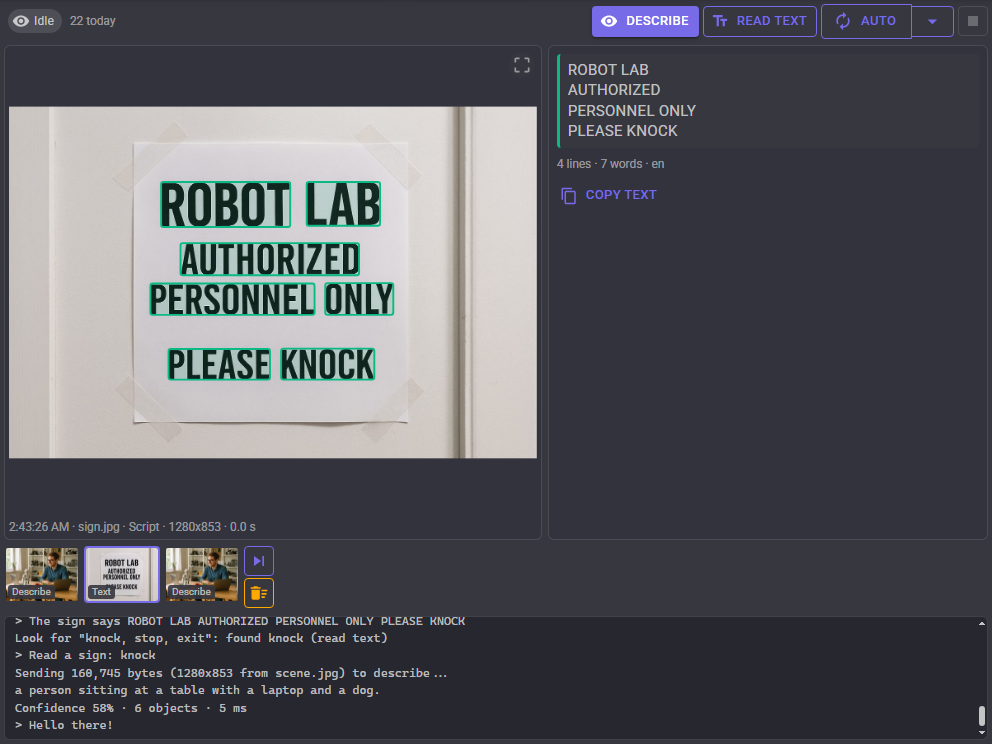
History - thumbnails of the recent results, newest first, each marked Describe or Text. Click one to see it again with its boxes and results; click the newest, or the skip button, to follow new results again. The broom clears the history (after asking). The history is kept in memory only.
Log - what was sent, each description or text, the confidence, which Look For triggers ran, anything your scripts print, and why a request failed.
A picture the service flags as adult or racy is blurred in the window, the history and the widgets until someone presses Show. This can be turned off on the Camera tab of the configuration.
Variables
Every result sets these global variables. The names are ARC's and can be changed on the Variables tab of the configuration; give each Cognitive Vision its own names when a project has more than one.
| Variable | Set by | Holds |
|---|---|---|
$VisionDescription |
Describe | The description, every caption followed by a full stop, i.e. a person sitting at a table with a laptop and a dog. |
$VisionConfidence |
Describe | How confident the description is, 0 to 100. |
$VisionObjectName |
Describe | Array: the name of every detected object, i.e. person, cup, dog. |
$VisionObjectConfidence |
Describe | Array: the confidence of each object, 0 to 100. |
$VisionObjectX, $VisionObjectY |
Describe | Arrays: the left and top edge of each object, in the camera's own pixels. |
$VisionObjectWidth, $VisionObjectHeight |
Describe | Arrays: the size of each object, in the camera's own pixels. |
$VisionObjectCount |
Describe | How many objects were detected. |
$VisionTagName |
Describe | Array: the tags, best first, i.e. indoor, person, desk. |
$VisionTagConfidence |
Describe | Array: the confidence of each tag, 0 to 100. |
$VisionFaceCount |
Describe | How many faces were found. |
$VisionAdultScore, $VisionRacyScore |
Describe | How likely the picture is adult or racy content, 0 to 100. |
$VisionIsAdultContent, $VisionIsRacyContent |
Describe | true when the service flags the picture. |
$VisionReadText |
Read Text | Every word read, separated by a space. Empty when there is no text. |
$VisionReadLines |
Read Text | Array: each line of text, top to bottom. |
$VisionError |
Every request | Why the last request failed, or empty when it worked. |
$VisionTriggerPhrase |
Look For | The phrase of the Look For trigger that ran last. |
$VisionTriggerMatch |
Look For | What it matched: the object or tag name, or the phrase in the description or text. |
The object arrays are in the same order, so index 0 of each describes the same object. The boxes are always in the camera's pixels, even when a smaller picture was sent, so a script can aim a servo at an object the same way it did in ARC.
Scripts
Detect and ReadText work as they did in ARC: they start the request and return straight away, and the Describe or Read Text script runs when the answer arrives.
// The Describe script: greet a person, or say what is there
if (getVar("$VisionObjectName").indexOf("person") >= 0)
  Audio.say("Hello there!");
else
  Audio.say("I see " + getVar("$VisionDescription"));
The new Describe and Read commands wait for the answer and return it, which is simpler in a script that wants to act on it straight away:
var seen = ControlCommand("Cognitive Vision", "Describe");

if (seen == "")
  print("It failed: " + getVar("$VisionError"));
else
  print("The robot sees " + seen);

var text = ControlCommand("Cognitive Vision", "Read");
names = getVar("$VisionObjectName")
xs = getVar("$VisionObjectX")

for i in range(len(names)):
  print(names[i] + " at x " + str(xs[i]))
DescribeFile and ReadFile do the same with an image file instead of the camera, i.e. a photo the robot saved with Camera Snapshot. GetLastResultJson returns everything the last result said as JSON - the boxes of every word that was read, the categories and the colours too - for a script that wants more than the variables hold.
GetSceneChange returns how much the camera picture has changed since the last picture that was analysed, 0 to 100, measured on this computer without using the quota, so a script can decide whether another Describe is worth a call.
A new result restarts its script if the last one is still running, as in ARC. To describe again from inside the Describe script, use Detect, which returns straight away; a waiting Describe called from that script would be stopped by its own result.
Auto mode
Auto mode analyses a picture by itself and does everything a button press does: the variables, the scripts, the Look For triggers and speech.
- When the scene changes (the default) - every second it compares a tiny greyscale copy of the camera picture with the last picture analysed, and sends a new picture only when more than the Scene change percentage of it has changed, at most once every interval seconds. Comparing costs nothing; only the pictures sent use the quota. A robot looking at an empty room makes no calls at all.
- On an interval - sends a picture every interval seconds, whatever the camera sees.
Auto mode stops by itself when it has made its daily limit of calls (100 by default, counted on this computer and reset at midnight) and when the service says the account's quota is used up, and the window says why it stopped. With a free account's 10 calls a day, keep auto mode on scene change with a long interval. It holds while any robot skill's configuration window is open, and does nothing while another request is running.
Look For
Look For triggers run a script when a result mentions something: an object, a tag, a word in the description, or text that was read.
- Look for - a word or phrase, i.e.
person,dogorexit. Separate alternatives with commas:cat, kitten. Case is ignored and a whole word must match, socatdoes not matchcatalog. - In - where to look: anything, objects, tags, the description, or the read text.
- Min confidence - the lowest confidence an object, tag or description must have to count. Read text always counts.
- Cooldown - once it has run, the trigger waits this many seconds before it runs again, so a scene that stays the same does not run the script on every picture of auto mode.
When a trigger runs, $VisionTriggerPhrase holds its phrase and $VisionTriggerMatch what it matched: the object or tag name, or the phrase found in the description or text. When several triggers match the same result, their scripts run one after another - each waits for the one before it to finish, or 5 seconds at most - so each script sees its own values. While a phrase is typed, the configuration shows what it would match in the last result.
Custom UI widgets
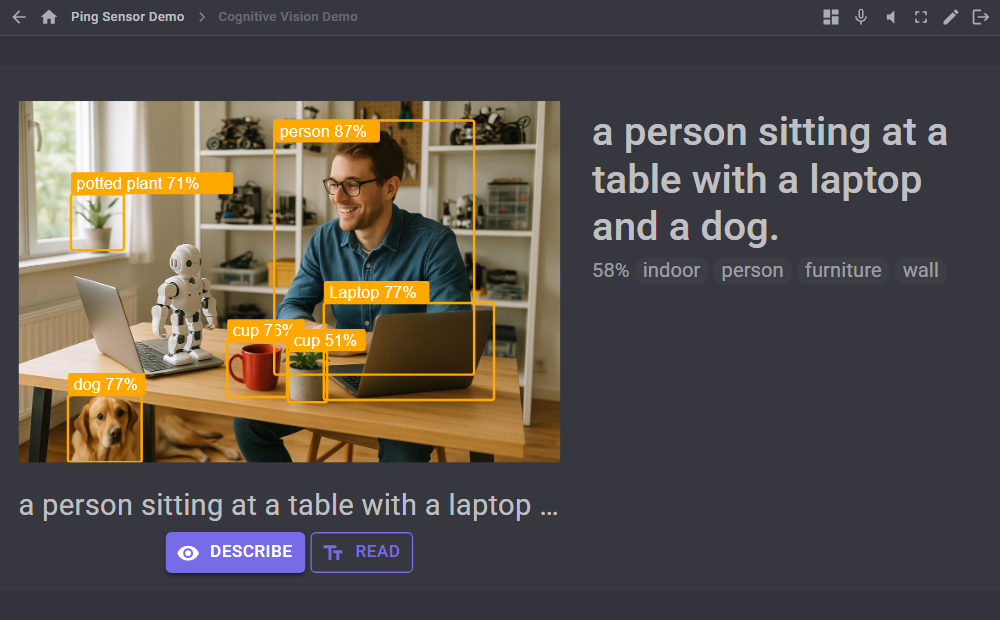
- What it sees - the last picture analysed with its boxes, the description or text under it, and Describe and Read Text buttons. Settings:
ShowButtons,ShowCaption,ShowBoxes(true or false). - Description - the last description or text in large type, with its confidence and top tags. Tapping it describes again. Settings:
TapAction(Describe,ReadTextorNone) andShowTags(true or false).
AI assistants (MCP)
An AI assistant connected to ARCx can use four tools of this skill:
- describe_scene - takes a picture (or reads an image file), describes it, and returns the picture with the boxes drawn on it together with the whole result as JSON: description, confidence, tags, objects with their boxes, categories, scores and colours.
- read_text - the same for reading text, with every line and word box.
- get_last_result - the last result again, without a new picture and without using the quota.
- auto_mode - starts or stops auto mode, chooses its mode, action and interval, and reports its state.
Each describe_scene or read_text is one call of the daily quota, which the tool descriptions tell the AI. The last result is also offered as the MCP resource last-result.
Configuration
Camera
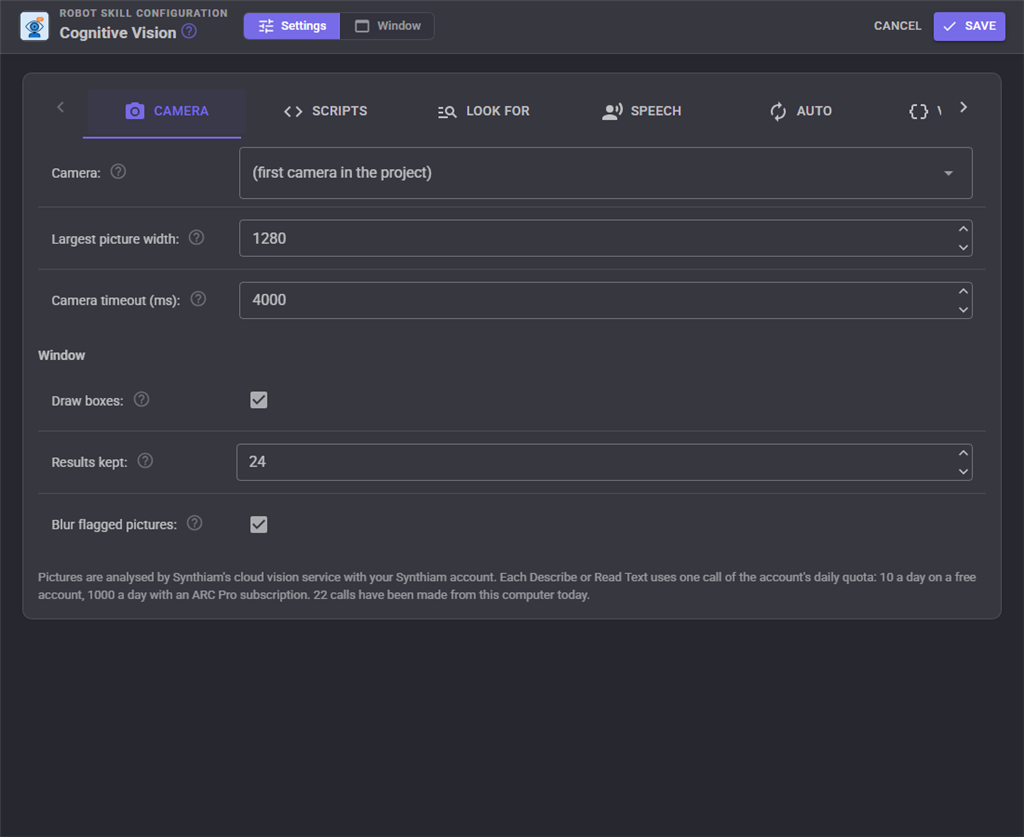
| Setting | What it does |
|---|---|
| Camera | The camera pictures are taken from. (first camera in the project) uses whichever camera skill is running, as ARC did. |
| Largest picture width | Pictures wider than this are scaled down before they are sent, which saves upload time. 0 sends the full size. Default 1280. The object variables are always in the camera's own pixels. |
| Camera timeout (ms) | How long to wait for the camera's next picture before giving up with an error. |
| Draw boxes | Draw the objects, faces and words as boxes over the picture. |
| Results kept | How many recent results the history keeps, with their pictures, in memory. |
| Blur flagged pictures | Blur pictures the service flags as adult or racy until Show is pressed. |
Scripts
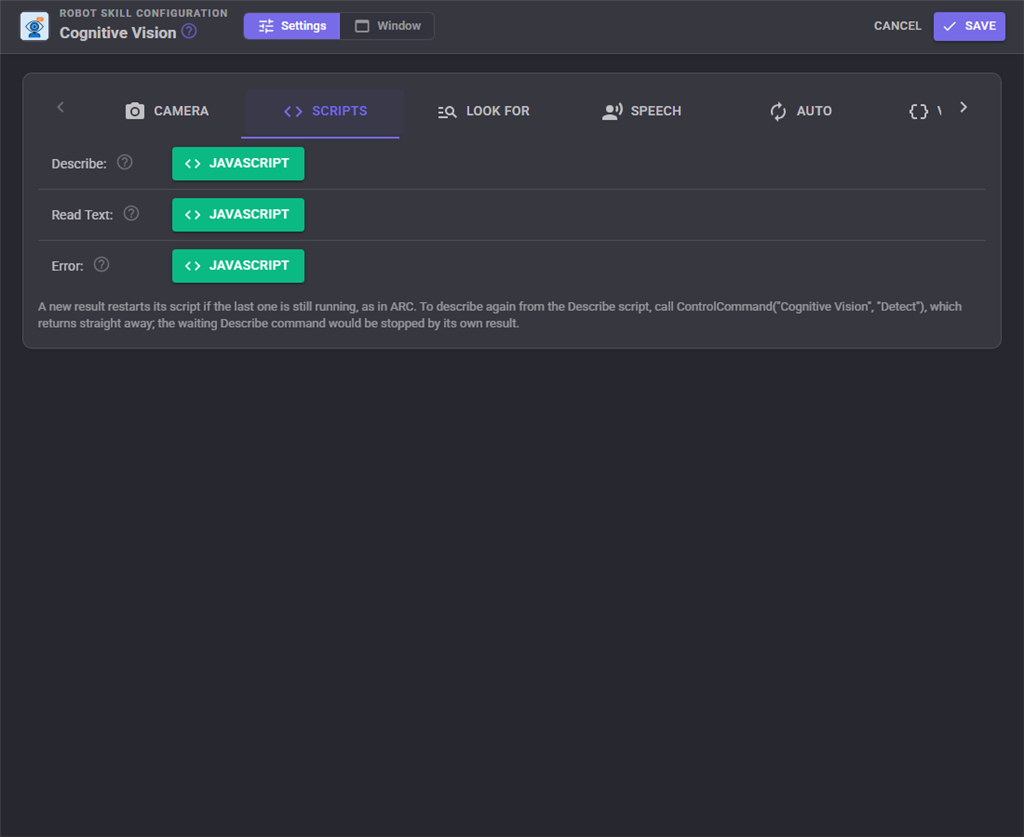
| Setting | What it does |
|---|---|
| Describe | Runs after every Describe, with the description, object and tag variables set. ARC's Describe script. |
| Read Text | Runs after every Read Text, with the read text variables set. ARC's Read Text script. |
| Error | Runs when a request fails: no camera, not signed in, the quota used up, no internet. The reason is in $VisionError. |
Look For
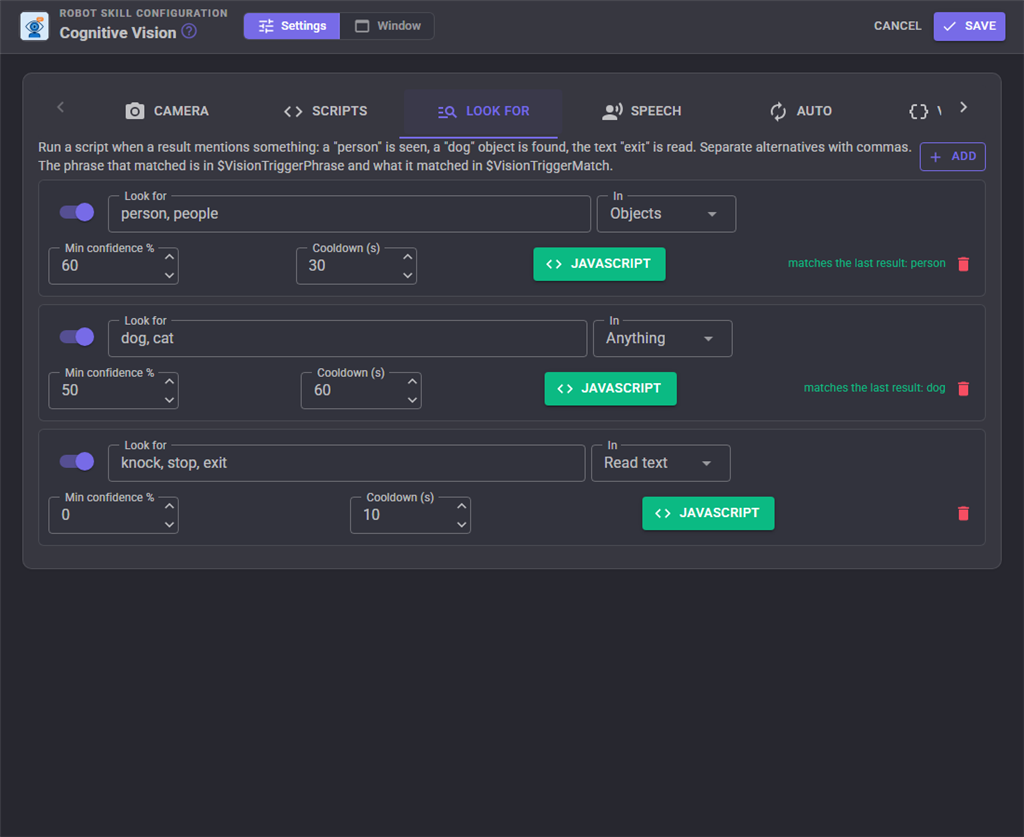
Add a trigger with Add, and remove one with its delete button (after confirming). Each has the settings described under Look For and its own script.
Speech
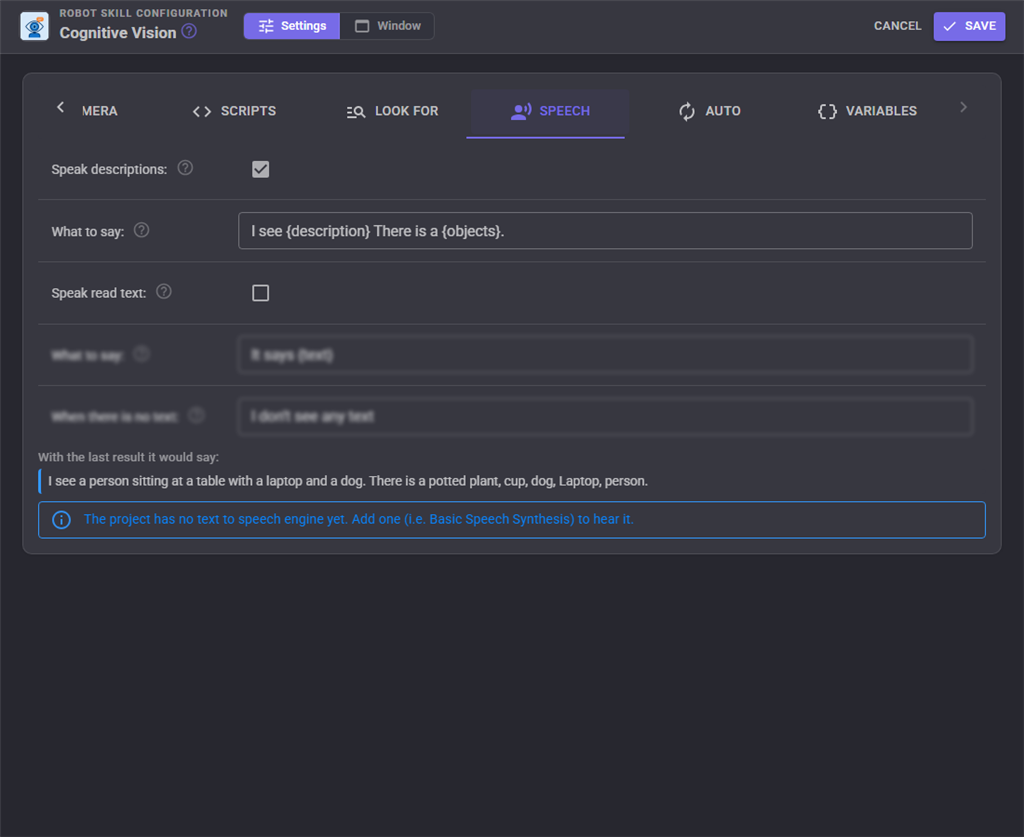
| Setting | What it does |
|---|---|
| Speak descriptions | Say every description through the project's text to speech engine. |
| What to say | The words to say. {description} is the description, {confidence} the confidence, {objects} the objects found and {tags} the top five tags. Default I see {description}. |
| Speak read text | Say the text of every Read Text. |
| What to say | {text} is the text that was read. Default It says {text}. |
| When there is no text | What to say when Read Text finds nothing. Empty says nothing. |
With a result in the window, the tab shows what would be said. Speaking needs a text to speech robot skill in the project, i.e. Basic Speech Synthesis.
Auto
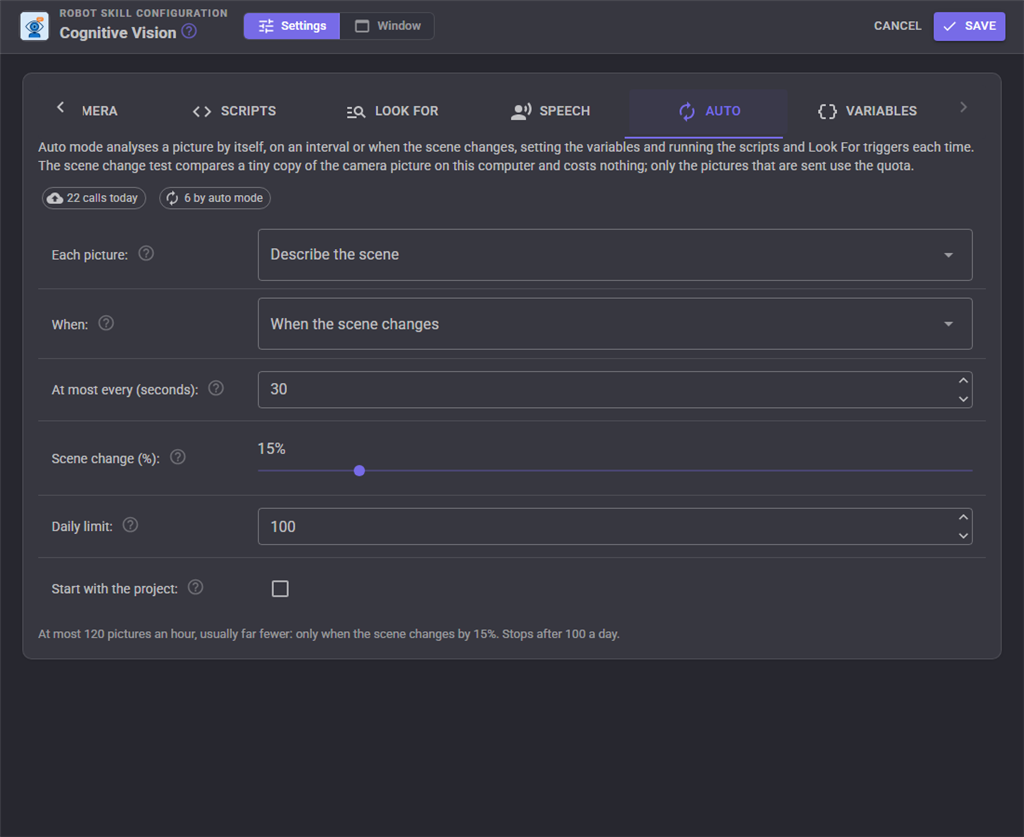
| Setting | What it does |
|---|---|
| Each picture | Describe the scene or read text. |
| When | When the scene changes, or on an interval. |
| Every / At most every (seconds) | The time between pictures on an interval, or the least time between pictures on scene change. 3 or more. Default 30. |
| Scene change (%) | How much of the picture must change before another is sent. 10 to 20 ignores camera noise and small movements. Default 15. |
| Daily limit | Auto mode stops after this many of its own calls in a day. 0 has no limit of its own; the account's quota still applies. Default 100. |
| Start with the project | Start auto mode when the project loads. |
Variables
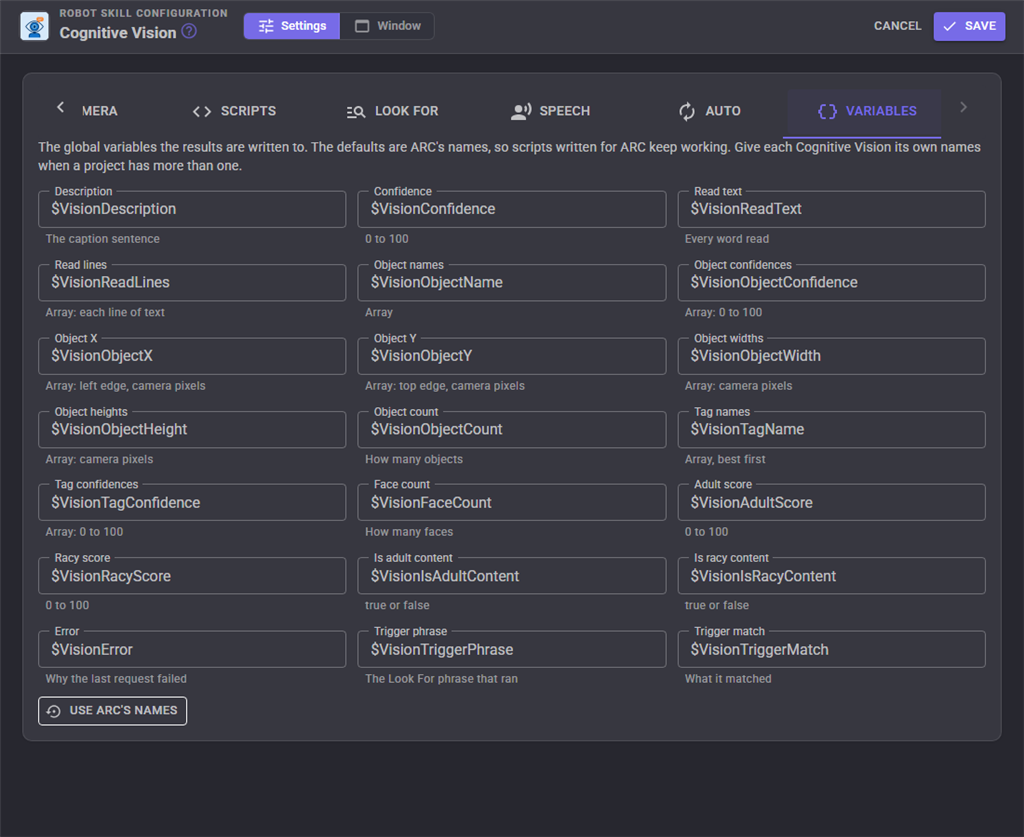
The name of every variable in the table above. Use ARC's names puts the defaults back.
Notes
- The service is Microsoft Azure Computer Vision behind Synthiam's service. It describes in English. It finds common objects and reads printed text best; handwriting and small or angled text may not be read.
- Faces are boxed and counted when the service reports them; it no longer reports age or gender.
- The call counter in the window counts this computer only. The service's quota counts every computer and every ARC or ARCx using your account, so the service may refuse calls before the counter reaches the quota.
- Only one request runs at a time. Pressing Describe while one is running, or calling Detect from a script, is ignored and logged; the waiting Describe and Read commands wait their turn.
Troubleshooting
- "You are not signed in" - sign in to your Synthiam account in ARCx.
- "Daily quota reached" - the account has used its calls for today. Try again tomorrow, or upgrade to ARC Pro for 1000 calls a day. Auto mode stops itself when this happens.
- "There is no camera in the project" or "did not deliver a picture" - add a camera robot skill and start its video, or choose the right camera on the Camera tab.
- Auto mode never sends a picture - in scene change mode nothing has changed enough. Watch the percentage in the status chip and lower Scene change (%), or use interval mode.
- The object positions do not match the camera - they are in the camera's own pixels, the size the camera skill delivers, not the size of the picture shown in the window.
Control Commands for the Cognitive Vision robot skill
There are Control Commands available for this robot skill which allows the skill to be controlled programmatically from scripts or other robot skills. These commands enable you to automate actions, respond to sensor inputs, and integrate the robot skill with other systems or custom interfaces. If you're new to the concept of Control Commands, we have a comprehensive manual available here that explains how to use them, provides examples to get you started and make the most of this powerful feature.
Control Command ManualThis robot skill has 19 control commands, listed below. Send them from a JavaScript or Python script, from Blockly, or from another robot skill.
The first value is always the window title, which is the name in the title bar of the robot skill on your workspace. It starts out as Cognitive Vision, which is what every example below uses. If you rename the robot skill, or add a second copy of it to the project, use the title as it appears on that window instead.
ControlCommand() can be shortened to CC(), and both spellings work in JavaScript and in Python. The examples are JavaScript; Python is the same call, except that true and false are written True and False.
CallsToday
How many requests the Cognitive Vision robot skills on this computer have sent today. Each one counts towards the account's daily quota.
Syntax
ControlCommand("Cognitive Vision", "CallsToday")
Returns: Integer [-2,147,483,648 to 2,147,483,647]
Example
var result = ControlCommand("Cognitive Vision", "CallsToday");
Cancel
Stop the request being made and every one waiting.
Syntax
ControlCommand("Cognitive Vision", "Cancel")
Returns: Boolean [true or false]
Example
var result = ControlCommand("Cognitive Vision", "Cancel");
ClearHistory
Forget the results shown in the history strip.
Syntax
ControlCommand("Cognitive Vision", "ClearHistory")
Returns: Boolean [true or false]
Example
var result = ControlCommand("Cognitive Vision", "ClearHistory");
Describe
Describe what the camera sees and wait for the answer. Returns the description, i.e. "a person sitting at a desk.", or an empty string when it failed (the reason is in the error variable). The variables are set and the Describe script runs as with Detect. Do not call it from the Describe script itself; that script is restarted by the result, so use Detect there.
Syntax
ControlCommand("Cognitive Vision", "Describe")
Returns: String
Example
var result = ControlCommand("Cognitive Vision", "Describe");
DescribeFile
Describe an image file (JPEG, PNG, BMP...) instead of the camera, and wait. Returns the description. Handy for photos the robot saved with Camera Snapshot.
Syntax
ControlCommand("Cognitive Vision", "DescribeFile", (String)filename)
Parameters
| # | Name | Type | What to pass |
|---|---|---|---|
| 1 | filename | Text | Your text, in quotes |
Returns: String
Example
var result = ControlCommand("Cognitive Vision", "DescribeFile", "filename");
Detach
ARC's Detach: stops auto mode and any request in progress. ARCx takes a picture from the camera only when it is asked to, so there is nothing else to let go of.
Syntax
ControlCommand("Cognitive Vision", "Detach")
Returns: Boolean [true or false]
Example
var result = ControlCommand("Cognitive Vision", "Detach");
Detect
Describe what the camera sees, as ARC's Detect did: starts the request and returns straight away. The description, confidence, tag and object variables are set and the Describe script runs when the answer arrives. Returns false when a request is already running.
Syntax
ControlCommand("Cognitive Vision", "Detect")
Returns: Boolean [true or false]
Example
var result = ControlCommand("Cognitive Vision", "Detect");
GetLastResultJson
Everything the last result said, as JSON: description, confidence, tags, objects with their boxes, faces, categories, adult/racy scores, colours, read text with its lines and word boxes. An empty string when there is none yet. Parse it with JSON.parse() in JavaScript or json.loads() in Python.
Syntax
ControlCommand("Cognitive Vision", "GetLastResultJson")
Returns: String
Example
var result = ControlCommand("Cognitive Vision", "GetLastResultJson");
GetSceneChange
How much the camera picture has changed since the last camera picture that was analysed, 0 to 100 percent, measured on this computer without using the quota. 100 when nothing has been analysed yet. Lets a script decide whether a new Describe is worth a call.
Syntax
ControlCommand("Cognitive Vision", "GetSceneChange")
Returns: Double [5.0e324 to 1.7e308]
Example
var result = ControlCommand("Cognitive Vision", "GetSceneChange");
IsAutoRunning
True while auto mode is on.
Syntax
ControlCommand("Cognitive Vision", "IsAutoRunning")
Returns: Boolean [true or false]
Example
var result = ControlCommand("Cognitive Vision", "IsAutoRunning");
IsBusy
True while a request is being made.
Syntax
ControlCommand("Cognitive Vision", "IsBusy")
Returns: Boolean [true or false]
Example
var result = ControlCommand("Cognitive Vision", "IsBusy");
Read
Read the text the camera sees and wait for the answer. Returns the text, or an empty string when there is none or it failed. Do not call it from the Read Text script itself; use ReadText there.
Syntax
ControlCommand("Cognitive Vision", "Read")
Returns: String
Example
var result = ControlCommand("Cognitive Vision", "Read");
ReadFile
Read the text in an image file instead of the camera, and wait. Returns the text.
Syntax
ControlCommand("Cognitive Vision", "ReadFile", (String)filename)
Parameters
| # | Name | Type | What to pass |
|---|---|---|---|
| 1 | filename | Text | Your text, in quotes |
Returns: String
Example
var result = ControlCommand("Cognitive Vision", "ReadFile", "filename");
ReadText
Read the text the camera sees (OCR), as ARC's ReadText did: starts the request and returns straight away. The read text variable is set and the Read Text script runs when the answer arrives. Returns false when a request is already running.
Syntax
ControlCommand("Cognitive Vision", "ReadText")
Returns: Boolean [true or false]
Example
var result = ControlCommand("Cognitive Vision", "ReadText");
SetAutoInterval
Set auto mode's interval in seconds (3 or more): the time between pictures in interval mode, the least time between pictures in scene change mode. Saved with the project.
Syntax
ControlCommand("Cognitive Vision", "SetAutoInterval", (Number)seconds)
Parameters
| # | Name | Type | What to pass |
|---|---|---|---|
| 1 | seconds | Number | A number, without quotes |
Returns: Boolean [true or false]
Example
var result = ControlCommand("Cognitive Vision", "SetAutoInterval", 0);
SetAutoMode
Set when auto mode analyses a picture: Interval or SceneChange. Saved with the project.
Syntax
ControlCommand("Cognitive Vision", "SetAutoMode", (String)mode)
Parameters
| # | Name | Type | What to pass |
|---|---|---|---|
| 1 | mode | Text | Your text, in quotes |
Returns: Boolean [true or false]
Example
var result = ControlCommand("Cognitive Vision", "SetAutoMode", "mode");
SetCamera
Use another camera, by its video source name. An empty name uses the first camera in the project. Saved with the project.
Syntax
ControlCommand("Cognitive Vision", "SetCamera", (String)camera)
Parameters
| # | Name | Type | What to pass |
|---|---|---|---|
| 1 | camera | Text | Your text, in quotes |
Returns: Boolean [true or false]
Example
var result = ControlCommand("Cognitive Vision", "SetCamera", "camera");
StartAuto
Start auto mode: describe (or read text, as configured) on an interval or when the scene changes. Every picture uses one call of the account's daily quota. Returns false when auto mode's daily limit is already reached.
Syntax
ControlCommand("Cognitive Vision", "StartAuto")
Returns: Boolean [true or false]
Example
var result = ControlCommand("Cognitive Vision", "StartAuto");
StopAuto
Stop auto mode.
Syntax
ControlCommand("Cognitive Vision", "StopAuto")
Returns: Boolean [true or false]
Example
var result = ControlCommand("Cognitive Vision", "StopAuto");
This list is read out of the robot skill itself each time its package is uploaded, so it matches the published version (v1).




This robot skill has been updated to v1.
What has changed
initial release