
COM Monitor
The COM Monitor lists the serial ports (COM ports) that scripts in this project have open right now, and shows every byte scripts send and receive over them, timestamped, in a hex editor style view. Use it to find which script is holding a port that another one cannot open, and to see exactly what a device on a serial port is sent and what it says back. The traffic can be saved to a file to review later or post on the forum.
Where to find it: Side menu → Views → COM Monitor. It is also under Views when you right-click a workspace.
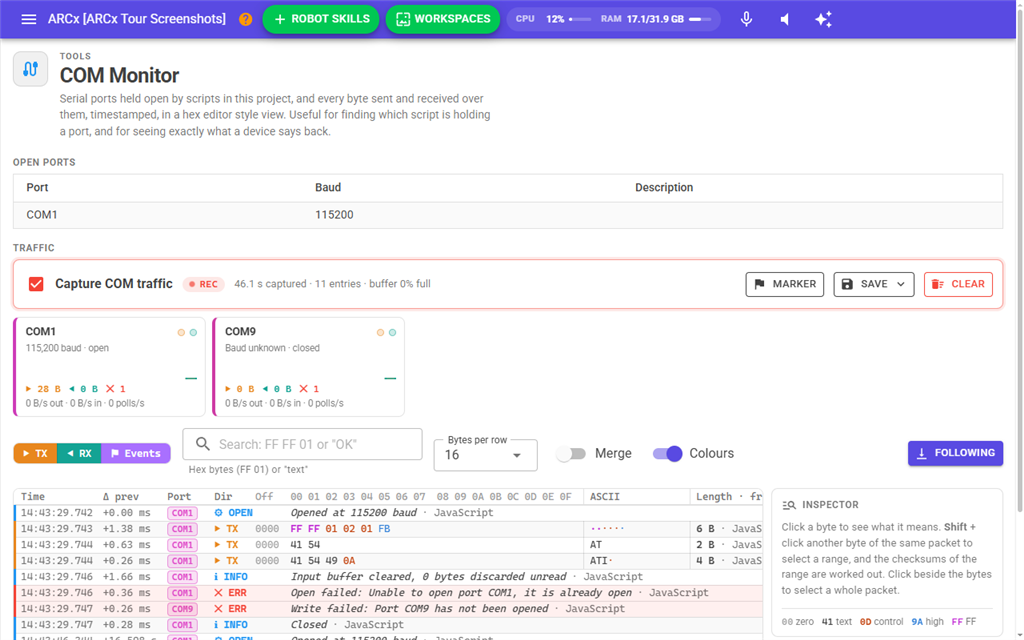
Open ports
When a script opens a COM or serial port, the port is added to the table at the top of the page. It stays there until a script closes it, or until the project is closed. The table updates by itself as ports open and close.
| Column | What it shows |
|---|---|
| Port | The name of the port, such as COM3 on Windows or /dev/ttyUSB0 on Linux. Ports are listed in alphabetical order. |
| Baud | The speed the port was opened at. |
| Description | A description of what the port is for, when one was given. Ports opened from a script do not have one, so this column is usually empty. |
When no script has a port open, the page says No serial ports are open.
What is captured
- Sends (TX): every byte, byte array and string a script writes, including the line ending that
COM.writeStringNewLine()adds. - Receives (RX): every byte a script reads, by whichever read function. A line read with
COM.readLine()is shown with the line ending it consumed, as it was on the wire. - Opening a port (OPEN), with its baud rate.
- Closing a port, and clearing its input buffer with how many bytes were thrown away unread (INFO).
- Failed calls, such as opening a port that is already open or writing to one that was never opened, with the reason (ERR).
- Markers you add yourself.
Each entry says which script language made the call. Asking how many bytes are waiting (COM.available()) is counted on the port's card but is not listed as an entry, because a script can ask many times a second.
Capturing
Tick Capture COM traffic to start. Capturing is off when ARCx starts. While it is off, the COM functions do no extra work, so leaving the feature unused costs nothing.
Capturing carries on when you leave the page, so you can tick the box, run the script that talks to the device, and come back. A red REC badge shows while it is on. Untick the box to stop; what was captured is kept.
The newest 50,000 entries (up to 16 MB of data) are kept in memory. When the buffer is full, the oldest entries are discarded and the status line says how many. The capture is not saved with the project and is gone when ARCx closes. Save it to a file to keep it.
The status bar
| Item | What it does |
|---|---|
| Capture COM traffic | Starts and stops capturing for the whole of ARCx. |
| Status | How long has been captured, the number of entries, how full the buffer is, and how many entries the filters are showing. |
| Marker | Adds a numbered marker to the capture at this moment. Markers make a moment easy to find later. |
| Save | Text file for Notepad (.txt) saves a hex dump that opens in any text editor. Spreadsheet (.csv) saves one entry per line for Excel or similar. Copy for a forum post copies the text version to the clipboard inside a code block, ready to paste into a post. All three save what the view is showing, with the filters applied, and the file says which filters were used. |
| Clear | Deletes everything captured and the port totals, after asking. Capturing carries on if it is on. |
The port cards
Each port that has been used gets a card.
- Under the name is its baud rate and whether it is open now (or its description, when it has one) or closed.
- The TX (orange) and RX (teal) lights blink when bytes go out or come in.
- The sparkline shows the bytes per second out and in over the last minute.
- The totals show the bytes sent and received, and a red count of failed calls when there are any.
- The bottom line shows the current rate out and in, and how many times a second the script asks how many bytes are waiting.
A port written to under a name that was never opened, such as COM9, gets a card of its own with its errors, which makes a typo in a port name easy to spot. Names are matched ignoring letter case, so com3 and COM3 are the same port.
Click a card to hide that port's traffic from the view. Click it again to show it.
Filtering and display
| Control | What it does |
|---|---|
| TX / RX / Events | Show or hide sent bytes, received bytes, and the other entries (open, close, errors and markers). |
| Search | Shows only the packets that contain what you type, and highlights the match. Hex such as FF FF 01 or 0x0D 0x0A searches for those bytes. Anything else, or text in quotes such as "OK", searches for that text, ignoring letter case. |
| Bytes per row | 8, 16 or 32 bytes on each line. |
| Merge | Joins reads (or writes) of the same port that are less than 30 ms apart into one packet. A reply often arrives over several reads. |
| Colours | Colours each byte by kind: zero, printable text, control characters (such as CR and LF), high bytes (0x80 and up), and FF. The key is at the bottom of the inspector. |
| Follow | Keeps the newest traffic in view. Scrolling up stops following so you can read; scroll back to the bottom or click Follow to start again. |
Reading the view
| Column | What it shows |
|---|---|
| Time | The computer's clock when the entry was recorded, to the millisecond. |
| Δ prev | The time since the entry above. This is how long a device took to answer. |
| Port | The port, in a colour of its own. Linux ports show their last part, such as ttyUSB0. |
| Dir | ▶ TX is what the script sent. ◀ RX is what the script read. OPEN, INFO, ERR and MARK are the other entries. |
| Off | The offset of the first byte on the line within the packet, in hex. |
| Hex | The bytes. |
| ASCII | The same bytes as text. Bytes that are not printable show as a dot. |
| Length · from | The packet's size and the script language that sent or read it. |
Move the mouse over a byte and the same byte lights up in both the hex and the ASCII column.
The inspector
Click a byte to see what it means in the inspector on the right: the packet it belongs to, the byte as binary, unsigned and signed and as a character, and the bytes starting there read as 16 and 32 bit numbers (little and big endian) and as a float.
Shift + click another byte of the same packet to select a range. The inspector then also shows the range's checksums: Sum 8, ~Sum 8 (Dynamixel protocol 1, Feetech and LewanSoul servos), XOR 8, CRC-8 (SMBus), CRC-8 Sensirion, CRC-16 Modbus, CRC-16 Dynamixel 2 and CRC-16 CCITT. When the byte (or two bytes) right after the selection hold the same value, that checksum is marked ✓ next.
Click beside the bytes of a row to select the whole packet. Hex and C array copy the selected bytes to the clipboard, and Clear clears the selection.
Saved files
The text file is plain ASCII, so it looks the same in Notepad, an e-mail or a forum post. It starts with when and what was captured, the filters used, and each port's baud rate and totals, followed by every entry:
13:05:17.071  +0.00 ms      COM1            OPEN   Opened at 115200 baud  (JavaScript)
13:05:17.076  +0.65 ms      COM1            TX     4 bytes  (JavaScript)
    0000  41 54 49 0A                                       |ATI.|
The CSV file has one entry per line with its sequence number, date, time, milliseconds since the capture started and since the line above, port, direction, length, the bytes as hex and as text, baud rate, who made the call, and any note.
AI assistants
An AI assistant connected to ARCx over MCP can use the same capture to help find a communication problem. It can start and stop capturing, read the traffic and add markers. It sees exactly what this page shows.
Notes
- Only ports opened by scripts are listed and captured. A robot skill that opens a serial port itself, such as a servo driver or a lidar, does not appear here, even though the port is in use.
- Text read with the text functions is shown as the script received it. The port reads text as ASCII, so a byte above 127 arrives as
?(3F); read bytes instead of text to see them. - Closing or opening a project closes every port that scripts opened; the capture shows each one as closed with the project.
- When a script tries to open a port that is already in its list, it gets the error "Unable to open port ..., it is already open". A port held by another program on the computer, or by a robot skill, fails with the reason the operating system gives.
- There is no button to close a port from this page. Close it from a script, or close the project.
- EZB UARTs and the I2C bus have monitors of their own that work the same way: Side menu → Views → UART Monitor and I2C Monitor.