
Workspace
A workspace is a desktop that holds robot skill windows. Every robot skill you add to a project, such as a camera, a servo controller, speech recognition or a movement panel, appears as a window on one of the project's workspaces. You arrange the windows by dragging them, resize them by their corner, and open each skill's configuration from its title bar.
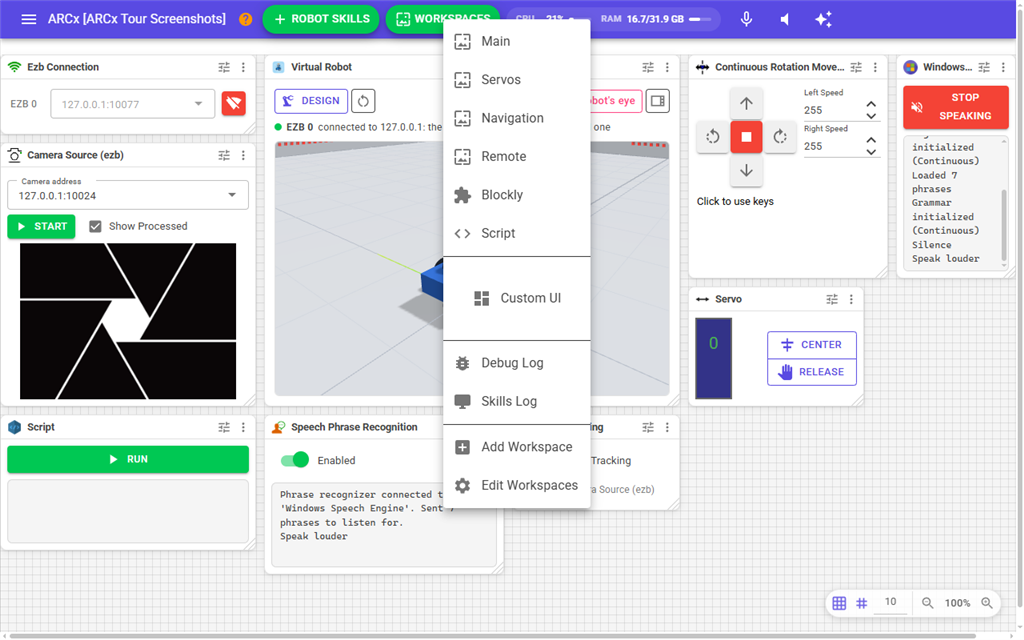
A project always has at least one workspace. Large projects often use several, for example one for movement, one for vision and one for speech, so that each desktop stays tidy. Each workspace is listed by name at the top of the Workspaces menu.
Where to find it: Top bar → Workspaces → the workspace's name. You can also open a workspace with its Open button in Workspaces → Edit Workspaces. Saving or cancelling a robot skill's configuration brings you back to the workspace that skill is on.
Contents
- An empty workspace
- Robot skill windows
- Moving and resizing windows
- The robot skill menu
- The right-click menu
- The About dialog
- Grid and zoom
- Full screen view
- Robot skill configuration
- Notes
An empty workspace
A workspace with no robot skills on it shows No robot skills on this workspace and an Add Robot Skill button. This is the normal state of a workspace you have just added. Press Add Robot Skill, or use Robot Skills → Add in the top bar, to put a skill on it. You can also move a skill here from another workspace with its Desktops menu (see below).
New robot skills are added to the workspace you looked at last. Each one is placed in the first free spot, scanning left to right and then down, so it does not land on top of a window that is already there. The gap left around it is set in Options → Preferences as Space between new robot skills. Windows that are already placed are never moved.
Robot skill windows
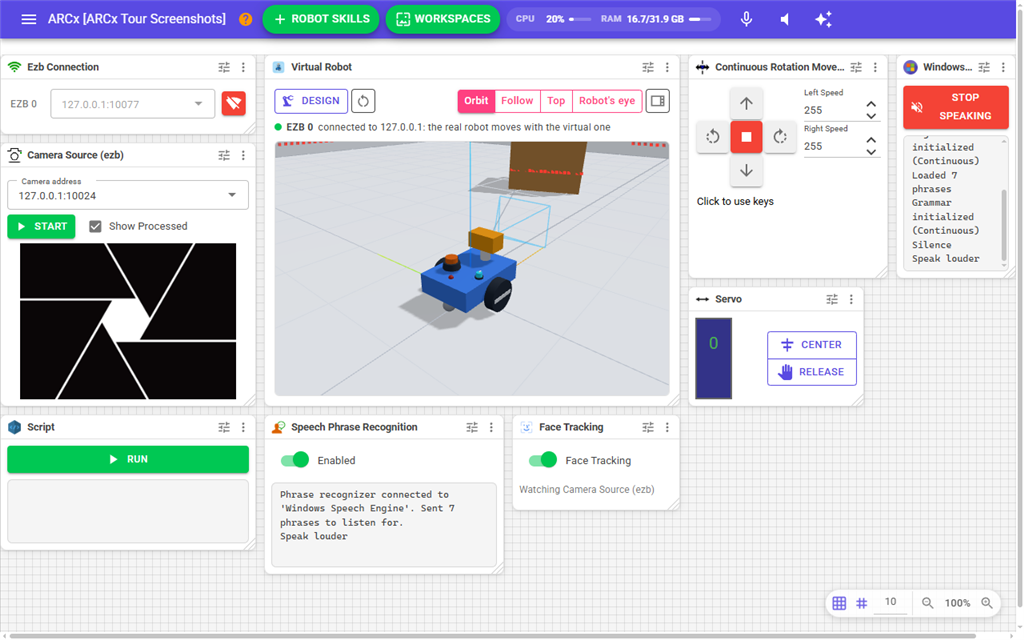
Each robot skill window has a title bar and a body. The body is drawn by the robot skill itself, so what you see there depends on the skill.
| Part | What it does |
|---|---|
| Icon and title | The skill's icon and its window title. Hover over the title bar to see the title and the start of the skill's notes. Drag the title bar to move the window. |
| Configure button (sliders icon) | Opens the skill's configuration page. Only shown when the skill has settings. |
| More button (three dots) | Opens the robot skill menu. |
| Corner handle | The bottom right corner. Drag it to resize the window. |
If a robot skill fails while drawing its window, only that window is affected. It shows "title stopped drawing", the error message, "The rest of ARCx is still running. See the debug log for the details." and a Try Again button.
Windows can overlap. A window later in the draw order sits in front of the ones before it. Use Arrange in the robot skill menu to change the order.
Moving and resizing windows
- To move a window, press the left mouse button on its title bar and drag. Release to drop it.
- To resize a window, drag the handle in its bottom right corner.
- With Snap to grid on (the default), the position and size snap to the workspace grid. Turn it off to place a window at any pixel.
A window cannot be made smaller than 100 x 100 pixels or dragged past the top or left edge. The workspace grows to the right and down to hold windows dragged past the edge of the screen, with a few grid cells of room left over so there is always somewhere to drag to.
Positions and sizes are part of the project. Every browser that has the project open sees a window move as soon as it is dropped.
The robot skill menu
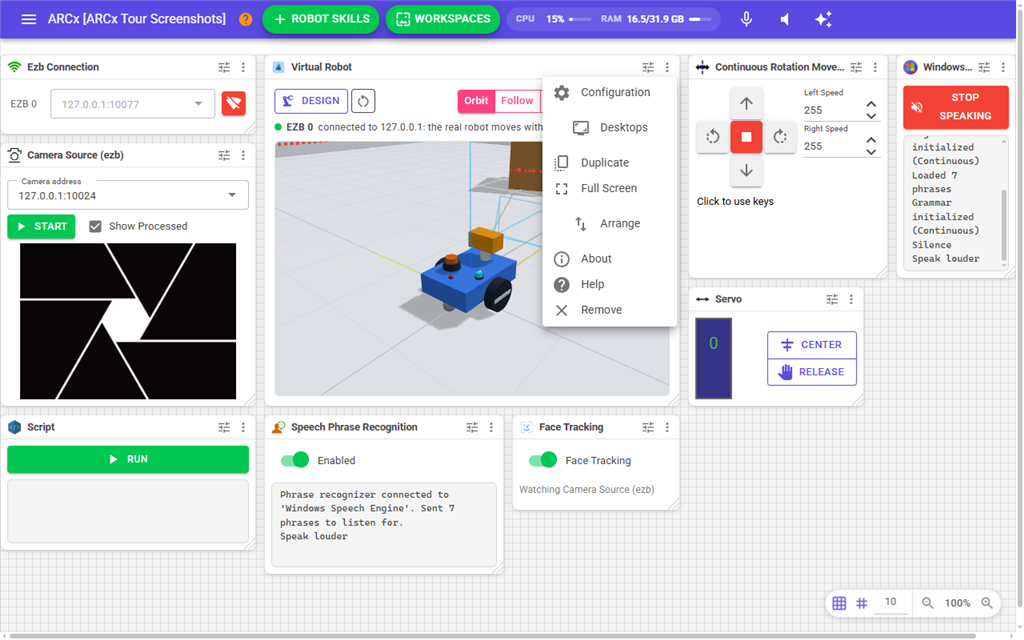
Press the three dots on a window's title bar to open the menu.
| Item | What it does |
|---|---|
| Configuration | Opens the skill's configuration page, the same as the Configure button. Only shown when the skill has settings. |
| Desktops → Move to name | Moves the skill to another workspace and takes you there. The skill is placed in the first free spot on that workspace. Only shown when the project has more than one workspace. |
| Duplicate | Adds another copy of the same robot skill to this workspace. The copy starts with the skill's default settings, not a copy of this one's settings, and gets its own window title. Only shown for skills that allow more than one in a project. |
| Full Screen | Opens the skill's window as a full page. Only shown for skills that support it. |
| Arrange → Bring To Front | Draws this window in front of every other window on the workspace. |
| Arrange → Forward | Moves the window one step towards the front. |
| Arrange → Backward | Moves the window one step towards the back. |
| Arrange → Send To Back | Draws this window behind every other window on the workspace. |
| About | Shows details about the robot skill and its install. |
| Help | Opens the skill's manual in a new browser tab. |
| Remove | Removes the skill from the project. ARCx asks "Are you sure?" first. Press Yes to remove it or No to keep it. |
Items in Arrange are greyed out when the window is already at the front or the back.
The right-click menu
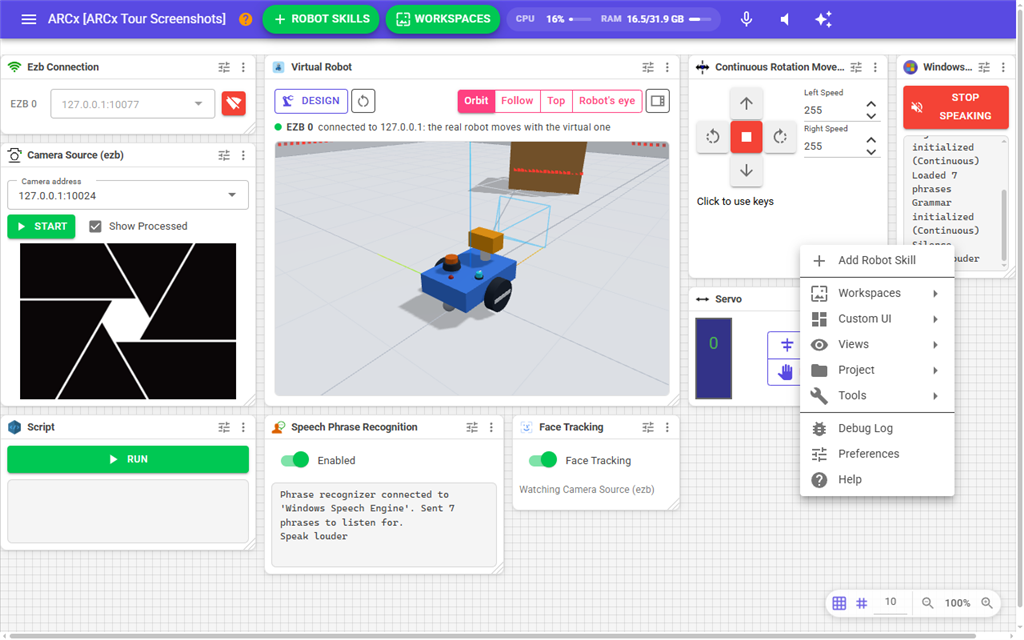
Right-click an empty part of the workspace, anywhere that is not a robot skill window, to open a menu at the mouse. It works on an empty workspace too. Right-clicking inside a robot skill window does not open it; there you get the browser's own menu, so text boxes in a skill keep cut, copy and paste. Items with an arrow open a second menu when you point at them.
| Item | What it does |
|---|---|
| Add Robot Skill | Opens the robot skill library to add a skill to this workspace, the same as Robot Skills → Add in the top bar. |
| Workspaces | Lists every workspace in the project, with the one you are on coloured, then Blockly, Add Workspace and Edit Workspaces. The same items as the Workspaces menu in the top bar. |
| Custom UI | Lists the project's Custom UI screens to open one, then Manage Custom UI. |
| Views | The same pages as Views in the navigation menu: Browser Windows, COM Monitor, Computer, Debug Log, Diagnostics, File Monitor, Gamepads And HID, Global Variables, Kinematic Chains, Network Info, Script Monitor, Skills Log and Video Sources. |
| Project | New, Open and Save a project, then the project's Properties, Robot Configuration and the File Manager. |
| Tools | Release Servos/PWM and Stop Speaking, the same as Tools in the navigation menu. |
| Debug Log | Opens the debug log. |
| Preferences | Opens Options → Preferences. |
| Help | Opens the ARCx help. |
Click anywhere outside the menu to close it without choosing anything.
The About dialog
About shows what the robot skill is, read from its install on this computer.
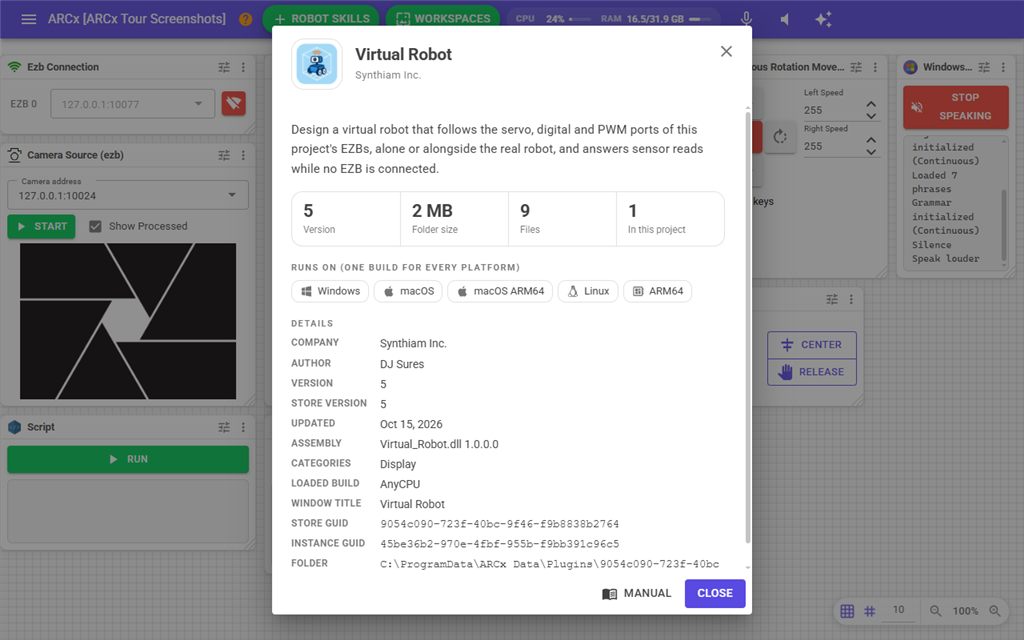
- The skill's name, publisher and description.
- Version, Folder size, Files and In this project (how many times this skill has been added to the open project).
- Runs on: the platforms the skill has a build for. It says "Runs on (one build for every platform)" when a single build covers all of them.
- Details: Company, Author, Version, the Store version and when it was Updated (with "(update available)" when the store has a newer version), or In skill store: No for a skill that is not in the store. Also Assembly, Categories, Loaded build, Window title, Store GUID, Instance GUID and the install Folder.
Press Manual to open the skill's manual, or Close to close the dialog.
Grid and zoom
A small toolbar sits in the bottom right corner of the workspace.
| Control | What it does |
|---|---|
| Snap to grid | When on, dragging and resizing snap to the grid. |
| Show grid | Draws the grid lines on the workspace. |
| Grid size | The spacing of the grid in pixels, from 1 to 200. This is saved with the project, so the layout lines up the same in every browser. It applies to every workspace in the project. |
| Zoom out | Zooms out by one step. |
| Zoom percentage | Shows the current zoom. Click it to reset to 100%. |
| Zoom in | Zooms in by one step. |
You can also zoom with the mouse wheel. Hold Ctrl and turn the wheel anywhere over the workspace, or turn the wheel over an empty part of the workspace without Ctrl. The zoom goes from 30% to 200%.
The zoom is remembered for each workspace in this browser only. Other browsers keep their own zoom. Snap to grid and Show grid are not saved and start on each time the page opens.
Full screen view
Full Screen in the robot skill menu opens the skill's window as a whole page, without the title bar or the other windows. The browser tab shows the skill's window title. Use the browser's back button or the Workspaces menu to return to the workspace.
If the robot skill cannot be found, for example after another project has been loaded, ARCx returns to the first workspace.
Robot skill configuration
The Configure button and Configuration open the robot skill's configuration page. It fills the browser, without the ARCx menus. The bar at the top shows the skill's icon, Robot Skill Configuration and the window title, a switch between Settings and Window, and the Cancel and Save buttons.
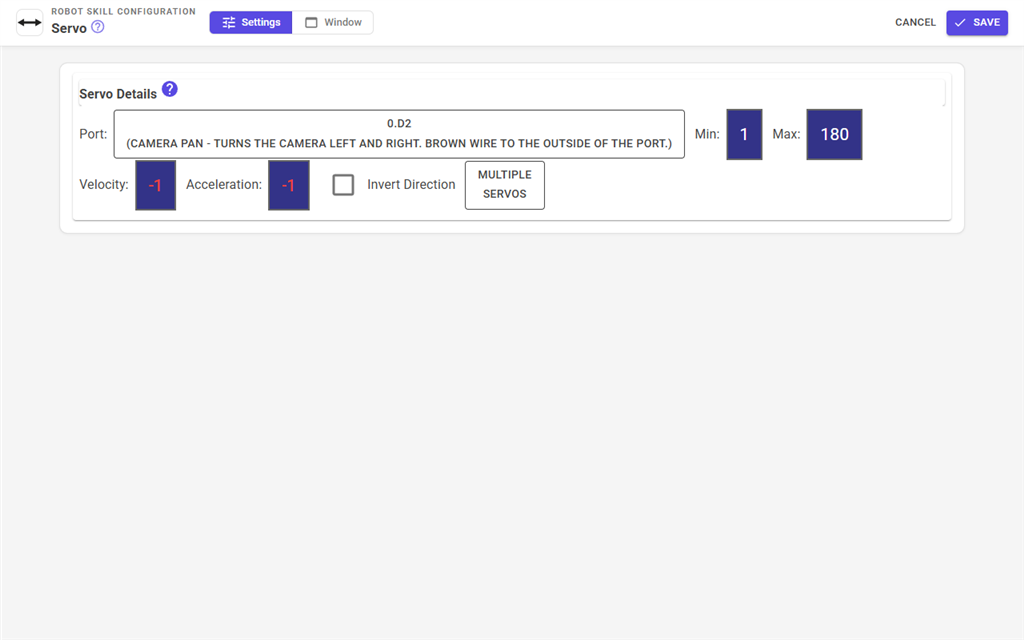
| Section | What it holds |
|---|---|
| Settings | The robot skill's own settings. These differ for every skill; see the skill's manual. |
| Window | Window title, Size (Width and Height in pixels) and Notes. |
On the Window section:
- Window title is the name scripts and control commands use to address this skill. It must be unique in the project and can only contain the letters A to Z, the digits 0 to 9, spaces and the characters
(,),-and.. - Size is the same size you get by dragging the window's corner.
- Notes is free text about how you use this skill in the project. The start of it shows when you hover over the window's title bar.
Press Save to keep the changes, or Cancel to throw away the changes to the skill's settings. Either one takes you back to the workspace the skill is on.
While a configuration page is open, you can only leave it with Save or Cancel. Trying to go anywhere else shows "Press SAVE or CANCEL to leave this page".
While any configuration page is open, in any browser, robot skills pause the work they do in the background. They carry on once the last configuration page is closed.
Notes
- Workspaces, the windows on them, their positions, sizes and draw order and the grid size are all saved with the project. Save the project with File → Save to keep them.
- If two skills would end up with the same window title, Save shows "A robot skill with window title 'title' already exists. Enter a unique title." Characters that are not allowed show "Robot skill window title can only contain the following characters: A-Z, 0-9, [space], (, ), -, .". Fix the title and press Save again. Cancel checks the title too and shows the same messages.
- Changes on the Window section (title, size and notes) take effect as you type. Cancel does not undo them, only changes to the skill's own Settings.
- A robot skill can refuse to open its configuration, for example while it is busy. A message from the skill explains why.
- Robot skills write messages to the debug log and to the skills log. See Workspaces → Debug Log and Workspaces → Skills Log, which are also under Views in the side menu.