Script Monitor
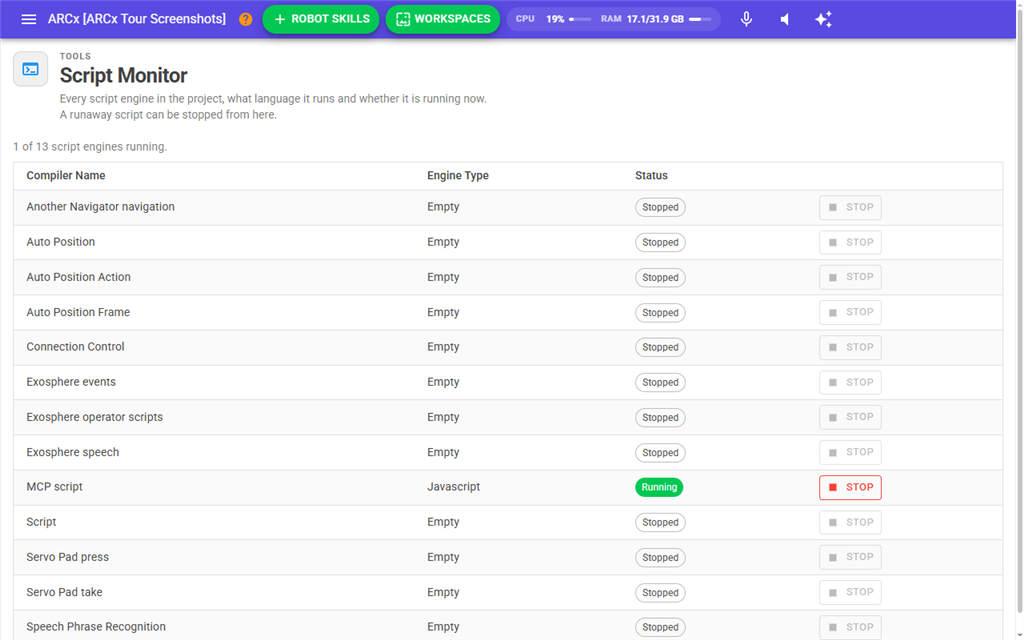
Script Monitor lists every script engine in the project, which kind of script each one last ran, and whether it is running now. Each robot skill that runs scripts, the script editor, the Blockly editor, the start-up script and Custom UI widgets each get their own engine. If a robot keeps doing something and you cannot tell which script is behind it, this is where to look, and a runaway script can be stopped from here.
Where to find it: Side menu → Views → Script Monitor. Help and the Scripts check on Views → Diagnostics also link here.
The engine list
A line above the table sums up what is running, for example "2 of 7 script engines running." or "7 script engines, none currently running."
| Column | What it shows |
|---|---|
| Compiler Name | The name of the engine, which tells you what owns it: a robot skill, Script Editor, Blockly Editor, Startup Script Service, or Custom UI: followed by the screen and widget name. When two engines would have the same name, a number is added, such as "Script Editor 2". The list is sorted by this name. |
| Engine Type | The kind of script the engine last loaded: Javascript, Python or Blockly. Empty means it has no script loaded. |
| Status | Running while a script is running on that engine, otherwise Stopped. Stopped is normal; it just means nothing is running. |
| Stop | Stops the script running on that engine. The button is only enabled while that engine is running. |
If no engine exists yet, the page says No script engines have been created and offers Add Robot Skill. An engine is created the first time something needs to run a script.
Stopping a runaway script
- Open Views → Script Monitor.
- Find the row marked Running with the name of the robot skill or editor you suspect.
- Press Stop on that row.
Stop ends the run in progress on that engine and also cancels any runs of it that were waiting their turn. It does not stop the robot skill itself, which may start the script again later, for example on its next trigger.
Notes
- The page does not refresh by itself. The statuses are read when the page opens. Open the page again to see scripts that have started or finished since. Straight after pressing Stop, the row may still say Running until the page is opened again.
- An engine stays in the list after its script finishes. It is removed when whatever owns it goes away, such as a robot skill that is removed from the project.