Save
File → Save stores the open project, with all its robot skills, their settings and its workspaces. You can save it as a file on this computer, to your Synthiam account in the cloud, or both. This is also where you give the project a description and tags, make it public, or protect it with a password.
Save whenever you have made changes you want to keep. ARCx does not save the project for you, and opening or starting another project discards unsaved changes.
Where to find it: Side menu → File → Save. The Save a project to the cloud button on the cloud list of File → Open and the save note on Project → Properties also lead here.
Contents
- Where the file goes
- Project fields
- Buttons
- Saving to this computer
- Saving to the cloud
- Password protection
- Notes
Where the file goes
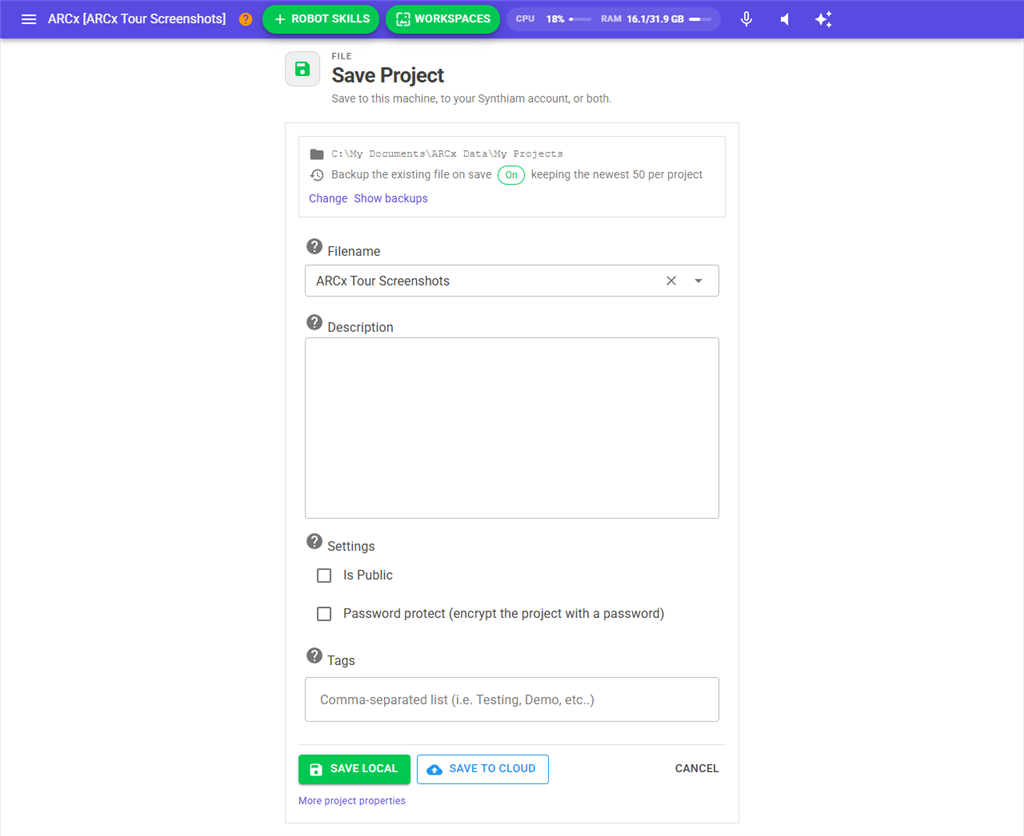
The box at the top of the page shows two things:
| Item | What it shows |
|---|---|
| Folder | The folder local saves go into: My Projects inside the ARCx Data folder (in your Documents folder on Windows, in your home folder on Linux and macOS). Local saves always go here; you cannot choose another folder. |
| Backup the existing file on save | On or Off. When it is on, the previous copy of the project is moved into the project's own folder inside Projects Backups each time you save over it, named with the date and time it was saved, for example Projects Backups\My Project\2026-08-01-12-23-59.arcx. The line also says how many backups are kept per project (50 unless you change it); past that, the oldest is deleted. When it is off, the previous copy is replaced. It is on unless you turn it off. Click Change to go to Options → Preferences → Backups, or Show backups to open the backups folder in File → File Manager. Backups are listed and opened from File → Open. |
Project fields
| Field | What it does |
|---|---|
| Filename | The name the project is saved as, without a folder or extension. It starts with the open project's name. As you type, up to four existing project names that start with the same letters are suggested. |
| Description | What the robot does. Shown on the project's card in File → Open and on the Home page, and to other people if you share the project. A public cloud project needs at least 80 characters here. |
| Is Public | Makes the project public on synthiam.com, so everyone can see and download it, when you save it to the cloud. |
| Password protect (encrypt the project with a password) | Encrypts the whole project file with a password when you save. Starts ticked if the open project is already password protected. See below. |
| Tags | A comma separated list of words to organise your projects, such as Testing, Demo, My Robot. Tags can be used to filter the lists in File → Open. |
Click More project properties at the bottom of the page to open Project → Properties, which has the rest of the project's settings, such as the title image and startup script.
Buttons
| Button | What it does |
|---|---|
| Save Local | Saves the project as a file in the My Projects folder on this computer. |
| Save To Cloud | Saves the project to your Synthiam account. |
| Cancel | Goes back to the workspace without saving. |
After a successful save, ARCx goes back to the workspace.
Saving to this computer
To save the project on this computer:
- Check the Filename, and fill in Description and Tags if you want.
- Press Save Local.
- If a different project already has that name, Project file already exists asks Overwrite?. Press Yes to replace it or No to go back and change the name. Saving over the project that is already open does not ask.
- If Password protect is ticked, enter the password (see below).
- The project is saved with the extension .arcx and the workspace appears.
The new file is written completely before the old one is touched. If something goes wrong while saving, the previous copy of the project is left as it was.
Saving to the cloud
A cloud copy can be opened from any computer you sign in on, from the Synthiam cloud list in File → Open. A cloud save does not also save a copy on this computer; press Save Local too if you want both.
To save the project to the cloud:
- Check the Filename, and fill in Description and Tags.
- Press Save To Cloud.
- If Is Public is ticked, ARCx checks that the description is at least 80 characters, then asks Are you sure that you would like this project marked as public and available to everyone? Press Yes to continue.
- In the Cloud Save box, type a note about what you changed in this version, in Enter Change Description. This note is shown later in the project's version history. Press Save, or Cancel to stop.
- If a project with that name is already in your account, Project file already exists on cloud asks Overwrite?. Press Yes to replace it.
- If Password protect is ticked, enter the password.
- An Uploading (name) box shows the progress in bytes and percent. When it finishes, the workspace appears.
Each cloud save is kept as a version in your account. You can read the change notes of older versions from the history icon on the project's card in File → Open.
A cloud project can be at most 128 MB. If it is bigger, the save stops with a message giving the size. Shorter audio clips and smaller images make a project smaller.
Password protection
When Password protect is ticked, every save asks for the password in a Password protect box:
- Type the password in Password and again in Confirm password.
- Press Save or Enter.
The box warns that nothing in the project can be opened without the password, and a forgotten password cannot be recovered. Keep the password somewhere safe.
If you already used a password while ARCx has been running, both fields are filled in with it, and the box says Filled in with the password you last used in this session. The eye icon shows or hides what you type. Cancel stops the save.
A password protected project shows Password protected on its card in File → Open, and its description, tags and robot skills are hidden until it is opened with the password. To remove the password, untick Password protect and save again.
Notes
- Description, Tags and Is Public change the open project as soon as you edit them. Cancel does not undo those edits; they are written to the file the next time you save. The Password protect tick only takes effect when you save.
- Characters that cannot be used in a file name (\ / : * ? " < > |) are removed from the Filename before saving, and the box shows the cleaned up name.
- A public project cannot also be password protected, because nobody else could open it.
These messages can appear:
| Message | What it means |
|---|---|
| Enter a filename for the project to save. | Filename is empty. |
| '...' is not a usable filename. Try a name without slashes or other punctuation. | Nothing is left of the name once the characters a file name cannot have are removed. |
| A public project cannot be password protected. Untick one of 'Is Public' or 'Password protect'. | Both boxes are ticked for a cloud save. |
| Public projects require a detailed description of at least 80 characters | Is Public is ticked and the description is too short. |
| Your project file size is ... MB. This exceeds the 128mb max size of saving to the cloud. | The project is too large for the cloud. |
| Enter a password. / The passwords do not match. | Shown in the password box. |
| Error moving current project file to backup folder. | The previous copy could not be moved to Projects Backups. The project was not saved. |
| Error saving configuration for (skill). ... Project file is incomplete! | A robot skill could not save its settings. The project was not saved; the previous copy is unchanged. |