
Computer
The Computer page is about the computer ARCx runs on, which on most robots is the robot itself. It shows how busy the processor and memory are, lets you shut the computer down or restart it, and lists its Wi-Fi, network adapters and drives.
On a robot with no screen or keyboard, this page is how you move it to a new Wi-Fi network, or turn it off cleanly, from a browser on another device.
Where to find it: Side menu → Views → Computer. You can also click the CPU and RAM figures in the top bar and press Manage Computer in the popup.
Contents
- Status
- Power
- Wi-Fi
- Network Adapters
- Drives
- Differences between Windows, Linux and macOS
- Troubleshooting
The Refresh button at the top right reads the Wi-Fi, network adapters and drives again. The Status section updates by itself.
Status
This is the same detail as the popup that opens from the CPU and RAM figures in the top bar, with taller graphs. It updates every 2 seconds while the page is open.
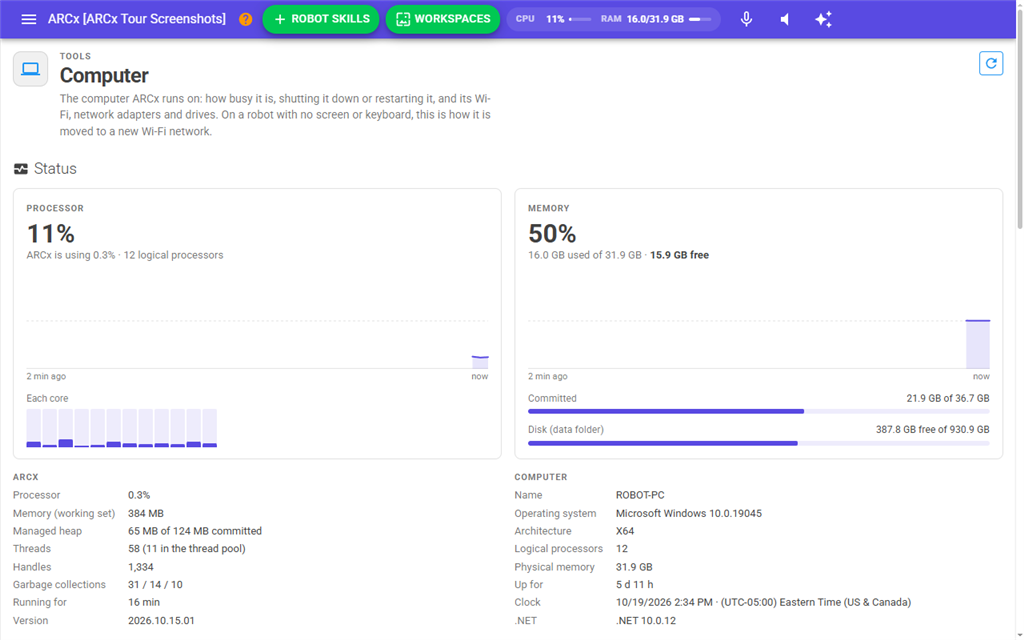
Processor
The large figure is how busy the whole processor is. Under it is how much of that is ARCx itself, and how many logical processors the computer has. ARCx's share is out of every core together, so on a computer with many cores an idle ARCx shows well under 1%.
The graph shows the last 2 minutes, with now at the right. Point at the graph to see the reading and time at that spot. Each core shows a small bar per processor core.
A Busy flag appears at 70% and Very busy at 90%.
Memory
The large figure is how much of the computer's memory is in use. Under it are the amounts used, the total, and how much is free. The graph shows the last 2 minutes.
Two bars may follow:
- Committed (Windows) or Swap (Linux and macOS): how much of the computer's extra memory on disk is in use.
- Disk (data folder): the free space on the drive that holds the ARCx data folder, where projects, settings and logs are saved.
A High flag appears at 80% and Very high at 90%.
ARCx
| Field | What it shows |
|---|---|
| Processor | How much of the processor ARCx is using. |
| Memory (working set) | How much memory ARCx is using. |
| Managed heap | How much of ARCx's own memory pool is in use, out of what it has reserved. |
| Threads | How many threads ARCx is running, and how many of those are in its shared pool. |
| Handles / Open files | How many system resources ARCx has open. It is called Handles on Windows and Open files on Linux and macOS. |
| Garbage collections | How many times ARCx has cleaned up its unused memory, in three tiers. A number that climbs very fast can point to a robot skill that uses a lot of memory. |
| Running for | How long ARCx has been running. |
| Version | The ARCx version. |
Computer
| Field | What it shows |
|---|---|
| Name | The computer's name on the network. |
| Operating system | The operating system and its version. |
| Architecture | The kind of processor, such as X64 or Arm64. |
| Logical processors | How many processor cores the operating system sees. |
| Physical memory | The total memory in the computer. |
| Up for | How long since the computer was last started. |
| Clock | The computer's own date, time and time zone. Schedules and logs go by this clock. A robot with no clock battery that has not reached a time server yet shows the wrong time here. |
| .NET | The version of the runtime ARCx is built on. |
Power
Shut Down turns the computer off. Restart restarts it. Each one asks first, naming the computer, for example "Shut down ROBOT1? ARCx closes and the robot stops. Anything not saved in the project is lost, and someone has to be at the robot to turn it back on."
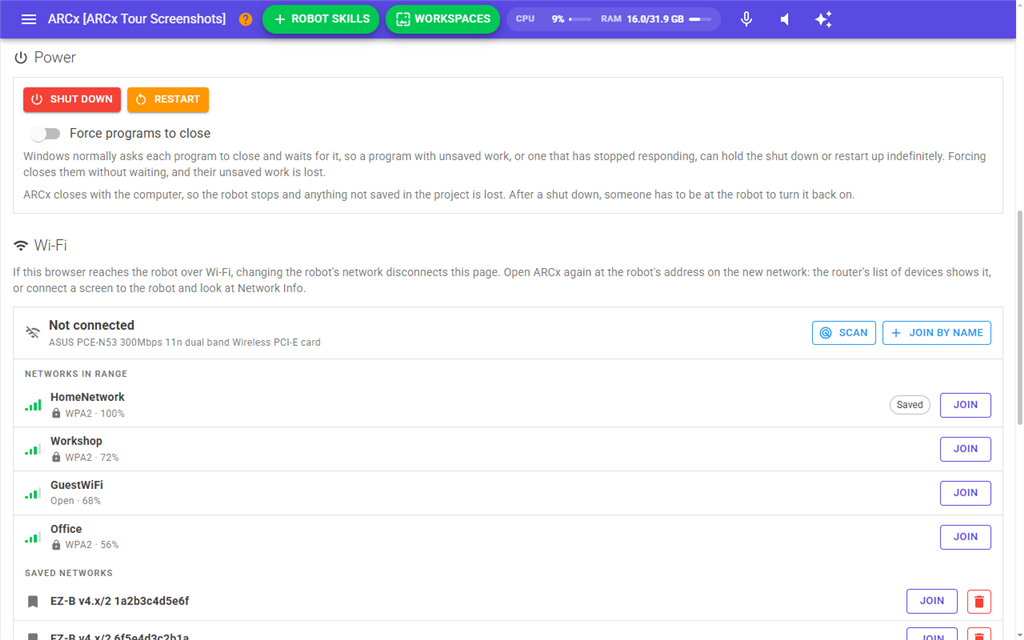
ARCx closes with the computer, so save the project first. After a shut down, someone has to be at the robot to turn it back on. After a restart, ARCx is only back once it has started again on that computer.
When the computer accepts the request, a message says it is shutting down or restarting, and both buttons stay greyed out. This page then loses its connection.
Force programs to close (Windows only). Windows normally asks each program to close and waits for it. A program with unsaved work, or one that has stopped responding, can hold the shut down or restart up indefinitely. With this switch on, Windows closes them without waiting, and their unsaved work is lost.
Wi-Fi
The Wi-Fi is read a moment after the page opens. Reading the Wi-Fi... shows until it is ready. While a change is being made, a spinner says what is happening, such as Joining HomeNetwork..., and the buttons are greyed out. When it finishes, a green or red message says how it went, and the page reads the Wi-Fi again so you can see where the adapter ended up.
If your browser reaches the robot over Wi-Fi, changing the robot's network disconnects this page. Open ARCx again at the robot's address on the new network. The router's list of devices shows it, or connect a screen to the robot and look at Views → Network Info.
The adapter
Each Wi-Fi adapter has its own panel. The heading shows the network it is connected to with signal bars, the adapter's name and its address. An adapter that is not connected shows its state instead.
| Button | What it does |
|---|---|
| Scan | Looks for networks in range. Not on macOS. |
| Join By Name | Joins a network by typing its name. Use it for a network that hides its name, or on macOS. |
| Disconnect | Drops the current connection. Asks first. Only shown when connected, and not on macOS. |
Networks in range
Each network shows its signal bars, its name, its security (a padlock means it needs a password) and its signal strength. The network the adapter is on is marked Connected. A network this computer has joined before is marked Saved. If the list is empty, it says No networks found. Press Scan to look again.
Press Join beside a network:
- A Saved network is joined straight away with its saved password.
- An open network asks for no password, and warns that anyone nearby can see what is sent over it.
- Any other network asks for its password. Press the eye icon to show what you typed. Press Enter or Join.
- A network that signs in with a user name or certificate (WPA Enterprise), or one that uses the old WEP security, cannot be joined from here. A message says so. Set it up on the computer itself.
If the adapter is already on another network, ARCx asks first: "Move the robot from ... to ...? If this browser reaches the robot over ..., this page loses its connection." If the robot cannot join the new network, it goes back to the one it was on.
Join By Name
The dialog asks for:
| Field | What it does |
|---|---|
| Network name (SSID) | The exact name of the network. At most 32 characters. |
| Security | WPA2 Personal (most networks), WPA3 Personal, WPA Personal (older routers), or Open (no password). Not shown on macOS, which works it out by itself. |
| Password | The network password, 8 to 63 characters. Not shown when Open is chosen. Optional on macOS. |
Saved networks
These are the networks this computer remembers. A saved network with a different connection name shows Joins and the network name under it. The one in use is marked Connected. Press Join to switch to another one with its saved password.
The bin icon forgets a saved network. It asks first, and warns if it is the network the robot is on now. A forgotten network is no longer joined automatically, and its password has to be typed again next time. This cannot be undone.
Network Adapters
Every network connection on the computer, wired, Wi-Fi and mobile, with connected ones first. Each row shows:
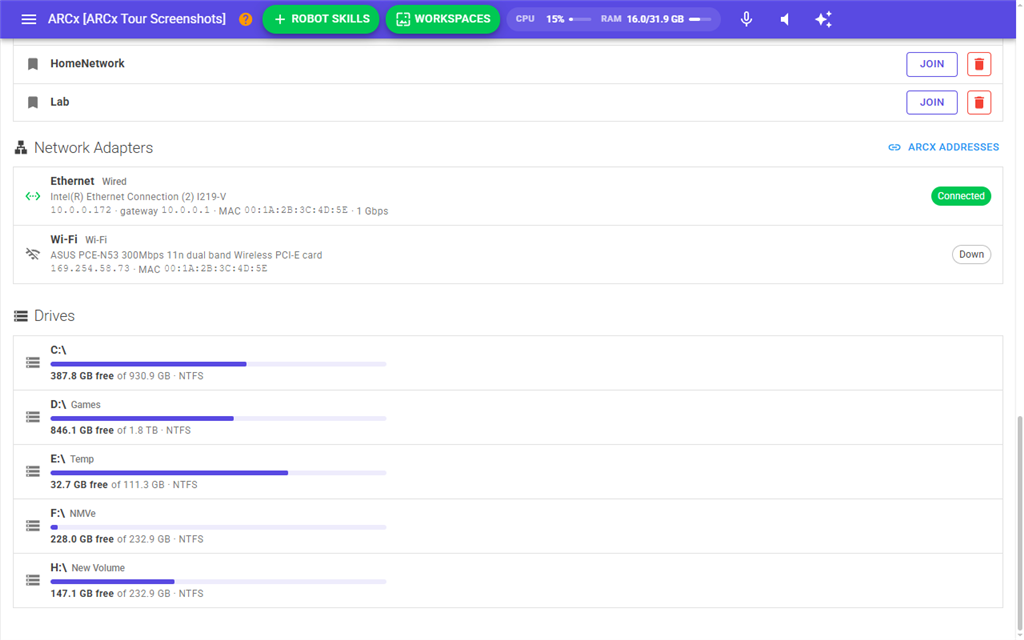
- The adapter's name and kind (Wired, Wi-Fi, Mobile and so on), and a longer description if it has one.
- Its address, or No address.
- The gateway (usually the router), the MAC address, and the link speed while connected.
- A status chip: Connected, or the state the operating system reports, such as Down.
The ARCx Addresses button opens Views → Network Info, which lists the addresses a browser can use to reach ARCx.
Drives
Every drive that holds files: internal disks, USB drives and network drives. Each shows its name and label, a bar of how full it is, how much space is free out of the total, and its format. The operating system's own hidden volumes are left out.
Differences between Windows, Linux and macOS
| Windows | Linux | macOS | |
|---|---|---|---|
| Shut down and restart | Yes, with Force programs to close | Yes, if ARCx's user is allowed (see below) | Yes, once ARCx is allowed to control System Events |
| List networks in range (Scan) | Yes, when Location is on | Yes | No |
| Join By Name | Yes | Yes | Yes, without the Security choice |
| Disconnect | Yes | Yes | No |
| Forget a saved network | Only when ARCx runs as administrator | Yes | May need an administrator |
On Linux, the Wi-Fi is managed through NetworkManager, which Ubuntu Desktop has. Shutting down, restarting and changing the network need permission for the user that runs ARCx. A user signed in at the computer usually has it. ARCx started as a service may need a polkit rule, a sudoers entry, or membership of the netdev group.
Troubleshooting
"Windows only lets programs list the Wi-Fi networks in range while Location is turned on." On the robot, open Settings → Privacy & security → Location and turn on Location services and Let desktop apps access your location. Until then, saved networks can still be joined, and any network can be joined with Join By Name.
"Windows only lets an administrator forget ..." Run ARCx as administrator, or forget the network in the Wi-Fi settings of Windows.
"The WLAN AutoConfig service of Windows is not running, which usually means this computer has no Wi-Fi adapter." Windows has no working Wi-Fi.
"... did not accept the connection, so Windows went back to ... Check the password and try again." The password was probably wrong.
"Wi-Fi is set up from ARCx with NetworkManager, which is not running on this computer." (Linux) On Ubuntu Server, install it with sudo apt install network-manager and set netplan's renderer to NetworkManager, or set up the Wi-Fi in netplan by hand.
"ARCx's user is not allowed to change the network." (Linux) Run ARCx signed in at the computer, add the user to the netdev group, or allow it with a polkit rule.
"Linux refused to shut down" or "Linux refused to restart". ARCx's user needs permission to do this, either by being signed in at the computer, or with a polkit rule or a sudoers entry that allows systemctl poweroff or systemctl reboot without a password.
"macOS refused to shut down" or "macOS refused to restart". On the Mac, allow ARCx to control System Events in System Settings → Privacy & Security → Automation.
"macOS cannot be told to drop its Wi-Fi from ARCx." Turn the Wi-Fi off from the Mac itself.
"A Wi-Fi password is 8 to 63 characters." The password typed is too short or too long.
"No Wi-Fi adapter" The computer has no Wi-Fi adapter, or it is turned off. A wired connection is still listed under Network Adapters.
"That Wi-Fi adapter is no longer there. Refresh the page." The adapter was unplugged or turned off. Press Refresh.