

Serial terminal for ARC and EZ-B UARTs with macros, triggers, scripts, logs, and AI tools for serial devices
 Windows
 ARM
ARM
 Linux
Linux
 MacOS
MacOS
How to add the Terminal robot skill
- Load the most recent release of ARCx on a compatible operating system (Get ARCx).
- Press the + Skills menu from the top menu bar in ARCx.
- Choose any of these category tabs, the robot skill appears in each of them: Communication, General, Scripting.
- Press the Terminal icon to add the robot skill to your project.
Don't have a robot yet?
Follow the Getting Started Guide to build a robot and use the Terminal robot skill.
How to use the Terminal robot skill
The Terminal robot skill is a serial terminal for talking to anything with a serial port: an Arduino, a GPS module, a Bluetooth module in AT mode, a servo controller, a LiDAR, a modem, another single board computer. It connects either to a serial port on the ARCx computer (COM3 on Windows, /dev/ttyUSB0 or /dev/ttyACM0 on Linux, /dev/tty.usbserial-xxx on macOS) or to hardware UART 0, 1 or 2 of an EZ-B v4 connected in the EZB Connection robot skill, from the same window. It replaces both of ARC's terminals, Terminal (PC COM port) and Terminal EZB (EZ-B UART).
Beyond typing and reading, it turns a serial device into part of the robot: every received line goes into a global variable, a script can run for each line, triggers watch for patterns and pull readings straight into variables (or answer the device by themselves), scripts and AI agents can send a command and wait for its reply, and a mini terminal can sit on a Custom UI screen.
The window
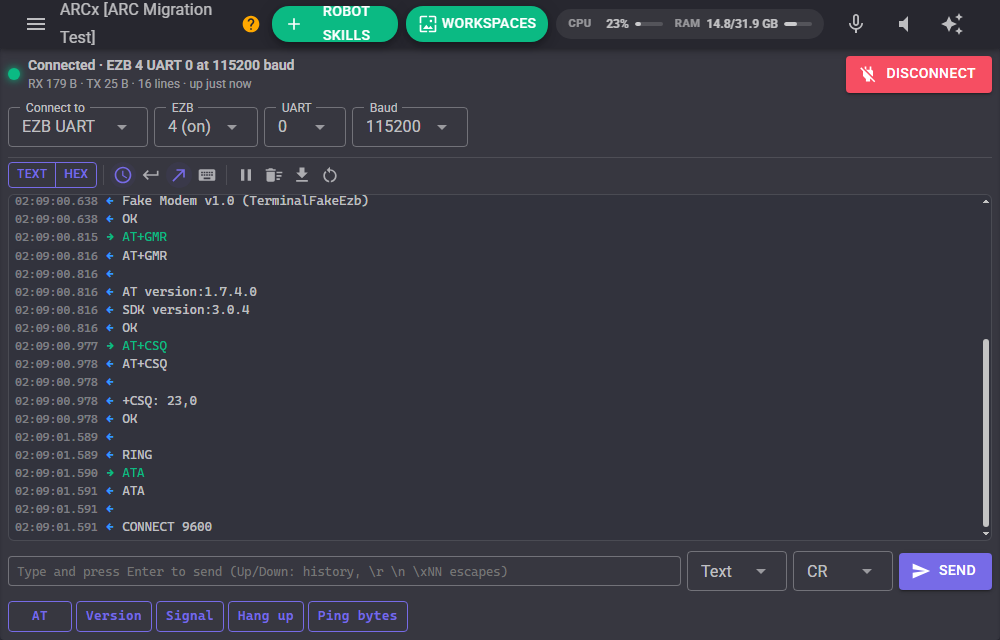
- Status bar: the light is green while connected, amber while connecting or reconnecting, red while disconnected. Beside it, what the terminal is connected to (such as COM3 at 115200 8N1, or EZB 0 UART 1 at 9600 baud), the bytes received (RX) and sent (TX), the lines received and how long it has been connected. When a connection fails or is lost, the reason is shown here too. Connect and Disconnect are on the right.
- Connection row: choose Serial port or EZB UART, then the port (press the refresh button after plugging in a USB adapter) or the EZB and its UART, and the baud rate. Changing these while connected shows Reconnect to apply. Data bits, parity, stop bits, flow control and the rest are in the configuration.
- Toolbar: Text and Hex switch the view. The other buttons turn on and off the timestamps, control characters shown as symbols, local echo (what is sent, in green), and typing into the terminal (see below), then Pause, Clear (asks first; it clears the traffic, the received lines and the counters), Save log (downloads the traffic as a text file in the current view) and Reset counters. For a serial port, DTR and RTS raise and lower those lines while connected; toggling DTR resets most Arduinos.
- Terminal: received text in the normal colour with a blue arrow, sent text in green, the terminal's own notes in grey and errors in red, each line with the time it arrived to the millisecond. The view follows the newest traffic; scroll up to read back and it stays put, with a Newest button to jump back down. Text can be selected and copied.
- Send box: type and press Enter (or Send). Up and Down walk through what was sent before. The pickers beside it choose Text or Hex and the line ending added after each line: None, CR, LF or CR+LF. In text, the escapes
\r\n\t\0\e\xNNand\\are understood (as in ARC). In hex, type byte values such as0x1F 0A FF,1F,0A,FFor1F0AFF; this replaces ARC's "Send ASCII Code" box. - Macros: one button per saved macro, along the bottom.
Text and hex views
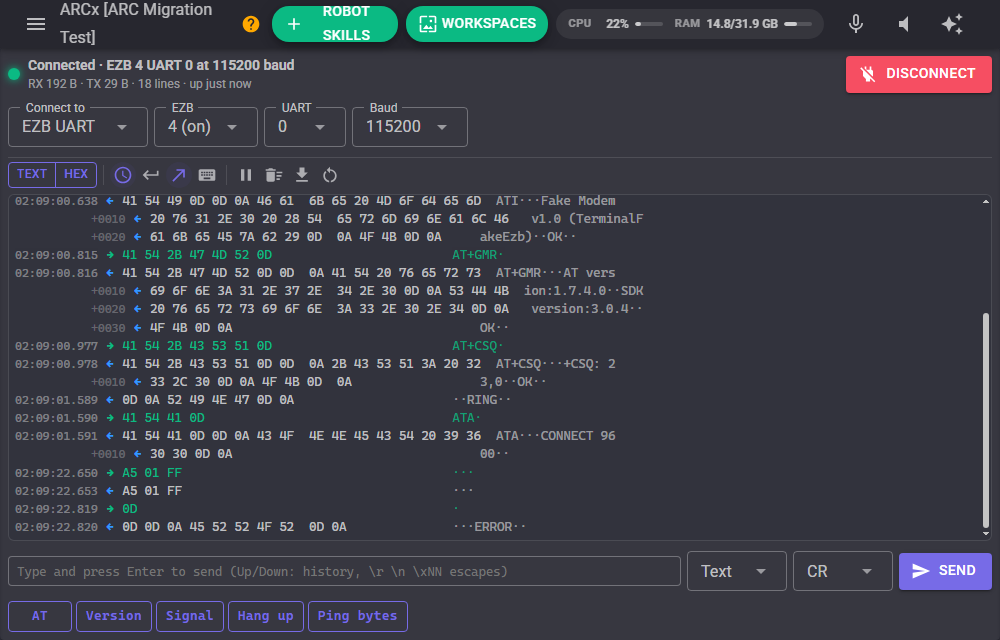
The text view shows one line per received line. With control characters on, carriage returns, line feeds, escapes and the rest show as small symbols, so you can see exactly what a device sends. The hex view is a hex dump: 16 bytes per row with the printable characters beside them; the first row of a burst shows the time and the rows after it the byte offset. Switching views redraws everything kept in the scrollback.
Typing into the terminal
With the keyboard button on, click the terminal and every key goes straight to the device, as ARC's terminals did: letters as typed, Enter as the send line ending, Backspace, Tab and Esc as their control characters, the arrow keys as ANSI escape sequences and Ctrl+letter as the control code (Ctrl+C sends 0x03 unless text is selected). Pasting sends the pasted text. Useful for menus on a microcontroller, a Linux console on a Raspberry Pi's UART, or a device that wants characters one at a time.
EZB UARTs
An EZ-B's UART keeps what it receives in a buffer and has no receive event, so the terminal asks the EZB for new bytes. It only does that while connected, and at two rates: Read every (50 ms by default) while somebody wants the data (a browser showing ARCx, the line script, a trigger, or a script or AI waiting for a reply), and Read when idle every (1 second by default) otherwise; the bytes wait in the EZB's buffer meanwhile. Right after anything is sent it reads straight away and stays at the fast rate for a few seconds, so replies show quickly. While any robot skill's configuration window is open, reading pauses like other robot skills, unless a script is waiting for a reply or something was sent in the last few seconds.
When the EZB disconnects, the terminal says so and (with Reconnect on) initializes the UART again the moment the EZB is back. An unplugged USB adapter is handled the same way.
Variables
Each terminal publishes these global variables, starting with its Variable prefix (Terminal by default; give each Terminal in a project its own):
| Variable | What it holds |
|---|---|
| TerminalLastLine | The newest complete line received. |
| TerminalLine | The line the line script is running for. |
| TerminalConnected | True while connected. |
| TerminalBytesReceived | Bytes received since the terminal was cleared. |
| TerminalBytesSent | Bytes sent since the terminal was cleared. |
| TerminalLinesReceived | Lines received since the terminal was cleared. |
| TerminalLastError | Why the last connection or send failed; empty when all is well. |
| TerminalMatchName | The name of the trigger that fired last. |
| TerminalMatchLine | The line that fired it. |
| TerminalMatchGroups | An array: the whole match, then each group of the trigger's regular expression. |
Blank lines (the empty line in a \r\nOK\r\n reply, say) are shown in the window but never handed to the variables, scripts, triggers or waiting commands.
Scripts
Sending a command and waiting for its reply is one line:
var reply = controlCommand("Terminal", "SendAndWait", "AT+CSQ", "+CSQ", 2000);

if (reply == "")
  print("No answer");
else
  print("Signal: " + reply);
The text to wait for is matched anywhere in a line, ignoring case. Write it as /regex/ (or /regex/i to ignore case) for a regular expression: controlCommand("Terminal", "WaitForLine", "/^\\$GPRMC/", 3000). An empty string takes the next line, whatever it is. Both return an empty string when nothing matched in time.
Send sends text exactly as given (use the script's own "\r\n"), SendLine adds the configured line ending and SendHex sends bytes such as "0xA5 01 FF". GetLines returns the newest received lines, and ReadLines the lines received since the previous ReadLines, for a script that checks in a loop. SetBaudRate and SetPort switch a connected terminal over, for instance to put a Bluetooth module into its AT mode at 38400 baud. SaveLog writes the traffic to a file on the ARCx computer.
Triggers
A trigger watches every received line for a pattern. When it appears, the trigger can send a reply to the device by itself (answer RING with ATA), run a script, or both. Plain text matches when the line contains it; turn on Regular expression for more. Named groups in a regular expression become global variables, numbers as numbers, so a reading needs no script at all:
^\$G[PN]RMC,[^,]*,A,(?<GpsLat>[0-9.]+),(?<GpsNS>[NS]),(?<GpsLon>[0-9.]+),(?<GpsEW>[EW]),(?<GpsKnots>[0-9.]*)
That one keeps GpsLat, GpsNS, GpsLon, GpsEW and GpsKnots up to date from a GPS module's NMEA stream. Cooldown stops a trigger firing more often than you want, and the Try a line box at the top of the Triggers tab shows which triggers a line would fire and what they would set. Add examples adds the GPS trigger above and a modem auto-answer, both switched off. SetTriggerEnabled turns a trigger on and off from a script.
When a trigger's script (or the line script) is still running as the next line arrives, Queue runs it again for each line in order (up to 200 waiting), Skip leaves that line out, and Restart stops it and starts again for the newest line.
Macros
A macro is a named message sent with one press: a button under the terminal, the SendMacro control command, the AI, or the Custom UI Send button widget. A macro is text (with its own line ending, or the send line ending by default) or hex bytes.
Custom UI widgets
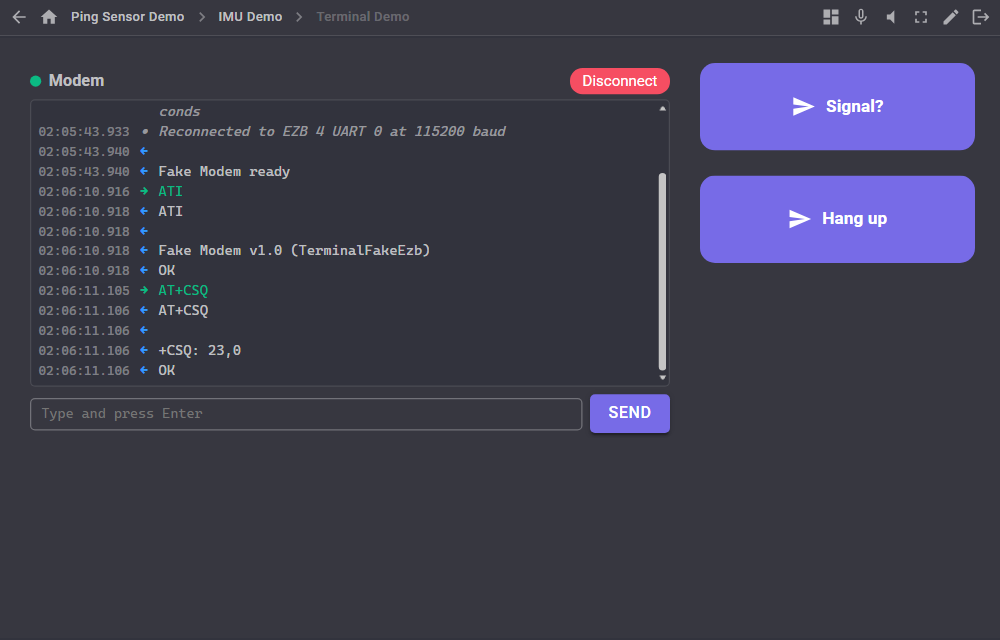
- Mini terminal: the traffic in a small box, with the connection light, a connect button and an optional send box. Settings: Caption, ShowSendBox, ShowConnect and FontSize.
- Send button: a big button that sends a macro by name, or its own text or hex. It flashes green when the bytes went out and red when they could not. Settings: Caption, Macro, Text, Hex and LineEnding.
AI (MCP) tools
AI agents connected to ARCx get the tools send, send_and_wait (send, then wait for a matching reply line and return everything received meanwhile), read_recent (the newest lines of the transcript with times and directions, plus the connection status), connect (optionally choosing the port, EZB, UART and baud rate first), disconnect and list_ports (the computer's serial ports and the project's EZBs). An AI can work a device it has never seen: list the ports, connect, send AT and read what comes back.
Configuration
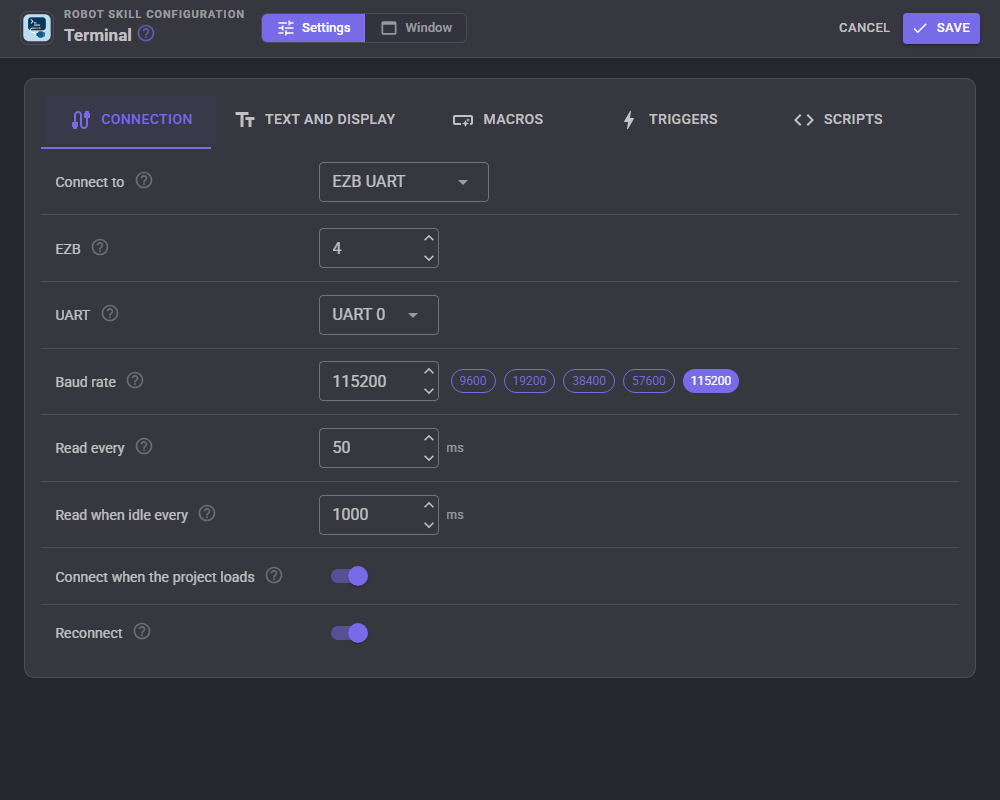
| Setting | What it does |
|---|---|
| Connect to | Serial port on the ARCx computer, or EZB UART. |
| Serial port | Pick a port this computer has, or type one, such as /dev/serial/by-id/usb-... on Linux, which stays the same whichever USB socket the adapter is in. |
| EZB, UART | The controller (by its index in the EZB Connection robot skill) and its hardware UART: 0, 1 or 2. |
| Baud rate | Must match the device. Any number can be typed; 9600 and 115200 are the most common. |
| Data, parity, stop bits | Almost always 8, None and 1 (8N1). Serial ports only. |
| Flow control | None, XON/XOFF, RTS/CTS, or both. Serial ports only. |
| DTR and RTS lines | Raise these lines while connected. Serial ports only. |
| Read every | How often an EZB UART is read while somebody wants the data. |
| Read when idle every | How often an EZB UART is read while nobody is watching. |
| Connect when the project loads | Connect by itself once the project has loaded. |
| Reconnect | Keep trying every few seconds when the connection is lost, until it is back or Disconnect is pressed. |
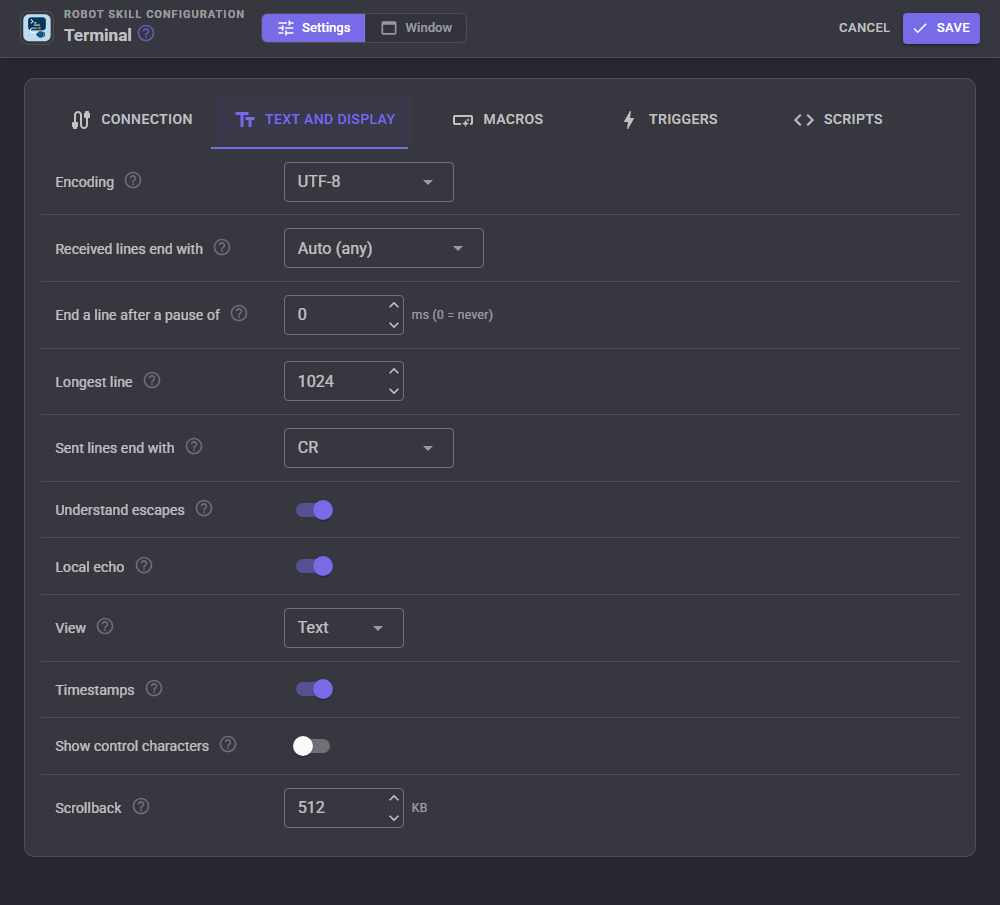
| Setting | What it does |
|---|---|
| Encoding | UTF-8 (plain ASCII is the same), 7 bit ASCII, or Latin-1 (every byte is exactly one character). |
| Received lines end with | Auto (CR, LF or CR+LF), LF, CR, or CR+LF only. |
| End a line after a pause of | Text that waits this long without a line ending counts as a line anyway, for prompts such as login: . 0 waits forever. |
| Longest line | Longer received lines are split. |
| Sent lines end with | Added after each line from the send box, SendLine, and macros and replies set to Default. Arduino sketches usually want LF, AT command modems CR. |
| Understand escapes | \r \n \t \0 \e \xNN and \\ in the send box, macros and replies. Scripts' Send commands always send their text as given. |
| Local echo | Show what is sent, in green. |
| View, Timestamps, Show control characters | How the terminal draws the traffic (also on the window's toolbar). |
| Scrollback | How much traffic is kept for the window, the saved log and the AI, in kilobytes. |
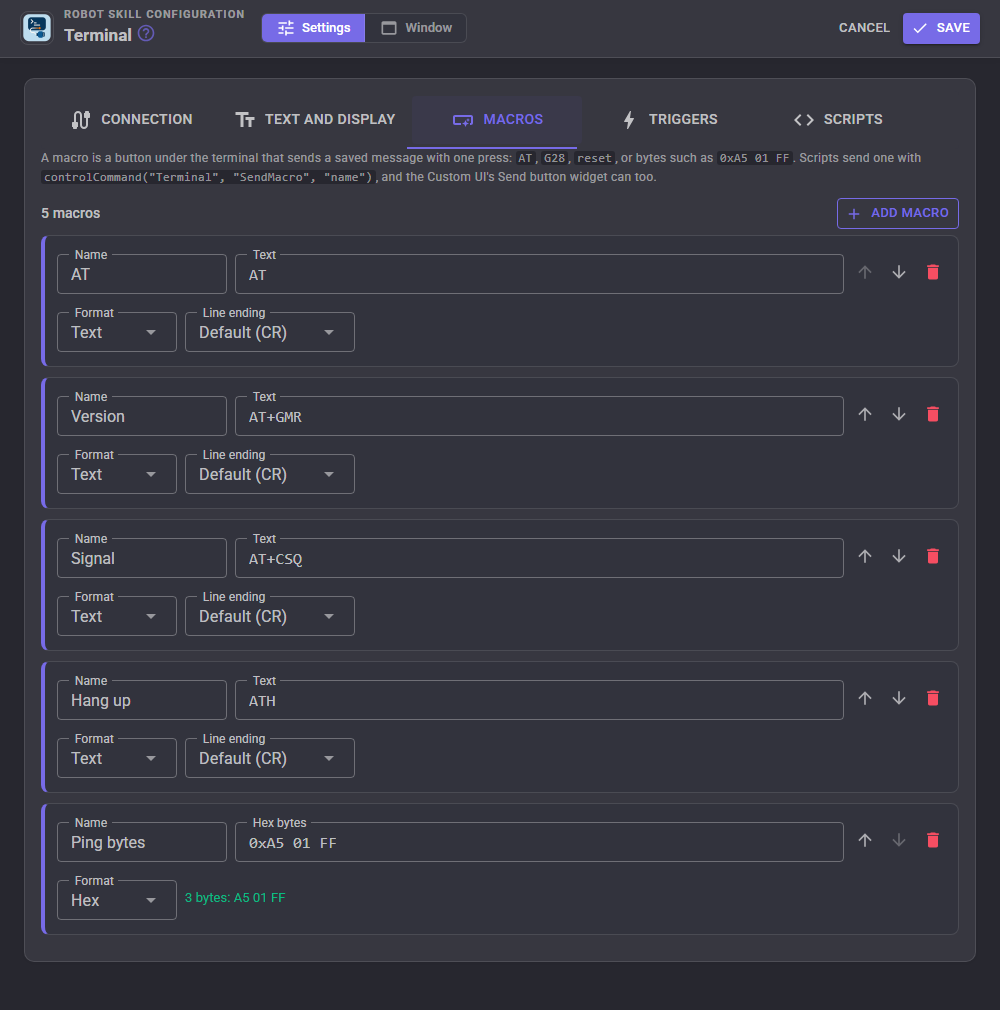
Each macro has a name, its text or hex bytes, and for text its line ending. The arrows change the order of the buttons.
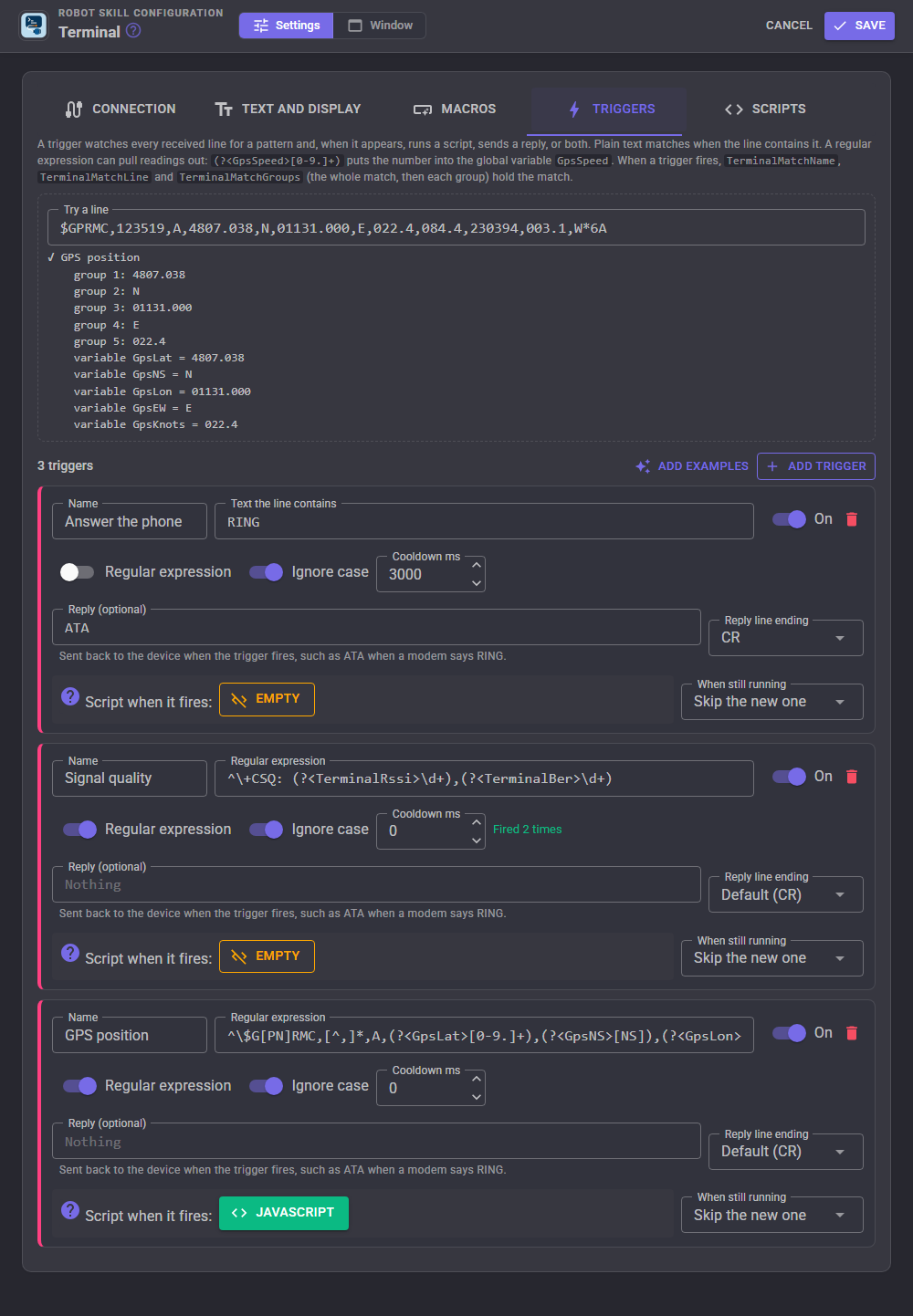
Each trigger has a name, the text or regular expression it looks for, whether case matters, a cooldown, an optional reply with its line ending, and an optional script with what to do when it is still running. The number of times each trigger has fired is shown beside it.
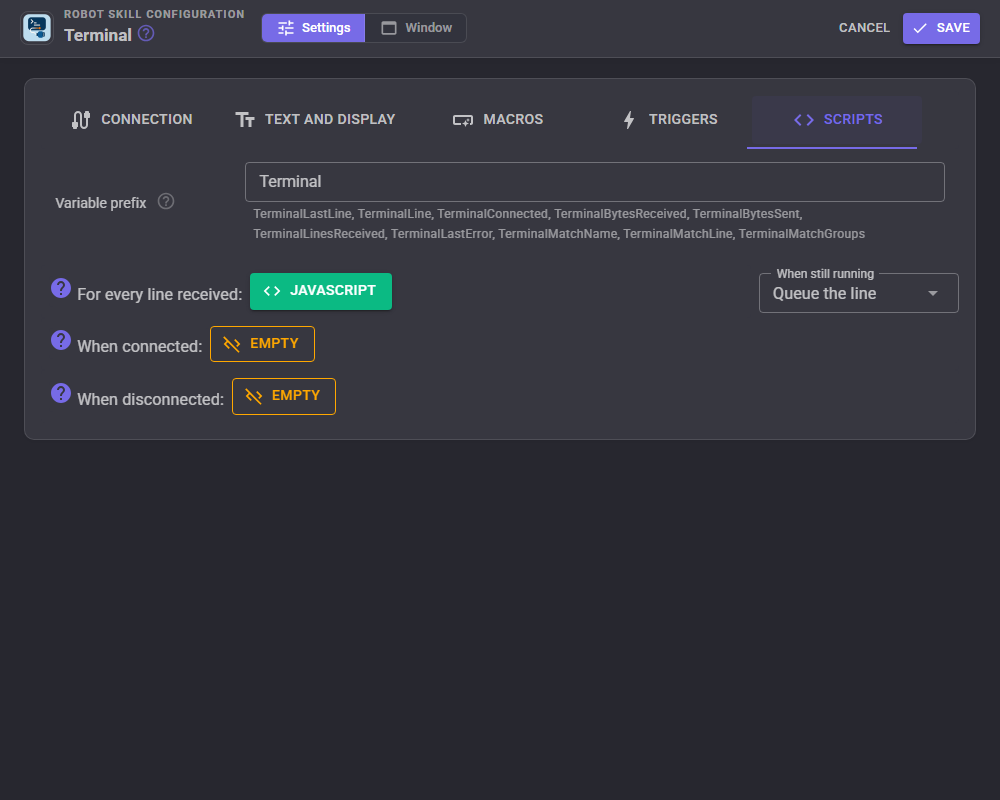
| Setting | What it does |
|---|---|
| Variable prefix | The start of every variable this terminal sets. |
| For every line received | A script run for each received line; getVar("TerminalLine") is the line. With Queue, Skip or Restart for when it is still running. |
| When connected | Runs each time the terminal connects or reconnects, to send a device its start up commands. |
| When disconnected | Runs when the terminal disconnects or loses its connection; getVar("TerminalLastError") says why. |
Linux and macOS
On Linux the terminal drives serial ports through the operating system directly rather than .NET's serial port class, which keeps a thread waking every millisecond for as long as a port is open; an idle Terminal costs nothing on a Raspberry Pi or Jetson. Your user must be allowed to open the port: on Ubuntu, add it to the dialout group (sudo usermod -aG dialout $USER, then log out and in). macOS uses .NET's serial port class.
Control Commands for the Terminal robot skill
There are Control Commands available for this robot skill which allows the skill to be controlled programmatically from scripts or other robot skills. These commands enable you to automate actions, respond to sensor inputs, and integrate the robot skill with other systems or custom interfaces. If you're new to the concept of Control Commands, we have a comprehensive manual available here that explains how to use them, provides examples to get you started and make the most of this powerful feature.
Control Command ManualThis robot skill has 22 control commands, listed below. Send them from a JavaScript or Python script, from Blockly, or from another robot skill.
The first value is always the window title, which is the name in the title bar of the robot skill on your workspace. It starts out as Terminal, which is what every example below uses. If you rename the robot skill, or add a second copy of it to the project, use the title as it appears on that window instead.
ControlCommand() can be shortened to CC(), and both spellings work in JavaScript and in Python. The examples are JavaScript; Python is the same call, except that true and false are written True and False.
ClearBuffer
Clear the terminal: the window, the received lines and the counters.
Syntax
ControlCommand("Terminal", "ClearBuffer")
Returns: Boolean [true or false]
Example
var result = ControlCommand("Terminal", "ClearBuffer");
Connect
Connect to the configured serial port or EZB UART. Raises an error with the reason when it cannot. Does nothing when already connected.
Syntax
ControlCommand("Terminal", "Connect")
Returns: Boolean [true or false]
Example
var result = ControlCommand("Terminal", "Connect");
Disconnect
Close the connection (and stop any reconnecting).
Syntax
ControlCommand("Terminal", "Disconnect")
Returns: Boolean [true or false]
Example
var result = ControlCommand("Terminal", "Disconnect");
GetLastLine
The newest complete line received (also in the [prefix]LastLine variable).
Syntax
ControlCommand("Terminal", "GetLastLine")
Returns: String
Example
var result = ControlCommand("Terminal", "GetLastLine");
GetLines
The newest received lines, oldest first, up to count.
Syntax
ControlCommand("Terminal", "GetLines", (Number)count)
Parameters
| # | Name | Type | What to pass |
|---|---|---|---|
| 1 | count | Number | A number, without quotes |
Returns: Array of String
Example
var result = ControlCommand("Terminal", "GetLines", 0);
GetPartialLine
Text received after the last line ending, such as a prompt that never ends its line.
Syntax
ControlCommand("Terminal", "GetPartialLine")
Returns: String
Example
var result = ControlCommand("Terminal", "GetPartialLine");
GetStatus
The connection, counters and last line as JSON text.
Syntax
ControlCommand("Terminal", "GetStatus")
Returns: String
Example
var result = ControlCommand("Terminal", "GetStatus");
IsConnected
True while connected.
Syntax
ControlCommand("Terminal", "IsConnected")
Returns: Boolean [true or false]
Example
var result = ControlCommand("Terminal", "IsConnected");
ReadLines
The lines received since the previous ReadLines, oldest first (empty when there are none). For a script that checks in a loop.
Syntax
ControlCommand("Terminal", "ReadLines")
Returns: Array of String
Example
var result = ControlCommand("Terminal", "ReadLines");
ResetCounters
Zero the bytes received, bytes sent and lines received counters.
Syntax
ControlCommand("Terminal", "ResetCounters")
Returns: Boolean [true or false]
Example
var result = ControlCommand("Terminal", "ResetCounters");
SaveLog
Save the terminal's traffic to a text file on the ARCx computer, in the window's current view (text or hex). A bare file name goes into the Documents folder; empty makes a name. Returns the full path.
Syntax
ControlCommand("Terminal", "SaveLog", (String)fileName)
Parameters
| # | Name | Type | What to pass |
|---|---|---|---|
| 1 | fileName | Text | Your text, in quotes |
Returns: String
Example
var result = ControlCommand("Terminal", "SaveLog", "fileName");
Send
Send text exactly as given, with no line ending added. Use "\r" and "\n" in the script's own string for control characters. Returns the number of bytes sent.
Syntax
ControlCommand("Terminal", "Send", (String)text)
Parameters
| # | Name | Type | What to pass |
|---|---|---|---|
| 1 | text | Text | Your text, in quotes |
Returns: Integer [-2,147,483,648 to 2,147,483,647]
Example
var result = ControlCommand("Terminal", "Send", "text");
SendAndWait
Send text followed by the configured line ending, then wait for a received line that contains waitFor (or matches it when written as /regex/), up to timeoutMS. Returns that line, or an empty string when nothing matched in time. An empty waitFor takes the next line.
Syntax
ControlCommand("Terminal", "SendAndWait", (String)text, (String)waitFor, (Number)timeoutMS)
Parameters
| # | Name | Type | What to pass |
|---|---|---|---|
| 1 | text | Text | Your text, in quotes |
| 2 | waitFor | Text | Your text, in quotes |
| 3 | timeoutMS | Number | A number, without quotes |
Returns: String
Example
var result = ControlCommand("Terminal", "SendAndWait", "text", "waitFor", 0);
SendHex
Send bytes written as hex, such as "0xA5 01 FF" or "A501FF". Returns the number of bytes sent.
Syntax
ControlCommand("Terminal", "SendHex", (String)hexBytes)
Parameters
| # | Name | Type | What to pass |
|---|---|---|---|
| 1 | hexBytes | Text | Your text, in quotes |
Returns: Integer [-2,147,483,648 to 2,147,483,647]
Example
var result = ControlCommand("Terminal", "SendHex", "hexBytes");
SendLine
Send text followed by the configured line ending (CR, LF or CR+LF). Returns the number of bytes sent.
Syntax
ControlCommand("Terminal", "SendLine", (String)text)
Parameters
| # | Name | Type | What to pass |
|---|---|---|---|
| 1 | text | Text | Your text, in quotes |
Returns: Integer [-2,147,483,648 to 2,147,483,647]
Example
var result = ControlCommand("Terminal", "SendLine", "text");
SendMacro
Send one of the saved macros by its name. Returns the number of bytes sent.
Syntax
ControlCommand("Terminal", "SendMacro", (String)macroName)
Parameters
| # | Name | Type | What to pass |
|---|---|---|---|
| 1 | macroName | Text | Your text, in quotes |
Returns: Integer [-2,147,483,648 to 2,147,483,647]
Example
var result = ControlCommand("Terminal", "SendMacro", "macroName");
SetBaudRate
Change the baud rate. A connected terminal reconnects at the new rate (a Bluetooth module's AT mode, say).
Syntax
ControlCommand("Terminal", "SetBaudRate", (Number)baudRate)
Parameters
| # | Name | Type | What to pass |
|---|---|---|---|
| 1 | baudRate | Number | A number, without quotes |
Returns: Boolean [true or false]
Example
var result = ControlCommand("Terminal", "SetBaudRate", 0);
SetDTR
Raise (true) or lower (false) the DTR line of a local serial port. Toggling it resets most Arduinos.
Syntax
ControlCommand("Terminal", "SetDTR", (Bool)on)
Parameters
| # | Name | Type | What to pass |
|---|---|---|---|
| 1 | on | True or false | true or false, without quotes |
Returns: Boolean [true or false]
Example
var result = ControlCommand("Terminal", "SetDTR", true);
SetPort
Use a local serial port, such as COM3 or /dev/ttyUSB0. A connected terminal reconnects to it.
Syntax
ControlCommand("Terminal", "SetPort", (String)portName)
Parameters
| # | Name | Type | What to pass |
|---|---|---|---|
| 1 | portName | Text | Your text, in quotes |
Returns: Boolean [true or false]
Example
var result = ControlCommand("Terminal", "SetPort", "portName");
SetRTS
Raise (true) or lower (false) the RTS line of a local serial port.
Syntax
ControlCommand("Terminal", "SetRTS", (Bool)on)
Parameters
| # | Name | Type | What to pass |
|---|---|---|---|
| 1 | on | True or false | true or false, without quotes |
Returns: Boolean [true or false]
Example
var result = ControlCommand("Terminal", "SetRTS", true);
SetTriggerEnabled
Turn a trigger on or off by its name. Returns false when there is no trigger of that name.
Syntax
ControlCommand("Terminal", "SetTriggerEnabled", (String)triggerName, (Bool)enabled)
Parameters
| # | Name | Type | What to pass |
|---|---|---|---|
| 1 | triggerName | Text | Your text, in quotes |
| 2 | enabled | True or false | true or false, without quotes |
Returns: Boolean [true or false]
Example
var result = ControlCommand("Terminal", "SetTriggerEnabled", "triggerName", true);
WaitForLine
Wait for the next received line that contains waitFor (or matches it when written as /regex/), up to timeoutMS. Returns that line, or an empty string when nothing matched in time. An empty waitFor takes the next line.
Syntax
ControlCommand("Terminal", "WaitForLine", (String)waitFor, (Number)timeoutMS)
Parameters
| # | Name | Type | What to pass |
|---|---|---|---|
| 1 | waitFor | Text | Your text, in quotes |
| 2 | timeoutMS | Number | A number, without quotes |
Returns: String
Example
var result = ControlCommand("Terminal", "WaitForLine", "waitFor", 0);
This list is read out of the robot skill itself each time its package is uploaded, so it matches the published version (v2).



This robot skill has been updated to v1.
What has changed
initial release
This robot skill has been updated to v2.
What has changed
updated to use some new ARCx UI features for improved performance.