
Debug
Print messages, time parts of the program and write to the ARCx debug log, to see what a program is doing.
Where to find it: the Debug category of the toolbox, in any script editor set to Blockly or on Top bar → Workspaces → Blockly
Blocks
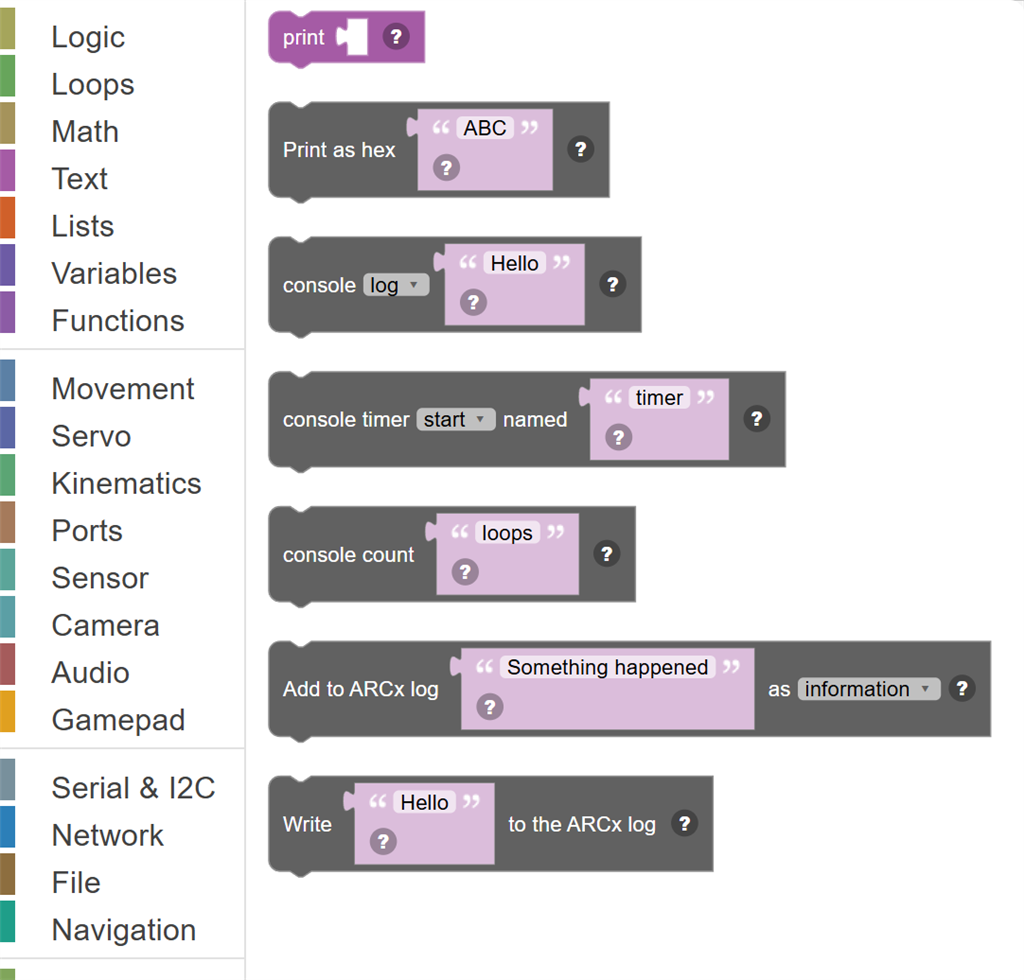
| Block | What it does |
|---|---|
| Print / Display Text | Outputs a piece of text to the script's log/output window. |
| Print as hex … | Print every character of the text as a hex byte (0x41 0x42 0x43) - handy for data read from a serial port. |
| Console … … | Print text to the script's output, as browser JavaScript does. |
| Console timer … named … | Time part of a script: start a named timer, then stop it to print how long it ran. |
| Console count … | Count how many times this block has run for a name, and print the count. |
| Add to ARCx log … as … | Write an entry to the ARCx log with a severity, so warnings and errors from a script stand out there. |
| Write … to the ARCx log | Write text to the ARCx log (the debug log of the whole application), rather than this script's output. |
Details
Print / Display Text
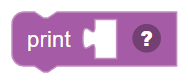
Outputs a piece of text to the script's log/output window. Great for showing messages, debug info, or results while your script runs.
When to use it: Use this to see what's happening inside your script — like showing sensor values or confirming that a section of code ran.
Example: Print "Robot is starting up!" → displays that message in the log panel.
Tips:
- The output appears in the Blockly script log panel at the bottom.
- Print numbers or joined text to see live values while debugging.
- Print statements don't affect the robot — they're just for you to read.
In JavaScript: this block runs
print("");
Print as hex …
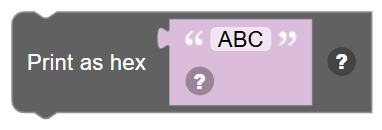
Print every character of the text as a hex byte (0x41 0x42 0x43) - handy for data read from a serial port.
In JavaScript: this block runs
printHex('ABC');
Console … …
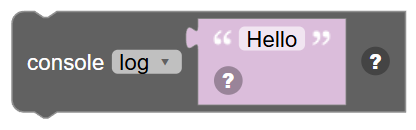
Print text to the script's output, as browser JavaScript does. error stops the script with the text as its error.
In JavaScript: this block runs
console.log('Hello');
Console timer … named …
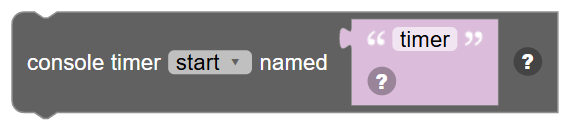
Time part of a script: start a named timer, then stop it to print how long it ran. A timer name can only be running once.
In JavaScript: this block runs
console.time('timer');
Console count …
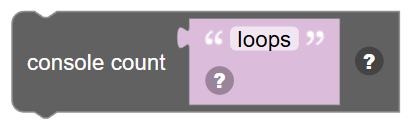
Count how many times this block has run for a name, and print the count.
In JavaScript: this block runs
console.count('loops');
Add to ARCx log … as …

Write an entry to the ARCx log with a severity, so warnings and errors from a script stand out there.
In JavaScript: this block runs
Log.add('Something happened', 0);
Write … to the ARCx log
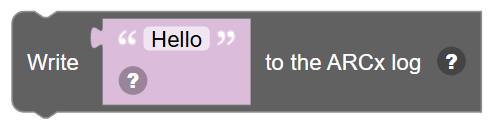
Write text to the ARCx log (the debug log of the whole application), rather than this script's output.
In JavaScript: this block runs
console.logToARC('Hello');