
Script Editor
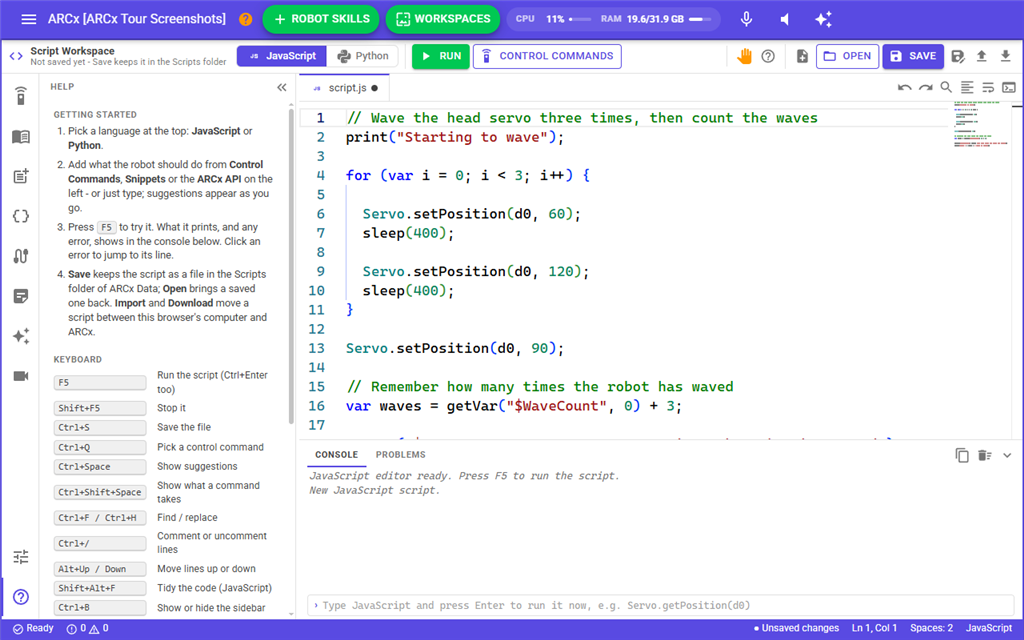
Every script in ARCx is written in the same editor, whether it belongs to a robot skill, the project's startup script, a Custom UI button or the Script workspace. It is laid out like Visual Studio Code: a toolbar along the top, a column of view buttons down the left, the script in the middle, and a console underneath. It suggests commands as you type, checks the script for mistakes while you write, runs it so you can watch the robot, and has an AI assistant that can write or explain code for you.
Where to find it: click any script button in a robot skill's configuration, or open Top bar → Workspaces → Script
Contents
- Opening the editor
- The toolbar
- Writing a script
- The views on the left
- The console and problems
- The status bar
- Saving
- Keyboard shortcuts
Opening the editor
Robot skills that run scripts have a script button in their configuration. The button is labelled with the script's language, and is green when it already holds a script. Click it and the editor opens over the whole page.
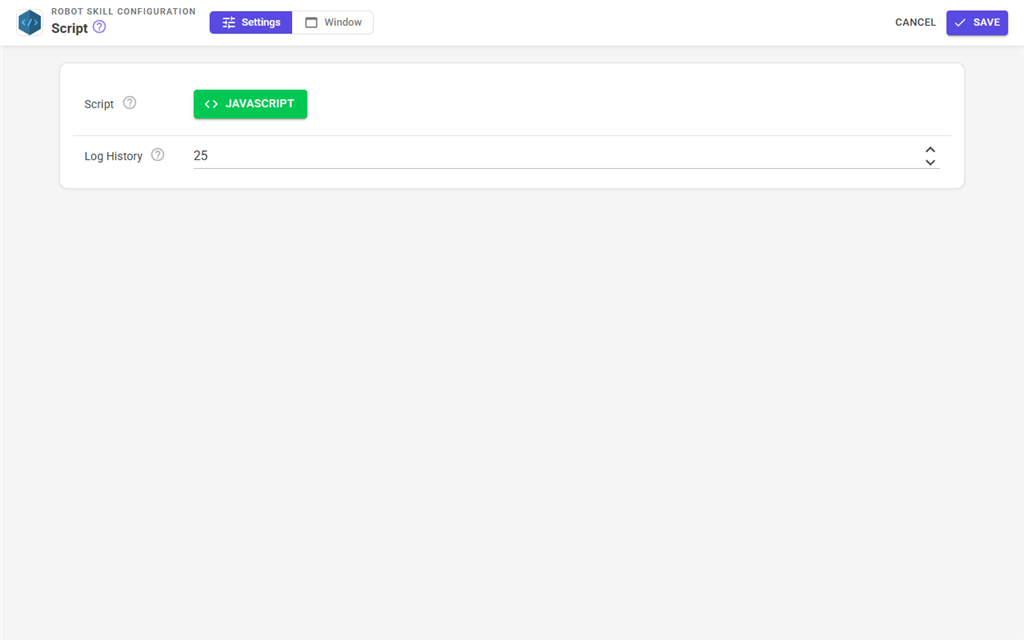
The editor opens in the language the script is written in. A new, empty script opens in the language chosen under Start new scripts in in the editor's settings (Blockly unless you change it).
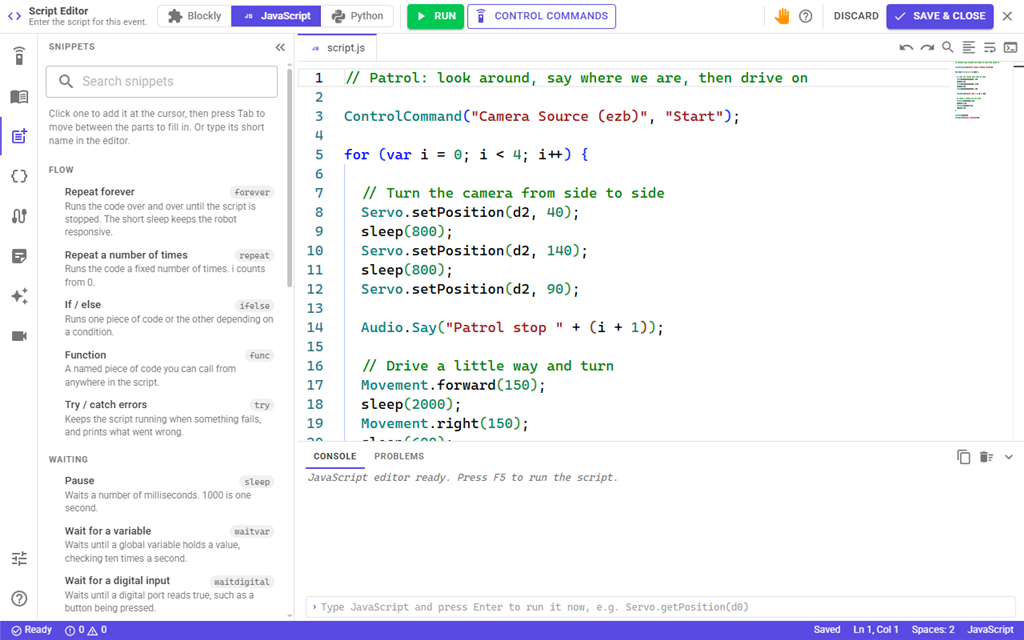
Top bar → Workspaces → Script opens the same editor as a page of its own, for writing JavaScript and Python that you keep as files. Its file buttons are described on the Workspaces → Script page of the user interface manual.
The toolbar
| Part | What it does |
|---|---|
| Title | What the script is for, such as "Script Editor - Enter the script for this event". |
| Blockly / JavaScript / Python | The script's language. Click another to switch. Switching a script that already has code starts the new language empty, after asking; Discard brings the old script back if you change your mind before saving. The Script workspace has no Blockly button; use Workspaces → Blockly for blocks. |
| Run | Runs the script (F5 or Ctrl+Enter). While it runs, the button turns into Stop (Shift+F5). |
| Control Commands | Opens a list of everything the robot skills in the project can be asked to do, and adds the one you pick to the script (Ctrl+Q). |
| Panic (the hand) | Stops the script, stops all movement, releases every servo and stops audio. Use it when the robot does something you did not expect. |
| Help (the ?) | Opens the Help view with the keyboard shortcuts. |
| Discard | Puts the script back as it was last saved and closes the editor, after asking. |
| Save & Close | Keeps the script and closes the editor. |
| Close (the X) | Closes the editor, asking whether to save any changes first. |
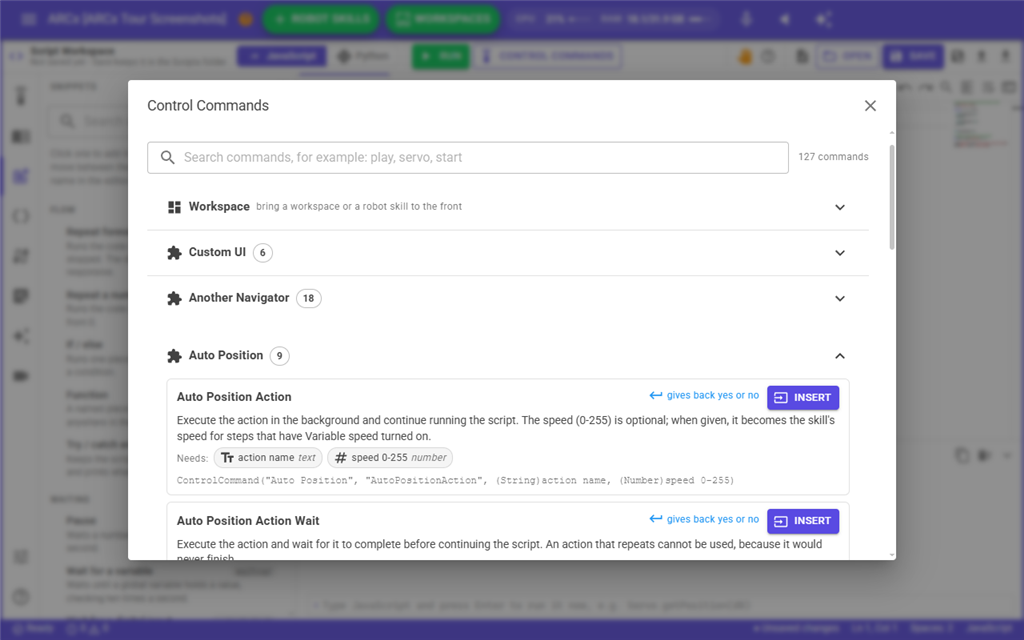
In the Control Commands list, each command says what it does, what values it needs and whether it gives something back. Insert writes it into the script at the cursor, with grey placeholders where your values go.
Writing a script
For JavaScript and Python the middle of the editor is a full code editor (the same one Visual Studio Code uses). It colours the code, indents for you, closes brackets and quotes, and suggests as you type:
- Type a group name and a dot, such as
Servo., and every Servo command is listed. Each shows what it does and what it takes. Ctrl+Space shows suggestions at any time. - Inside the brackets of a command, the editor shows what each value is for, with the one you are typing in bold (Ctrl+Shift+Space shows it again).
- Inside
getVar("the editor suggests the project's global variables; insidecontrolCommand("it suggests robot skills and then their commands. - Short names such as
forever,repeat,ifelseorsetvaroffer ready-made pieces of code from the Snippets view.
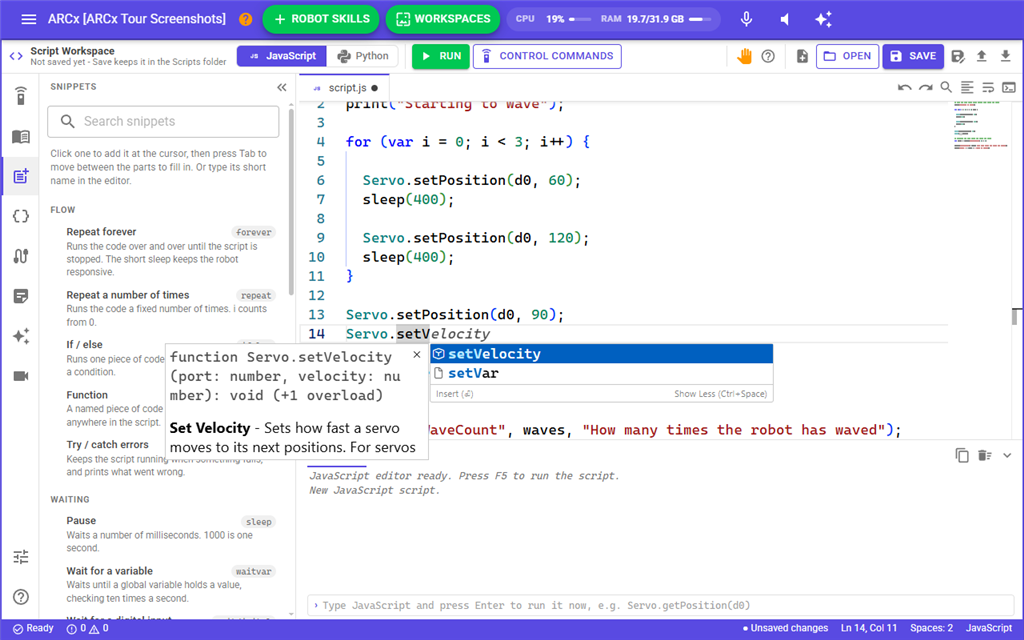
Mistakes are underlined in red as you type, and listed in the Problems tab at the bottom. Hover over the underline to read the message.
The buttons on the right of the tab strip undo, redo, find (Ctrl+F, or Ctrl+H to replace), tidy the indentation of a JavaScript script (Shift+Alt+F), wrap long lines, and list every editor command (F1).
For Blockly the middle of the editor is the block area instead, with the toolbox of block categories down its left side. The Blockly page under Scripting explains how to build with blocks.
The views on the left
The column of buttons down the left side opens a view in the sidebar. Click the button again, or press Ctrl+B, to hide the sidebar and give the script more room. Drag the edge of the sidebar to make it wider.
| View | What it shows |
|---|---|
| Control Commands | Every robot skill in the project and its commands, in a tree you can search. Click a command to add it to the script. |
| ARCx API | Every script command, grouped by subject (Servo, Movement, Audio...), with what it takes and what it gives back. Hover for a description, click to add it to the script. |
| Snippets | Ready-made code for common jobs: loops, waiting, variables, servos, movement, speech and sound, sensors, the screen. Click one to add it, then press Tab to move between the parts to fill in. |
| Variables | The project's global variables with their current values and descriptions, updated live, and below them the variables the script itself has made. |
| Ports | The port descriptions saved with the project, so you can see what is plugged in where. |
| Project Notes | Notes kept with the project. Everyone editing any script sees the same notes. |
| AI Assistant | Ask the AI to write, fix or explain the script. It sees your code, the project's control commands and its global variables. Answers with code have Insert at cursor and Replace script buttons. Uses your Synthiam account's AI credits. |
| Camera | A live view of a camera, so you can watch what the robot sees while the script runs. |
| Settings | The font size, wrapping long lines, the minimap (the overview strip on the right), the language new scripts start in, and whether control commands are written as ControlCommand() or the shorter CC(). |
| Help | How to get started, every keyboard shortcut and a few tips. |
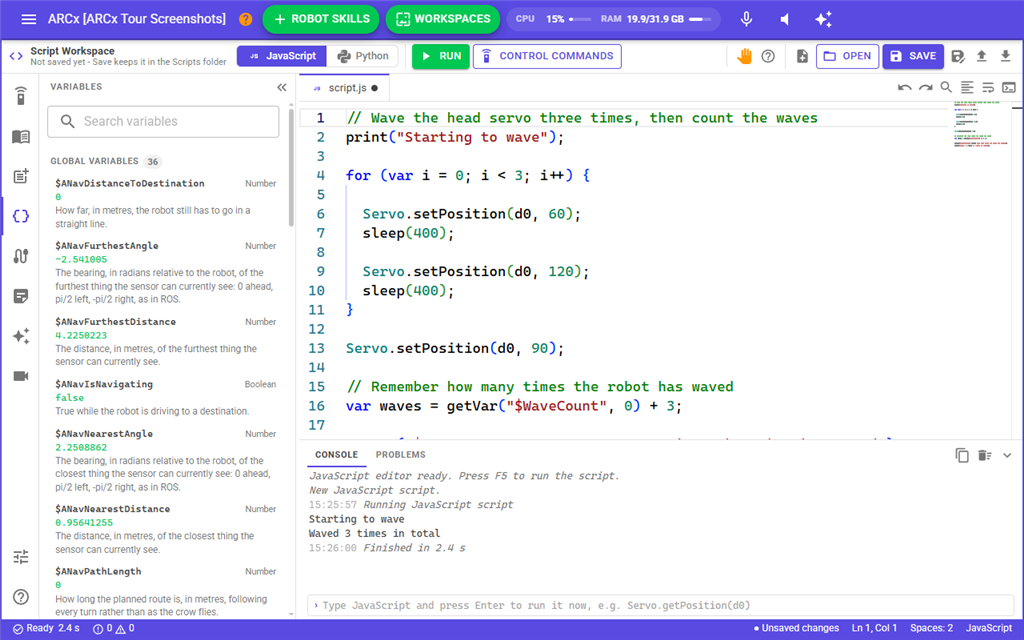
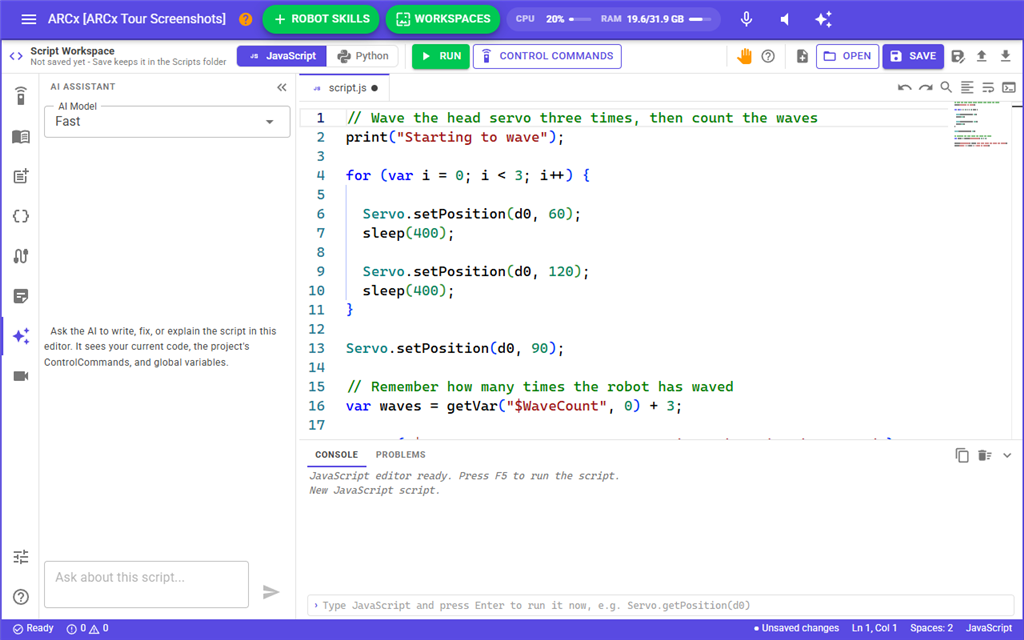
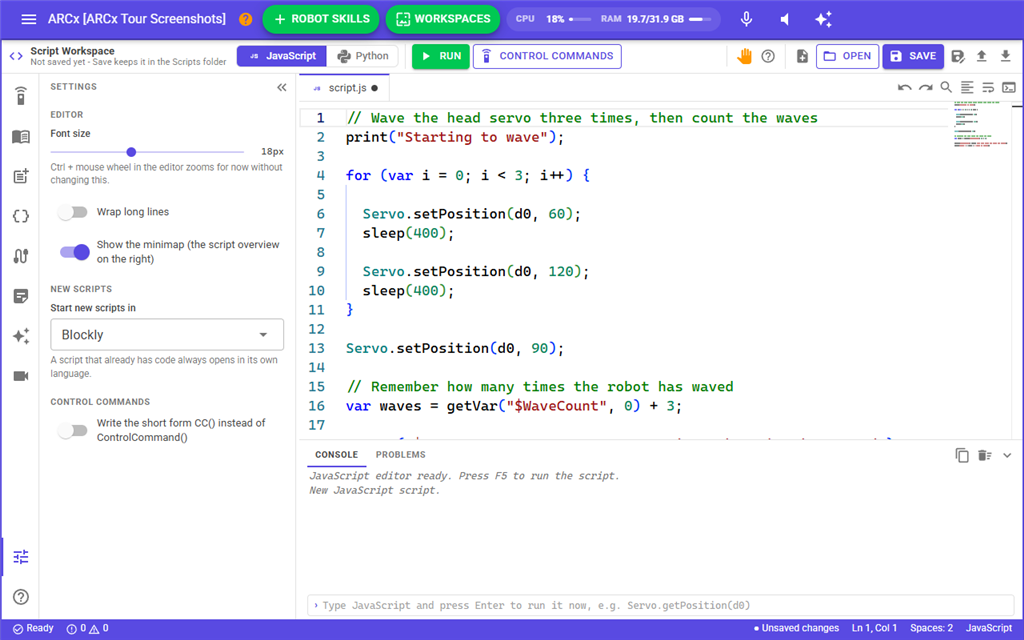
The console and problems
The panel under the script has two tabs, plus a third for Blockly. Drag its top edge to make it taller, or press Ctrl+` to hide and show it.
| Tab | What it shows |
|---|---|
| Console | When the script started, everything it prints, any error, and how long it took. An error names the line it happened on; click it to jump there. The buttons on the right copy and clear the console. |
| Problems | Syntax mistakes found while you type, with their line and column. Click one to jump to it. |
| Generated JavaScript | Blockly only: the JavaScript your blocks turn into, which is what actually runs. The copy button puts it on the clipboard. |
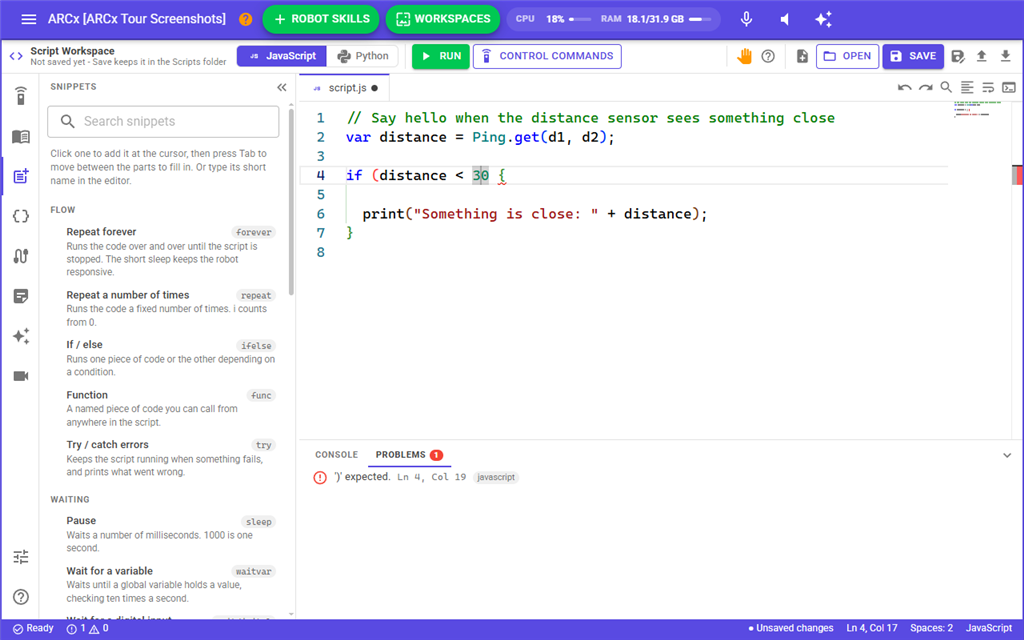
The box under the console runs one line straight away when you press Enter, such as Servo.getPosition(d0) or getVar("$Mood"), and shows the answer. It is handy for checking a value while you write. It is only available while the script is not running.
The status bar
The bar along the bottom shows, from the left: whether the script is Ready, Running or the Last run failed and how long the last run took; how many errors and warnings there are; whether the script has Unsaved changes; the cursor's line and column; and the language. Click the first two to open the console or the problems.
Saving
In an editor opened from a robot skill:
- Ctrl+S saves your changes and keeps the editor open. Discard goes back to the last time you pressed Ctrl+S, or to the script as it was when the editor opened.
- Save & Close keeps the script and closes the editor.
- The script then belongs to the robot skill's configuration. Press Save on the configuration to keep it, and save the project (Side menu → File → Save) to keep it the next time ARCx starts.
In the Script workspace, Save (Ctrl+S) writes the script to a file in the Scripts folder of ARCx Data, and Open brings it back.
Keyboard shortcuts
The Help view (the ? at the bottom of the left column) lists these too.
| Keys | What they do |
|---|---|
| F5 or Ctrl+Enter | Run the script |
| Shift+F5 | Stop it |
| Ctrl+S | Save (the editor stays open) |
| Ctrl+Q | Pick a control command |
| Ctrl+Space | Show suggestions |
| Ctrl+Shift+Space | Show what a command takes |
| Ctrl+F / Ctrl+H | Find / replace |
| Ctrl+/ | Comment or uncomment the selected lines |
| Alt+Up / Alt+Down | Move lines up or down |
| Shift+Alt+F | Tidy the code (JavaScript) |
| Ctrl+B | Show or hide the sidebar |
| Ctrl+` | Show or hide the console |
| F1 | Every editor command |
| Ctrl + mouse wheel | Zoom the code for now, without changing the font size setting |