

Azure-powered speech recognition via Synthiam account, with wake word support, phrase capture, and ARCx scripting/custom UI integration.
 Windows
 ARM
ARM
 Linux
Linux
 MacOS
MacOS
How to add the Azure Speech To Text Engine robot skill
- Load the most recent release of ARCx on a compatible operating system (Get ARCx).
- Press the + Skills menu from the top menu bar in ARCx.
- Choose the Audio category tab.
- Press the Azure Speech To Text Engine icon to add the robot skill to your project.
Don't have a robot yet?
Follow the Getting Started Guide to build a robot and use the Azure Speech To Text Engine robot skill.
How to use the Azure Speech To Text Engine robot skill
Speech recognition through the Synthiam web service, which has Microsoft Azure convert the audio to text on your behalf. There is no API key to obtain and nothing to pay Microsoft: the request is made with the Synthiam account you are signed in to ARCx with. This is ARC's Bing Speech Recognition rebuilt for ARCx.
It records one phrase per request: something asks it to listen, it records until you stop talking, sends the audio, and reports what was said. Your account is allowed a limited number of requests a day.
Because of that it never listens on its own. There are four ways to make it listen, and nothing else will:
- the Listen button in its window, or its microphone widget on a Custom UI screen;
- the GetText ControlCommand from a script;
- the Wait For Speech popup and
Audio.WaitForSpeech(), when it is the project's Wait For Speech engine; - its wake word, set in its configuration - somebody says the phrase and it records what follows.
A robot skill that asks it to listen continuously - Speech Phrase Recognition, an AI skill - does not get a continuous stream out of it, and does not spend your daily allowance waiting for somebody to talk. It gets one phrase each time the wake word is heard. With no wake word set it stays quiet altogether, and says so in the ARCx log.
It does not do text to speech. Pair it with Basic or Advanced Speech Synthesis if the robot should also talk.
Requirements
- A Synthiam account, signed in (Options -> Account). The account is who the request is billed to; recognition fails with a message telling you so if nobody is signed in.
- An internet connection.
- A microphone. This is the audio input ARCx is using, which may be a robot's microphone rather than one attached to this computer.
- Only one instance per project.
Adding it to a project
- Sign in to your Synthiam account in Options -> Account.
- Add the skill to the project (Audio category).
- Open its configuration and set the Language to the culture code that will be spoken, such as
en-US. - Press Listen in the skill's window, say something, and watch the log. That is the whole path - microphone, account, service - checked in one press.
- Add whatever is going to ask it to listen. In Project Properties, the Wait For Speech To Text Engine setting is the one the popup and the script commands use.
The window
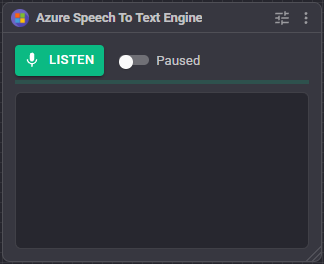
- Listen records one phrase and has it recognized, exactly as any other caller would. The result goes to the log rather than to a script, so this is how you test. While a recording is open the button says Stop, which abandons it.
- Paused refuses every request to listen until it is turned off again. It is not saved with the project.
- The level bar is what is reaching this skill from the ARCx audio input. If it never moves while you speak, the problem is the microphone or the input selected in ARCx, not the service. It is also how you choose a silence threshold: watch the bar in the quiet room and set the threshold just above where it sits.
- The log holds the last 25 lines: when a recording starts and ends, how much audio was sent, the phrase that came back, and the reason for anything that failed.
How a recording ends
A recording is closed and sent as soon as one of these happens:
- The room has been quiet for Stop after silence, once you have actually said something. This is the normal ending.
- Maximum recording is reached, even if you are still talking.
If nothing is said at all within Give up after, nothing is sent. An empty room costs no request, and whatever was waiting is told that no speech was detected instead of waiting out its own timeout.
Wake word
The wake word is how this skill serves a robot skill that wants to listen all the time, without spending a request every few seconds. Another engine in the project - one that can afford to listen all day - waits for the phrase, and only then does this skill record anything.
Open Wake Word in the configuration and pick what listens for it. The Windows Speech Engine is free and local, which is exactly what this wants.
A voice activity detector works here too, and needs no phrase at all: it knows somebody is talking without recognizing any of it, so this skill records the moment anyone speaks. Pick one as the wake word engine and the phrase box disappears. It is the setting for a robot you talk to without a magic word - at the cost of a request whenever anybody in the room speaks.
| Setting | Meaning | Default |
|---|---|---|
| Only listen after a wake word | Turn the wake word on. | off |
| Wake Word Engine | What listens all day. Only engines that can listen continuously are offered, voice activity detectors included. | first found |
| Wake On Any Speech | Wake as soon as anybody talks rather than on a phrase. Forced on, with no phrase to fill in, when the engine above is a detector. | off |
| Wake Phrases | What wakes this engine. Several, separated by commas; any one of them wakes it. Not used when waking on any speech. | hey robot |
| Stay Awake (ms) | How long this engine keeps listening after the wake phrase, refreshed by every phrase it hears. The default of 0 means one wake word, one request - the setting that spends the fewest. Raise it for back and forth conversation, knowing that every phrase spoken in the awake window costs a request. | 0 |
ARCx does the rest, for whichever robot skill happens to be using this engine: it arms the wake word engine, starts this one when the phrase is heard, and stops it again afterwards. A skill that wants to know about it, such as Speech Phrase Recognition, has a script for when the robot wakes and another for when it goes back to sleep.
With the wake word off, this skill does not listen for a robot skill at all. It is not a setting that makes it listen all day; there is no such setting. The ARCx log says so the first time something asks:
only listens when it is triggered, and no wake word is configured in its robot skill
Single phrase requests are unaffected either way - the Wait For Speech popup, an Audio.WaitForSpeech() script, the GetText ControlCommand and the Listen button all record straight away, because asking outright is itself the trigger.
Configuration
| Setting | Meaning |
|---|---|
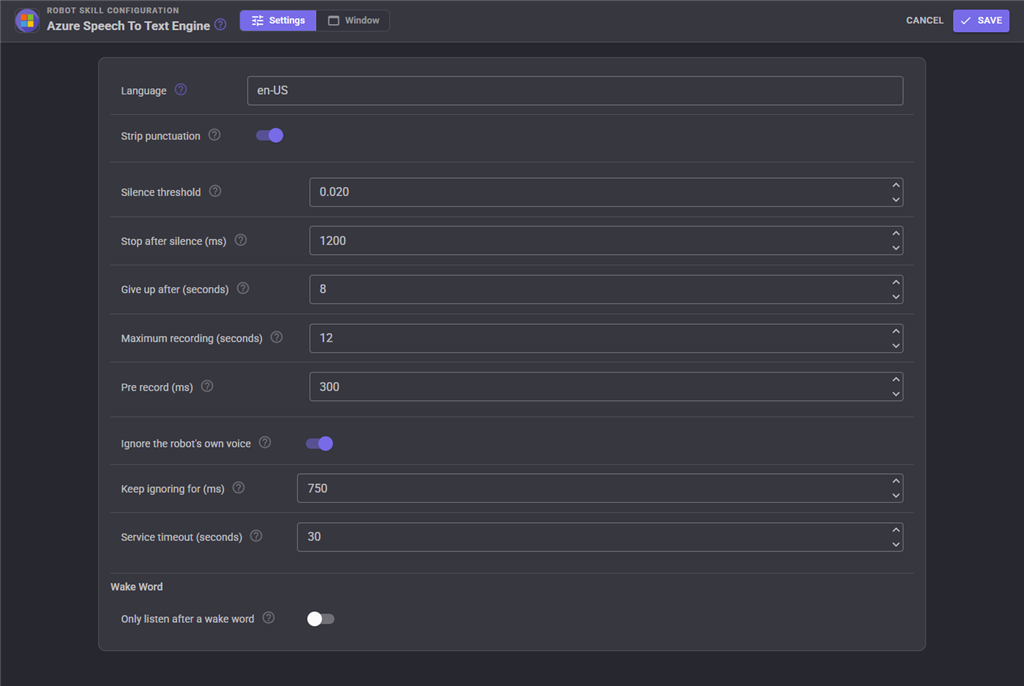
| Language | The culture code that will be spoken, such as en-US, fr-CA or de-DE. One per request - unlike the skill that uses your own Azure key, this service does not auto-detect between several. The list of codes is at https://learn.microsoft.com/en-us/azure/ai-services/speech-service/language-support?tabs=stt. Default en-US. |
| Strip punctuation | Remove commas, periods, exclamation marks and question marks from the result. Phrase lists are written without punctuation, so leaving this on is what makes "Turn left." match the phrase turn left. Default on. |
| Silence threshold | The loudest sample in a frame, 0 to 1, at or above which the frame counts as speech. Raise it in a noisy room, where the background alone keeps the recording open; lower it if the end of a sentence is being cut off. Default 0.02. |
| Stop after silence (ms) | How long the room has to stay quiet, once speech has been heard, before the recording is sent. Default 1200. |
| Give up after (seconds) | How long to wait for anyone to say anything before abandoning the recording unsent. Default 8. |
| Maximum recording (seconds) | The longest recording that is sent. The service refuses audio longer than 20 seconds. Default 12. |
| Pre record (ms) | How much of the audio from just before listening started is included. Recognition is always asked for after something else has already heard you begin, so without this the first syllable is missing. Default 300. |
| Ignore the robot's own voice | Stop recording while the robot is talking, so its own text to speech is not recognized as something that was said to it. Default on. |
| Keep ignoring for (ms) | The tail after the robot stops talking. The audio queue empties before the sound has actually been heard - a connected EZB has most of a second of its own buffering behind it - so without a tail the end of every sentence is recorded. Default 750. |
| Service timeout (seconds) | How long to wait for the service to answer a recording that has been sent. Default 30. |
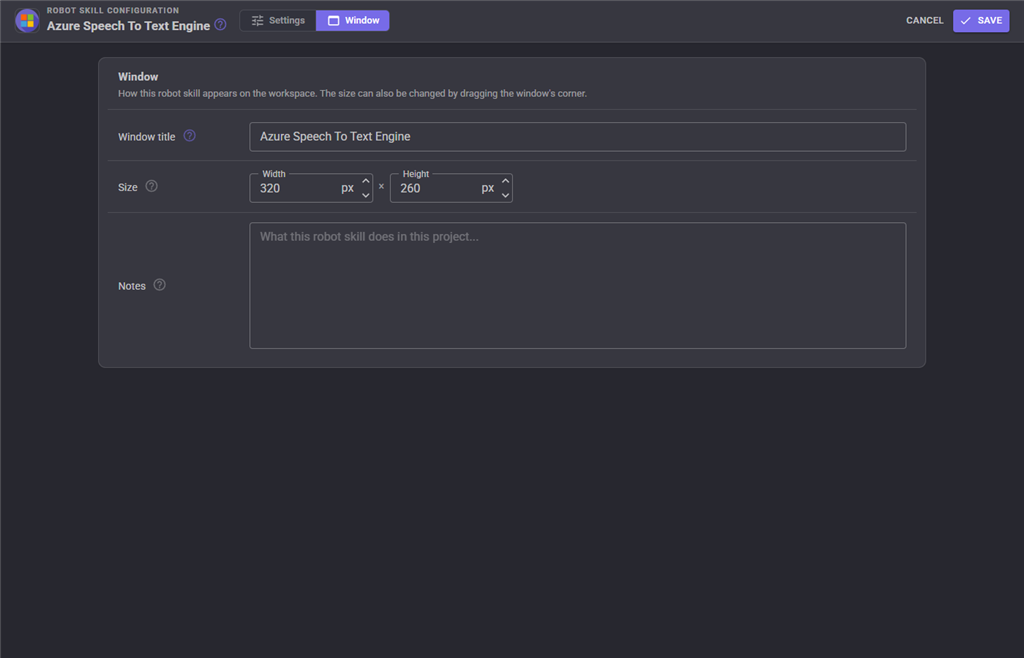
The Window tab sets the robot skill's window title, its size on the workspace and notes about what it does in this project.
Custom UI
The skill offers a Listen widget for your own Custom UI screens: a microphone button that records one phrase, with the audio level beneath it. Its settings are the caption above the button and whether the level is shown.
Phrase lists
A caller can ask to listen for a fixed list of phrases - Audio.WaitForSpeech() does, and so does the Wait For Speech popup. This service recognizes any text and cannot be restricted to a grammar, so the list is used to tidy up the answer instead: when what was heard matches one of the phrases, that phrase is returned in the caller's own wording, so "Turn Left." comes back as turn left. When nothing matches, the recognized text is returned in lower case and the log says it was not one of the phrases that were asked for.
Troubleshooting
| What you see | What it means |
|---|---|
| Sign in to your Synthiam account | Nobody is signed in, so there is no account to bill the request to. Options -> Account. |
| No speech was detected | Nothing crossed the silence threshold before Give up after. Watch the level bar while you speak: if it does not move, ARCx is not receiving audio; if it moves a little, lower the threshold. |
| No speech was recognized (NoMatch) | The audio arrived but the service made nothing of it. Usually too quiet, too far from the microphone, or the wrong Language. |
| Speech to text service error | The request itself failed - no internet, the service is unreachable, or the account is not permitted. The message is the one the service gave. |
| The robot recognizes its own voice | Turn on Ignore the robot's own voice, and raise Keep ignoring for until the tail of each sentence is no longer heard. |
Control Commands for the Azure Speech To Text Engine robot skill
There are Control Commands available for this robot skill which allows the skill to be controlled programmatically from scripts or other robot skills. These commands enable you to automate actions, respond to sensor inputs, and integrate the robot skill with other systems or custom interfaces. If you're new to the concept of Control Commands, we have a comprehensive manual available here that explains how to use them, provides examples to get you started and make the most of this powerful feature.
Control Command ManualThis robot skill has 5 control commands, listed below. Send them from a JavaScript or Python script, from Blockly, or from another robot skill.
The first value is always the window title, which is the name in the title bar of the robot skill on your workspace. It starts out as Azure Speech To Text Engine, which is what every example below uses. If you rename the robot skill, or add a second copy of it to the project, use the title as it appears on that window instead.
ControlCommand() can be shortened to CC(), and both spellings work in JavaScript and in Python. The examples are JavaScript; Python is the same call, except that true and false are written True and False.
GetPause
Is listening currently paused? Returns true|false
Syntax
ControlCommand("Azure Speech To Text Engine", "GetPause")
Returns: Boolean [true or false]
Example
var result = ControlCommand("Azure Speech To Text Engine", "GetPause");
GetText
Listen for one phrase and return what was said. Blocks until the phrase has been recognized, and returns an empty string when nothing was heard or the service failed.
Syntax
ControlCommand("Azure Speech To Text Engine", "GetText")
Returns: String
Example
var result = ControlCommand("Azure Speech To Text Engine", "GetText");
PauseListening
Stop listening, and refuse any request to listen, until UnpauseListening. Returns true.
Syntax
ControlCommand("Azure Speech To Text Engine", "PauseListening")
Returns: Boolean [true or false]
Example
var result = ControlCommand("Azure Speech To Text Engine", "PauseListening");
StopListening
Abandon the recording in progress, if there is one. Whatever asked to listen is told that recognition failed. Returns true.
Syntax
ControlCommand("Azure Speech To Text Engine", "StopListening")
Returns: Boolean [true or false]
Example
var result = ControlCommand("Azure Speech To Text Engine", "StopListening");
UnpauseListening
Resume listening after PauseListening. Returns true.
Syntax
ControlCommand("Azure Speech To Text Engine", "UnpauseListening")
Returns: Boolean [true or false]
Example
var result = ControlCommand("Azure Speech To Text Engine", "UnpauseListening");
This list is read out of the robot skill itself each time its package is uploaded, so it matches the published version (v5).



This robot skill has been updated to v1.
This robot skill has been updated to v2.
This robot skill has been updated to v3.
What has changed
compatible with latest ARCx v2026.09.27.01
This robot skill has been updated to v4.
What has changed
updated to support latest audio service of ARCx 2026.09.28.02
This robot skill has been updated to v5.
What has changed
updated to use some new ARCx UI features for improved performance.