
3D drawing for servos or robot arms: live trail, sketch pad, shapes, SVG import, recording, playback, and AI-assisted control
 Windows
 ARM
ARM
 Linux
Linux
 MacOS
MacOS
How to add the Servo Sketch 3D robot skill
- Load the most recent release of ARCx on a compatible operating system (Get ARCx).
- Press the + Skills menu from the top menu bar in ARCx.
- Choose any of these category tabs, the robot skill appears in each of them: Graphs, Servo.
- Press the Servo Sketch 3D icon to add the robot skill to your project.
Don't have a robot yet?
Follow the Getting Started Guide to build a robot and use the Servo Sketch 3D robot skill.
How to use the Servo Sketch 3D robot skill
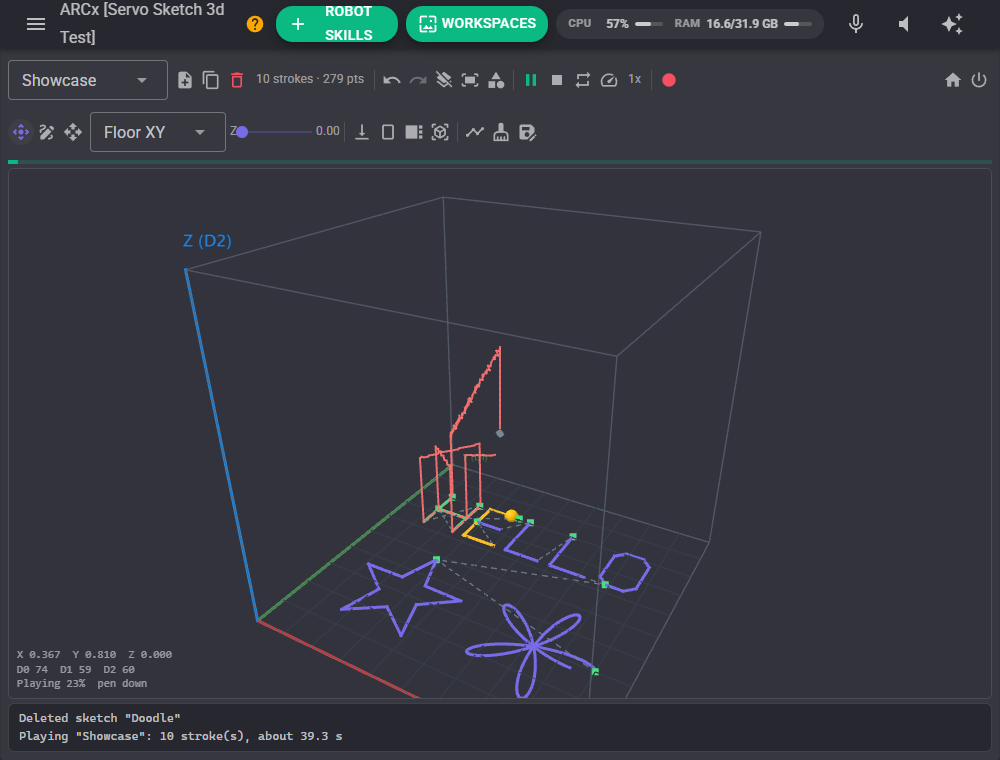
Servo Sketch 3d turns three servos, or a robot arm, into a 3D drawing machine. It plots where the servos (or the arm's end effector) are and have been as a live trail in a 3D view, like the ARC skill of the same name, and it adds a 3D sketch pad: draw with the mouse or a finger, generate shapes and text, import SVG drawings, record what the robot does, and play any of it back to the servos at the speed you choose. A drawing arm writes words, a pan/tilt traces a spiral, a gantry draws a logo.
How the 3D space works
The space is a box where each axis runs from 0 to 1: X left to right, Y front to back, Z bottom to top (the top view shows X to the right and Y up, like a sheet of paper).
| Output | What 0 and 1 mean |
|---|---|
| Servos | Each axis moves its own servos. 0 is the servos' Minimum and 1 their Maximum, and Invert swaps them. Extra servos added with Multiple Servos follow the first. A new skill starts on V0, V1 and V2 over the whole servo range, as in ARC. |
| Kinematic chain | The box is a workspace in front of a robot arm, in millimetres (X forward from the base, Y to its left, Z up). Each point goes to the arm through a kinematic chain published by a provider such as the Kinematics Service robot skill, which works out the joint angles. The box is drawn in its real proportions, and shapes stay round. |
The live view follows the X, Y and Z servos (or the arm) whatever moves them: this skill, a script, Auto Position, a joystick or another skill. When no controller is connected and no chain is published, the view follows what the skill sends instead, so sketches can be tried before the robot is plugged in; the readout says "simulated" when that happens.
The window
The first toolbar is the sketch and its playback:
| Control | What it does |
|---|---|
| Sketch list | The open sketch. Drawing adds to it, Play plays it. |
| New, Duplicate, Delete | Make a new empty sketch, copy the open one, or delete it (it asks first). |
| Undo, Redo | Take the last stroke off, or put it back. |
| Clear | Remove every stroke (it asks first; Redo brings them back one at a time). |
| Fit | Centre the sketch and scale it to fill most of the space. |
| Shapes | Opens the shape generator panel (see below). |
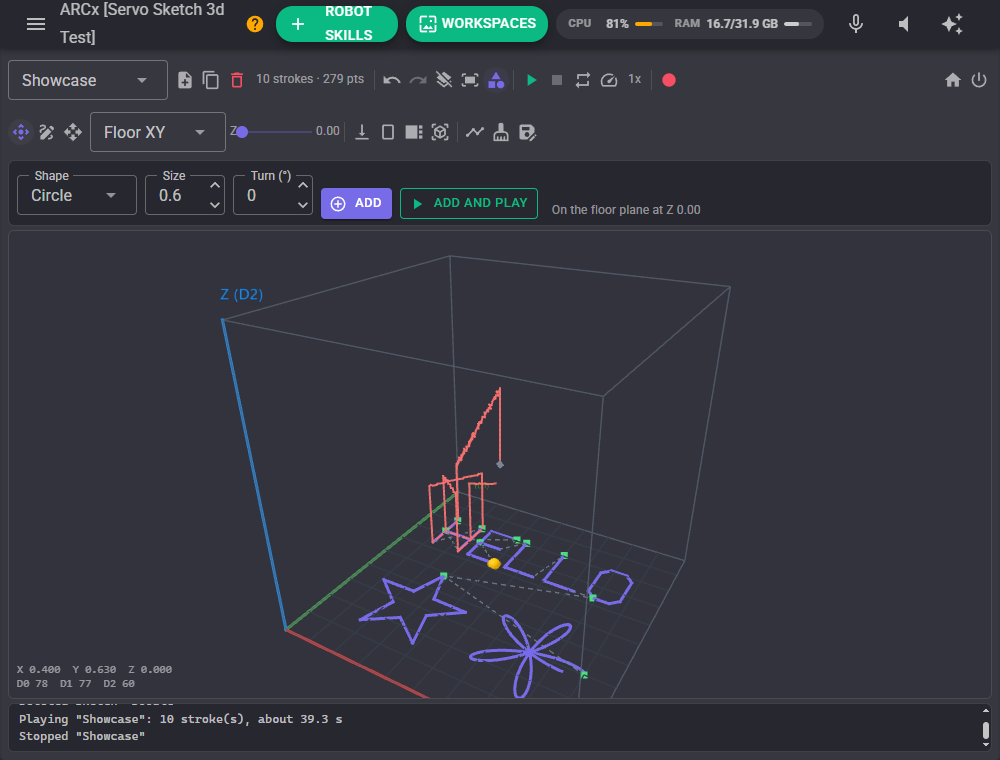
| Play, Pause, Stop | Play the open sketch on the robot, pause it where it is, or stop it. A progress bar shows how far it has got, and strokes turn green as they are finished. |
| Loop | Play over and over until Stop. |
| Speed | The playback speed multiplier, 0.25x to 5x. |
| Record | Records whatever moves the servos or the arm into a new sketch. A pause longer than the stroke gap starts a new stroke. Press again to stop and save it. |
| Home, Release | Glide to the home position; release the servos so they stop holding. |
The second toolbar is the pen, the plane and the camera:
| Control | What it does |
|---|---|
| Orbit | Drag turns the camera around the scene, right drag pans, the wheel zooms. |
| Draw | Drag on the drawing plane to add a stroke to the open sketch. Hold Shift for a straight line from where Shift was pressed, and Ctrl to snap to a grid of twentieths. The right button still turns the camera; with a finger, two fingers turn and zoom. With "Move the robot while drawing" on, the robot follows the pen live. |
| Drive | Drag on the drawing plane to move the robot live without drawing anything. |
| Plane | The plane the pen works on: the floor (XY), the front wall (XZ), the side wall (YZ), or Facing me, which picks whichever faces the camera. |
| Depth slider | Where the plane sits along its third axis (Z for the floor). Shift and the mouse wheel in the view do the same. A drawing arm draws on the floor at Z 0; raise the plane to draw in mid air. |
| Top, Front, Side, Three-quarter | Glide this browser's camera to a preset view. |
| Plot pause, Clear trail, Save trail | Pause the trail (the ARC Pause checkbox), clear it (it asks first), or save it as a new sketch. |
The view shows the space as a box with a floor grid and the X (red), Y (green) and Z (blue) axes labelled with their servo ports or millimetre ranges. The robot is the yellow ball with a line down to its shadow on the floor; the trail is red; the sketch is drawn in the theme colour with a green dot where each stroke starts and dashed lines for the travel between strokes. The corner readout shows the position and the master servo positions.
Shapes and text
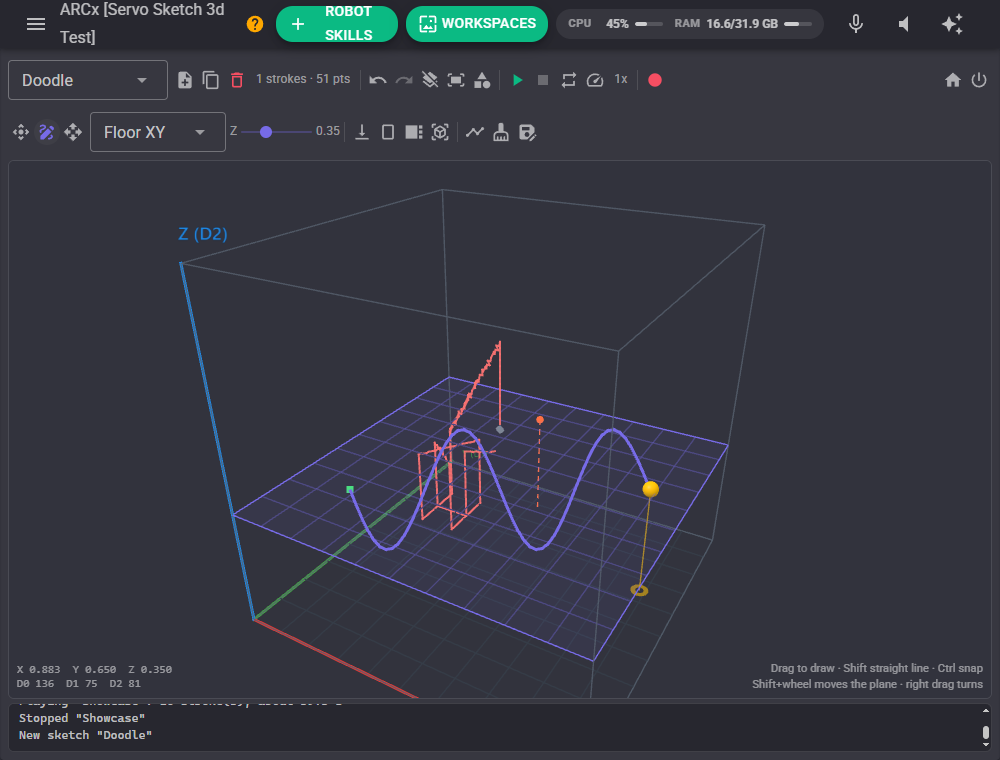
The Shapes button opens a panel that generates a shape into the open sketch, centred on the drawing plane at its depth.
| Shape | Notes |
|---|---|
| Circle, Square, Triangle, Polygon, Star | Polygon has Sides, Star has Points. |
| Spiral, Wave | Turns sets the spiral's turns or the wave's cycles. |
| Heart, Figure eight, Flower | Flower has Petals. |
| Helix, Cube, Sphere spiral, Trefoil knot, Lissajous, Tornado | 3D shapes: they rise out of the plane along its third axis. |
| Text | A single stroke font a pen can draw: A to Z, 0 to 9 and . , ! ? - + = : ' " / * ( ). Lower case is written as upper case; \n starts a new line. |
Size is a fraction of the space and Turn rotates the shape in its plane. Add puts it in the sketch; Add and play also plays it.
Playback
A sketch is a list of strokes. For each stroke the robot travels to its first point with the pen up, puts the pen down, traces every point at the drawing speed, and lifts the pen again. Playback starts from wherever the robot is, so it never jumps. The speeds are in widths of the space per second (0.25 crosses the whole space in 4 seconds), multiplied by the playback speed.
For a drawing machine, the Pen tab lifts the pen between strokes: rise on Z by an amount, a pen servo (down at its Minimum, up at its Maximum), or both. With a kinematic chain, points the arm cannot reach are counted and reported in the log when the sketch finishes.
Configuration
Output
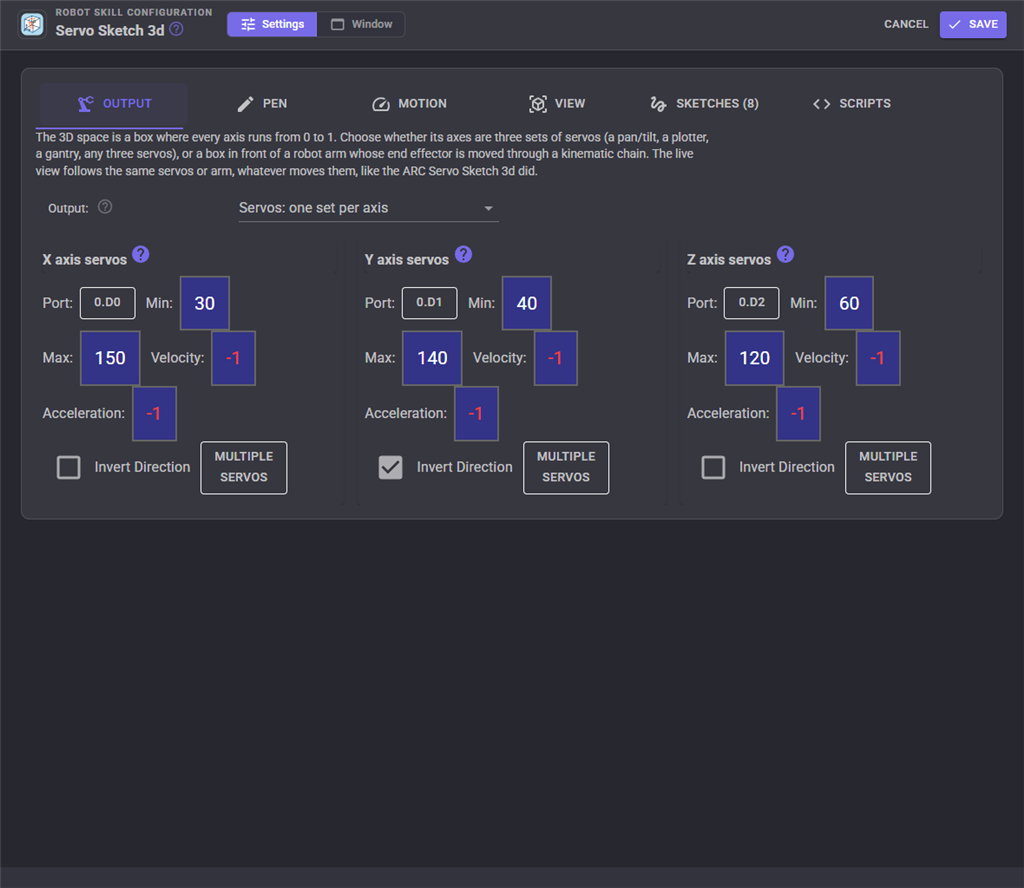
| Setting | Description |
|---|---|
| Output | Servos (a set per axis) or Kinematic chain (a robot arm). |
| X, Y, Z axis servos | Servos mode: the servos of each axis, with their Minimum (0) and Maximum (1), Invert, and extra servos that follow the first. Leave Z unassigned for a flat machine. |
| Kinematic chain | Kinematic chain mode: the arm to drive, with its live position. |
| Workspace box (mm) | Kinematic chain mode: the Min and Max of X, Y and Z the space maps onto, in the arm's frame. Put Z Min at the paper for a drawing arm. |
| Arm update interval (ms) | The shortest time between two moves sent to the arm. Each move runs the arm's solver once. |
Pen
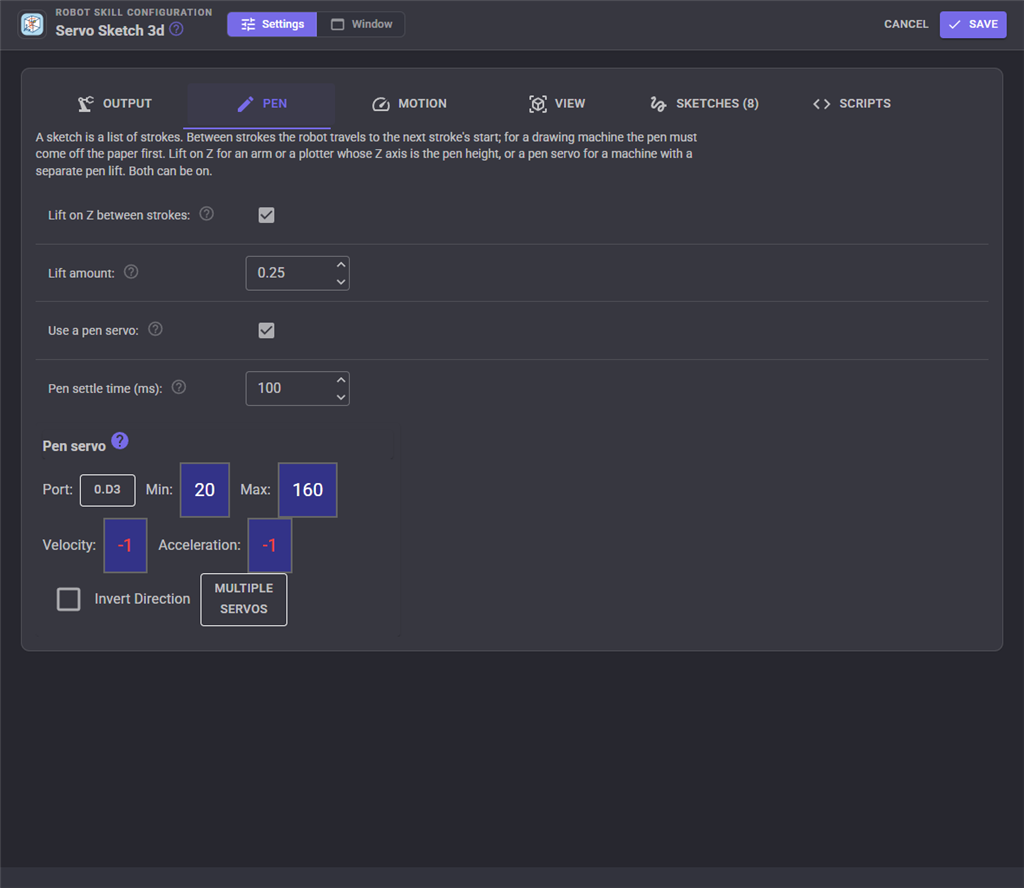
| Setting | Description |
|---|---|
| Lift on Z between strokes | Rise, travel above the drawing, and come down at the next stroke's start. |
| Lift amount | How far to rise, as a fraction of the Z axis. |
| Use a pen servo | Move a pen servo down while drawing and up while travelling. |
| Pen settle time (ms) | How long to wait after the pen servo moves. |
| Pen servo | Minimum is pen down, Maximum is pen up; Invert swaps them. |
Motion
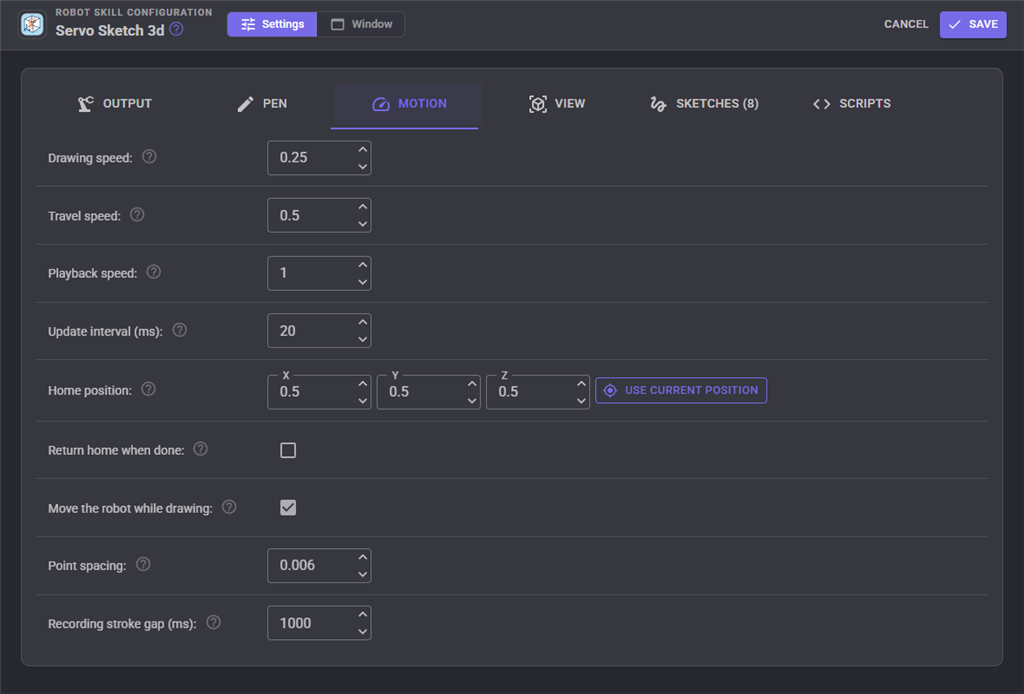
| Setting | Description |
|---|---|
| Drawing speed | How fast the pen moves along a stroke, in widths of the space per second. |
| Travel speed | How fast the robot moves between strokes, and for Home and glides. |
| Playback speed | Multiplies both speeds while a sketch plays. |
| Update interval (ms) | The shortest time between servo updates while moving. |
| Home position | Where Home glides to. Use current position takes the robot's position. |
| Return home when done | Glide home when a sketch finishes. |
| Move the robot while drawing | The robot follows the pen live while a stroke is drawn. |
| Point spacing | The smallest distance between two drawn points. |
| Recording stroke gap (ms) | While recording, a pause longer than this starts a new stroke. |
View
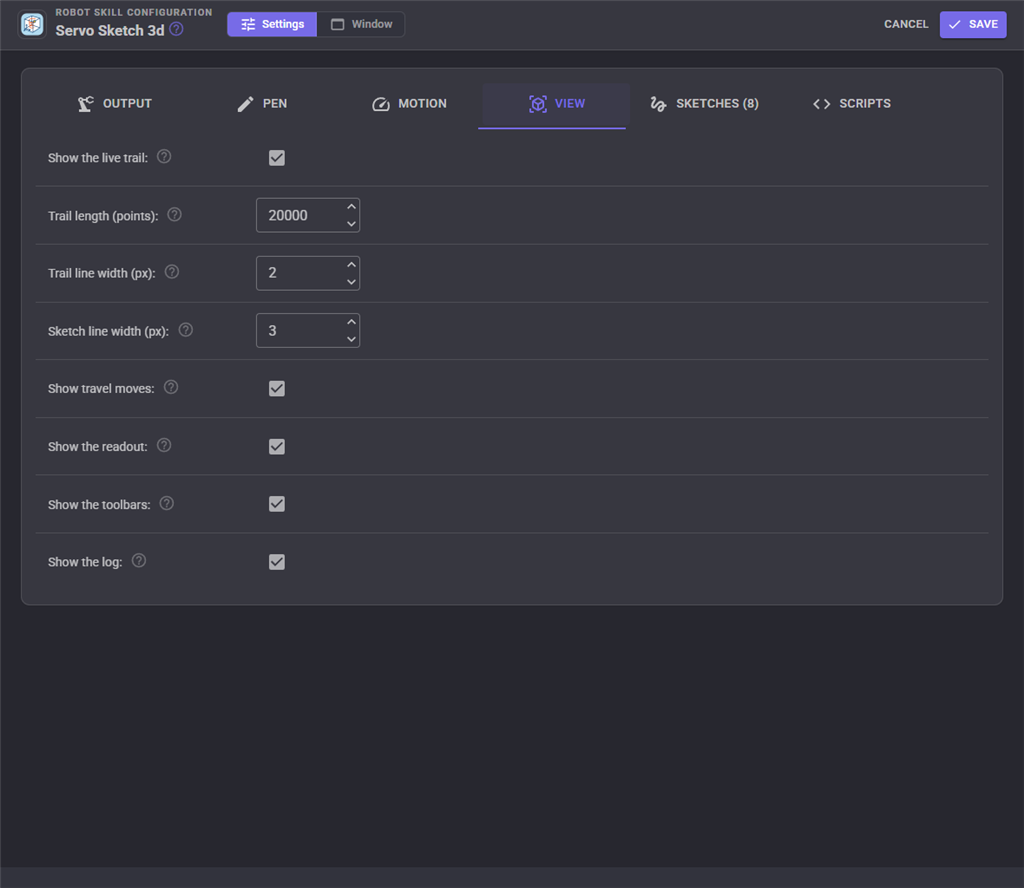
| Setting | Description |
|---|---|
| Show the live trail | Plot where the servos or the arm have been. |
| Trail length (points) | The most points the trail keeps; the oldest go first. |
| Trail and sketch line widths | In pixels. |
| Show travel moves | The dashed lines between strokes. |
| Show the readout | The position and servo positions in the corner of the view. |
| Show the toolbars, Show the log | Turn off for a clean view, i.e. on a Custom UI screen. |
Sketches
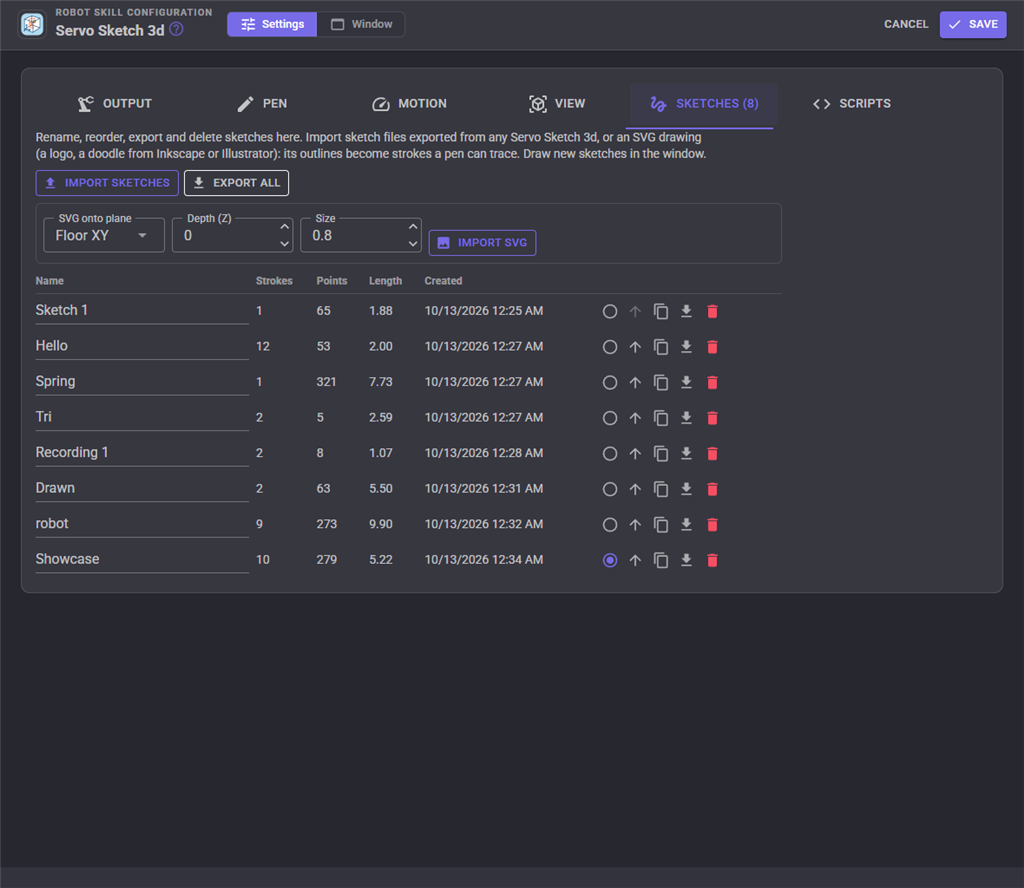
Rename, reorder, duplicate, export and delete sketches, and choose the one open in the window. Import sketches reads files exported from any servo Sketch 3d (JSON, each stroke a list of [x, y, z] points, easy to write from another program). Import SVG reads the outlines of an SVG drawing (paths with lines, curves and arcs, polylines, polygons, lines, rectangles, circles and ellipses, with their transforms) onto the chosen plane, depth and size; fills, colours, text and rounded rectangle corners are ignored. Changes here are kept when you press Save.
Scripts
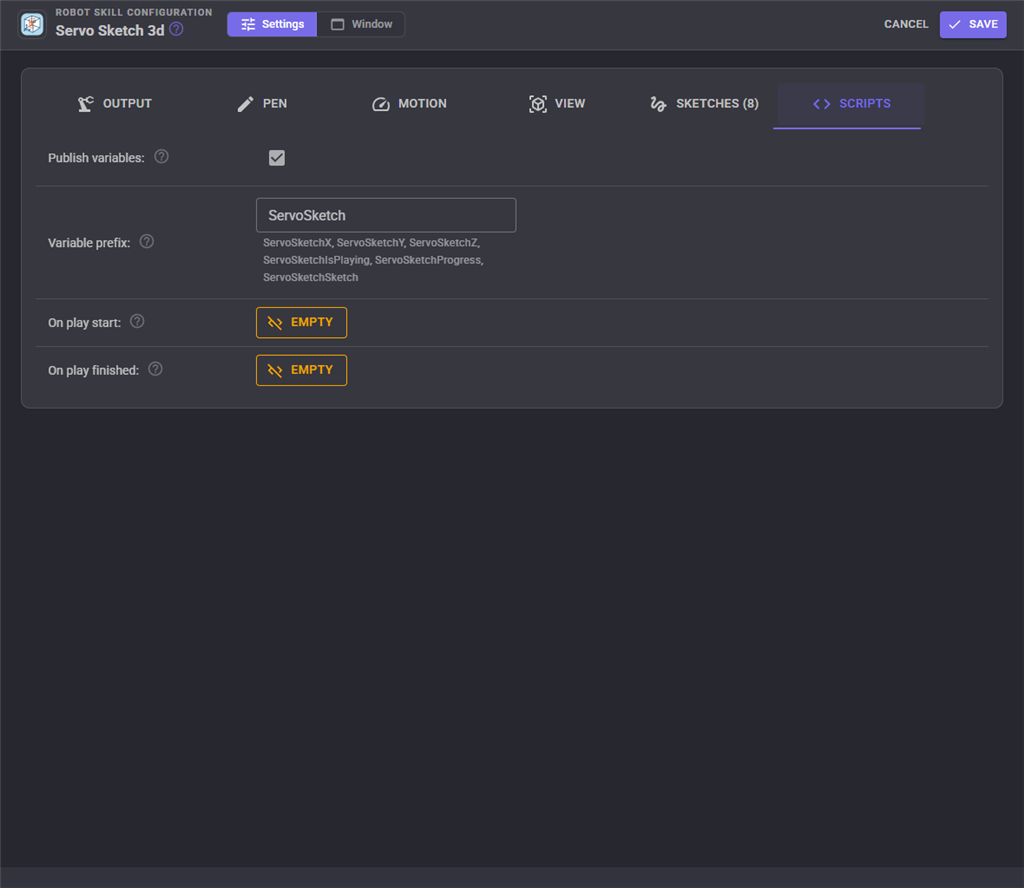
| Setting | Description |
|---|---|
| Publish variables | Publish [prefix]X, [prefix]Y, [prefix]Z (0 to 1), [prefix]IsPlaying, [prefix]Progress (0 to 1) and [prefix]Sketch. |
| Variable prefix | ServoSketch by default. Give every servo Sketch 3d in a project its own. |
| On play start | Runs when a sketch starts playing. |
| On play finished | Runs when a sketch plays to its end on its own, not when it is stopped. |
Scripts
Every action is a control command, so a script can draw and play. This one writes a word and waits for the robot to finish it:
ControlCommand("Servo Sketch 3d", "NewSketch", "Greeting");
ControlCommand("Servo Sketch 3d", "DrawText", "HI THERE", 0.8);
ControlCommand("Servo Sketch 3d", "PlayAndWait", "Greeting");
print("Done at " + ControlCommand("Servo Sketch 3d", "GetPosition"));
The ARC commands keep their names and meaning: Clear clears the trail, TopView, BottomView, LeftView and RightView turn the camera, and PauseOn, PauseOff and GetPause pause the plotting.
Custom UI widgets
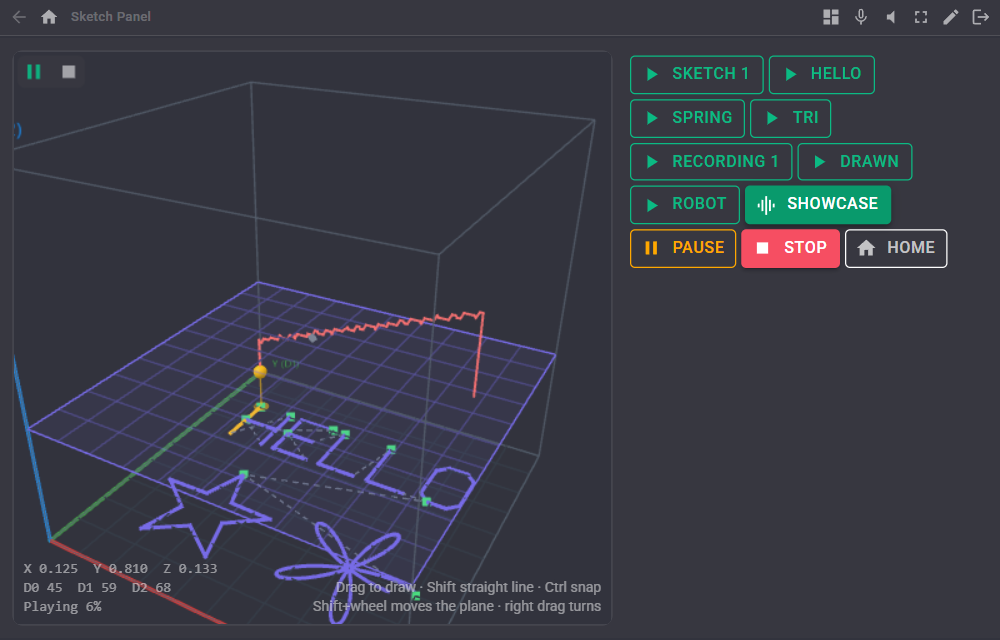
| Widget | Settings |
|---|---|
| 3D view | The live view, with a small play, pause and stop bar. Tool: orbit, draw or drive, so a tablet can draw straight onto the robot. Plane: xy, xz, yz or auto. ShowPlayButtons: true or false. |
| Sketch buttons | A button for each sketch, plus Pause, Stop and Home. Loop: true plays on a loop. ShowHome: true or false. |
AI assistants (MCP)
With ARCx's MCP server on, an AI assistant can draw with the robot. The tools are get_state (where the robot is, the sketches), draw_path (strokes from its own [x, y, z] points), draw_shape (any shape or text), play_sketch (optionally waiting for the end), stop_sketch, move_to, and get_sketch_image, which returns a picture of a sketch from the top, front, side or three-quarter view so the assistant can check a drawing before it plays it.
Tips
- Set each axis servo's Minimum and Maximum to the travel the machine can really do; the whole space maps onto them.
- For a drawing arm, put the paper at Z 0 (the workspace box's Z Min), turn on Lift on Z between strokes, and draw on the floor plane at depth 0.
- Smaller drawing speeds give cleaner lines on real hardware; the playback speed menu speeds a preview up without changing the settings.
- Ports on a second controller show as 1.D0 in the labels and readout.
Control Commands for the Servo Sketch 3D robot skill
There are Control Commands available for this robot skill which allows the skill to be controlled programmatically from scripts or other robot skills. These commands enable you to automate actions, respond to sensor inputs, and integrate the robot skill with other systems or custom interfaces. If you're new to the concept of Control Commands, we have a comprehensive manual available here that explains how to use them, provides examples to get you started and make the most of this powerful feature.
Control Command ManualThis robot skill has 49 control commands, listed below. Send them from a JavaScript or Python script, from Blockly, or from another robot skill.
The first value is always the window title, which is the name in the title bar of the robot skill on your workspace. It starts out as Servo Sketch 3d, which is what every example below uses. If you rename the robot skill, or add a second copy of it to the project, use the title as it appears on that window instead.
ControlCommand() can be shortened to CC(), and both spellings work in JavaScript and in Python. The examples are JavaScript; Python is the same call, except that true and false are written True and False.
AddStroke
Add a stroke to the open sketch from a list of points "x,y,z x,y,z ...", each 0 to 1
Syntax
ControlCommand("Servo Sketch 3d", "AddStroke", (String)points)
Parameters
| # | Name | Type | What to pass |
|---|---|---|---|
| 1 | points | Text | Your text, in quotes |
Returns: Boolean [true or false]
Example
var result = ControlCommand("Servo Sketch 3d", "AddStroke", "points");
BackView
Move the camera to look at the scene from the back
Syntax
ControlCommand("Servo Sketch 3d", "BackView")
Returns: Boolean [true or false]
Example
var result = ControlCommand("Servo Sketch 3d", "BackView");
BottomView
Move the camera to look at the scene from the bottom
Syntax
ControlCommand("Servo Sketch 3d", "BottomView")
Returns: Boolean [true or false]
Example
var result = ControlCommand("Servo Sketch 3d", "BottomView");
Clear
Clear the live trail from the scene (the ARC command). Sketches are not touched
Syntax
ControlCommand("Servo Sketch 3d", "Clear")
Returns: Boolean [true or false]
Example
var result = ControlCommand("Servo Sketch 3d", "Clear");
ClearSketch
Remove every stroke from a sketch, without asking. Leave the name empty for the open sketch
Syntax
ControlCommand("Servo Sketch 3d", "ClearSketch", (String)name)
Parameters
| # | Name | Type | What to pass |
|---|---|---|---|
| 1 | name | Text | Your text, in quotes |
Returns: Boolean [true or false]
Example
var result = ControlCommand("Servo Sketch 3d", "ClearSketch", "name");
DeleteSketch
Delete a sketch, without asking. The last sketch is emptied instead. Returns false when there is no such sketch
Syntax
ControlCommand("Servo Sketch 3d", "DeleteSketch", (String)name)
Parameters
| # | Name | Type | What to pass |
|---|---|---|---|
| 1 | name | Text | Your text, in quotes |
Returns: Boolean [true or false]
Example
var result = ControlCommand("Servo Sketch 3d", "DeleteSketch", "name");
DrawShape
Draw a shape into the open sketch, centred on the drawing plane. shape is one of Circle, Square, Triangle, Polygon, Star, Spiral, Heart, FigureEight, Flower, Wave, Helix, Cube, SphereSpiral, Trefoil, Lissajous, Cone, Text. size is 0.02 to 1 of the space. Returns false when the shape is unknown
Syntax
ControlCommand("Servo Sketch 3d", "DrawShape", (String)shape, (Number)size)
Parameters
| # | Name | Type | What to pass |
|---|---|---|---|
| 1 | shape | Text | Your text, in quotes |
| 2 | size | Number | A number, without quotes |
Returns: Boolean [true or false]
Example
var result = ControlCommand("Servo Sketch 3d", "DrawShape", "shape", 0);
DrawShapeAt
Draw a shape into the open sketch at a centre (x, y, z, each 0 to 1) in a plane (XY, XZ or YZ). shape is one of Circle, Square, Triangle, Polygon, Star, Spiral, Heart, FigureEight, Flower, Wave, Helix, Cube, SphereSpiral, Trefoil, Lissajous, Cone, Text
Syntax
ControlCommand("Servo Sketch 3d", "DrawShapeAt", (String)shape, (Number)x, (Number)y, (Number)z, (Number)size, (String)plane)
Parameters
| # | Name | Type | What to pass |
|---|---|---|---|
| 1 | shape | Text | Your text, in quotes |
| 2 | x | Number | A number, without quotes |
| 3 | y | Number | A number, without quotes |
| 4 | z | Number | A number, without quotes |
| 5 | size | Number | A number, without quotes |
| 6 | plane | Text | Your text, in quotes |
Returns: Boolean [true or false]
Example
var result = ControlCommand("Servo Sketch 3d", "DrawShapeAt", "shape", 0, 0, 0, 0, "plane");
DrawText
Write text into the open sketch in a single stroke font a pen can draw, centred on the drawing plane. Characters: A-Z 0-9 . , ! ? - + = : ' " / * ( ); \n starts a new line. size is 0.02 to 1 of the space
Syntax
ControlCommand("Servo Sketch 3d", "DrawText", (String)text, (Number)size)
Parameters
| # | Name | Type | What to pass |
|---|---|---|---|
| 1 | text | Text | Your text, in quotes |
| 2 | size | Number | A number, without quotes |
Returns: Boolean [true or false]
Example
var result = ControlCommand("Servo Sketch 3d", "DrawText", "text", 0);
FitSketch
Centre a sketch and scale it to fill most of the space. Leave the name empty for the open sketch
Syntax
ControlCommand("Servo Sketch 3d", "FitSketch", (String)name)
Parameters
| # | Name | Type | What to pass |
|---|---|---|---|
| 1 | name | Text | Your text, in quotes |
Returns: Boolean [true or false]
Example
var result = ControlCommand("Servo Sketch 3d", "FitSketch", "name");
FrontView
Move the camera to look at the scene from the front (the XZ plane, X to the right)
Syntax
ControlCommand("Servo Sketch 3d", "FrontView")
Returns: Boolean [true or false]
Example
var result = ControlCommand("Servo Sketch 3d", "FrontView");
GetActiveSketch
The name of the sketch open in the window
Syntax
ControlCommand("Servo Sketch 3d", "GetActiveSketch")
Returns: String
Example
var result = ControlCommand("Servo Sketch 3d", "GetActiveSketch");
GetPause
Whether the plotting of positions is paused
Syntax
ControlCommand("Servo Sketch 3d", "GetPause")
Returns: Boolean [true or false]
Example
var result = ControlCommand("Servo Sketch 3d", "GetPause");
GetPosition
Where the robot is as [x, y, z], each 0 to 1 (-1 before it is known)
Syntax
ControlCommand("Servo Sketch 3d", "GetPosition")
Returns: Array of Double
Example
var result = ControlCommand("Servo Sketch 3d", "GetPosition");
GetPositionMm
Kinematic chain mode: where the end effector is as [x, y, z] in millimetres in the arm's frame
Syntax
ControlCommand("Servo Sketch 3d", "GetPositionMm")
Returns: Array of Double
Example
var result = ControlCommand("Servo Sketch 3d", "GetPositionMm");
GetProgress
How far through the playing sketch, 0 to 1. 0 when nothing plays
Syntax
ControlCommand("Servo Sketch 3d", "GetProgress")
Returns: Double [5.0e324 to 1.7e308]
Example
var result = ControlCommand("Servo Sketch 3d", "GetProgress");
GetSketches
The names of the saved sketches
Syntax
ControlCommand("Servo Sketch 3d", "GetSketches")
Returns: Array of String
Example
var result = ControlCommand("Servo Sketch 3d", "GetSketches");
GetSpeed
The playback speed multiplier
Syntax
ControlCommand("Servo Sketch 3d", "GetSpeed")
Returns: Double [5.0e324 to 1.7e308]
Example
var result = ControlCommand("Servo Sketch 3d", "GetSpeed");
GetX
Where the robot is on the X axis, 0 to 1 (-1 before it is known)
Syntax
ControlCommand("Servo Sketch 3d", "GetX")
Returns: Double [5.0e324 to 1.7e308]
Example
var result = ControlCommand("Servo Sketch 3d", "GetX");
GetY
Where the robot is on the Y axis, 0 to 1 (-1 before it is known)
Syntax
ControlCommand("Servo Sketch 3d", "GetY")
Returns: Double [5.0e324 to 1.7e308]
Example
var result = ControlCommand("Servo Sketch 3d", "GetY");
GetZ
Where the robot is on the Z axis, 0 to 1 (-1 before it is known)
Syntax
ControlCommand("Servo Sketch 3d", "GetZ")
Returns: Double [5.0e324 to 1.7e308]
Example
var result = ControlCommand("Servo Sketch 3d", "GetZ");
GlideTo
Glide in a straight line to a point over a number of milliseconds (0 for the travel speed). x, y and z are 0 to 1. Returns straight away
Syntax
ControlCommand("Servo Sketch 3d", "GlideTo", (Number)x, (Number)y, (Number)z, (Number)milliseconds)
Parameters
| # | Name | Type | What to pass |
|---|---|---|---|
| 1 | x | Number | A number, without quotes |
| 2 | y | Number | A number, without quotes |
| 3 | z | Number | A number, without quotes |
| 4 | milliseconds | Number | A number, without quotes |
Returns: Boolean [true or false]
Example
var result = ControlCommand("Servo Sketch 3d", "GlideTo", 0, 0, 0, 0);
GoHome
Glide to the home position set in the configuration
Syntax
ControlCommand("Servo Sketch 3d", "GoHome")
Returns: Boolean [true or false]
Example
var result = ControlCommand("Servo Sketch 3d", "GoHome");
IsoView
Move the camera to the three-quarter view it starts in
Syntax
ControlCommand("Servo Sketch 3d", "IsoView")
Returns: Boolean [true or false]
Example
var result = ControlCommand("Servo Sketch 3d", "IsoView");
IsPlaying
Whether a sketch is playing (true while paused, too)
Syntax
ControlCommand("Servo Sketch 3d", "IsPlaying")
Returns: Boolean [true or false]
Example
var result = ControlCommand("Servo Sketch 3d", "IsPlaying");
IsRecording
Whether the live position is being recorded
Syntax
ControlCommand("Servo Sketch 3d", "IsRecording")
Returns: Boolean [true or false]
Example
var result = ControlCommand("Servo Sketch 3d", "IsRecording");
LeftView
Move the camera to look at the scene from the left
Syntax
ControlCommand("Servo Sketch 3d", "LeftView")
Returns: Boolean [true or false]
Example
var result = ControlCommand("Servo Sketch 3d", "LeftView");
MoveTo
Move straight to a point at once. x, y and z are 0 to 1
Syntax
ControlCommand("Servo Sketch 3d", "MoveTo", (Number)x, (Number)y, (Number)z)
Parameters
| # | Name | Type | What to pass |
|---|---|---|---|
| 1 | x | Number | A number, without quotes |
| 2 | y | Number | A number, without quotes |
| 3 | z | Number | A number, without quotes |
Returns: Boolean [true or false]
Example
var result = ControlCommand("Servo Sketch 3d", "MoveTo", 0, 0, 0);
NewSketch
Make a new empty sketch and open it. Returns its name, made unique if it is taken
Syntax
ControlCommand("Servo Sketch 3d", "NewSketch", (String)name)
Parameters
| # | Name | Type | What to pass |
|---|---|---|---|
| 1 | name | Text | Your text, in quotes |
Returns: String
Example
var result = ControlCommand("Servo Sketch 3d", "NewSketch", "name");
PauseOff
Un-pause the plotting of positions
Syntax
ControlCommand("Servo Sketch 3d", "PauseOff")
Returns: Boolean [true or false]
Example
var result = ControlCommand("Servo Sketch 3d", "PauseOff");
PauseOn
Pause the plotting of positions: the trail stops growing
Syntax
ControlCommand("Servo Sketch 3d", "PauseOn")
Returns: Boolean [true or false]
Example
var result = ControlCommand("Servo Sketch 3d", "PauseOn");
PausePlayback
Pause the playing sketch where it is. Returns false when nothing is playing
Syntax
ControlCommand("Servo Sketch 3d", "PausePlayback")
Returns: Boolean [true or false]
Example
var result = ControlCommand("Servo Sketch 3d", "PausePlayback");
Play
Play a sketch: the robot traces it. Leave the name empty for the open sketch. Returns straight away; use PlayAndWait to wait for the end. Returns false when there is no such sketch or it is empty
Syntax
ControlCommand("Servo Sketch 3d", "Play", (String)name)
Parameters
| # | Name | Type | What to pass |
|---|---|---|---|
| 1 | name | Text | Your text, in quotes |
Returns: Boolean [true or false]
Example
var result = ControlCommand("Servo Sketch 3d", "Play", "name");
PlayAndWait
Play a sketch once and wait until it ends. Returns true when it played to the end, false when it was stopped or could not play. Stopping the script stops the robot
Syntax
ControlCommand("Servo Sketch 3d", "PlayAndWait", (String)name)
Parameters
| # | Name | Type | What to pass |
|---|---|---|---|
| 1 | name | Text | Your text, in quotes |
Returns: Boolean [true or false]
Example
var result = ControlCommand("Servo Sketch 3d", "PlayAndWait", "name");
PlayLoop
Play a sketch over and over until Stop. Leave the name empty for the open sketch
Syntax
ControlCommand("Servo Sketch 3d", "PlayLoop", (String)name)
Parameters
| # | Name | Type | What to pass |
|---|---|---|---|
| 1 | name | Text | Your text, in quotes |
Returns: Boolean [true or false]
Example
var result = ControlCommand("Servo Sketch 3d", "PlayLoop", "name");
RedoStroke
Put the last undone stroke back
Syntax
ControlCommand("Servo Sketch 3d", "RedoStroke")
Returns: Boolean [true or false]
Example
var result = ControlCommand("Servo Sketch 3d", "RedoStroke");
ReleaseServos
Stop and release the axis and pen servos so they stop holding
Syntax
ControlCommand("Servo Sketch 3d", "ReleaseServos")
Returns: Boolean [true or false]
Example
var result = ControlCommand("Servo Sketch 3d", "ReleaseServos");
RenameSketch
Rename a sketch. Returns the new name (made unique), or an empty string when there is no such sketch
Syntax
ControlCommand("Servo Sketch 3d", "RenameSketch", (String)name, (String)newName)
Parameters
| # | Name | Type | What to pass |
|---|---|---|---|
| 1 | name | Text | Your text, in quotes |
| 2 | newName | Text | Your text, in quotes |
Returns: String
Example
var result = ControlCommand("Servo Sketch 3d", "RenameSketch", "name", "newName");
ResumePlayback
Carry on with a paused sketch
Syntax
ControlCommand("Servo Sketch 3d", "ResumePlayback")
Returns: Boolean [true or false]
Example
var result = ControlCommand("Servo Sketch 3d", "ResumePlayback");
RightView
Move the camera to look at the scene from the right
Syntax
ControlCommand("Servo Sketch 3d", "RightView")
Returns: Boolean [true or false]
Example
var result = ControlCommand("Servo Sketch 3d", "RightView");
SaveTrail
Save the live trail as a new sketch and open it. Returns its name, or an empty string when the trail is empty
Syntax
ControlCommand("Servo Sketch 3d", "SaveTrail", (String)name)
Parameters
| # | Name | Type | What to pass |
|---|---|---|---|
| 1 | name | Text | Your text, in quotes |
Returns: String
Example
var result = ControlCommand("Servo Sketch 3d", "SaveTrail", "name");
SelectSketch
Open a sketch in the window, for drawing into and playing. Returns false when there is no such sketch
Syntax
ControlCommand("Servo Sketch 3d", "SelectSketch", (String)name)
Parameters
| # | Name | Type | What to pass |
|---|---|---|---|
| 1 | name | Text | Your text, in quotes |
Returns: Boolean [true or false]
Example
var result = ControlCommand("Servo Sketch 3d", "SelectSketch", "name");
SetDrawPlane
Set the window's drawing plane (XY, XZ, YZ or Auto) and its depth along the third axis, 0 to 1 (Z for XY, Y for XZ, X for YZ)
Syntax
ControlCommand("Servo Sketch 3d", "SetDrawPlane", (String)plane, (Number)depth)
Parameters
| # | Name | Type | What to pass |
|---|---|---|---|
| 1 | plane | Text | Your text, in quotes |
| 2 | depth | Number | A number, without quotes |
Returns: Boolean [true or false]
Example
var result = ControlCommand("Servo Sketch 3d", "SetDrawPlane", "plane", 0);
SetSpeed
Set the playback speed multiplier: 1 as configured, 0.5 half speed, 2 double (0.05 to 10). Takes effect at once. Returns the speed set
Syntax
ControlCommand("Servo Sketch 3d", "SetSpeed", (Number)multiplier)
Parameters
| # | Name | Type | What to pass |
|---|---|---|---|
| 1 | multiplier | Number | A number, without quotes |
Returns: Double [5.0e324 to 1.7e308]
Example
var result = ControlCommand("Servo Sketch 3d", "SetSpeed", 0);
StartRecording
Start recording the live position (whatever moves the servos or the arm) into a new sketch
Syntax
ControlCommand("Servo Sketch 3d", "StartRecording")
Returns: Boolean [true or false]
Example
var result = ControlCommand("Servo Sketch 3d", "StartRecording");
Stop
Stop the sketch (or glide) in progress. The robot stays where it is. Returns false when nothing was moving
Syntax
ControlCommand("Servo Sketch 3d", "Stop")
Returns: Boolean [true or false]
Example
var result = ControlCommand("Servo Sketch 3d", "Stop");
StopRecording
Stop recording and save it as a sketch, which is opened. Returns its name, or an empty string when nothing moved
Syntax
ControlCommand("Servo Sketch 3d", "StopRecording")
Returns: String
Example
var result = ControlCommand("Servo Sketch 3d", "StopRecording");
TopView
Move the camera to look at the scene from the top
Syntax
ControlCommand("Servo Sketch 3d", "TopView")
Returns: Boolean [true or false]
Example
var result = ControlCommand("Servo Sketch 3d", "TopView");
UndoStroke
Take the last stroke off the open sketch
Syntax
ControlCommand("Servo Sketch 3d", "UndoStroke")
Returns: Boolean [true or false]
Example
var result = ControlCommand("Servo Sketch 3d", "UndoStroke");
This list is read out of the robot skill itself each time its package is uploaded, so it matches the published version (v1).

This robot skill has been updated to v1.
What has changed
initial release